Linking a Community in a Course
In this article, you will learn how to promote your community directly within a course.
Last updated 12 months ago
This is how you can easily insert a link to the community into a lesson and specifically invite your users to get active and exchange ideas with other participants.
How it Works:
Navigate to the Community menu item to make further settings there.
Go to the three dots and then to Community Settings.

Under the General section, you can copy the link to your community.

Then, navigate to the course where you want to insert the link to the community.
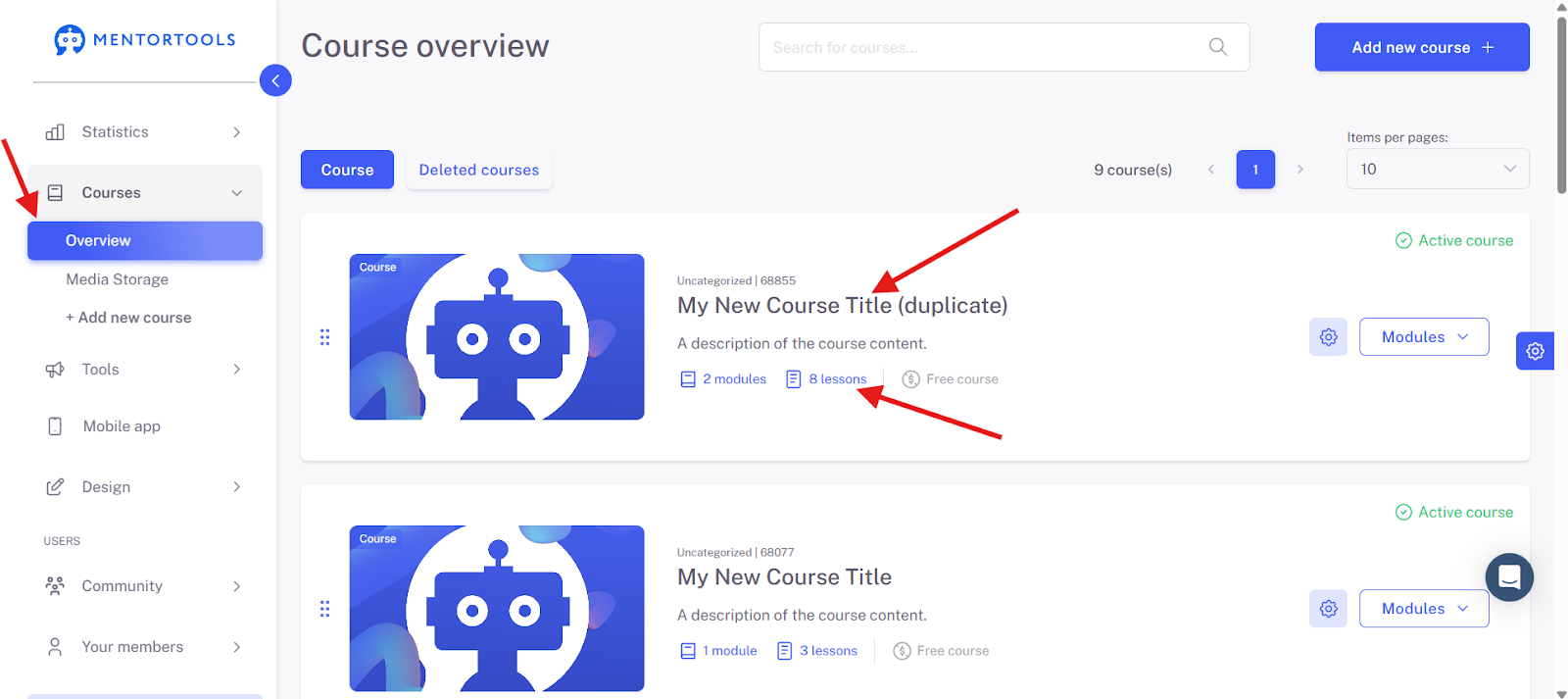
Open the desired lesson and start editing.
You have two options to draw attention to the community: Either you insert the link directly into the text or you create a separate, eye-catching button.
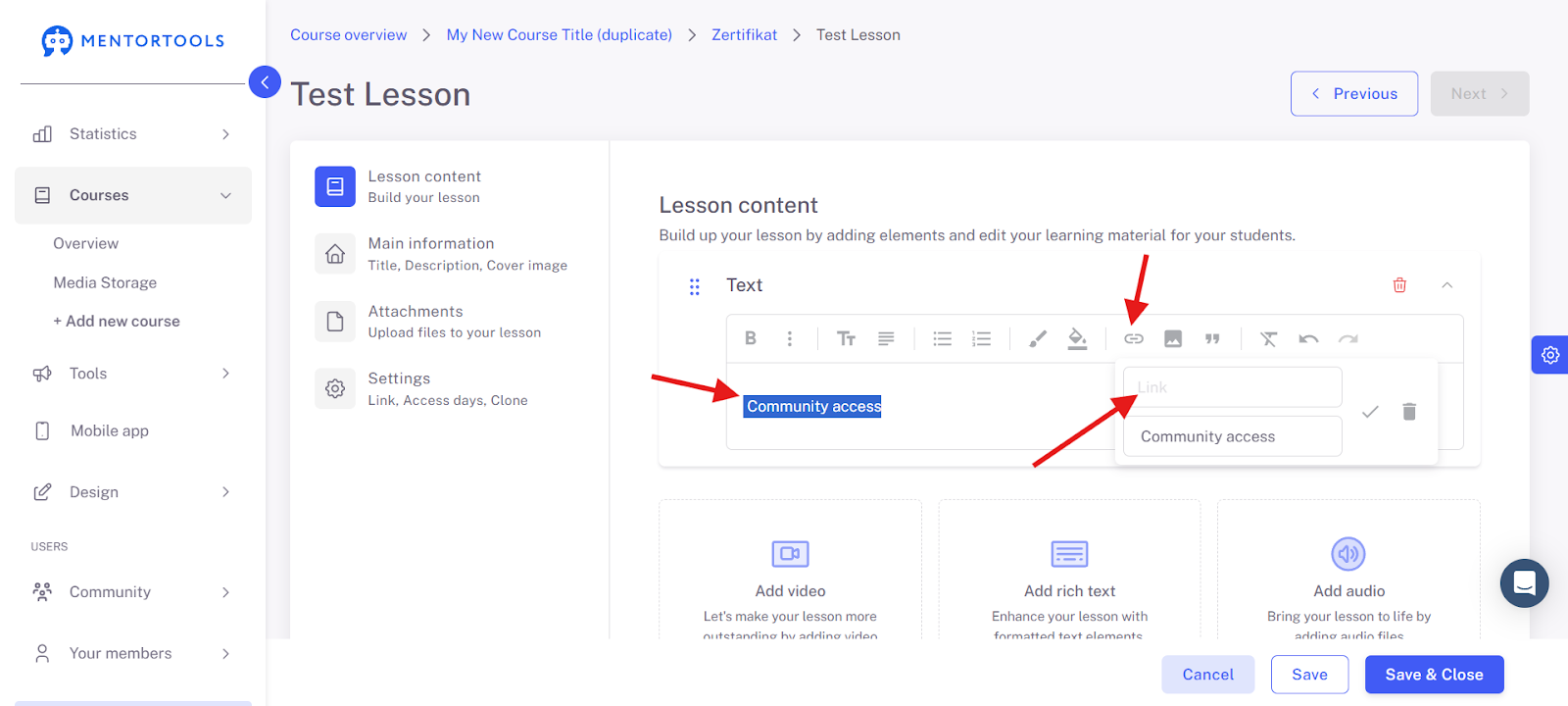
Here's how you can embed the link directly into the text:

Highlight the text you want to link, go to the hyperlink icon, and insert the link to the community in the Link field.
Now, we will show you how you can insert the link to the community behind a button. Stay in the lesson editor and select the button icon.

Enter the text that should appear on the button—e.g., "Click here to go to the community"—and insert the link to the community in the field.

You can also change the color of the button here to match your corporate design.
Important: Finally, click "Save & Close" in the bottom right corner.