How to Use Mentortools as a Mobile Icon?
Last updated 11 months ago
Basically, an icon on your phone or tablet is not an "original" app that you can download from the store, but rather a mobile website and a link to it on your phone.
You can also create a proper mobile app for your member area; you can find out how to do this in this guide.
In Mentortools, it's possible to get an icon on your phone. This icon will also use your logo and not ours. You define the icon through the logos here.
A simple overview of how to do this looks like this:
IOS System – Apple Devices – Safari Browser
Open the Safari Browser.
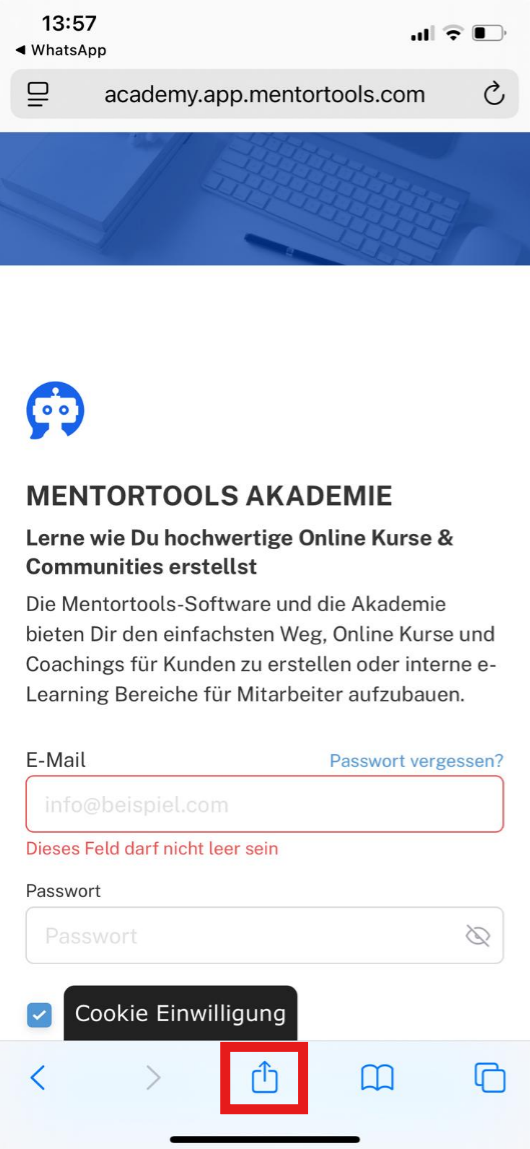
Go to your member area page (e.g., https://academy.app.mentortools.com/).
Tap the Share Icon in the bottom menu bar.
Then scroll down a bit and select the menu item “Add to Home Screen” (box with plus symbol).
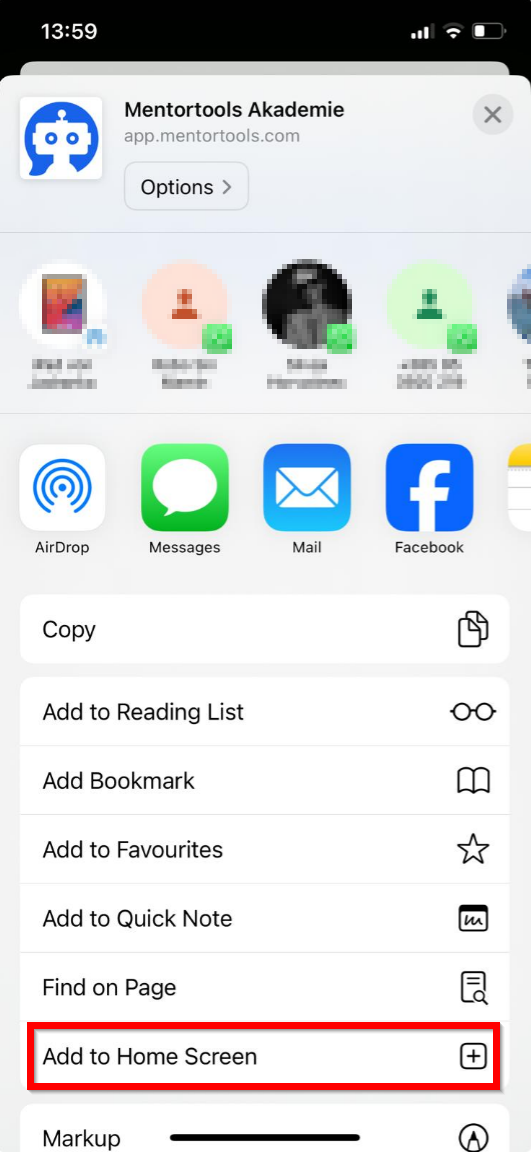
Click “Add” in the top right corner.


Android System – Other Smartphones
Open the Google Chrome Browser.
Go to your member area page (https://academy.app.mentortools.com/).
Go to the Settings Menu in the top right (3 vertical dots).

Select the menu item “Add to Home Screen”.

Click “Add”.

IMPORTANT
You are also able to change the “App Icon” individually. To do this, change the Social Media Image in your design – see this guide here.
Have fun and success,
Team Mentortools