Clear Browser Cache
You should clear your browser data at least once every week, if possible. Depending on how many programs you use and how often, it can lead to content and functions being displayed or loaded incorrectly. You will learn how to clear your browser cache in this article.
Last updated 11 months ago
Safari Browser
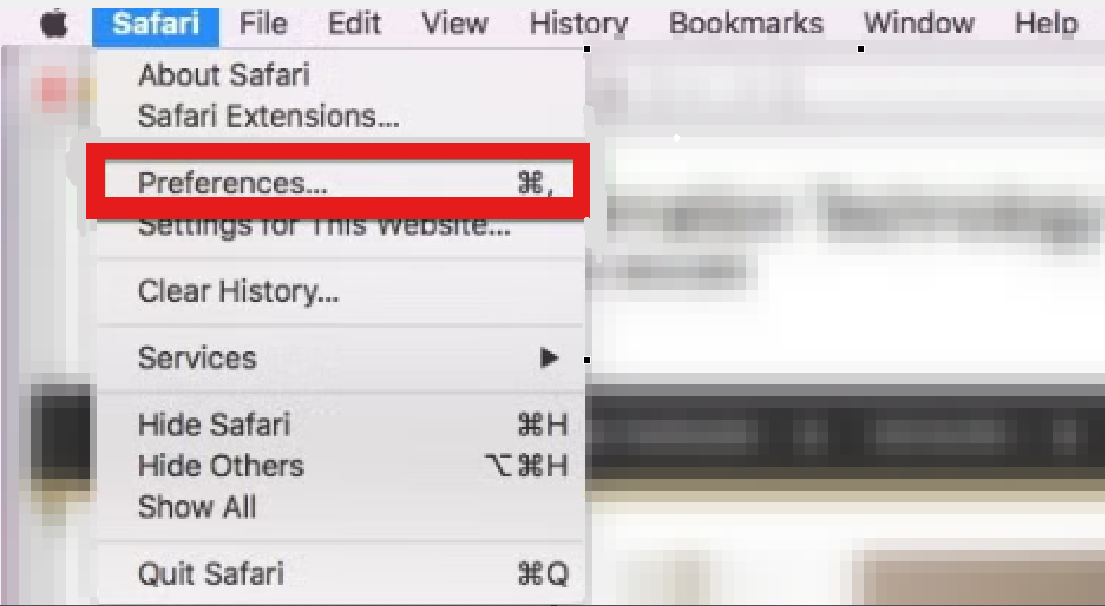
First, check whether you have enabled the "Develop menu" in your browser. To do this, click on "Safari" at the top left of your browser. Then click on "Preferences".
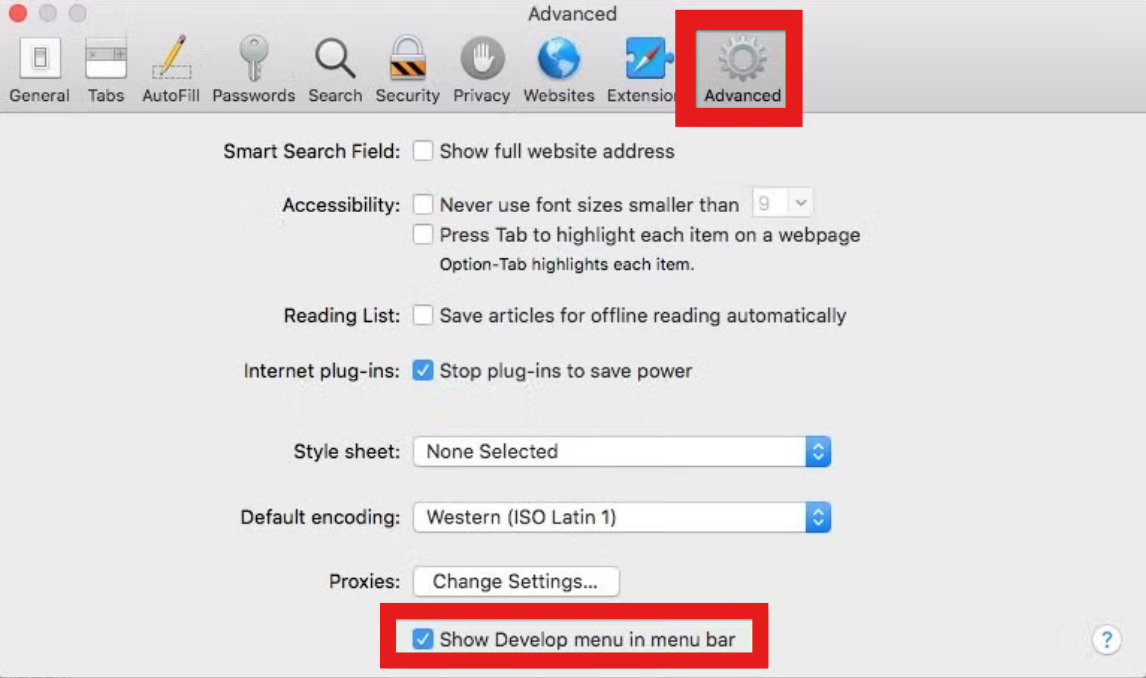
A new window will then open. Click on the "Advanced" tab and then check the box next to "Show Develop menu in menu bar".
Once you've done that, you can click on "Develop" in your browser and then select "Empty Caches".

Chrome Browser
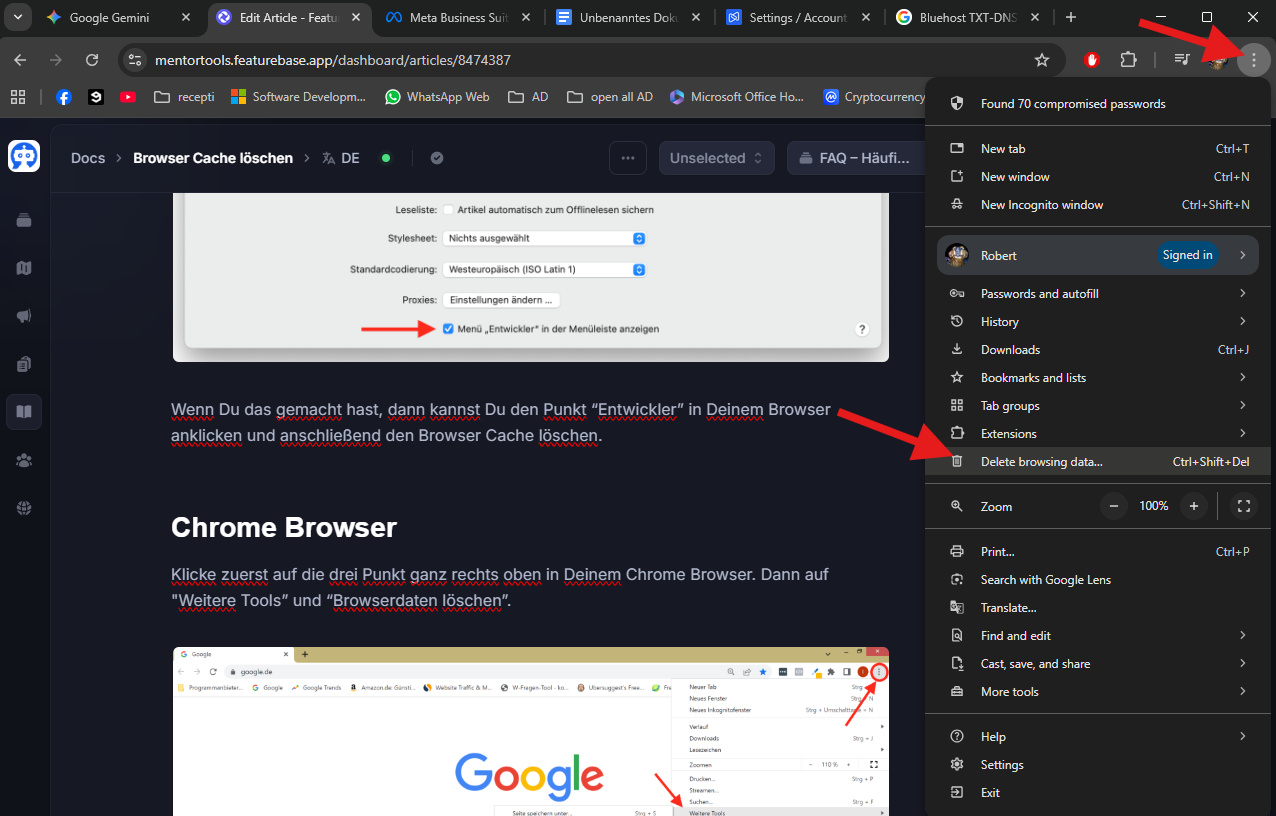
First, click on the three dots in the top right corner of your Chrome browser. Then click on "Delete browsing data" .
A new window will then open. There, select ONLY the "Cached images and files" option. Then click the blue button "Delete data". You can set the time range to 4 weeks if you've never cleared your browser cache before.

Firefox Browser
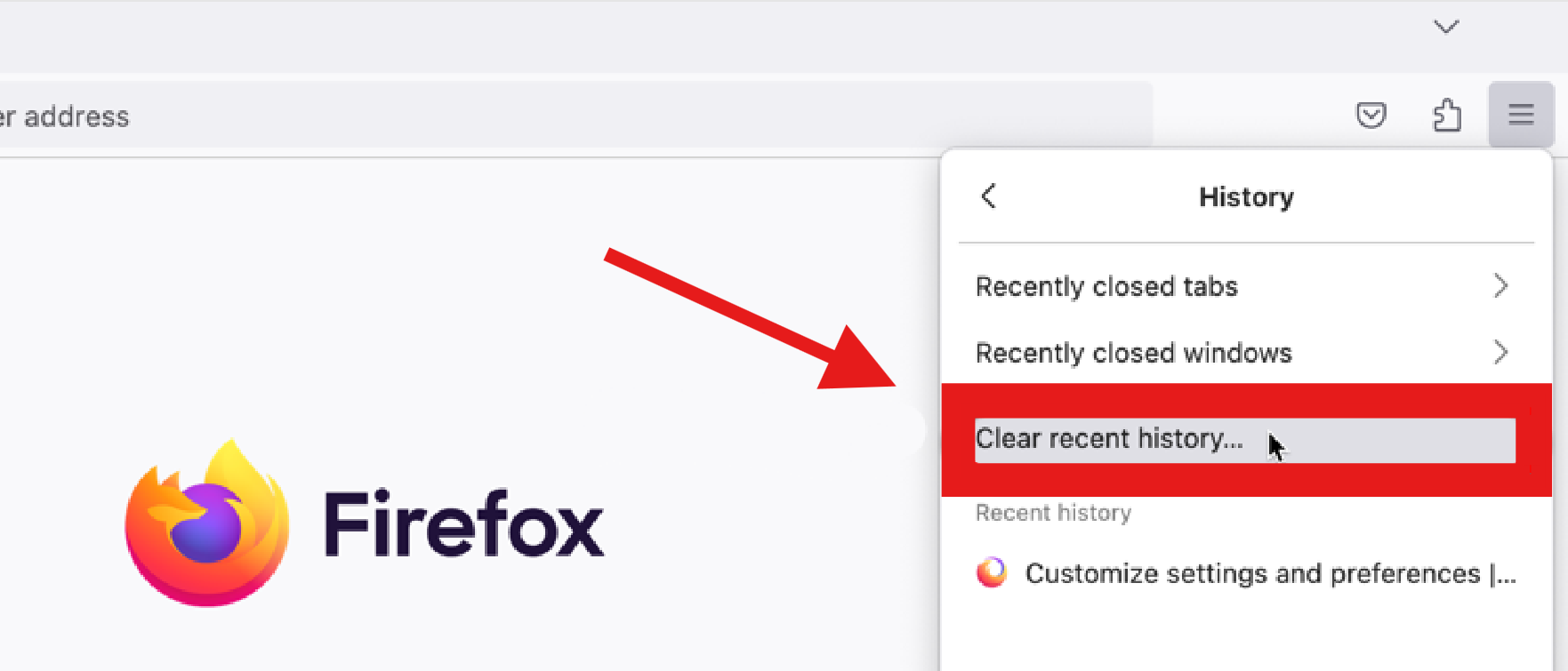
First, click on the three lines in the top right corner of your browser window. Then navigate to "History".

Next, click on "Clear Recent History".
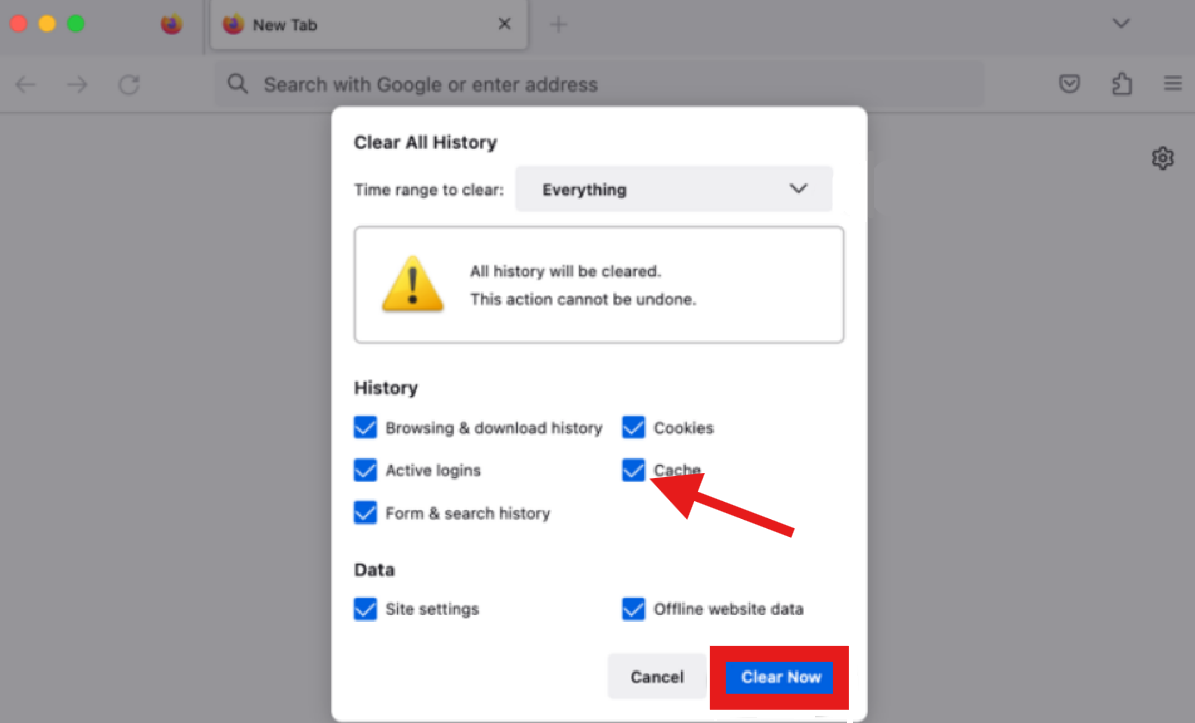
A new window will then open. You can first select the time range from which the history should be deleted. If you've never cleared your browser cache before, you can select several weeks or the entire history. Then select ONLY the "Cache" option and click the blue button "Clear Now".
Edge Microsoft Browser
First, navigate to the three dots in the top right corner of your browser window. Then click on "Delete browsing data".

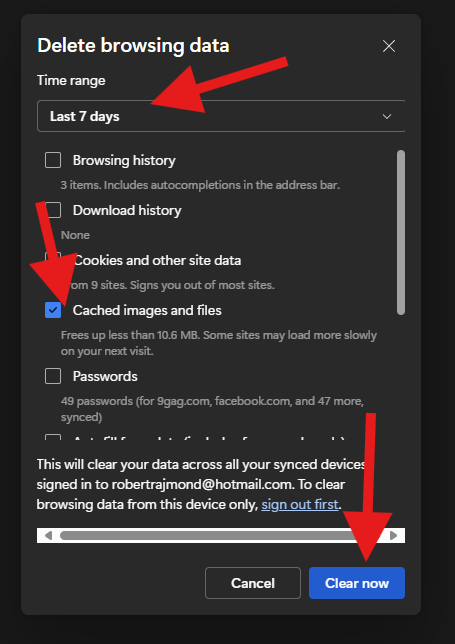
A new window will then open where you can select the last few days and which item in the browser history you want to delete. Since it's best to clear your browser cache every week, we have selected "Last 7 days" in this example. You can, of course, select a longer period if you've never cleared your browser cache before.
Also, check the box for "Cached images and files" and click the blue button "Clear now".
Wishing you success and fun,
Team Mentortools