How to Connect Shopify with Mentortools (Zapier)
Last updated 11 months ago
You can use the following guide to grant access to your courses based on sales through Shopify. You will need:
A Mentortools course you want to sell.
A product set up on your Shopify store.
1. Create a New Zap for the Connection Between Shopify & Mentortools
Open the following link for the Zapier platform and click on “Create Zap”. https://www.zapier.com
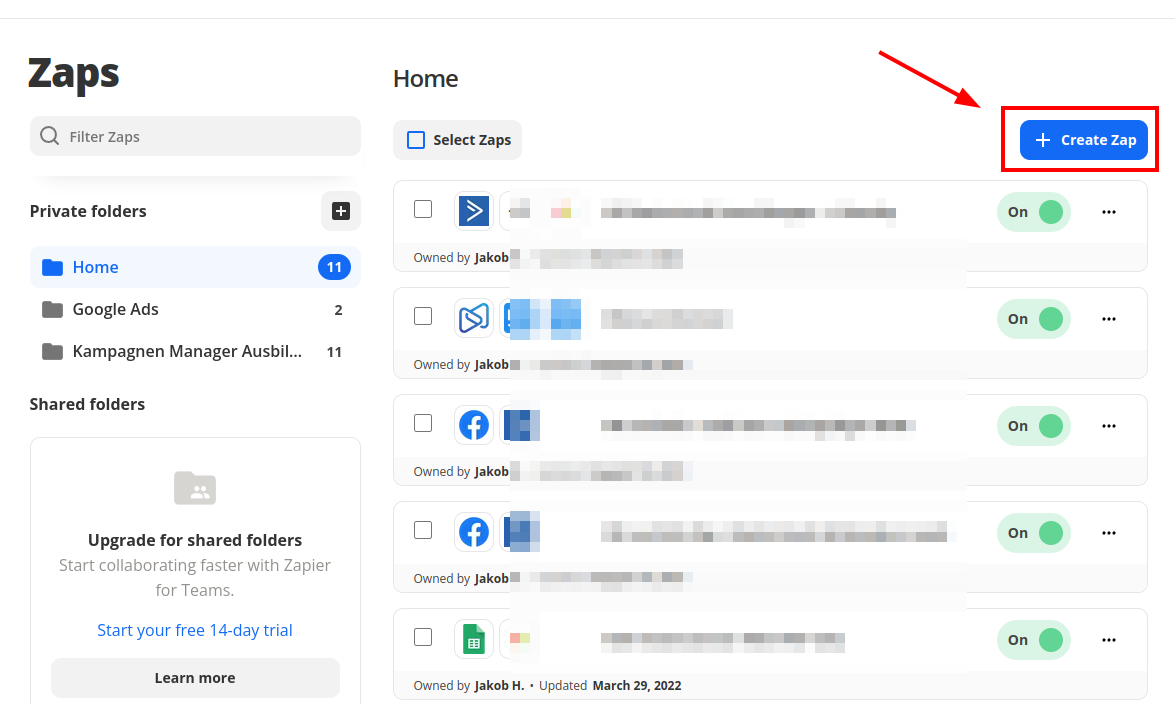
2. Create the Trigger and Connect Your Shopify Account with Zapier
In the Zap Editor, you will be prompted to set up the first step, the workflow's Trigger. Enter Shopify into the search field and select Shopify as the App.

Now choose the “Trigger,” which is the event that should initiate the Zapier connection. In our case, we select a New Paid Order event so that the workflow is triggered when a new order takes place and has been paid for.
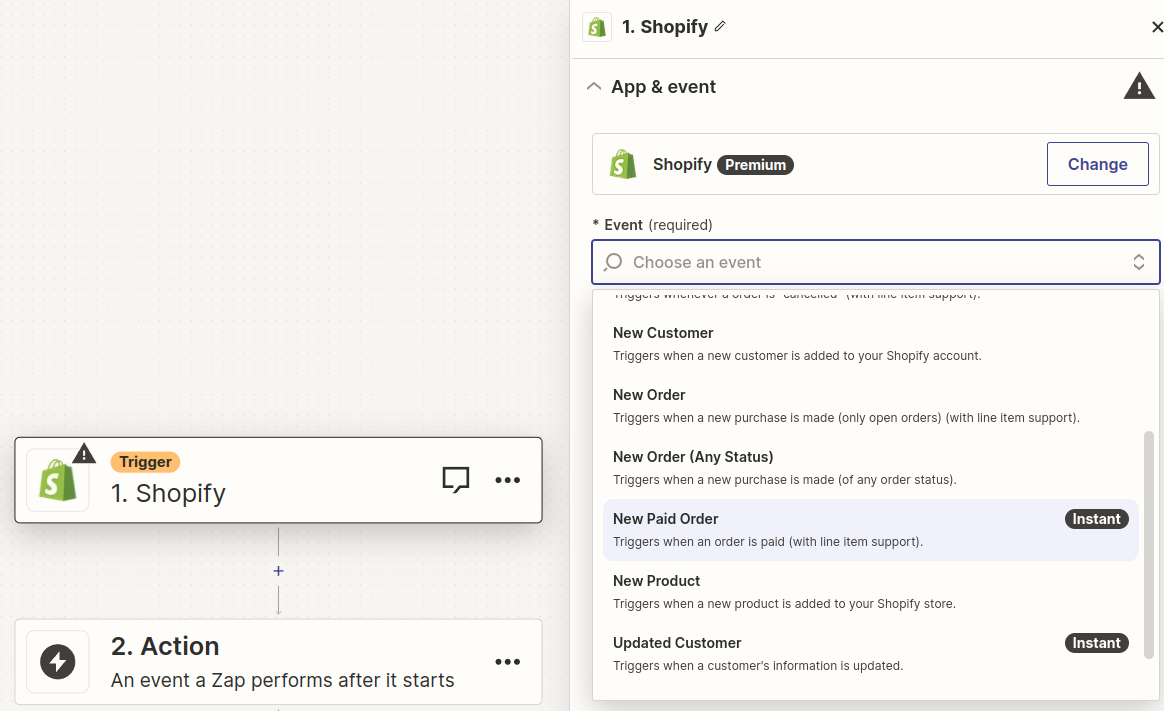
Then click Continue.
In the next step, you must log in to Shopify. Follow the button to log in and enter your online shop address.
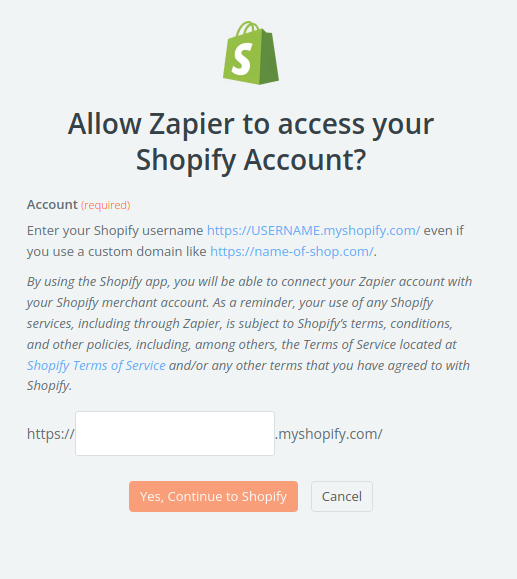
Click “Yes, Continue to Shopify” to set up the login.
Crucial Step: Test Trigger
In the next step, you will be prompted to retrieve test data. It's best to create a test purchase in Shopify, and this should then appear in the displayed data with a click on “Test”.
If everything worked, the result looks like this:

In the selection field, here “Order C”, you can select various data sets for testing. Your test purchase should be present in one of these data sets. If it is not, click “Find new records” to retrieve more payments.
Click Continue with selected record when you are shown a data set with test data.
3. Create the Mentortools Course Unlock in the Zap
Now select “Mentortools” as the App in the Action step.
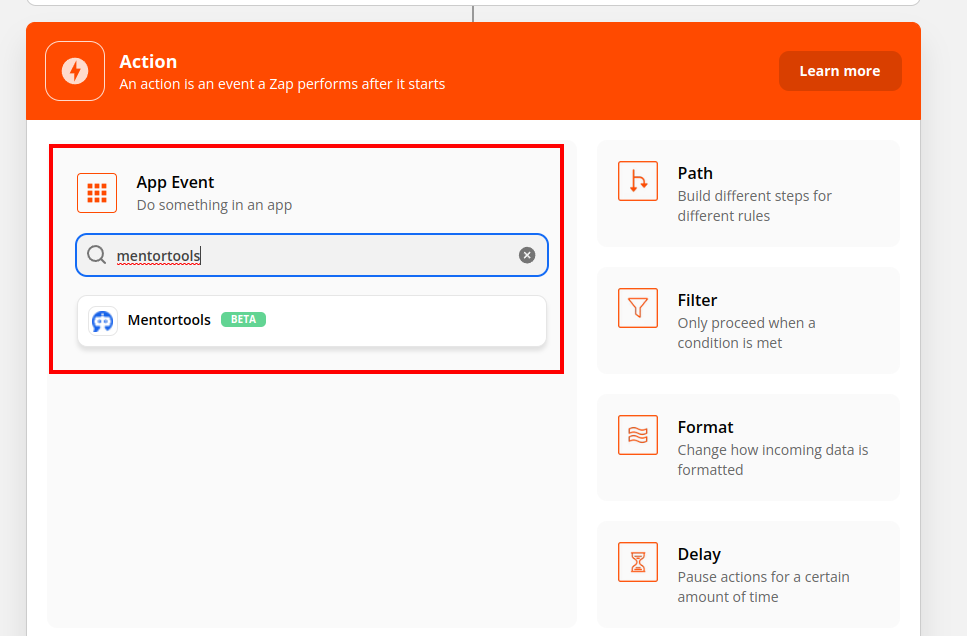
4. Connect Mentortools with Zapier:
In the next step, you will be prompted to either select your Mentortools account or log in to it.
You can find all the exact information on how to set up the connection from Mentortools to Zapier in this help article.
If you have done everything correctly, you can select an “Action” in the next step. Select Course Purchase to unlock a course.
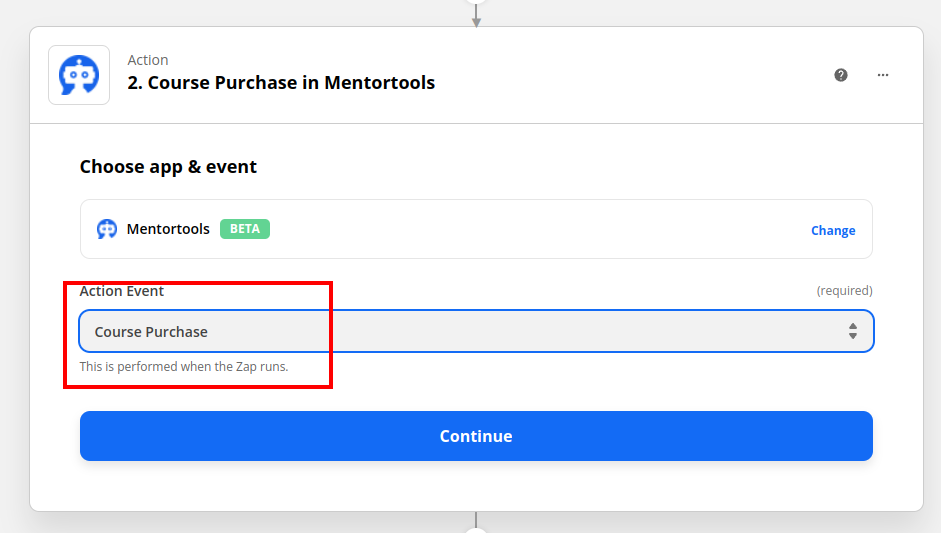
5. Connect the Data Fields from Shopify with Mentortools
When you have connected or selected your Mentortools account with the Zap, you will come to the customer data form for course unlocking. Here we connect Mentortools with the values from the data in step 1 of the Zap.

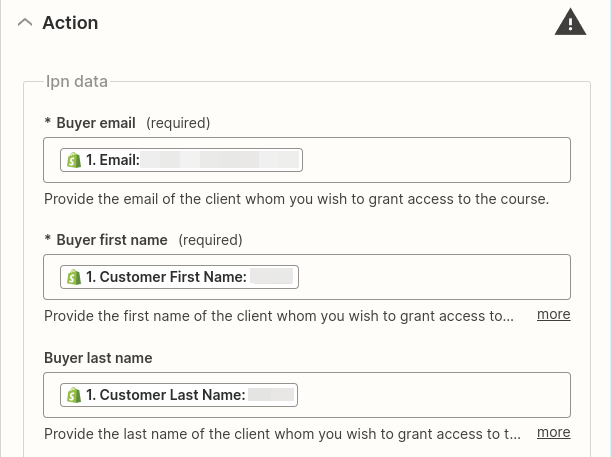
First, click into the “Buyer email” field (1), enter “Email” into the search field (2), and select it from the Shopify data in step 1 (3). The whole thing should look like this and show your test data from step 1. Click on Email in the list to transfer the data from Shopify to Mentortools. The values on the right side of the respective data entry will be dynamically adjusted for every future order, ensuring the correct data lands in Mentortools.

In the next step, we repeat this step for the customer's name. Click into the “First Name” field and select the value “Customer First Name” from Shopify.

Repeat this step for the Buyer Last Name field by taking the value Customer Last Name from the Shopify list.
If you have done everything correctly, it should look like this:
6. Define Which Course Should Be Unlocked in Mentortools
Click on the selection field “Course ID” and select your course from the list that should be unlocked for your Shopify orders.
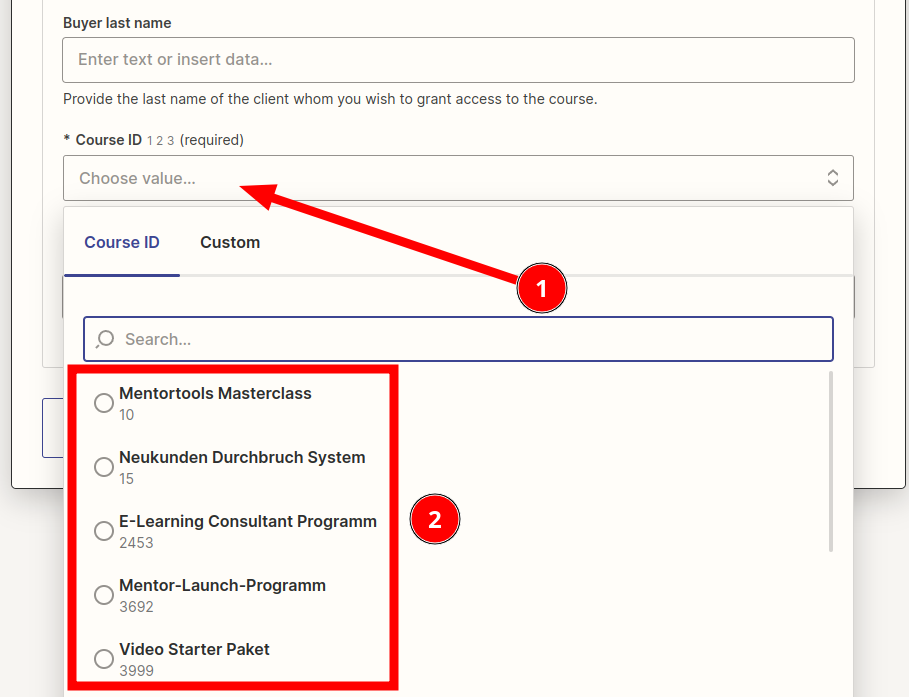
Then click “Continue” below.
7. Test and Complete
Then complete the creation and click “Test Action”. You should now be able to see an unlock for your selected email address in the Members section within Mentortools.
If everything worked, finally click "Publish" to set your Zap live. This Zap will now create course access in Mentortools with the individual data for every new incoming order.

Attention: Shopify stores are very flexible applications. In certain configurations, it may be necessary to adapt Shopify and Zapier with filters and other Order Events. If you have questions or general inquiries about setting up Zapier, you can always send us a message at support@mentortools.com. Our technical team will be happy to advise you and help you with the setup.