How Do I Change the Imprint in Email Notifications?
Sometimes it's necessary to change individual details in your public information because your address, phone number, or email address may have changed.
Last updated 11 months ago
This mainly affects the Imprint & Privacy Policy and the public information that is sent in the welcome & confirmation emails.
For your changes to be applied to all important points in Mentortools, you need to go through two steps:
1. Change the Data in the Imprint (Impressum)
1.1 Open Settings
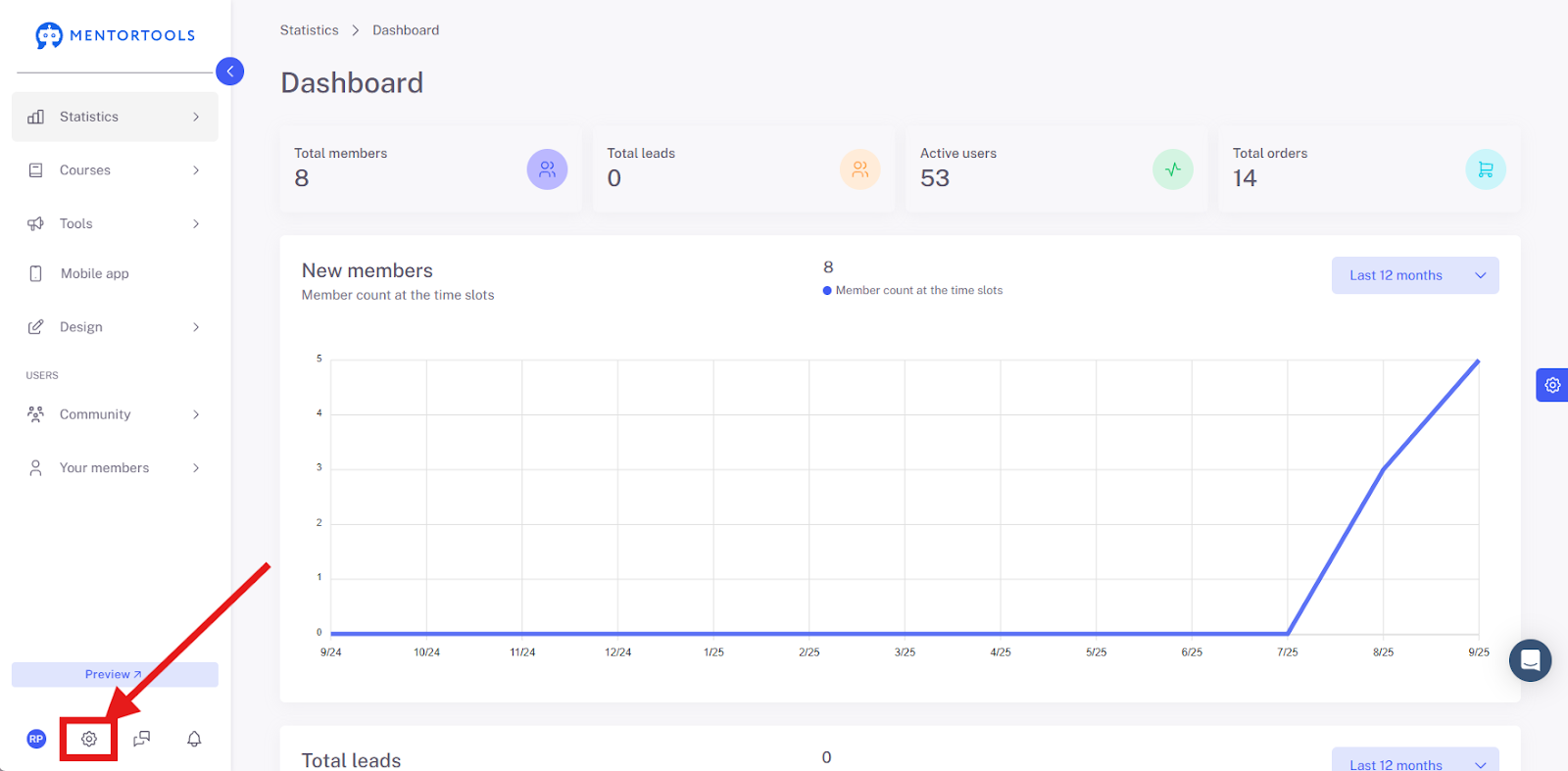
Click on the gear icon in the bottom-left menu bar.
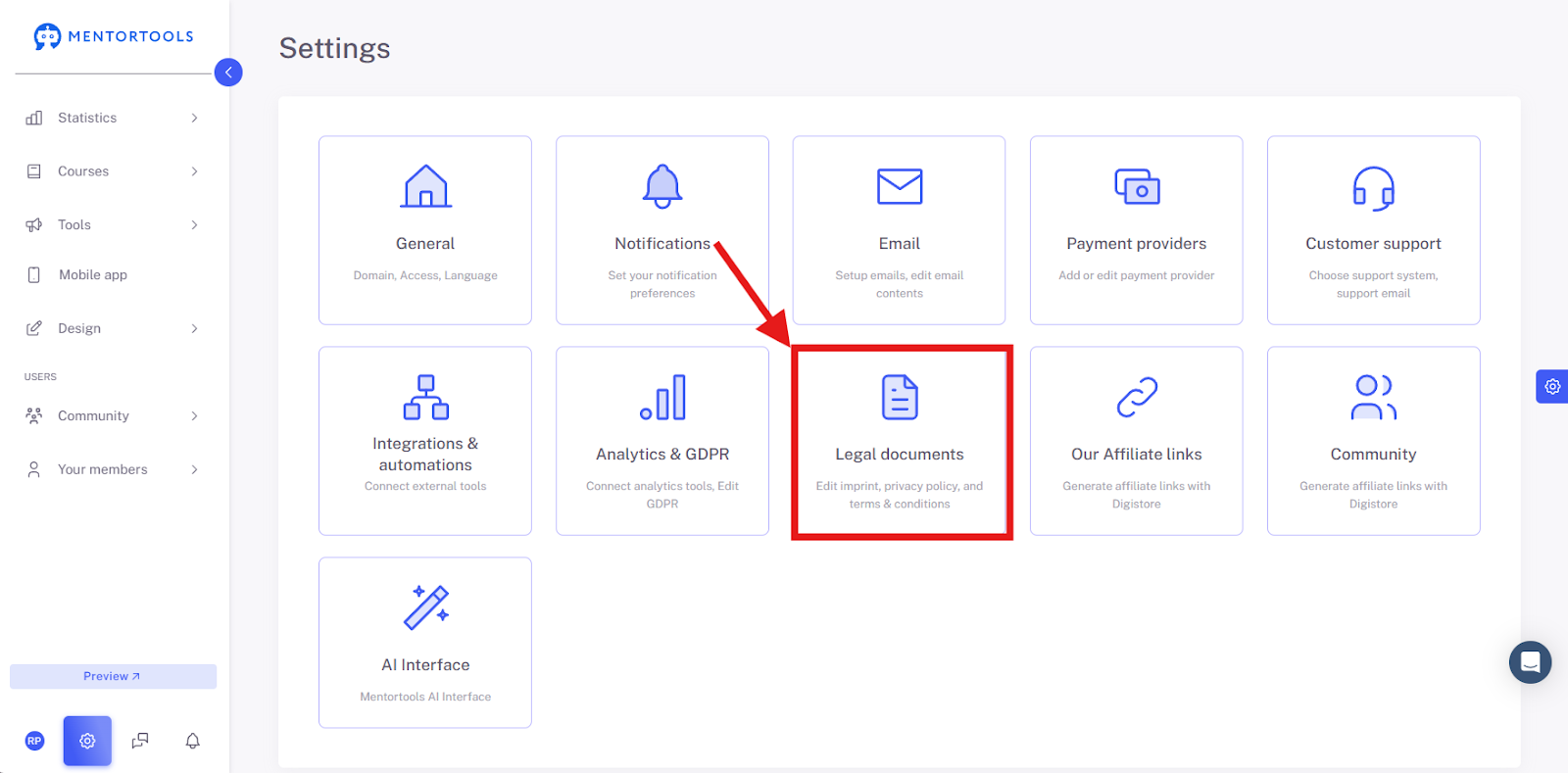
1.2 Click on “Legal Documents”
Switch to the relevant area for legally relevant content such as Imprint, T&Cs, Privacy Policy, etc.
1.3 Select “Imprint”
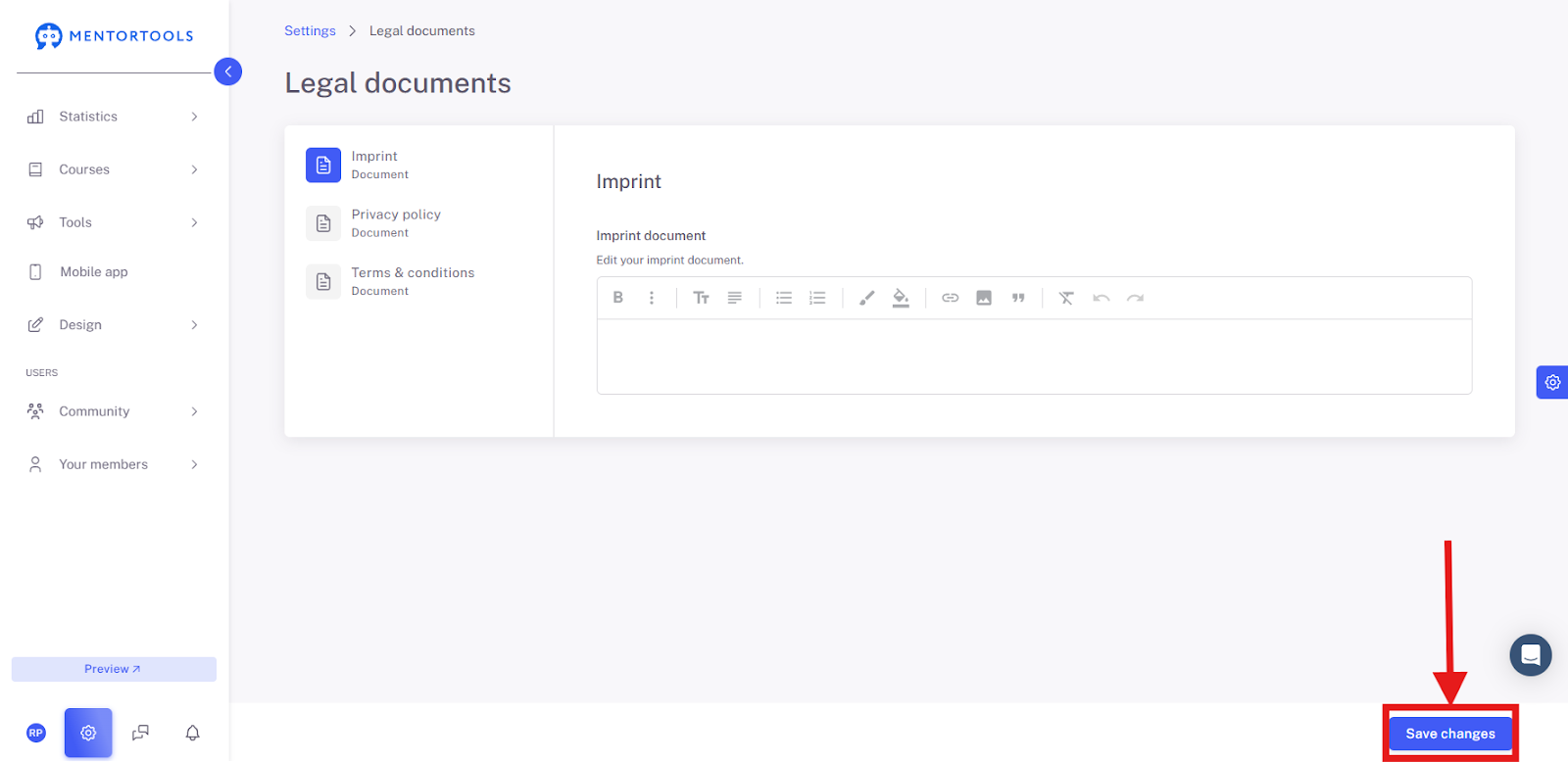
Select "Imprint" to edit your Imprint.

Imprint Overview

What is it? The Imprint is mandatory in Germany and other countries. It's essentially your business card, so people know who is behind the platform. It ensures transparency and makes it easy for users to contact you with legal questions.
What should be included? This must include your full name and address, an email address, and for companies, the legal form and commercial register number. Make sure to use the correct mandatory information.
Save Changes
When you have finished writing the Imprint and checked all the details, click “Save Changes” to ensure everything is saved and applied.
Summary
As you've seen, it's really straightforward to create and maintain your Imprint on Mentortools. With just a few clicks via the gear icon in the settings, you can reach the “Legal Documents” area. There, you can select the Imprint and use the user-friendly text editor to enter and format all the necessary information.
The most important thing to remember: Always click “Save Changes”. This ensures your modifications are applied and your page continues to meet all legal requirements.
2. Change Your Public Information
For your changes to become active in the footer of the welcome & confirmation emails, you must also change them in the Public Information.
To do this, go to Settings – Email.
Under “General Email Settings,” you can then change your personal data.
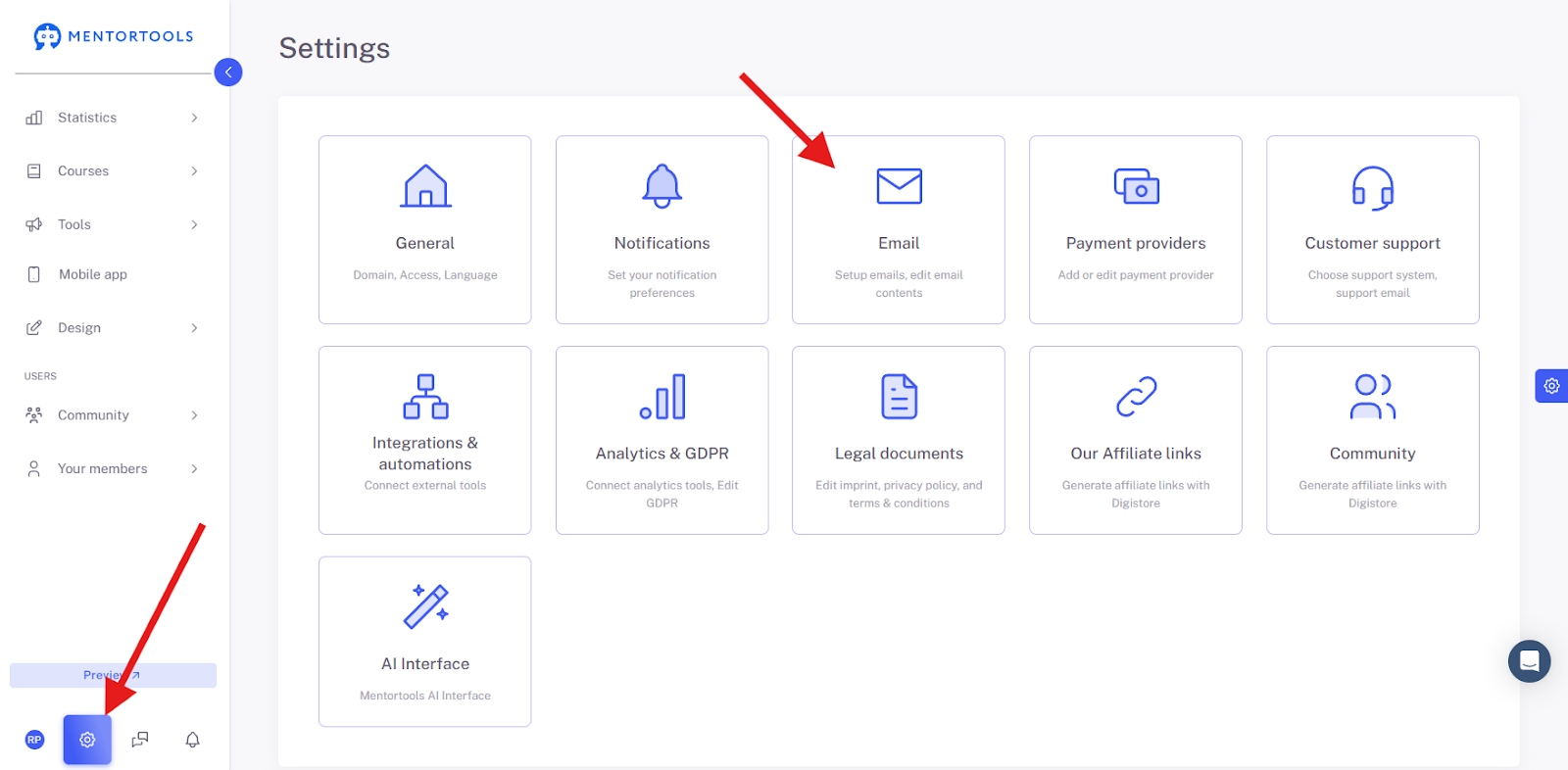

This data is inserted as a Footer (foot-line) into the emails sent from Mentortools and displayed to your customers in all emails.
If you would like to make further changes to the welcome emails, you can use this guide.
Once you have done this, you have updated your information for all important public points.
We wish you continued success.
Your Mentortools Support Team