How Do I Set a Social Media Image?
Last updated 11 months ago
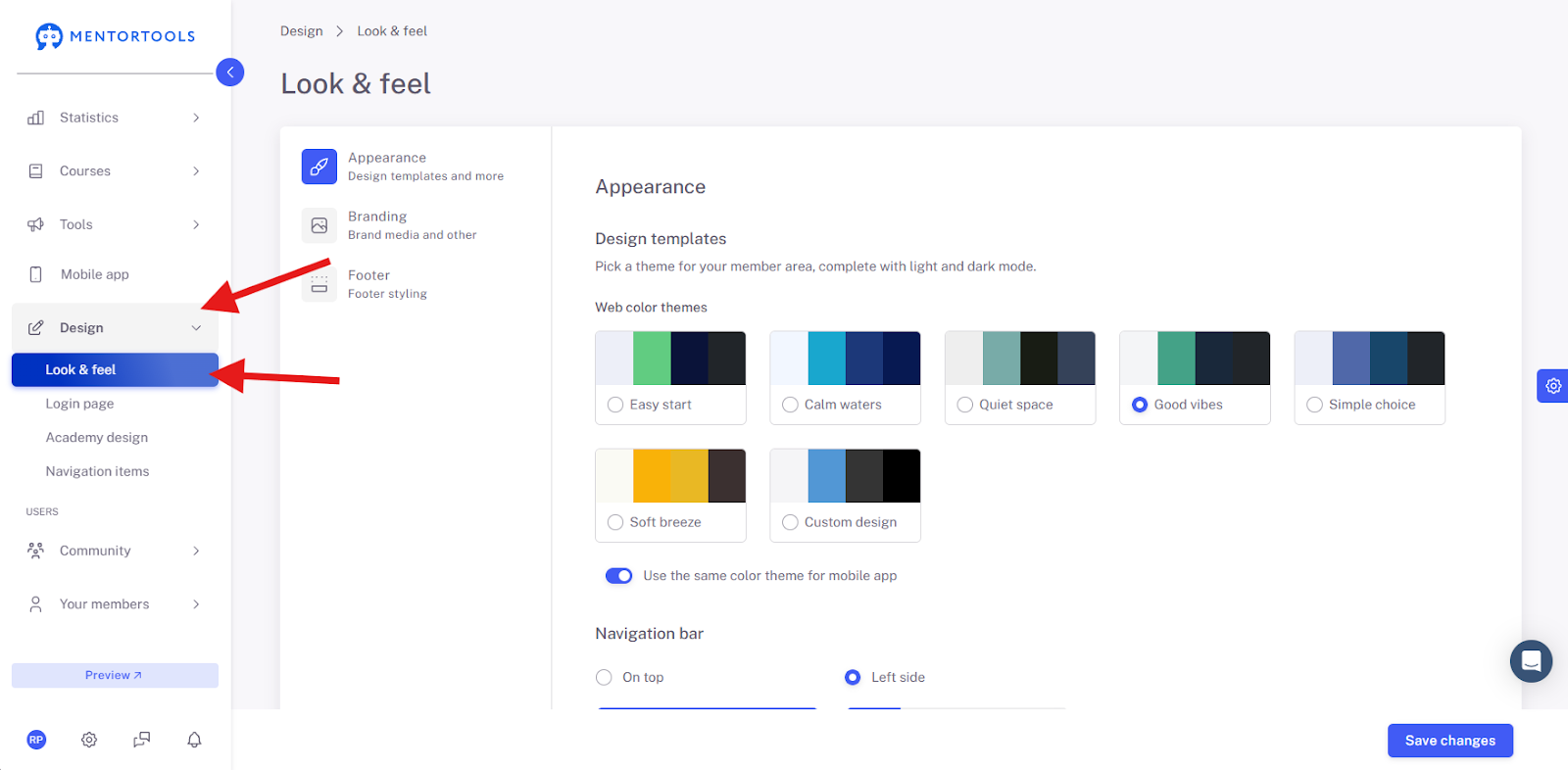
You can set a Social Media Image (Link Preview Image) in Mentortools. This is the image that will be displayed on Facebook, Instagram, Telegram, WhatsApp, etc. You can set the image under Design and “Look and Feel”:
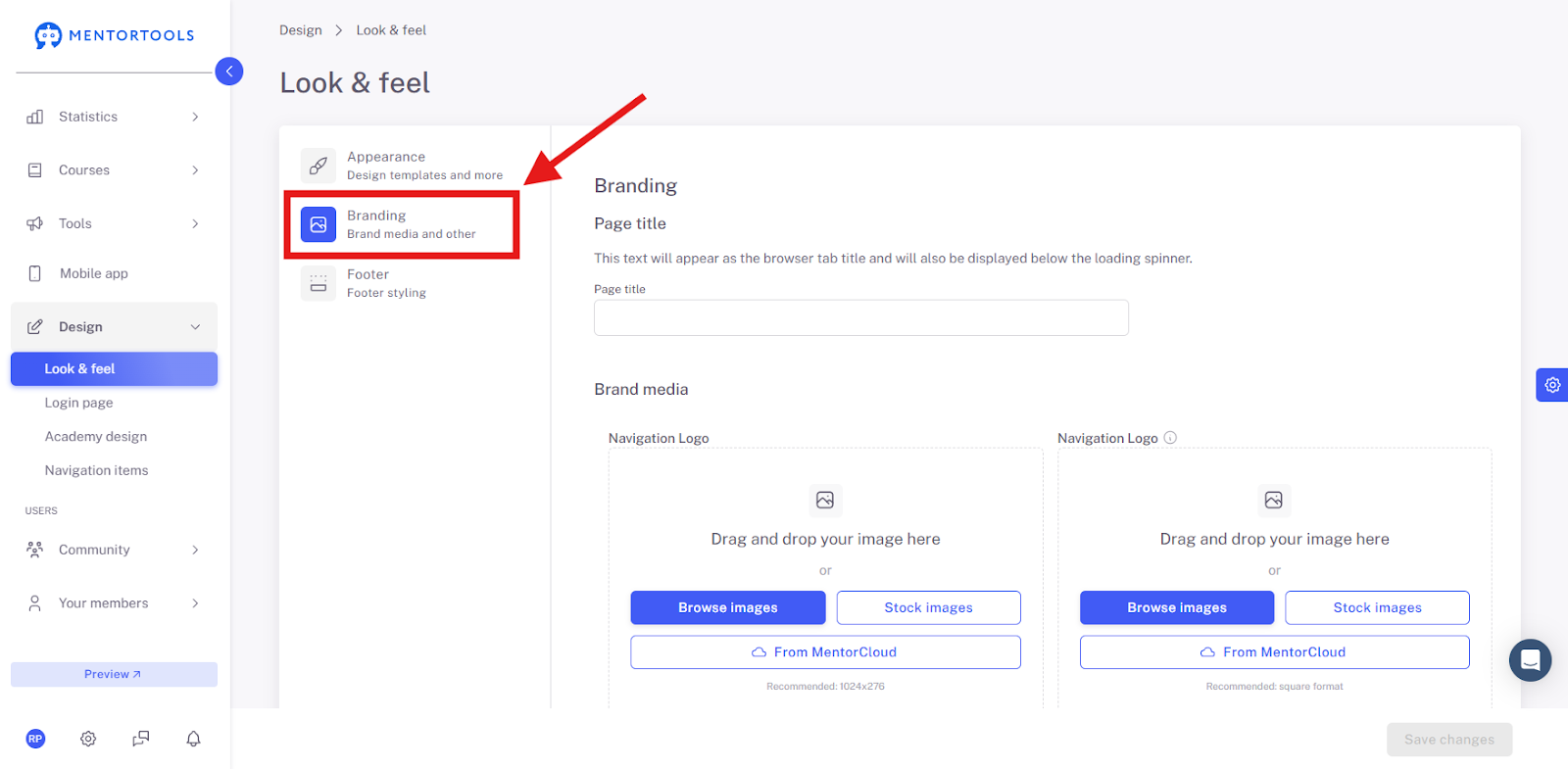
Then go to “Branding” in the left menu and scroll down.
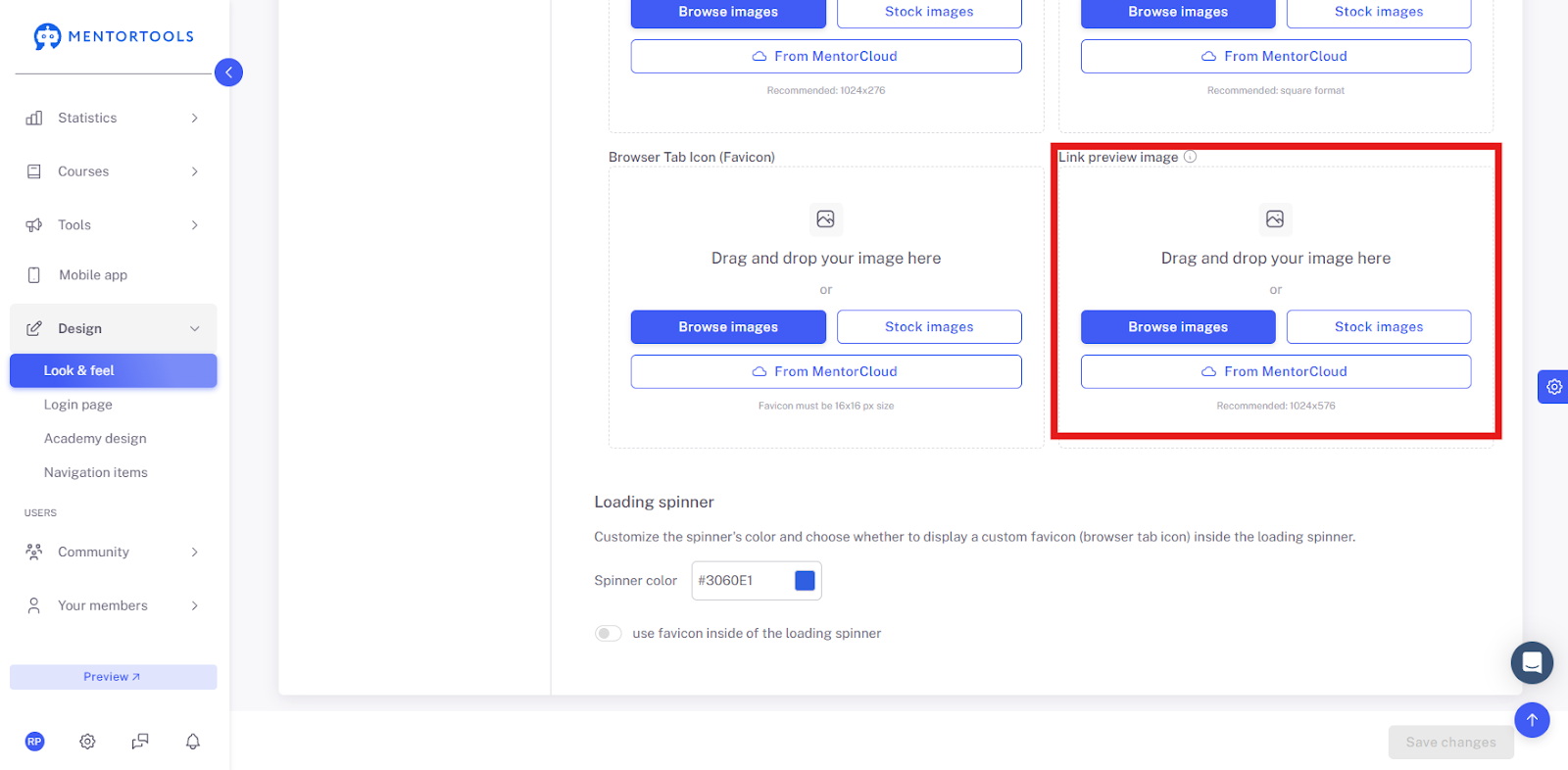
Here you can change your Link Preview Image.
What to Do if Facebook Doesn't Display My Image?
If you have set the image, Facebook might still not display it because it caches (saves) the social media images from pages. Therefore, it may have saved the old image and won't load the new one automatically. In such a case, you need to "force" Facebook to reload the image. You can do this by clicking on the following Facebook link: https://developers.facebook.com/tools/debug/
Then you can enter your URL and click “Scrape Again”:
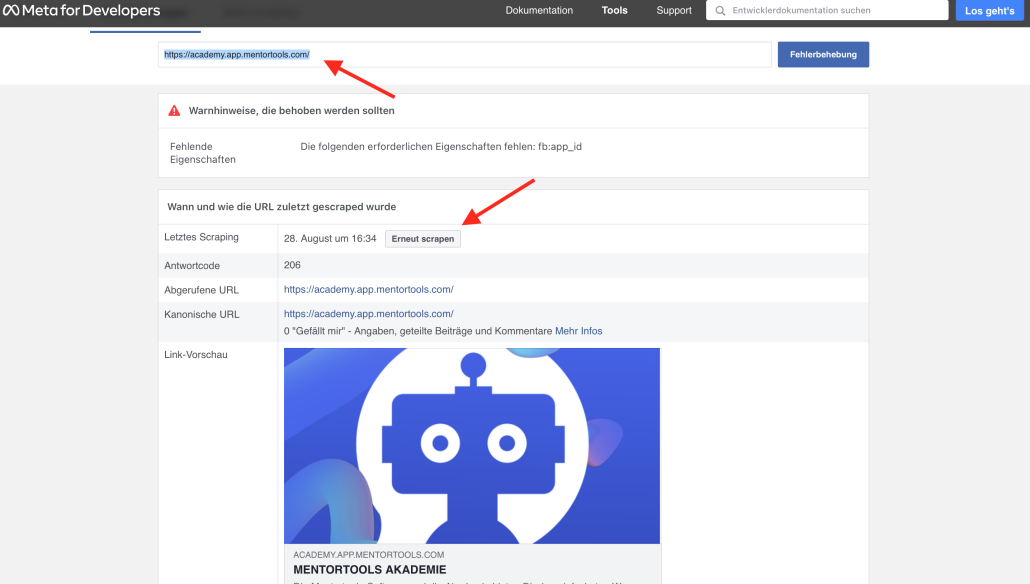
Directly below, you will see the image that Facebook has saved via the URL. This should change after reloading.
In summary:
Please upload a new Social Media Image in Mentortools.
Open the Facebook URL.
Enter your member area domain.
Click the “Scrape Again” button.
Done!
What to Do if Telegram Doesn't Display My Image?
If you have set the image, Telegram might still not display it because it caches the social media images from pages. Therefore, it may have saved the old image and won't load the new one automatically. In such a case, you need to prompt Telegram to reload the image.
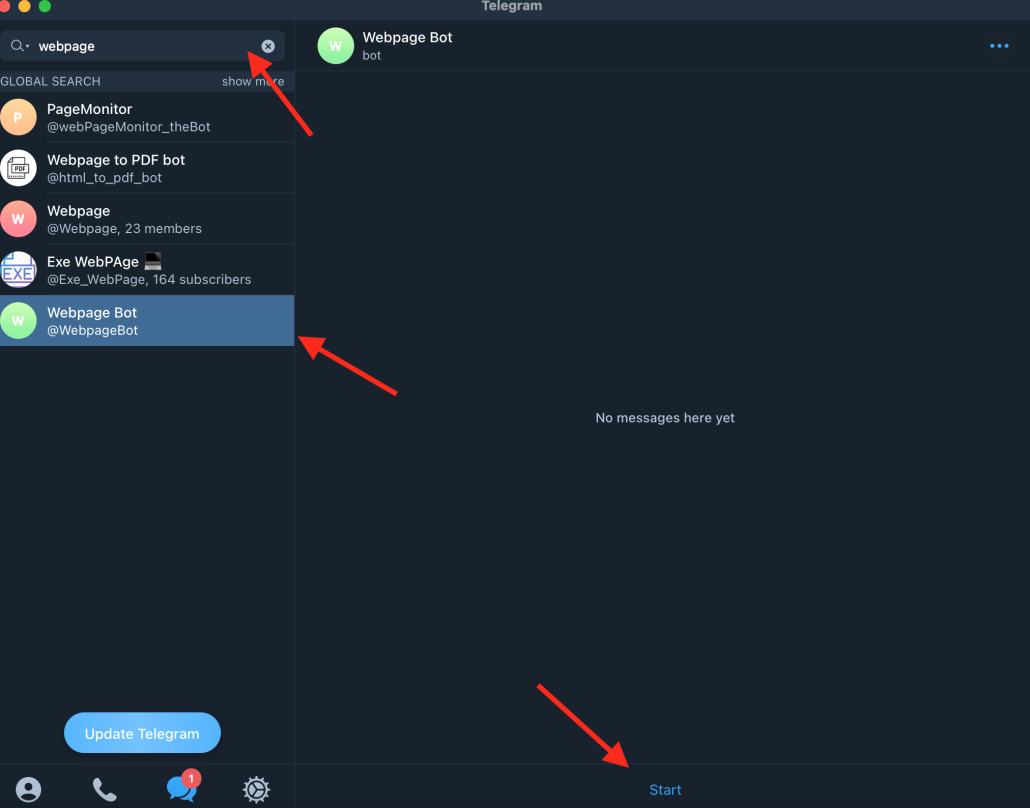
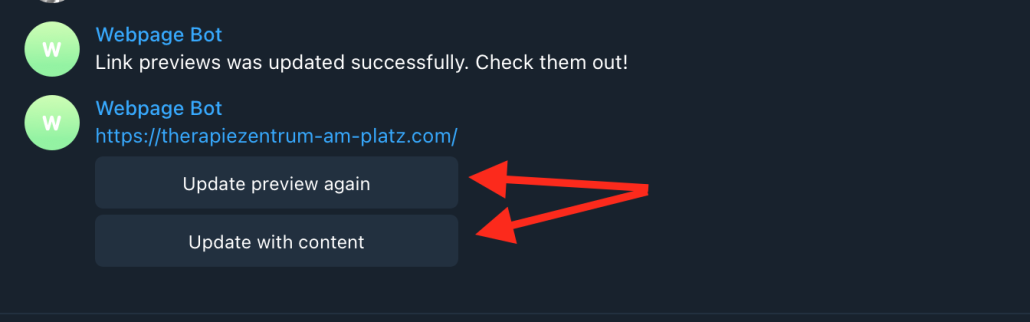
To do this, use the Telegram bot @Webpagebot to update the page preview on Telegram. Add @Webpagebot as a contact and post the link to your member area into the chat. Afterward, you can update it again, and the new Social Media Image should be displayed.

In summary
Please upload a new Social Media Image in Mentortools.
Add the @Webpagebot as a new chat in Telegram.
Post your member area domain.
Click the “Update preview again” button.
Done!
Wishing you success and fun, Team Mentortools