Creating and Granting Access to a Facebook Developer Account
Last updated 11 months ago
If you want to run Facebook and Instagram ads to get customers to install your app, you will need a free Facebook App that's connected to your real app. This step is optional and not absolutely necessary to get your Mentortools app. If you don't want to run ads on Facebook, you can skip this step.
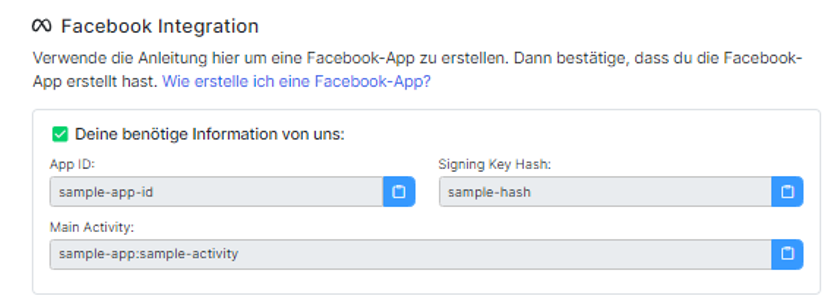
All the information you need from us to create the Facebook App will be provided in the fourth step of the app setup.
1. Register as a Facebook App Developer
Go to this page, https://developers.facebook.com/, and log in if necessary.

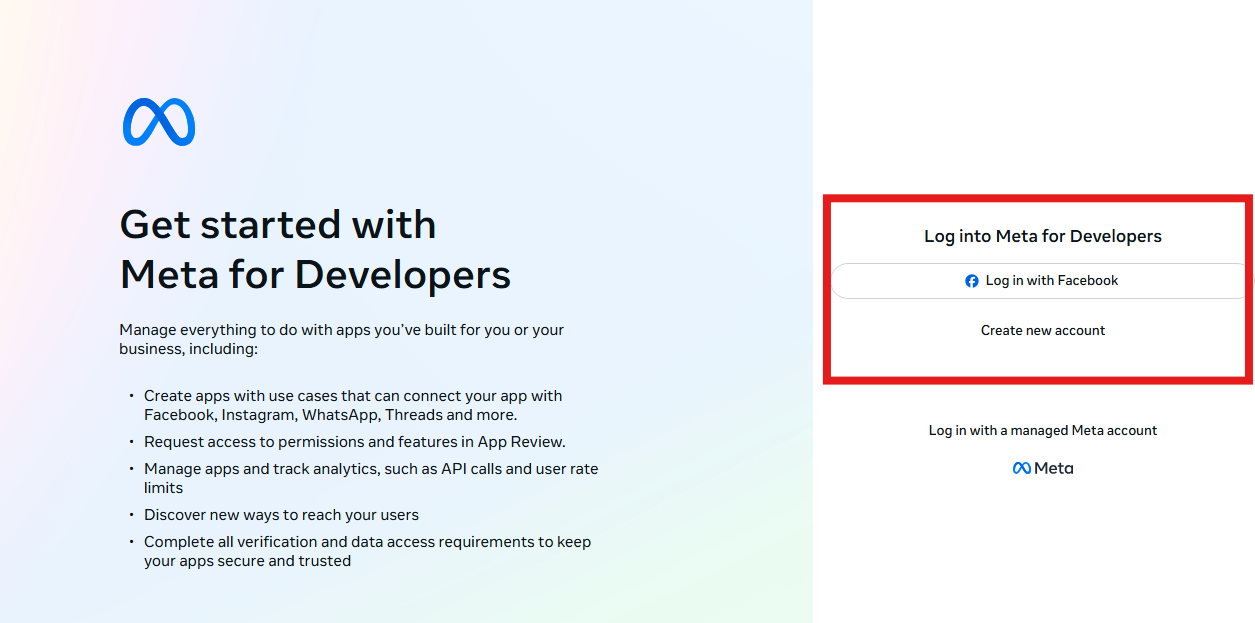
Then you can access this page: https://developers.facebook.com/
Please follow these instructions if you have not yet registered as a Meta developer.
If you have already registered, you can proceed directly to the next step.
2. Create an App in Facebook Developers
Go to the "My Apps" section.
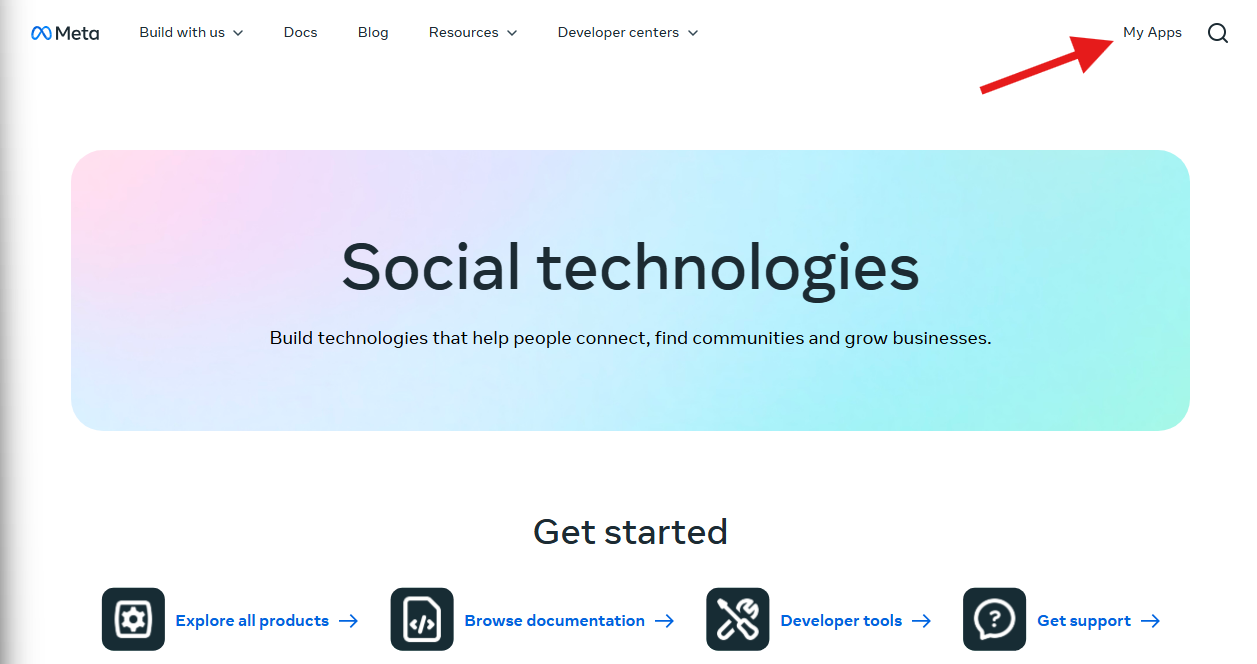
Then go to "Create App."

Click "Create App" again.

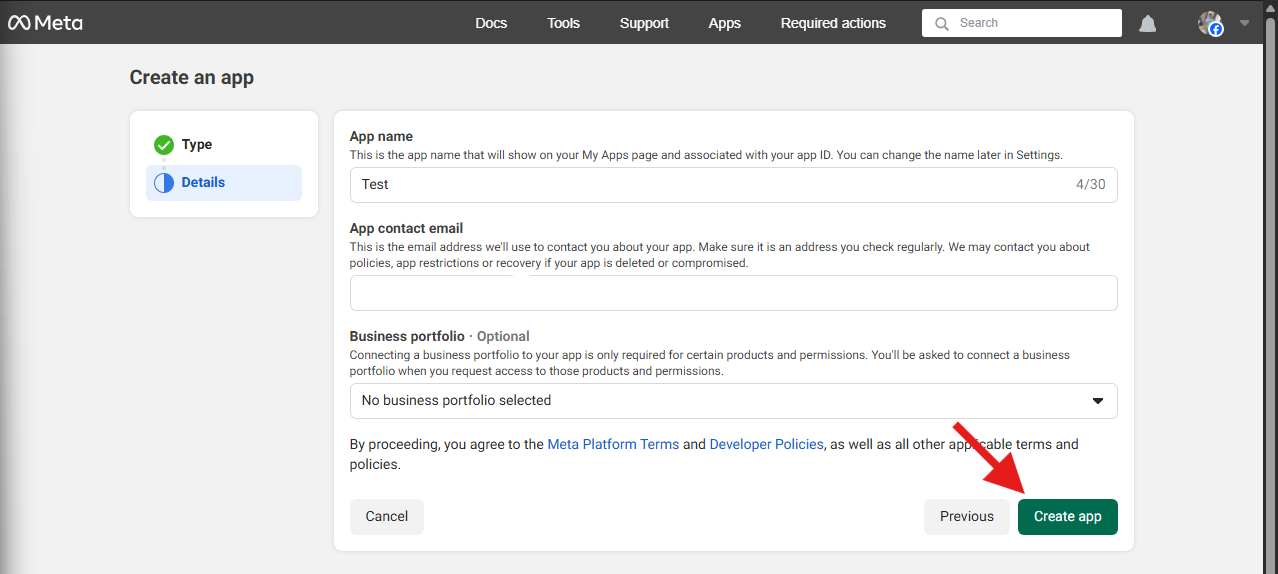
Give the App a name and enter your App contact email.

Note: Here, you must use the same name that the app has on Mentortools. This must match.
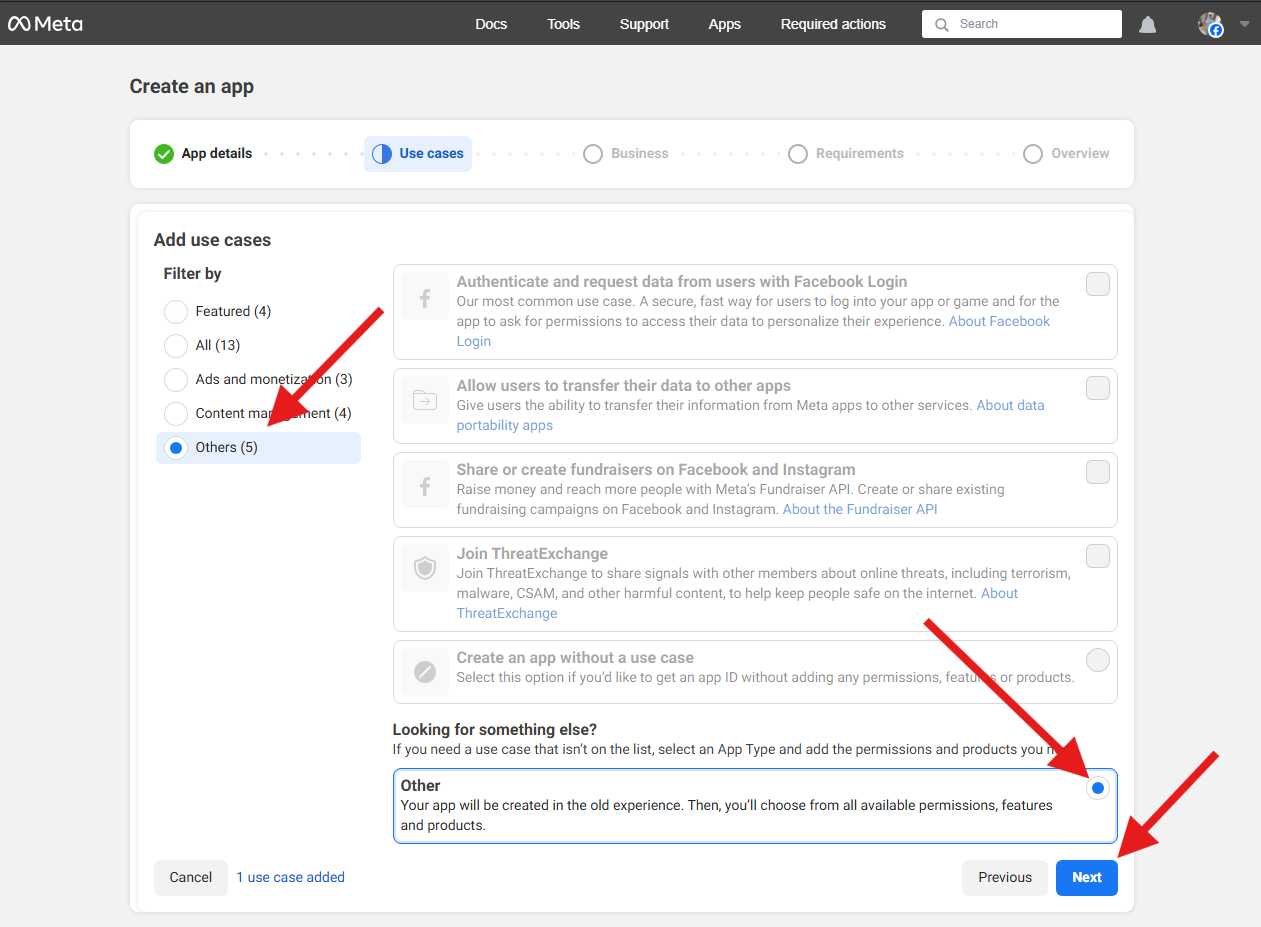
When asked what function your app should serve, please select "Other" and click "Next."
In the next step, you will be asked what you need your app for. Please click "Business" and then "Next" again.

Then verify if the details are correct and click "Create app."
Next, you will add an event in the app.

For iOS:
Click through Step 1 with "Next," and in Step 2, enter the Bundle ID you get in Step 4 on the app setup page from Mentortools.

Then just click "Next" until the end.
For Android:
Click through the first 3 points with "Next."
In point 4, you also enter the data from the app setup page of Mentortools here.

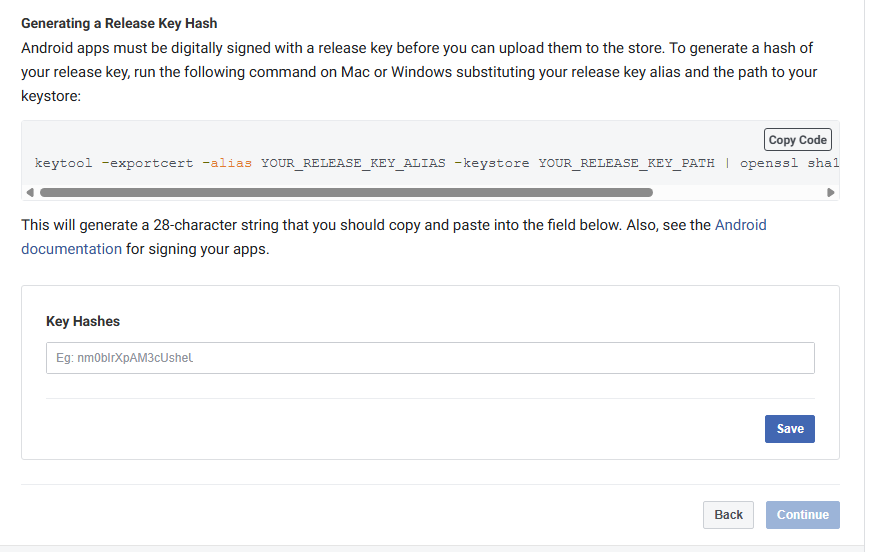
In point 5, enter the Key Hash from the app setup page of Mentortools.
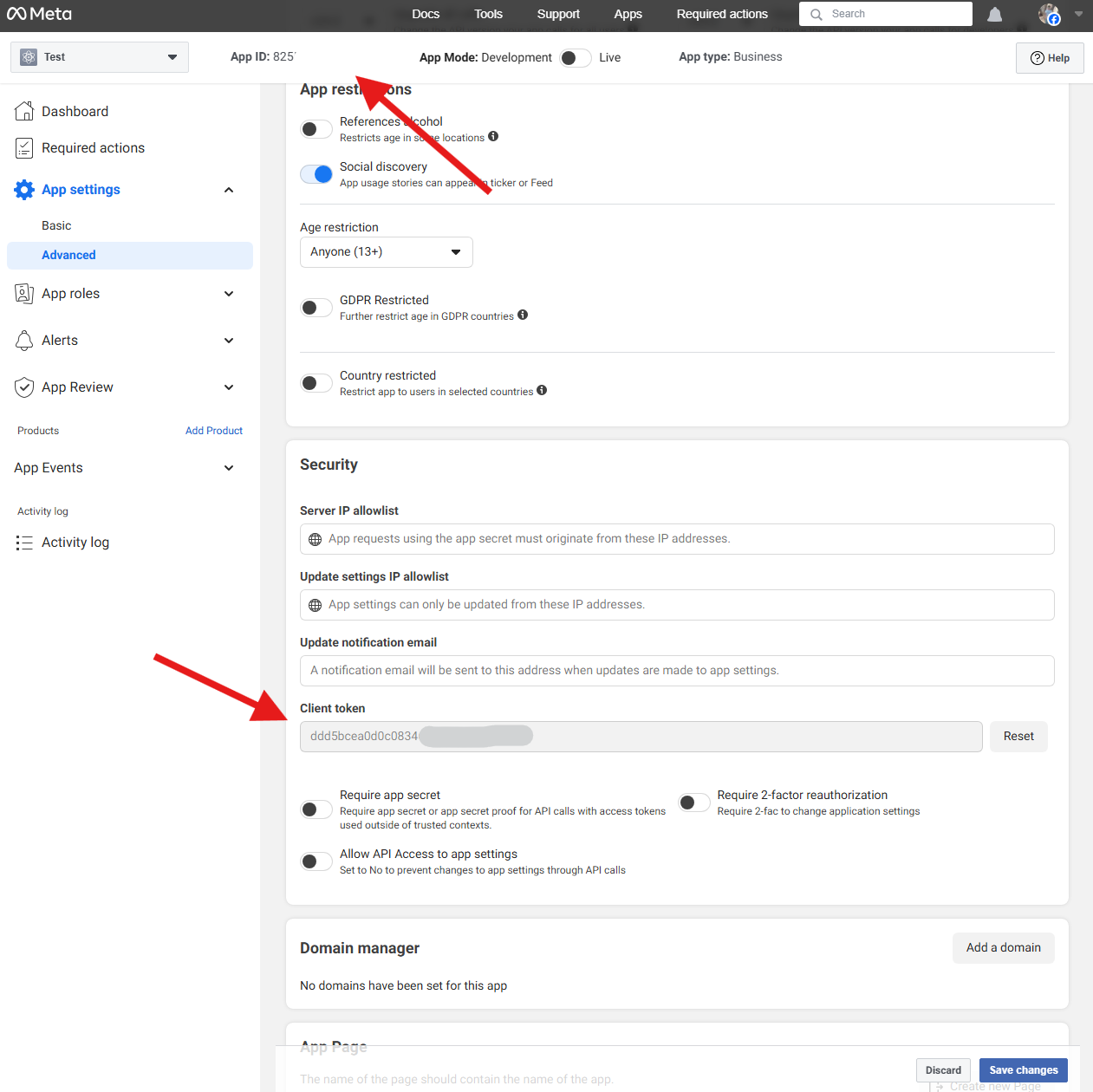
Finally, you need to transfer the App ID and the Client_Token from Facebook to Mentortools.
To do this, go to "App Settings" and "Advanced" and scroll down to the "Security" section.
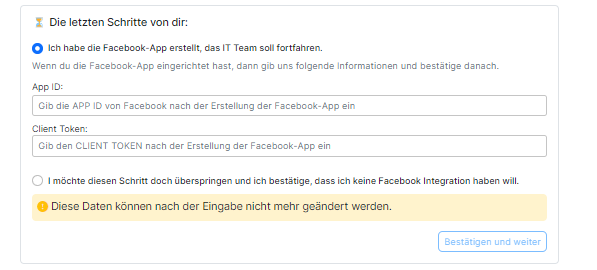
You then enter the data here in Step 4 of the app setup.
Conclusion
The Mentortools Support team will now take over the rest of the process for you.