Creating and Granting Access to a Google Developer Account
In this article, you will learn how to create a Google Play Developer account and grant our team access. This step is necessary for us to publish your app on the Google Play Store. You will learn how to set up the account, manage user data, and create a merchant account to offer paid content.
Last updated 11 months ago
Google Play Developer Account
To create a Google Play Developer account, simply follow this link: https://play.google.com/apps/publish/signup/
On this page, be sure to select the account type "Organization," as this is also used by Google for companies.
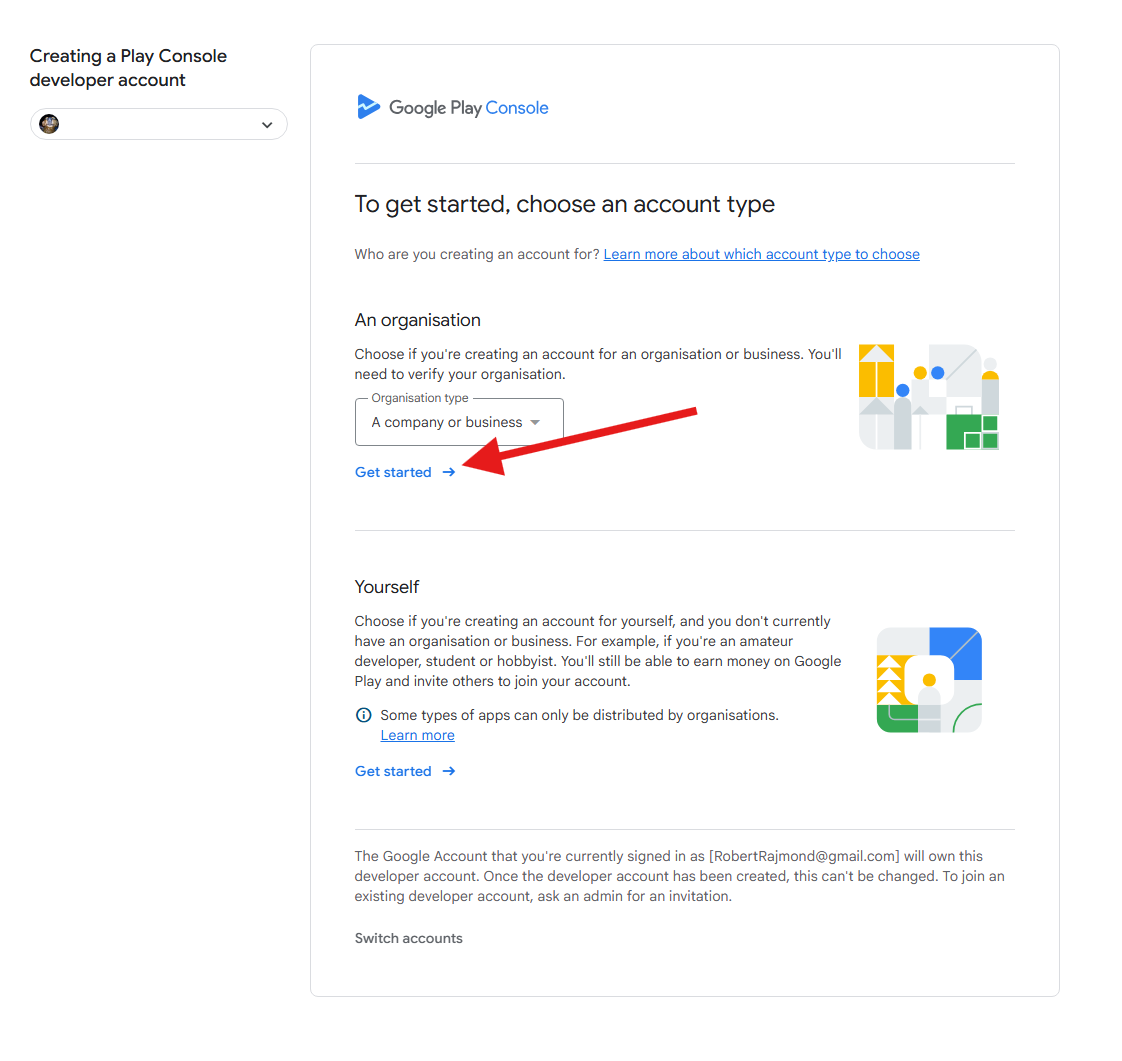
To create a Google account, you will also need a D-U-N-S number.
The D-U-N-S number provided by Dun & Bradstreet is a unique nine-digit number used worldwide to identify businesses. Google uses your D-U-N-S number to verify your organization. You will need to confirm the information Google receives from Dun & Bradstreet by submitting an official business document.
You can find more information about the D-U-N-S number here: https://support.google.com/googleplay/android-developer/answer/13628312?hl=de
If you do not have a D-U-N-S number yet, you can also follow our simple step-by-step guide on the D-U-N-S number.
Next, you will fill out all the forms, accept the terms of service, and confirm everything with the payment of the annual fee of 25€.
Once you have completed this, go to the following link: https://play.google.com/console/u/1/developers
There you will click on "Users and permissions."
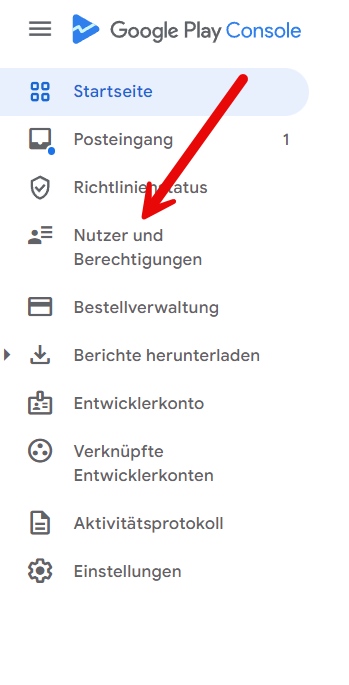
There you can then add a new user.
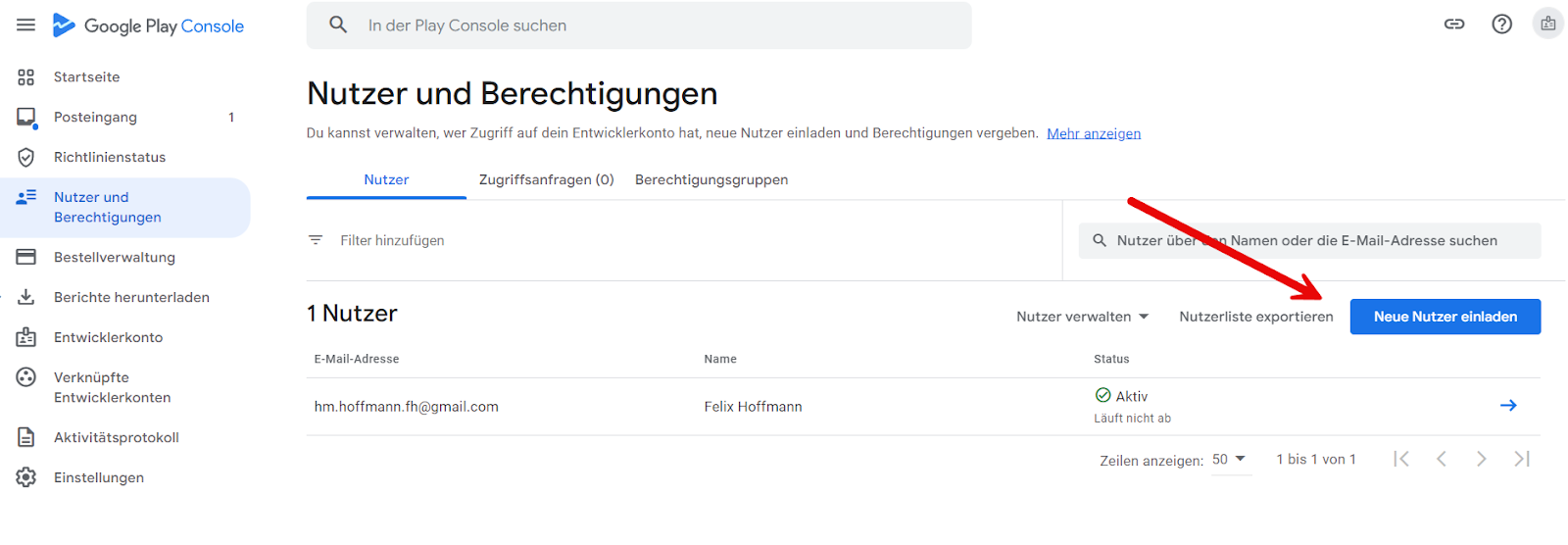
Here, please add app@mentortools.com as an Administrator.

Finally, click on "Invite user" in the bottom right corner.
Once you have done this, you just need to create a merchant account in the console.
1. Why Do I Need a Merchant Account in the Google Play Console?
A merchant account in the Google Play Console (officially known as a "Google Play Developer Account") is required to publish and manage apps on the Google Play Store. Here are some reasons why such an account is necessary for you:
App Publishing: You need a merchant account to upload your app to the Google Play Store and make it publicly available. Without this account, you cannot offer apps with in-app purchases on the platform.
Access to Developer Tools: With a merchant account, you get access to a variety of developer tools and resources that help you test, debug, and optimize your app.
Statistics and Reports: The account provides access to detailed statistics and reports on app performance, including downloads, user ratings, and crashes. This data is crucial for improving apps and understanding user behavior.
Monetization: A merchant account is necessary to offer in-app purchases or paid apps. It allows you to accept payments and generate revenue.
A merchant account is therefore an essential tool for developers who want to offer and monetize their apps on the largest Android app marketplace.
2. How Do I Open a Merchant Account in the Google Play Console?
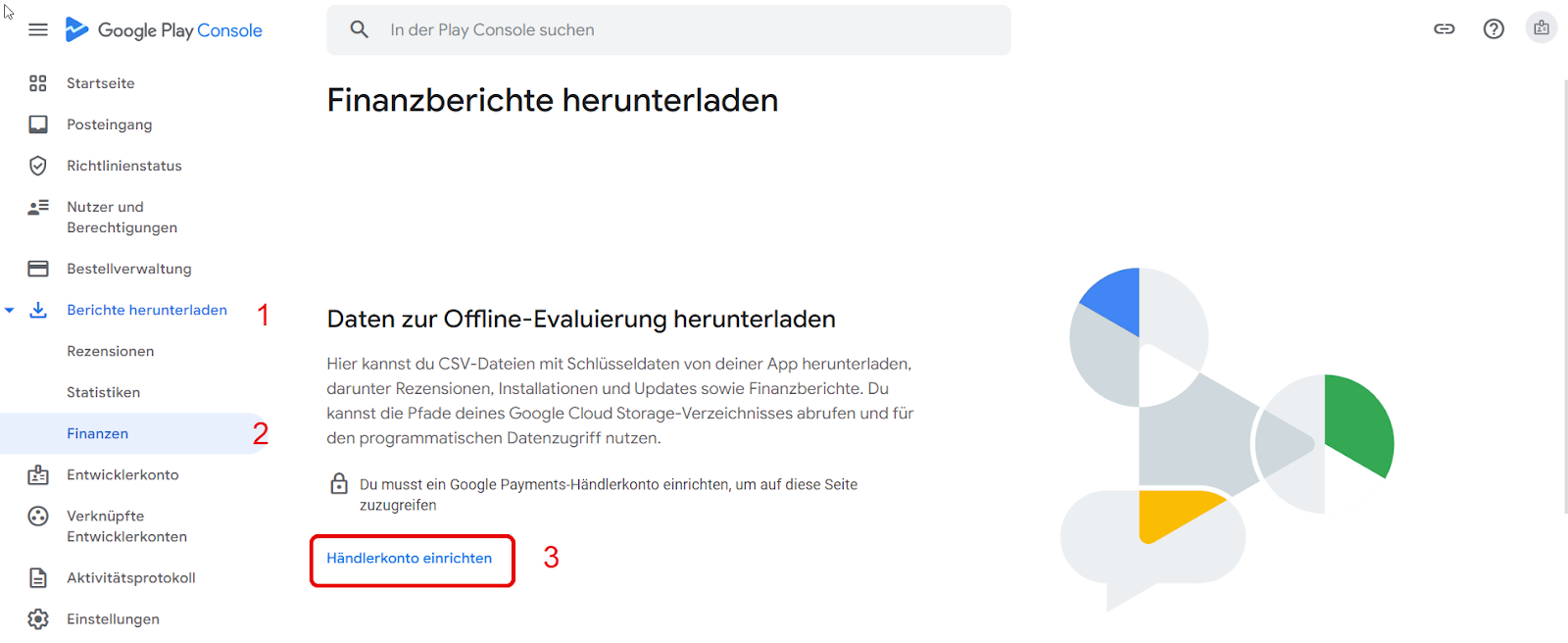
a) Navigate to "Financial reports"
In the left menu bar, click on "Download reports" (1).
Click on "Financials" (2).
Click on "Set up merchant account" (3).
b) Create a new payment profile
Click on "Create payment profile."
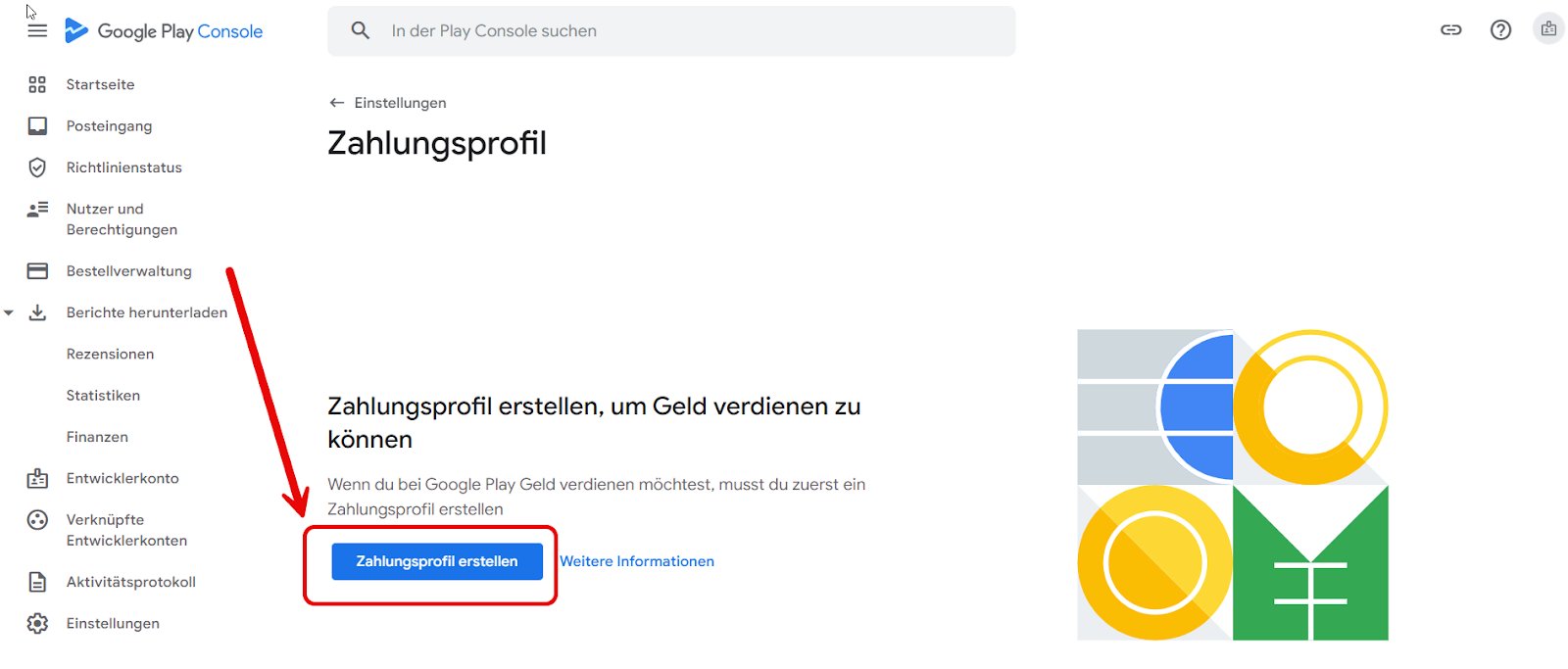
c) Select your account
You will see a selection where you can choose your account or create a new one; select your existing one.

d) Set up payment profile
You will now see your personal data.
Scroll down to the public merchant profile.
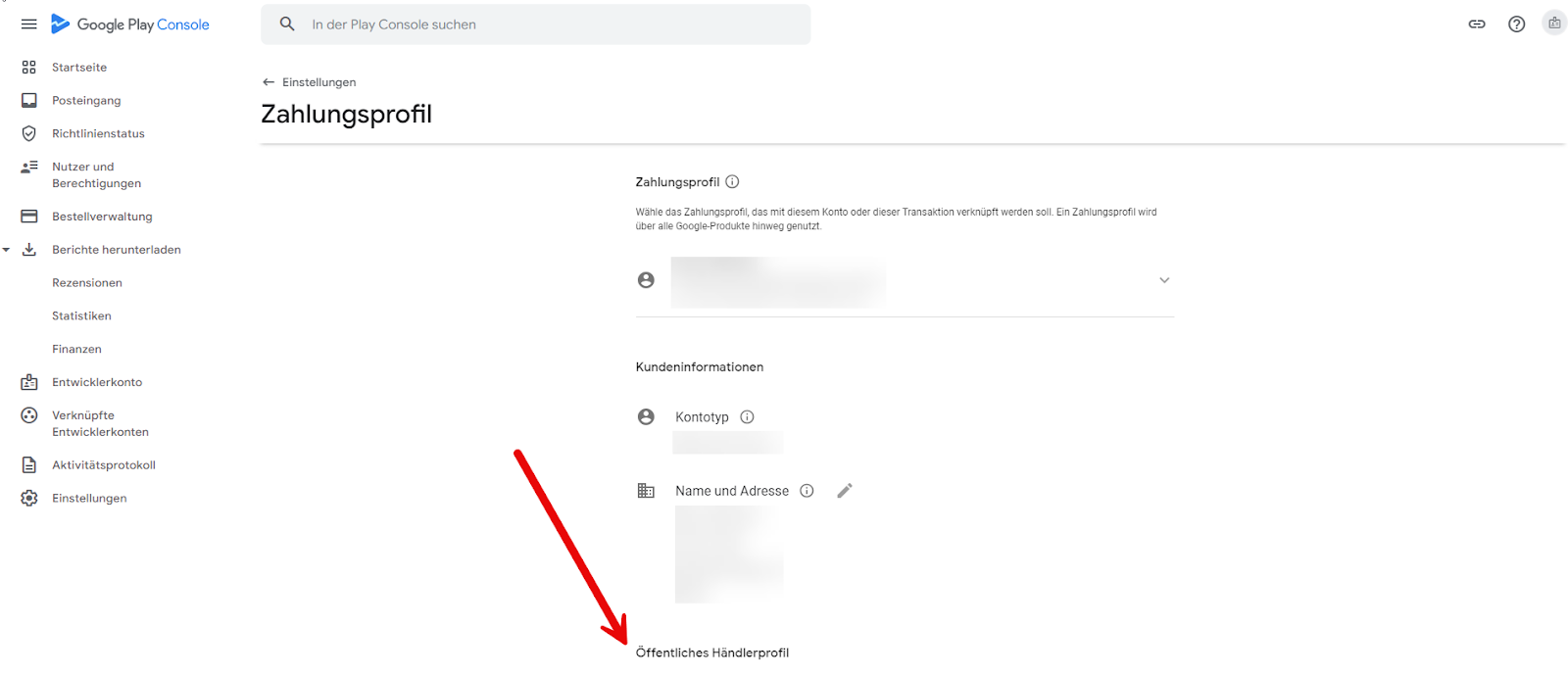
e) Enter your data
First, remove the blue checkmark to avoid inheriting any data from the background.

Fill in all fields with your personal data.
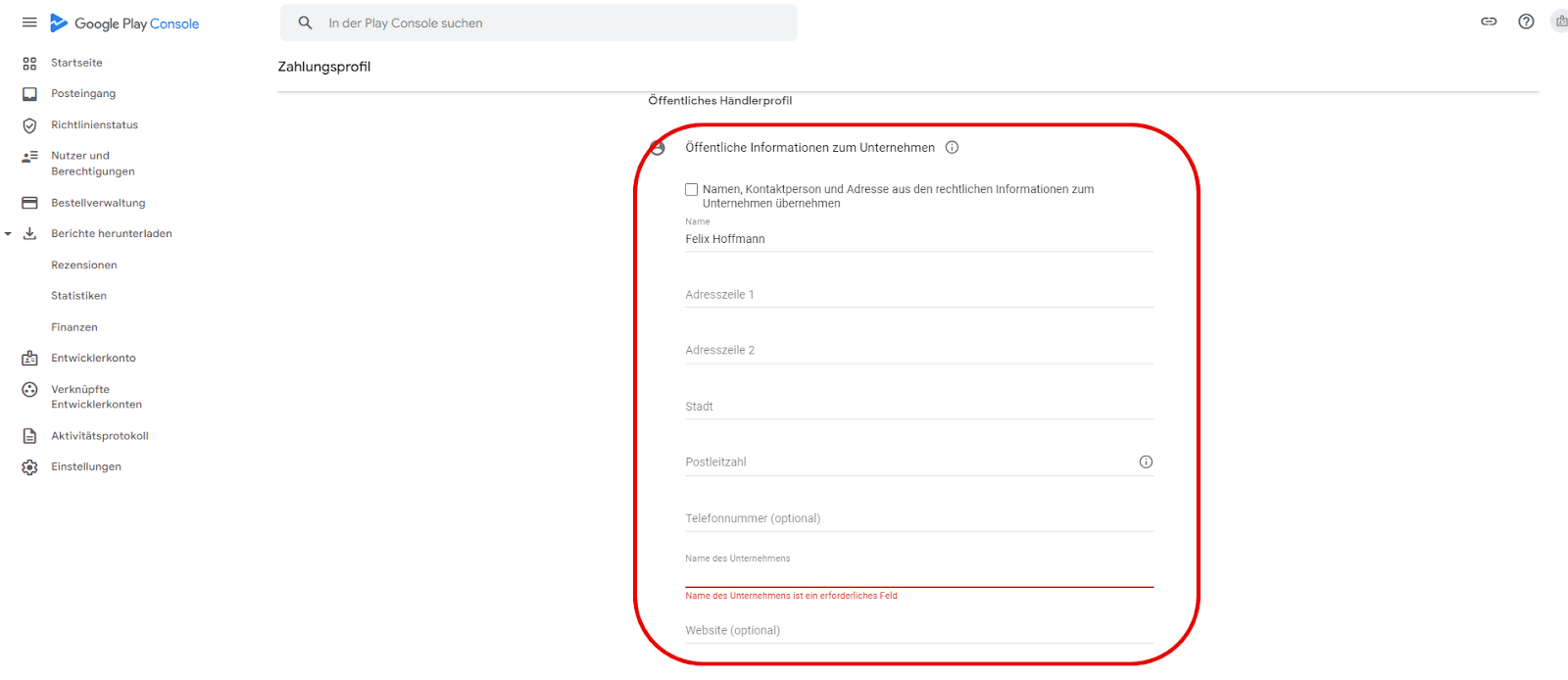
Click "Submit."

You've done it!
You have now successfully created a merchant account and are finished with this step.
The Mentortools Support team will then take all the following steps once the invitation has been accepted.