Quiz – Quiz settings
In this guide, we will show you, step by step, how to adjust the settings of a quiz you have already created in Mentortools. You'll learn how to change important settings for a specific quiz.
Last updated 12 months ago
Where Can I Find the Settings for a Specific Quiz?
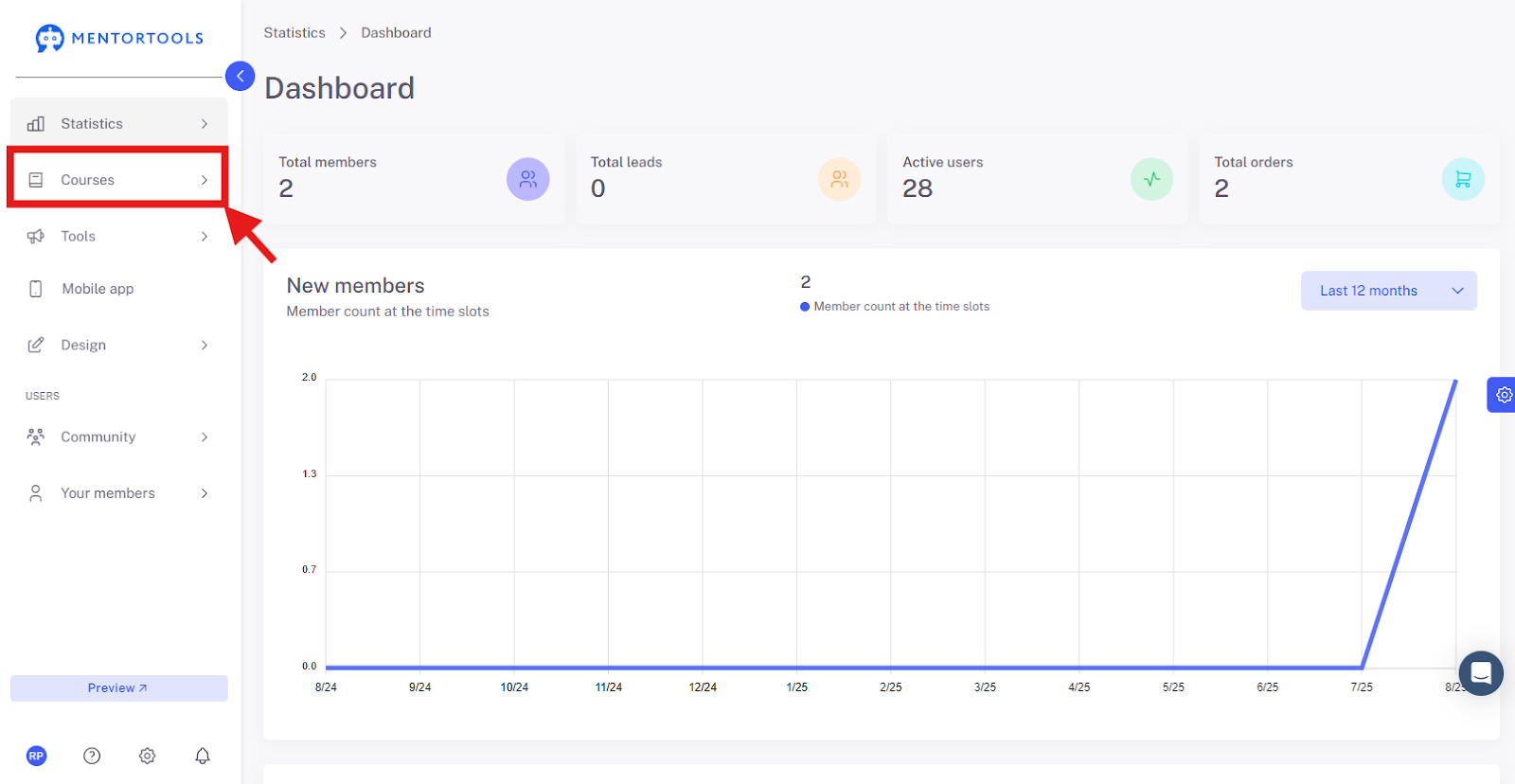
Log in to your member area and go to "Courses" in the side menu.
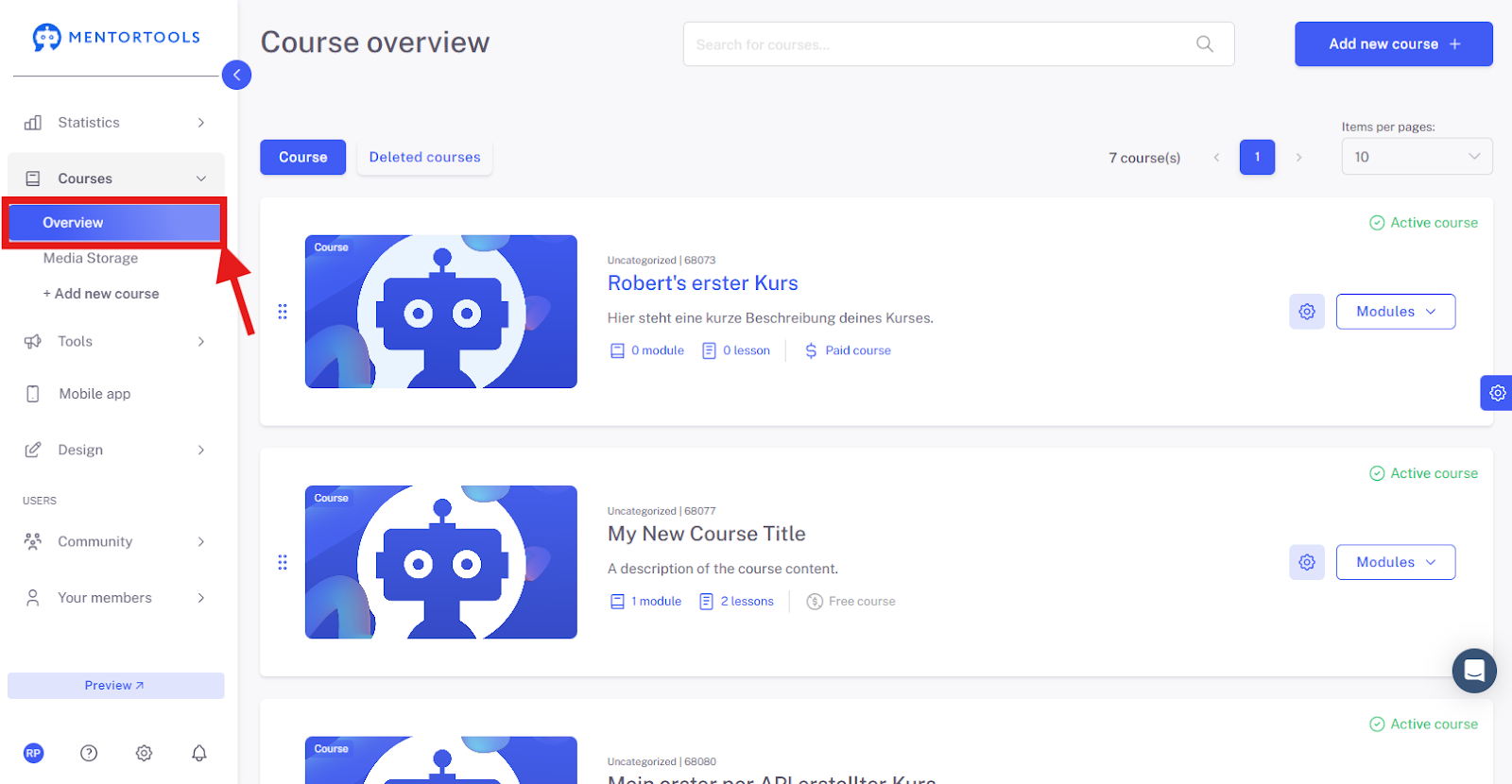
Then, click on "Overview" to see the list of all your courses.
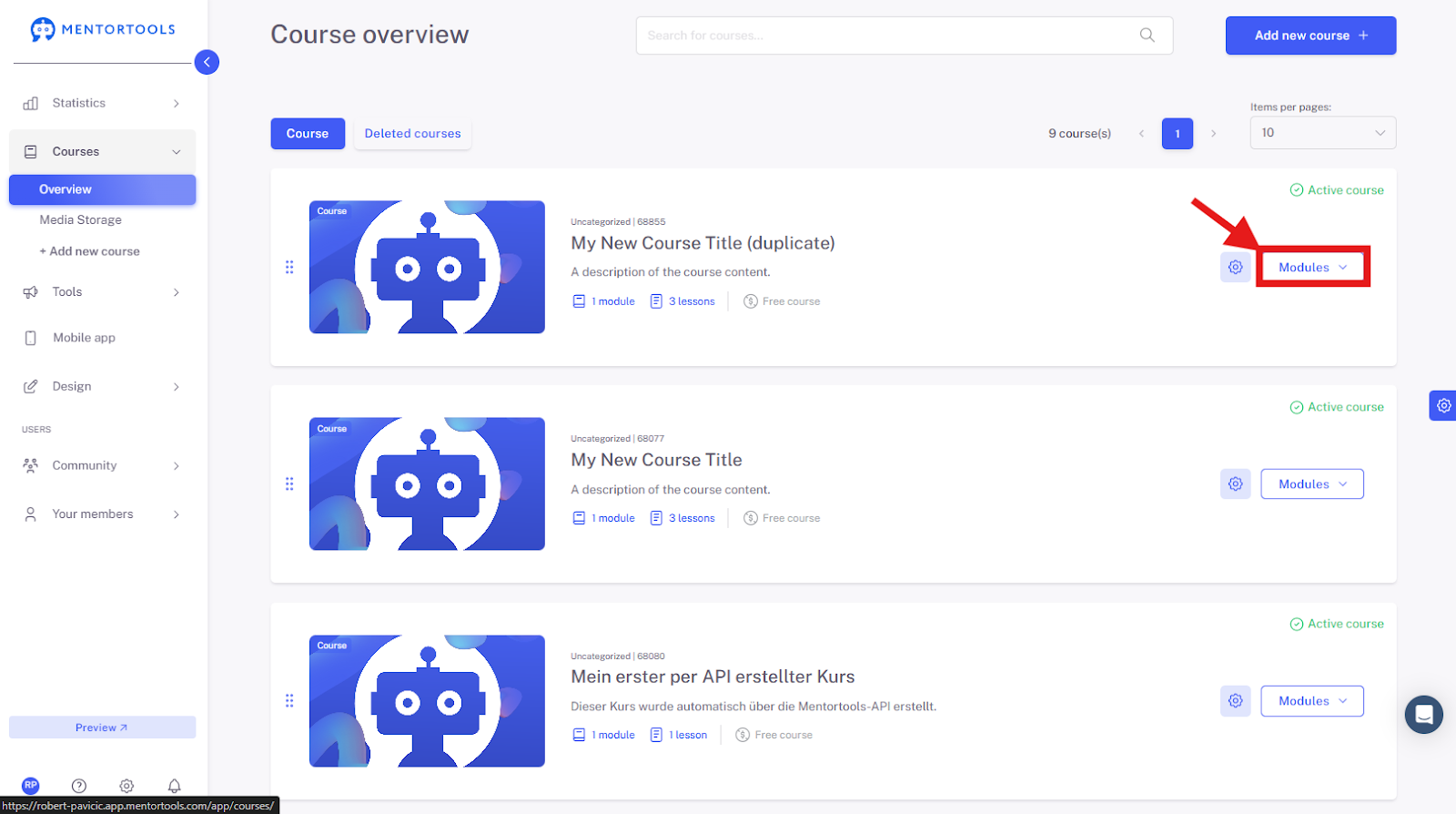
Select the course and module where you want to edit the quiz. By clicking on "Modules," all existing modules in this course will be displayed.
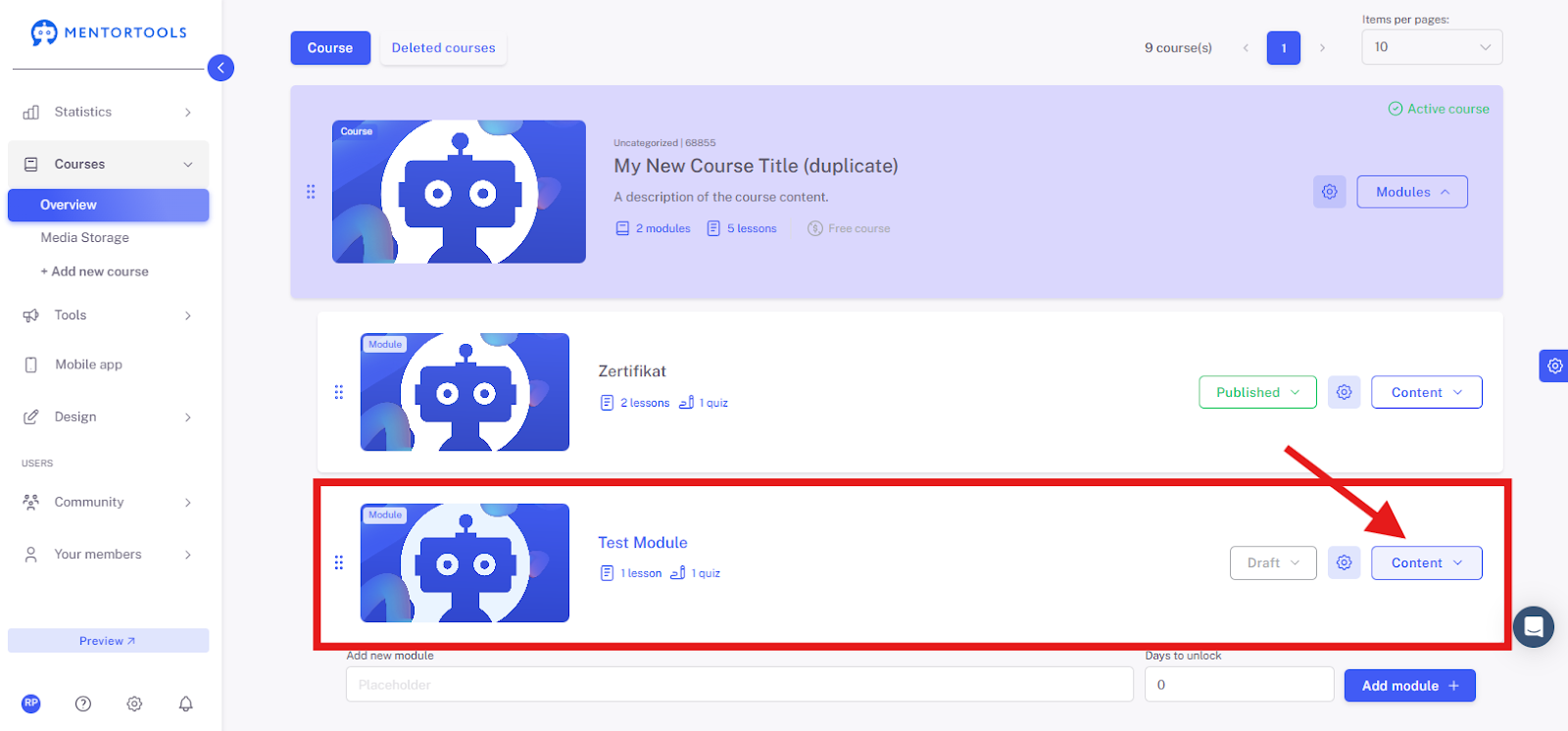
By clicking on "Content," you can see all existing lessons and quizzes in this module.
To edit the quiz, click on the title of the quiz you want to edit. After clicking the title, all settings will be displayed.

Go to the third tab here—"Quiz Settings."
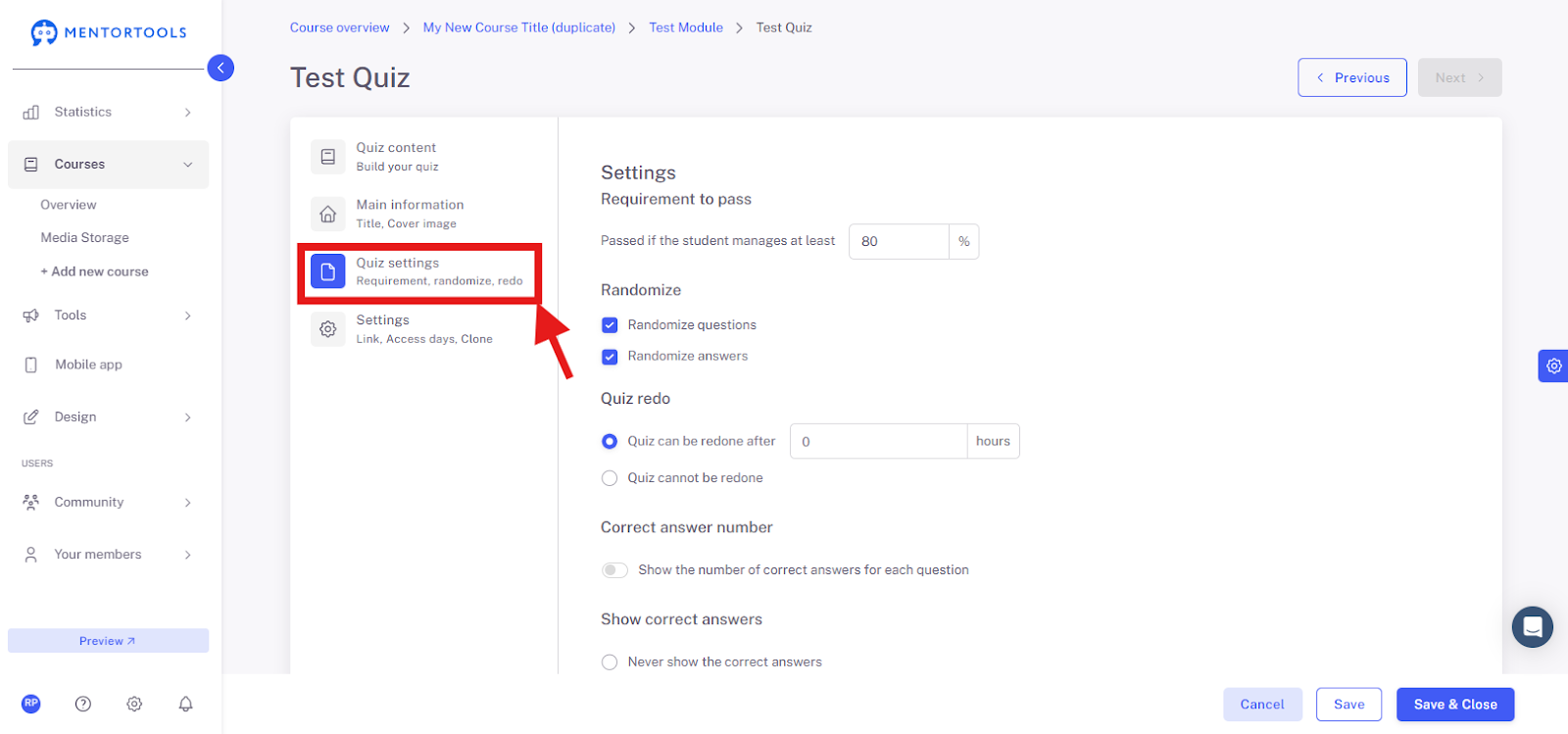
Overview of Available Quiz Settings
On the "Quiz Settings" tab, you will find important settings for a specific quiz.
How to set up the Quiz Pass Rate?
Enter the percentage the participant must achieve to successfully complete the quiz. For example: To successfully complete the quiz, the user must achieve at least 80%.
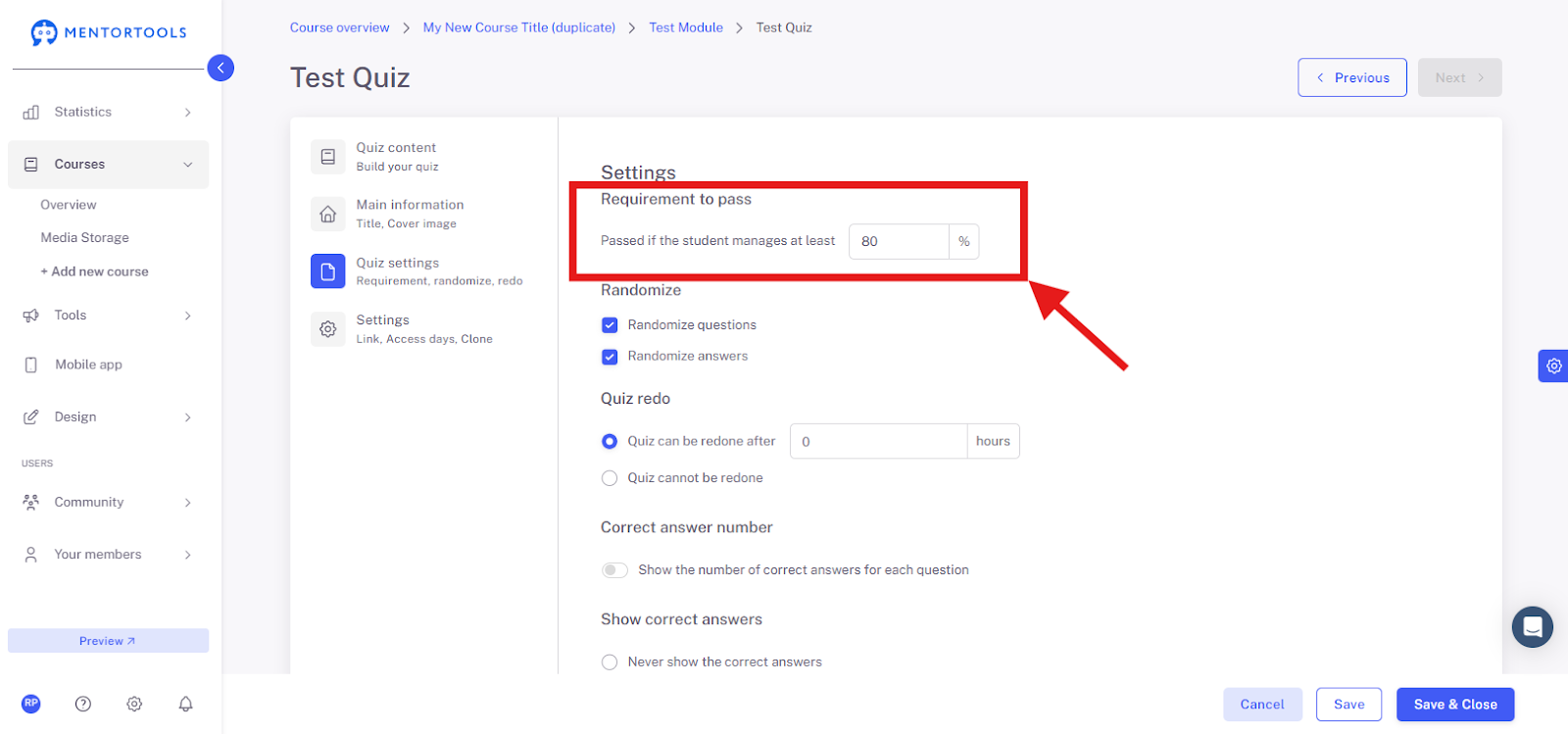
After a participant takes the quiz, Mentortools automatically evaluates it and indicates whether the participant passed the quiz or did not achieve enough correct answers.
Randomization Settings
You have two options to choose from:
Randomize questions – The questions will be arranged randomly with each new quiz attempt.
Randomize answers – The answer options will be arranged randomly with each new quiz attempt.
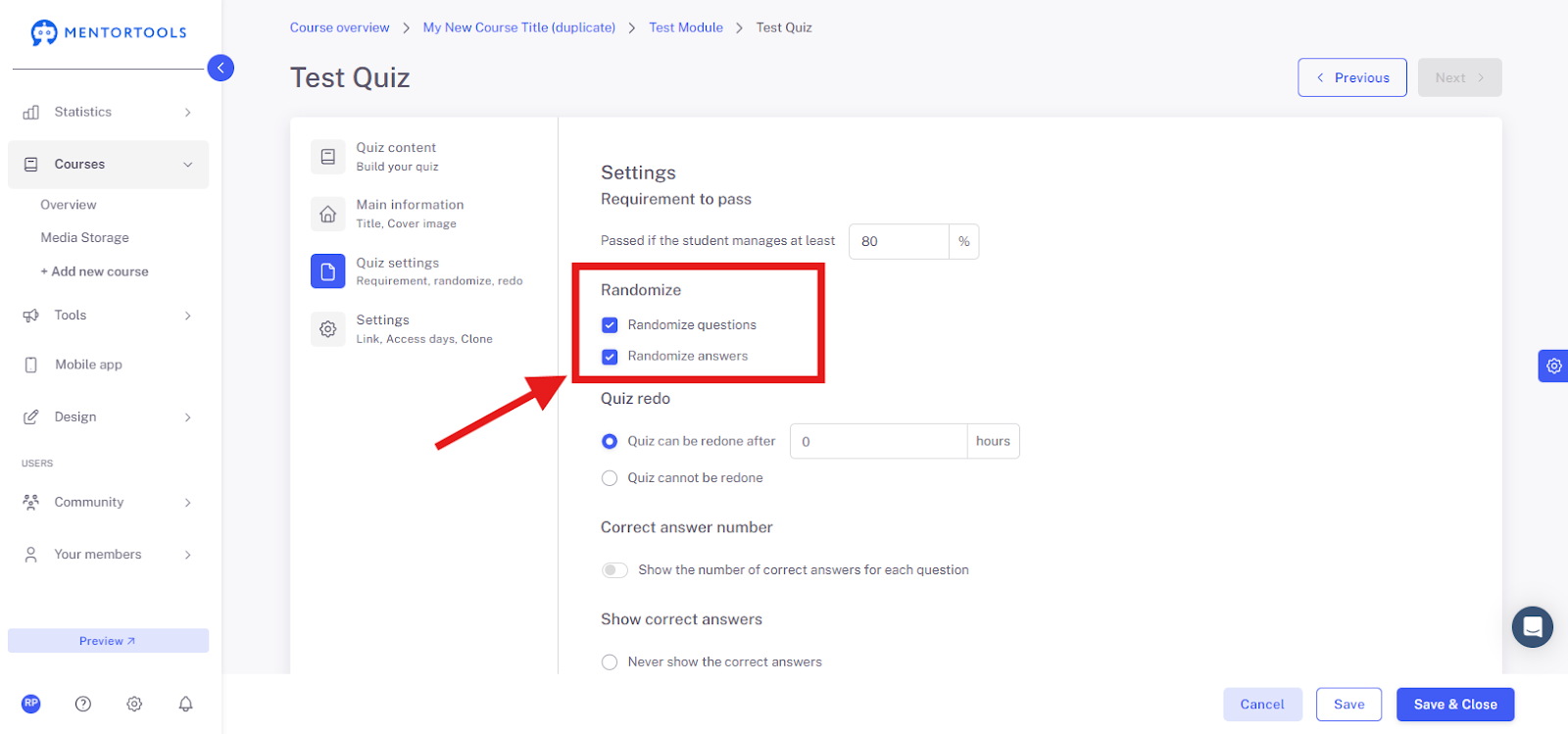
If you don't check these boxes, the questions and answer options will always remain in the same order—exactly as you set them in the "Quiz Content" section.
We recommend checking these boxes so that customers don't share correct answers with each other, such as: "Question #1 - correct answer B." This is especially important if you are using quizzes to award certificates.
Quiz Redo
You can decide whether your customers can retake the quiz. If you check the box "Quiz can be redone," you must also specify after how many hours this is possible.
If you want customers to be able to retake the quiz immediately, enter zero (0) in the field.
Otherwise, enter the desired number of hours (e.g., after one hour, "1" / or the next day, "24").
If you don't want customers to be able to retake the quiz, check the box "Quiz cannot be redone."

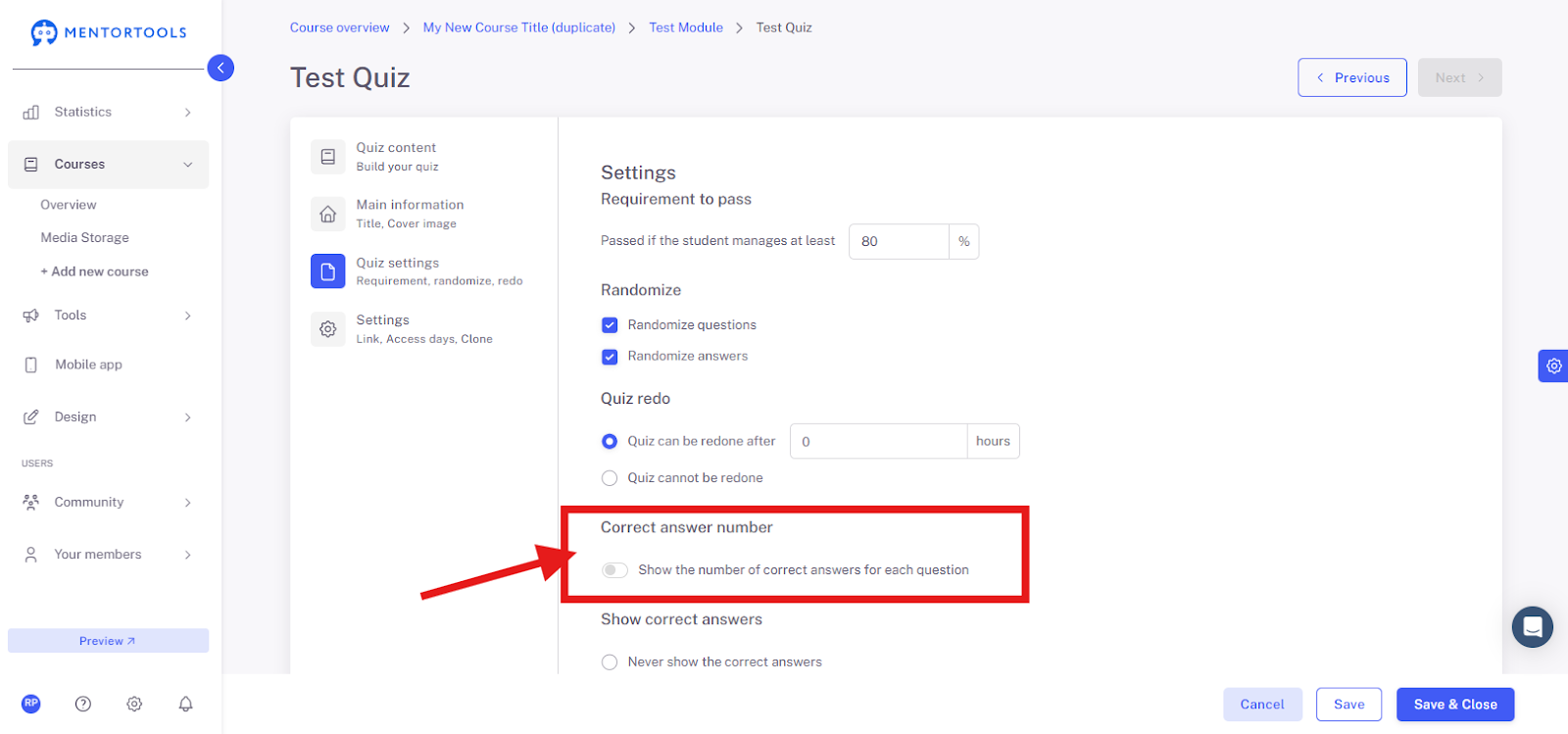
Show Number of Correct Answers
Here you can decide whether the number of correct answers for individual questions is displayed to your customers.
If you activate this option, the number of correct answers will be displayed for each question (e.g., "one correct answer" / "multiple correct answers").
If you deactivate this option, the number of correct answers for individual questions will not be displayed.
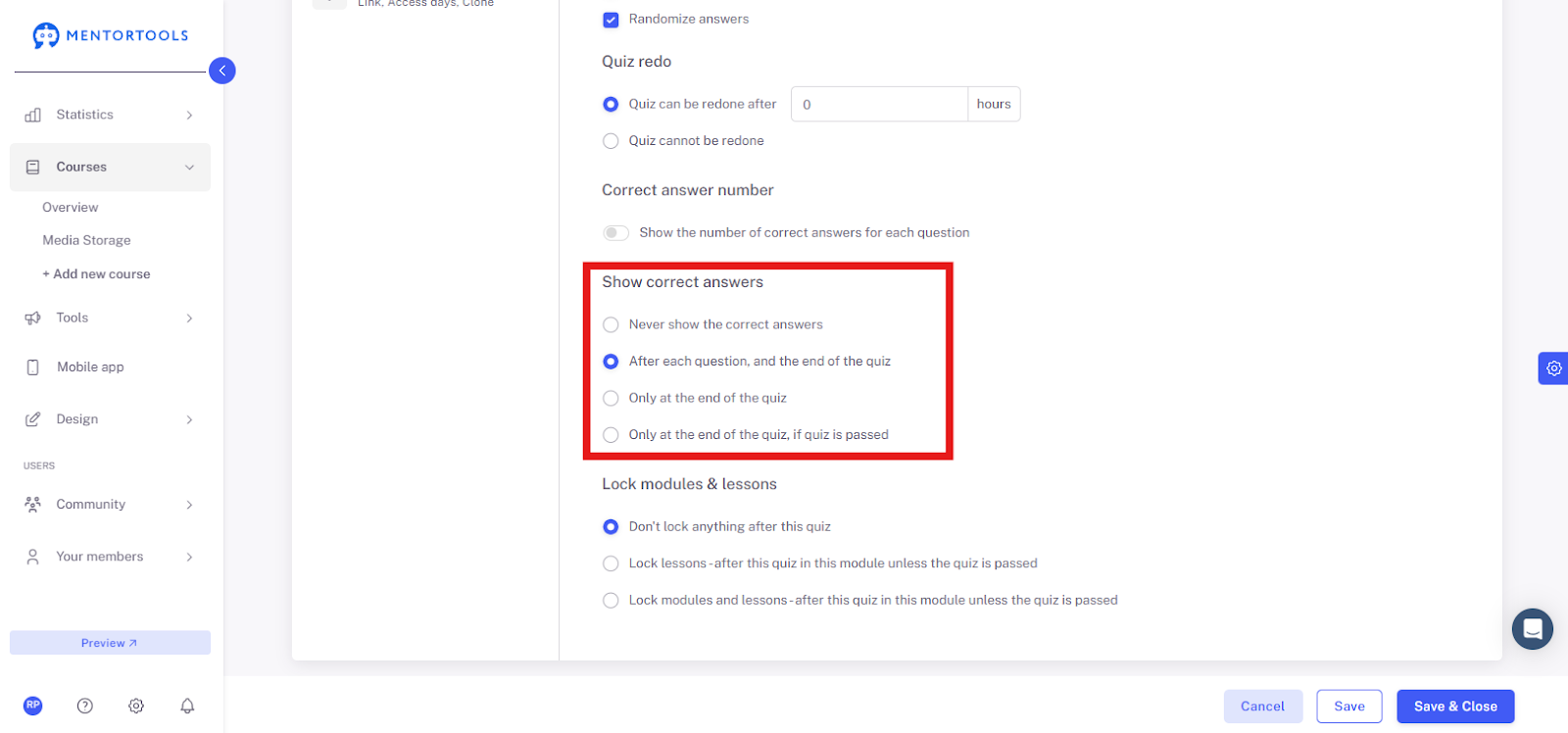
Show Correct Answers
Here you can choose whether Mentortools should show or not show the correct answers of the quiz.
There are 4 options to choose from:
Never show the correct answers
After each question and at the end of the quiz
Only at the end of the quiz
Only at the end of the quiz if the quiz is passed
How to Lock Modules and Lessons?
This feature allows you to lock modules and lessons that come after the quiz. Your customer can only proceed to the next lesson or module if they have successfully completed the quiz.
There are 3 options to choose from:
Do not lock anything after this quiz – The customer can proceed to the next lesson without successfully completing the quiz.
Lock lessons - after this quiz only in this module, if the quiz has not yet been passed – After a failed quiz, all subsequent lessons in the current module will be locked until the quiz has been successfully completed.
Lock all modules and lessons - after this quiz, if the quiz has not yet been passed – After a failed quiz, all subsequent lessons and modules in the course will be locked until the quiz has been successfully completed.

Saving Settings
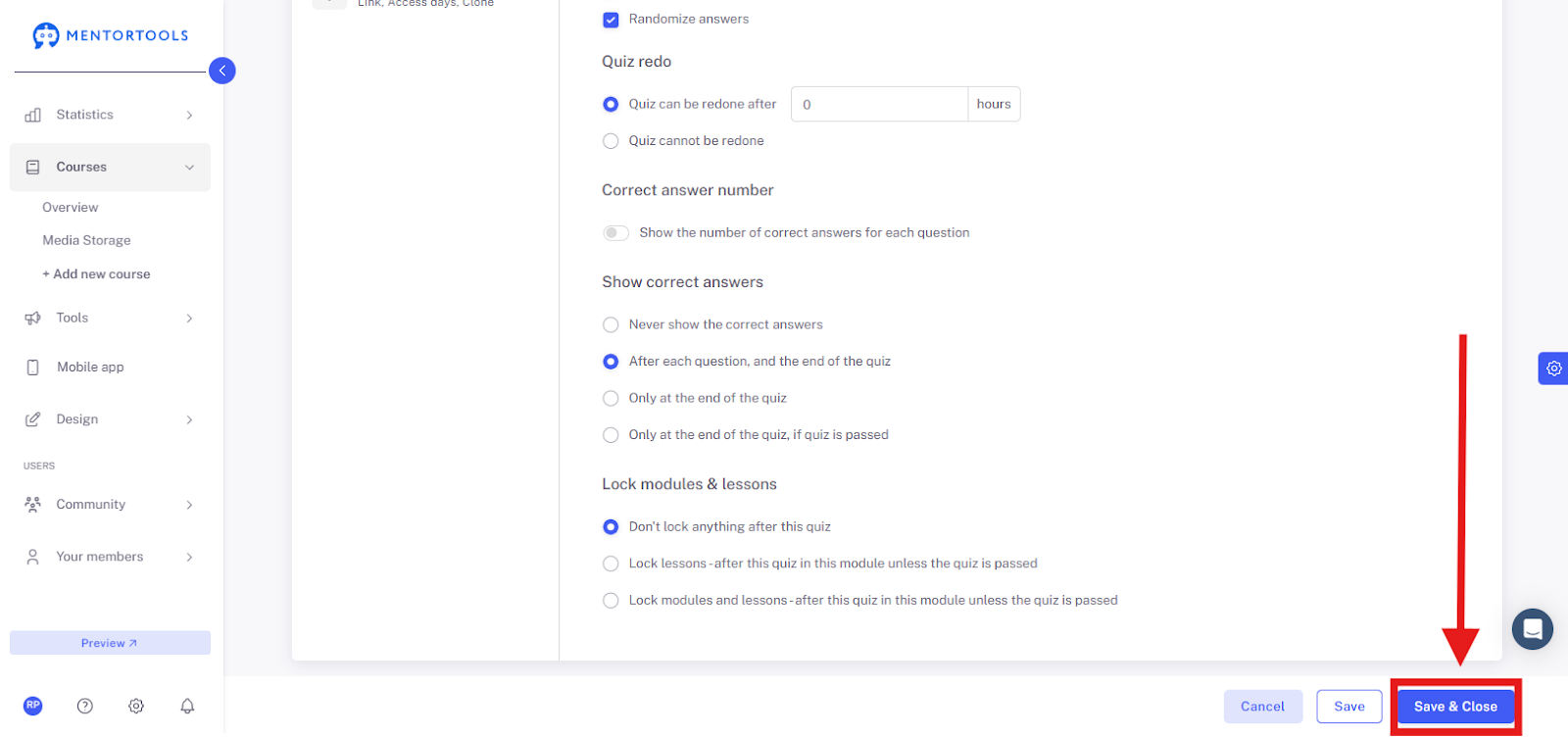
After you have edited all the settings, you can click on "Save and Close" to save the changes you have made.
You have now successfully adjusted the important settings for a specific quiz. To change the settings for other quizzes, simply follow the same procedure. You can change these settings at any time.