Quiz – Create quiz
With Mentortools, you can create interactive quizzes that help participants acquire knowledge in a fun way while also checking their learning progress. In this guide, we will show you, step by step, how to create a quiz, add questions, and insert it into your course.
Last updated 12 months ago
Creating a Quiz in Mentortools
This guide will show you how to create a quiz for your members in Mentortools, step by step.
Go to "Courses"
In your online academy, go to "Courses" in the side menu.

Go to "Overview"
To view the list of all your courses, go to "Overview."

Select a Specific Course
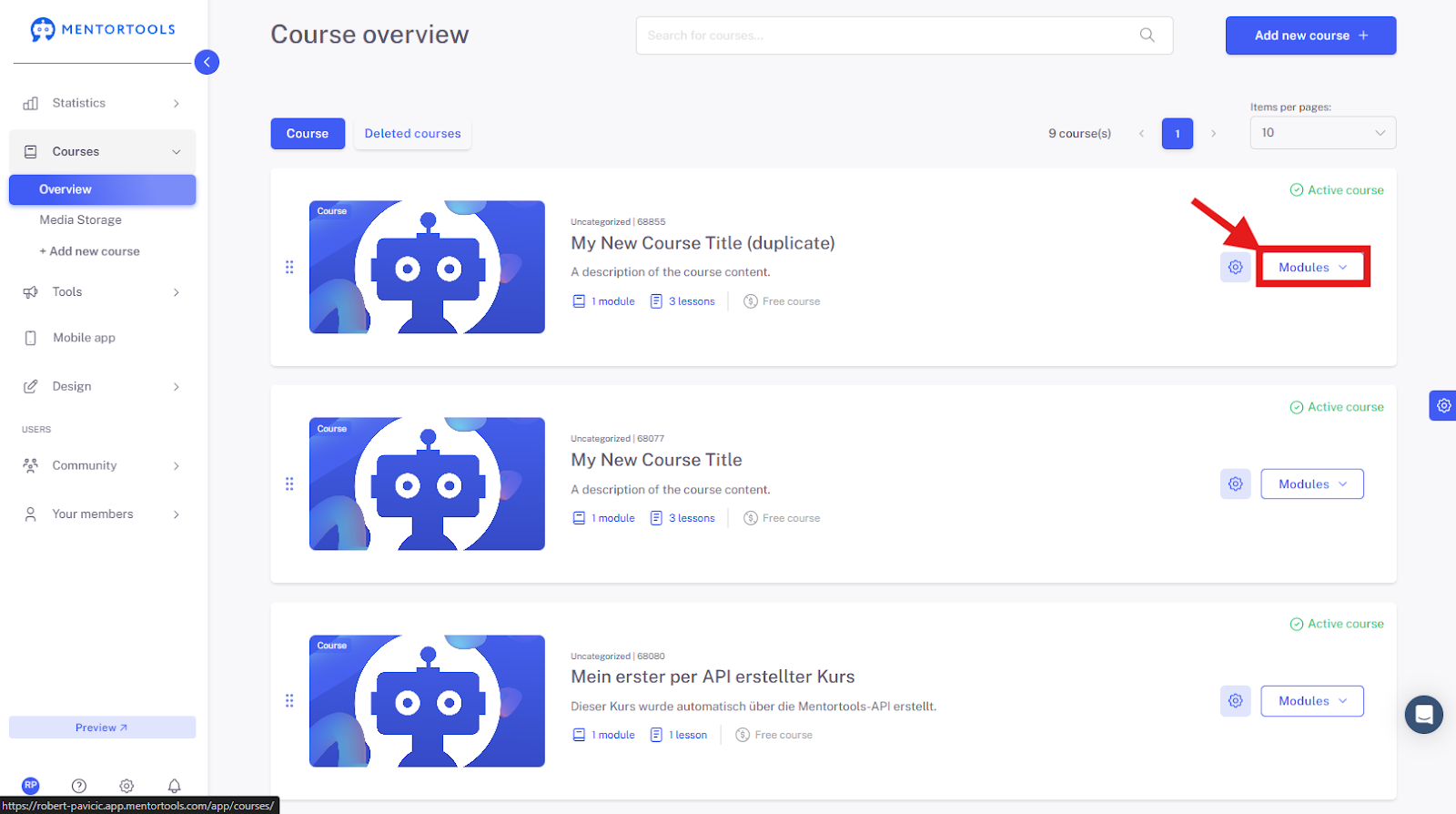
Choose a specific course and a module where you want to create a new quiz. By clicking on "Modules," all existing modules in this course will be displayed.
Display the Content of the Module
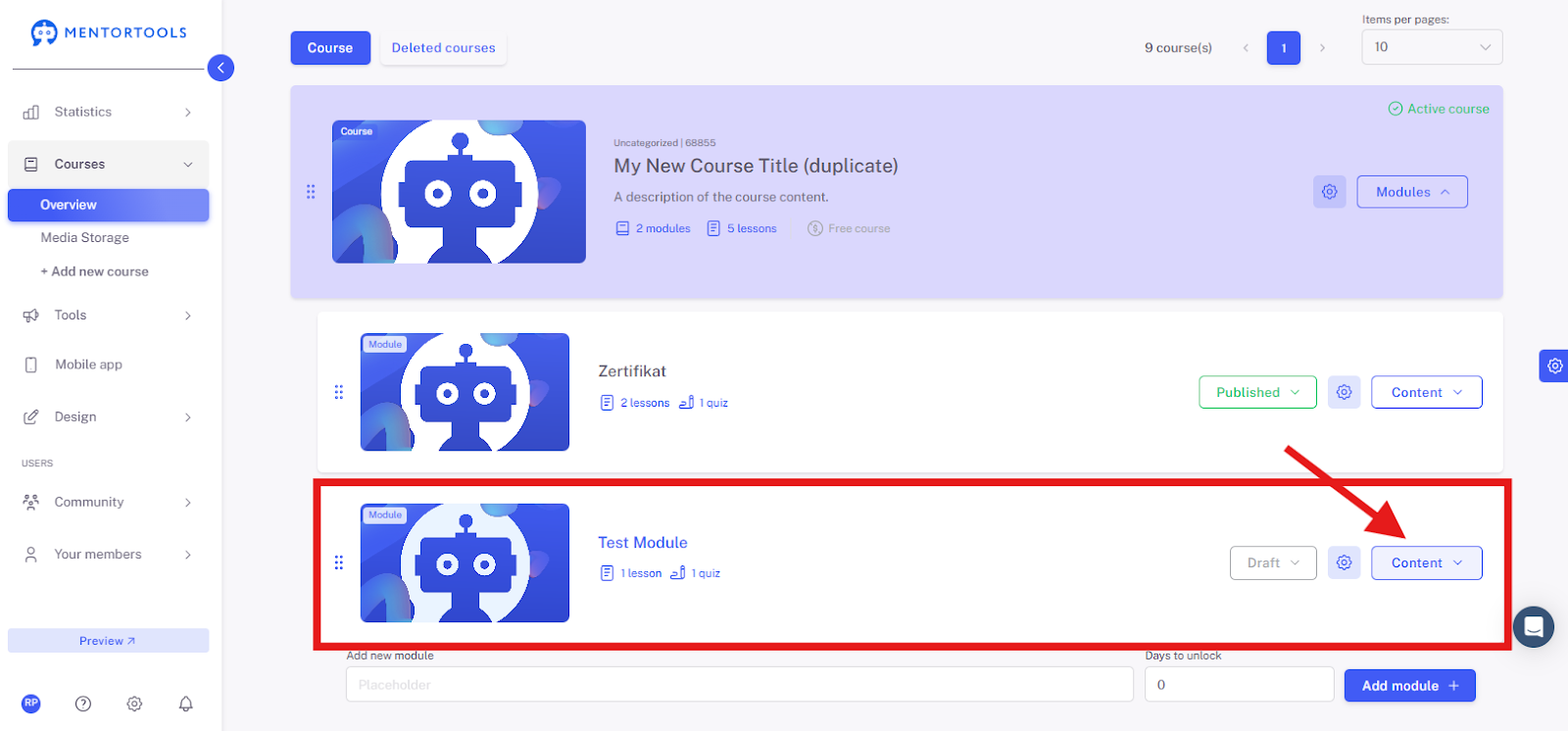
By clicking on "Content," all existing lessons and quizzes in this module will be displayed.
Add a New Element
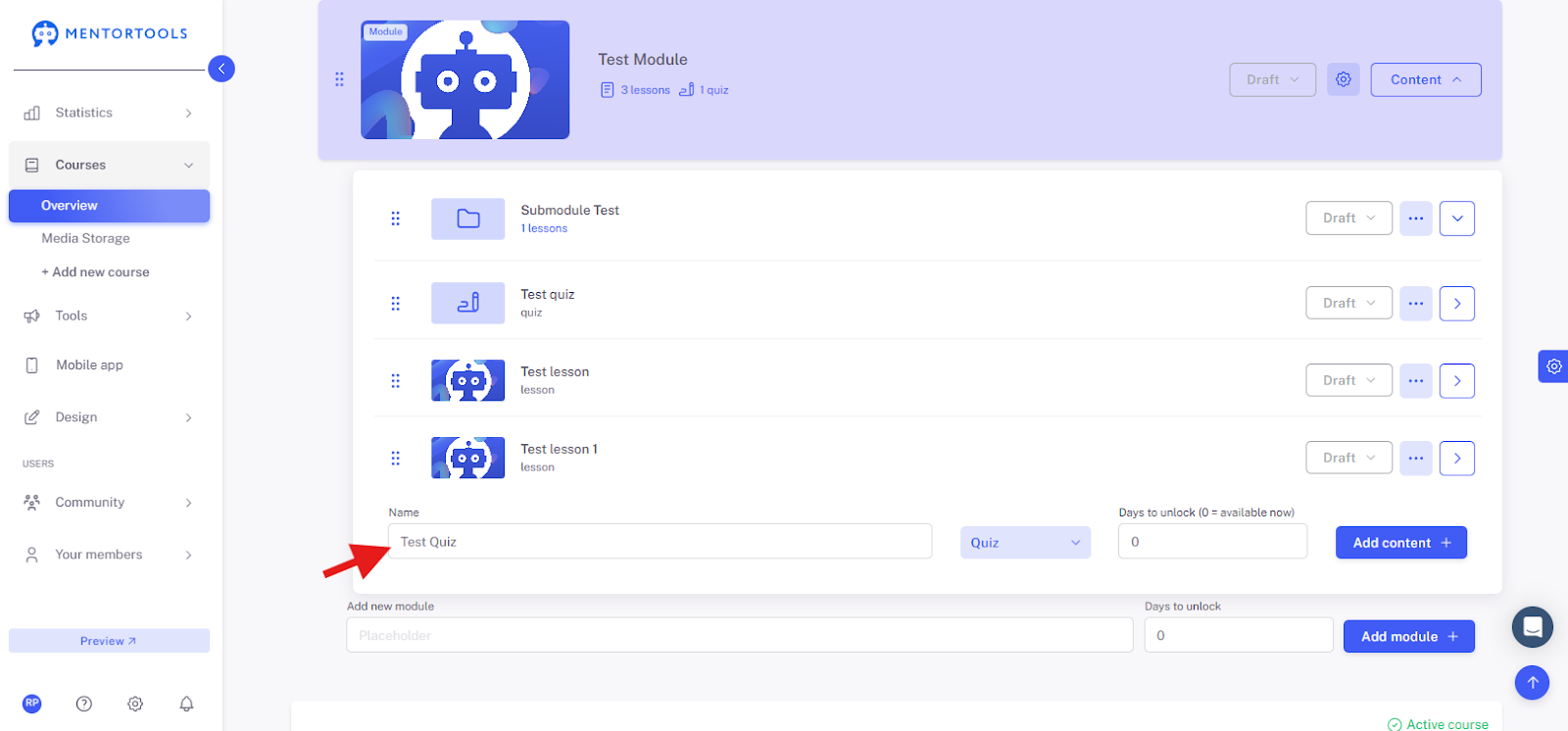
At the end of the lesson list, you will find the option to add a new element to the module. Click on the dropdown menu, and you will see the elements that can be added to the module: Submodule, Quiz, Lesson.
Select the "Quiz" option from the dropdown menu to add a quiz.

Enter the Title of the New Quiz
First, you need to enter the title of your new quiz.
Add the New Quiz
Finally, click on "Add Content +" to create a new quiz in this module.
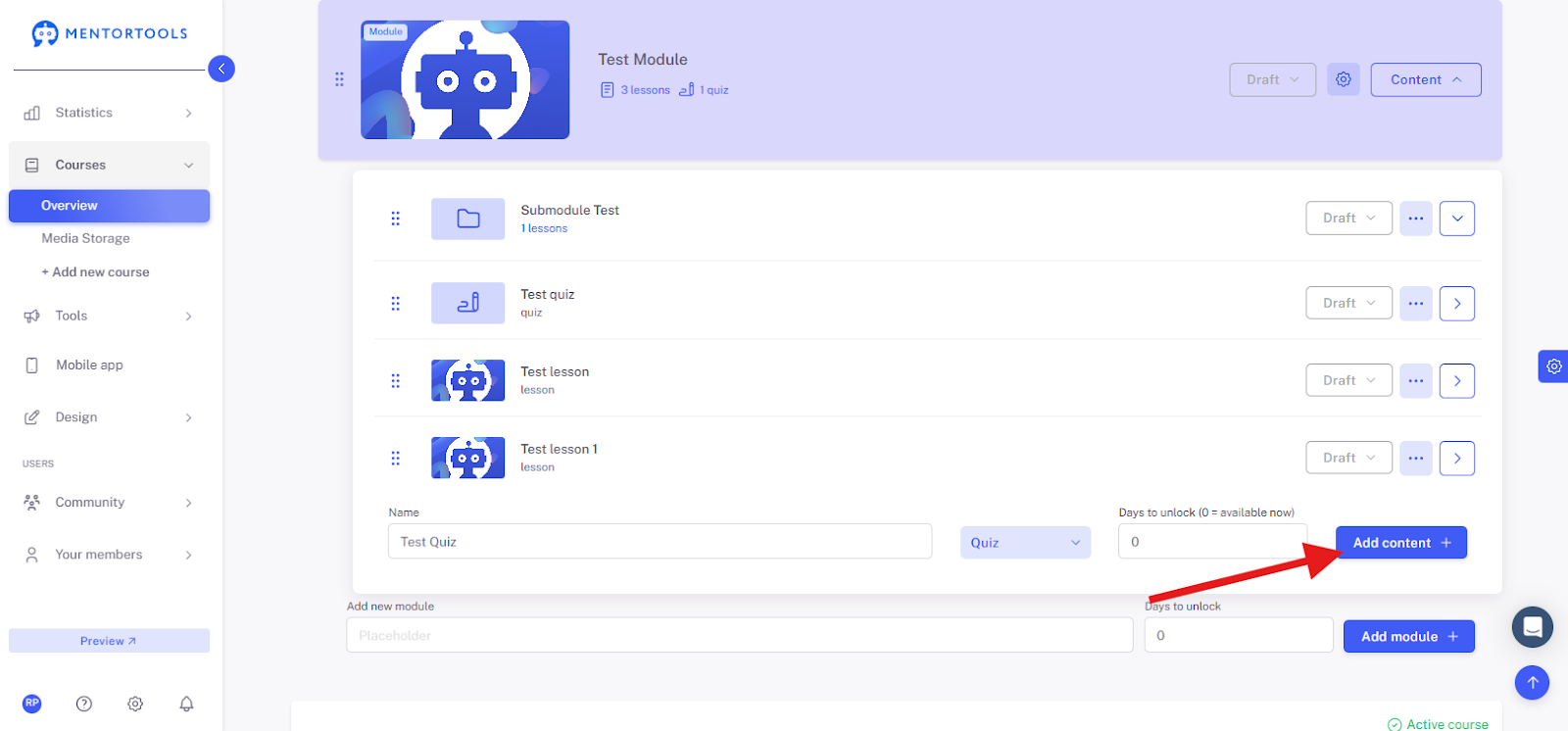
The new quiz is created immediately and added to the end of the list of lessons and quizzes in this module.
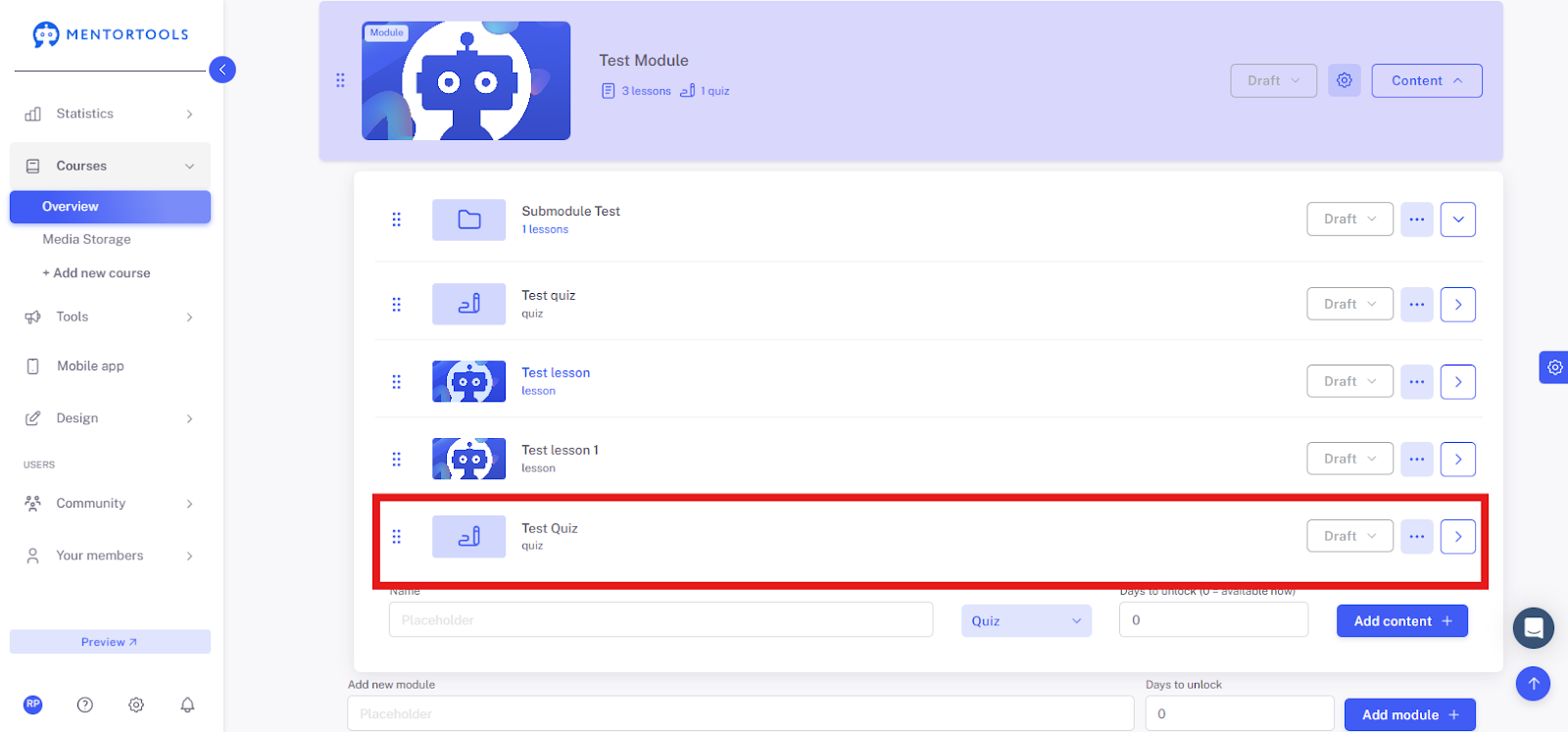
Adjusting Settings and Adding Content
If you want to edit the quiz settings or add content (individual questions) to your quiz, simply click on the quiz title, and the settings for that quiz will be displayed.
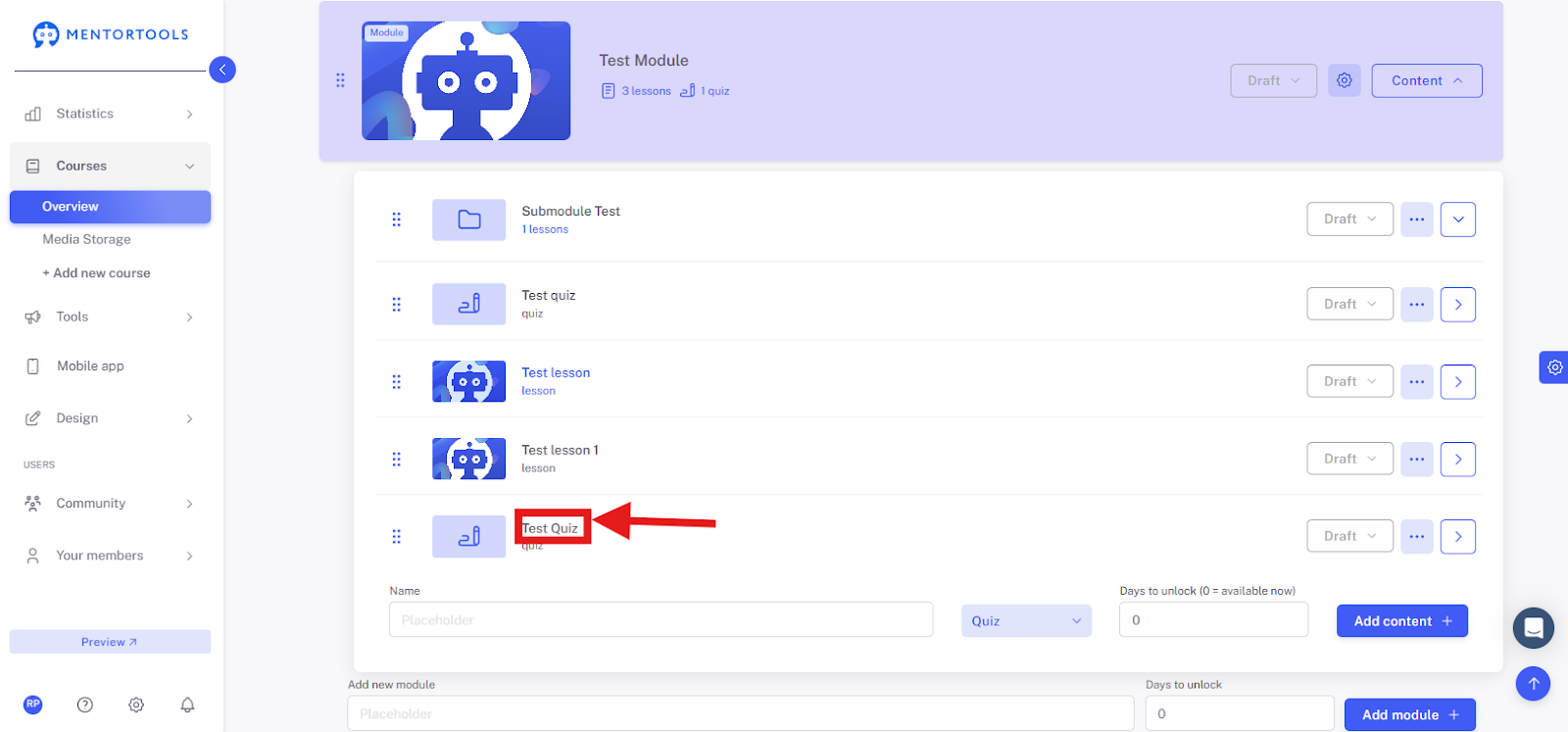
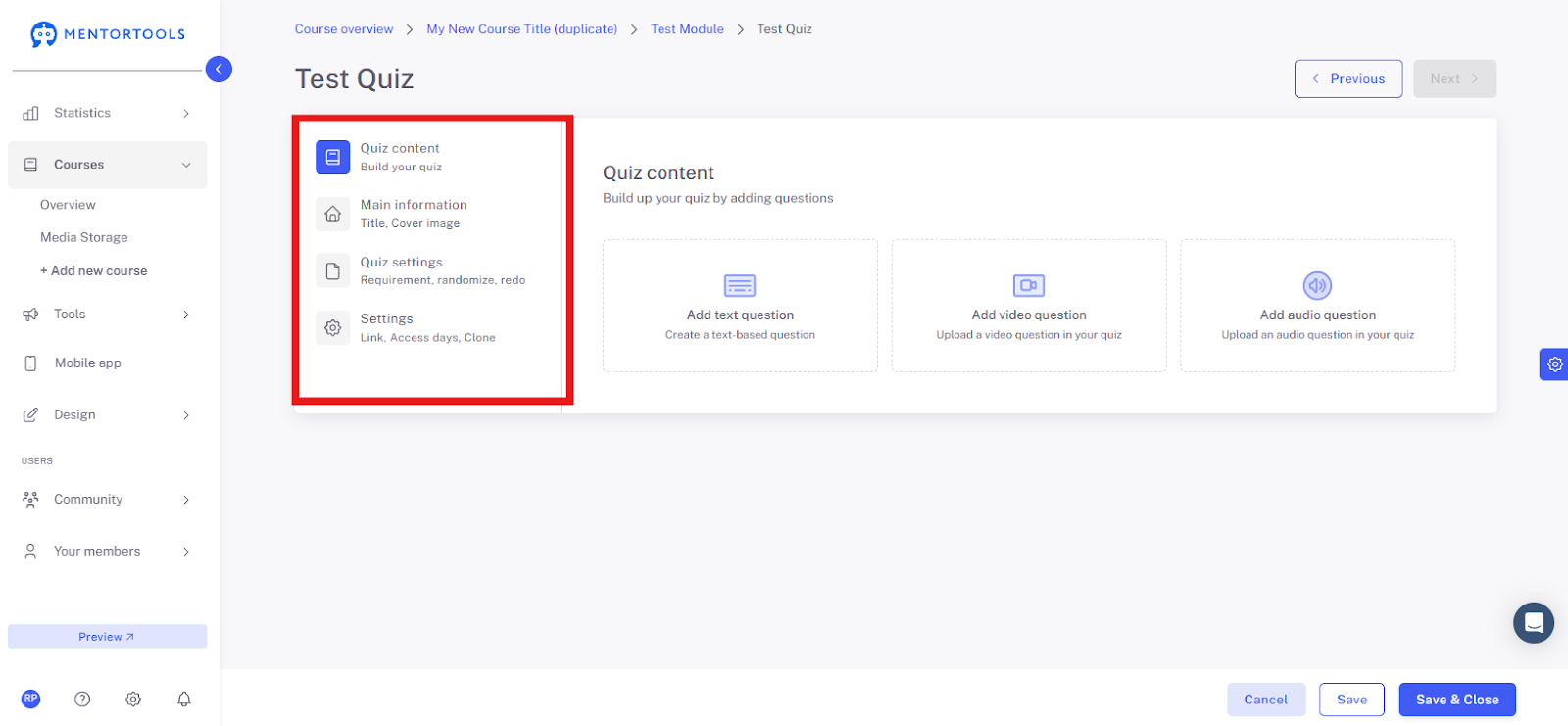
Days Until Release
In each quiz, you can set the number of days until it is unlocked. This means how many days after your customers get course access the quiz will become available.
For example, if you set 10 days for the quiz to be unlocked, this quiz will become available to your customer 10 days after the course starts, they purchase the course, or they register in your members' area. (Note: The number of days until release is cumulative if you have also set a release delay for the module.)
If you leave this at zero ("0"), the quiz will be available immediately.
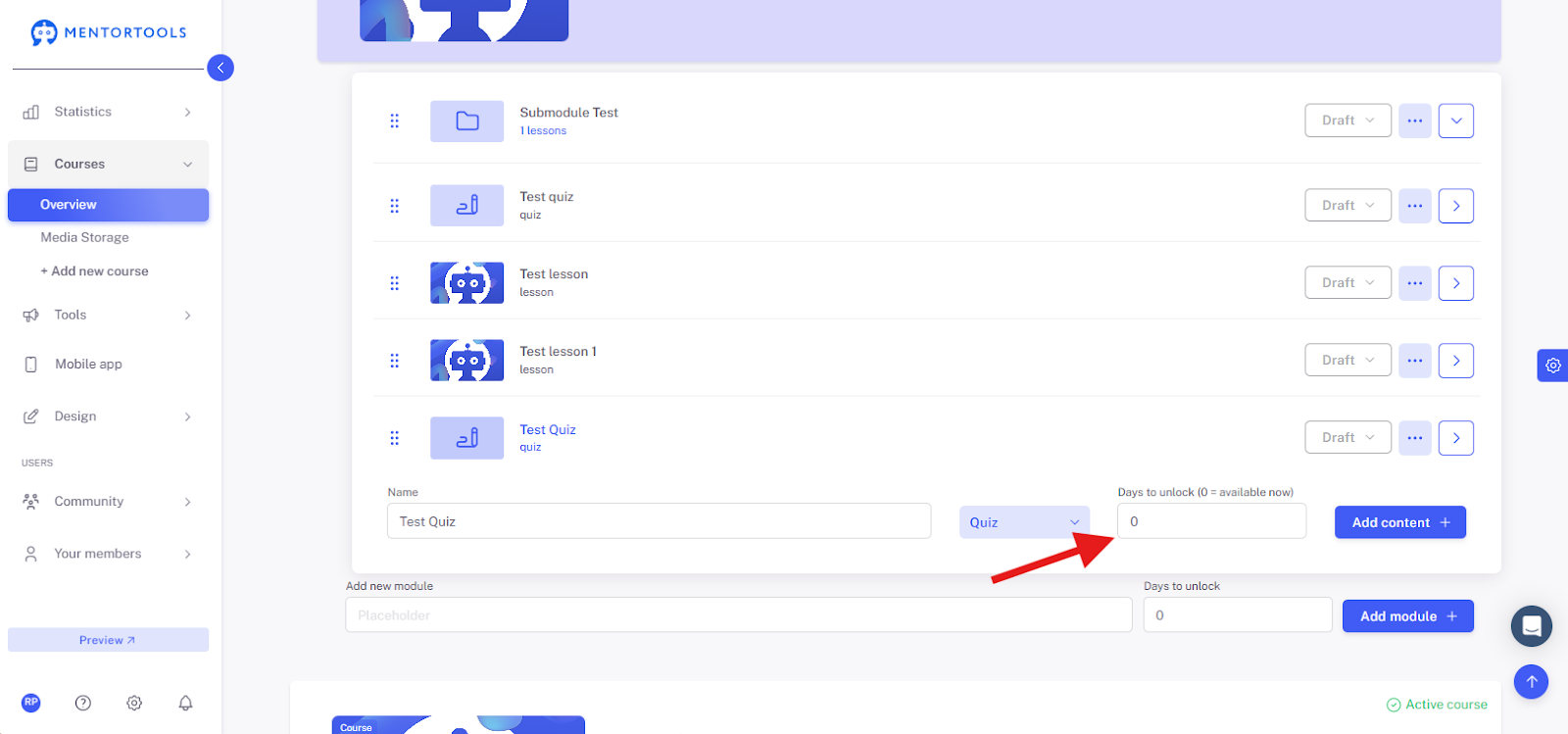
Quiz Visibility Settings
After creating a new quiz, you can set its visibility for customers.
If you leave the quiz as "Draft" (the default setting), the quiz will not be displayed in your online course. You can leave the quiz as a draft, for example, if you are still working on it and don't want it to be visible to your customers yet.
If you want the quiz to be visible to your customers in the respective course, set the quiz to "Published."

Duplicating a Quiz
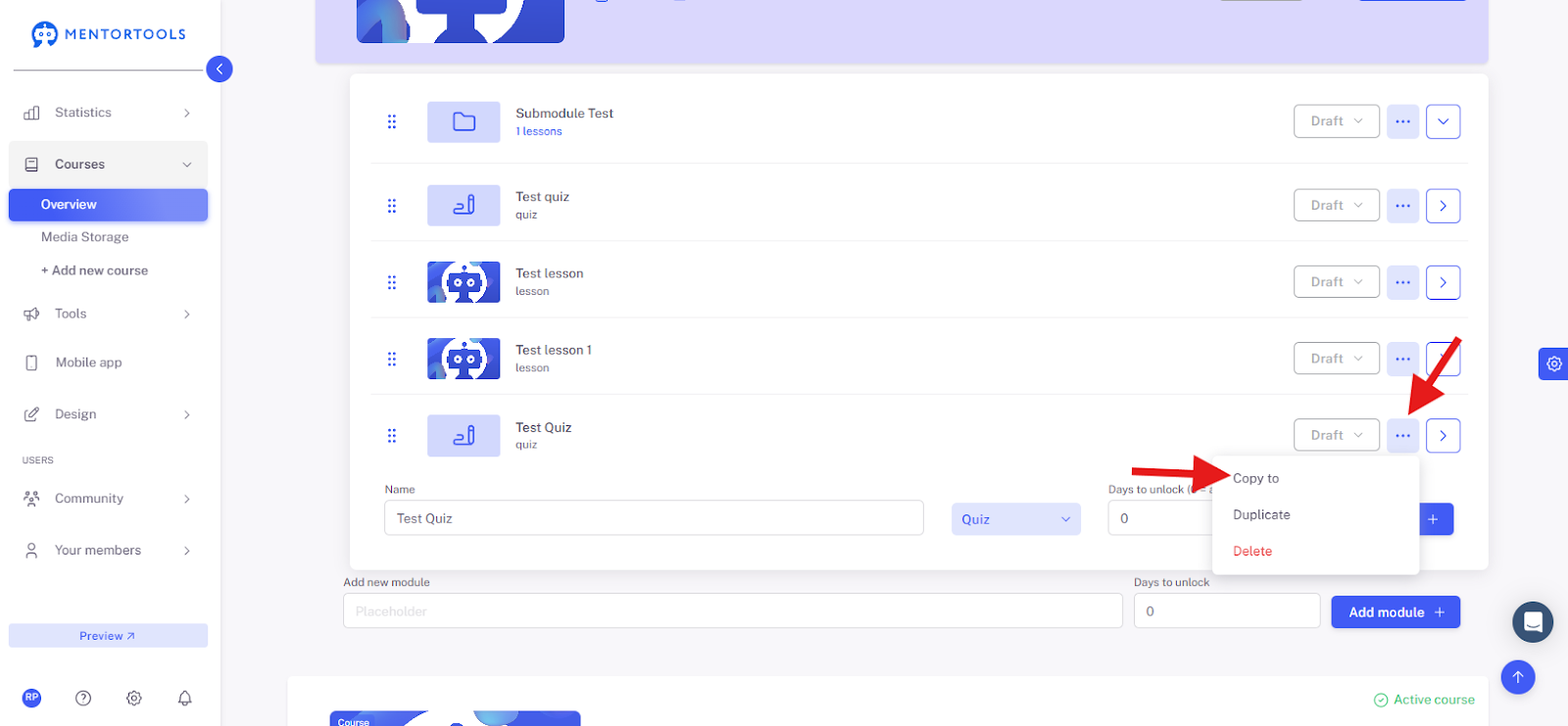
If you want to duplicate your quiz (i.e., create an exact copy), click on the three dots next to the quiz title. Two options will appear:
Duplicate – If you select this option, a copy of the quiz is created within the same module.

Copy to – If you select this option, you can copy the quiz to another module in the same course or to a completely different course.
In this case, a list of courses and modules will be displayed, from which you can select which course/courses and module/modules you want to copy the quiz to.
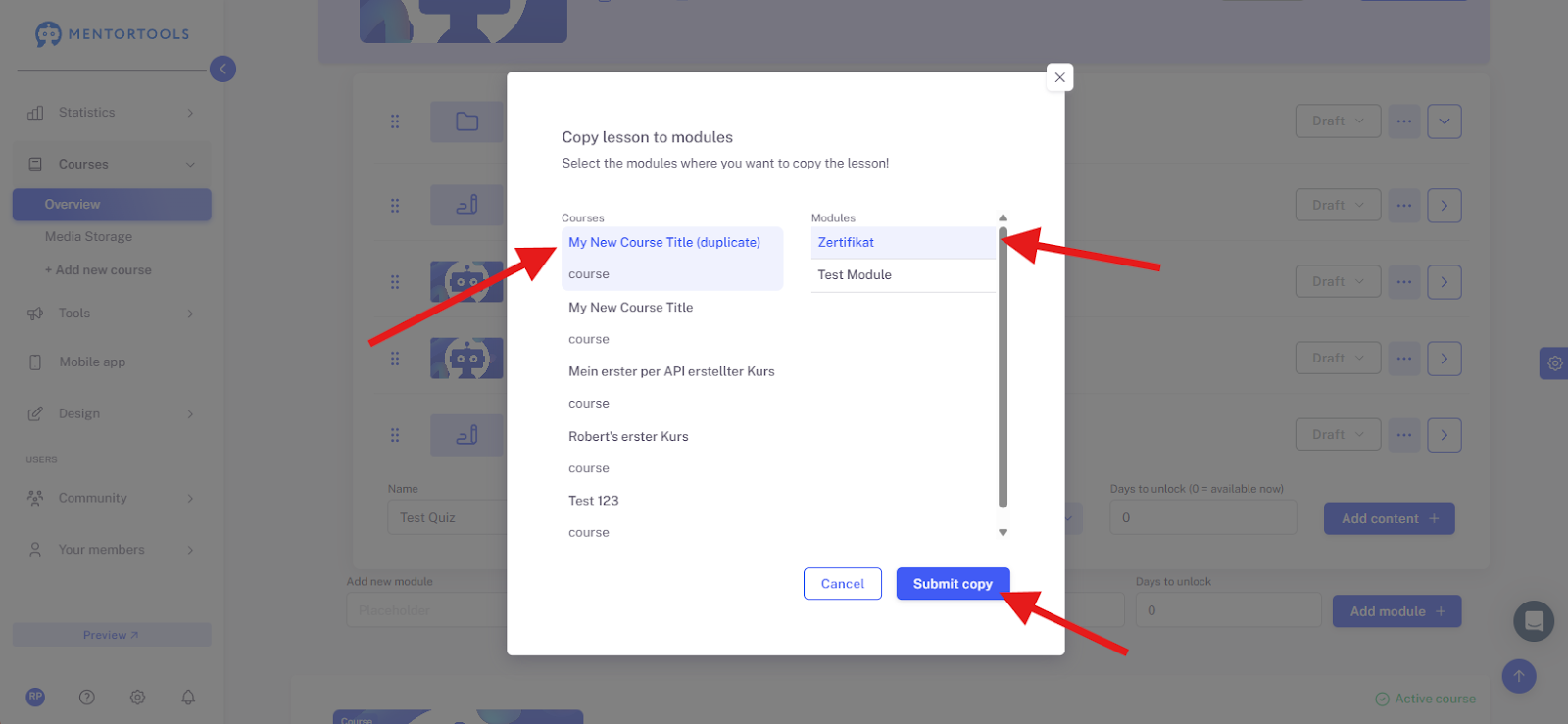
After you have selected a specific course and module, click the blue button "Submit Copy." The quiz will then be copied to the selected course and module.
Deleting a Quiz
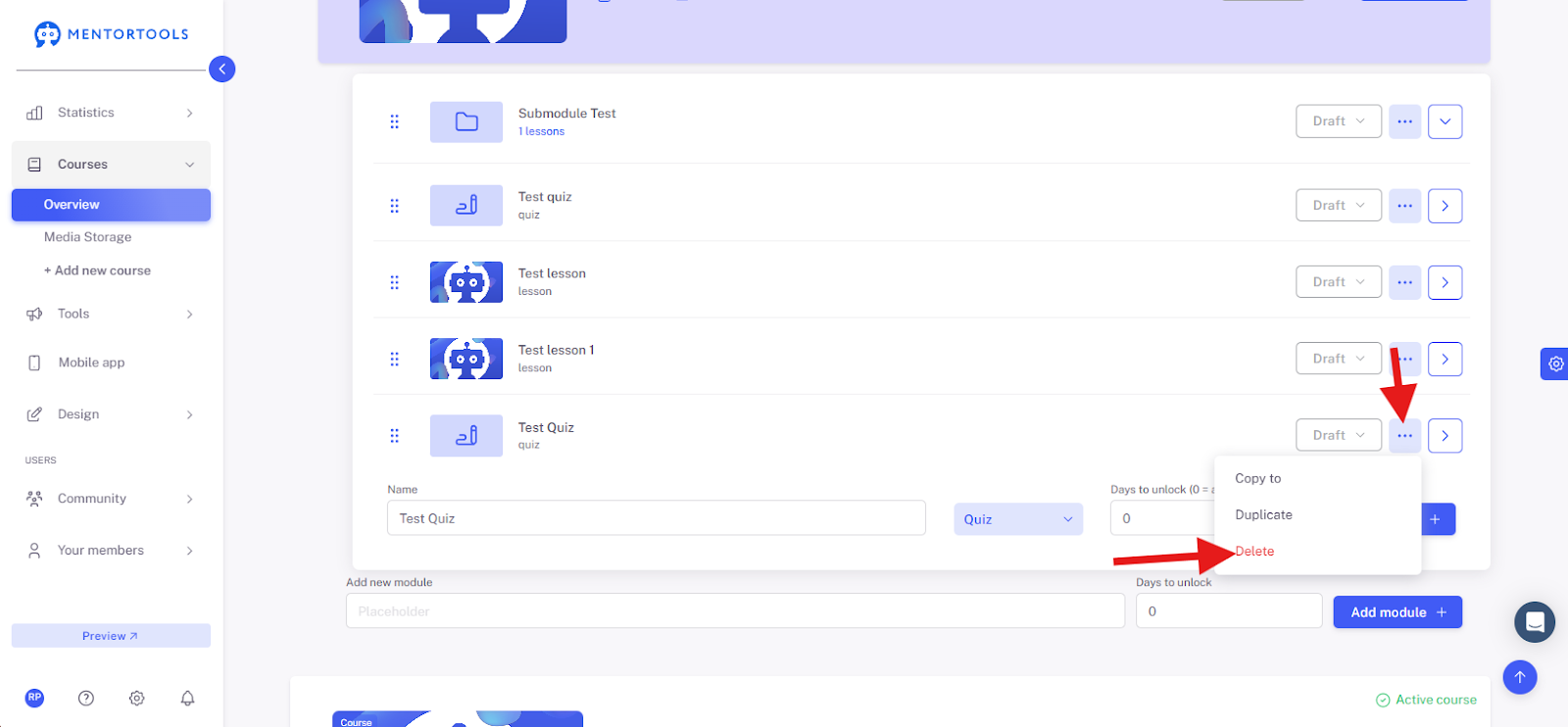
If you want to delete your quiz, click on the three dots next to the quiz title. Then select the "Delete" option. Confirm your selection in the next step, and the quiz will be deleted.
Changing the Order of Lessons and Quizzes in the Module
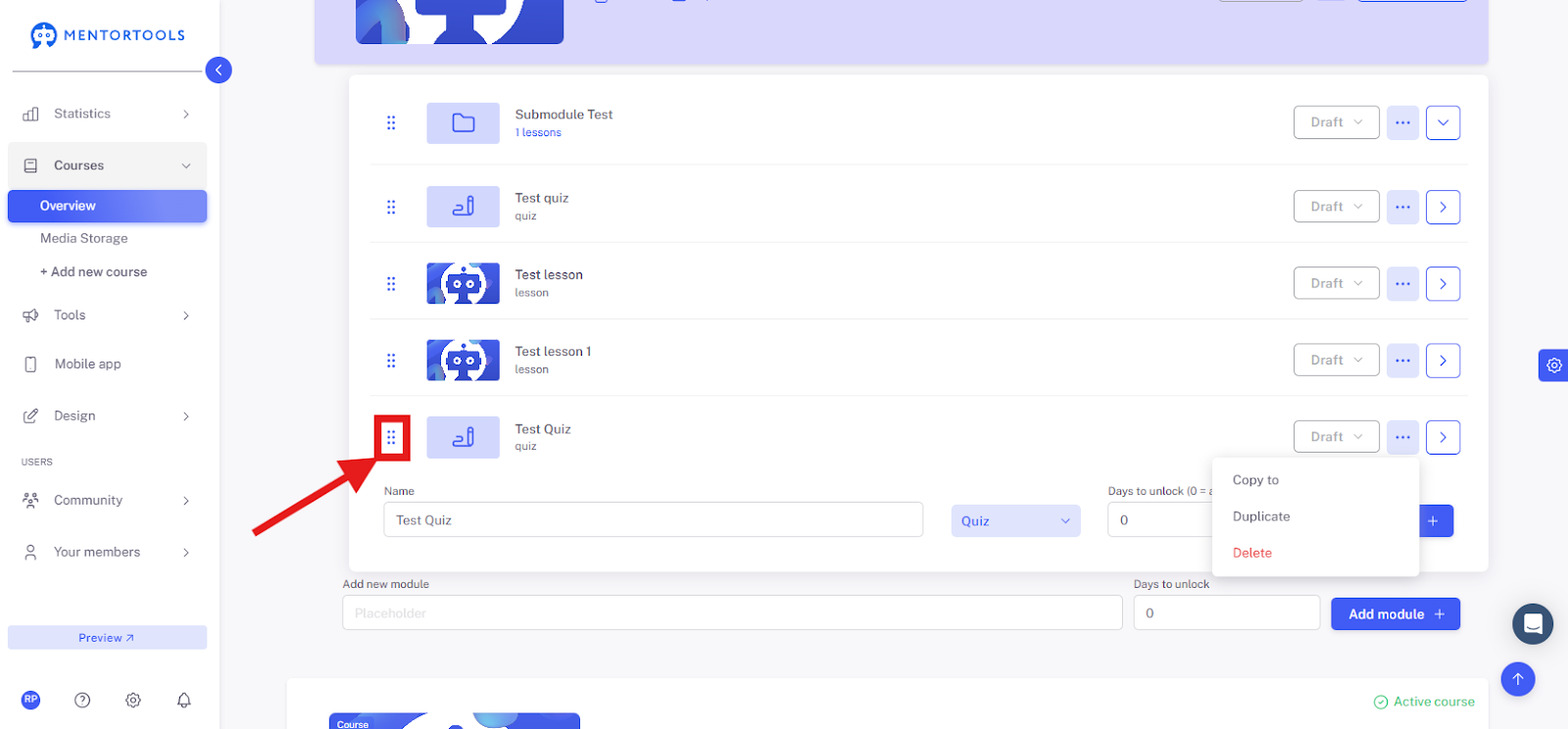
With the "drag & drop" function, you can change the order of lessons and quizzes within the module at any time.
To change the order, simply drag the lesson/quiz on the far left (three dots), hold it, and release it in the desired position. This way, you can adjust the order of lessons and quizzes in the module.
Tips for Effective Quiz Questions
Formulate questions clearly and unambiguously.
Avoid technical terms without explanation.
Use explanations for difficult questions.
Use quizzes not only to test knowledge but also to help participants better process and retain the information they have gained.
Frequently Asked Questions
Can I use media in the quiz? Yes, you can insert images or videos into individual questions or answers.
Can participants see the correct answers after the quiz? You can set this in the settings of the respective quiz. It is optional.
Can I edit the quiz later? Yes, you can edit, add, or remove questions at any time, even after the quiz has been published.
In the next guides, you will learn how to add individual questions to the quiz and how to adjust the settings of your online quiz.