Use a Direct Link
In this guide, you will learn what a direct link is, where to find it, and when you need it.
Last updated 12 months ago
What Is a Direct Link?
Every course has a direct link. You can use this link to invite users to a course for free. For example, you can send this link to testers or even promote it publicly on Facebook to generate users for a free course.
Where Can I Find the Direct Link?
Navigate to the desired course that you would like to share with your target audience. Then, click on "Edit".
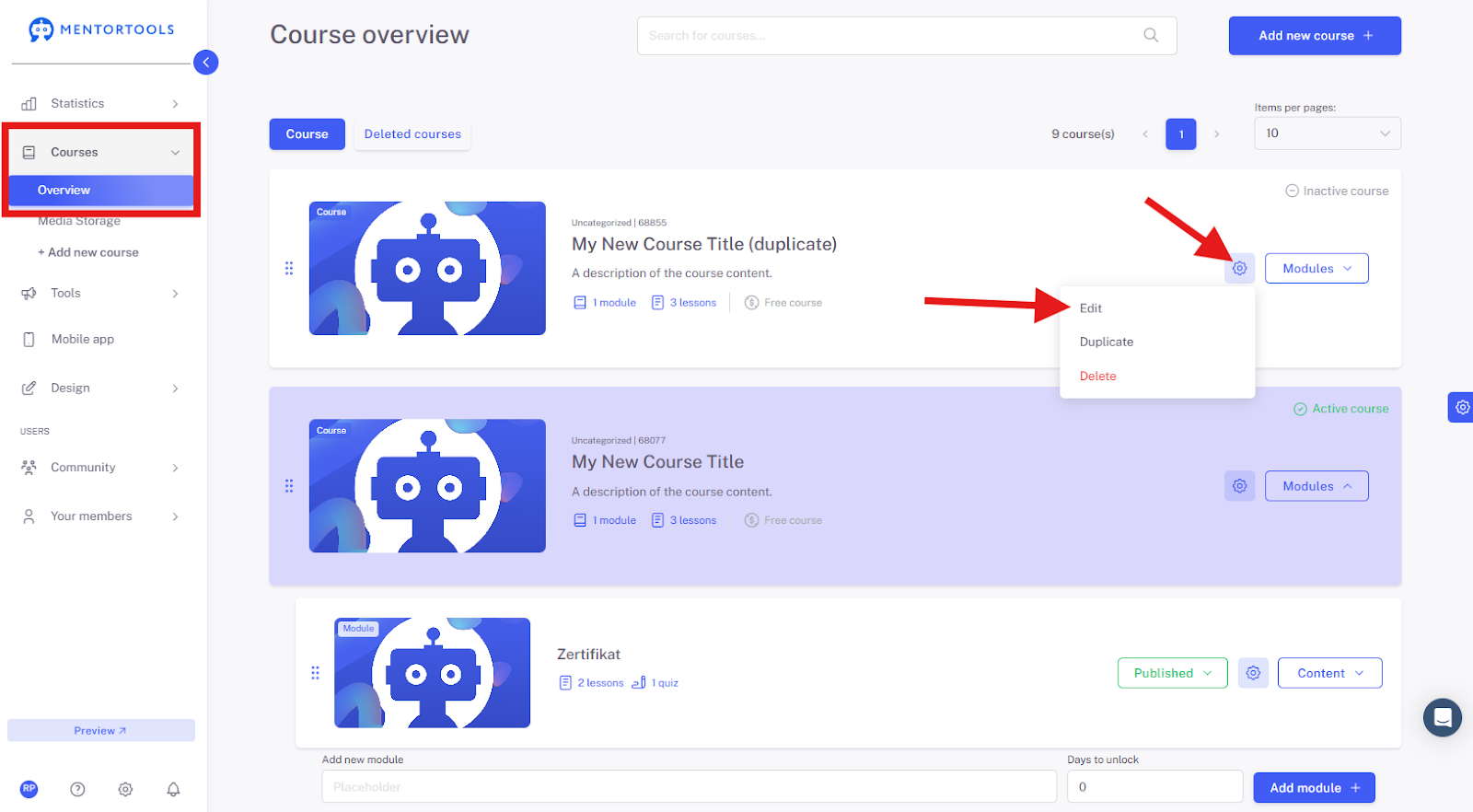
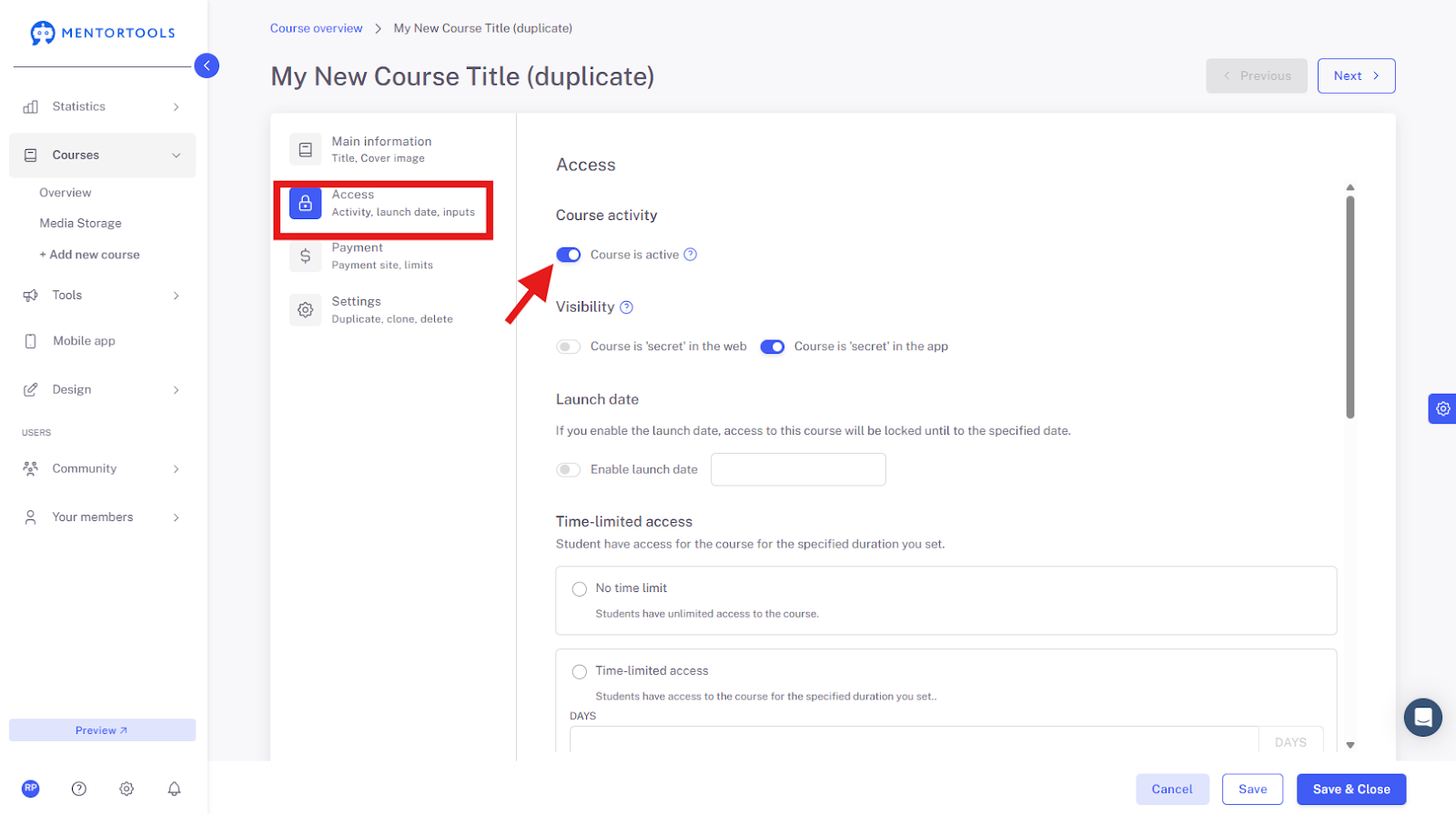
Next, navigate to the "Access" section. Make sure the course is active.
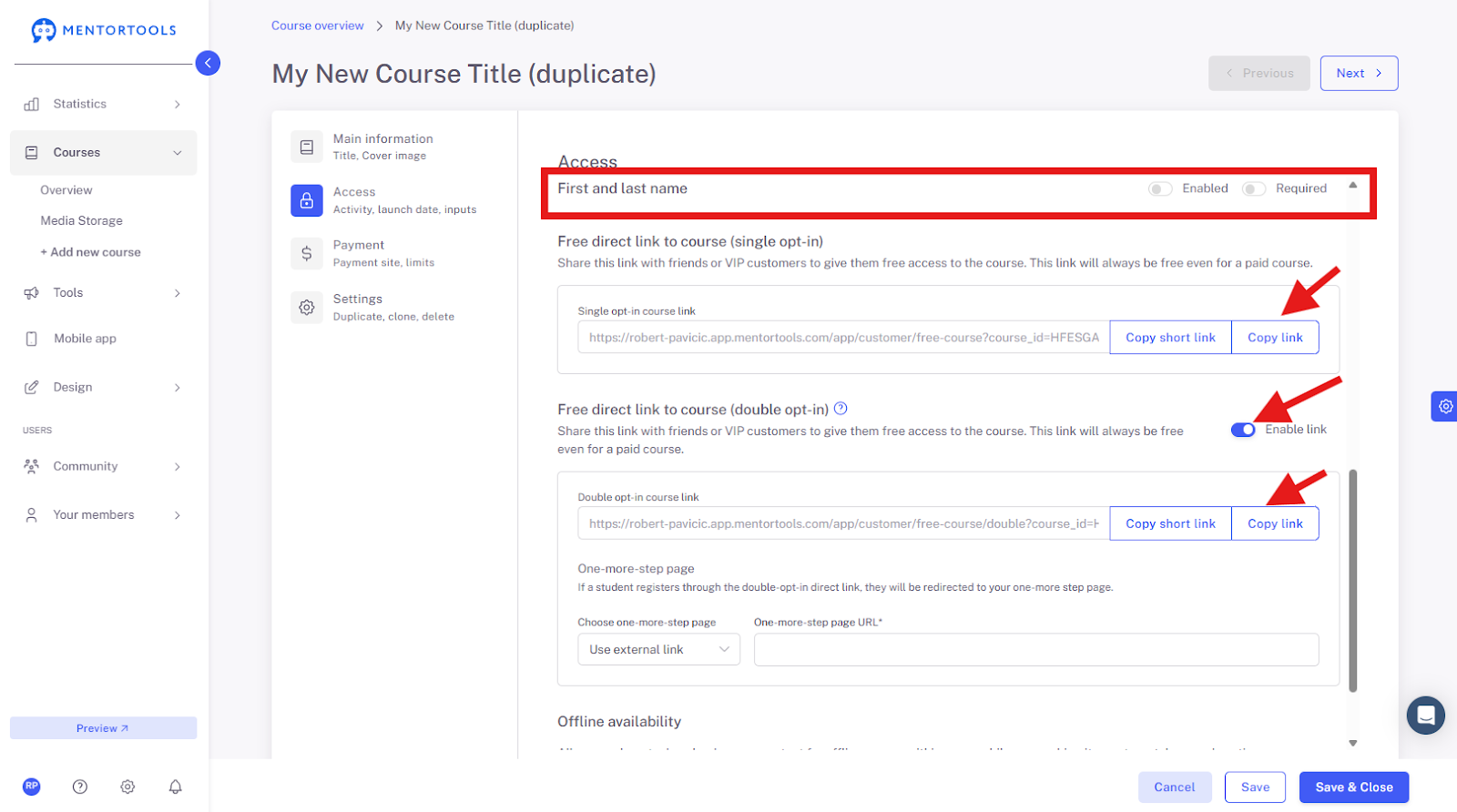
Then, scroll down to the "First and Last Name" section.

You can now copy the direct link as either a single opt-in or a double opt-in. You can also define whether the first and last name should be requested upon registration.
Difference: Direct Link with Double Opt-in and Single Opt-in Process
Direct Link with Single Opt-in
This link is well-suited for users who are already customers or existing contacts in your membership area who have already been saved with a double opt-in. This means users who register via this link do not need to perform the double opt-in process again.
Important: Users who register via this link and already exist in your account should ideally register with the same email address they have already used. If the users provide a different email address, a new account will be created.
Direct Link with Double Opt-in Process
This direct link is very well-suited for bringing new members into your membership area or for collecting new contacts in general. Users will go through a double opt-in process via this link and thus confirm their email address. This gives you the right, according to GDPR, to send promotional emails to these contacts in the future.
To use the direct link with a double opt-in process, you must provide a nearly-finished page (also called a "one more step page") so that users are correctly redirected through the confirmation process.
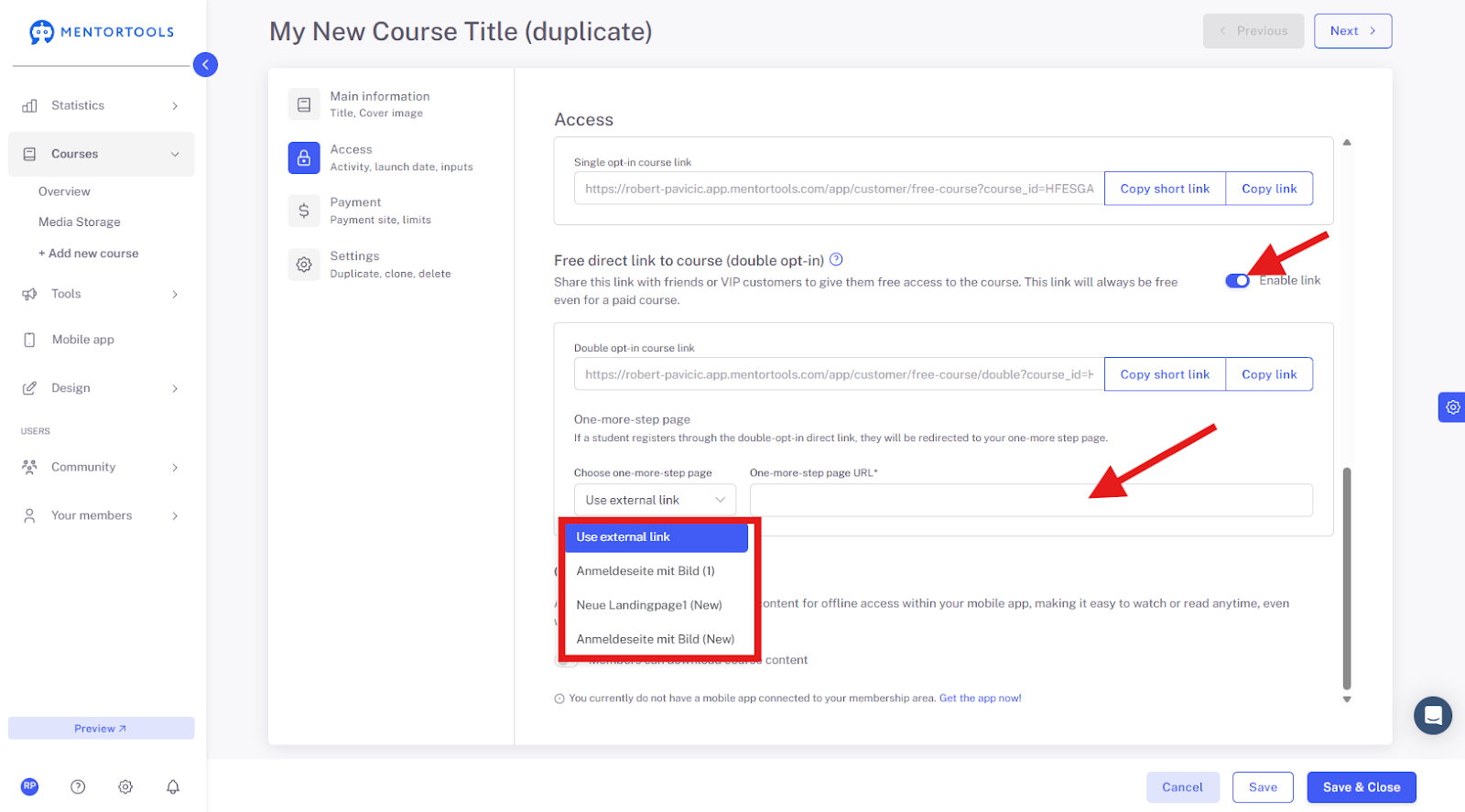
Create the "One More Step" page either in your Mentortools account or use an external link, for example, from your own website, that you want to use as the "one more step page."
If you want to create a "one more step page" in your Mentortools account, navigate to "Tools", then the sub-item "Landing Pages".
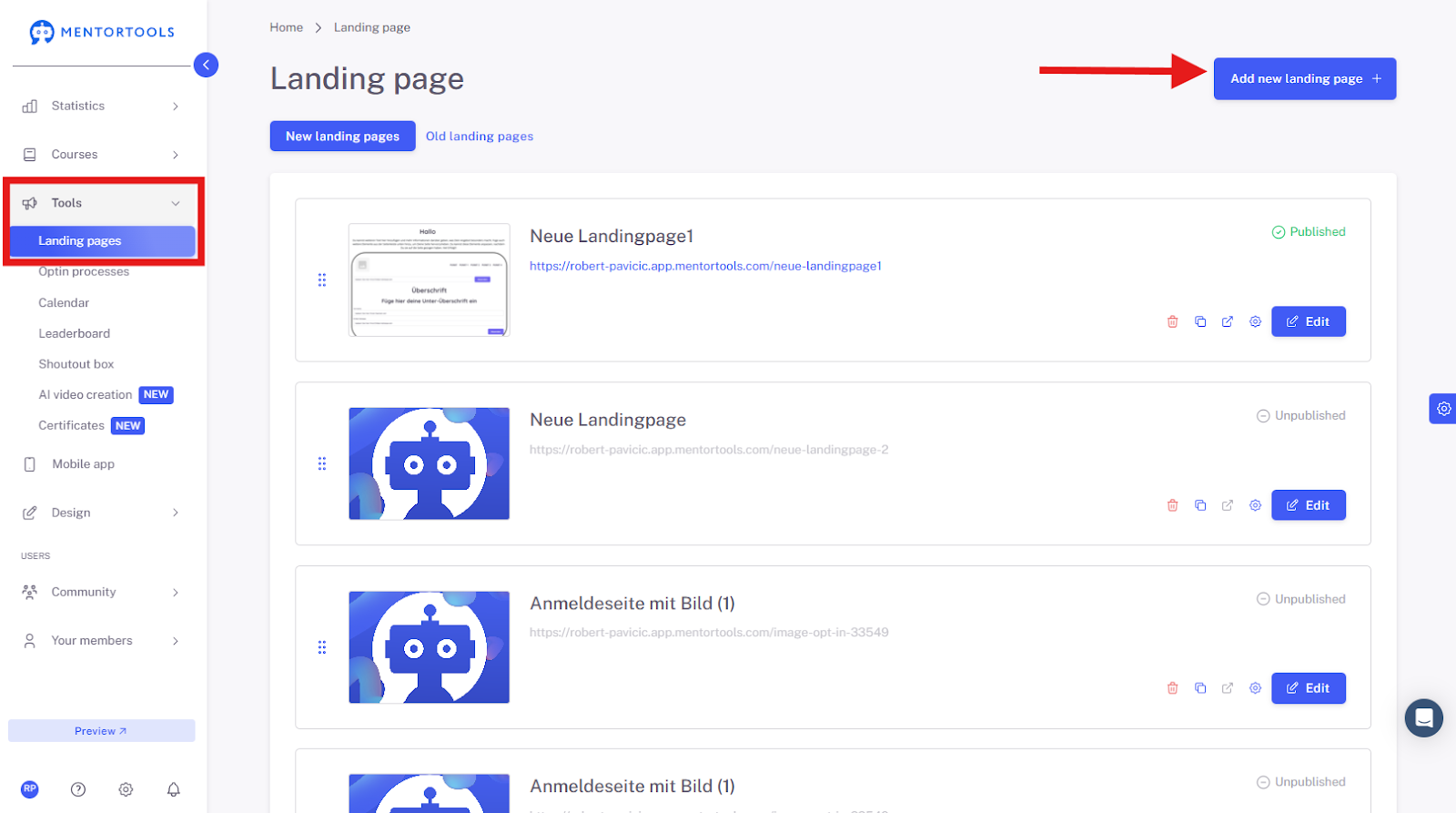
Then, it's best to create a "one more step page" with one of our templates.
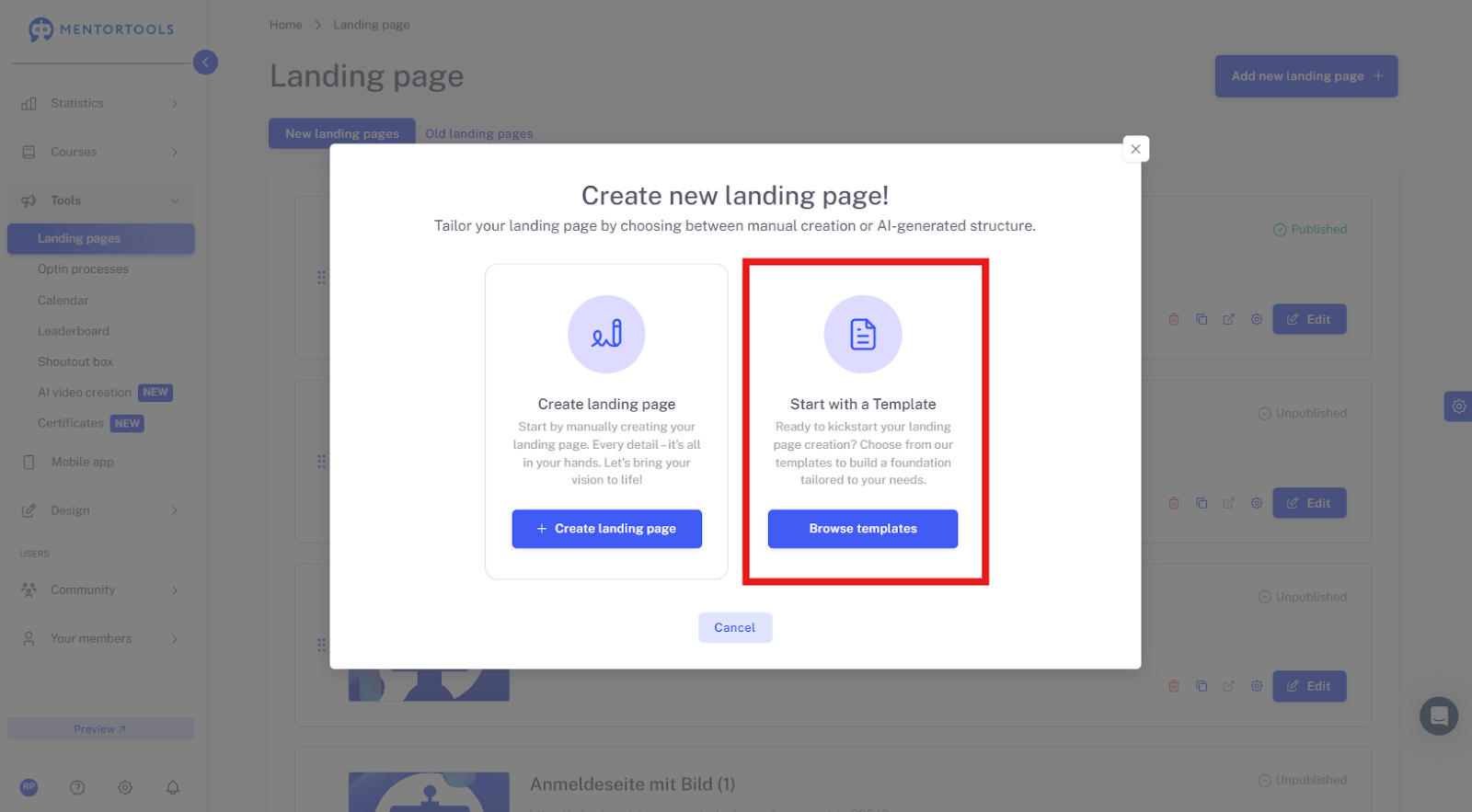
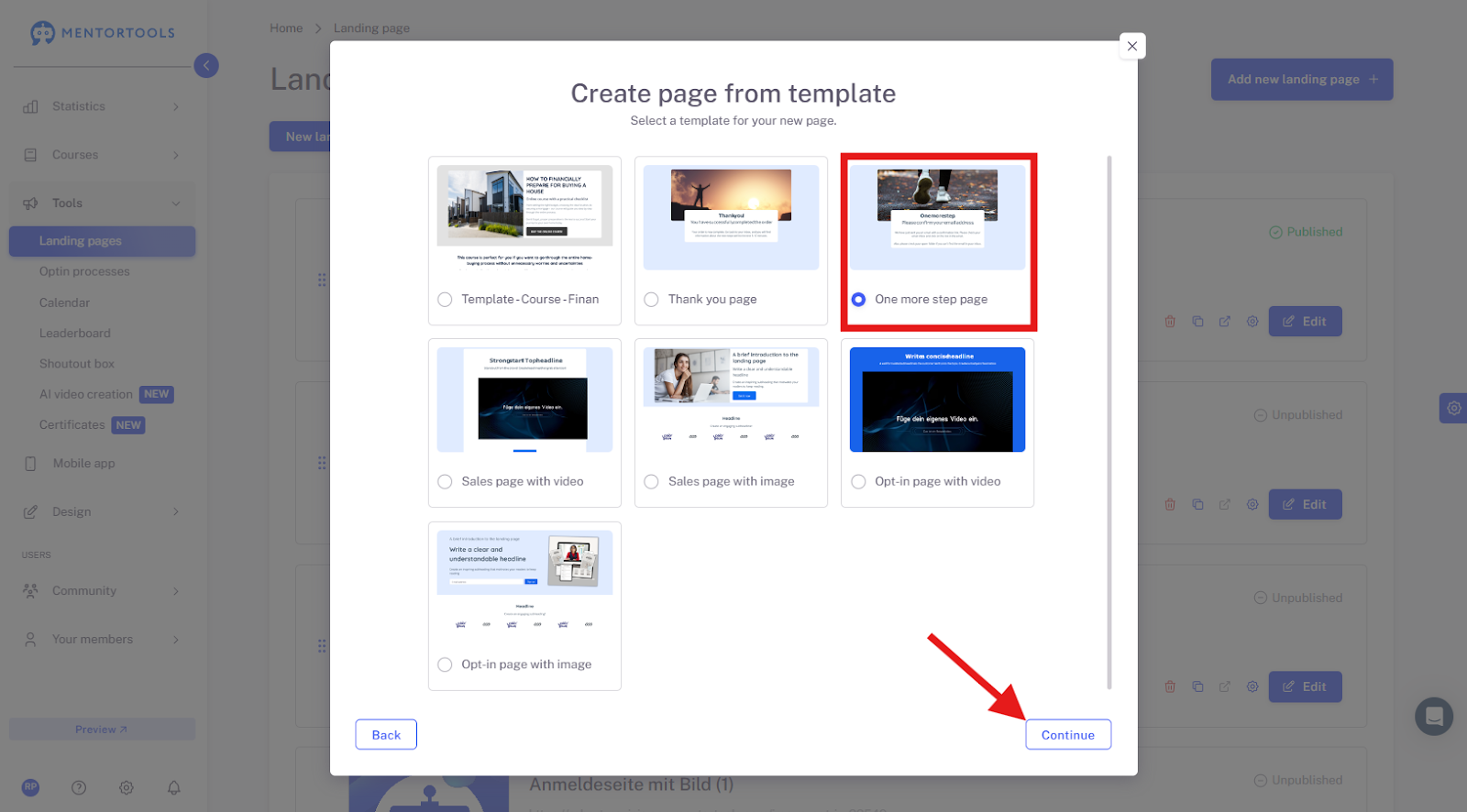
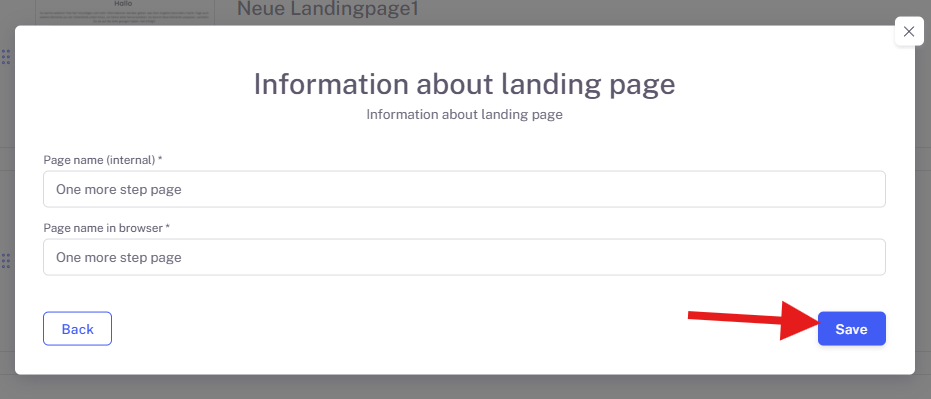
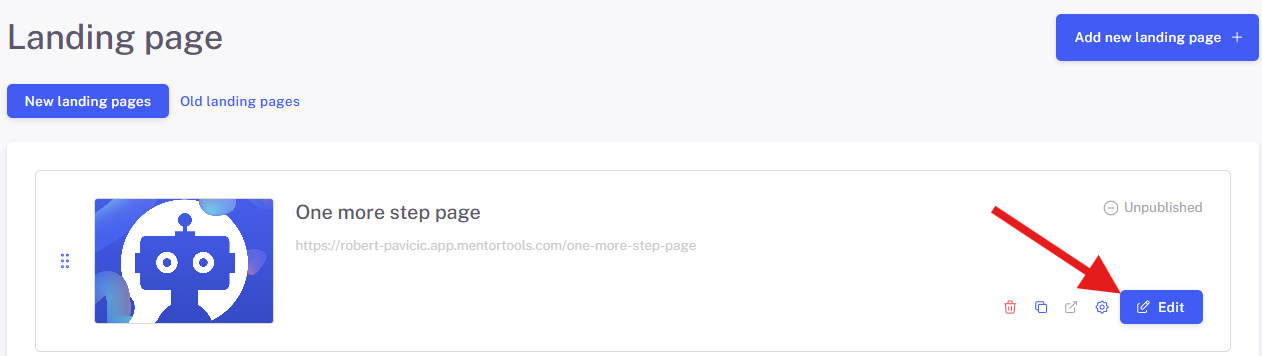
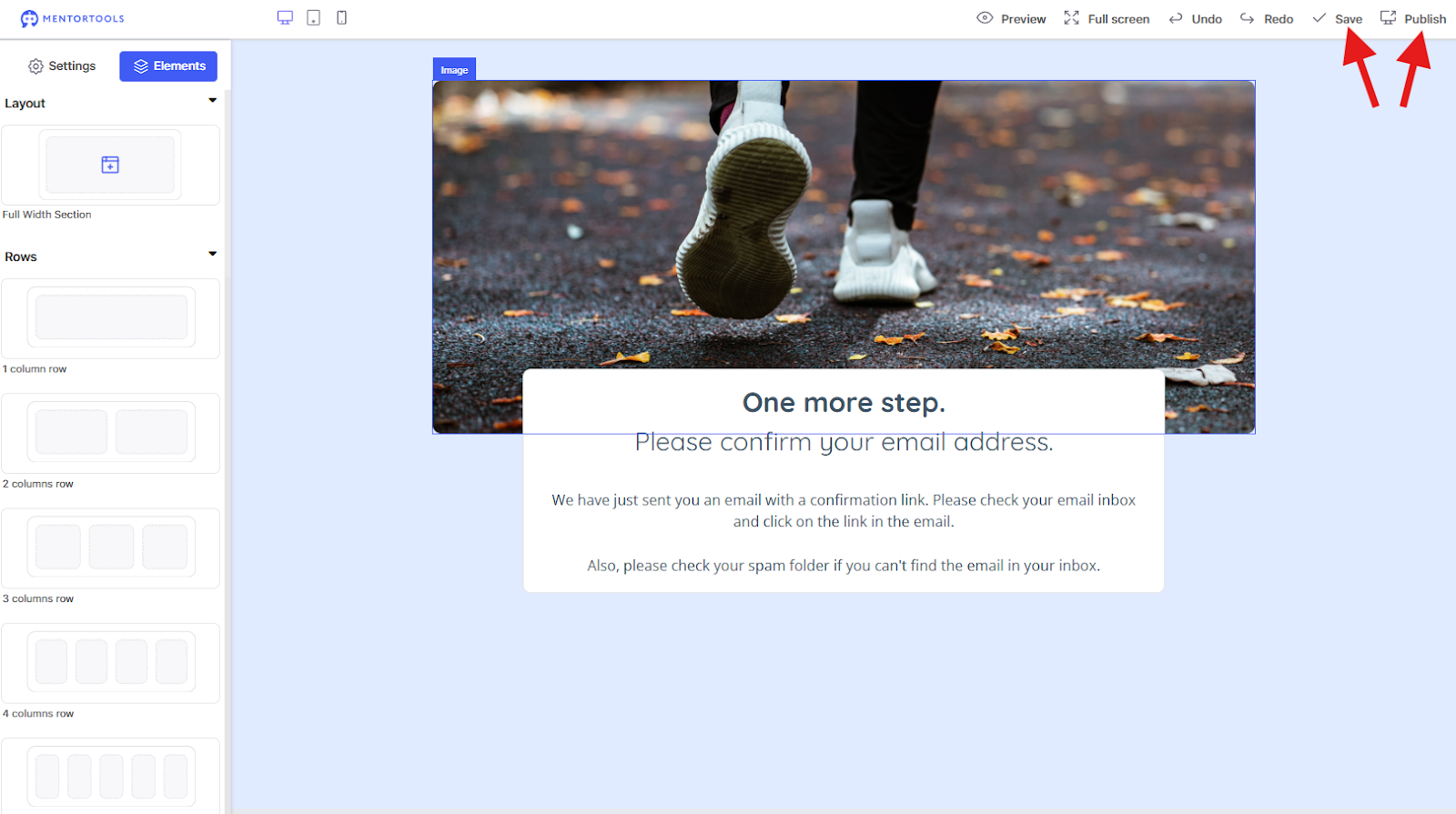
After you have saved and published the page, navigate back to the course settings and add the "one more step page" into the double opt-in process.
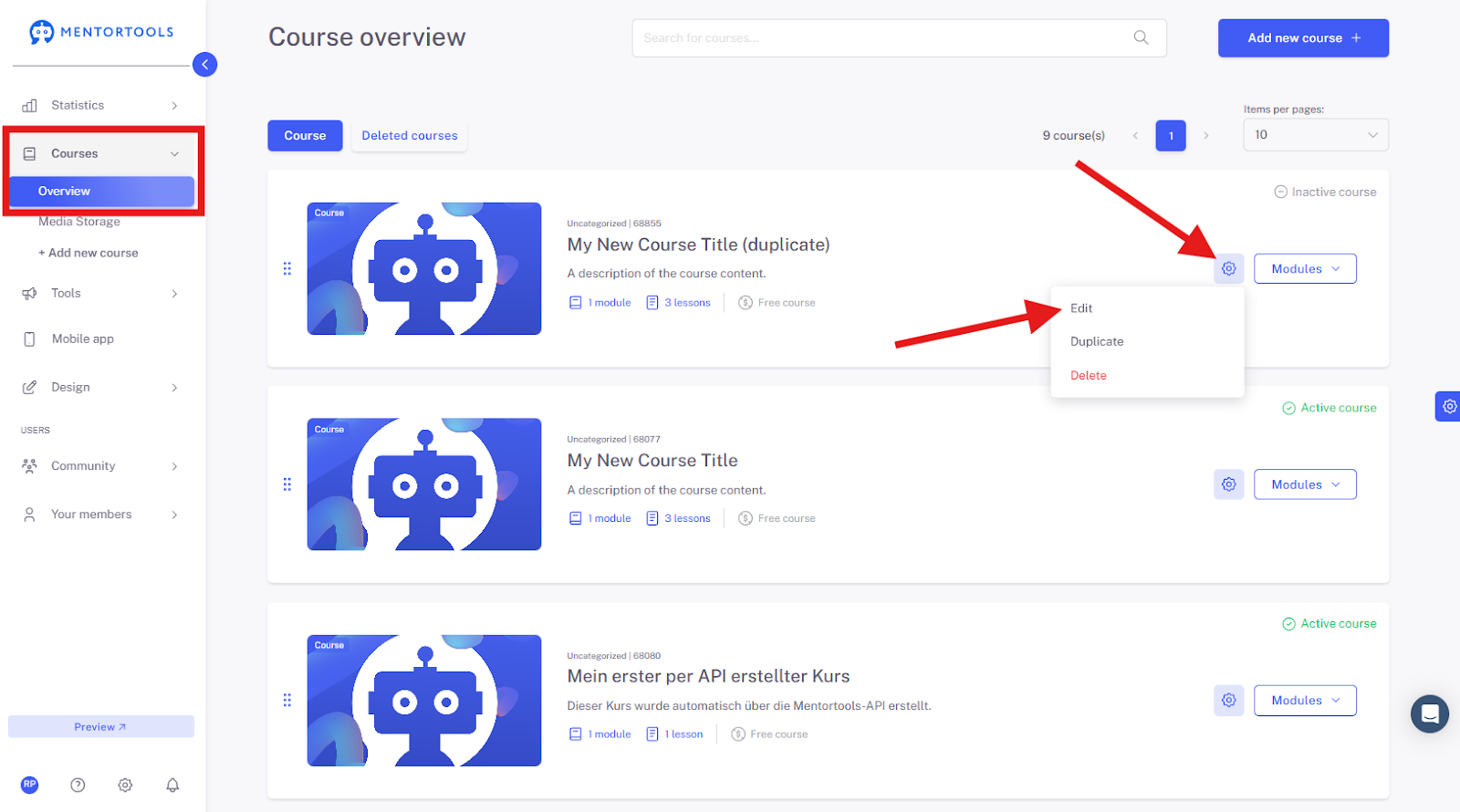
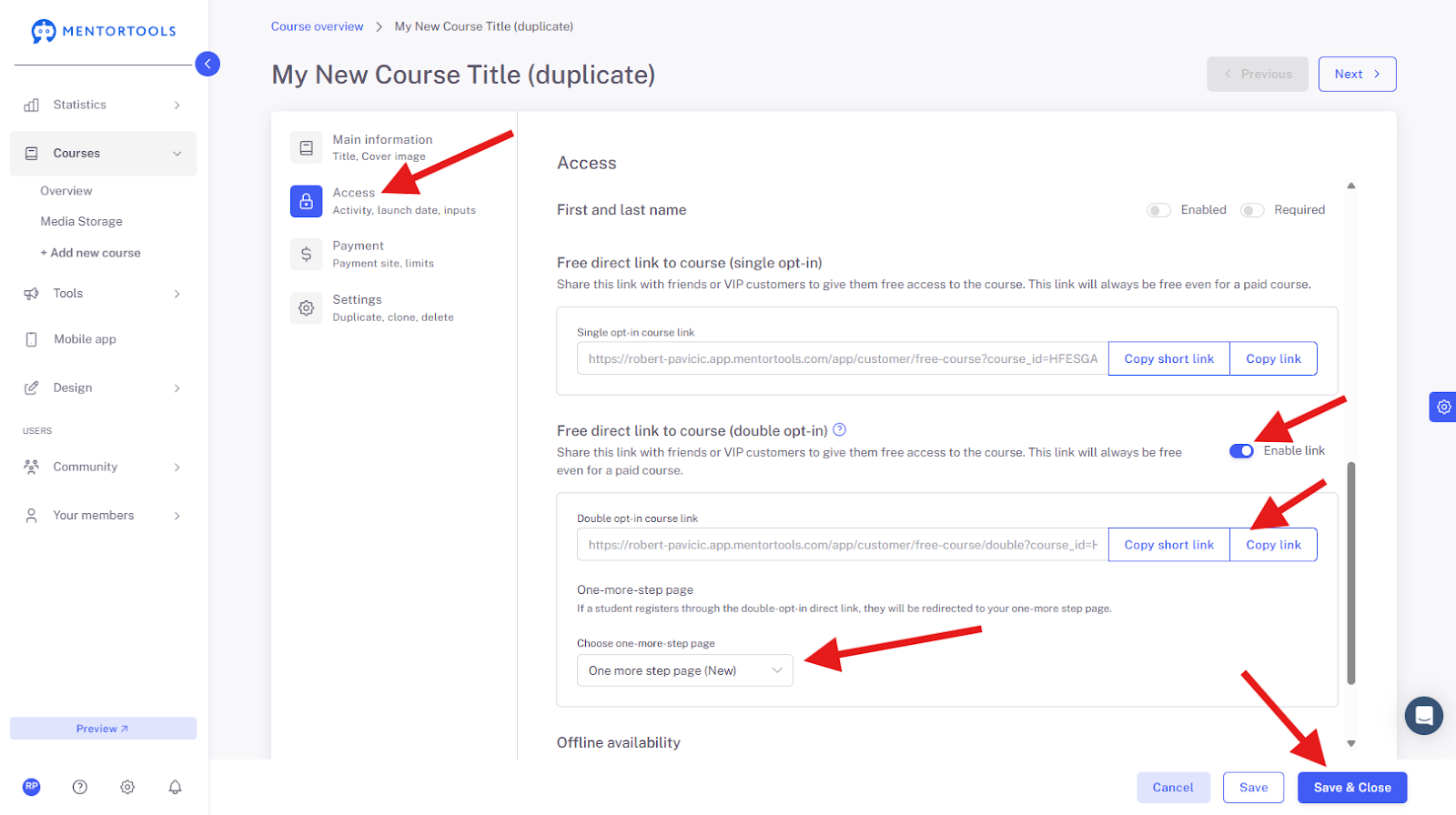
Once you have provided the "one more step page," copy the direct link. Save and close the settings.
Test the Direct Link
It's best to open a private browser window so that you are not logged into your own admin account.
Open the direct link in the private browser window. Now you can see what the page looks like via the direct link.
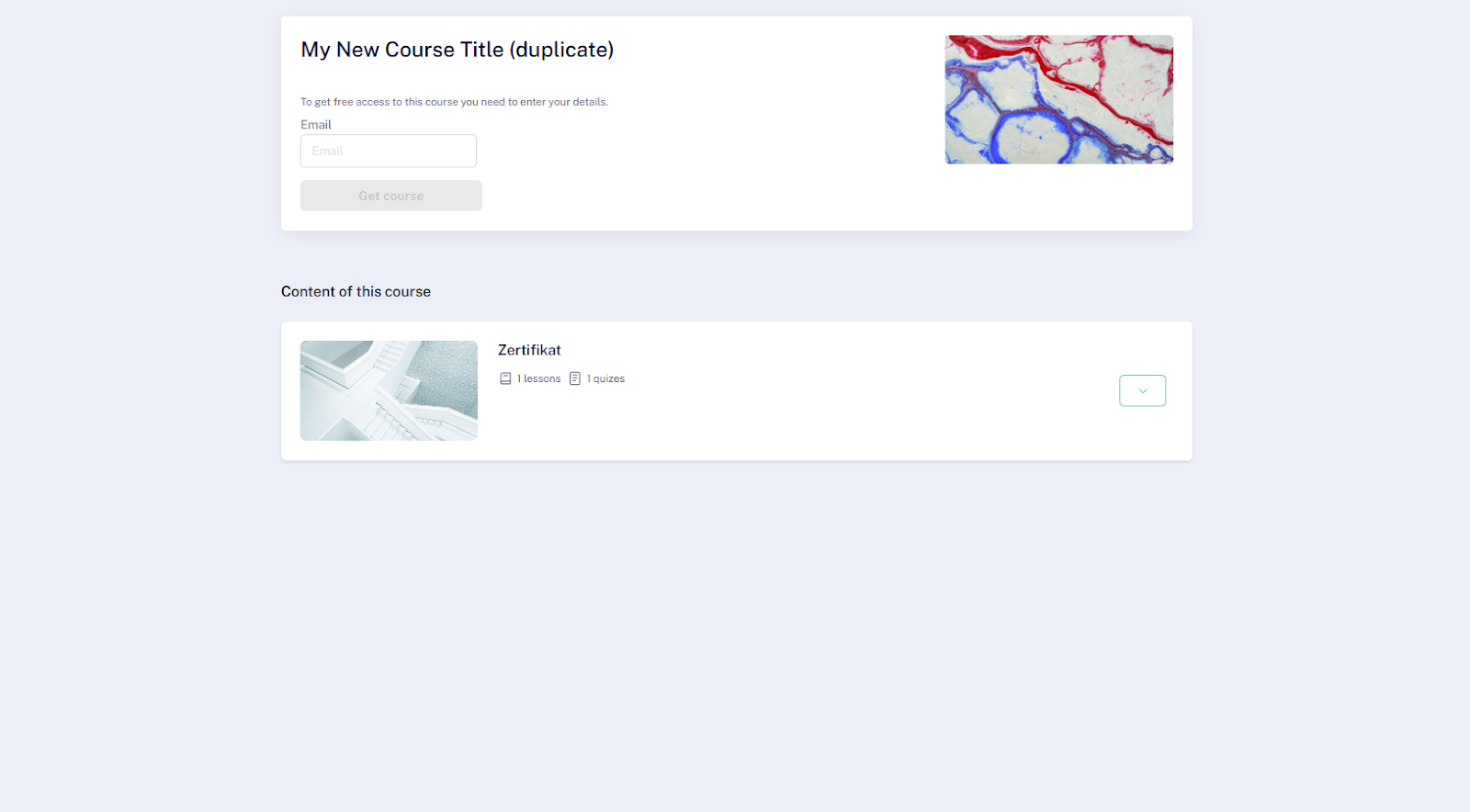
Register with a test email address that you have not used in your account before. Please also note that you should not use your admin email address.
Good luck!