General Settings – Domain Settings
With your own domain, you ensure a professional appearance for your course platform. This function is ideal if you want to use Mentortools in a white-label design or emphasize your brand more. In this step-by-step guide, you will learn how to activate and correctly enter the domain.
Last updated 12 months ago
To get to the general settings, click on Settings on the "gear icon" at the very bottom left of the menu. Then click on "General."
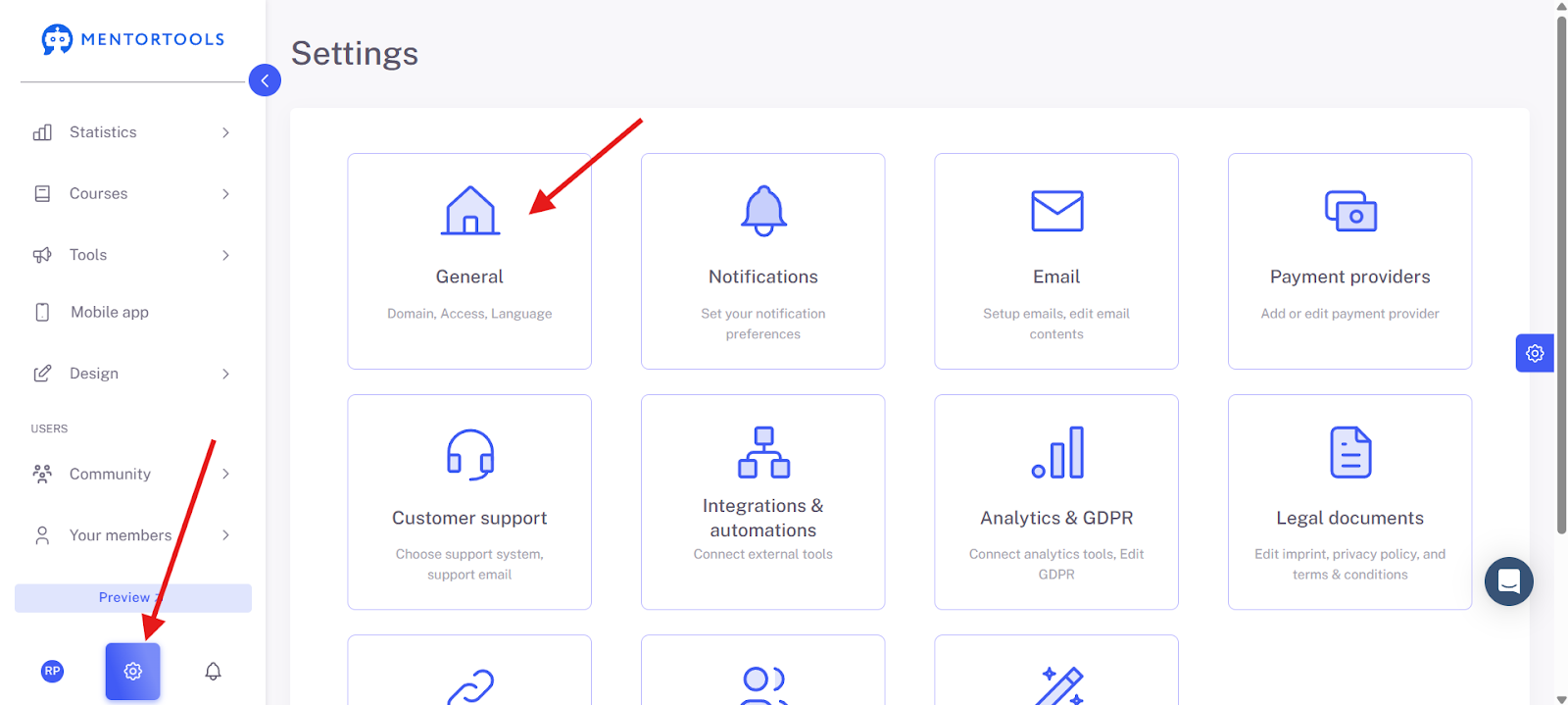
Domain Settings
By default, your member area is accessible under the subdomain https://firstname-lastname.app.mentortools.com. We use the first name and last name that you enter during the order process.
You can also change the subdomain by adjusting the text.
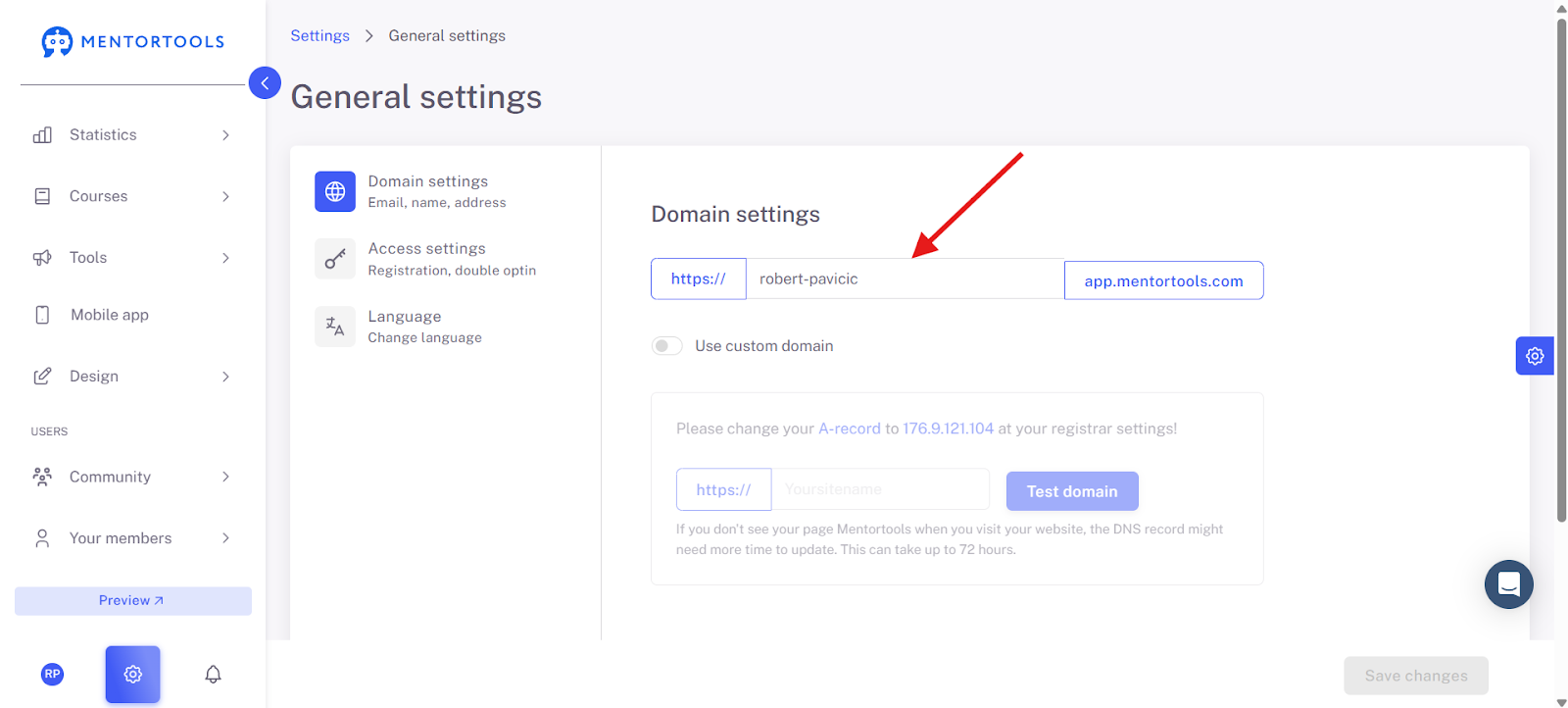
Please note: As soon as you have changed the text and clicked "Save," the new subdomain is registered, and your account will only be accessible via the new subdomain.
We recommend using your own domain in the medium term. You can find out how to use your own domain here:
Using Your Own Domain
With Mentortools, you can link your own domain so that users can access your member area directly via your desired domain.
By default, we provide you with a subdomain in the format https://www.google.com/search?q=firstname-lastname.app.mentortools.com, which you can use at any time.
You can find the corresponding domain settings in your Mentortools account under "Settings" > "General."

For a more professional appearance and better impact in online advertising, we recommend using your own domain.
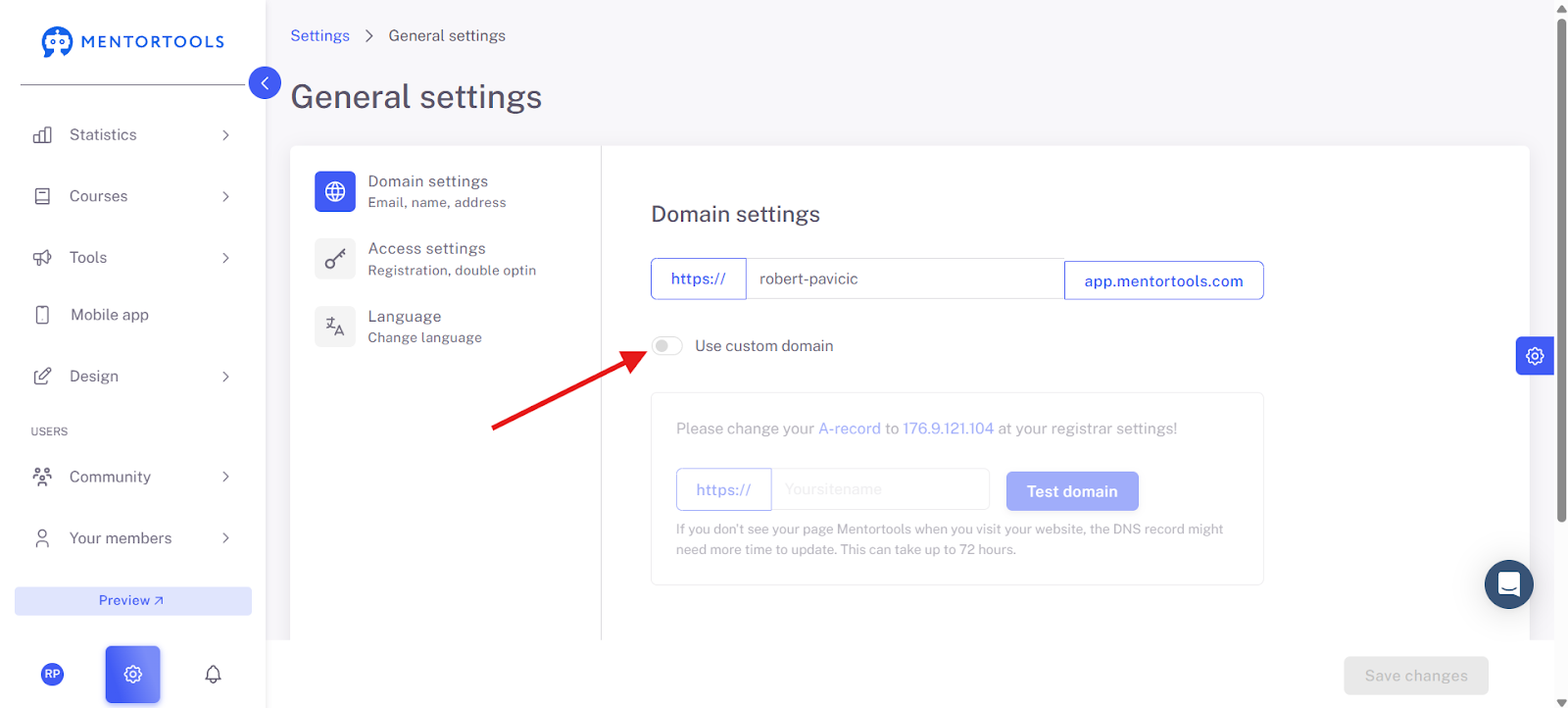
A main domain of your own, e.g., https://www.google.com/search?q=your-online-academy.com.
Or a subdomain of your existing website, e.g., https://www.google.com/search?q=academy.your-website.com. (Both domains are just examples and do not exist.)
Our founder Jakob Hager, for example, uses akademie.jakobhager.com—you too can seamlessly connect your member area with your existing website.
Below you will find step-by-step instructions on how to connect the most common domain providers with Mentortools.
If you don't have your own domain yet, you can purchase one inexpensively from one of these providers—a ".com" domain usually costs between 10 € and 20 € per year.
Important: You only need the domain—a hosting package is not required.
How to Connect Your Domain to Your Mentortools Account:
1. Select Your Desired Domain
You can either use a main domain (e.g., https://www.google.com/search?q=your-online-academy.com) or a subdomain (e.g., https://www.google.com/search?q=academy.your-website.com).
If you already have an existing website, it is recommended to use a subdomain—such as academy., members., campus., or something similar.
Important: Do not use umlauts in domains
Domains with umlauts (e.g., ä, ö, ü) are not recommended. These are technically converted by the domain provider (e.g., ü.de becomes xn--4ca.de), which can lead to problems:
Older browsers, especially on mobile devices, sometimes do not support this conversion.
SSL certificates (for a secure connection via "https") often do not work correctly, which leads to security warnings when accessing the site.
Therefore, we only accept domains without umlauts or special characters in Mentortools to ensure a smooth user experience for you and your users.
2. Open the Domain Settings in Mentortools
Enter your chosen domain there. Attention: Do not save the entry yet and do not click on "Test" yet—first, follow the further instructions in the guide to correctly establish the technical connection.
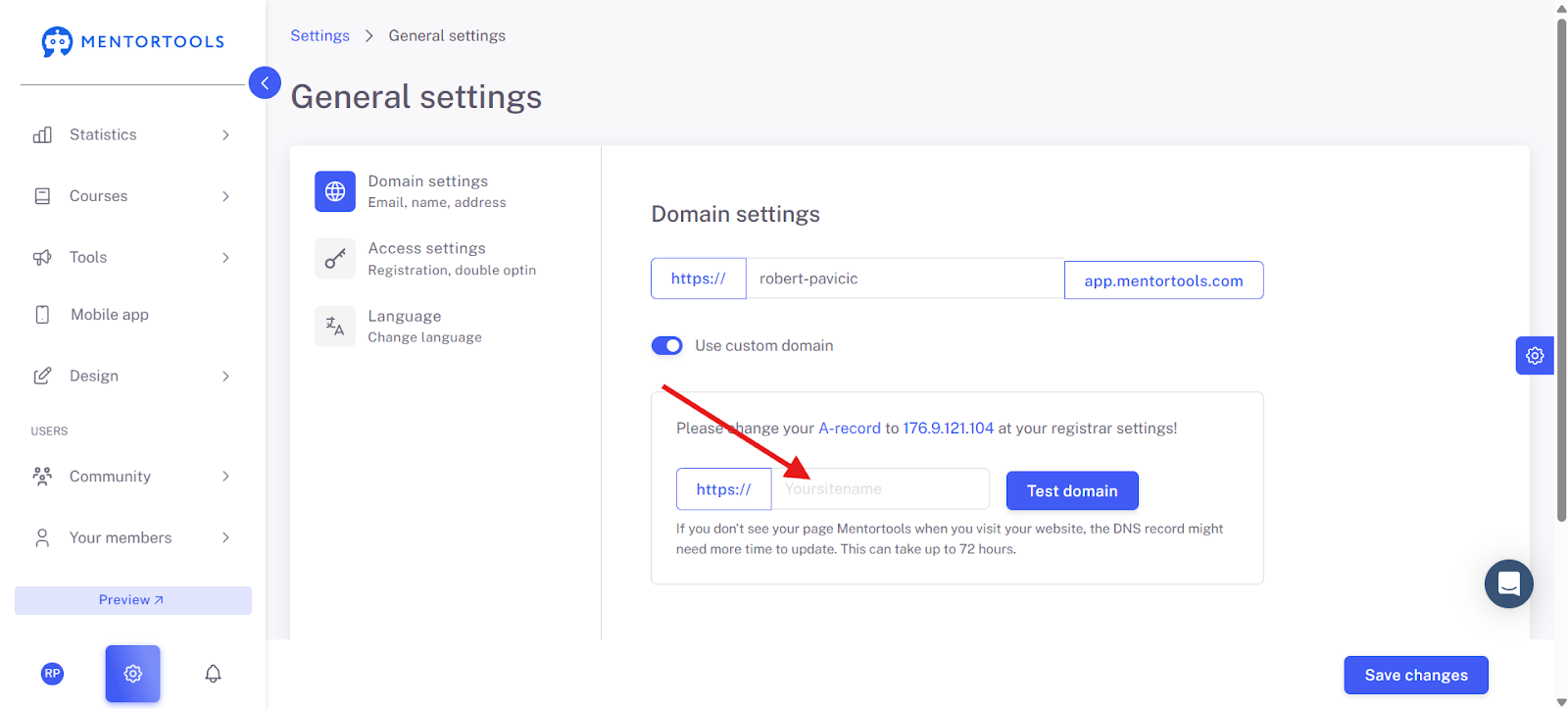
3. Copy the IP Address (176.9.121.104)
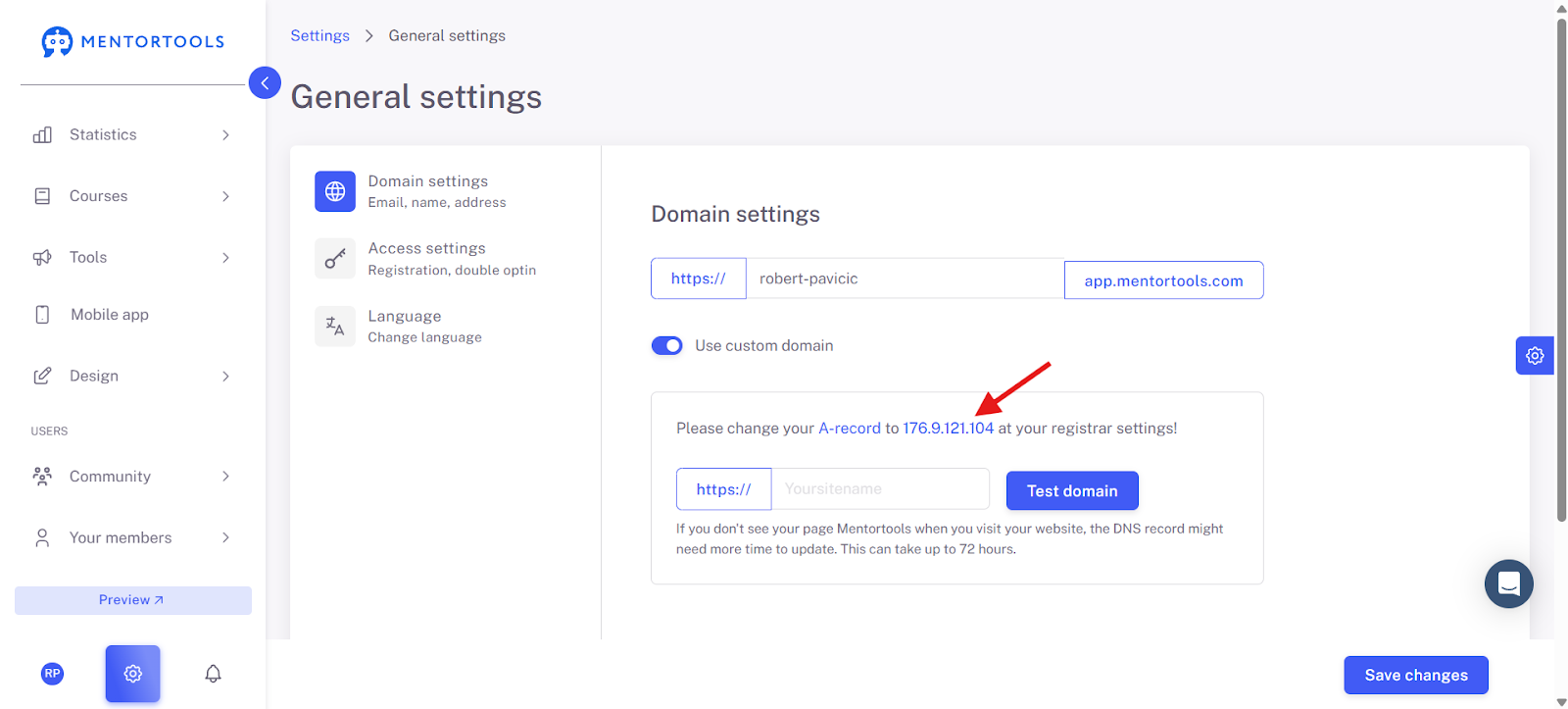
4. Enter the IP address as an A-Record with your domain provider.
To connect your domain to Mentortools, you need to create a so-called A-Record in your domain's DNS settings.
The required IP address is: 176.9.121.104
You can find detailed step-by-step instructions for the most common domain providers further down in this article.
Note: Many domain providers offer customer support that can help you set up the A-Record. For example, you can send the following message to your domain provider's support:
Example request to domain support:
Hello, I would like to connect my domain <MYDOMAIN.COM> to an external website service and need an A-Record entry for this. Please set up the following A-Record for me: Subdomain: <if applicable> IP Address: 176.9.121.104 Please ensure that this entry does not conflict with existing A or AAAA records. AAAA entries are not supported by the service. Thank you!
Important:
For a main domain, you only enter the IP address.
For a subdomain, you must also specify the subdomain name (e.g., academy).
Note on technical implementation: The DNS change can take up to 72 hours, but it often takes effect within a few minutes.
5. Click on "Test" in Mentortools
After you have stored the A-Record with your domain provider, return to Mentortools and click on "Test" to check the connection.
Note: If the connection does not work immediately, please wait a few hours. It is completely normal for domain providers to need some time to fully implement DNS changes. In some cases, this can take up to 72 hours—but it often happens much faster.
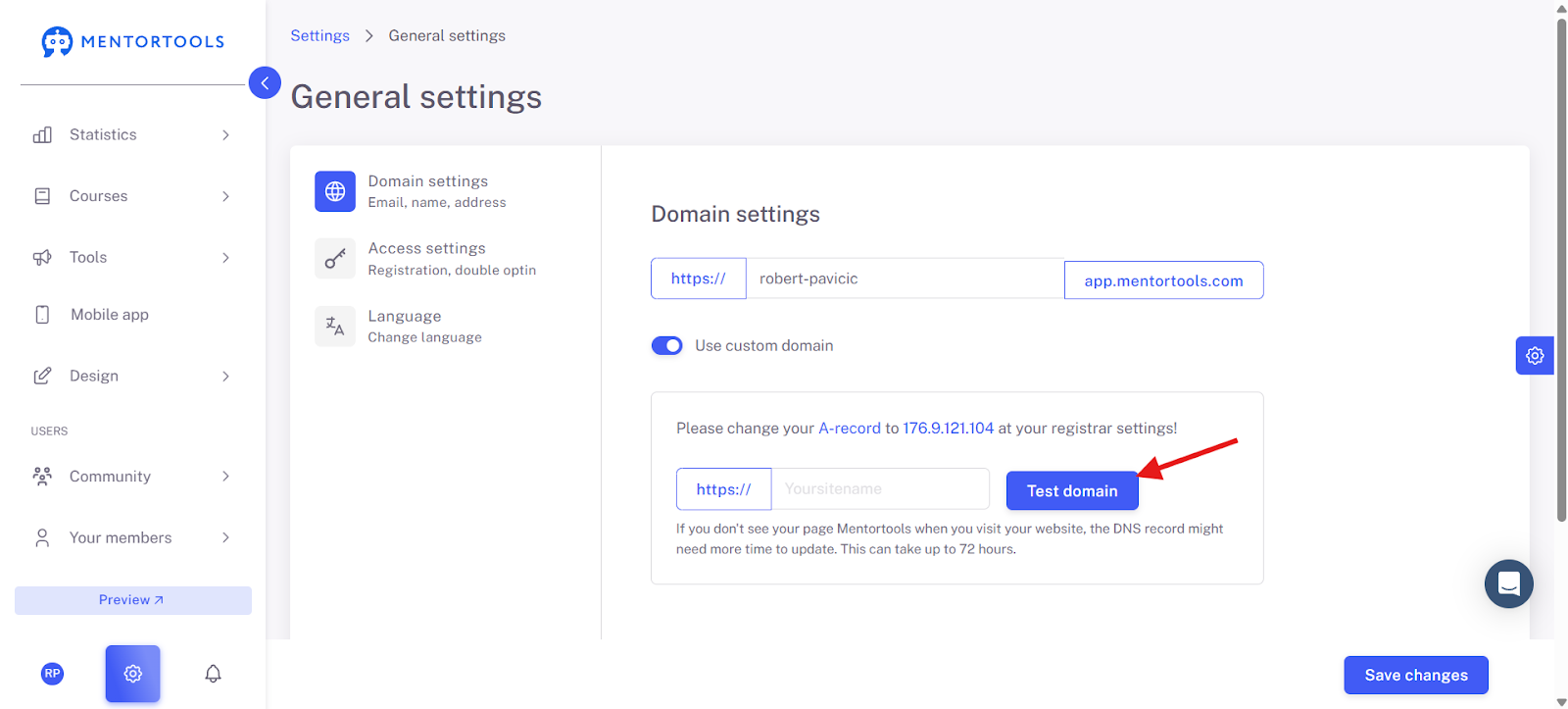
If it doesn't work on the first try, close Mentortools and try again later.
Once the connection test is successful, click on "Save." From this moment on, your member area is accessible via the new domain.
The original Mentortools subdomain (e.g., https://www.google.com/search?q=firstname-lastname.app.mentortools.com) will remain active so that existing users still have access. Subsequently, communicate the new domain to your existing users so that they can log in via the new domain.
From now on, always log in only via the new domain.
Common Problems with Domains / Troubleshooting
Problem 1: AAAA-Record conflicts with your A-Record.
AAAA records use IPv6 addresses, while A records work with IPv4. If an AAAA record already exists for your subdomain (e.g., https://www.google.com/search?q=academy.yourdomain.com) and you also set an A-Record, conflicts can arise—as many DNS servers give precedence to the AAAA record.
Important: Mentortools currently does not support IPv6, so no AAAA record should be active.
Solution: Delete the AAAA record unless you explicitly need it. A domain/subdomain should not point to the same target IP with both an A and an AAAA record at the same time. To check, we recommend tools like dnswatch.info. Alternatively, you can ask your domain provider's support to remove the AAAA record.
Problem 2: Wildcard entry causes conflicts with your A-Record.
A so-called wildcard entry (*.) forwards all unspecified subdomains to a central destination. This can cause problems if you also set an A-Record for a specific subdomain (e.g., https://www.google.com/search?q=academy.yourdomain.com).
Solution: Keep the specific A-Record and adjust the wildcard entry—or remove it completely. This is the only way to ensure that your chosen subdomain correctly points to the Mentortools IP address. Here, too, your domain provider can help you if you wish.
Problem 3: DNS changes are not yet available on the internet.
After setting or changing DNS entries, it can take up to 72 hours for the new settings to become effective worldwide. The update depends on what is known as DNS propagation—a process that is beyond your control.
Solution: Be patient and check the status regularly with tools like dnswatch.info.
General Note
A correct DNS configuration is crucial for the smooth functioning of your Mentortools portal.
If you are unsure or need support, please contact our support team at any time: support@mentortools.com
How do I check if the domain is set up correctly?
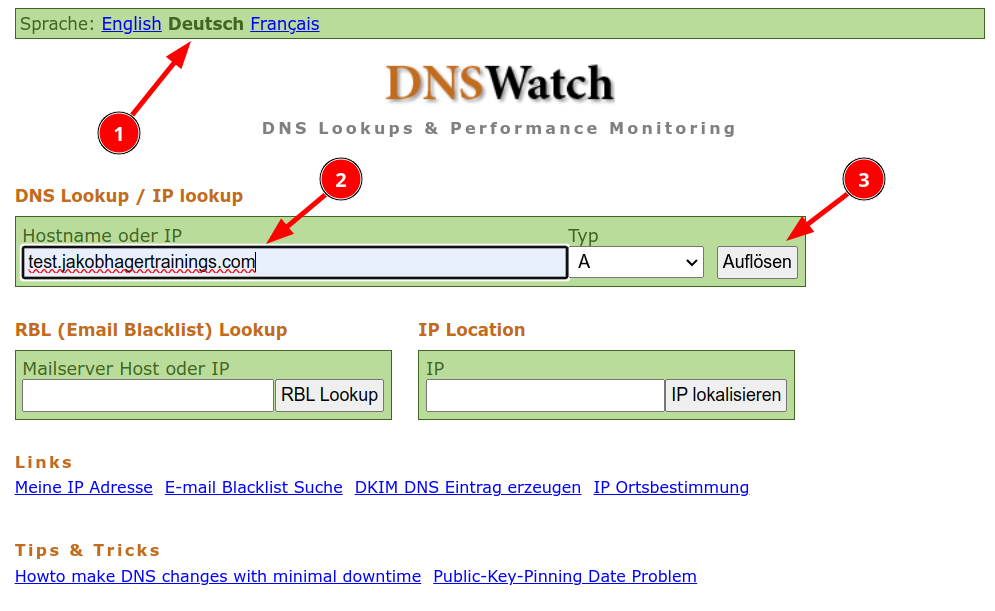
Open the website https://www.dnswatch.info
Change the language to German (if desired).
Enter the domain you want to use with Mentortools (in our case test.jakobhagertrainings.com).
Click on "Resolve" Resolve.
If everything is set up correctly, your result should look like this:
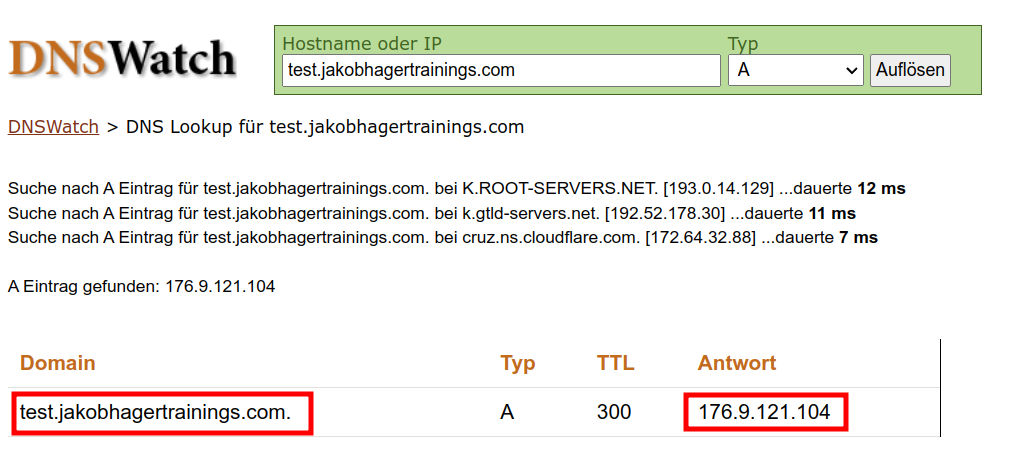
To the left, under "Domain," you should see the domain you entered in Mentortools and in your nameserver. To the right, the IP address 176.9.121.104.
If this is not yet displayed, either not everything has been updated, or your nameserver needs to be checked.
In general, it is crucial that you ensure your DNS entries are configured correctly to guarantee the smooth functioning of your Mentortools portal. If you encounter difficulties or have questions, you are welcome to contact us at support@mentortools.com.