Welcome emails – General email settings
In this guide, you will learn how to adjust the general sender data for welcome emails in Mentortools—such as name, company, email address, and other information that is automatically included in the welcome emails.
Last updated 12 months ago
General Email Settings
In the general email settings, the public information is automatically stored in the footer of every email. This means that when a customer buys an online course, they receive an email with access data. This email also contains a footer—this email footer can be customized here.
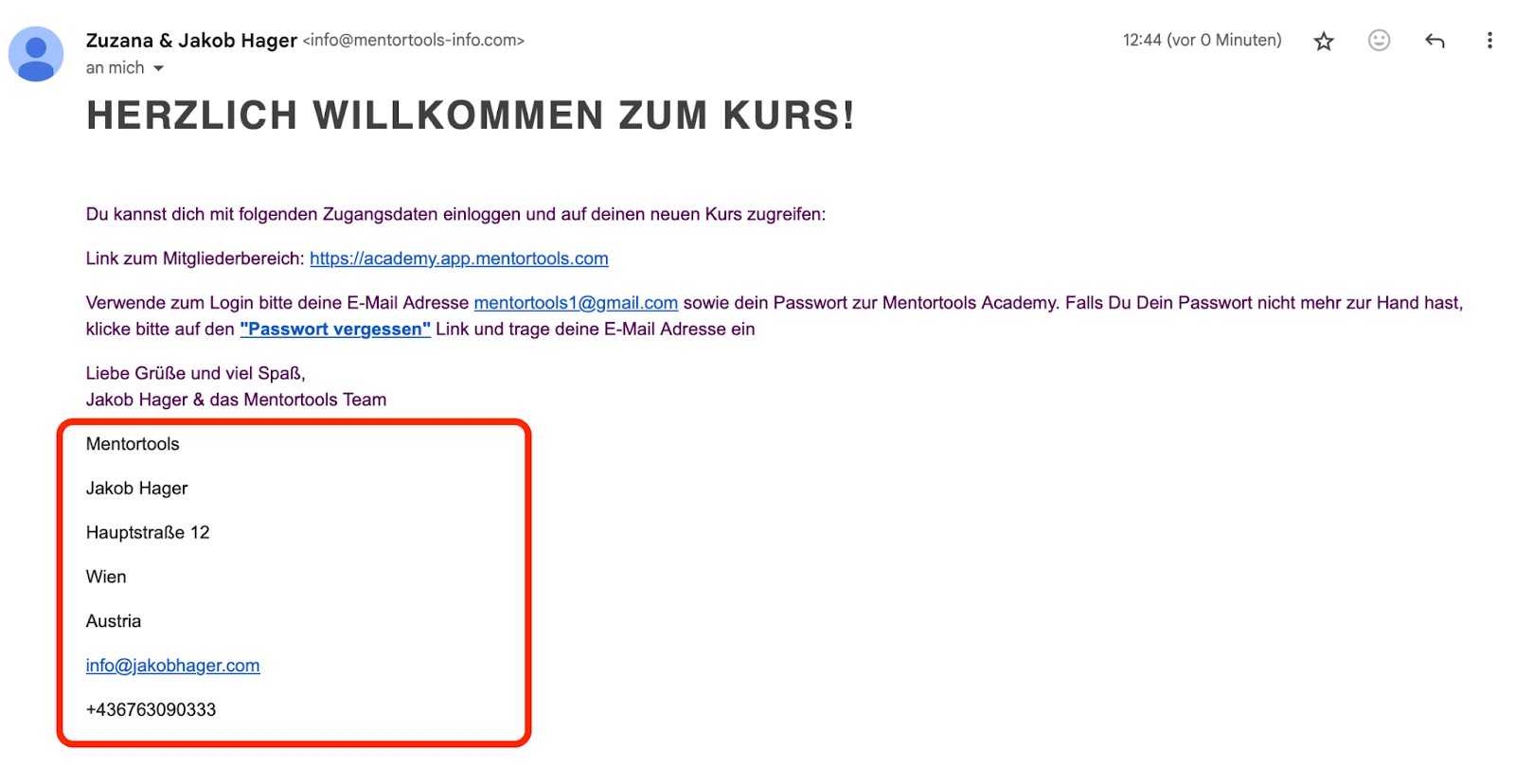
Public Information
First, define the public information so that the system stores the correct fields in the email footer.

Email Footer
Now, use the variables to define which fields should appear in the email footer of every email.
Click on "Variable list" to display the possible variables.
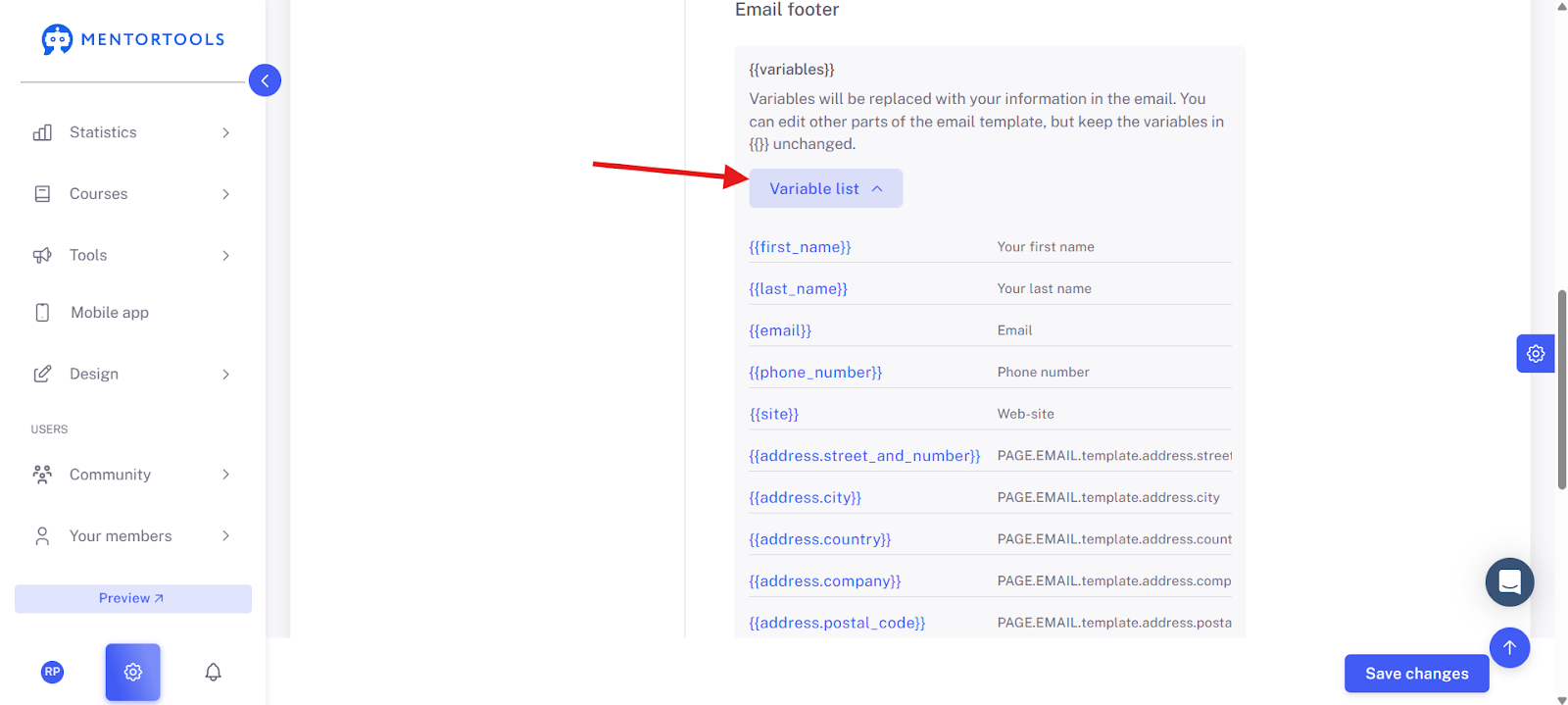
Now, copy the fields you would like to have in the email footer and paste them into the email footer. Click on "Save Changes" when you are done.

View Email Footer Live
If you want to view the email footer live, you can trigger a manual order. It is best to use a test email address that you have not used in Mentortools before.
Here is the guide on how to add a manual order:
https://support.mentortools.com/en/help/articles/5731361-manually-adding-an-order