Dashboard
In this article, we show you how to use the Mentortools dashboard to quickly access important key figures for your academy—including members, leads, active users, and orders.
Last updated 12 months ago
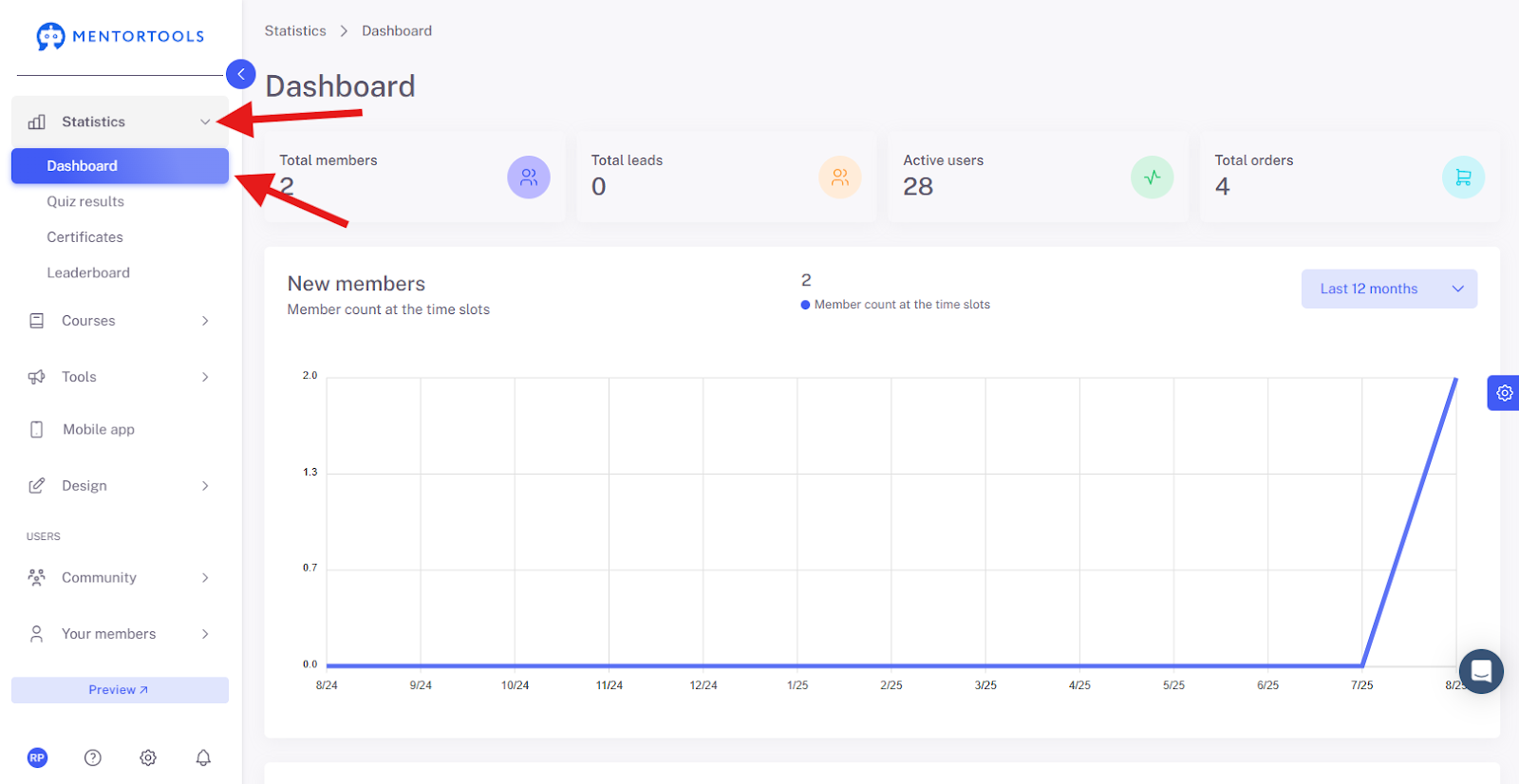
1. Access the Dashboard
Go to https://app.mentortools.com.
After logging in, you will automatically land on the dashboard of your academy. Here you will find an overview of member numbers, leads, orders, and more.
2. View All Members
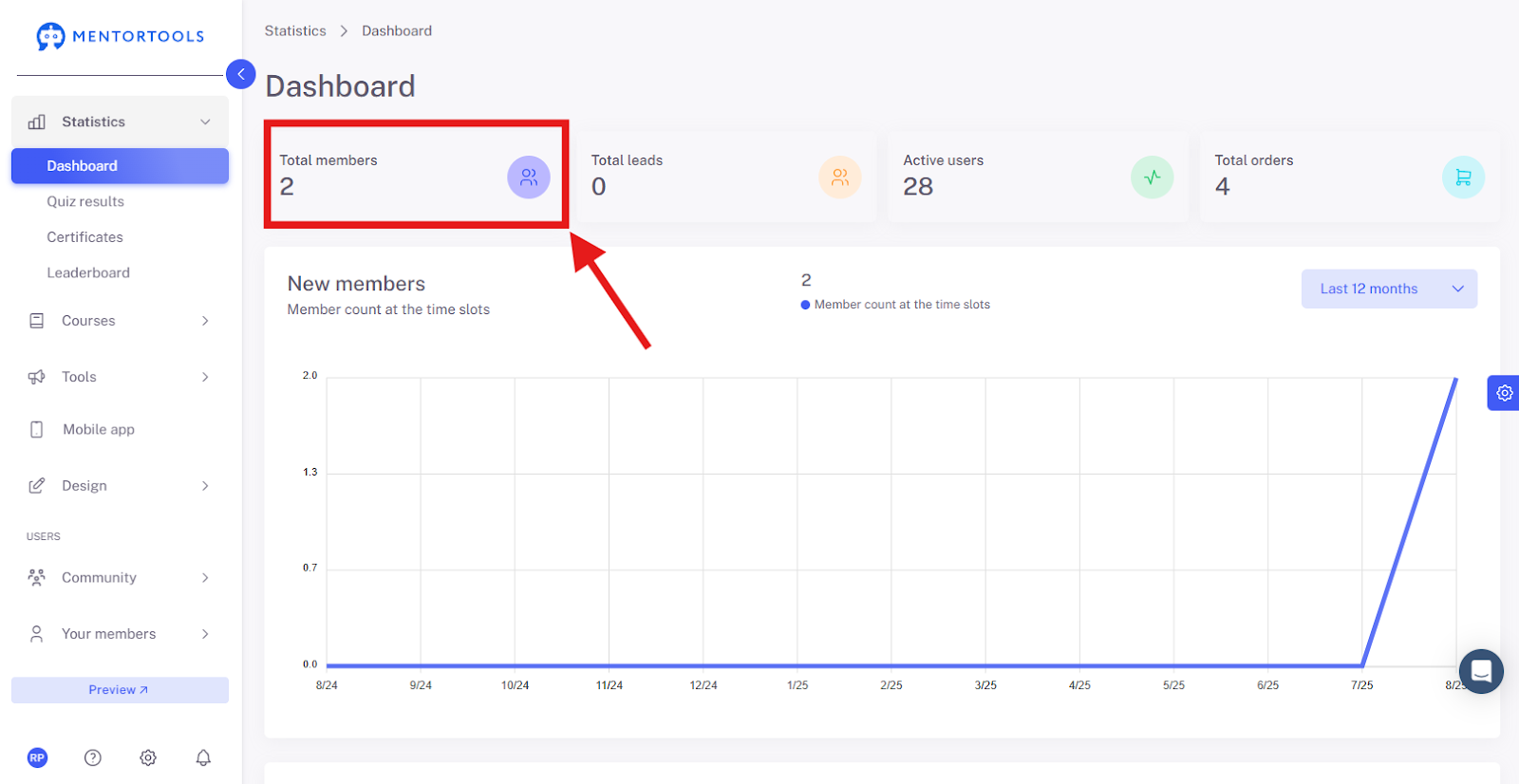
Click on the box with your member count to get to the overview.
3. View All Leads
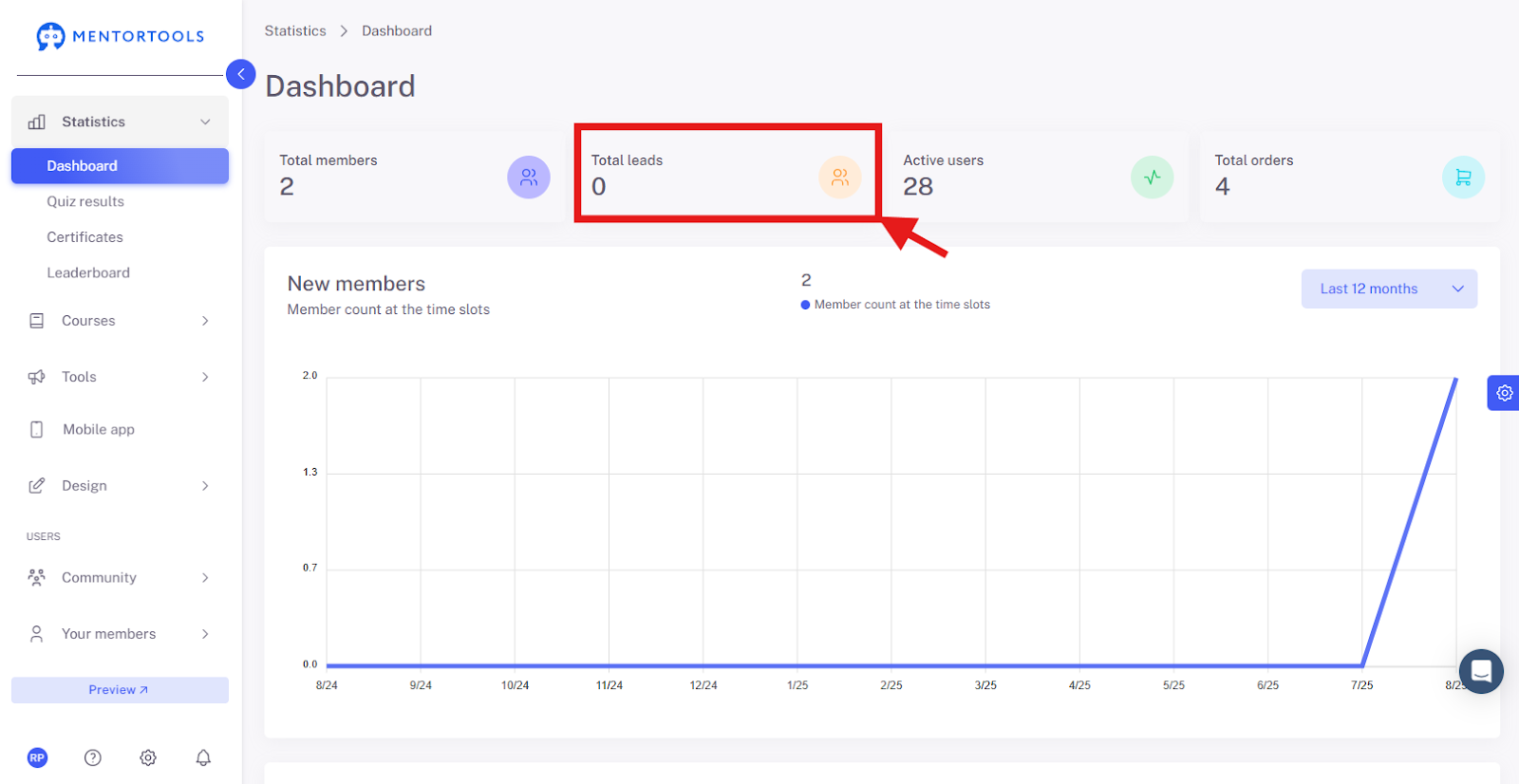
Click on the "All Leads" widget to see potential customers.
4. Check Active Users
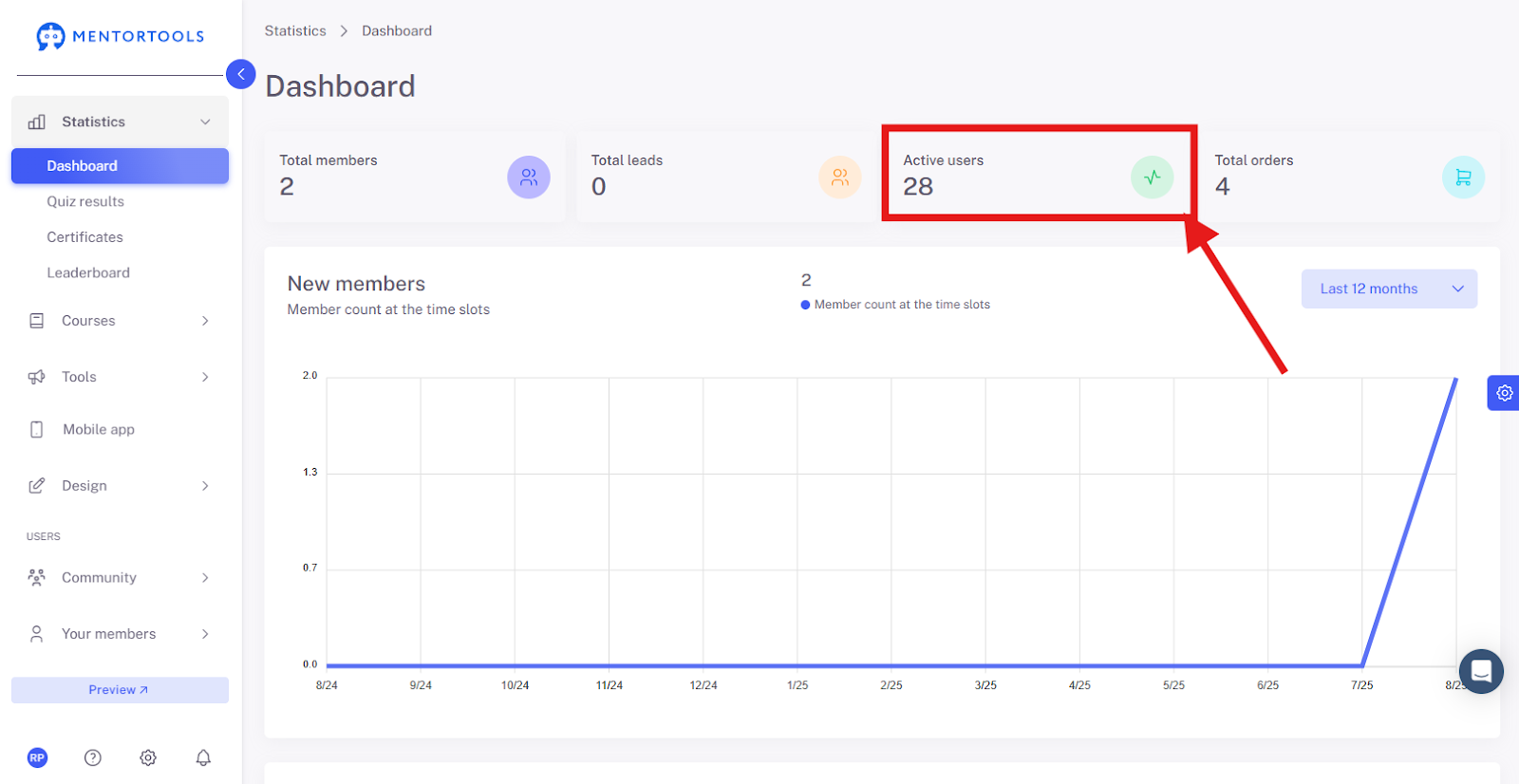
Here you can see how many users have recently been active.
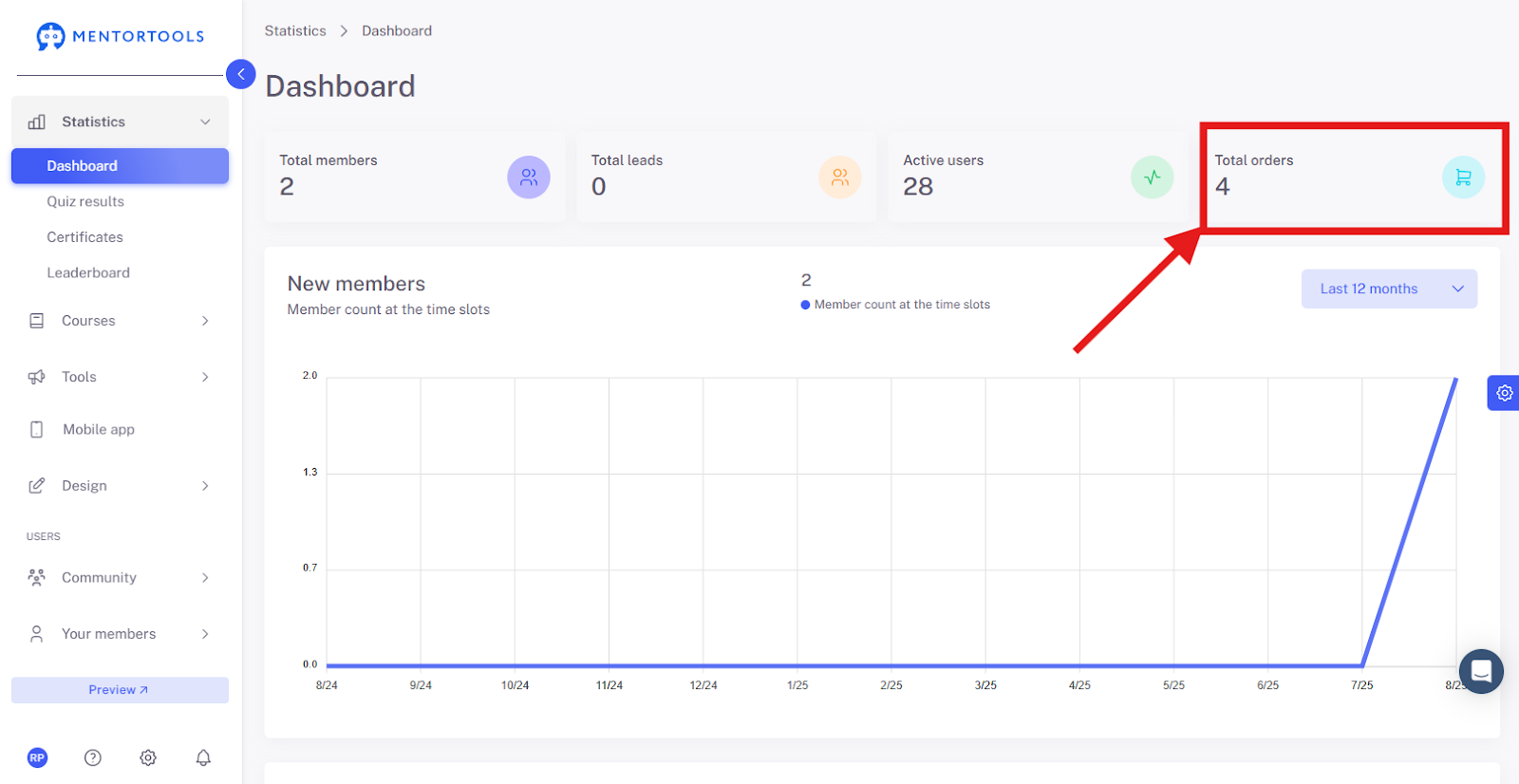
5. View Total Orders
This shows you the total number of completed orders in your academy.
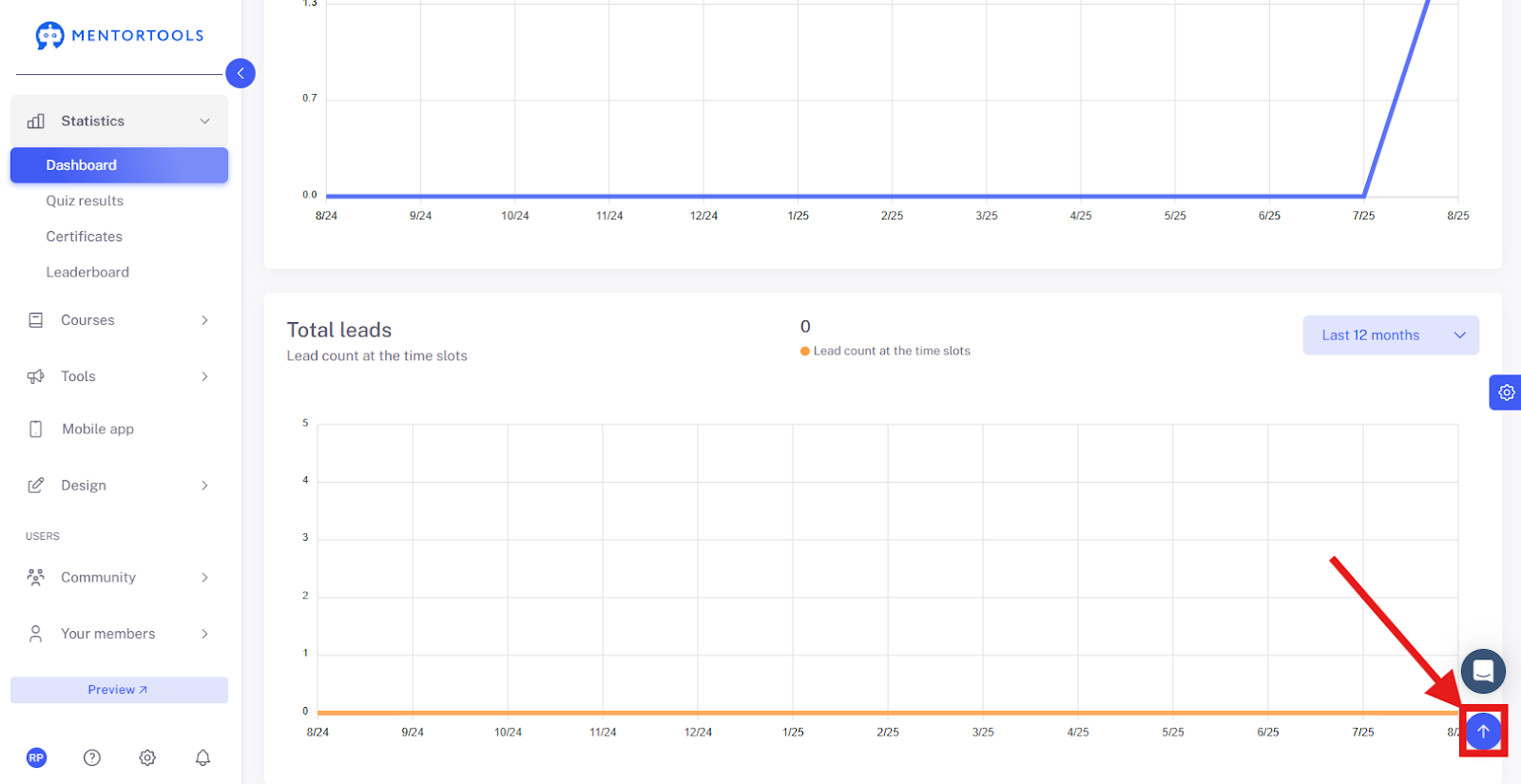
6. Scroll Back to the Top
Click the small arrow at the bottom right to quickly jump back to the top.
Summary
On the Mentortools dashboard, you'll find all the important data for your academy at a glance:
Total number of your members and leads.
Active users.
Total number of all orders.
Quick access to relevant statistics.
Use the dashboard regularly to keep track of your academy.