Members and Contacts – Activity in the Online Academy
With Mentortools, you can track all of a member's activity directly from your dashboard. From individual logins to course access and community activity, everything is logged and can be exported if needed.
Last updated 12 months ago
How to Check a Member's Activity
1. Click on "Members" in the left menu.

2. Select "Members and Leads."

3. Click on the desired member (e.g., "Max Muster").
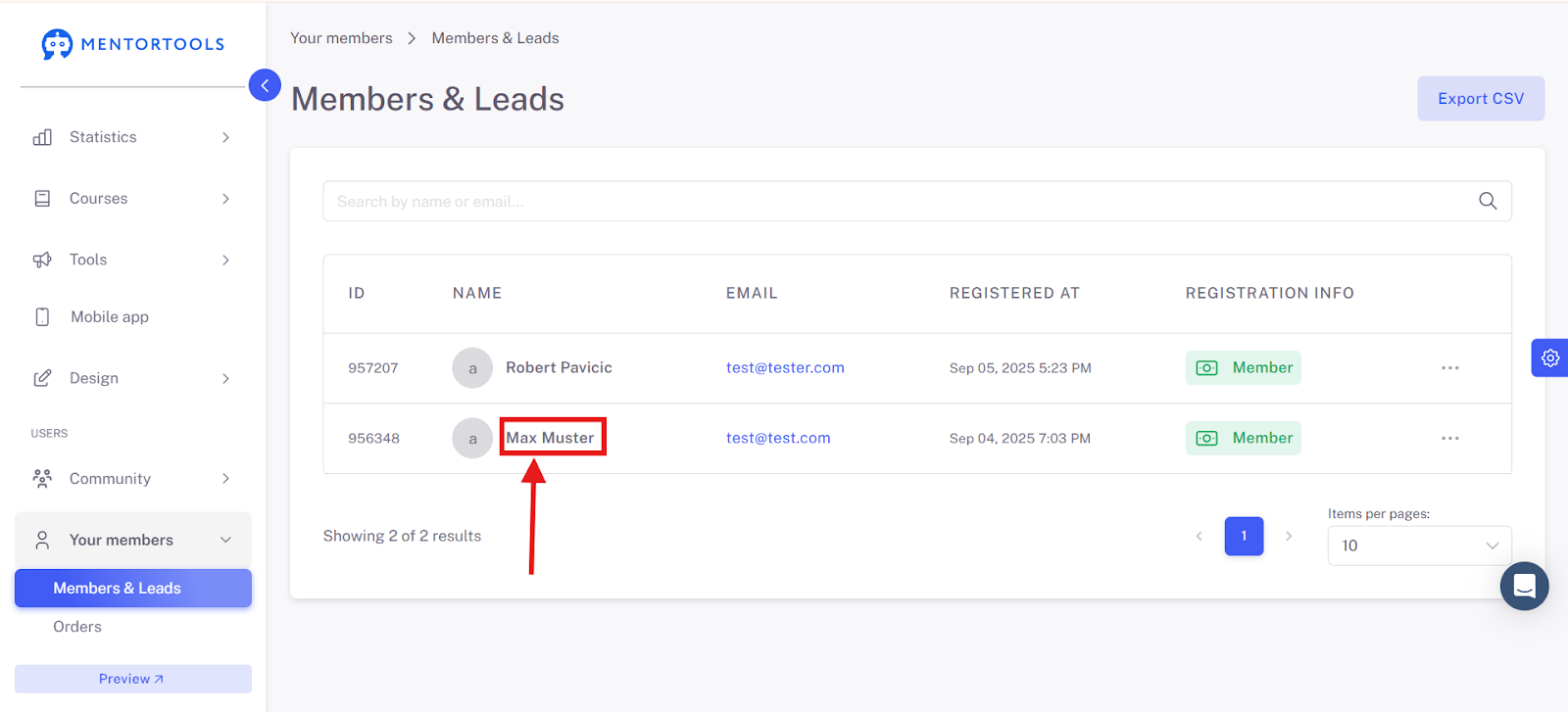
4. Select the "Activity Log" tab.
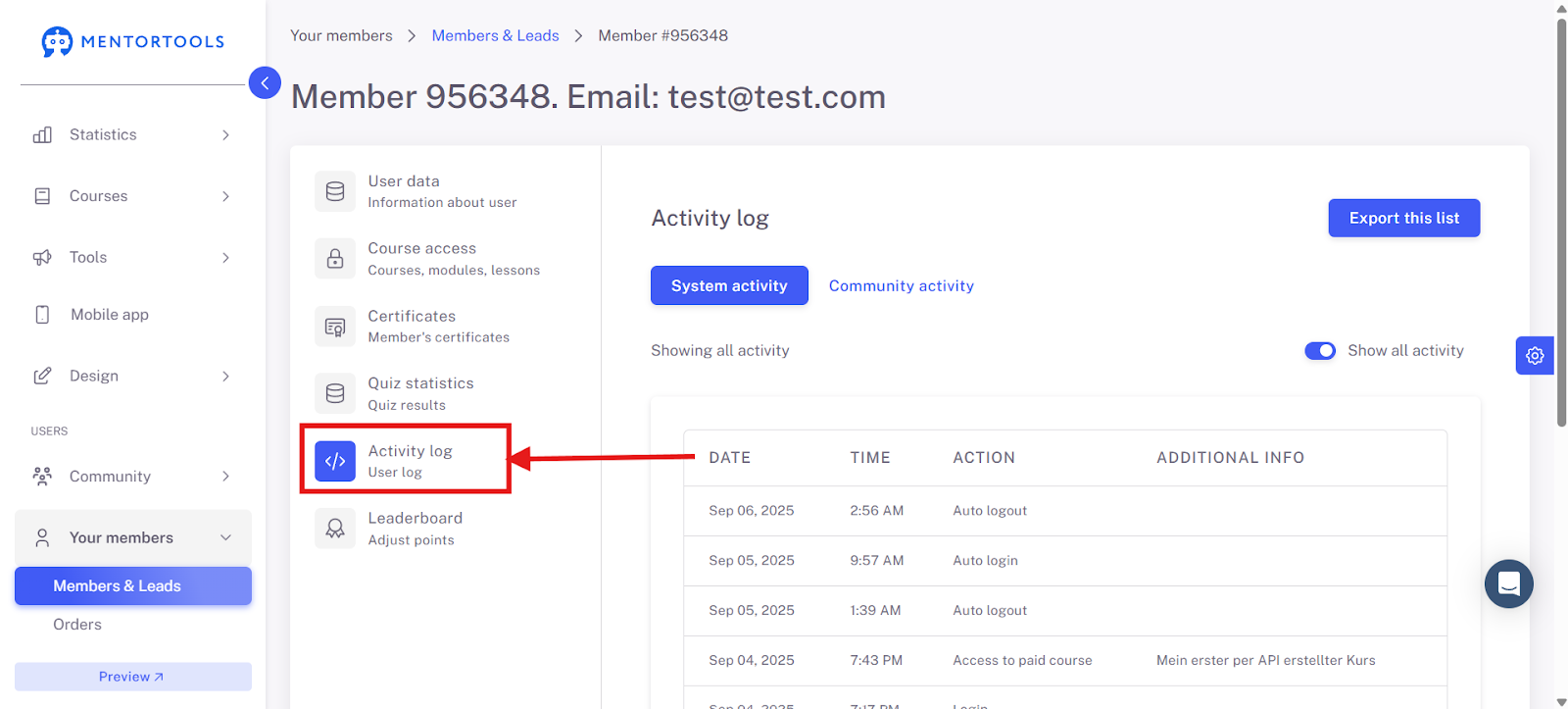
5. If needed, export the activity list as a CSV.
"Export as CSV" means that you convert and download data from the system into a Comma-Separated Values (CSV) format.
Think of it like a simple, clear table that you can open with programs like Excel or Google Sheets. Each column is separated by a comma (or sometimes a semicolon, depending on the settings).
This is very practical if you want to save your data (e.g., a list of your members or the results of a quiz) on your own computer, sort it, or edit it further in another program.
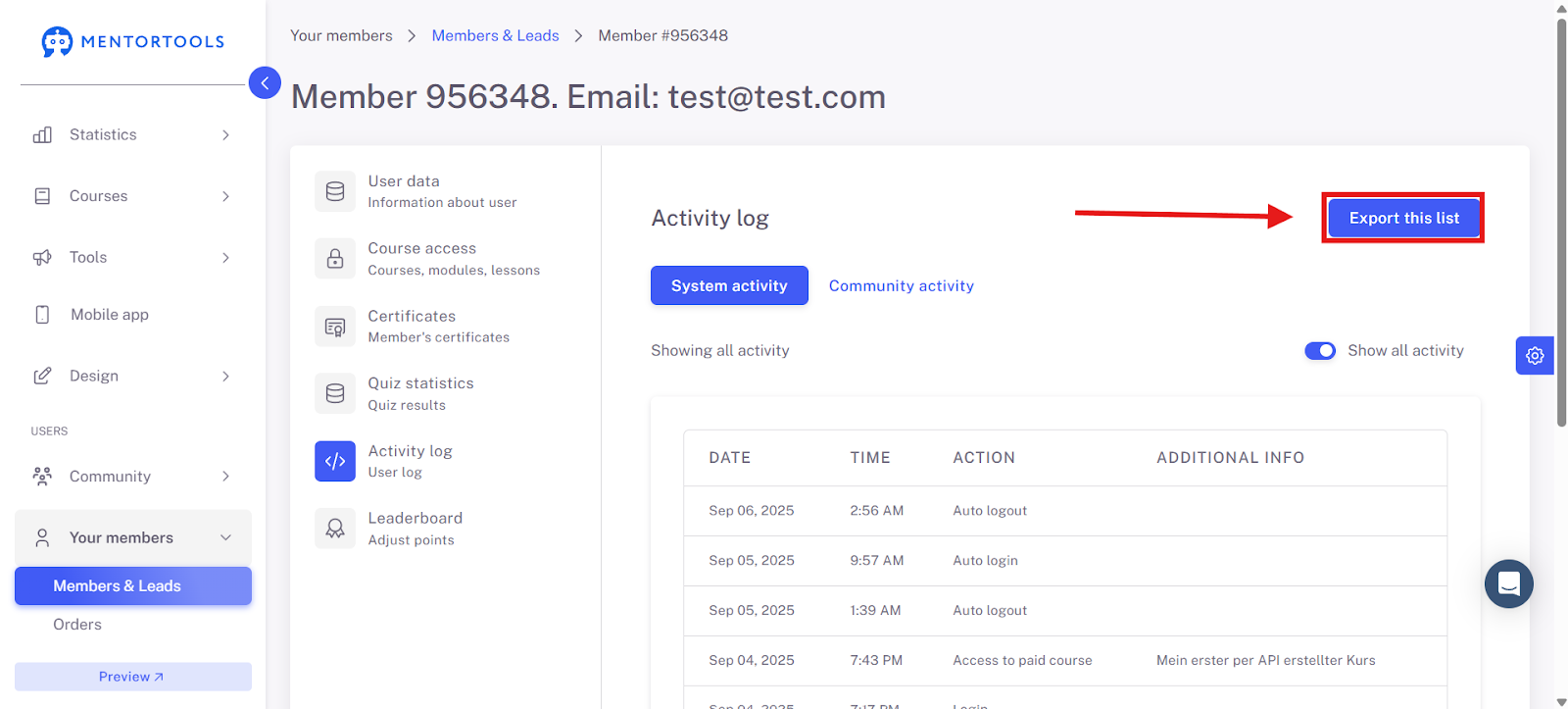
Filtering Options

You can distinguish between two types:
System Activity: This shows what a user has done within the system itself. Examples include when they gained access to a course, when they completed modules, or when they logged in.
Community Activity: This includes all the activities the user does in the community. This includes, for example, writing comments, giving likes, or creating posts.
Example Applications
You want to know when a user first entered a specific course.
You want to track whether a participant is actively using your community.
You need proof for technical or support purposes.
With the user log in Mentortools, you have full transparency over all your members' activities—exportable and filterable at any time.