Submodules – Deleting a Submodule
If you no longer need a submodule or want to reorganize the structure of your course, you can easily delete it. However, pay attention to a few important points so you don't lose any important lessons or data. Here is a guide on how to remove a submodule from your online course.
Last updated 12 months ago
To delete a submodule in your online course, follow these steps:
Go to "Courses"
In your online academy, go to "Courses" in the side menu.

Go to "Overview"
To display the list of all your courses, then go to "Overview".
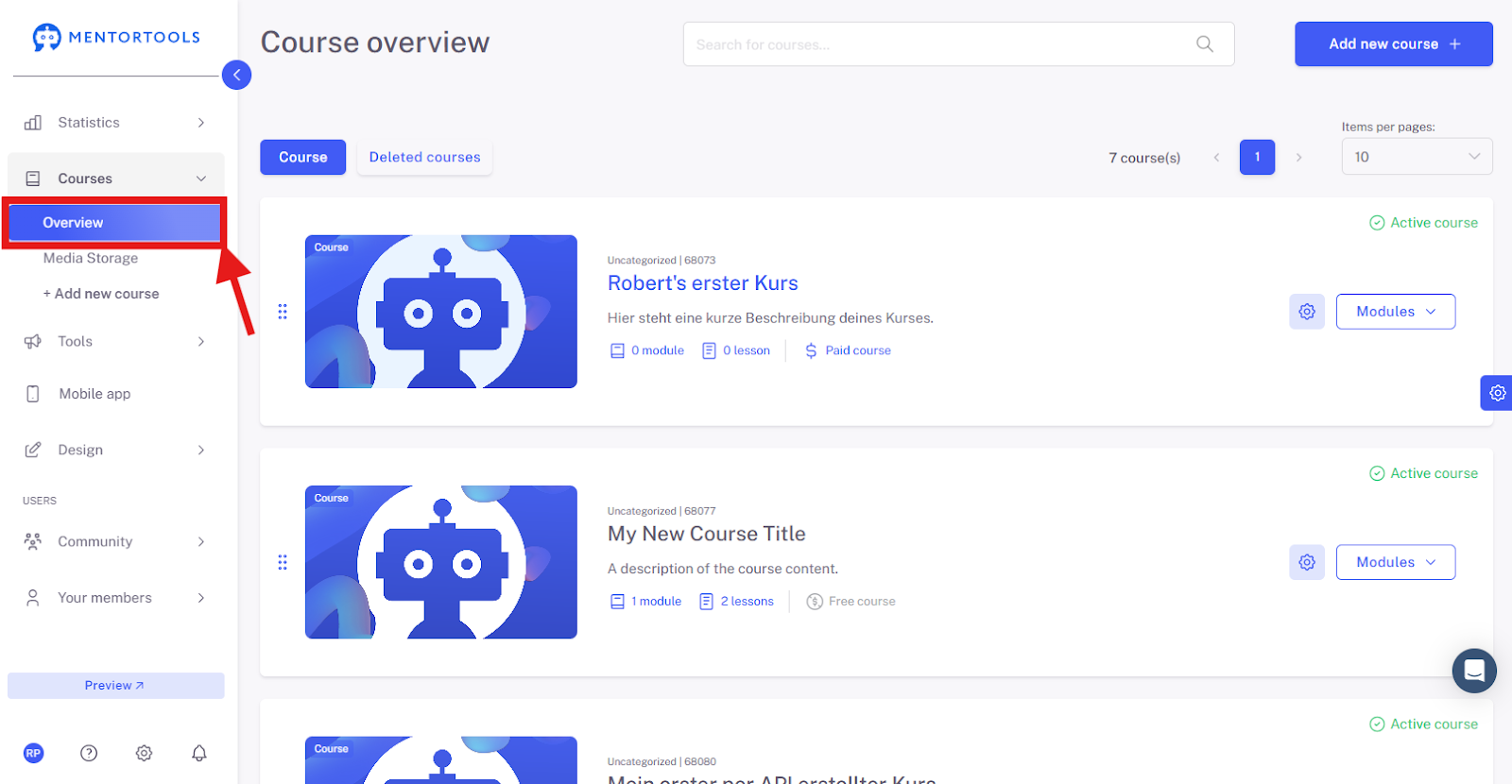
Select a Specific Course
Choose a specific course in which you want to delete the submodule. By clicking on "Modules," all existing modules in this course will be displayed.

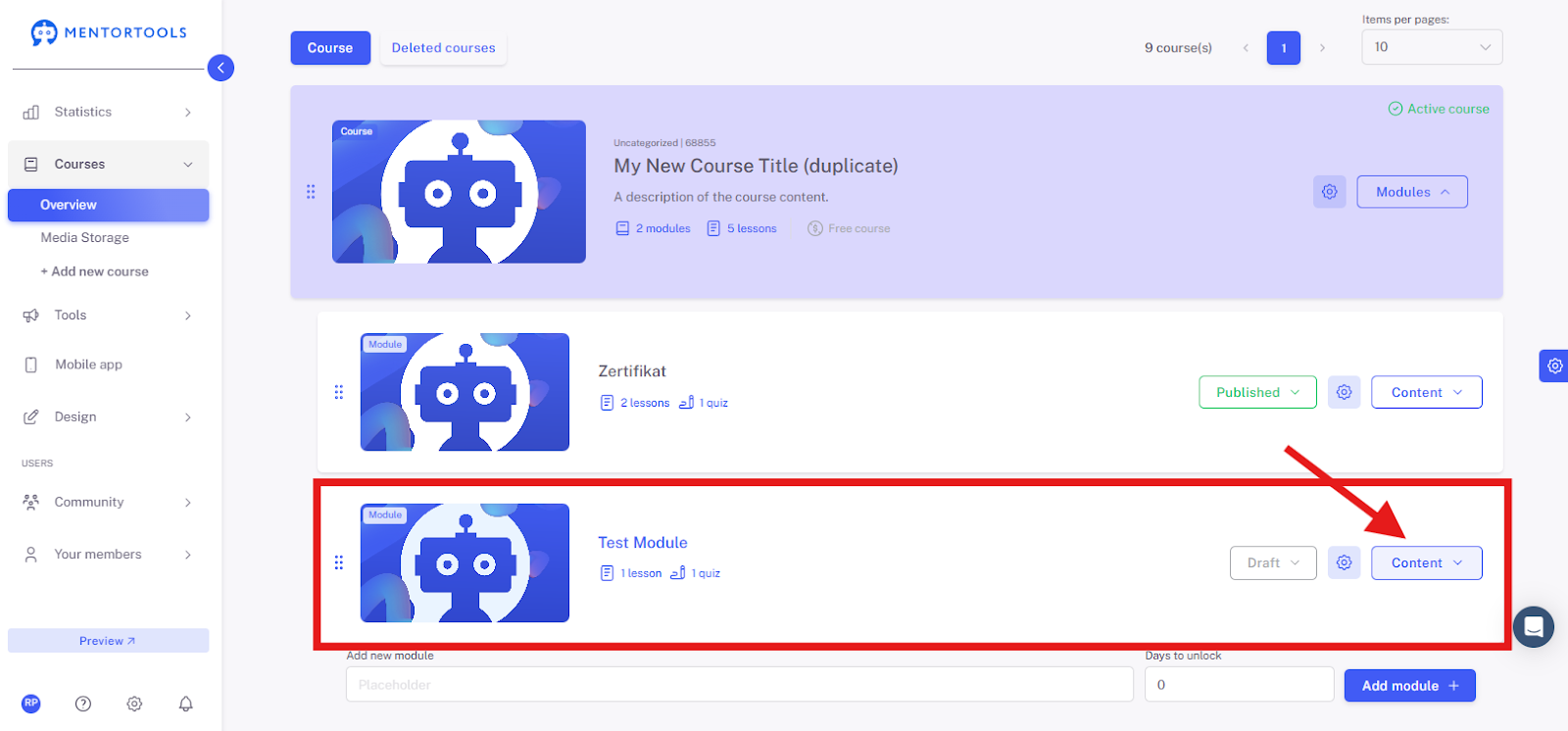
Select a Specific Module
Find the specific module where you want to delete the submodule and click on "Content" to the right of the module to display all the lessons/quizzes/submodules in this module.
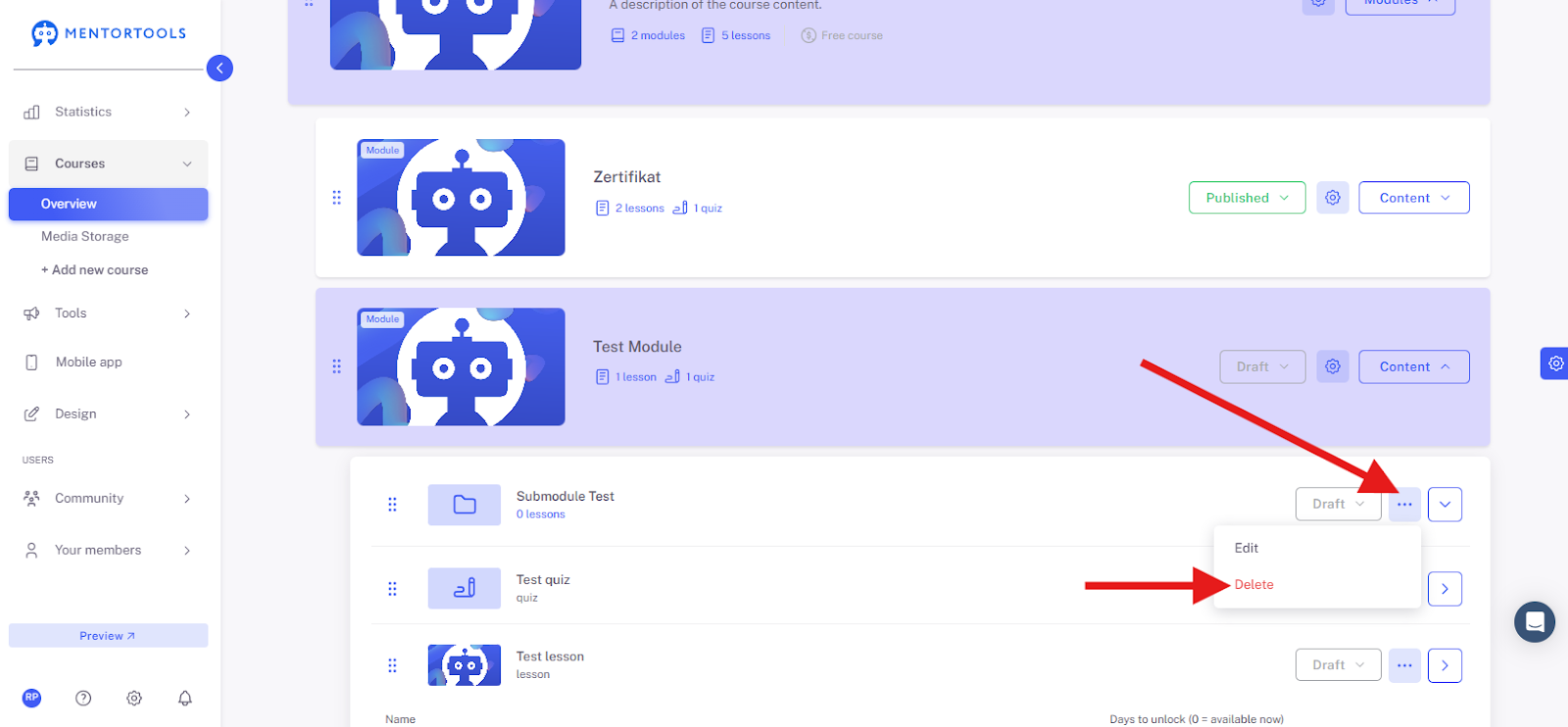
Select a Specific Submodule
To delete the submodule, click on the three-dot symbol next to the name of the submodule. Select the "Delete" option here.
Confirm Deletion
After you click on "Delete," a confirmation window will open. Enter the word "DELETE" in all caps into the field and then confirm the deletion of the submodule.
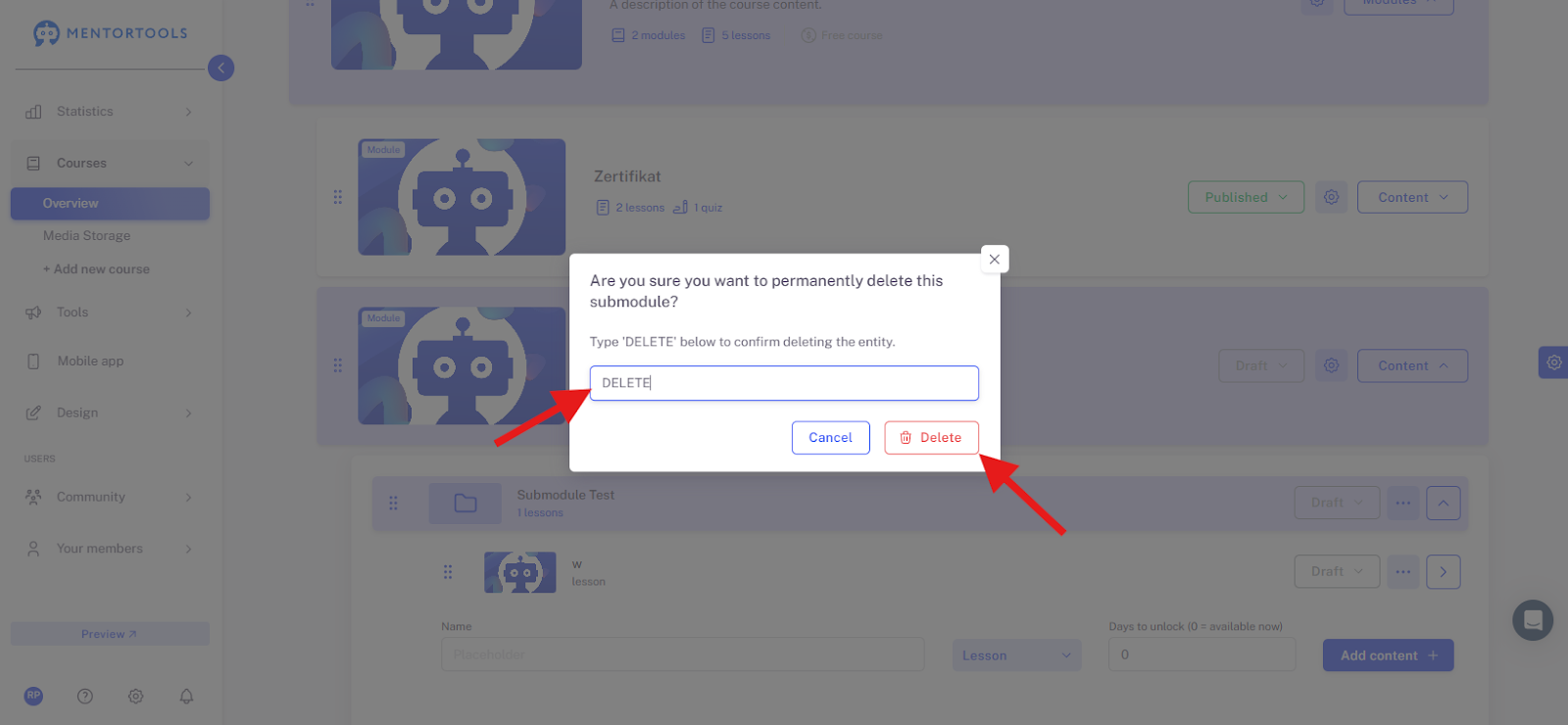
This way, the submodule will be permanently removed from your module and course.
WARNING: When you delete the submodule, all the content (all lessons and quizzes) that was in that submodule will also be deleted.
Conclusion:
With these steps, you can delete individual submodules in Mentortools—for example, if you want to remove outdated content or reorganize the course structure. Note that deleted submodules cannot be restored. Therefore, carefully check whether there are important lessons or materials inside before you delete it.