Lesson – Settings
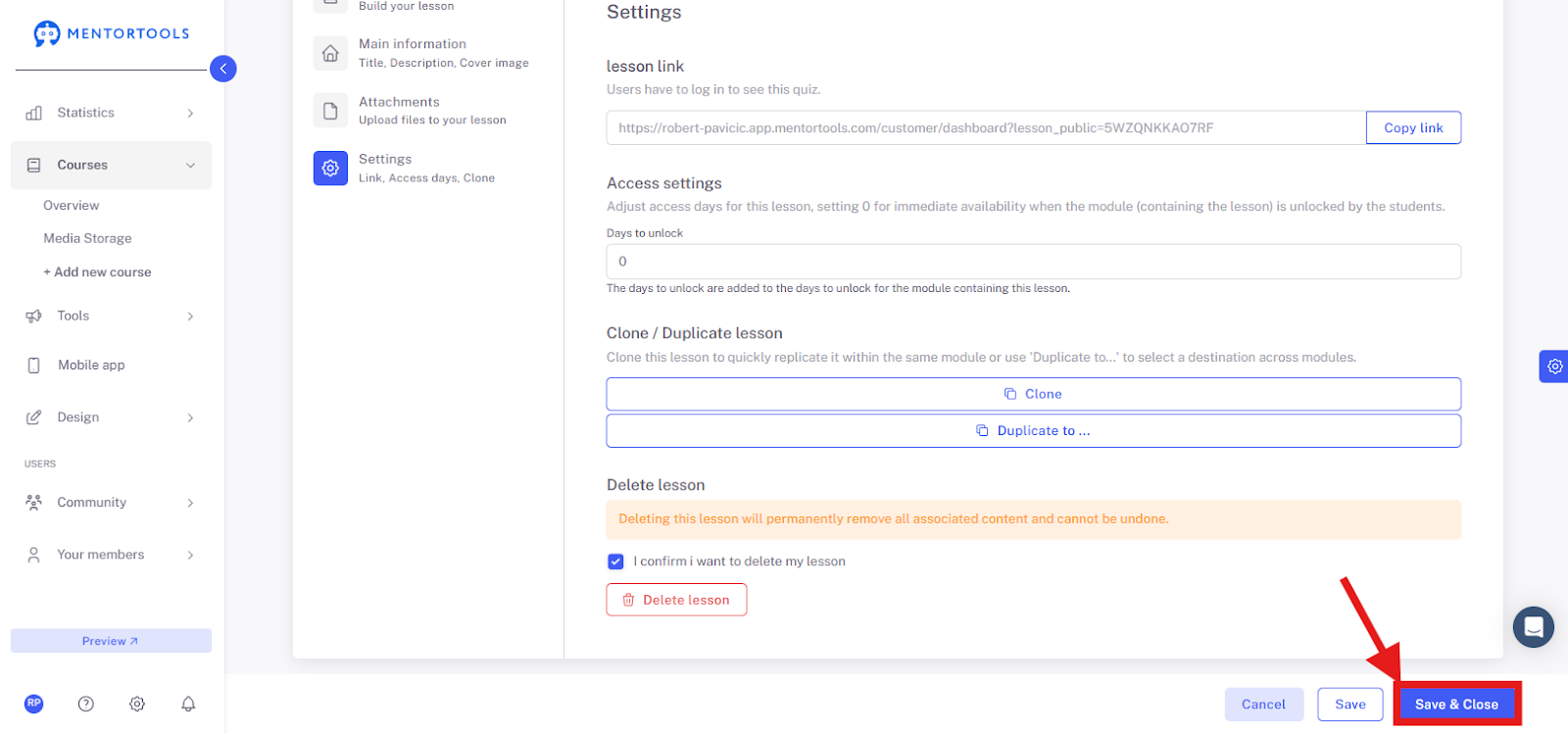
The settings for a lesson in Mentortools allow you to define exactly when the lesson is unlocked for your customers—either immediately or after a specific period of time. You will also learn how to duplicate or delete a lesson in your course.
Last updated 12 months ago
Where Can I Find the Lesson Settings?
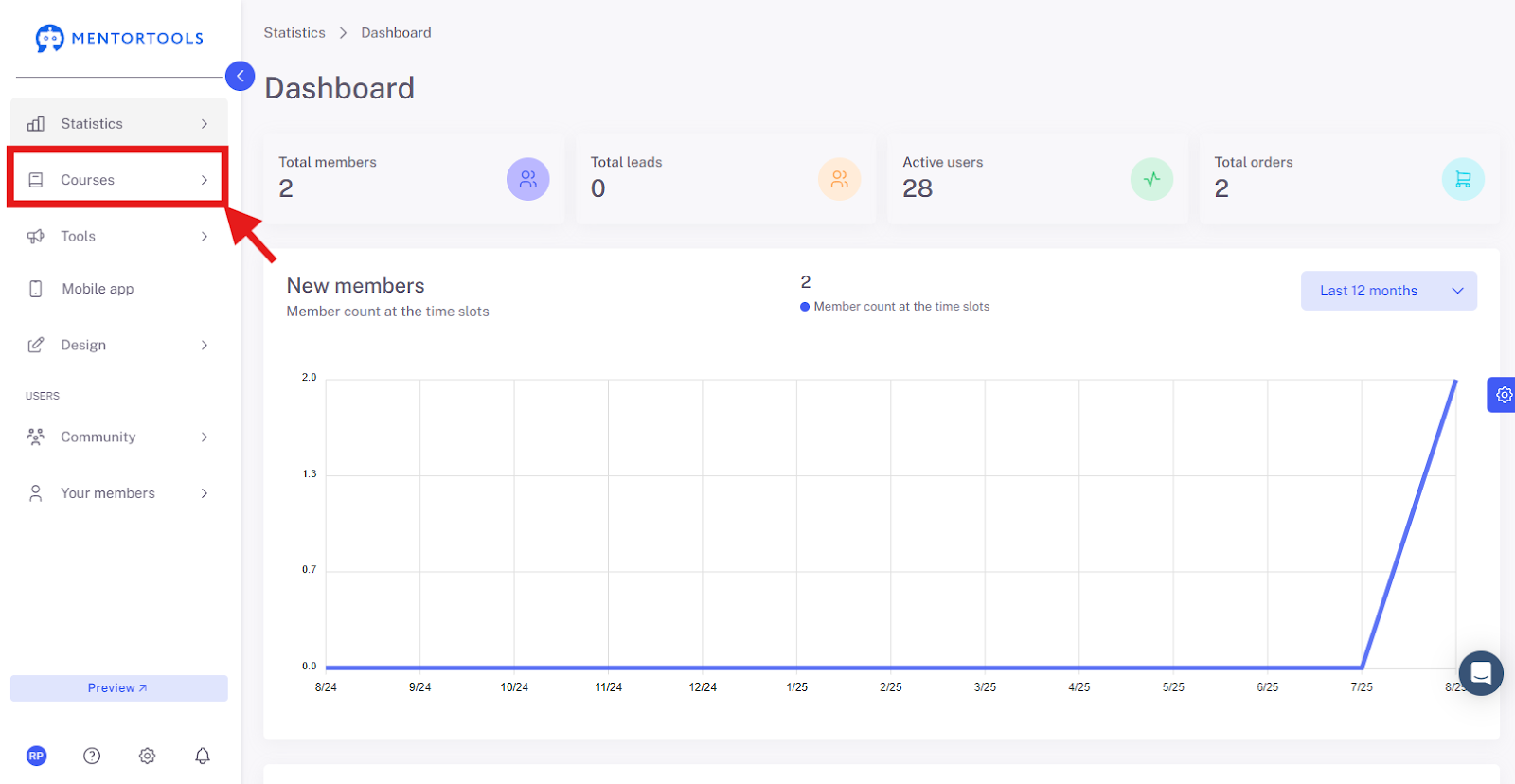
Go to "Courses"
In your online academy, go to "Courses" in the side menu.
Go to "Overview"
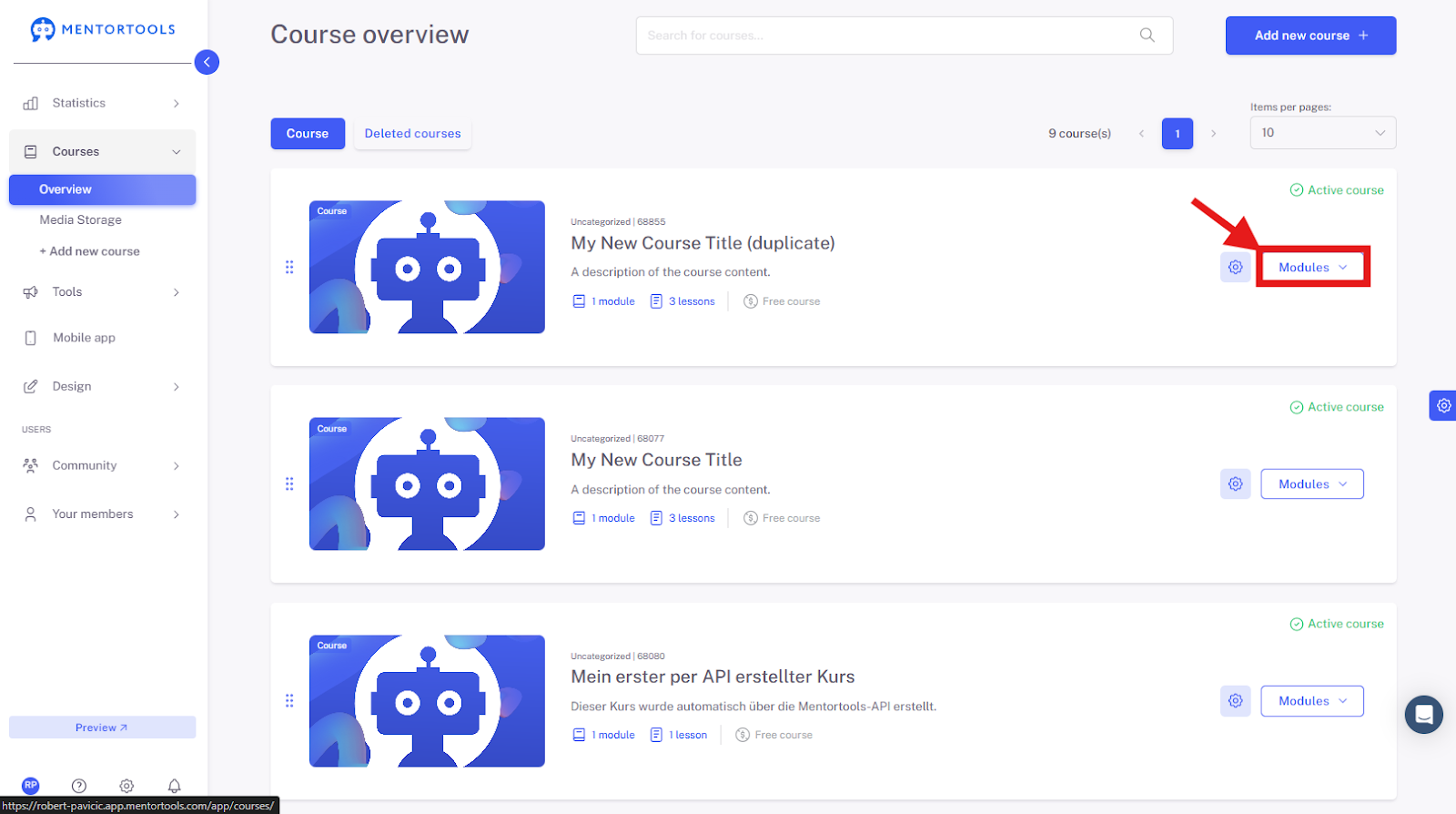
To see the list of all your courses, go to "Overview."

Select a Specific Course
Choose a specific course and a module where you want to edit the lesson settings. When you click on "Modules," all existing modules in that course will be displayed.
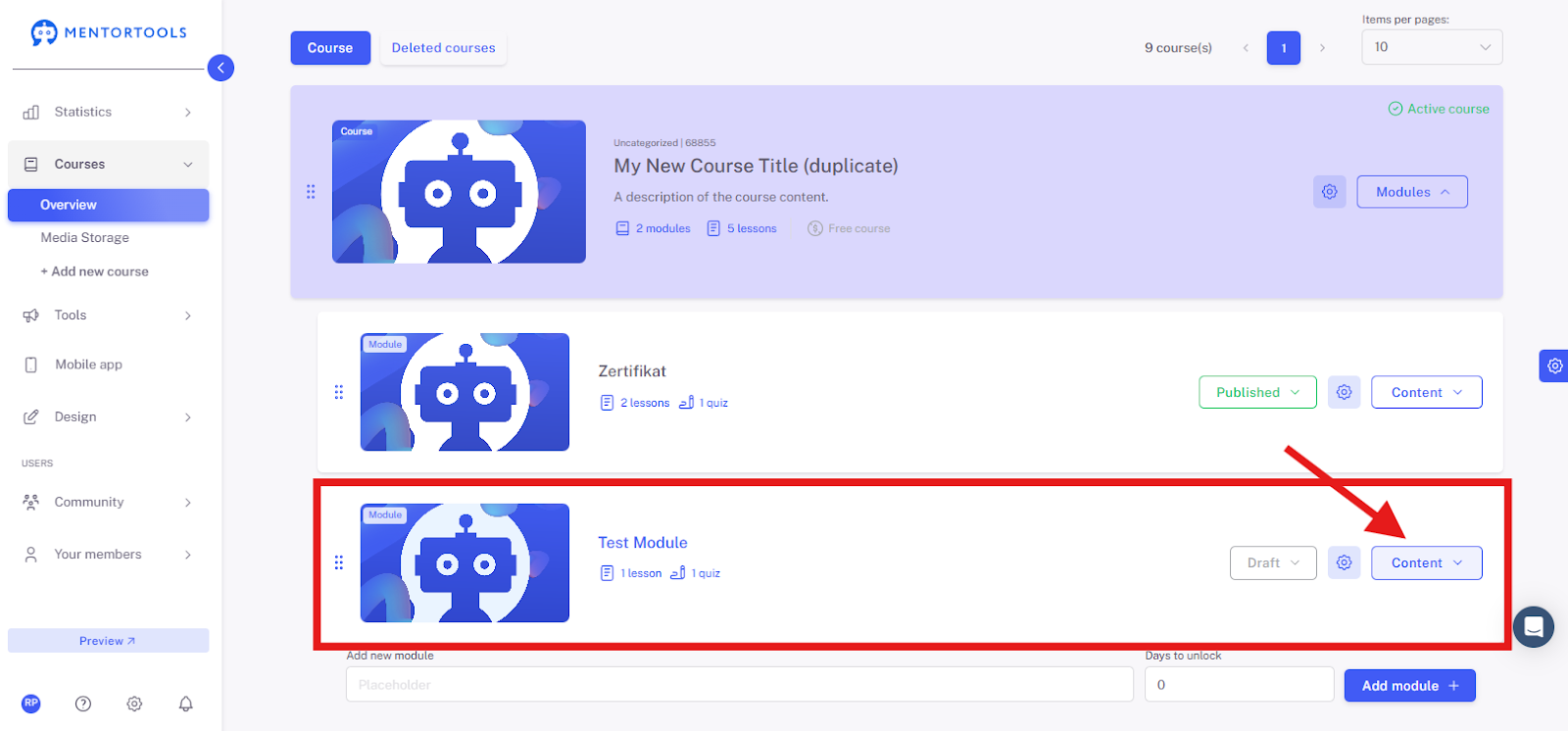
Display the Content of the Module
By clicking on "Content," all existing lessons in that module will be displayed.
Select the Lesson
To edit a lesson's settings, click on the title of the respective lesson. After clicking, all available settings will be displayed.

Editing Lesson Settings
To edit the settings for a specific lesson, go to the "Settings" tab.

Overview of Available Settings
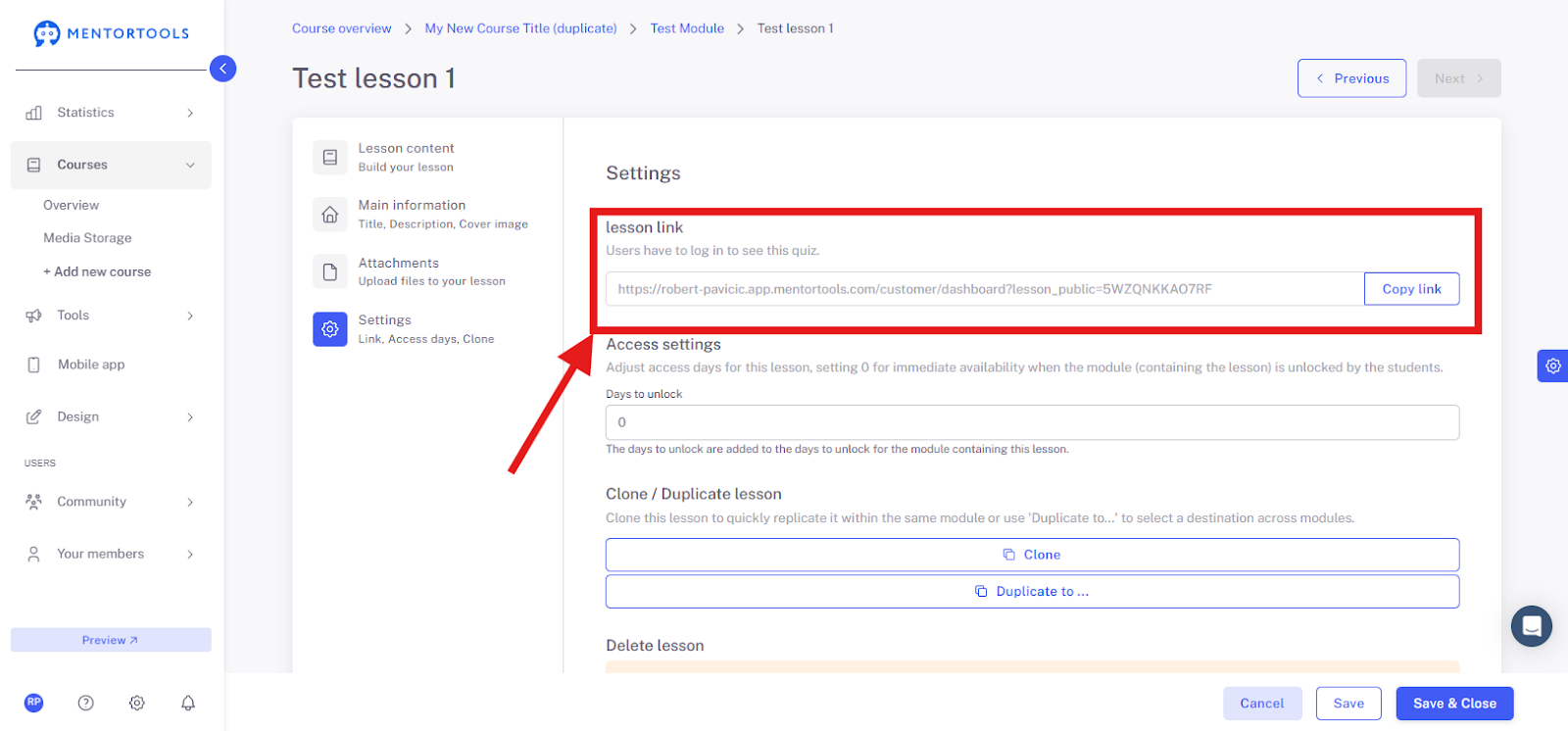
Lesson Link
Here you will find the link to the specific lesson. This link allows you to direct users to a particular part of the course. You can copy the link and send it to your customers if you want them to view or review a specific lesson. This is especially helpful if you want a participant to pay special attention to a particular topic or return to certain content.
You can also insert this link into another lesson within the same course to facilitate navigation between sections and promote a more dynamic learning approach. For example, if a lesson mentions an important concept, you can add a link to another lesson that explains this concept in more detail.
Access Settings – Days Until Lesson is Unlocked
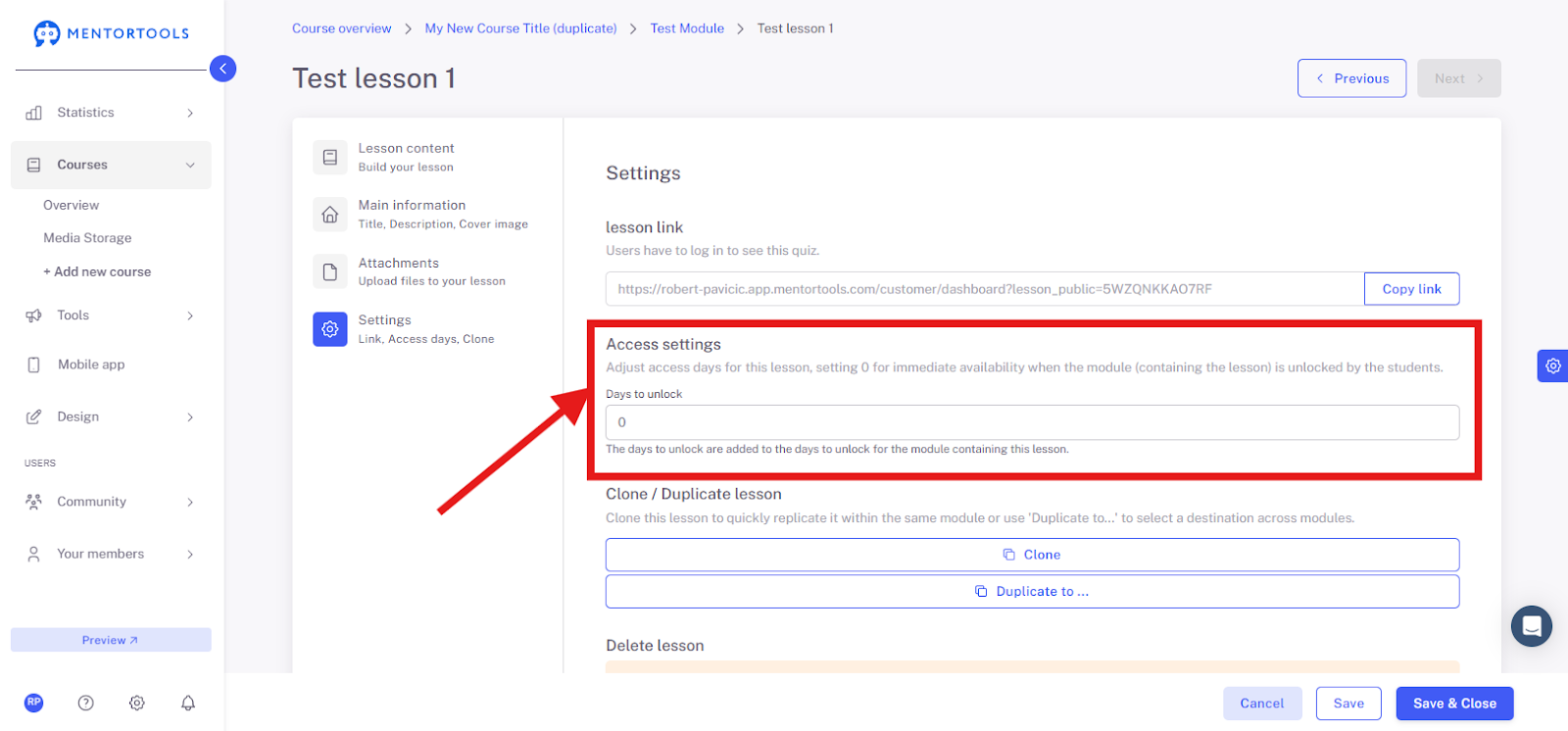
In each lesson, you can set how many days after course access it will be unlocked for your customers. This means when the lesson will become available from the moment they get course access.
For example, if you set "10 days until unlocked," the lesson will be unlocked for your customer 10 days after the course starts / they purchase the course / they register in the members' area. (Note: The days until unlocking are cumulative if you have also delayed unlocking at the module level).
If you enter "0" here, the lesson is available immediately.
Duplicating a Lesson
The "Clone" function allows you to duplicate an existing lesson within a module. The "Duplicate to..." function allows you to copy the lesson to another module or another course in your members' area.
Clone– If you select this option, a copy of the lesson is created within the same module.

Duplicate to... – If you select this option, you can copy the lesson to another module in the same course or to a completely different course.
In this case, a list of available courses and modules will be displayed, from which you can select which course or module you want to copy the lesson to.
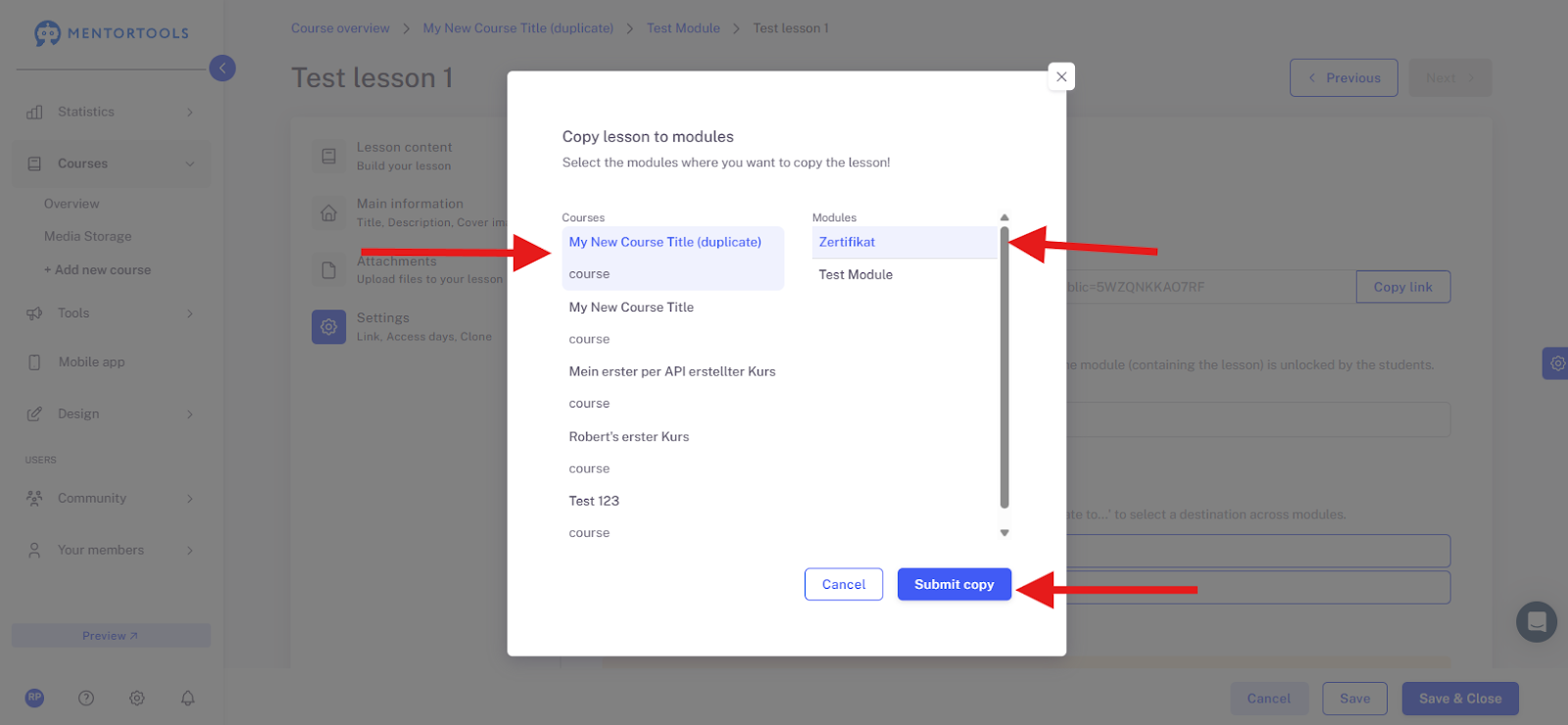
After you have selected the course and module you want to copy the lesson to, click "Submit Copy."
Deleting a Lesson
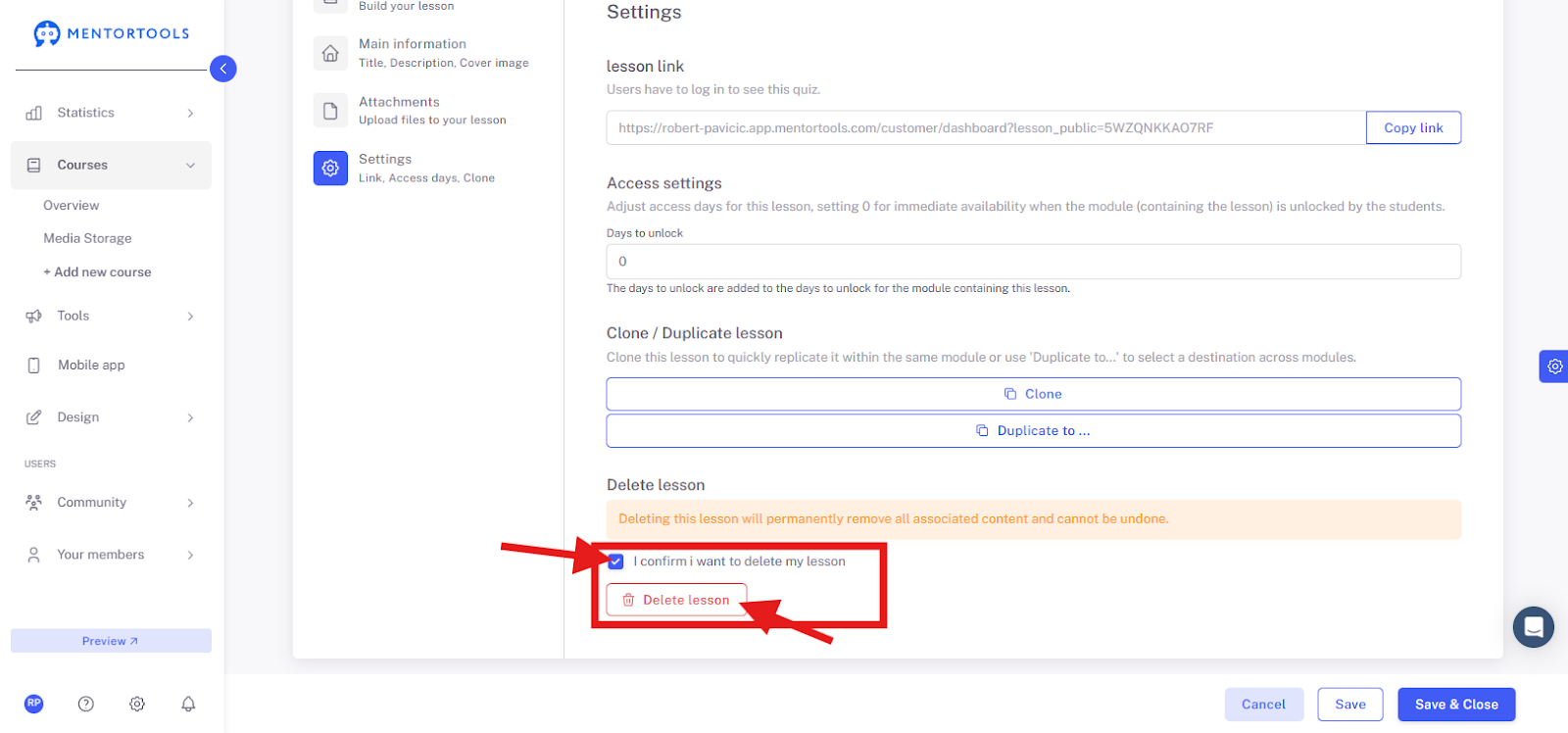
Click "I confirm I want to delete my lesson" and then "Delete Lesson" to remove the lesson from your module/course.
Saving Settings
Save your changes by clicking the "Save" or "Save and Close" button at the bottom.