Lesson – Deep Links for Direct Access to the Lesson
“Deep Links” let you send users directly to a specific lesson. This means that if you have a deep link to a lesson and send it to your members, they can open that lesson with a single click. The benefit is that users don’t have to search for a module or a lesson. In this guide, you’ll learn how to create and configure such deep links.
Last updated 11 months ago
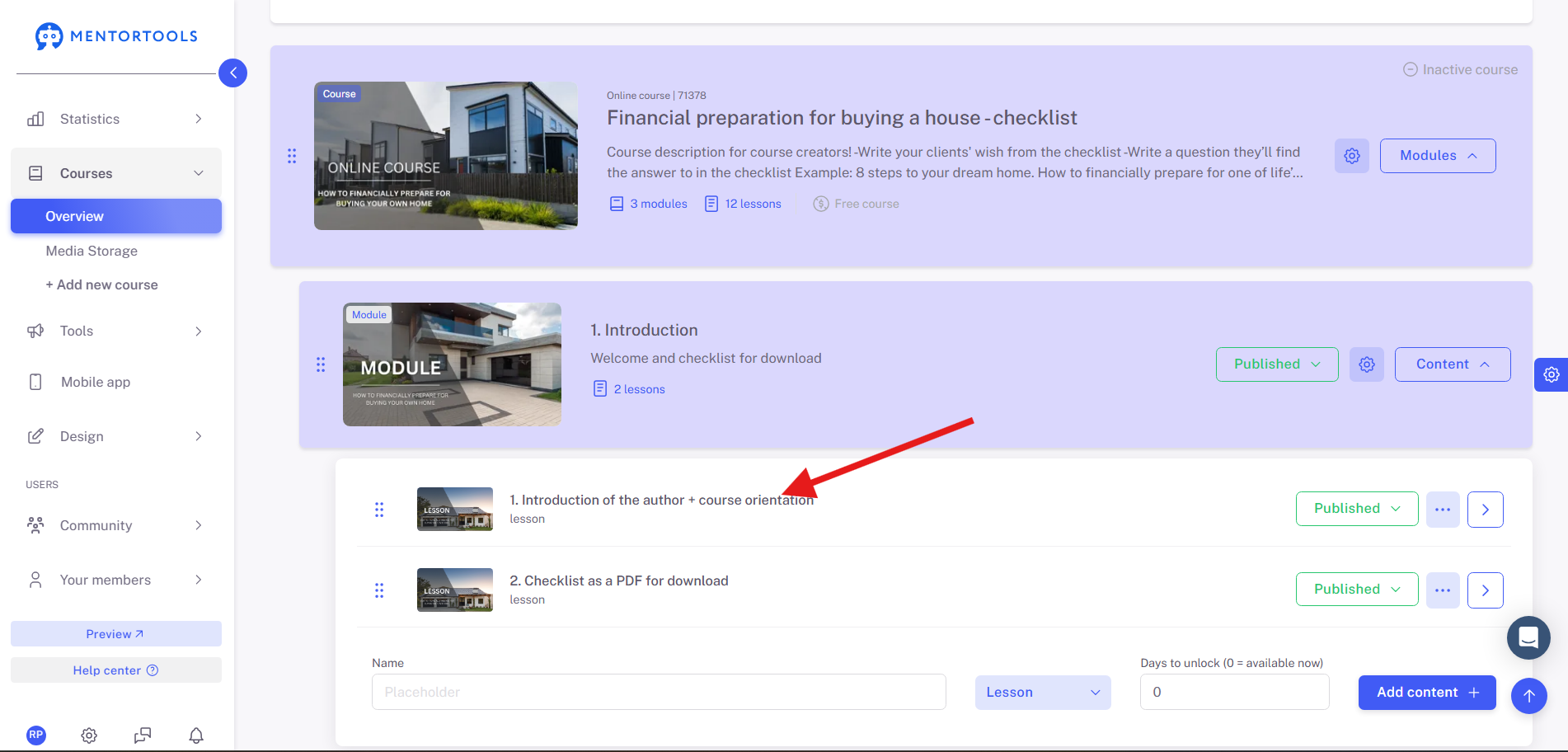
Navigate first to the lesson you want to share with your members.
Then select “Settings” on the left side.
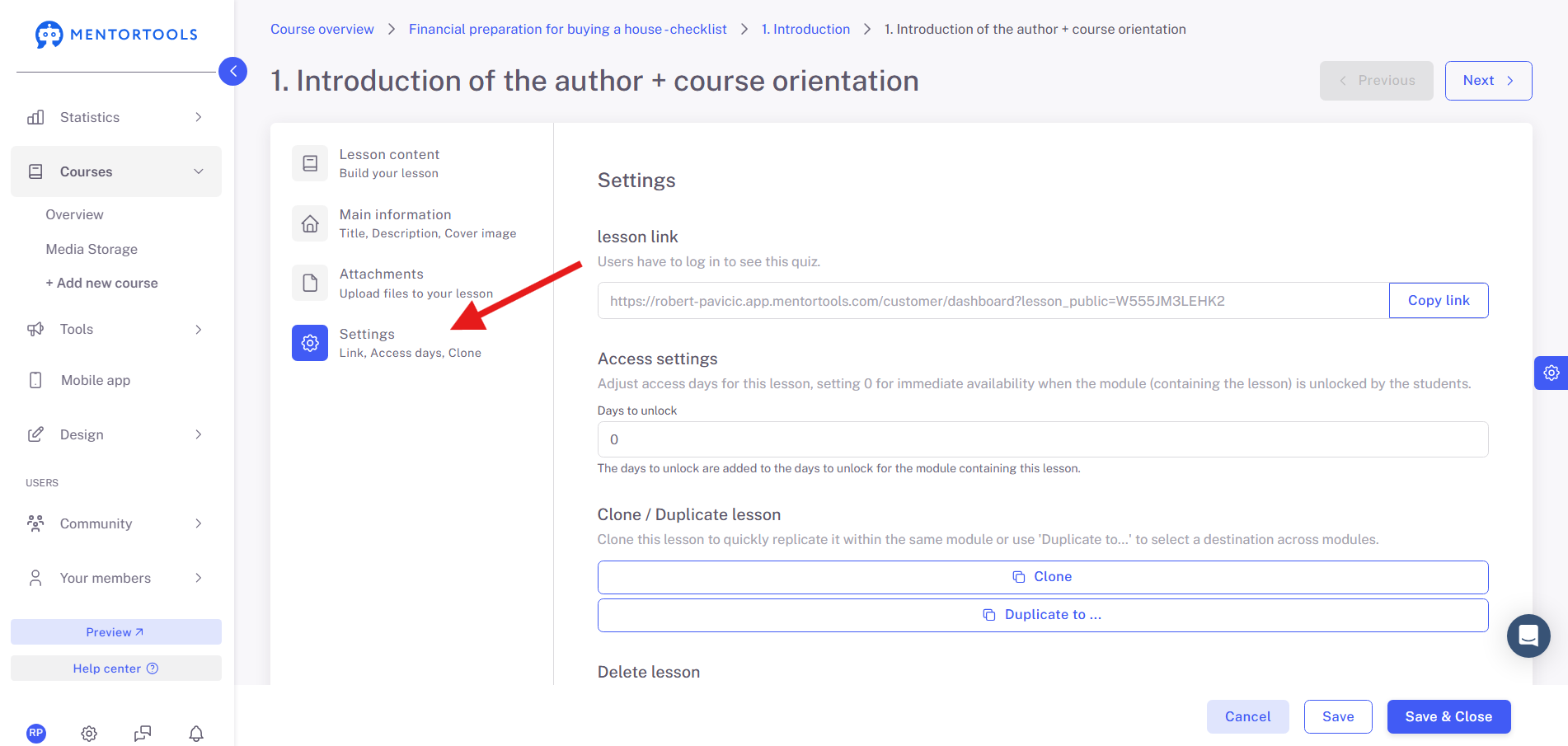
Now you can copy the link with a single click.

IMPORTANT: There are a few options to consider when sending a deep link to a lesson. Users can have different access levels to courses. Therefore, you should keep the following points in mind:
Wishing you continued success and fun,
The Mentortools Team