Your mobile app in the Google Play Store and Apple App Store
With our Mentortools App feature, it is now possible to book your own app, in which I can make your courses available to your customers via the Google Play Store and the Apple App Store. This app provides a user-friendly platform to deliver content and interact with your customers. By being available on both platforms, you can reach a wider audience and effectively scale your service.
Last updated 12 months ago
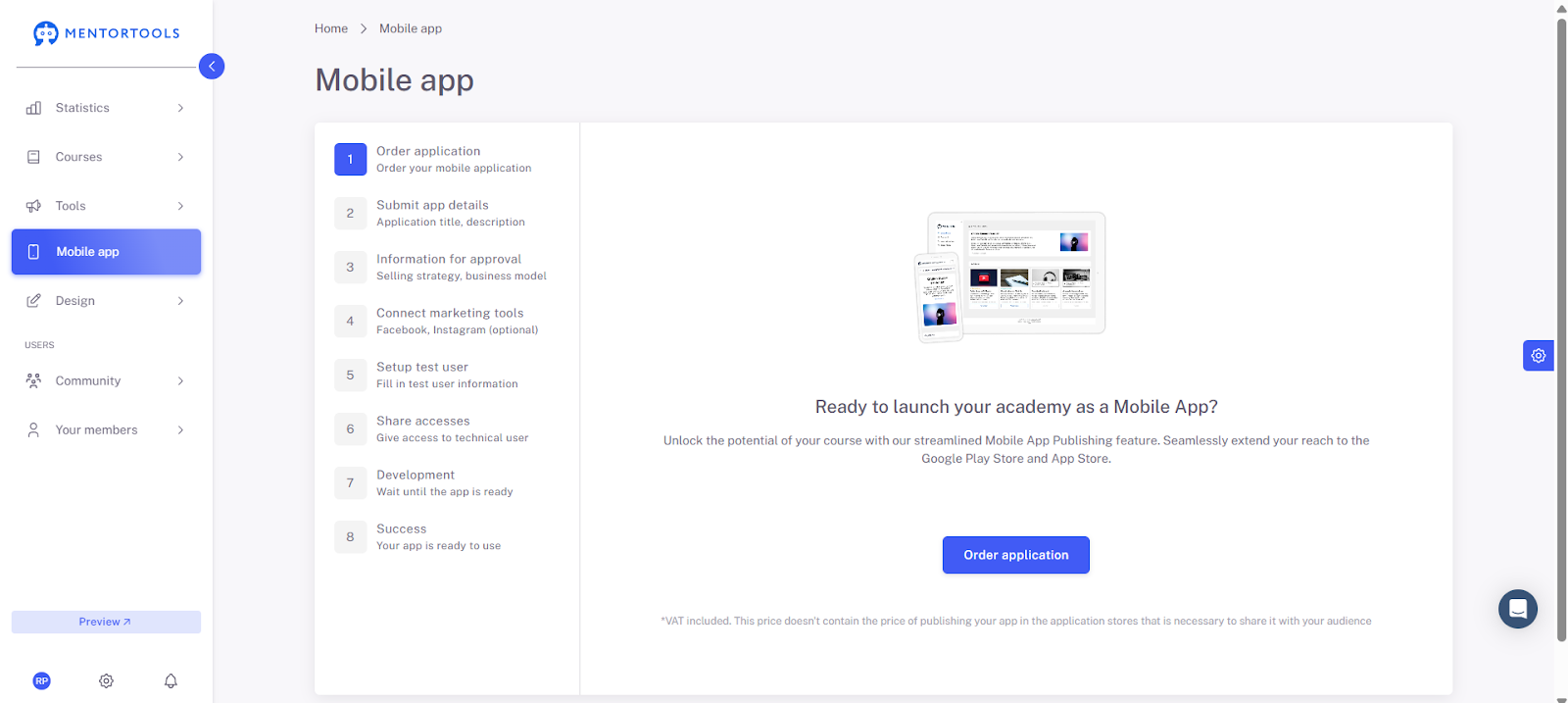
1. Order Application
Click on "Order Application" to start the process of creating your app.
2. Submit App Details
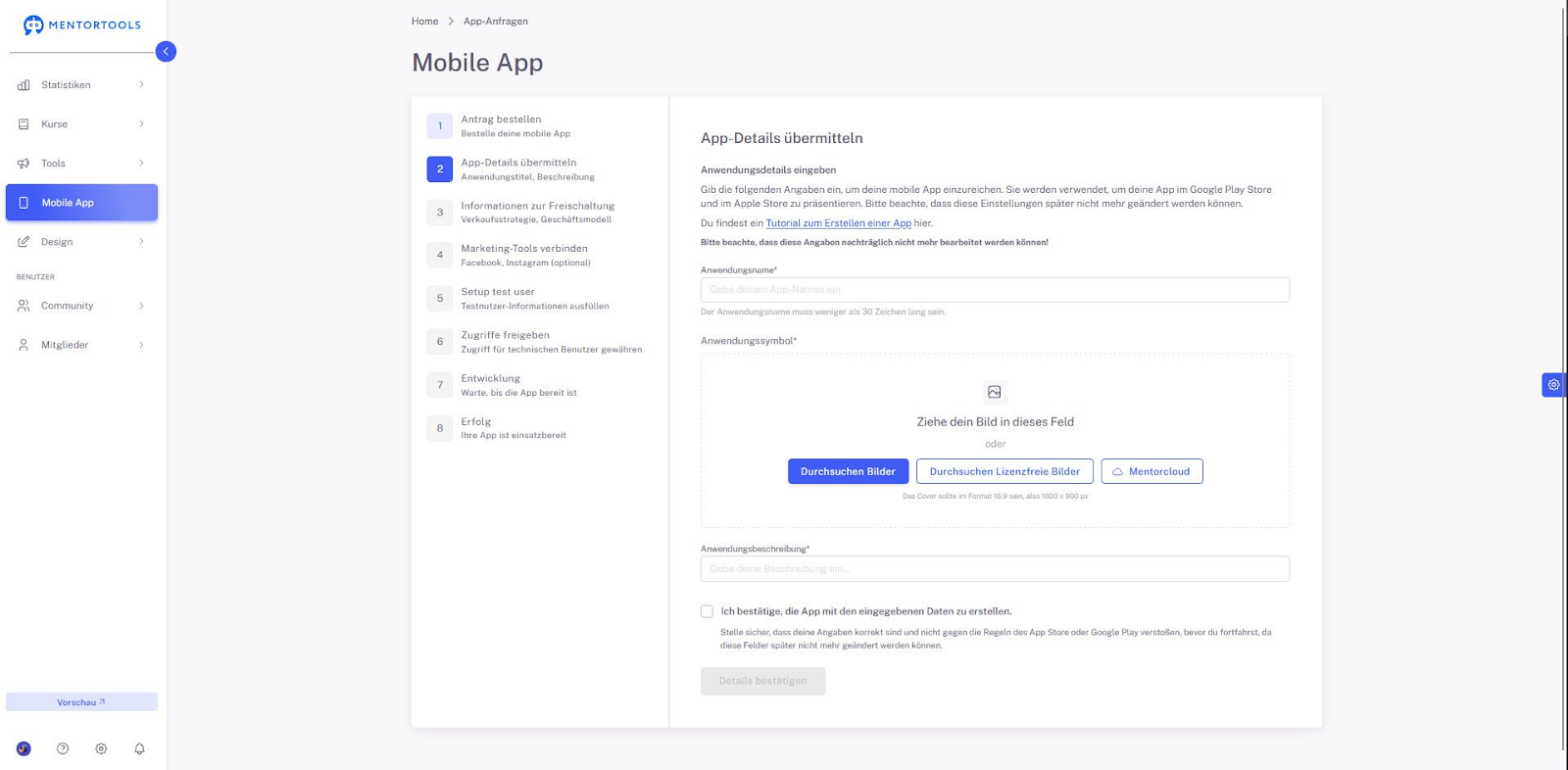
Here you enter the basic app data:
Application Name (max. 30 characters)
Application Icon (your app's logo in 1600 x 900 px format with a 16:9 ratio)
App Description
Additionally, confirm that you want to create the app with the provided data and that it does not violate any Google or Apple guidelines.
3. Information for Release
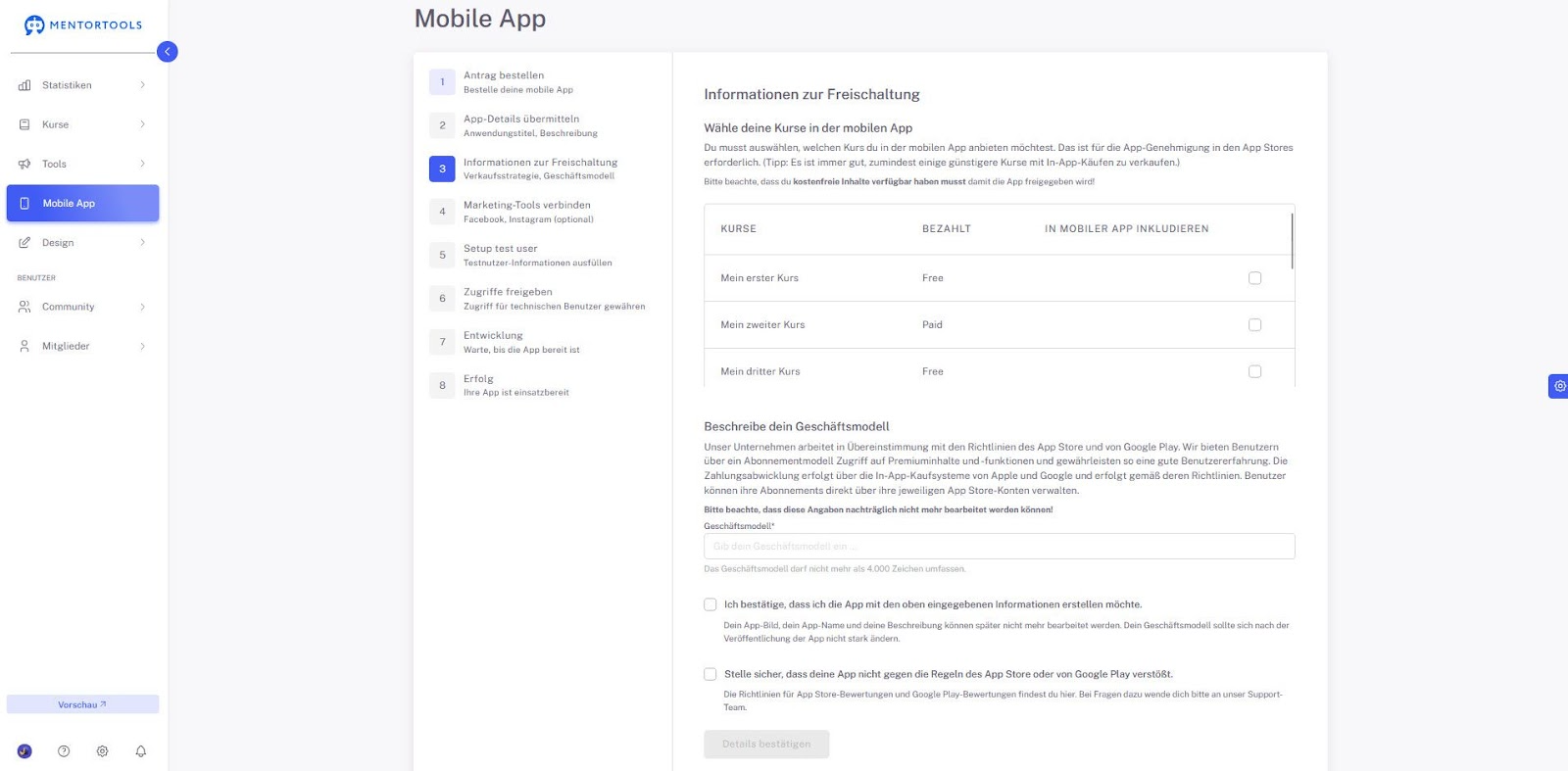
Choose which of your courses should be displayed in the app and whether they are free or paid. After that, you enter your business model (e.g., subscription model with premium content).
Two confirmations are required:
The app must not violate App Store guidelines.
The app should be created with the entered data.
4. Connect Marketing Tools (Optional)
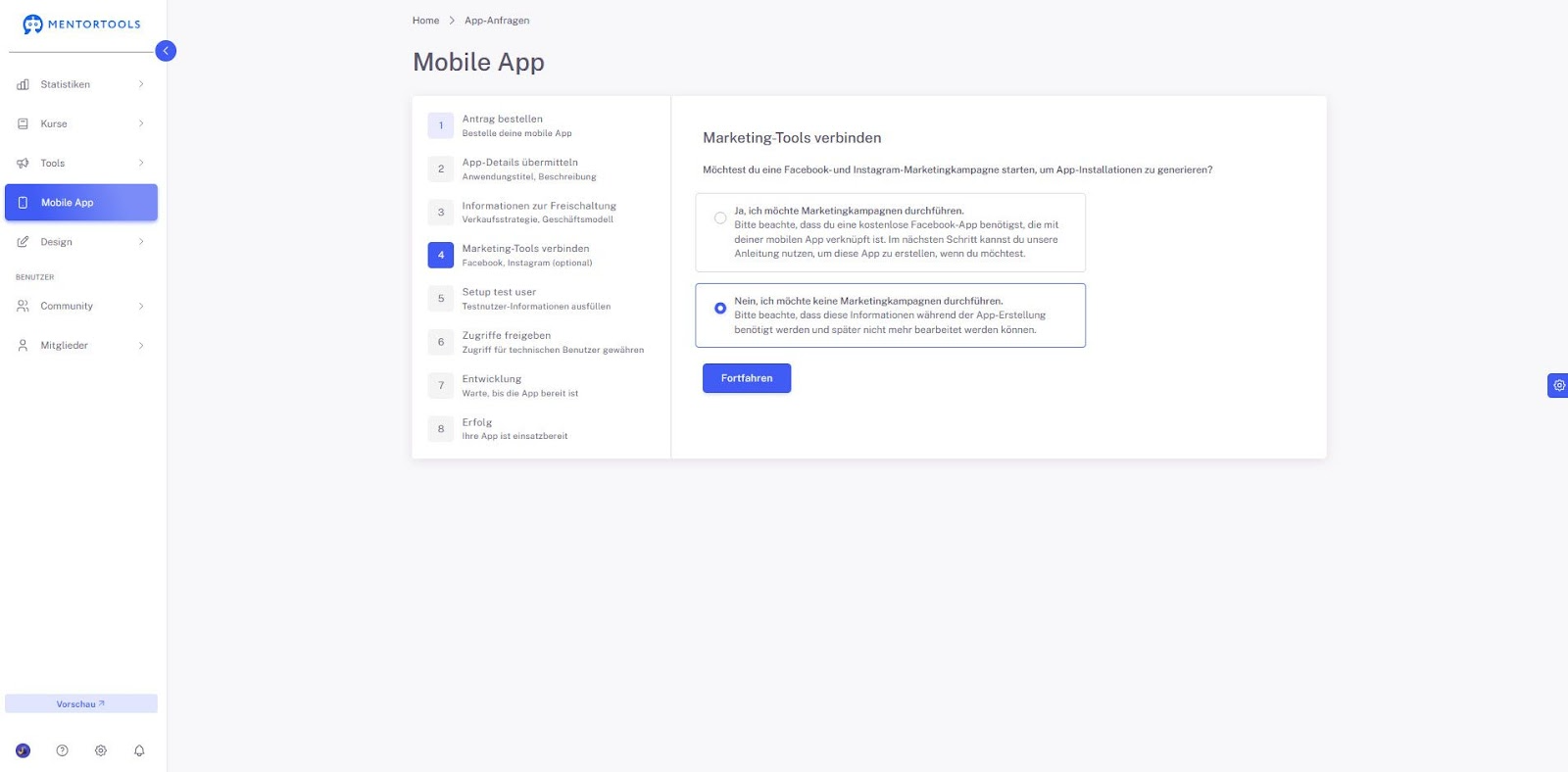
Decide whether you want to link your app with Facebook or Instagram to run advertising campaigns for app installations. If not, proceed directly.
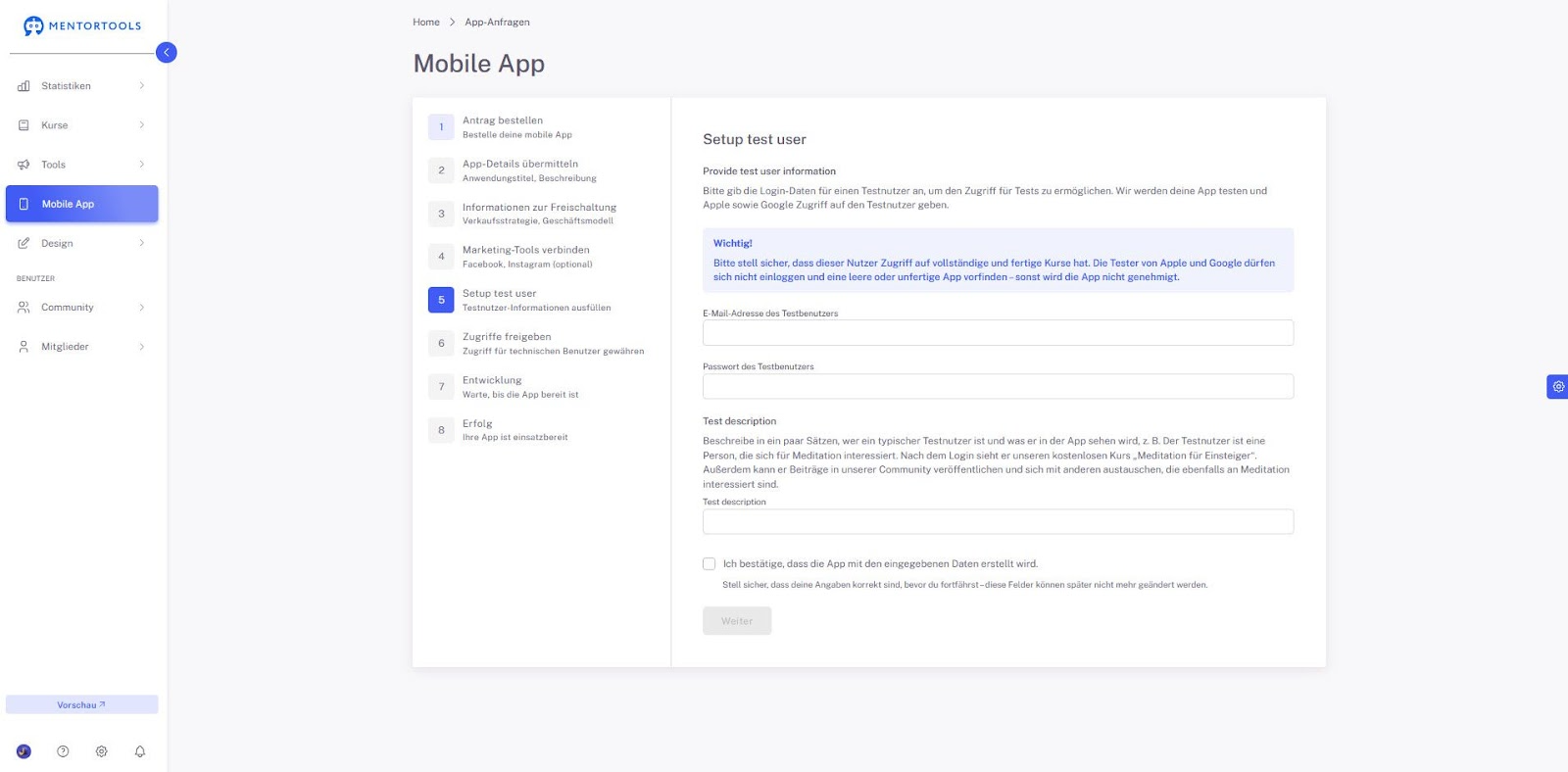
5. Set Up Test User
For the review of your app by Apple and Google, you must provide test user credentials:
Test user's email address and password
Test description (e.g., who the test user is, what they should see in the app)
The app will be rejected if the test user doesn't see any courses!
6. Grant Access
In this step, you grant our team technical access to the App Stores. This includes three areas:
Set up Android App:
Register a Google Play Developer account.
Enter the name of your app in the Store.
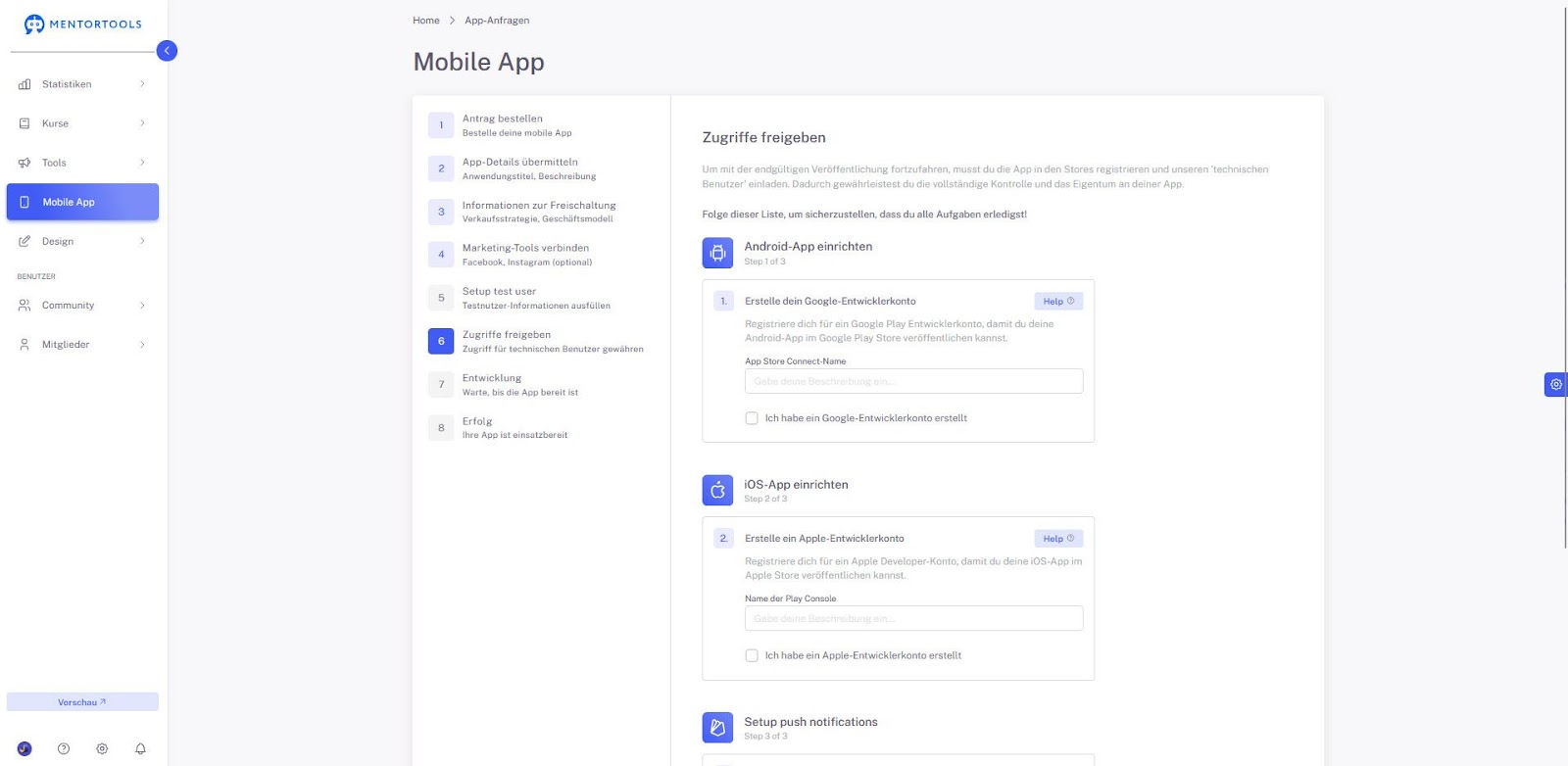
Set up iOS App:
Register an Apple Developer account.
Enter the name of the Play Console.

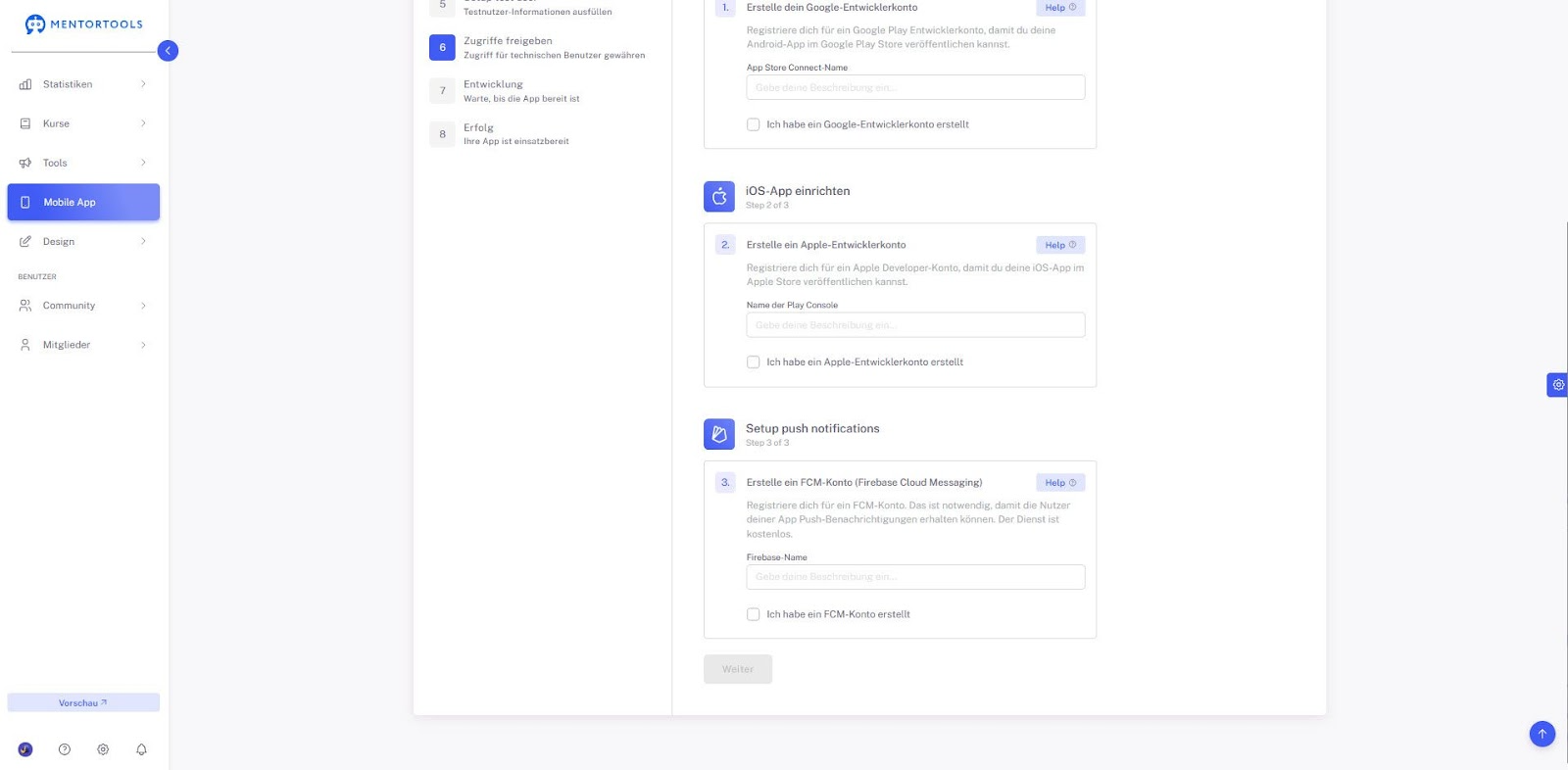
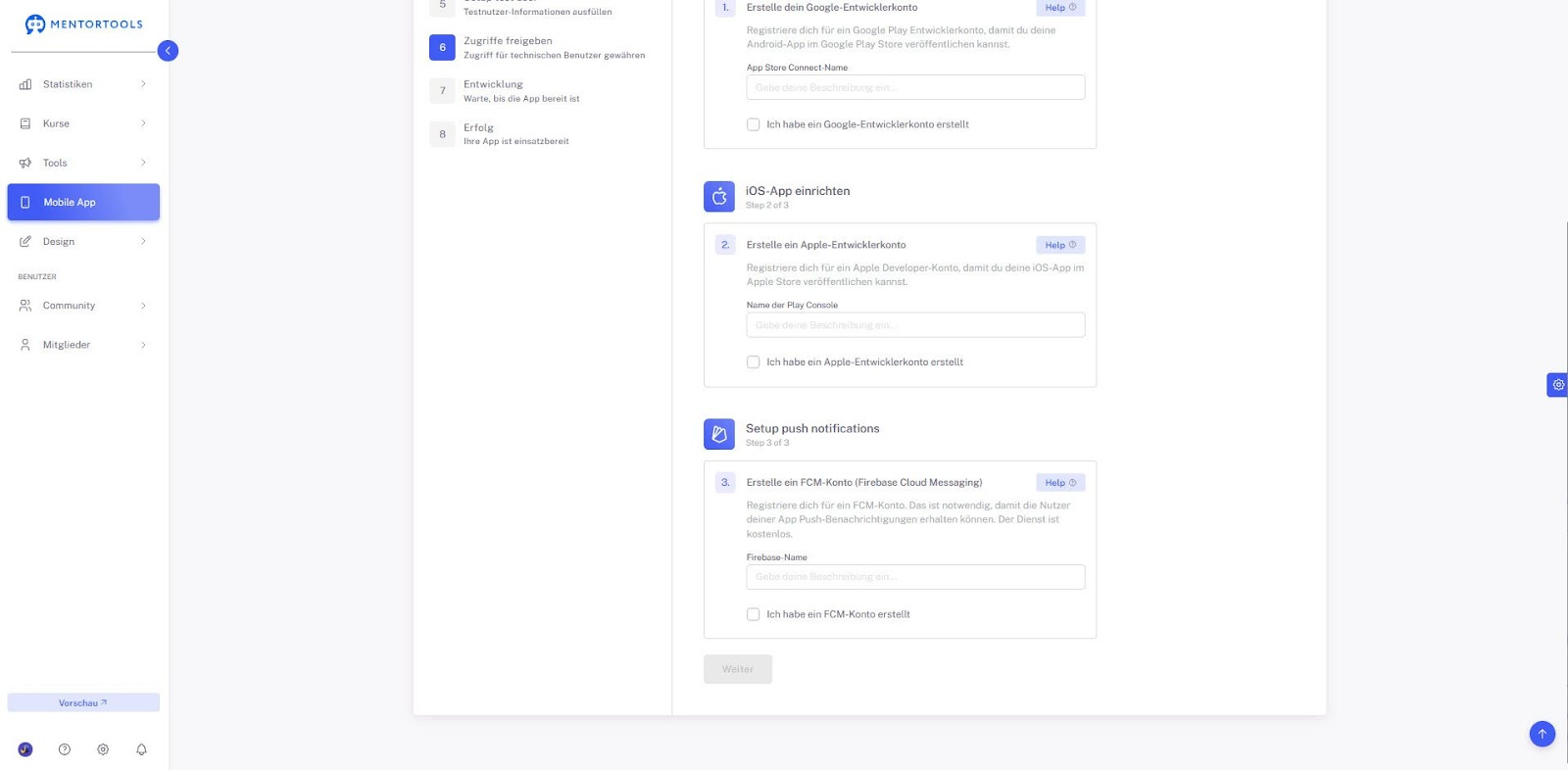
Set up Push Notifications:
Create an FCM (Firebase Cloud Messaging) account.
Enter the Firebase name.
7. Development
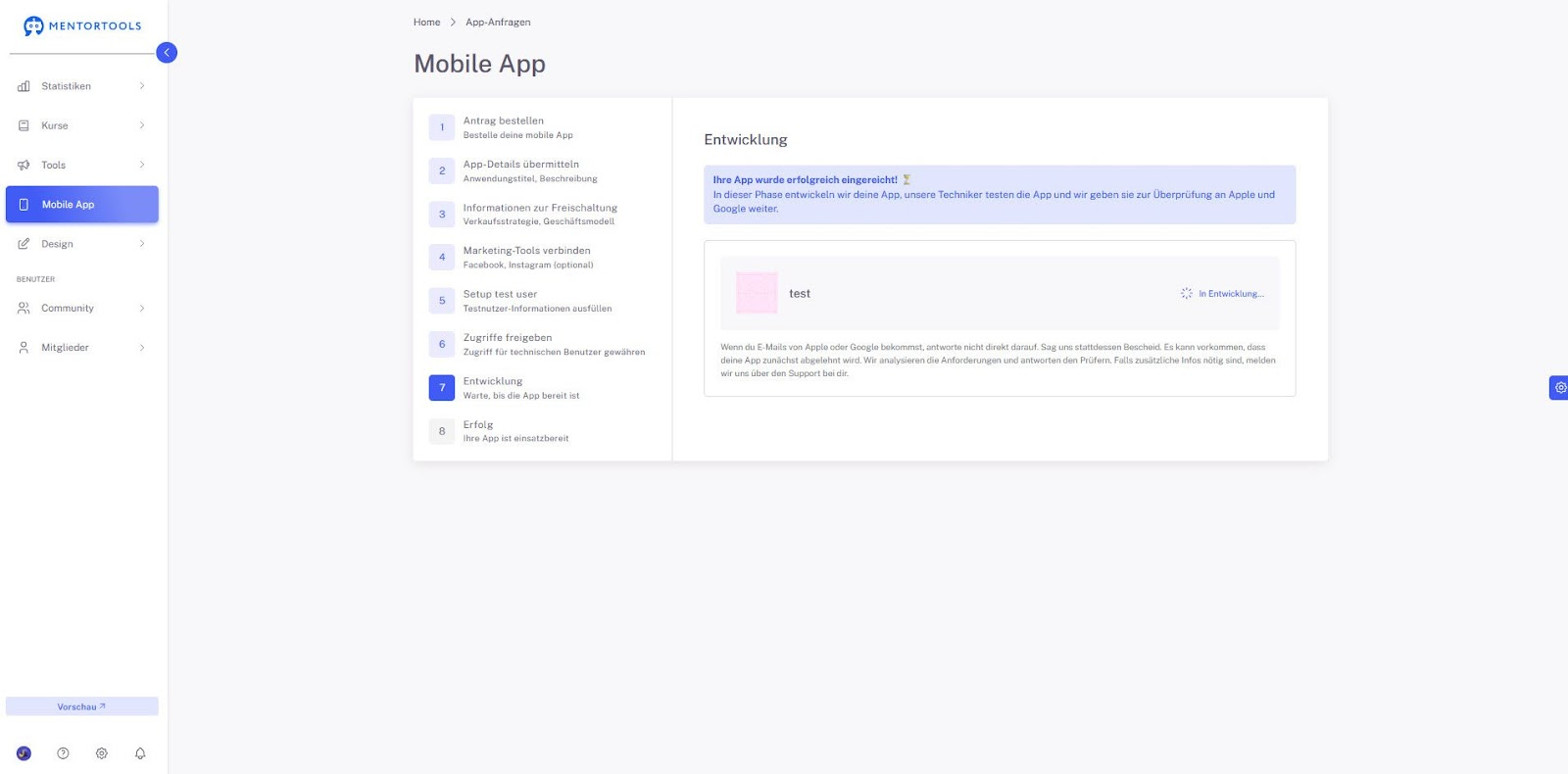
Once all the data has been submitted, our team begins developing your app. You will be notified if a manual action is required, for example, for Facebook integration.
Once everything has been submitted correctly, a confirmation will appear:
"Your app has been successfully submitted!"
We will test the app and then submit it to Apple and Google for review.
8. Success
Once your app is live, the status "Success" will be displayed. Your app is now publicly available on the App Store and Google Play Store.

Summary
With Mentortools' new Mobile App function, you can conveniently bring your courses into a native iOS and Android app—fully managed by our team. From the app application to publication, you will be guided step by step through all tasks. If you need help, our support is always there for you.
➡ Tip: Make sure you have fully prepared your content before ordering the app—especially the courses and test user credentials.