Chat Automations
Last updated 11 months ago
Use our Messaging function to fully automate your communication:
You can automatically send messages to your members—for example, immediately after a course purchase, the completion of a specific lesson, or when the entire course has been finished.
You can just as easily automatically add new buyers to specific chat groups once they have purchased the corresponding course.
In short: You manage your entire participant journey, from welcoming them to assigning them to a group, without any manual steps.
In this tutorial, we will show you some of the possibilities of our chat automations using three examples.
How do I add a member to a group when the member has purchased a course?
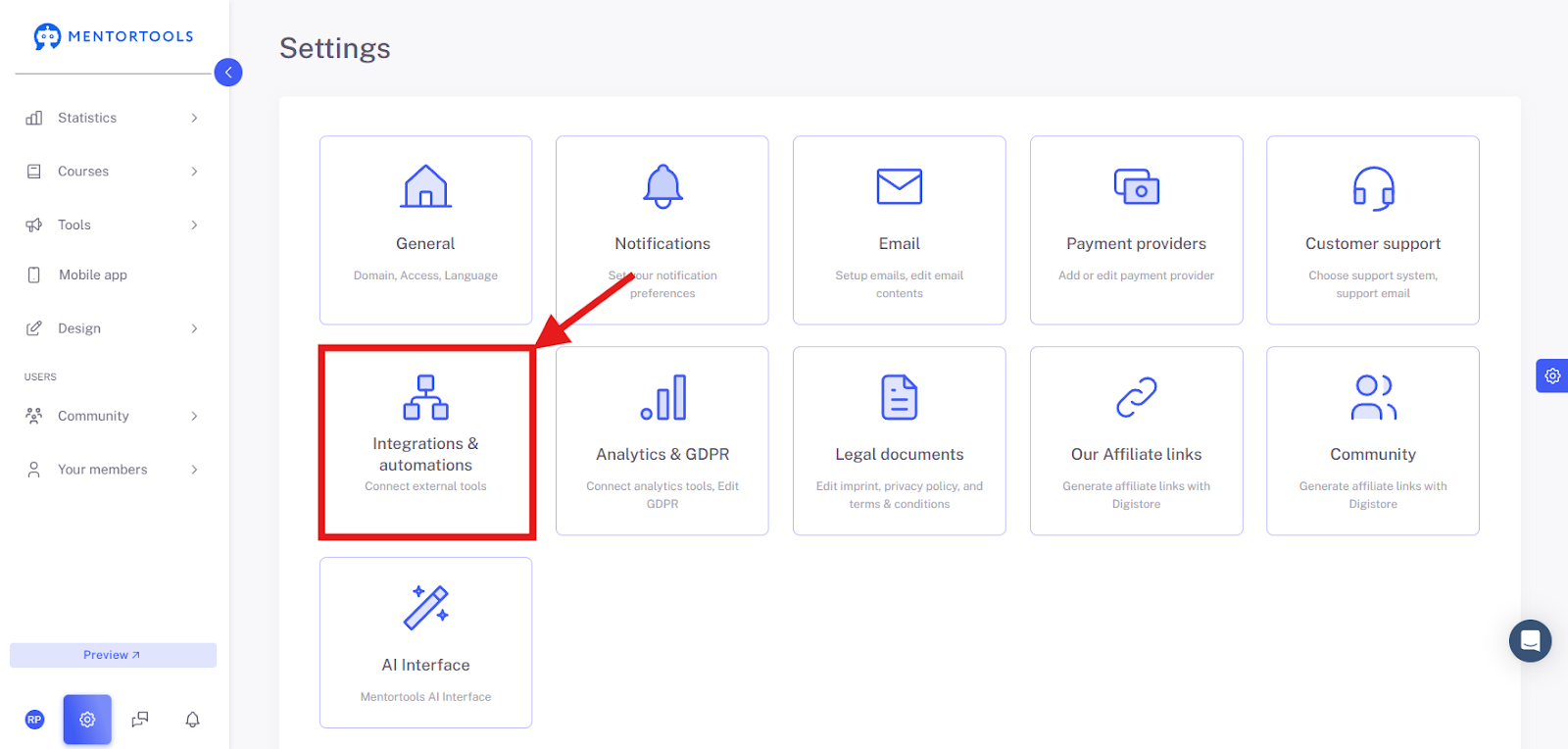
First, you need to create the corresponding chat group. If you haven't done that yet, please follow our guide here. To automatically add a member to a specific chat group after they have purchased a specific course, first open the Settings.

And from there, go to “Integrations and Automations”.
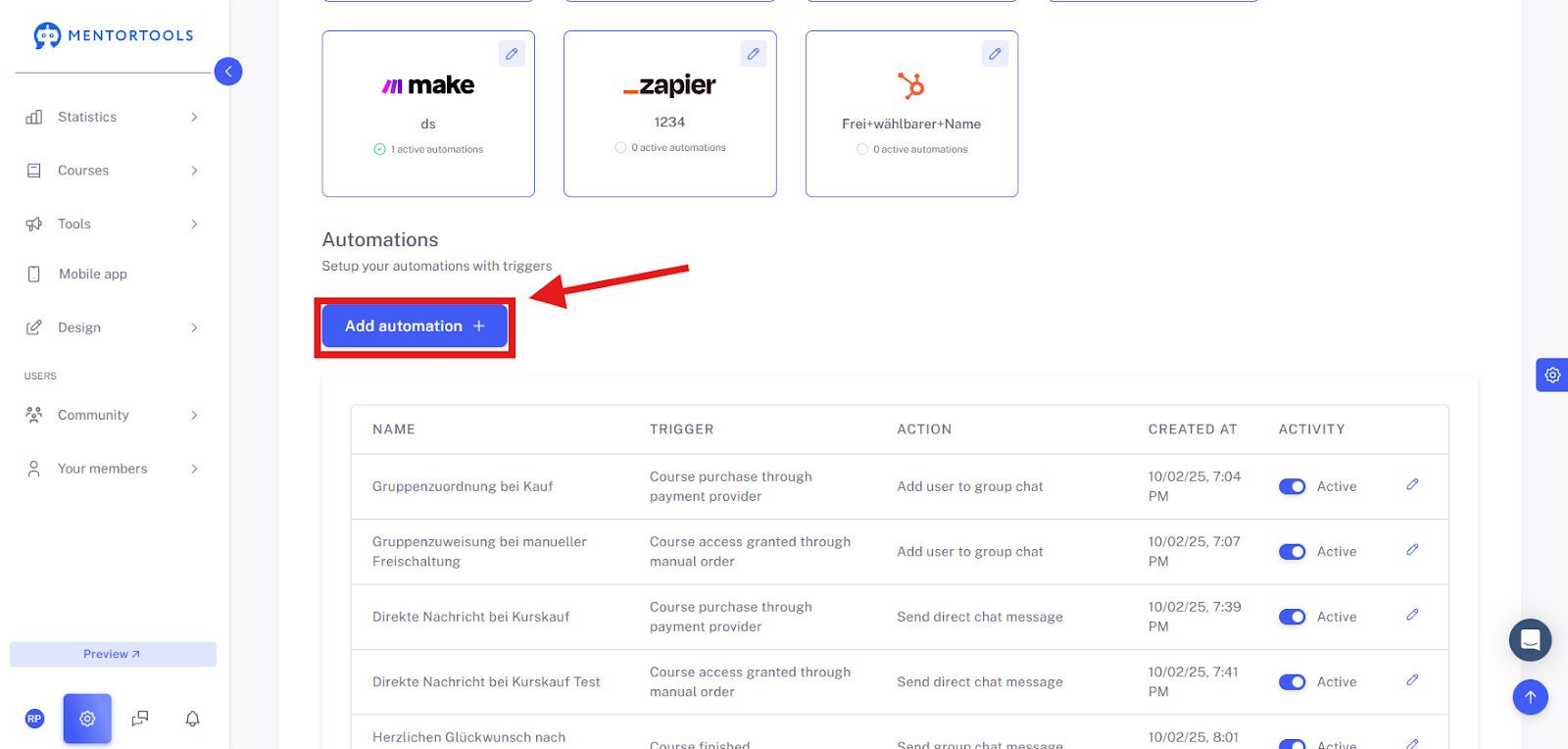
Now scroll down and select “Add Automation +”.
Select Trigger
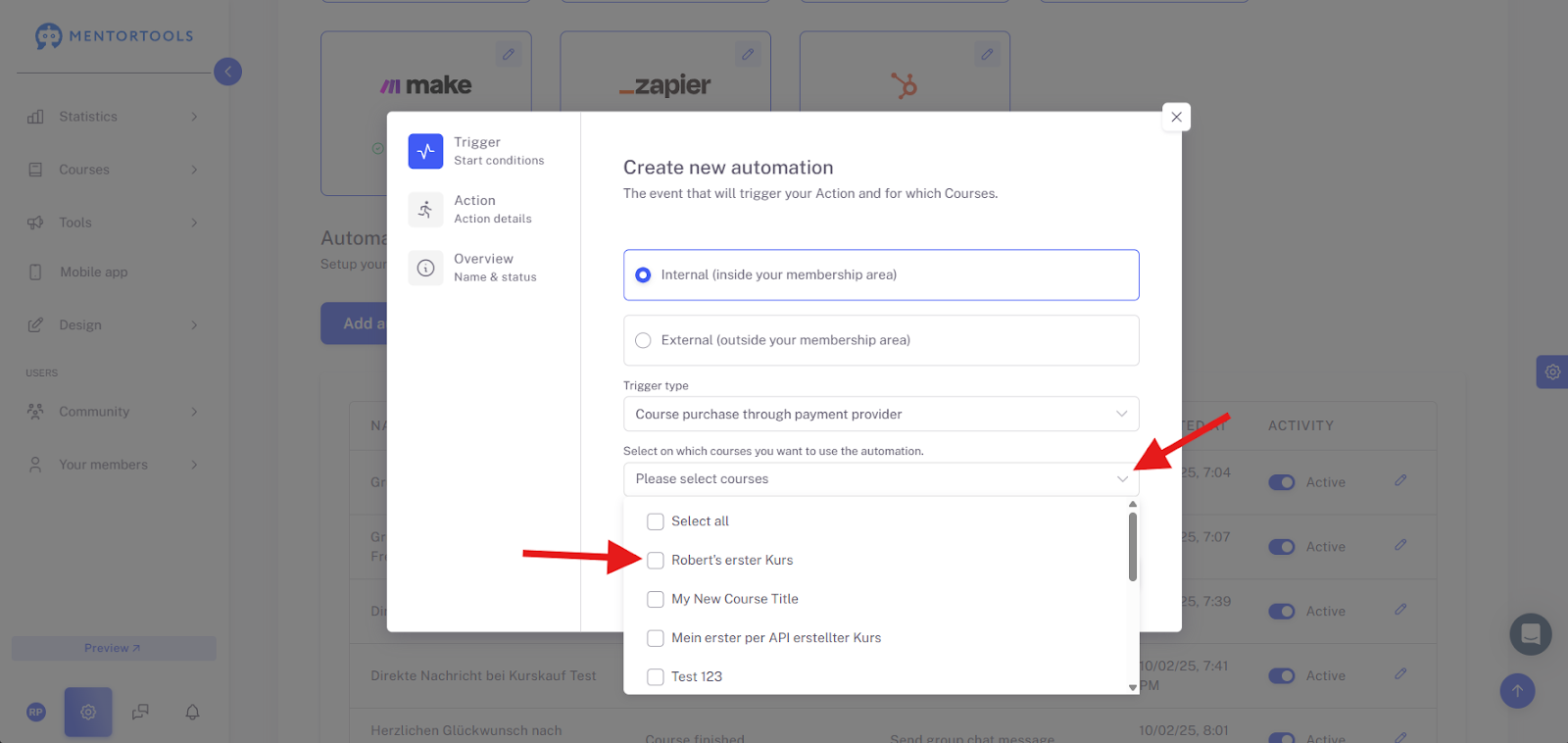
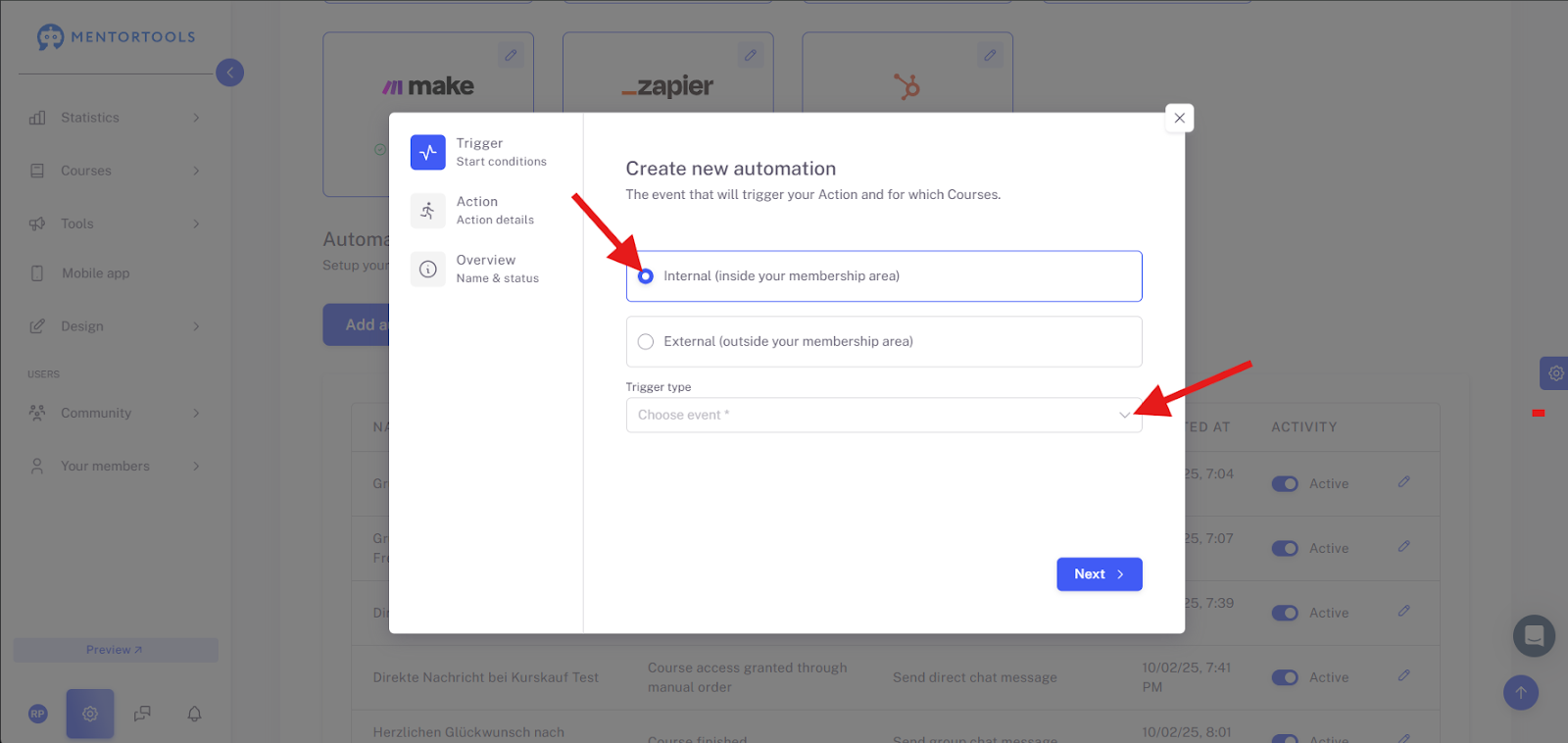
We now define the trigger that starts the event. To add a member to the group after a purchase, select “Internal” and for the “Trigger Type” select “Course purchase trough payment provider”.
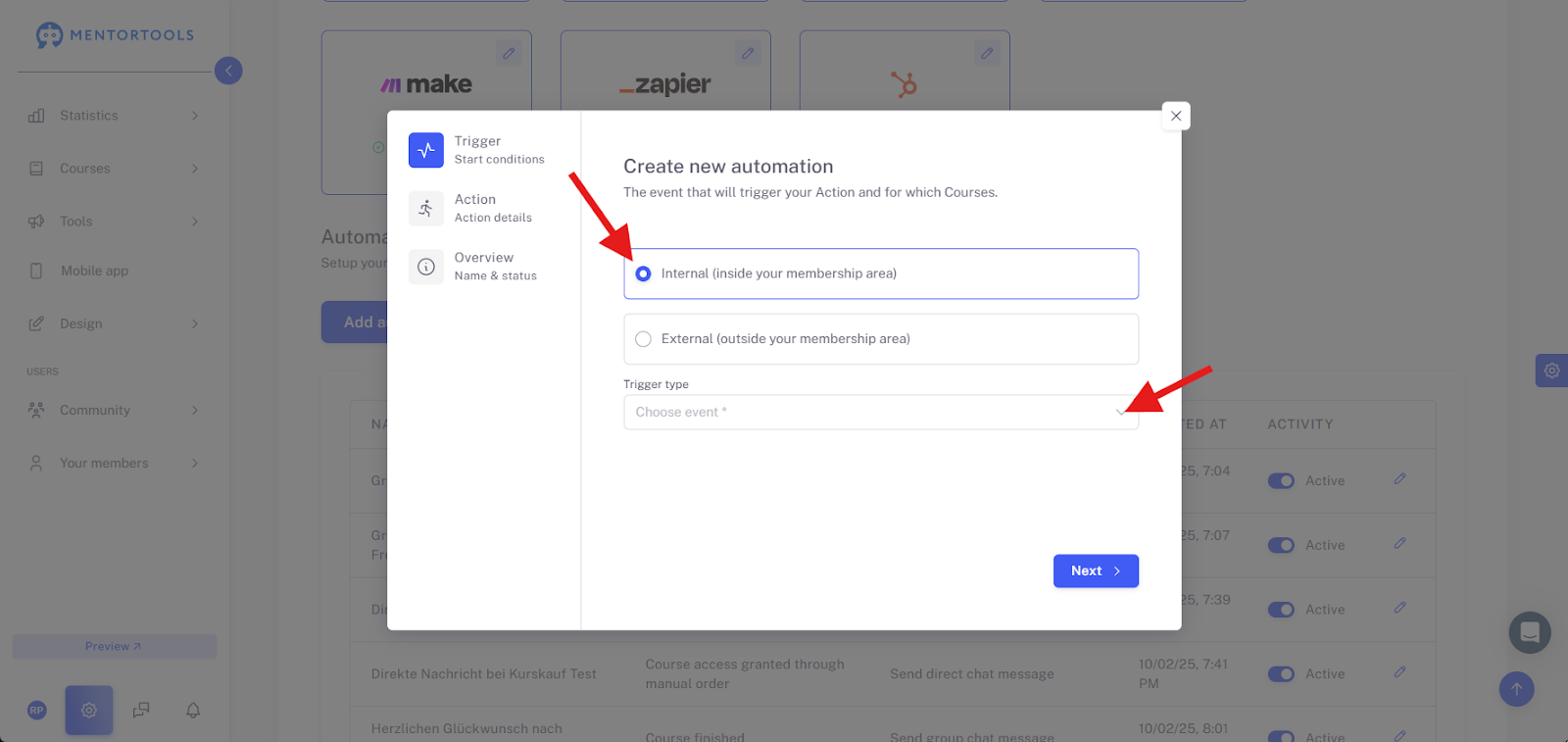
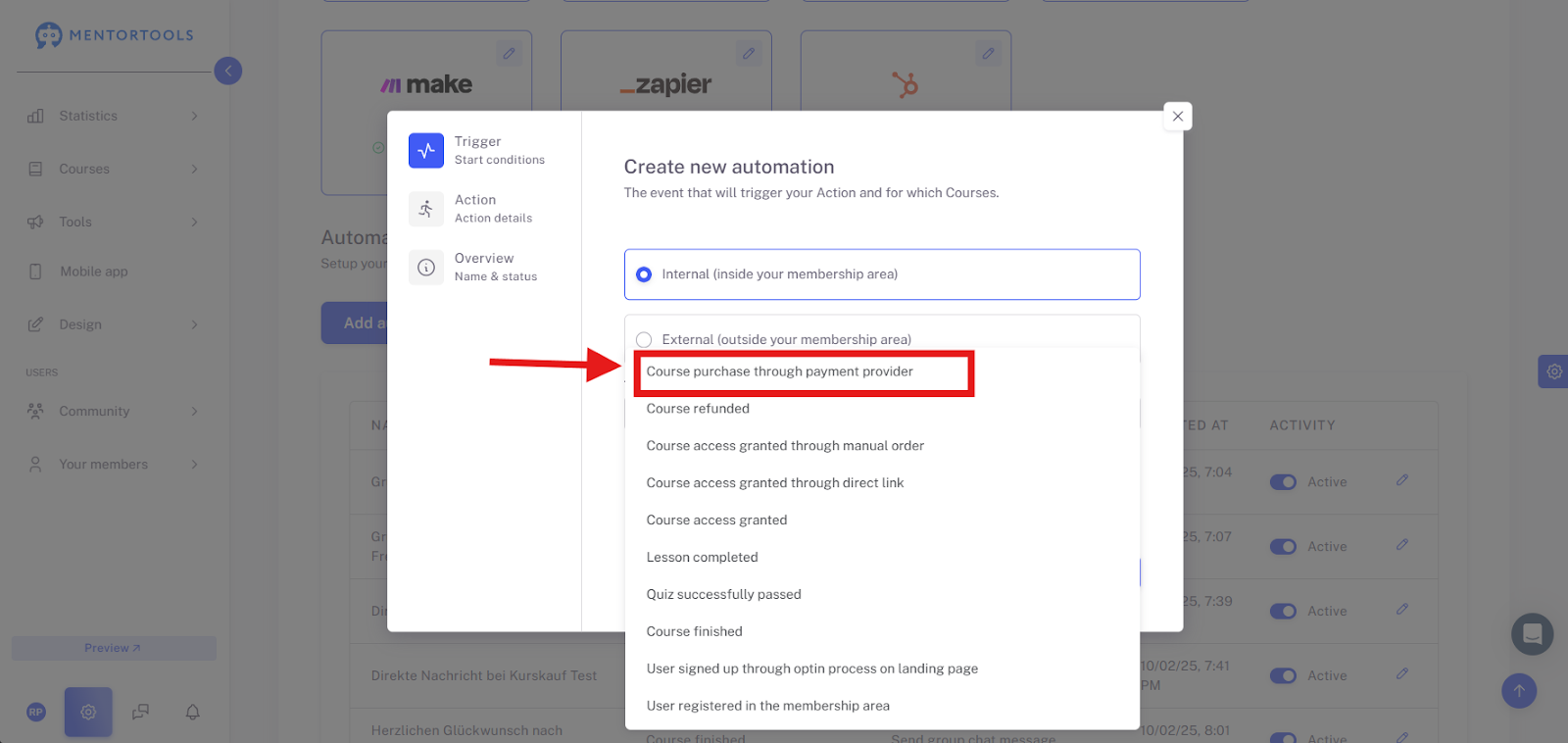
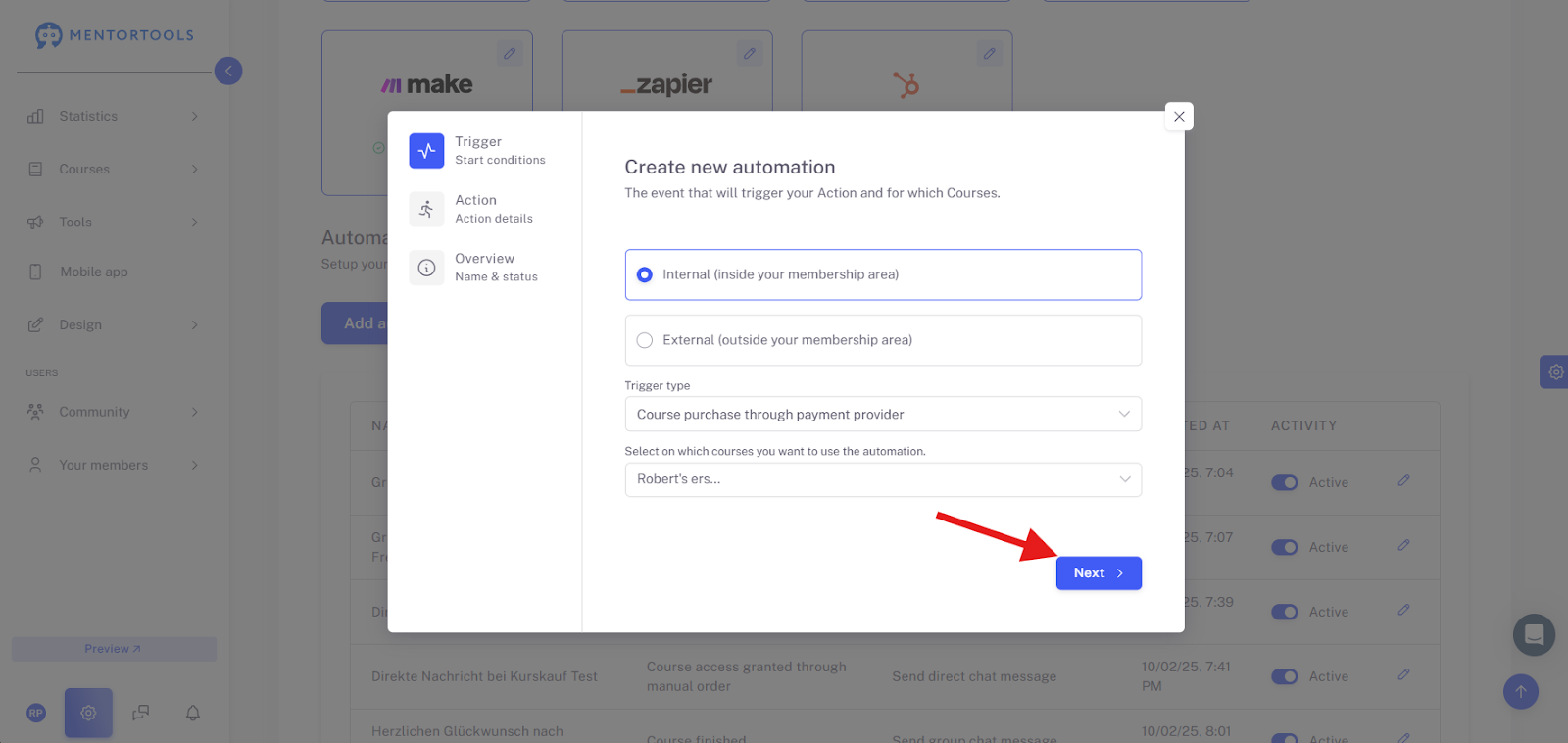
Now you can use the dropdown menu to select which courses this automation should apply to. Select the corresponding course/courses.
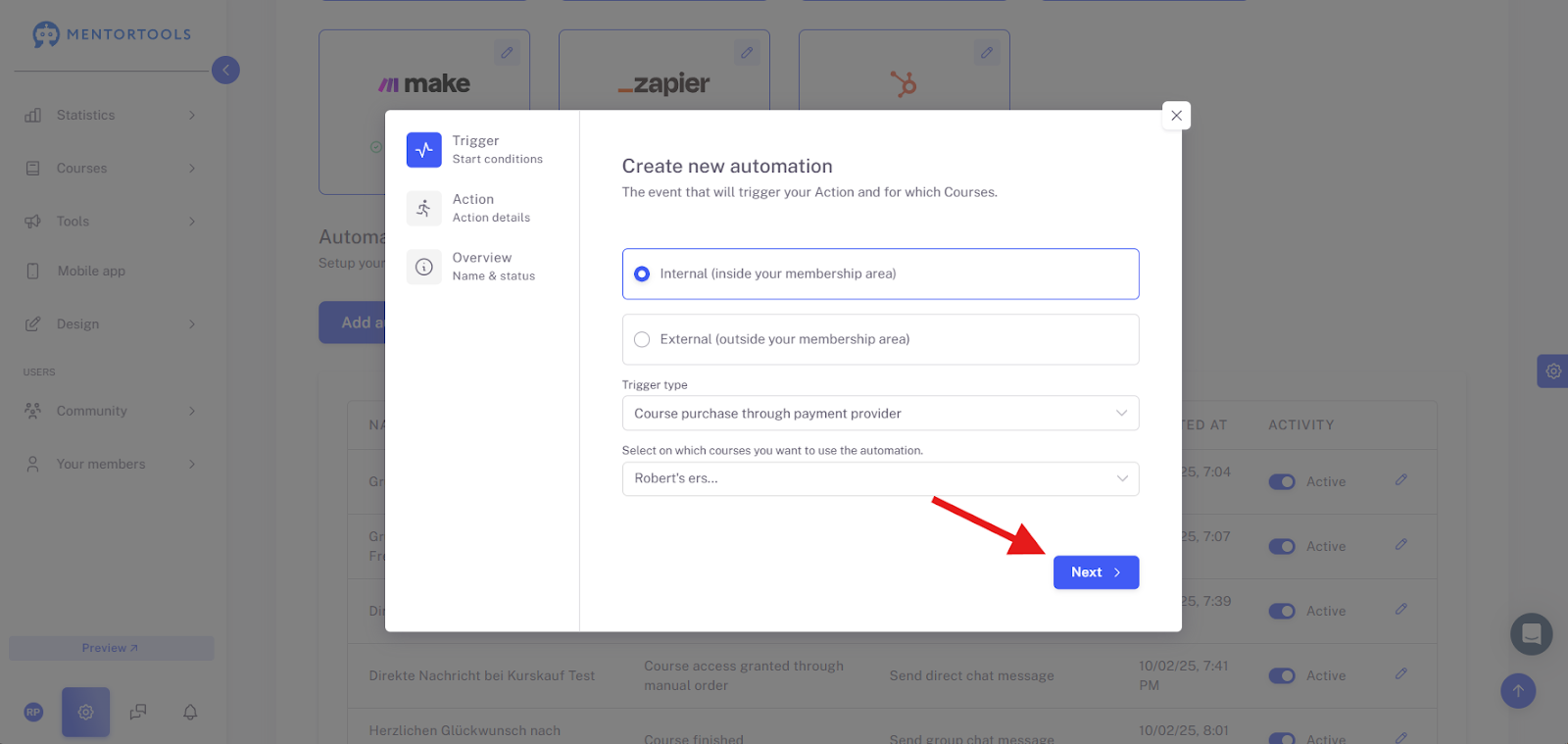
Now click “Next”.
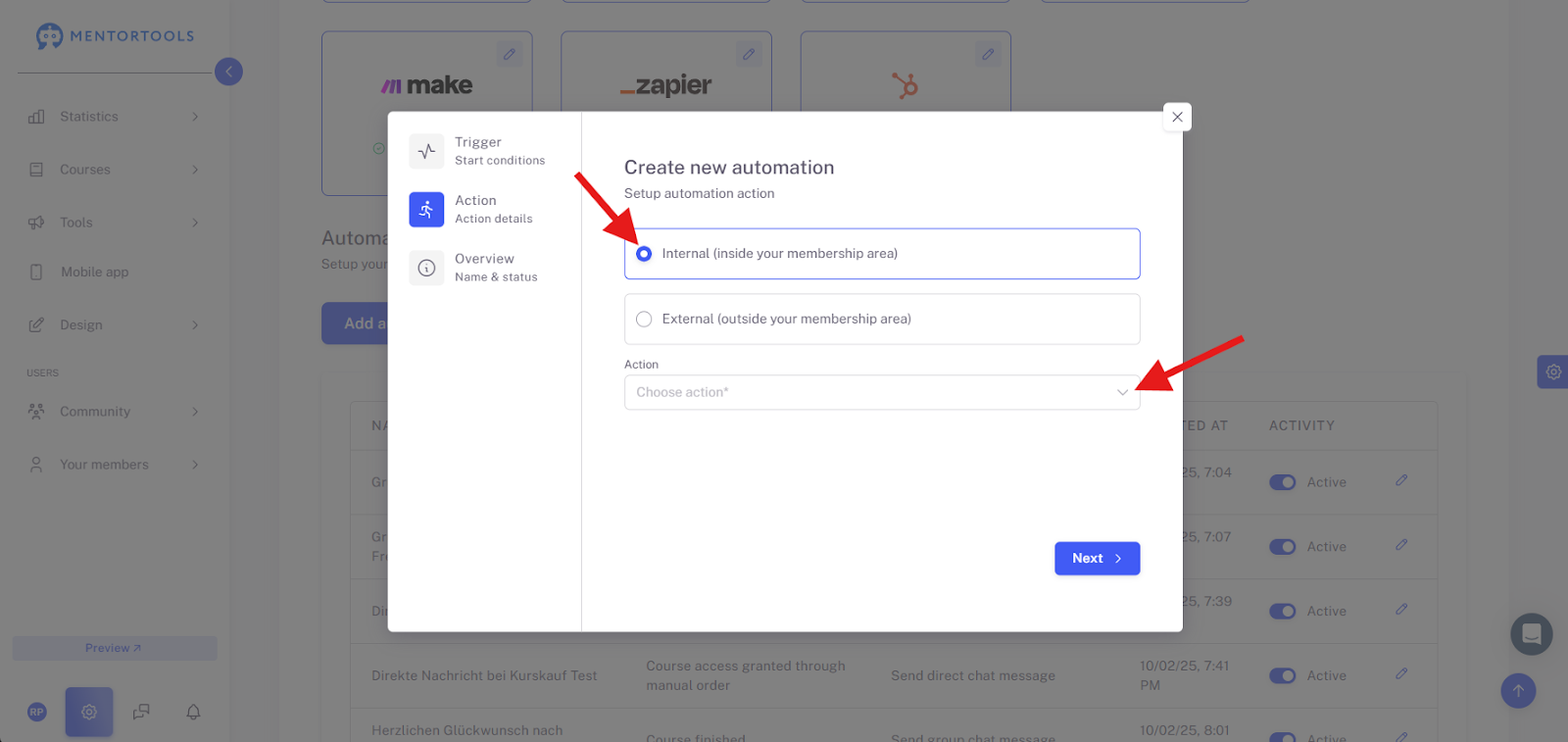
Select Action
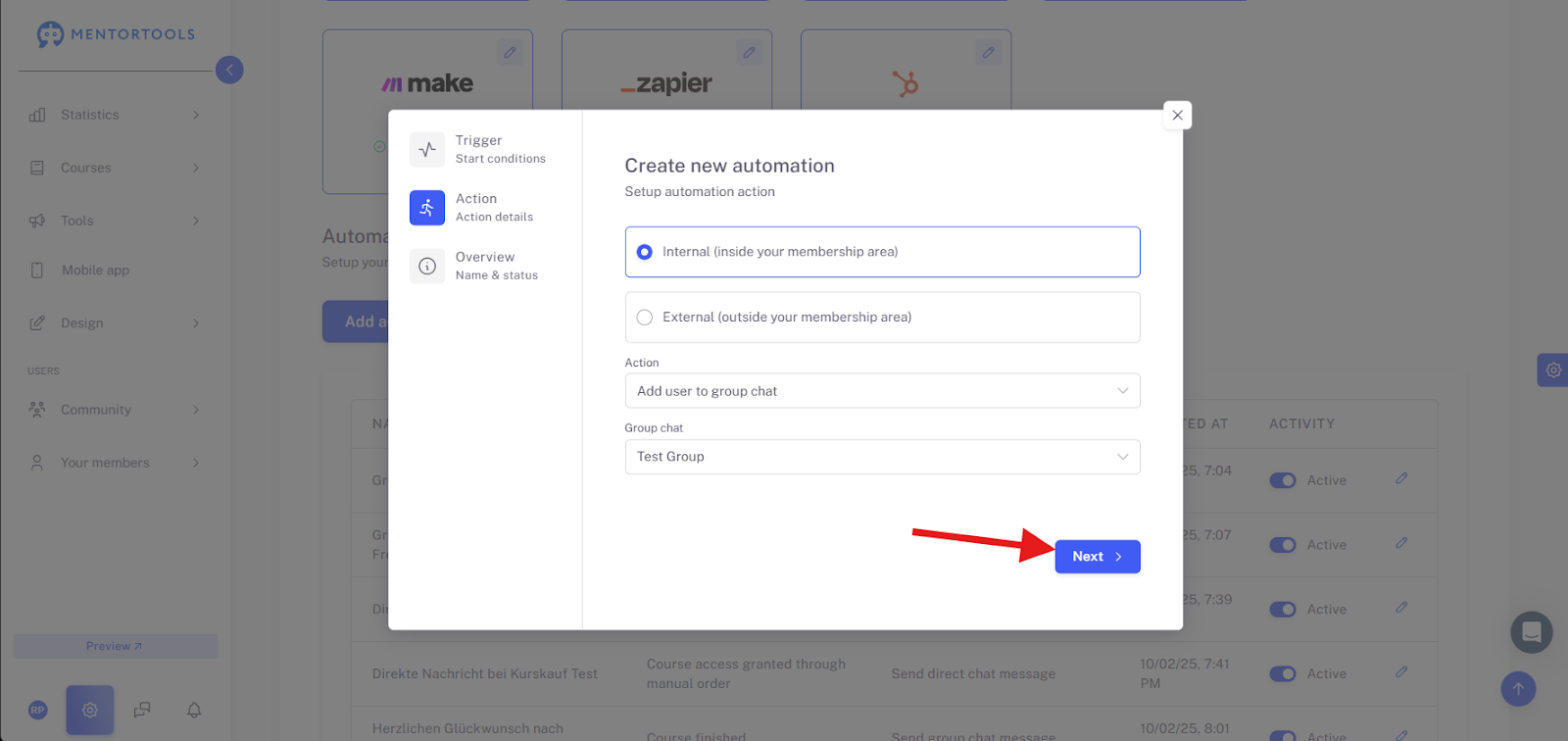
Again, select “Internal” and open the dropdown menu.
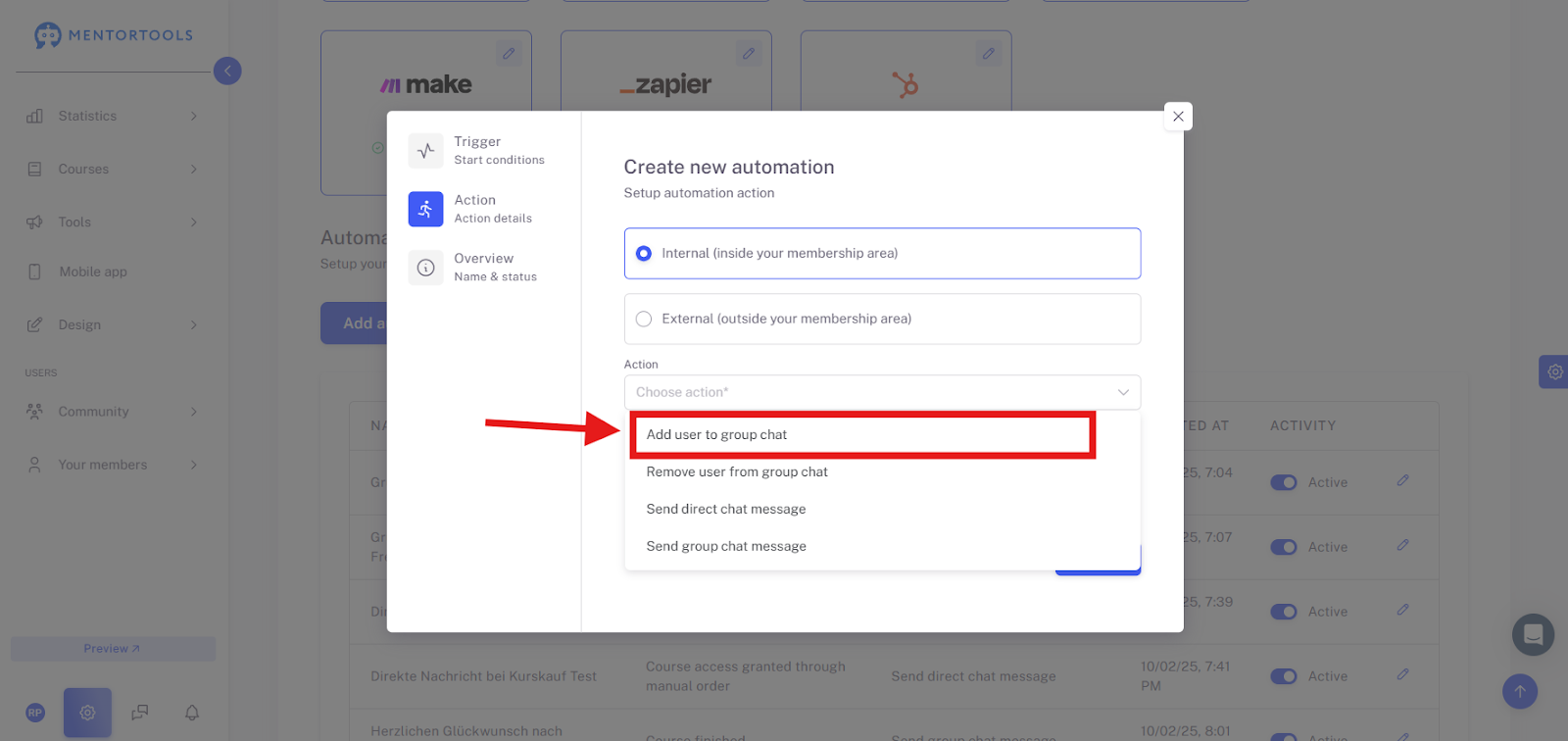
From the dropdown menu, select “Add user to group chat”.
Now you can specify which chat group the member should be assigned to after purchasing the course. To do this, open the dropdown menu under “Group chat” and select the corresponding chat group.

Now click “Next” again.
Name and Activate
The final step only involves naming this automation and activating the automation itself. Give the automation a name and set the switch to "active" to activate the automation.
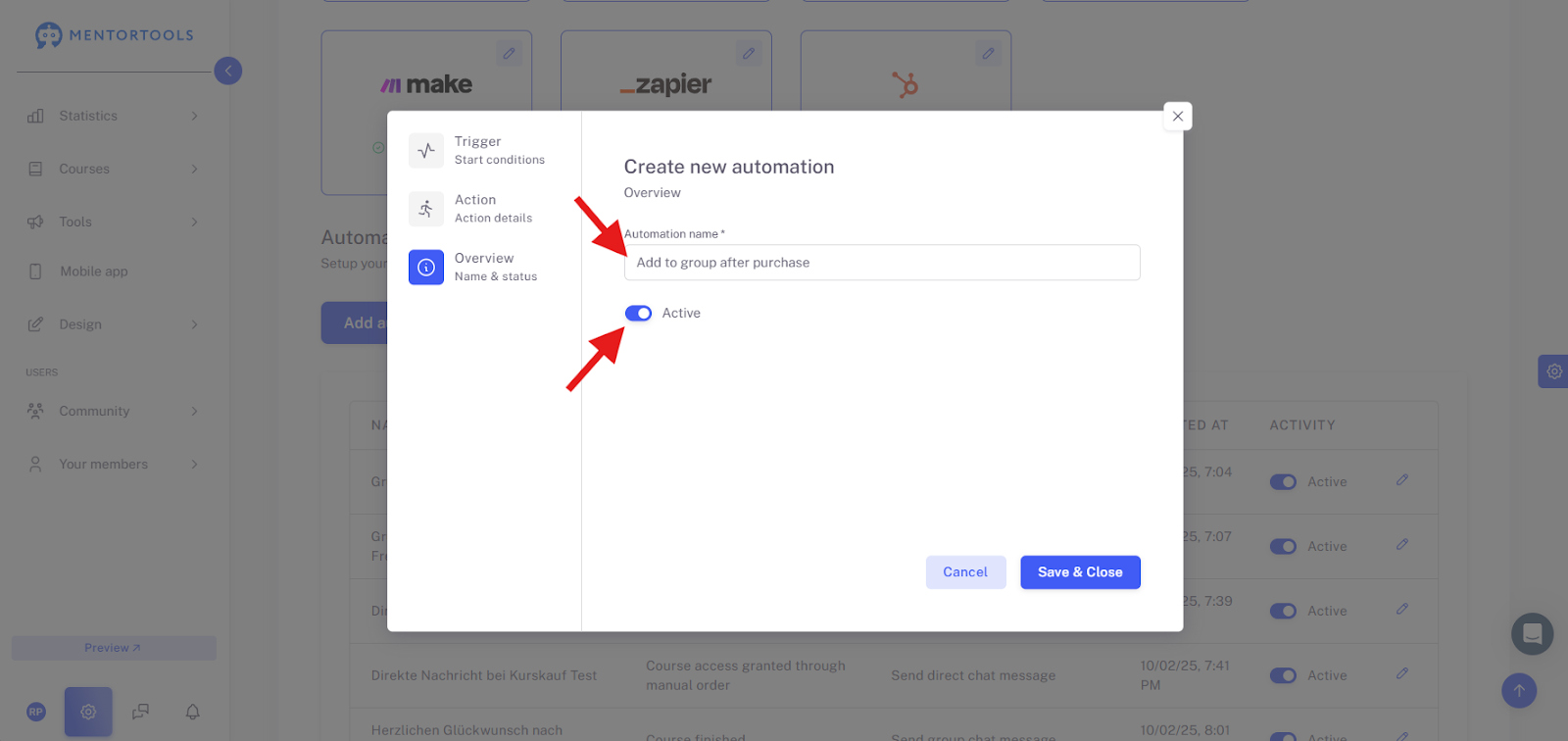
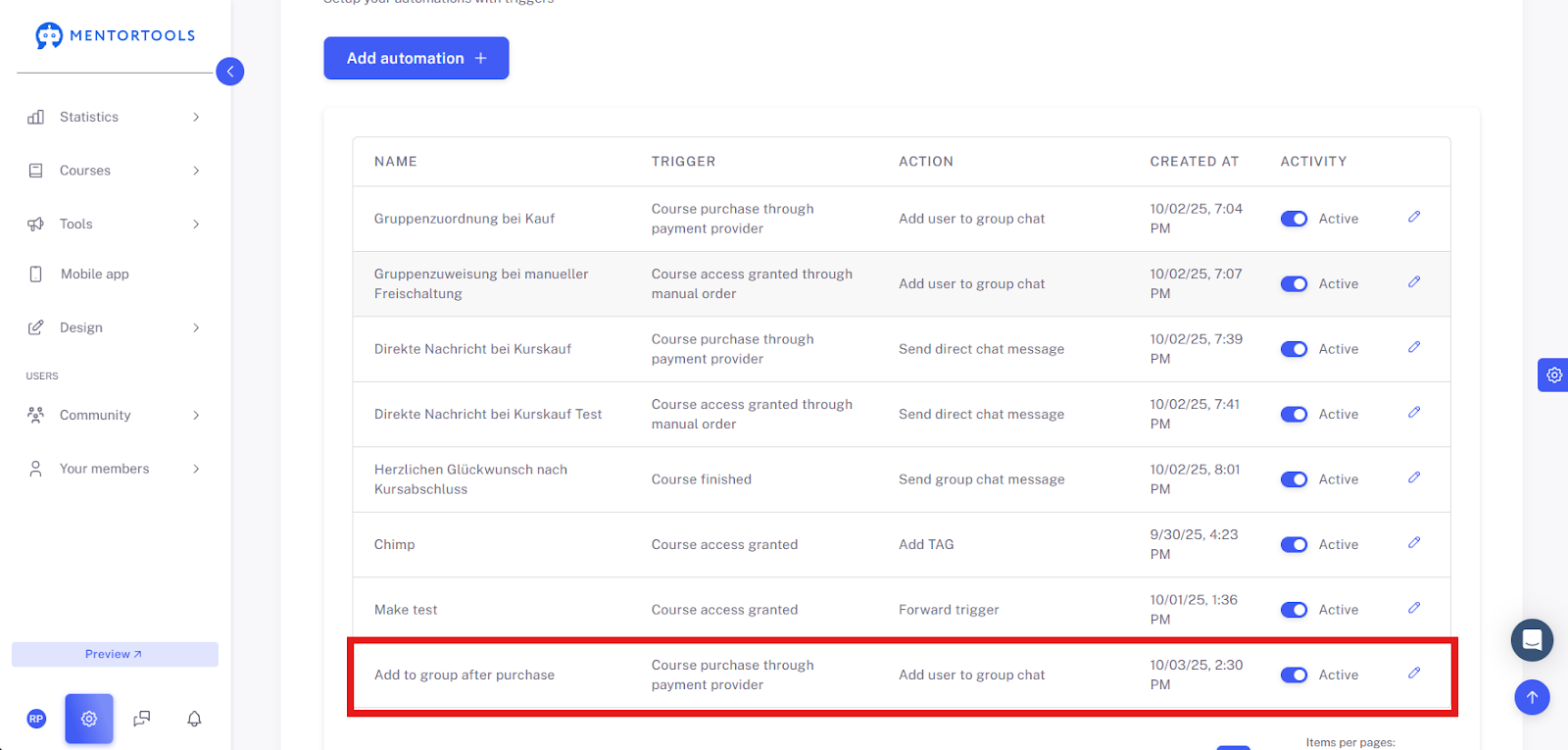
Click “Save and Close” to complete the automation setup.

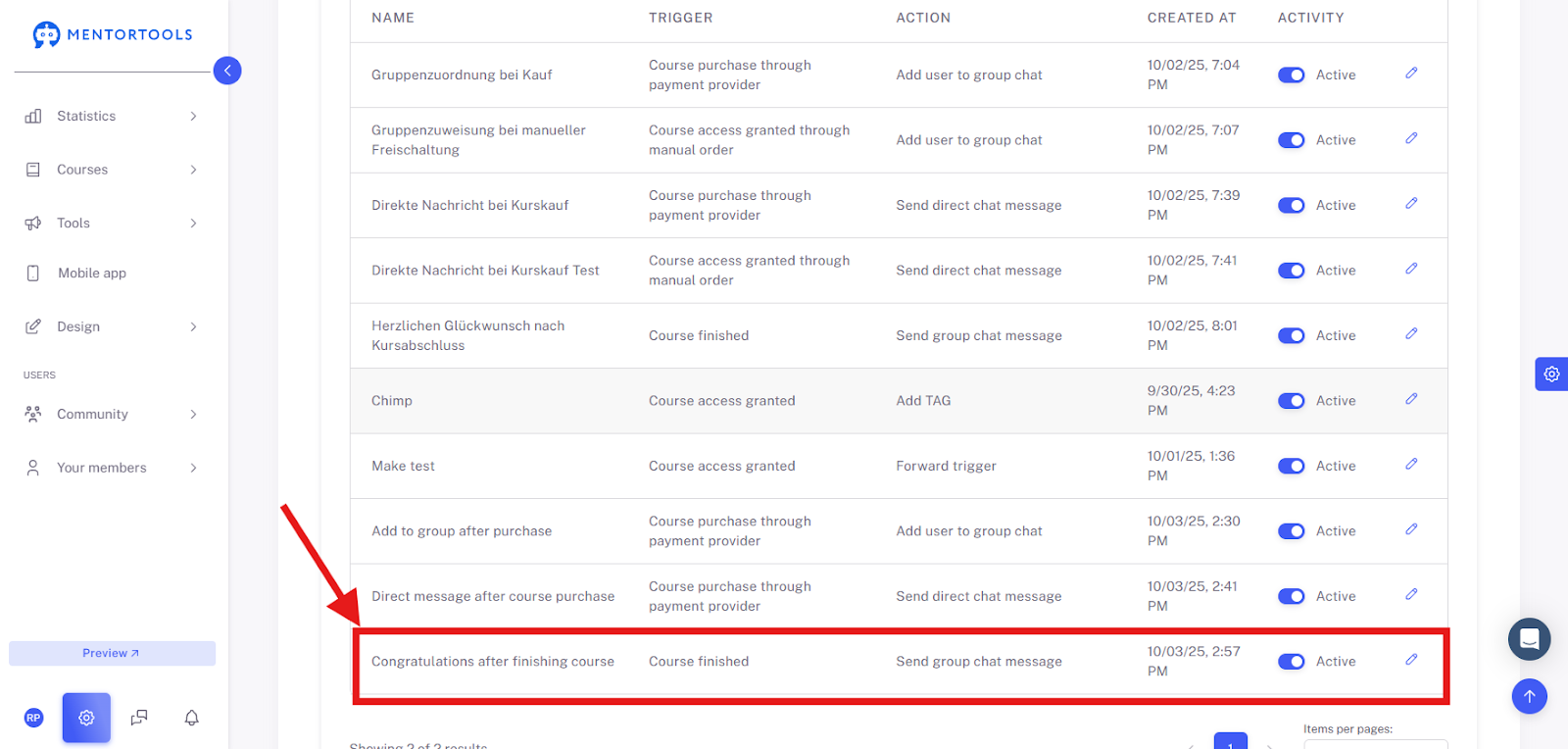
The finished automation will then be displayed in your list. You can also edit and activate or deactivate it there later.
To see if the new member was also assigned to the group after purchasing the course, please open Messages.
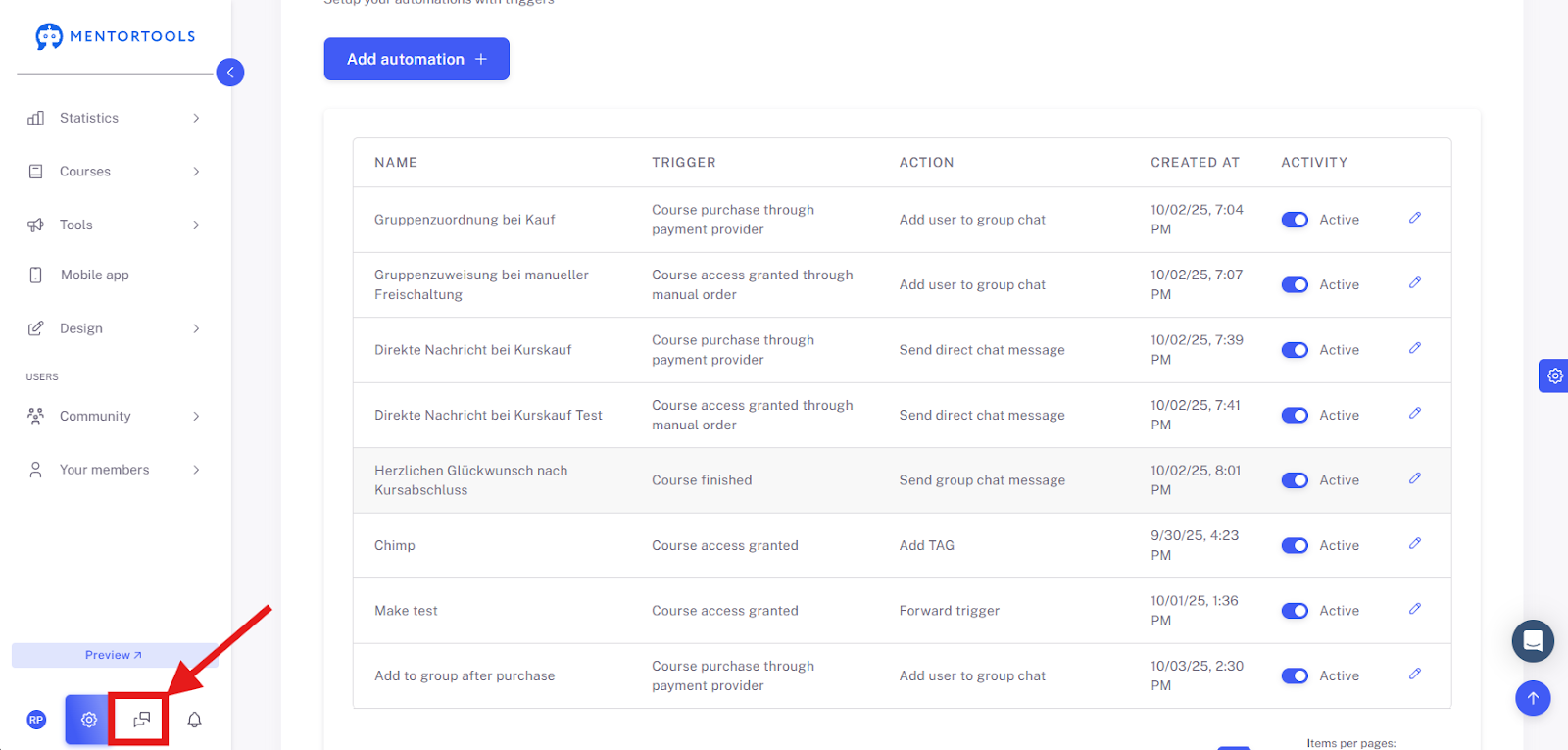
Go to the corresponding group, click the three dots in the upper right corner, and go to Group Info.
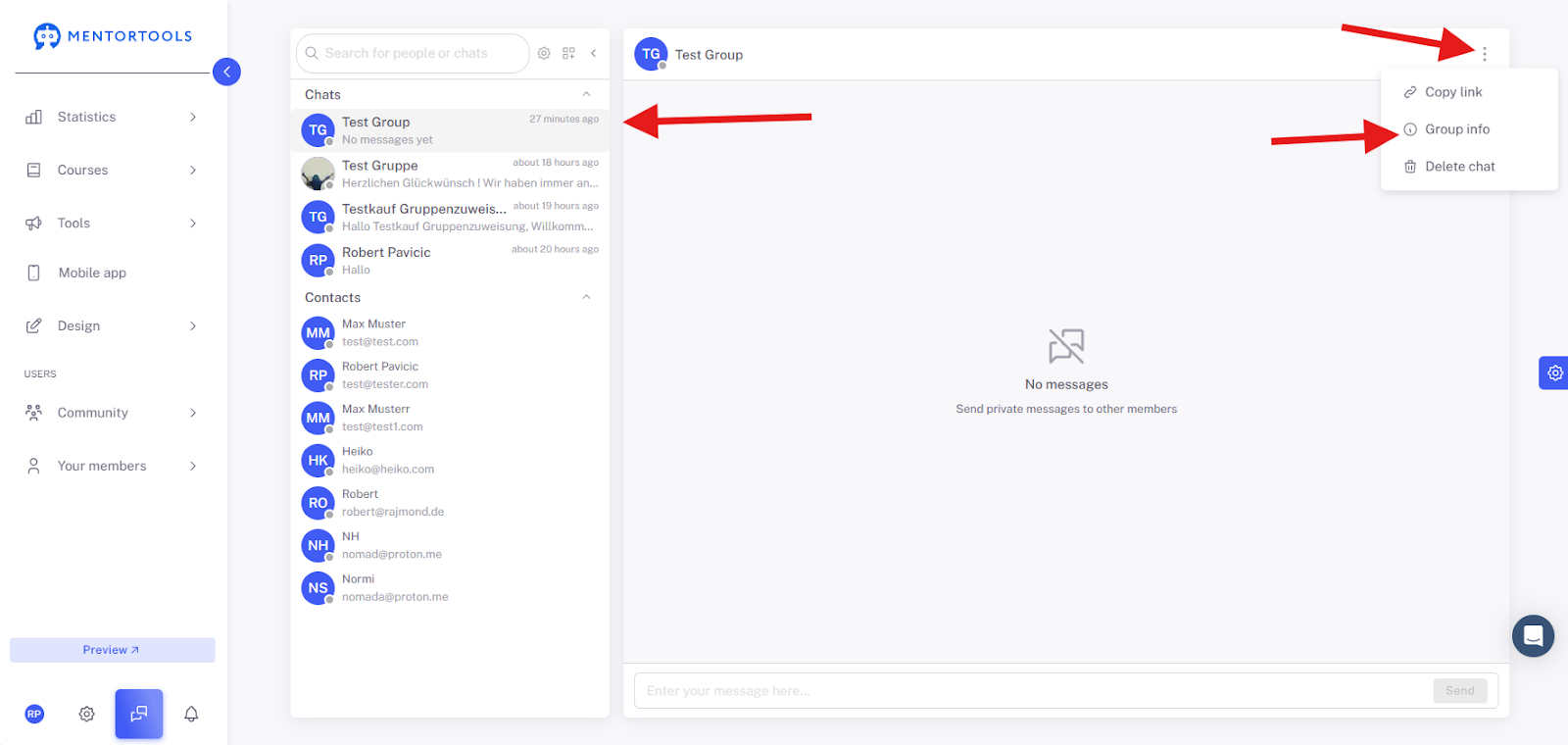
All members will be displayed there.

How do I send automated messages to members?
In this guide, we will show you, as an example, how you can automatically send a message to members when they have purchased a course. To do this, click “Add Automation +” again to add a new automation.

Select Trigger
Now we select a trigger that initiates the event. To send a message to a member when they have purchased a course, select “Internal” and for the “Trigger Type” select “Course purchase via payment provider”.
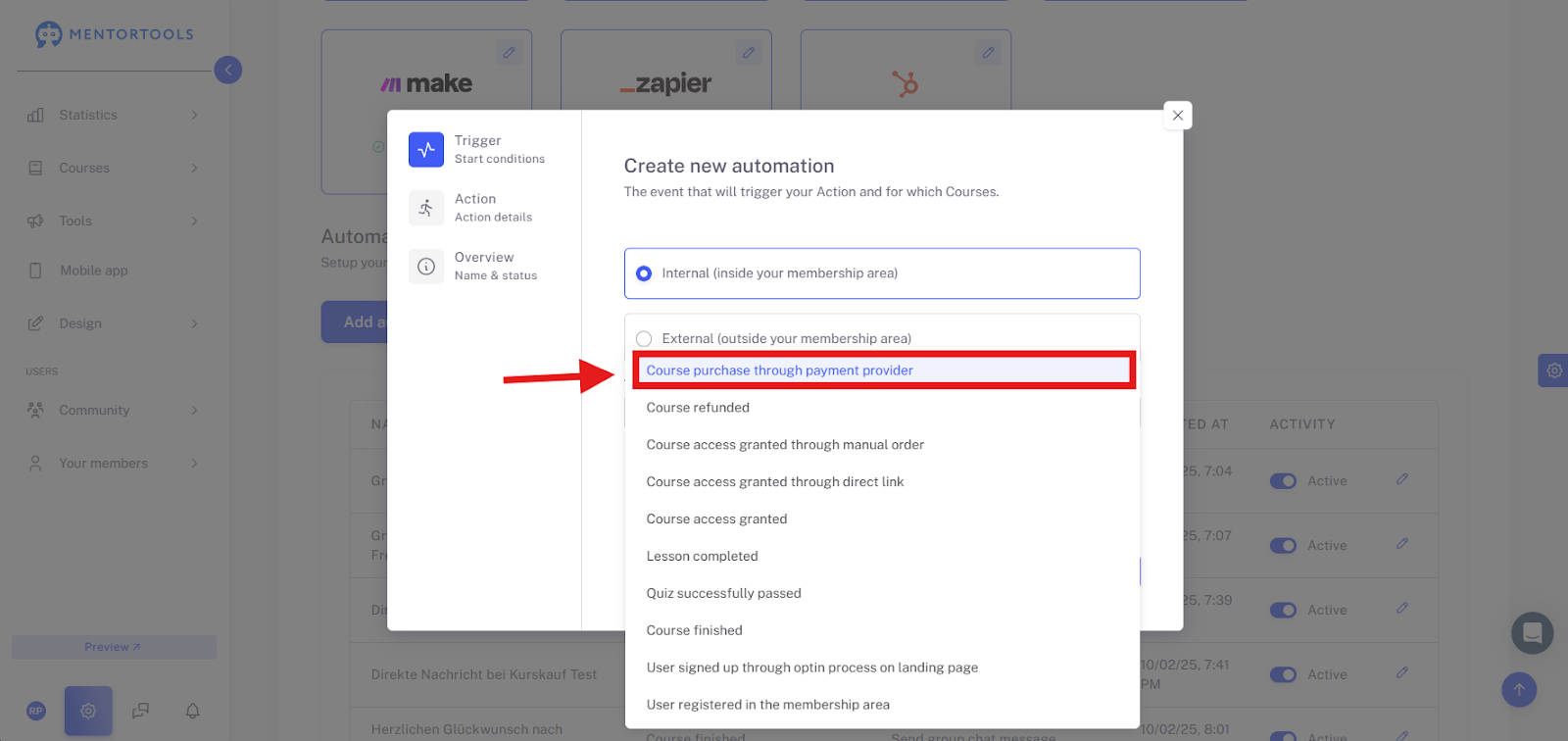
Now you can choose which courses you want to use the automation for. Go to the dropdown menu and select the corresponding course/courses.

Now click “Next”.
Select Action
Again, select “Internal” and open the dropdown menu.
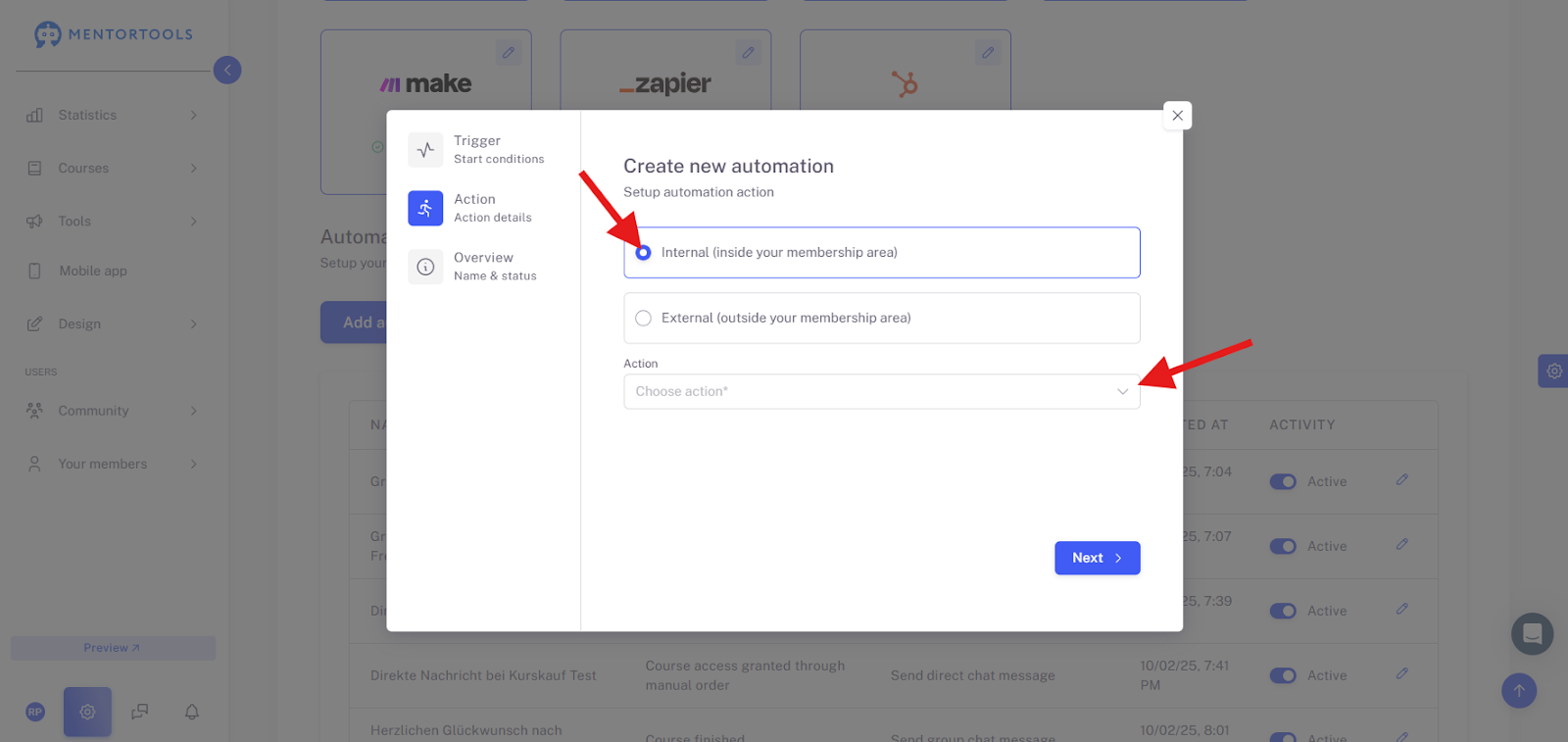
From the dropdown menu, select “Send direct chat message”.
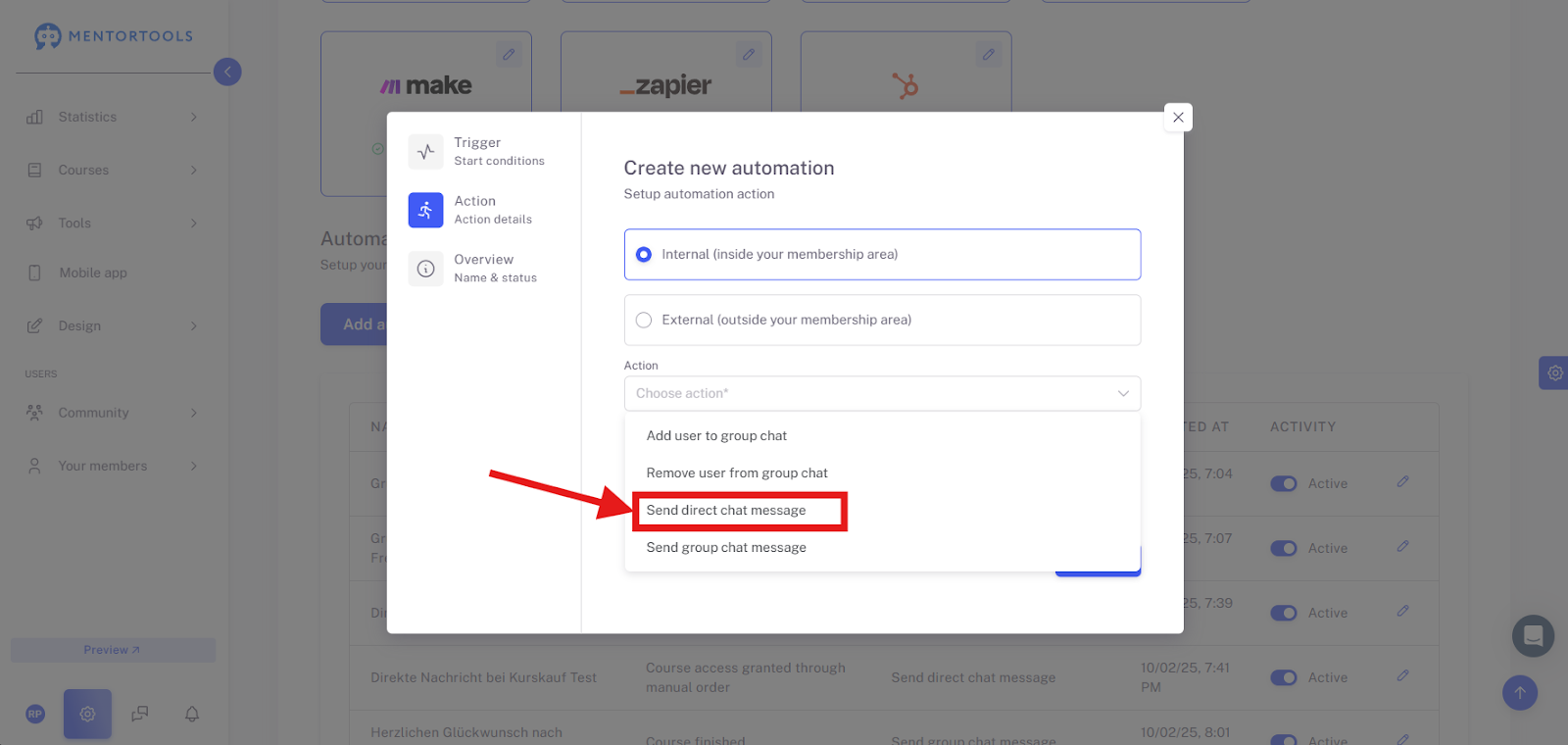
Now enter the message that should be sent to the member. You can use the variables {{ user.first_name }} and {{ user.last_name }} for the correct salutation. You will find them right below the input field so you can copy them quickly.

Now click “Next”.
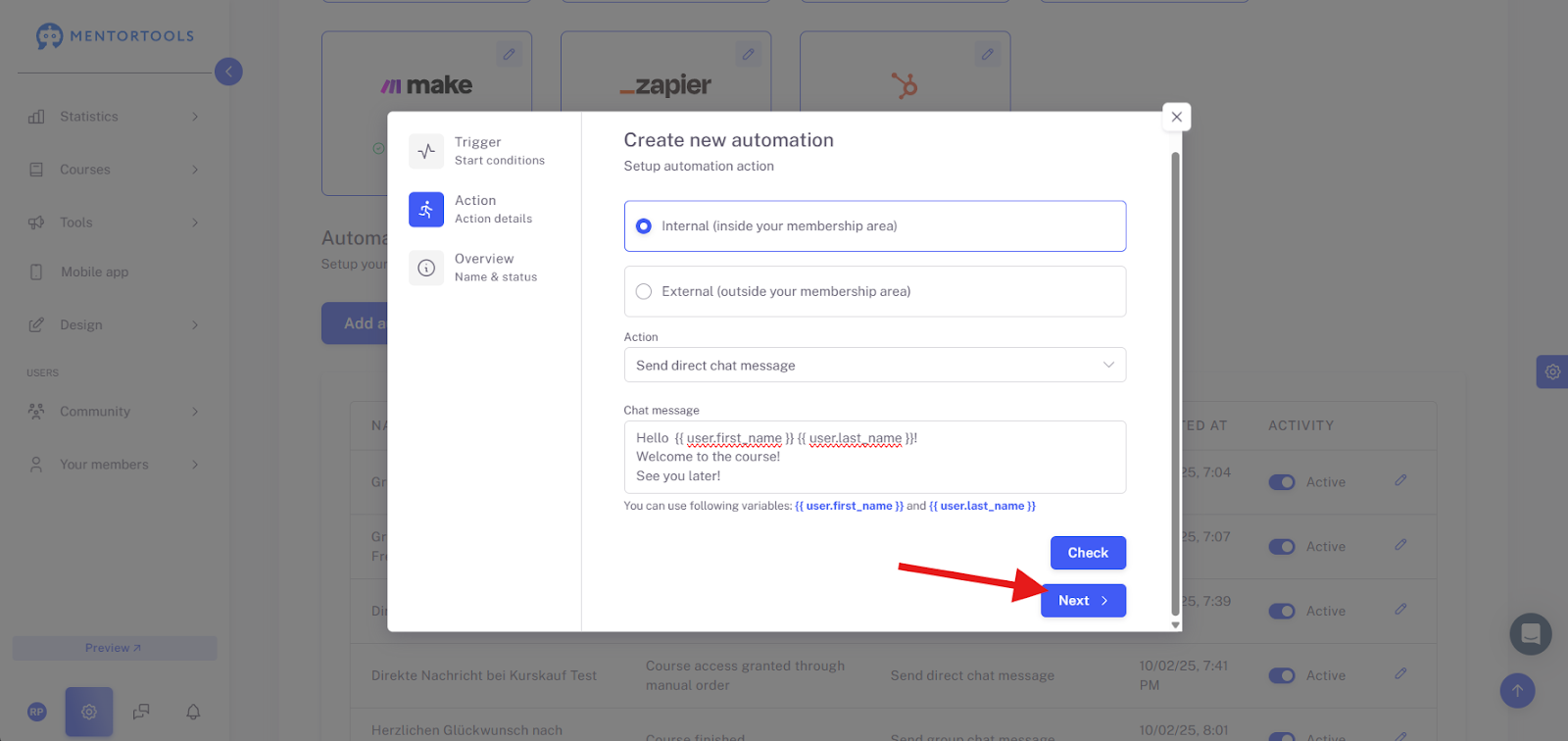
Name and Activate
The final step only involves naming this automation and activating the automation itself. Give the automation a name and set the switch to "active" to activate the automation.

Click “Save and Close” to complete the automation setup.
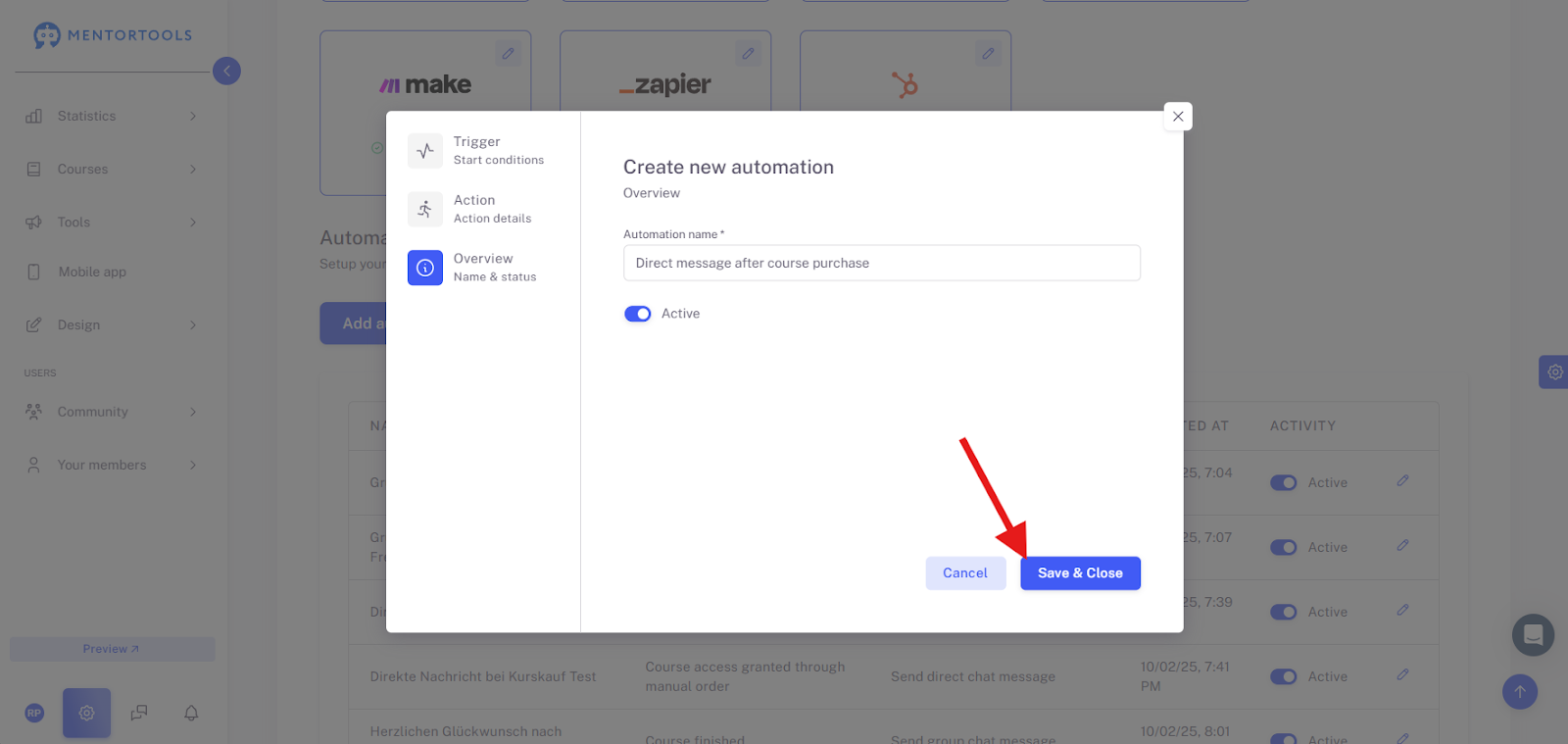
The finished automation will then be displayed in your list. You can also edit and activate or deactivate it there later.
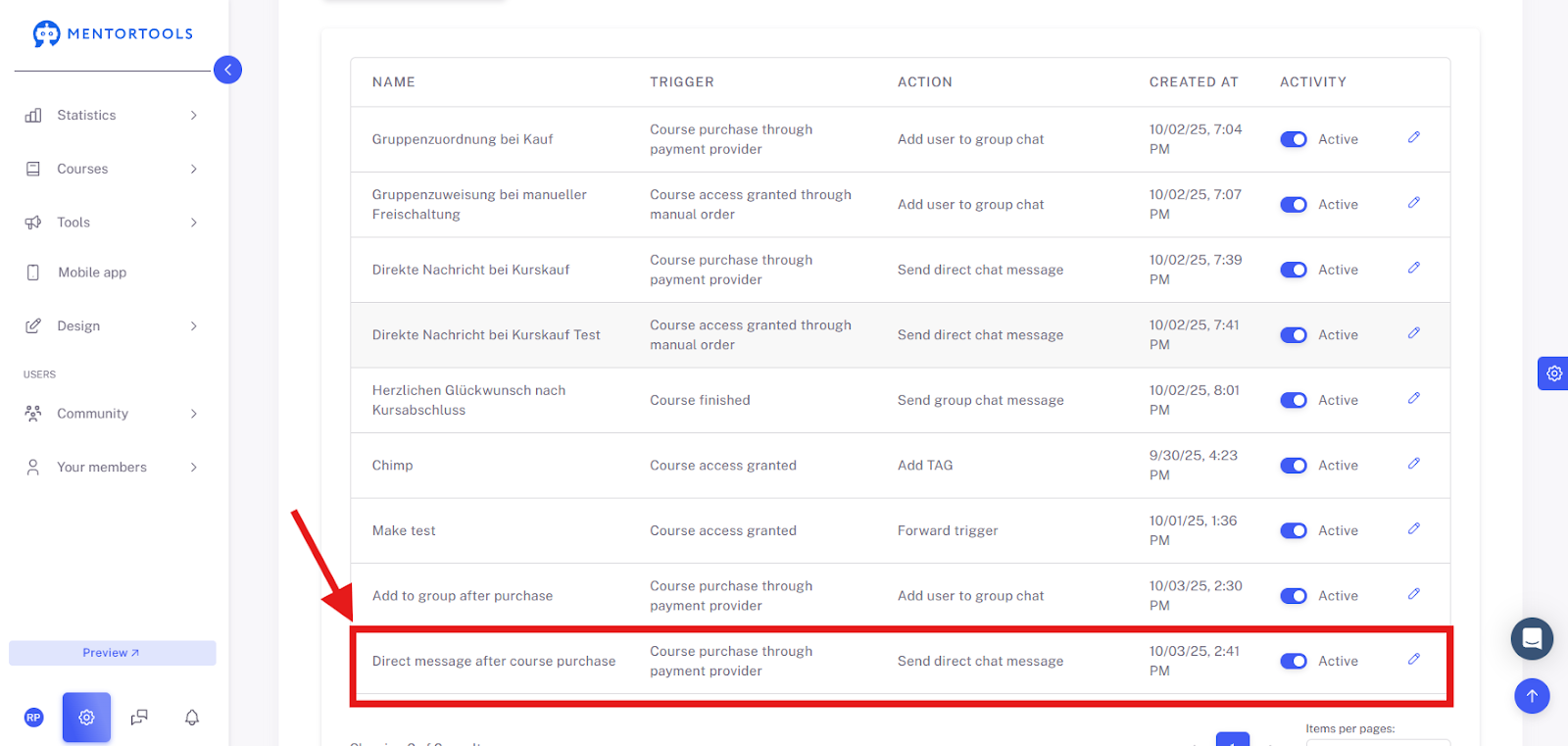
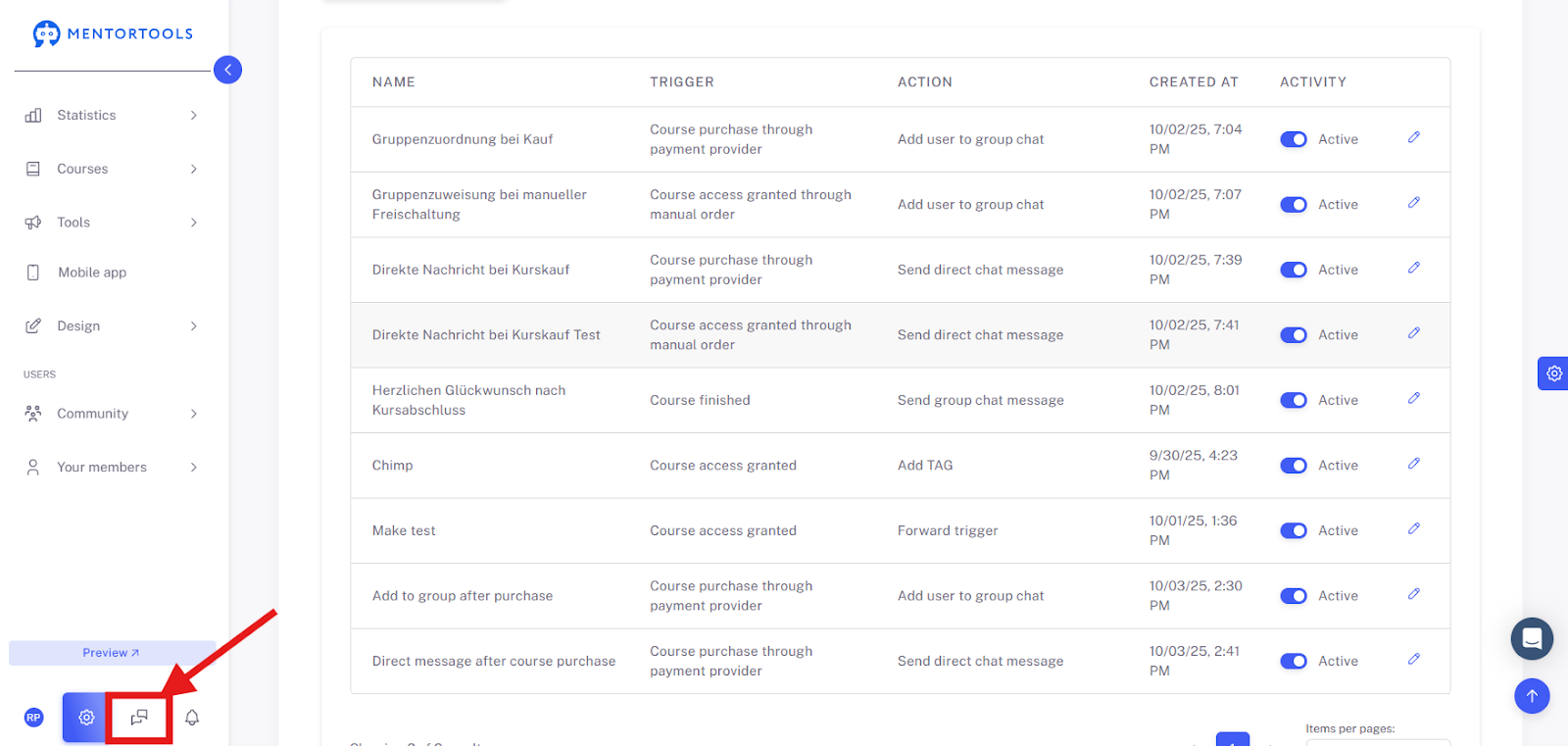
To see if the new member also received the automated message after purchasing the course, please open Messages.
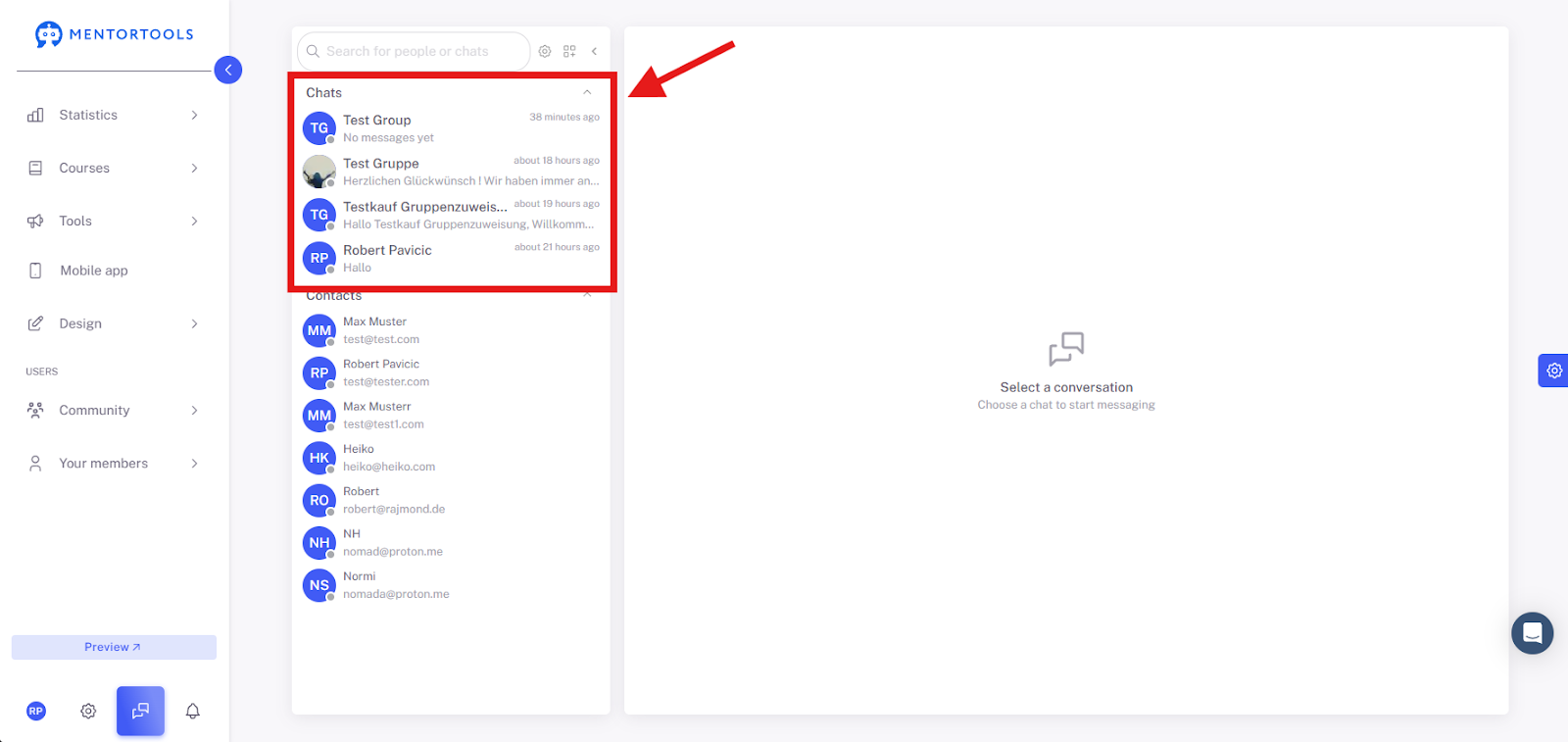
There you can see if the member received the message.
How do I send automated messages in chat groups?
In this example, we show you how to write an automated message in chat groups when someone has completed a course. To do this, click “Add Automation +” again to add a new automation.

Select Trigger
Now we select a trigger that initiates the event. To send a message to a member when they have purchased a course, select “Internal” and for the “Trigger Type” select “Course finished”.
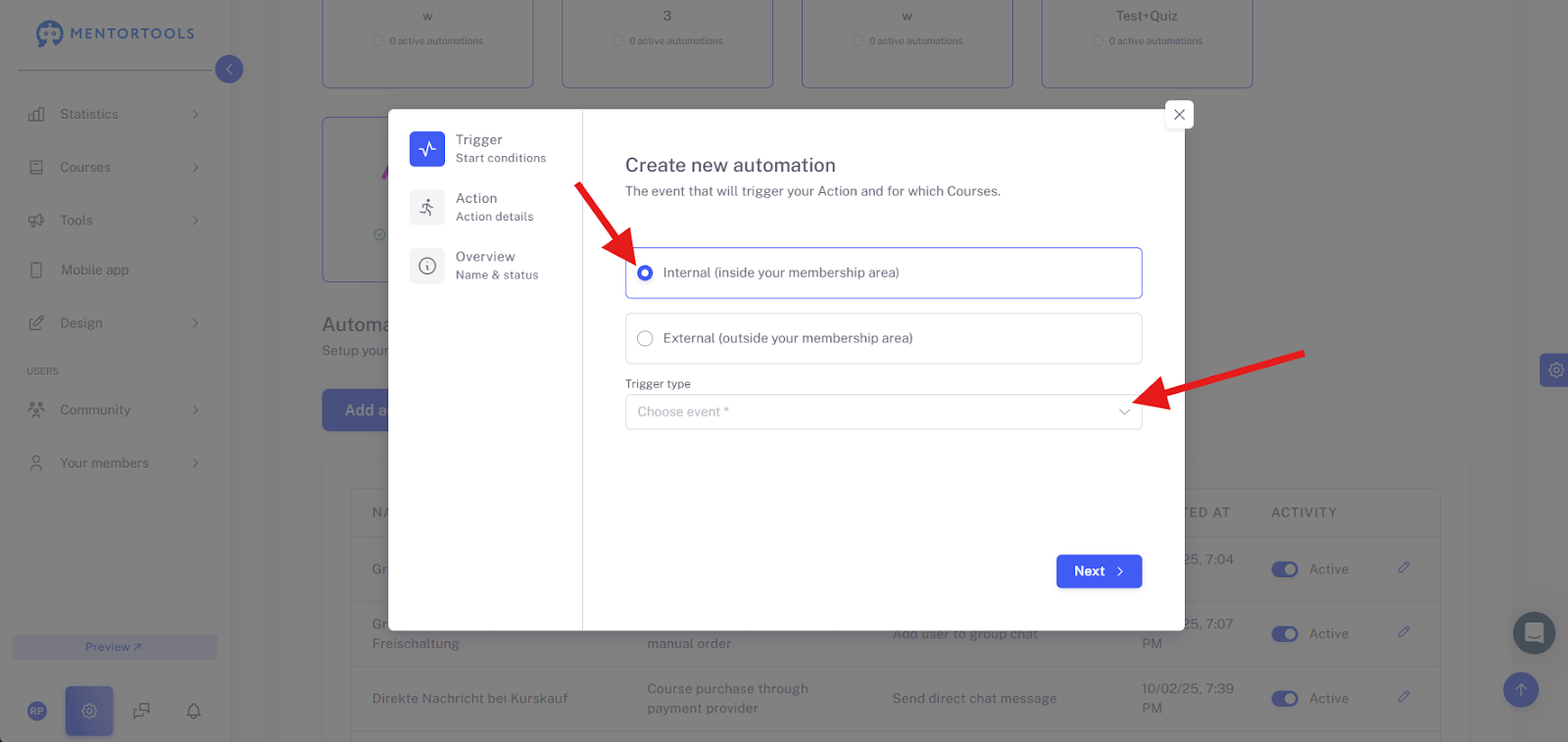
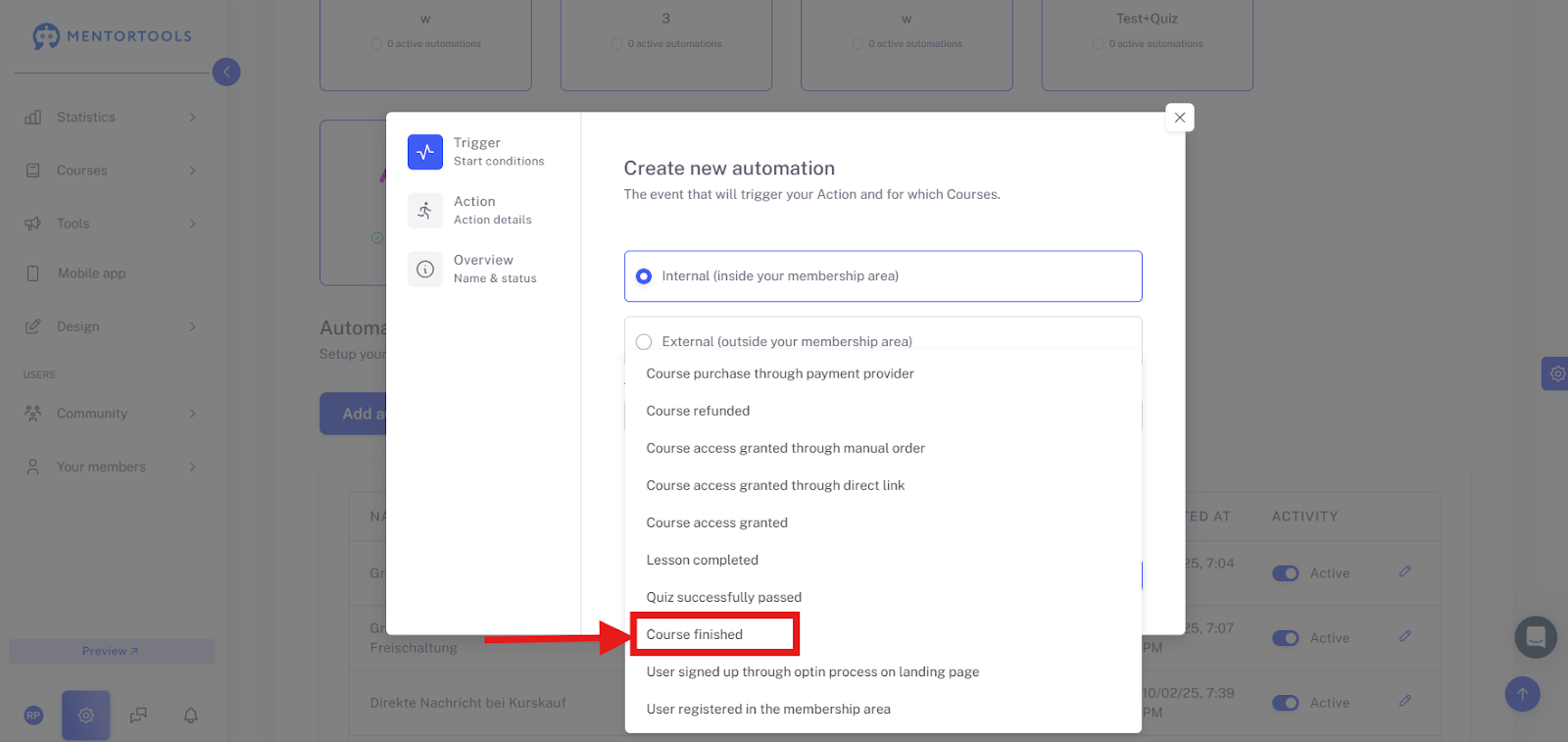
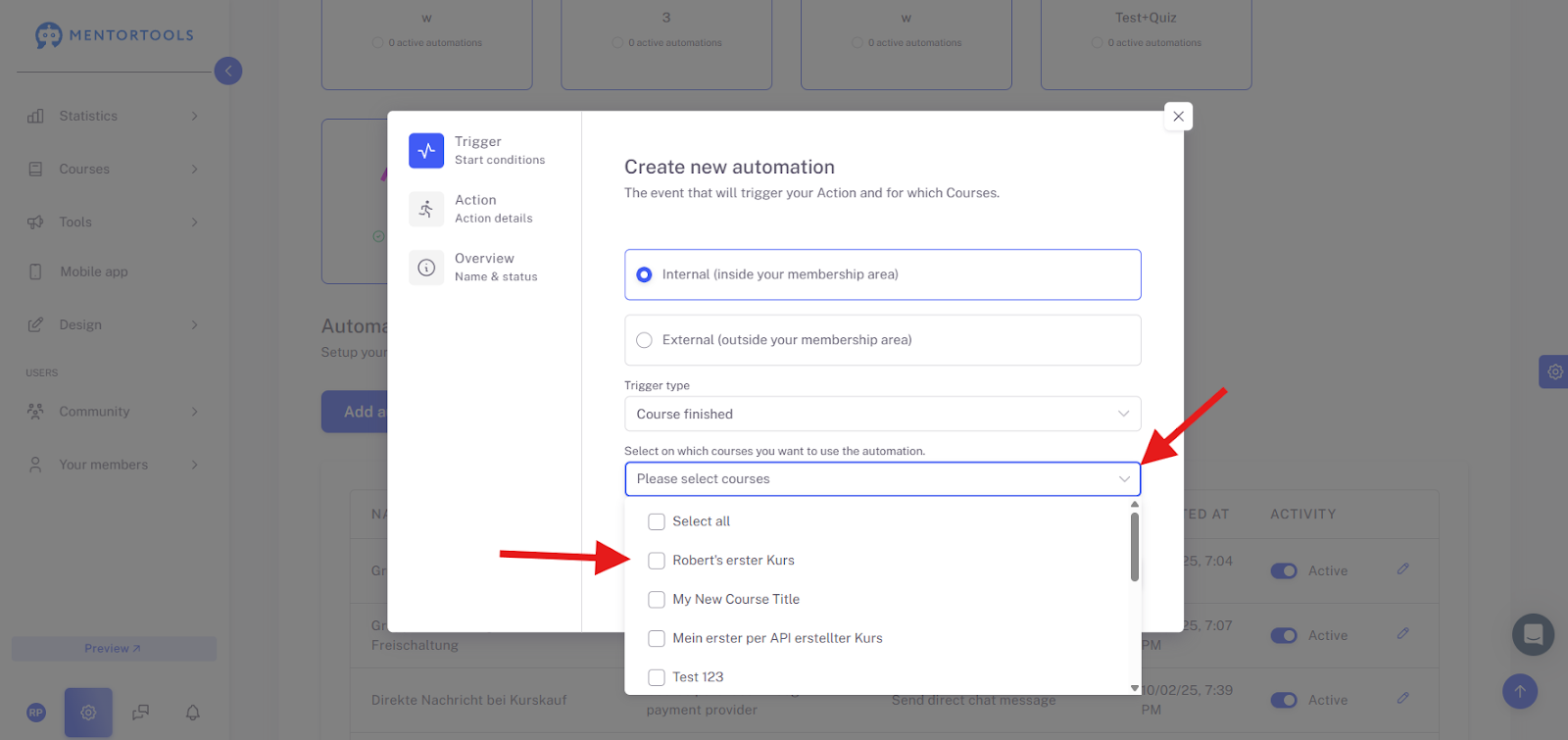
Now you can choose which courses you want to use the automation for. Go to the dropdown menu and select the corresponding course/courses.
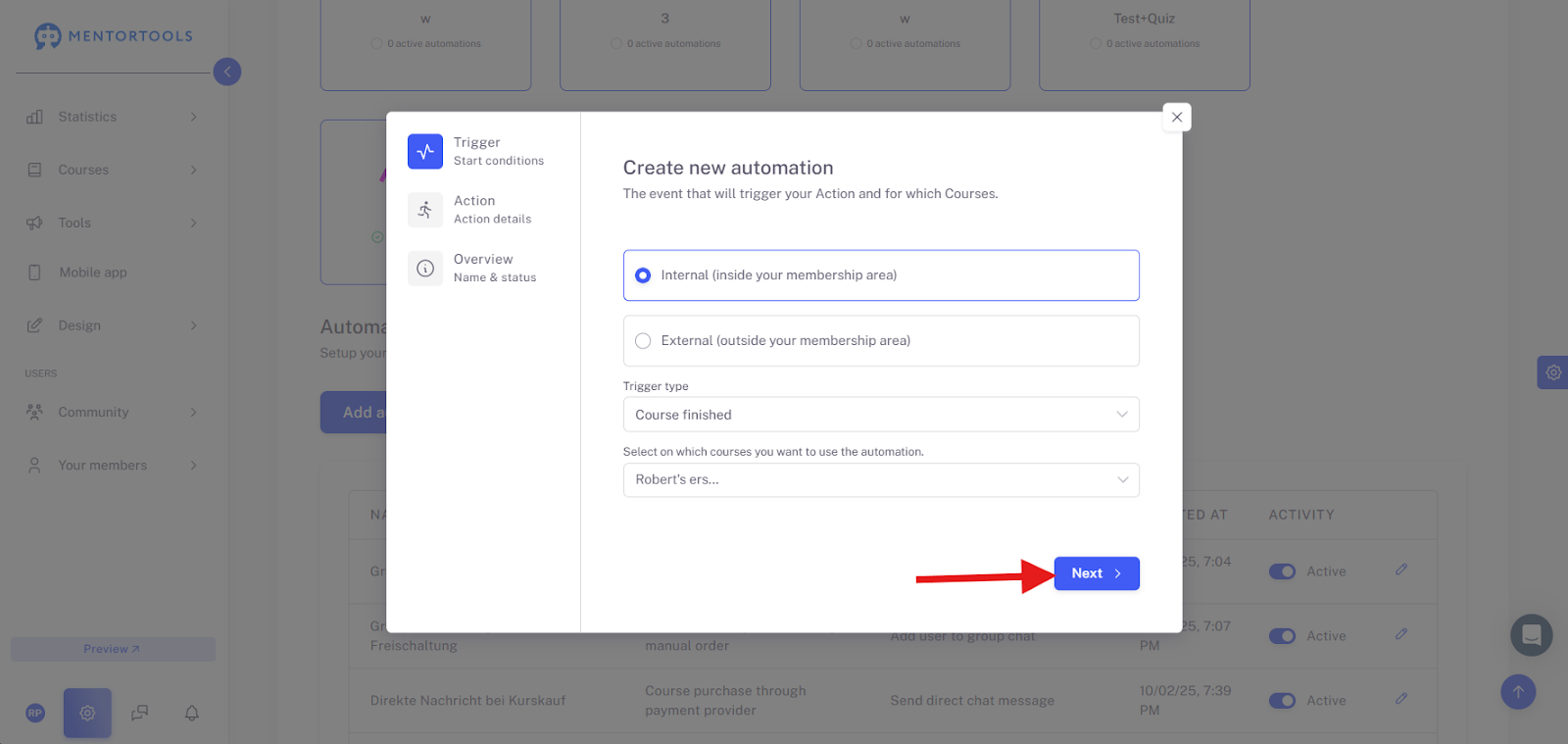
Now click “Next”.
Select Action
Again, select “Internal” and open the dropdown menu.
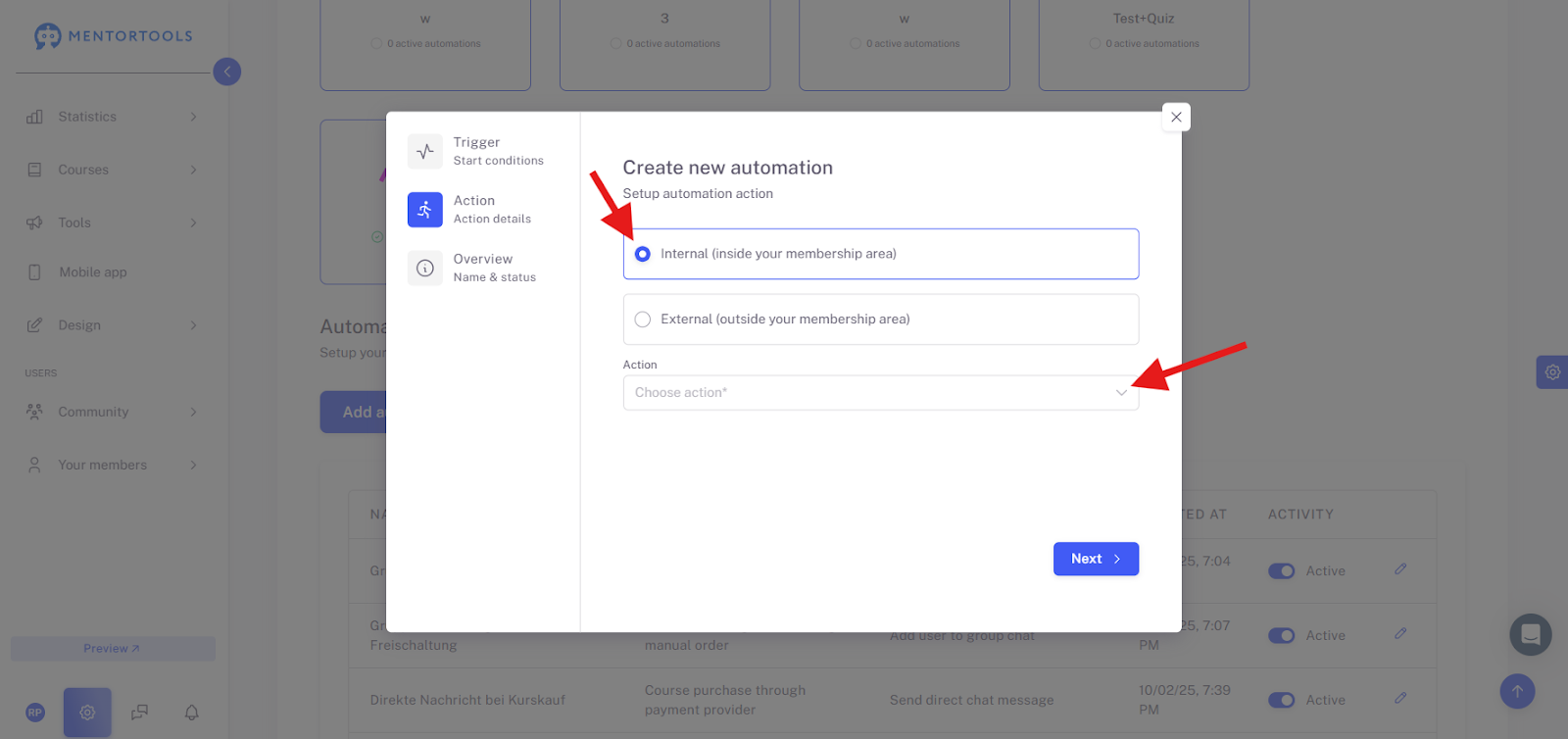
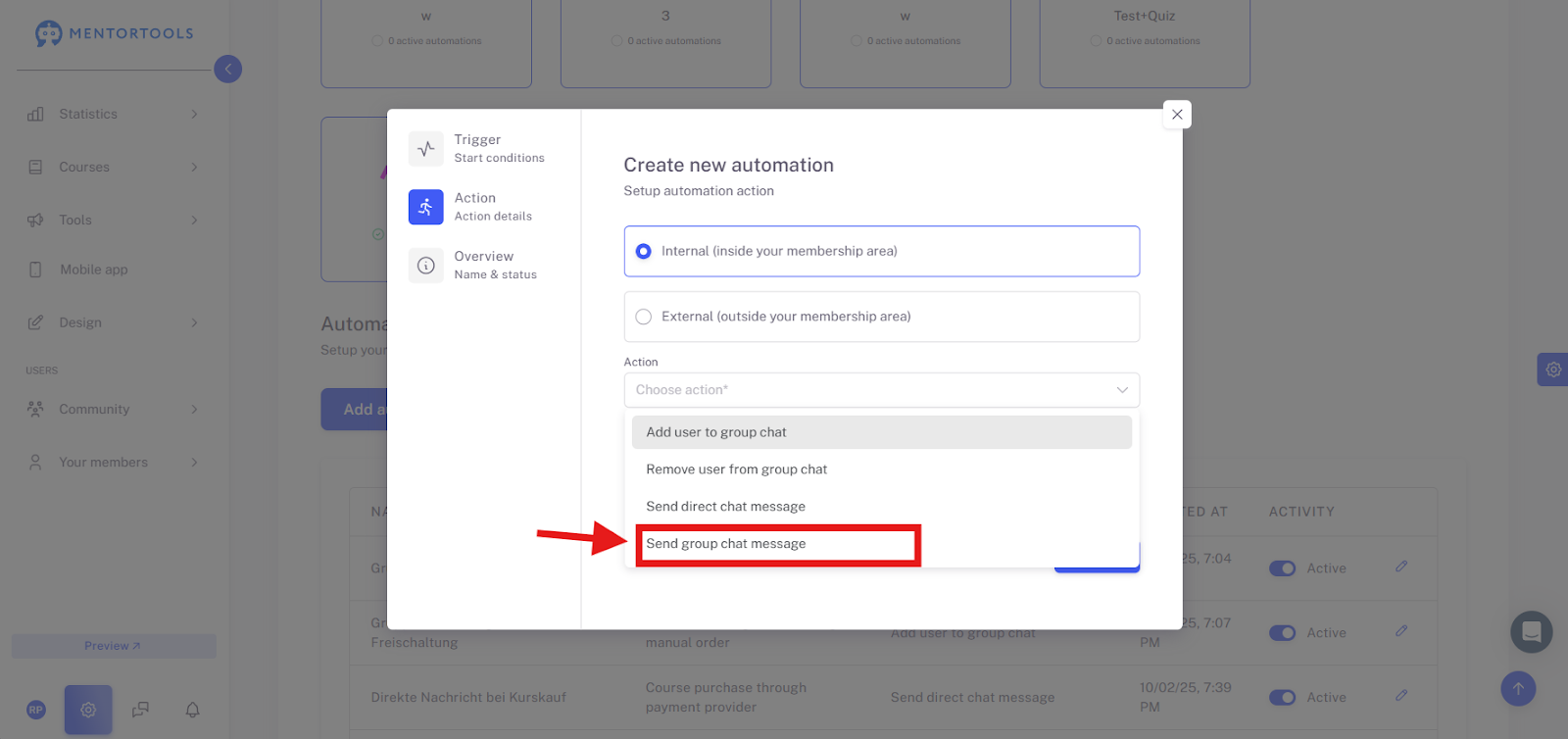
From the dropdown menu, select “Send group chat message”.
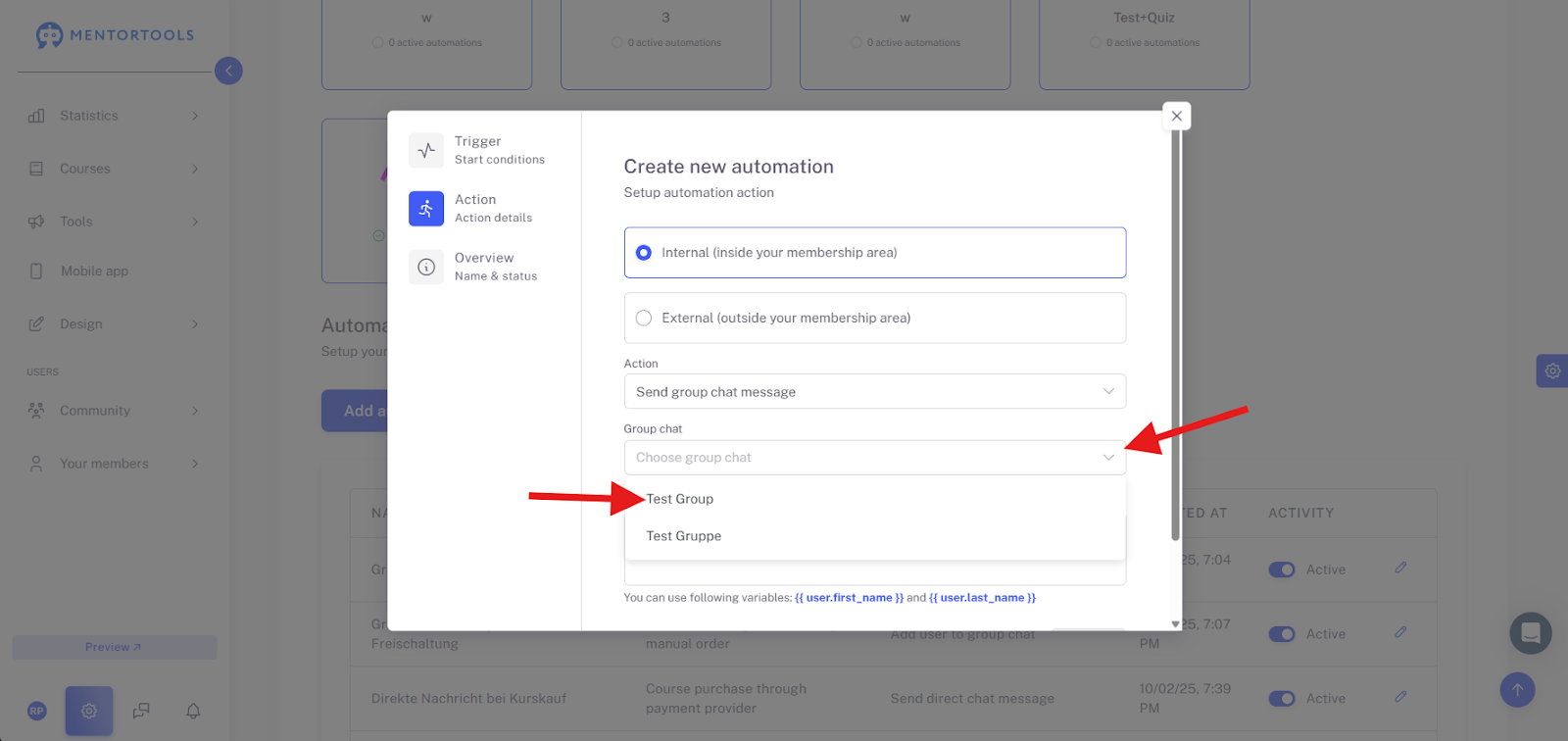
Now you can choose from the dropdown menu under “Group chat” which group chat the message should be sent to after the course has been completed.
Next, you can compose the message that should be sent to the group after the course completion. You can use the variables {{ user.first_name }} and {{ user.last_name }} for the correct salutation. You will find them right below the input field so you can copy them quickly.
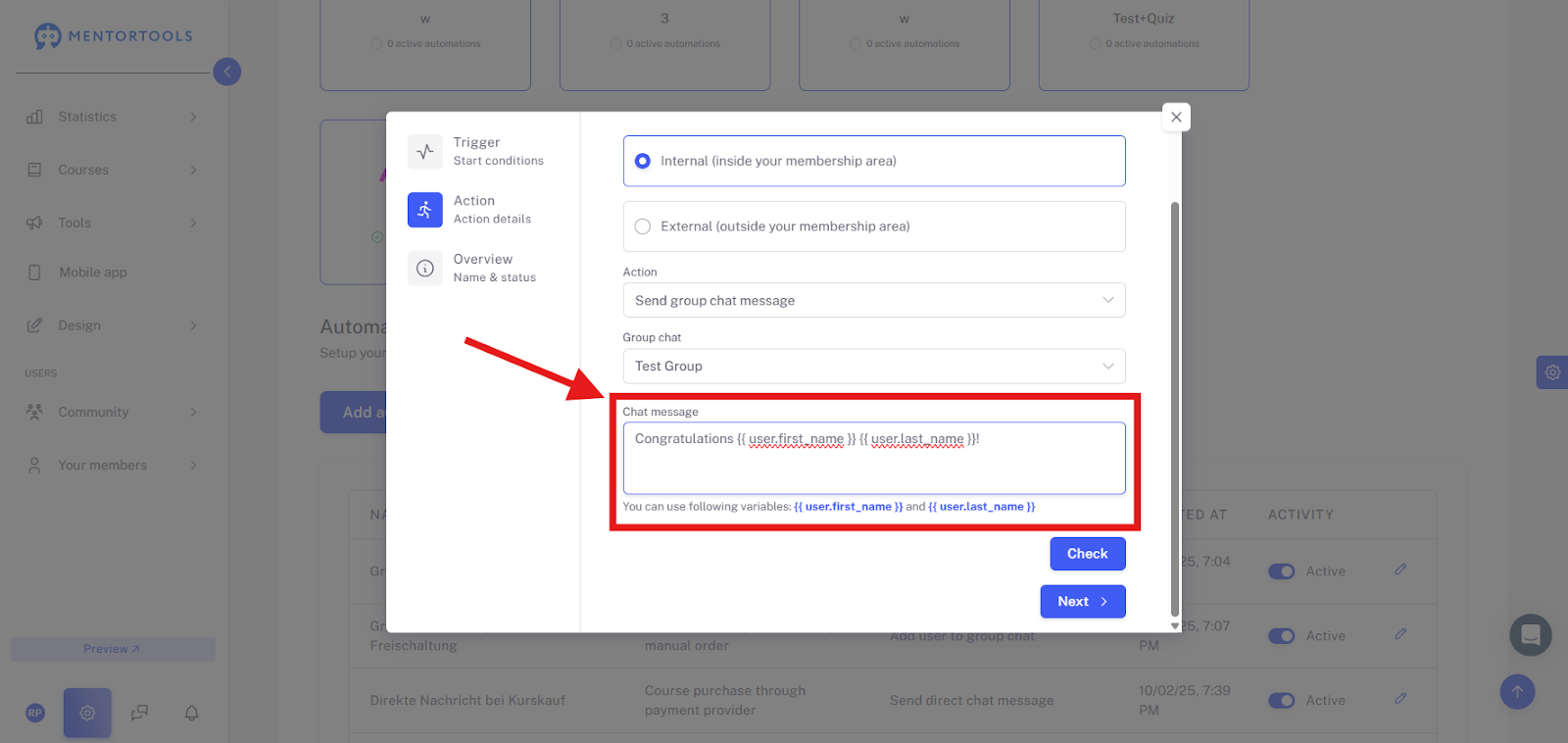
Click “Next” again.
Name and Activate
The final step only involves naming this automation and activating the automation itself. Give the automation a name and set the switch to "active" to activate the automation. #
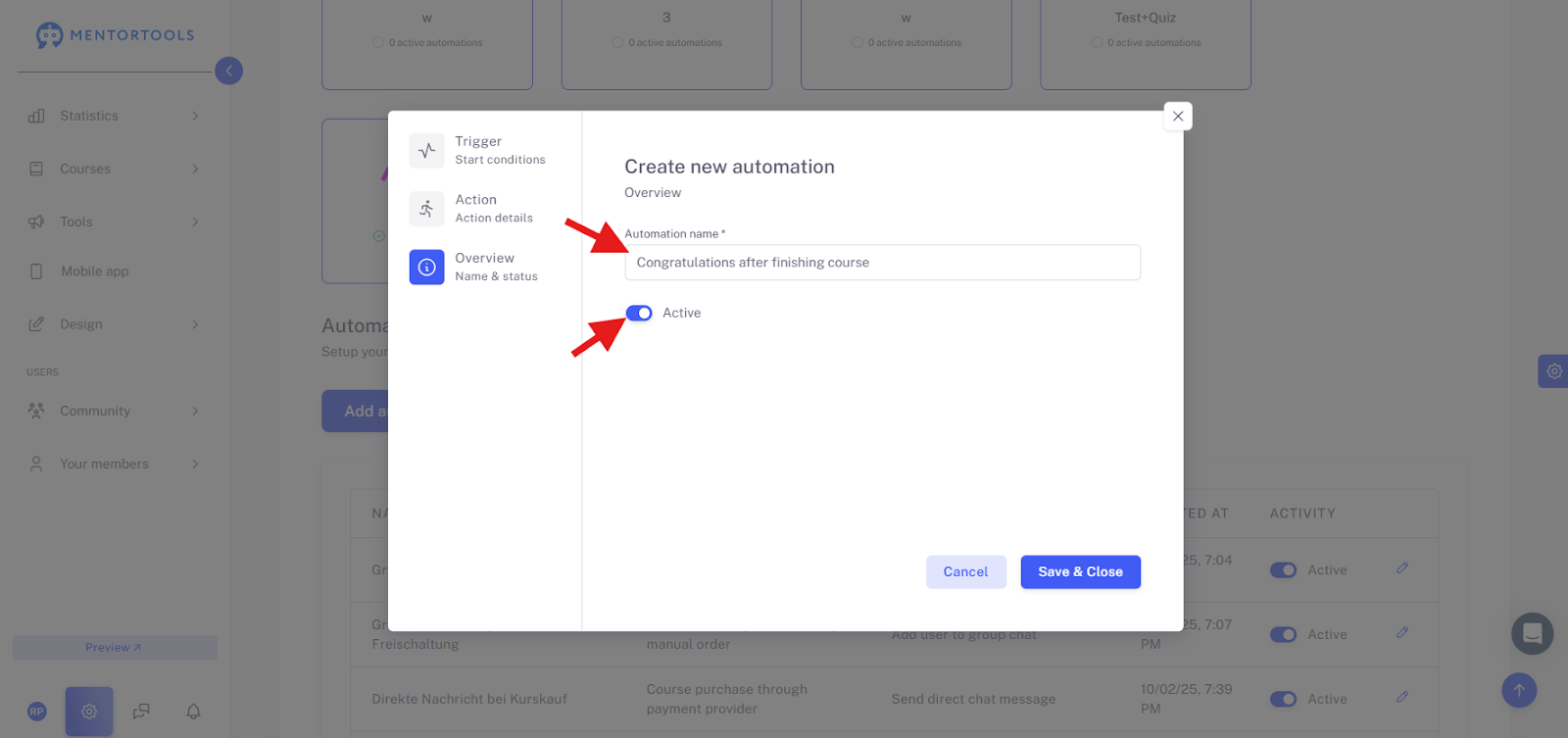
Click “Save and Close” to complete the automation setup.

The finished automation will then be displayed in your list. You can also edit and activate or deactivate it there later.
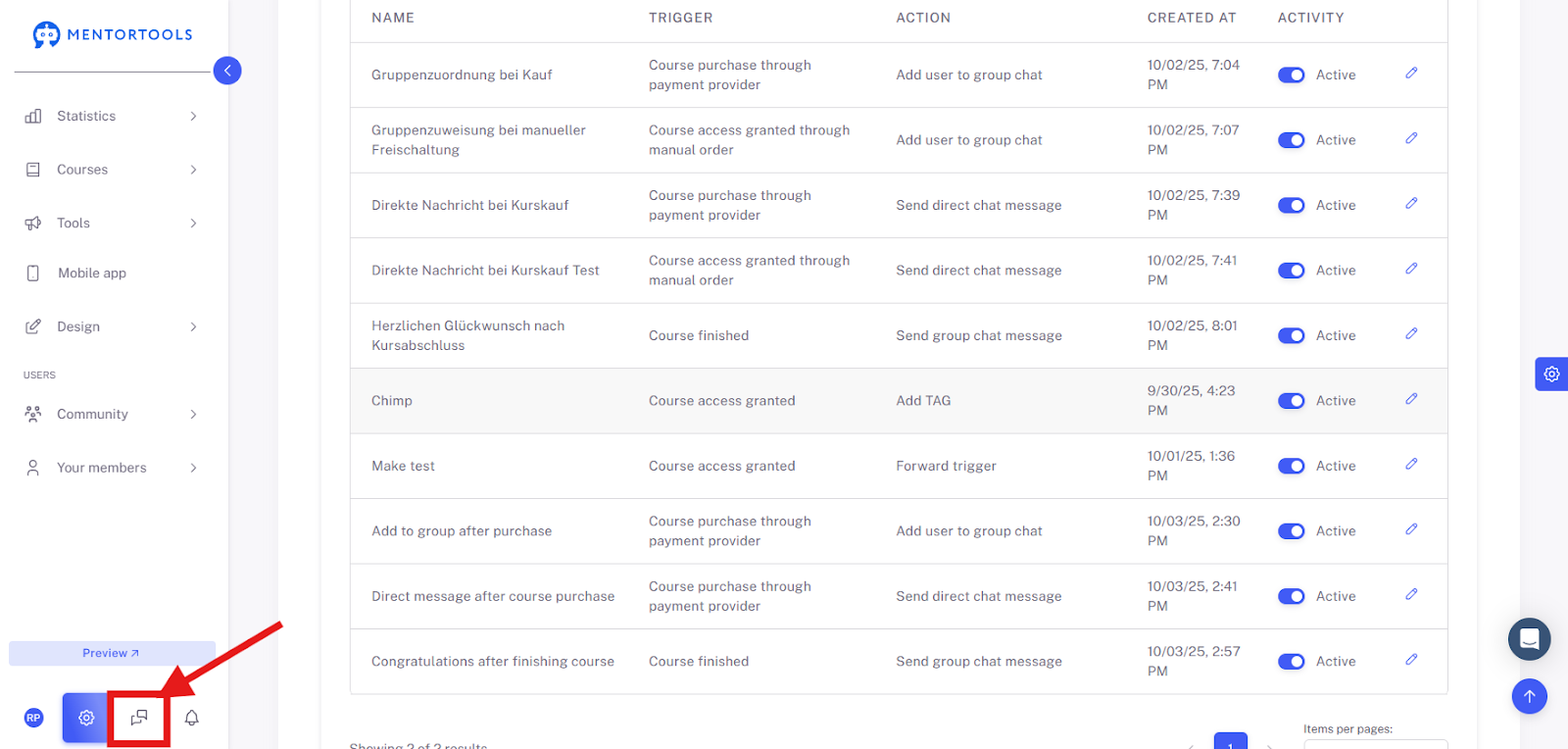
To see if the automated message was sent after the course was completed, please open Messages.
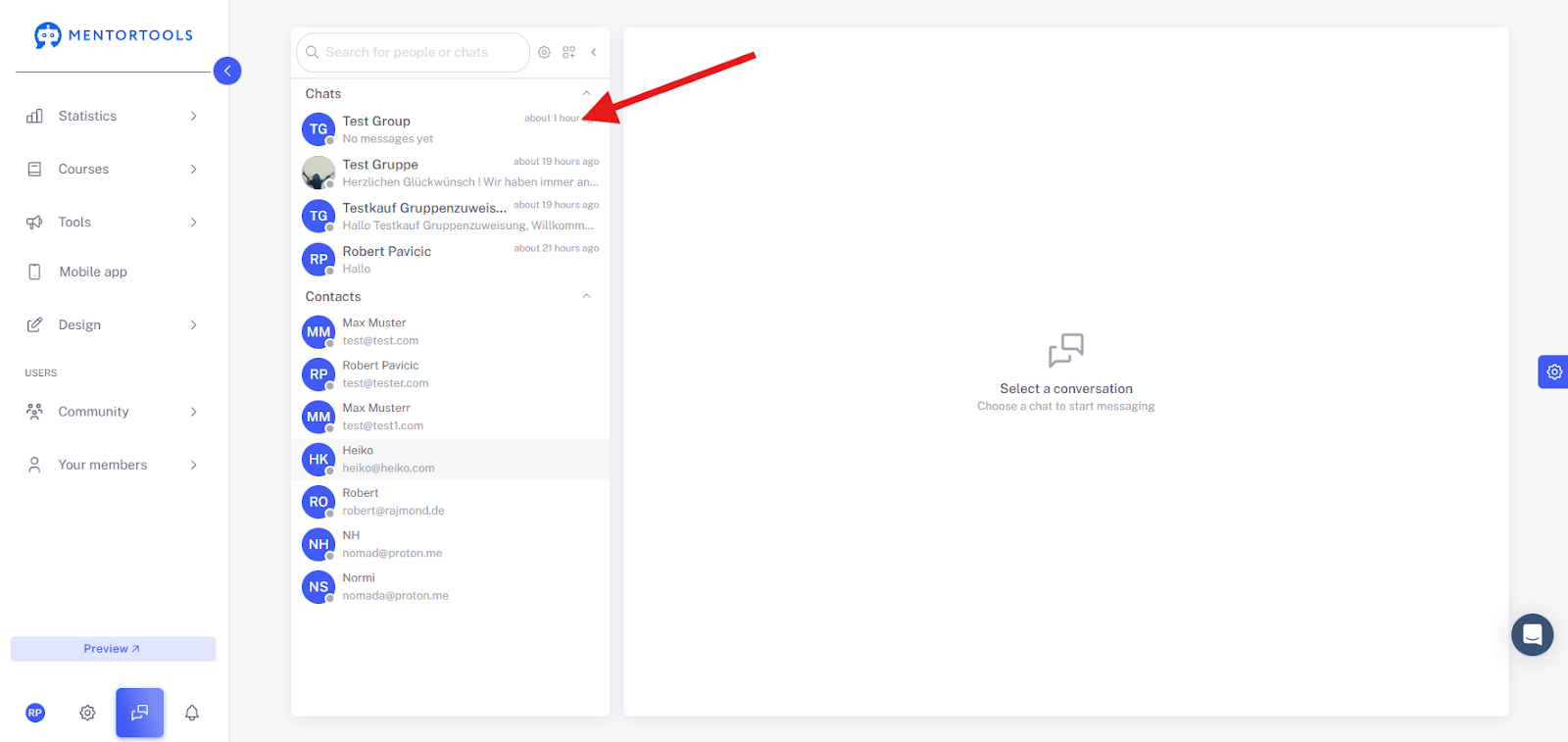
There you can see if the message was posted in the group.
Conclusion: Chat Automations – Your Turbo for Member Care
You have seen how easy it is to completely automate communication with your course participants and thus save valuable time. The core takeaway is: Through "Integrations and Automations" in the Settings, you can convert almost any important member action (the so-called Trigger) into an immediate communication response (Action).
Your most important options:
Automated Group Assignment: Instantly add new buyers to the appropriate chat group without your intervention by choosing "Course purchase" as the Trigger and "Add user to group chat" as the Action.
Direct Welcome/Feedback: Send a personalized welcome message or congratulations on completing a lesson by using "Send direct chat message" as the Action.
Public Congratulations/Updates: Inform an entire group about a success (e.g., "Course completed") or send general updates via "Send group chat message".
By using these automations, you manage the entire participant journey—from welcome to group assignment—efficiently, ensuring your communication is always on time and relevant. Don't forget: Always quickly check your automations in Messages once after saving to ensure everything is working perfectly.