How to Connect WooCommerce with Mentortools (Make)
Last updated 11 months ago
You can use the following guide to grant access to your courses based on sales through WooCommerce. You will need:
A Mentortools course you want to sell.
A product set up on your WooCommerce WordPress site.
A Make account.
1. Create a New Scenario for the Connection Between WooCommerce & Mentortools
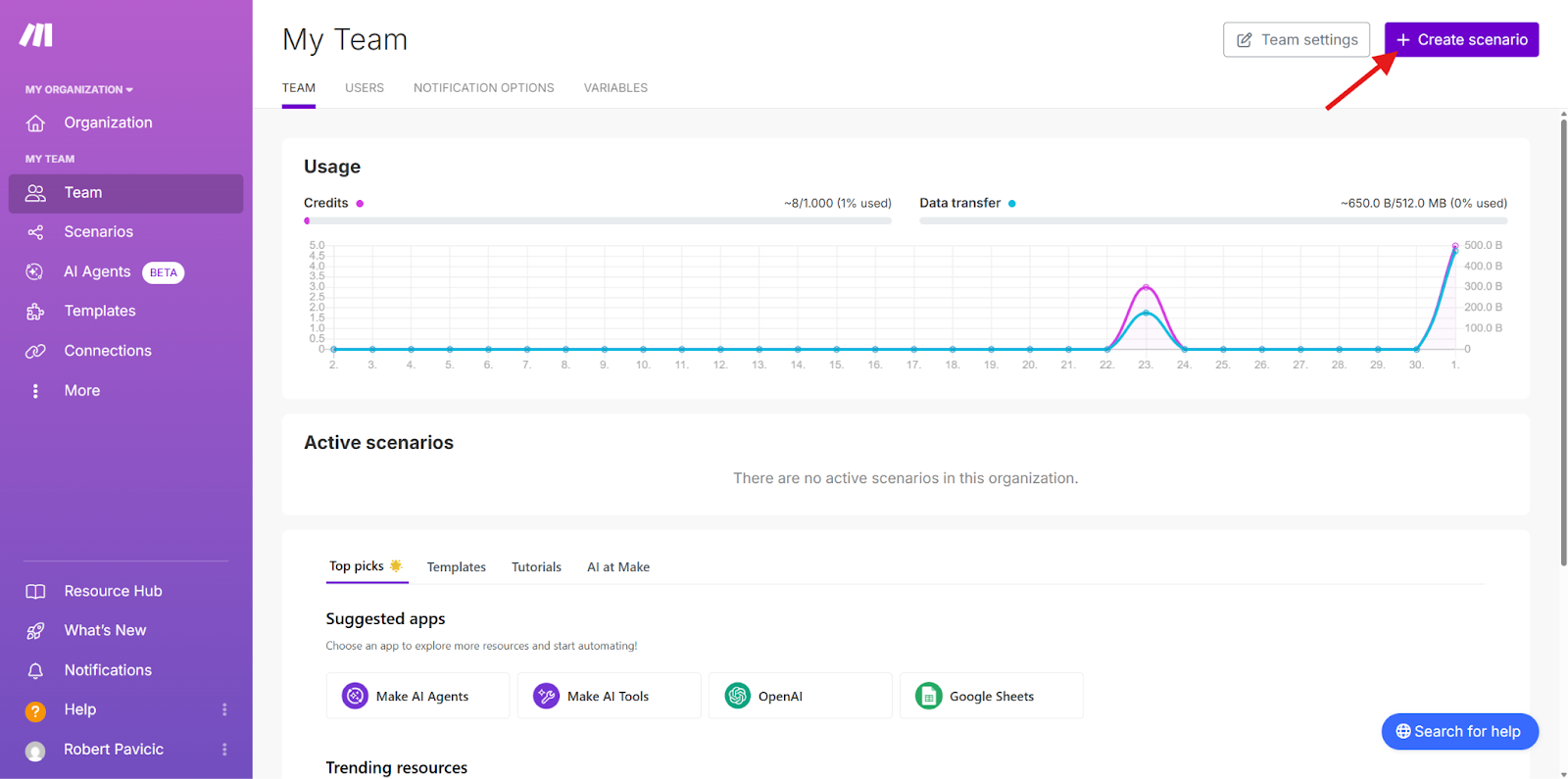
Open the following link for the Make platform and click on “Create scenario”. https://eu2.make.com/2706588/team/dashboard
2. Select WooCommerce as the Trigger
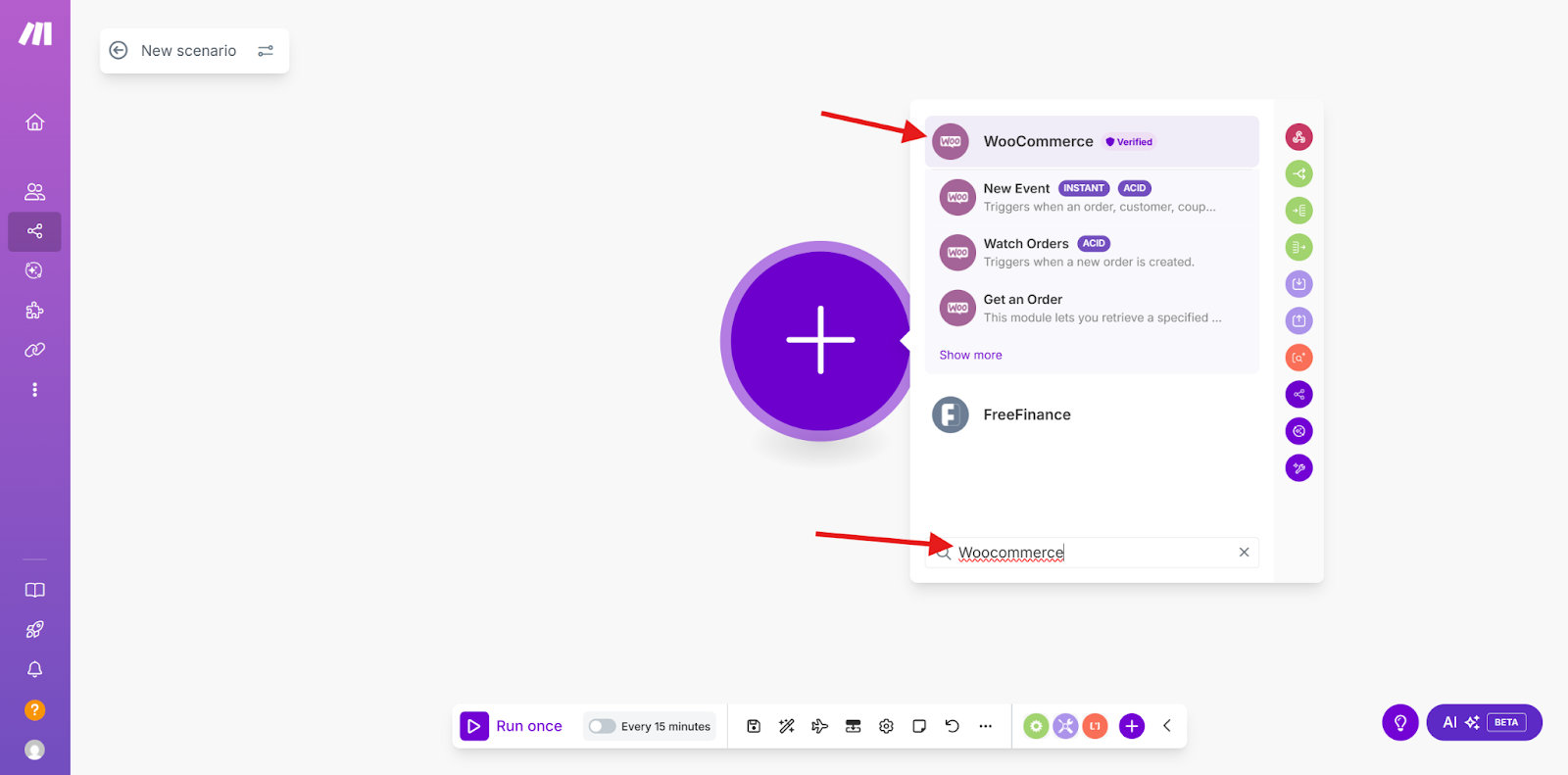
In the Make editor, you will be prompted to set up the first step, the workflow's Trigger. Enter WooCommerce into the search field and select WooCommerce as the App.
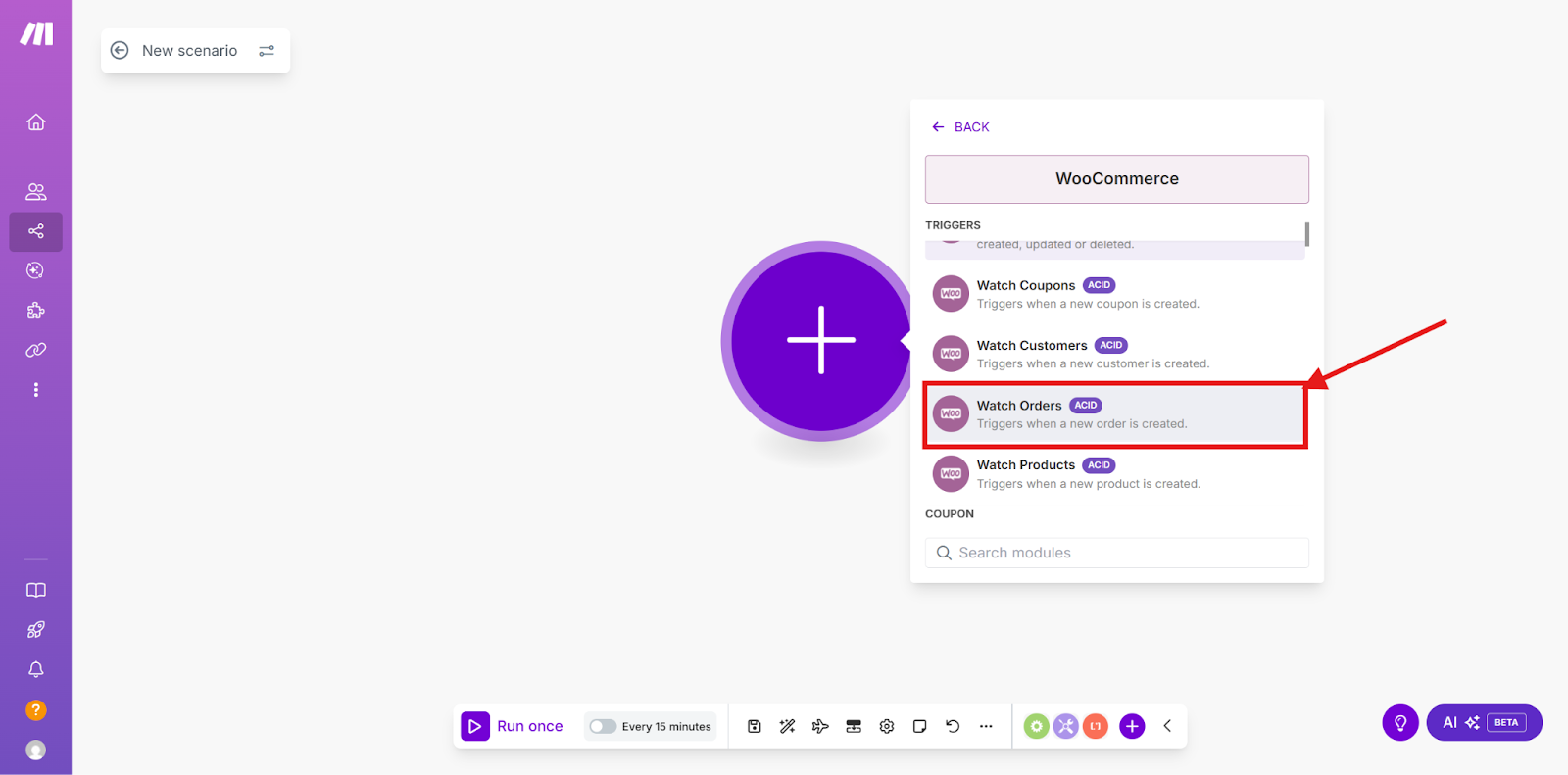
Now choose the appropriate “Trigger.” In this example, we use “Watch orders”.
Now go to “Create a connection” to set up the connection between Make and WooCommerce.
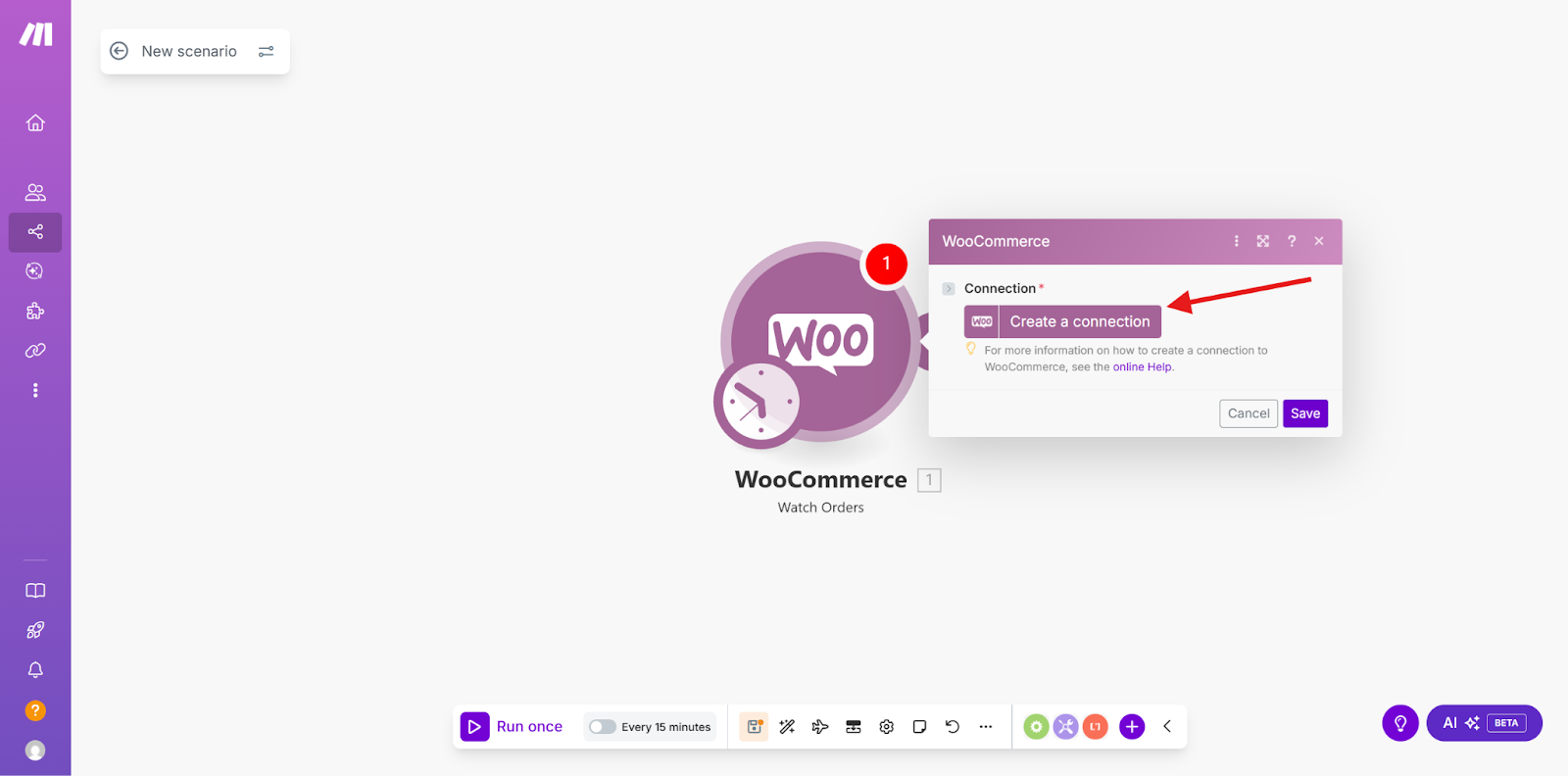
Here, enter your e-shop URL (the URL of your webshop where the product is sold), your Consumer Key, and your Consumer Secret.
3. Find the Consumer Key and Consumer Secret
The WooCommerce Consumer Key allows you to access your shop's REST API. It identifies a user (or application) making requests on behalf of your shop and ensures that only authorized parties can access your data. The key consists of two parts: the Consumer Key and the Consumer Secret.
Here's a quick guide on how to find the WooCommerce Consumer Key and Consumer Secret:
To activate WooCommerce on your website, install the WooCommerce plugin.
In your website's menu, go to “WooCommerce” and select “Settings.”
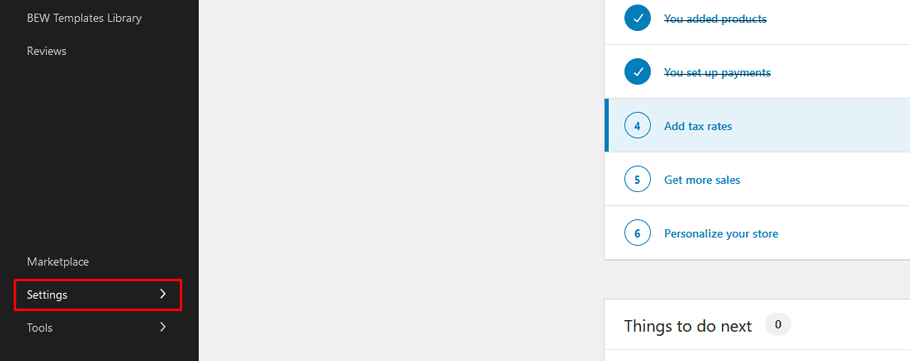
In the “Settings” menu, select the “Advanced” tab.
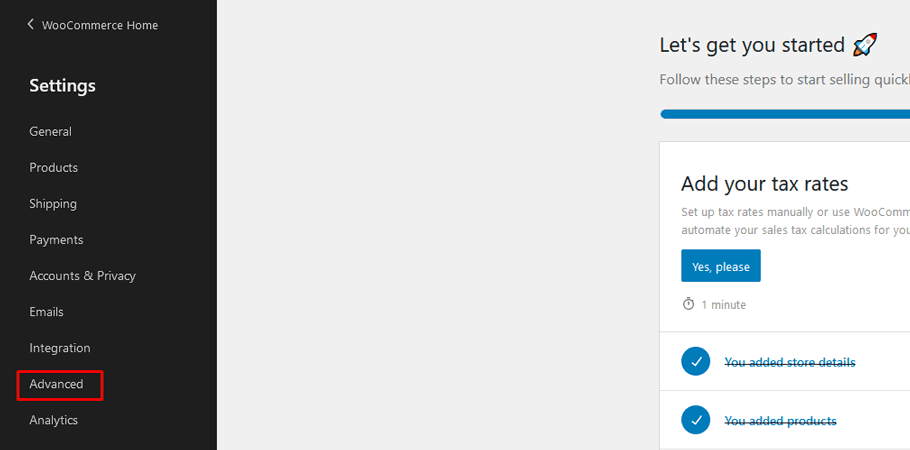
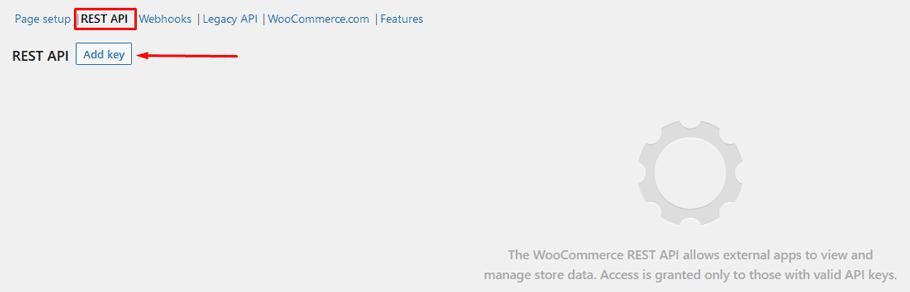
Click on the submenu item “REST API” there.
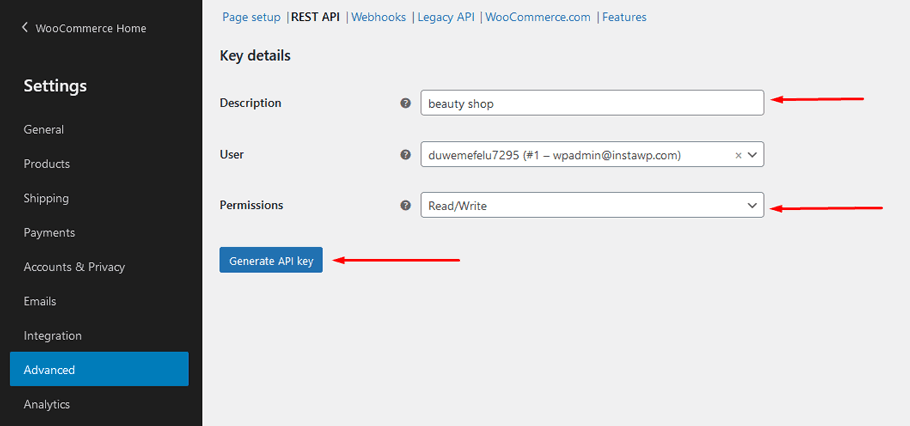
Then select “Add key” and enter a description for this key (e.g., "Mentortools Connection").
Select “Read/Write” as the permission and click “Generate API key.”
Finally, copy the provided “Consumer Key” and “Consumer Secret.”
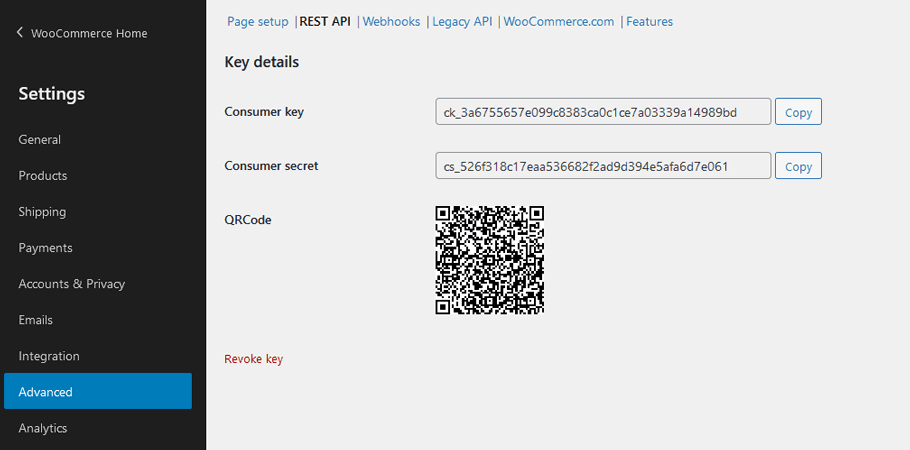
You need these two keys for the connection to external services, in this case, Make.
Now enter these two keys in Make and click on "Save".
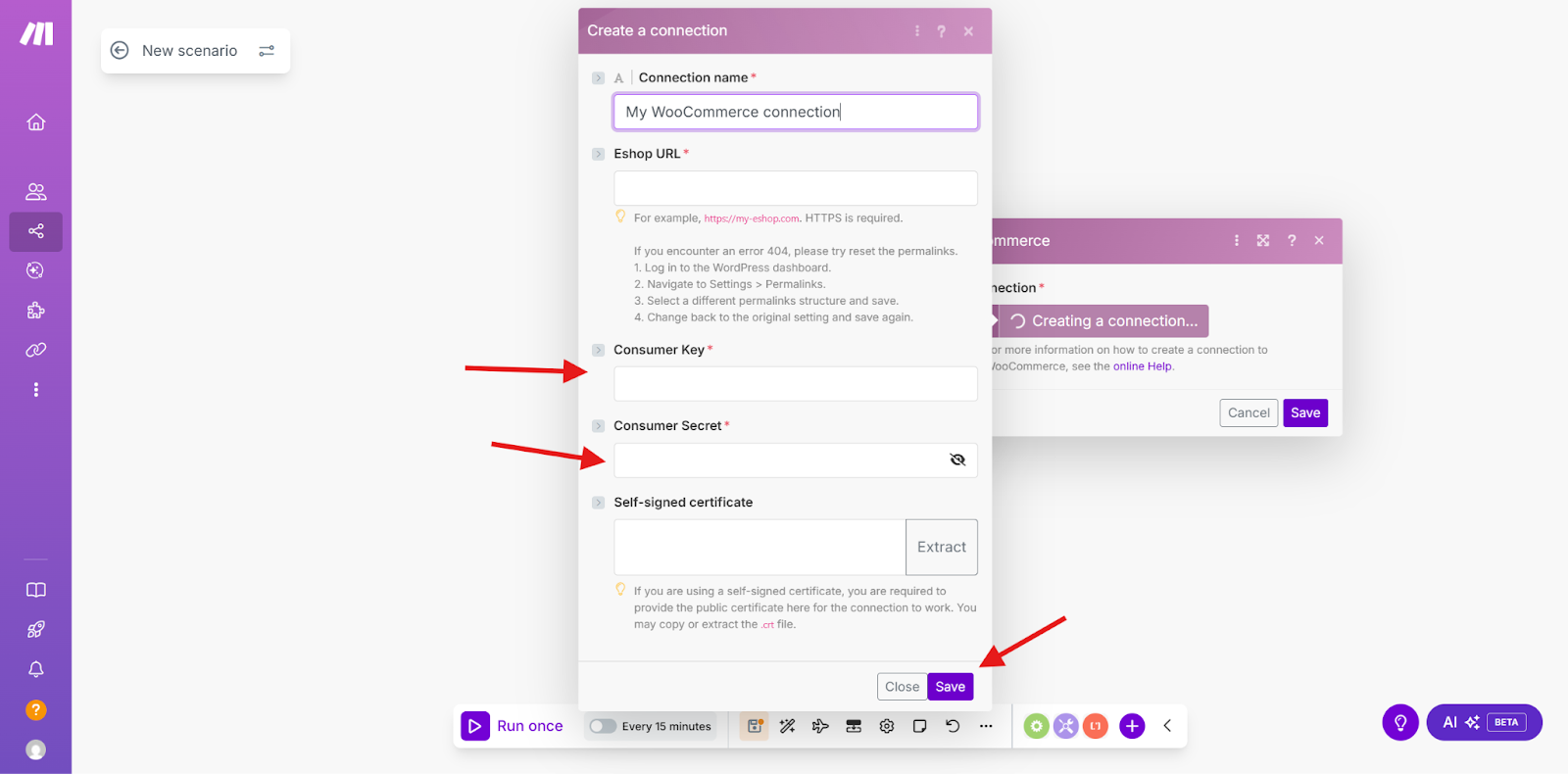
You can find more information about this in this guide.
4. Create the Mentortools Course Unlock in the Scenario
Now select “Mentortools” as the App in the Action step by clicking on the plus sign.
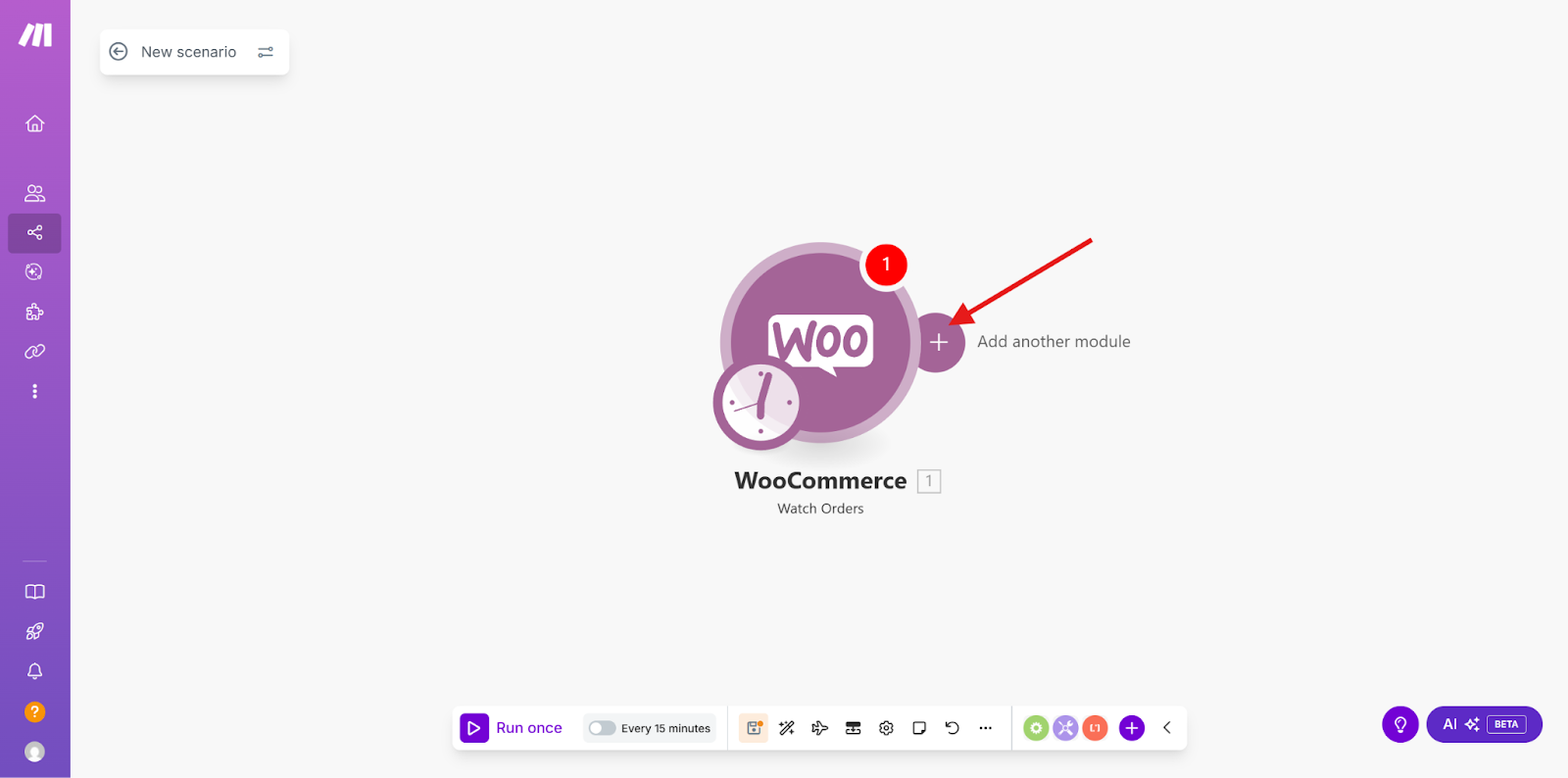
and entering “Mentortools” in the search field.

Now choose the action that must be performed in Mentortools after the action in WooCommerce has triggered the event. In this case, we select “Create an order”.

5. Connect the Data Fields from WooCommerce with Mentortools
Now the customer data form for course unlocking opens. Here we connect Mentortools with the values from the data in step 1 of the scenario. To do this, click on the input field to open the list of available variables.
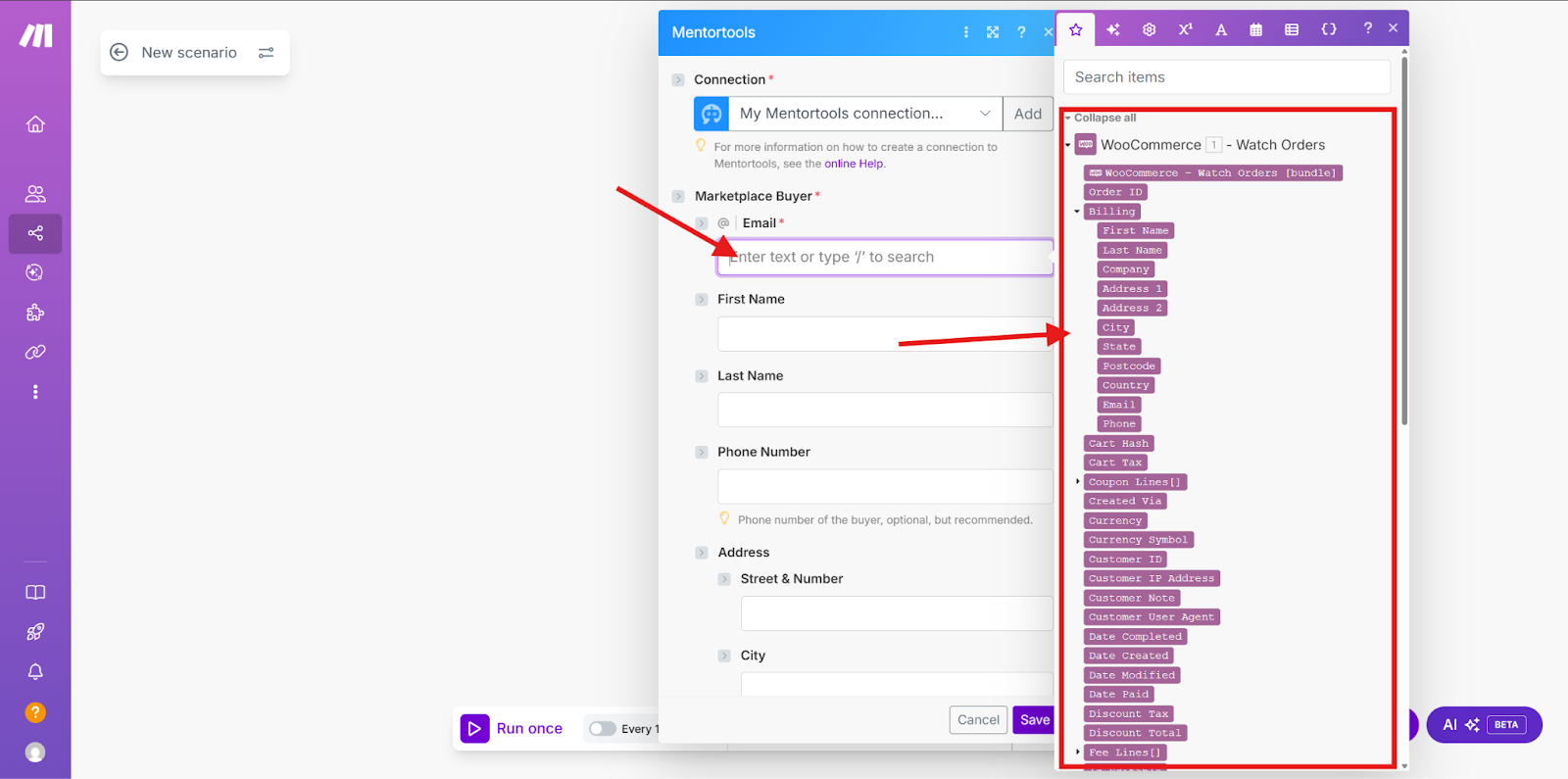
Under the “Billing” submenu in the list of variables, you will find all the necessary information to fill out the form.
Now choose the variable “Email” for the Email field.
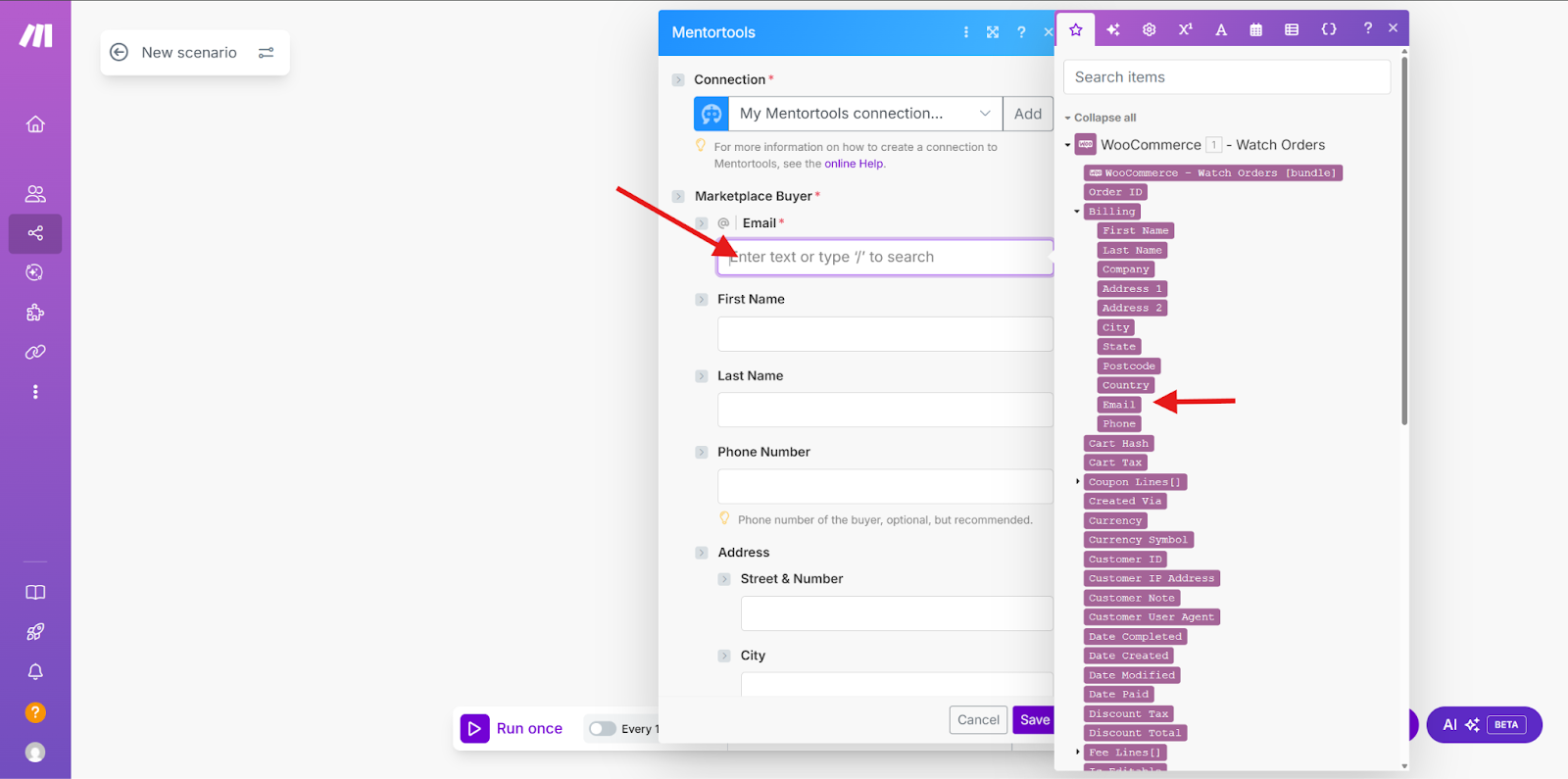
For “First name,” choose the variable “First name,” and so on. When you are done, it should look like this:

Now scroll down in this form to fill in the remaining fields.
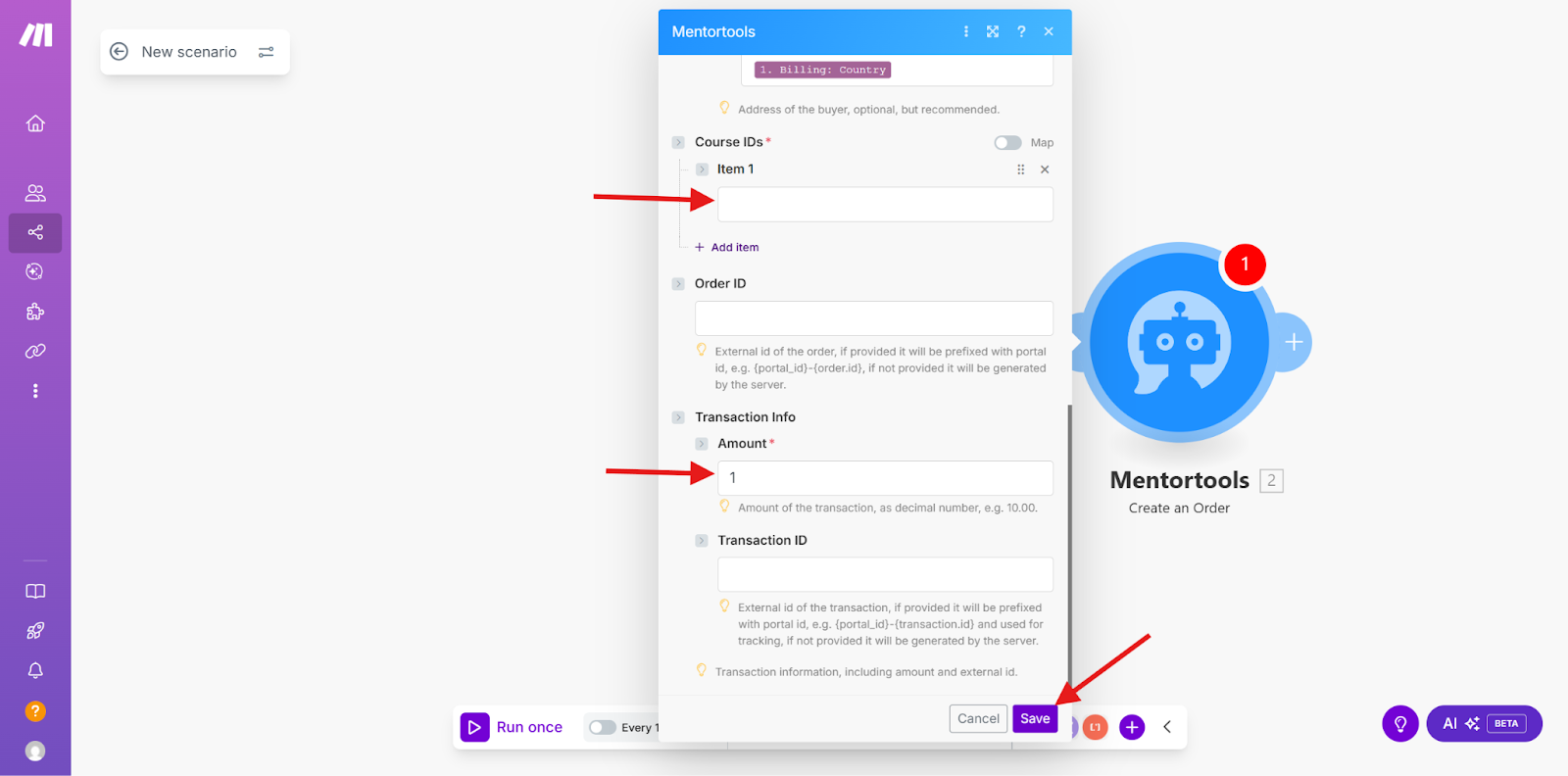
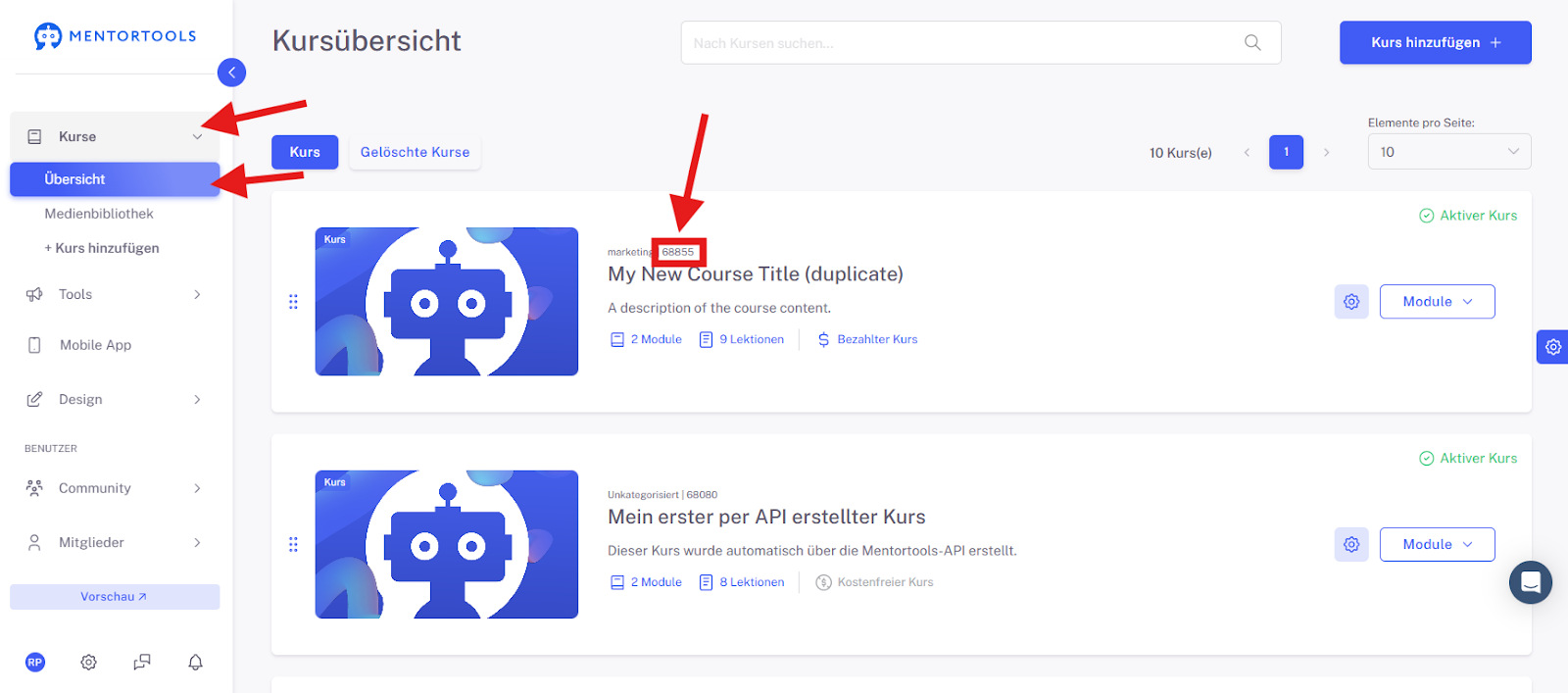
Under Course ID, enter the ID of the course the customer should receive. You can find the course ID here in the Course Overview:
For “Amount,” enter the quantity of courses to be created, in this case “1,” and then click "Save" to complete the connection. You can then test the connection.
Conclusion
With this guide, you have now built a stable bridge between your WooCommerce shop and Mentortools. You've seen that setting up the WooCommerce REST API keys and Make is the central step.
As soon as you activate the scenario, the entire process runs fully automatically: Every successful order in your shop instantly triggers the correct course unlock in Mentortools for your customer.
This not only saves you a lot of time but also ensures a professional customer experience—no waiting times, direct access. This allows you to focus entirely on selling. Mission accomplished!