How do I create a free FCM account?
To allow your mobile app to send push notifications to you and your customers, you need to take an additional step. It's important to create a project in Firebase.
Last updated 11 months ago
To allow your mobile app to send push notifications to you and your customers, you need to take an additional step. It's important to create a project in Firebase.
What is a Firebase Project?
A Firebase project is a Google platform that provides developers with tools and infrastructure to develop, improve, and scale mobile and web applications. It offers a variety of features, including real-time databases, hosting, authentication services, cloud storage, analytics, notifications, and more. Firebase makes it easy for developers to integrate features into their applications without having to worry about managing servers or setting up complex infrastructure. It is popular with developers for its simplicity, flexibility, and scalability.
How Do I Sign Up for a Firebase Project?
To sign up for a Firebase project, you can follow these steps:
Go to the Firebase website at https://firebase.google.com/.
Click the "Sign in" button in the top right corner of the page.
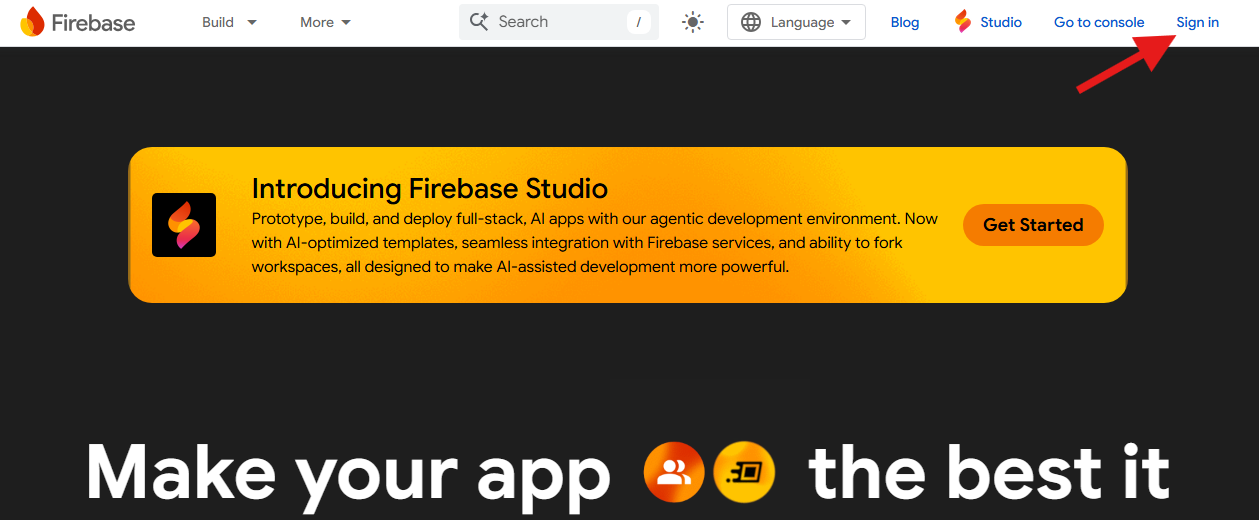
You will be redirected to the Google sign-in page. Sign in with your Google account. If you don't have a Google account yet, you can also create one there by clicking "Create account" and following the instructions.

After signing in, you will be redirected to the Firebase console, where you can manage your projects. If you already have projects, they will be displayed here.
Here you can create a new project by clicking the "Go to console" button.
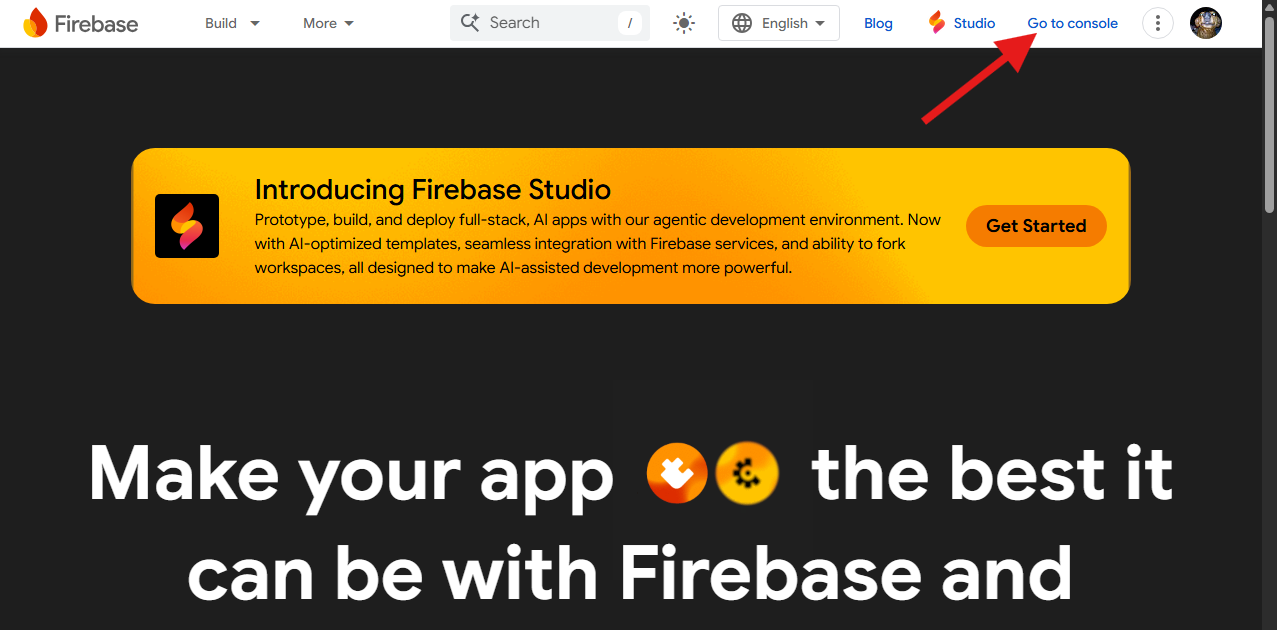
How Do I Create a Project in the Firebase Console?
If you are already signed in to Firebase or already have projects in Firebase, you can also log in directly to the Firebase console here.
Now you can follow these steps:
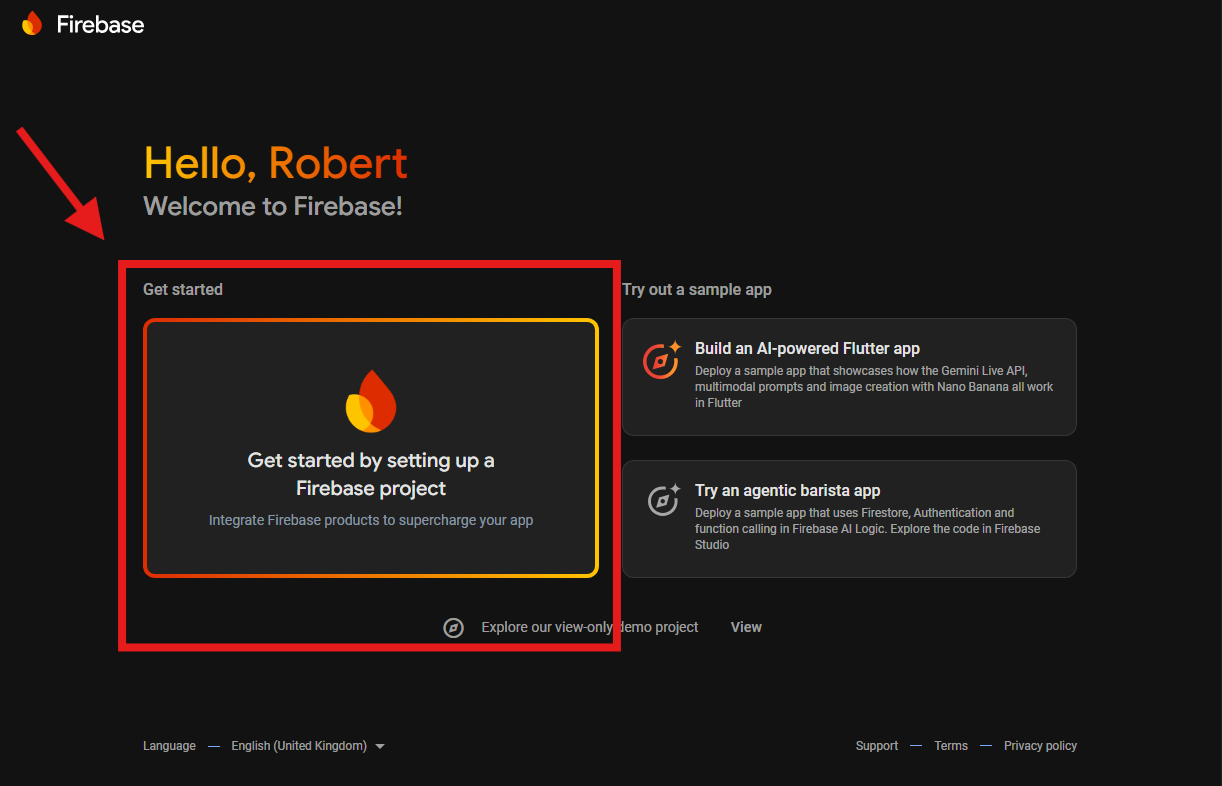
Click on "Create a project."
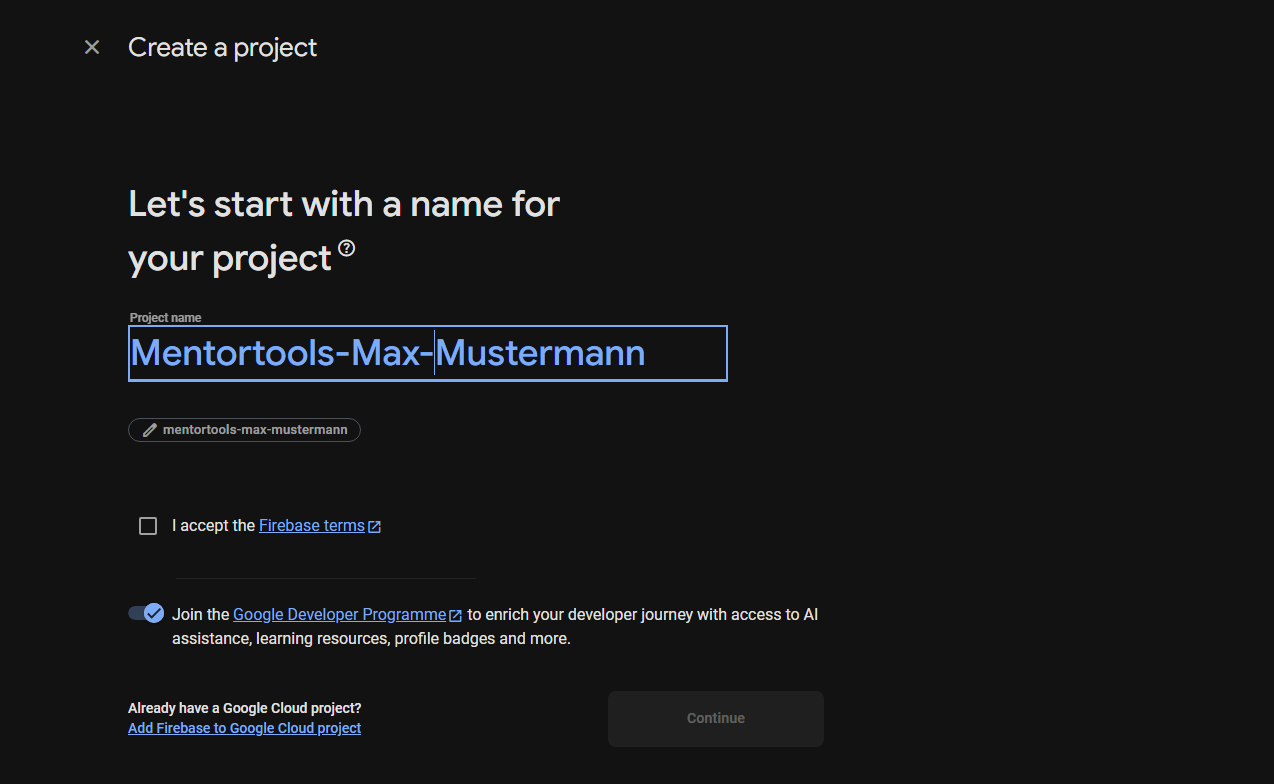
Name the project "mentortools your firstname your lastname," as in the image, then accept the terms of use and click "Continue."
Please note: The project name may not be longer than 30 characters. You can also write the project name without hyphens and abbreviate Mentortools with "mt" as the full name may be too long in some cases. The use of umlauts can also lead to complications with the app name, so please only use the 26 regular characters.
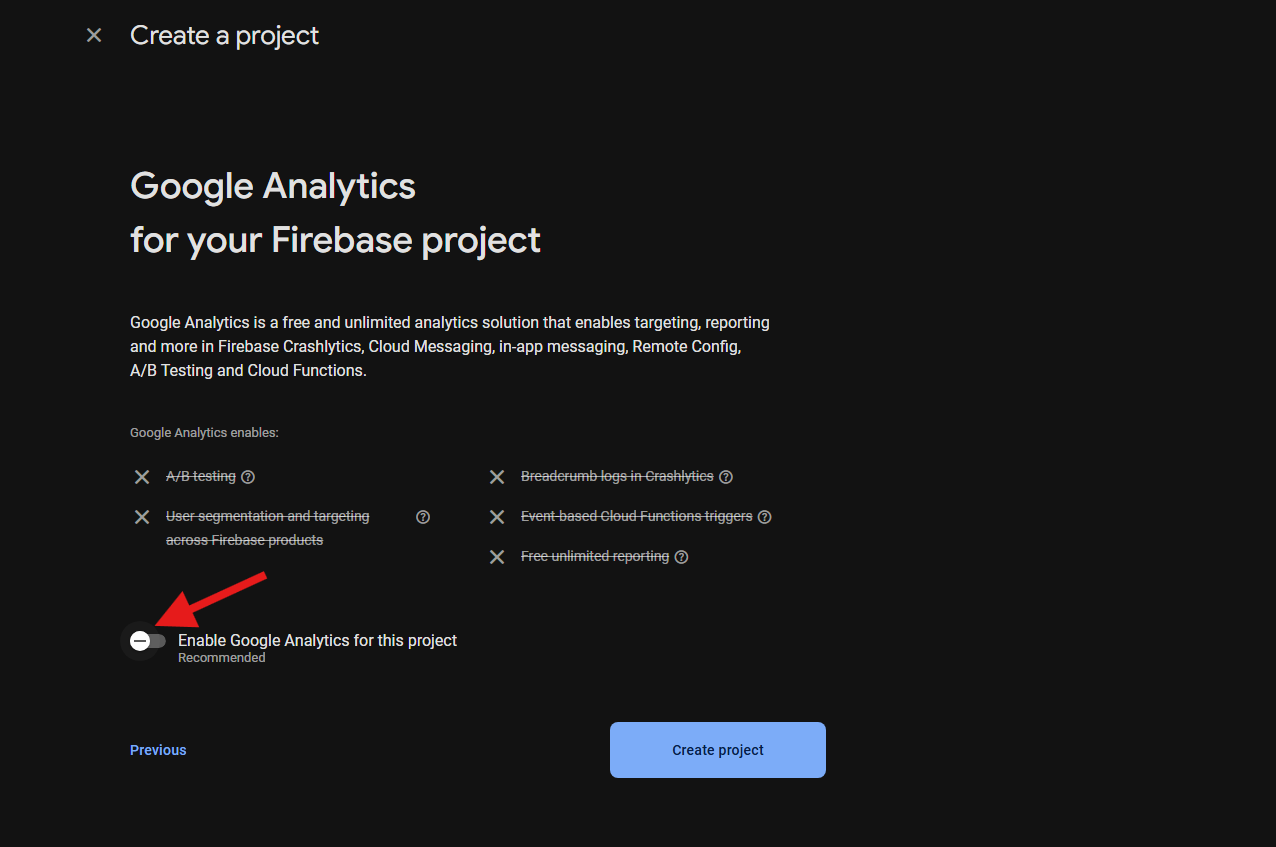
Deactivate Google Analytics by moving the small blue tab to the left so that it turns gray and the text appears crossed out. Then click "Create project."
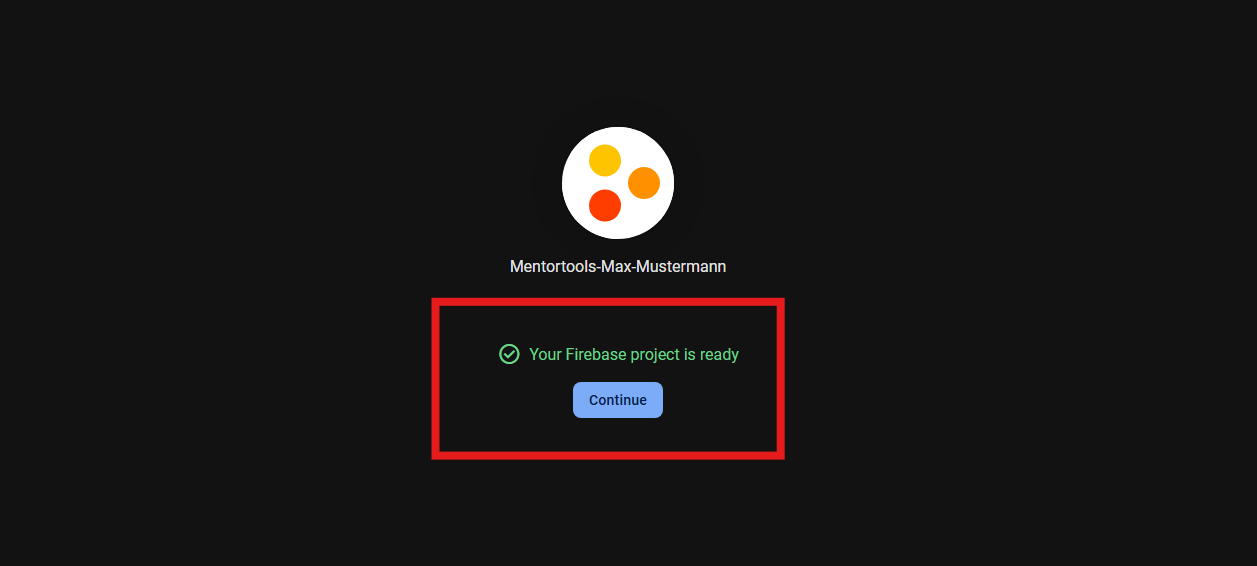
Once your Firebase project has been created, click "Continue."
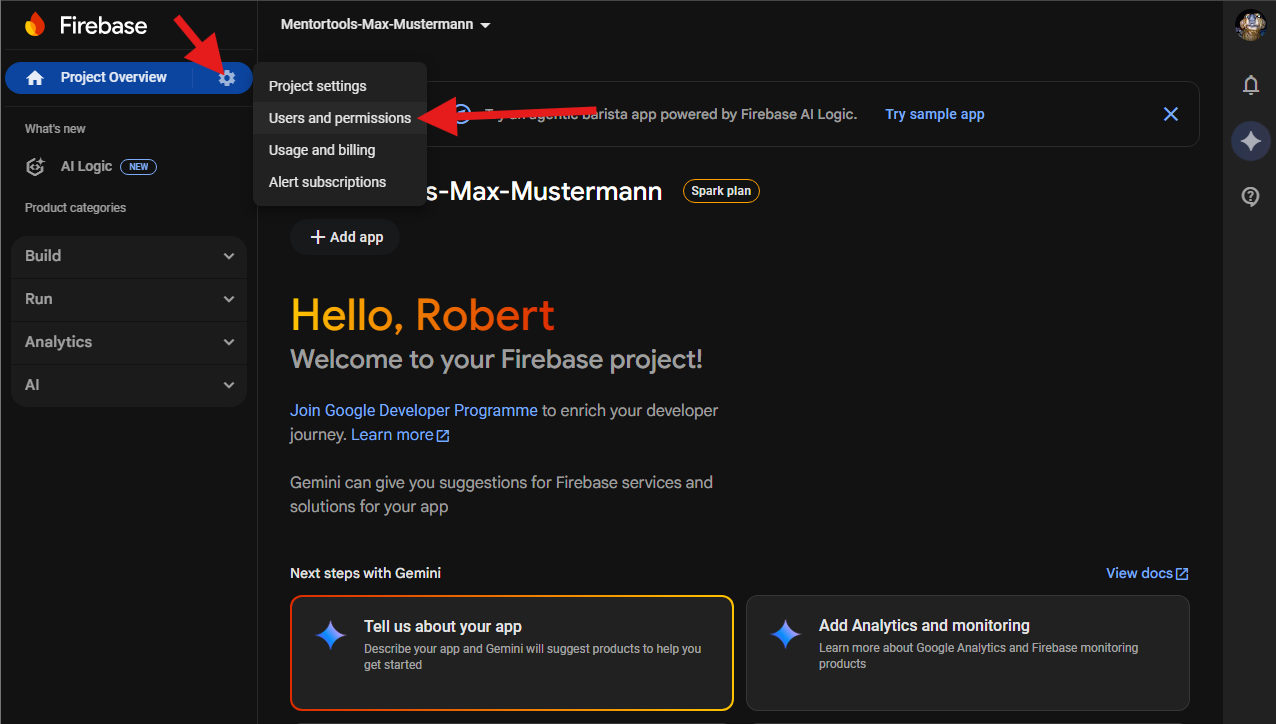
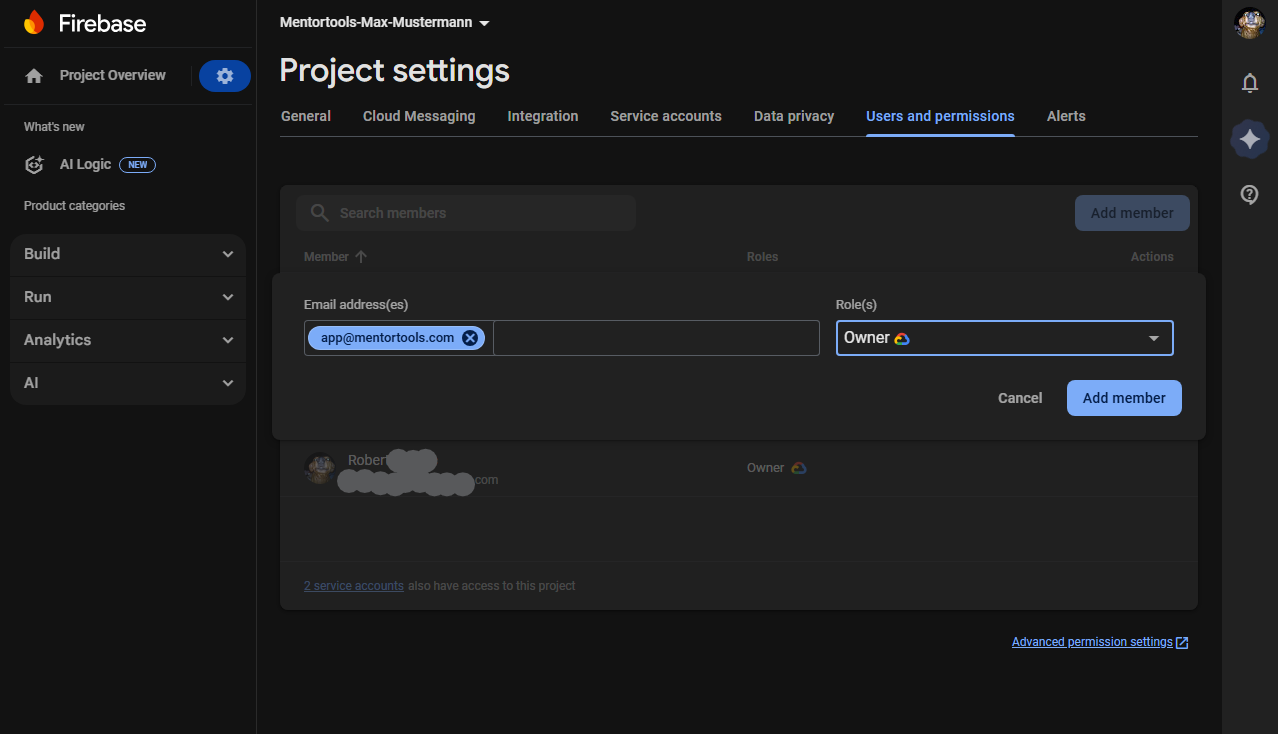
After your project has been created, go to the small gear icon next to "Project Overview" and click on "Users and permissions."
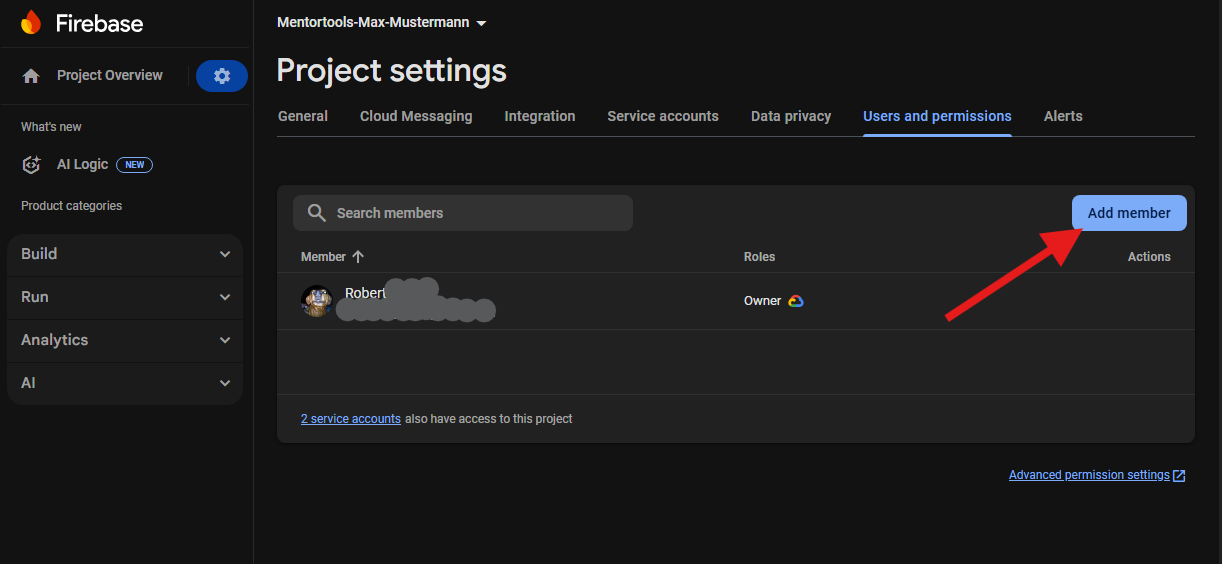
Here you add app@mentortools.com as a technical user. Important! Also, give them the Owner role. To do this, click on "Add member."
Once you have completed all these steps, the Mentortools Support team will take over from here and continue for you.