Landing Pages – Old Landing Pages
This guide will show you how to access the old landing pages in Mentortools. This feature can be useful for reviewing earlier versions of your pages or editing existing pages that were created in the old system. You can then transfer them to the new editor, edit them, and publish them again.
Last updated 12 months ago
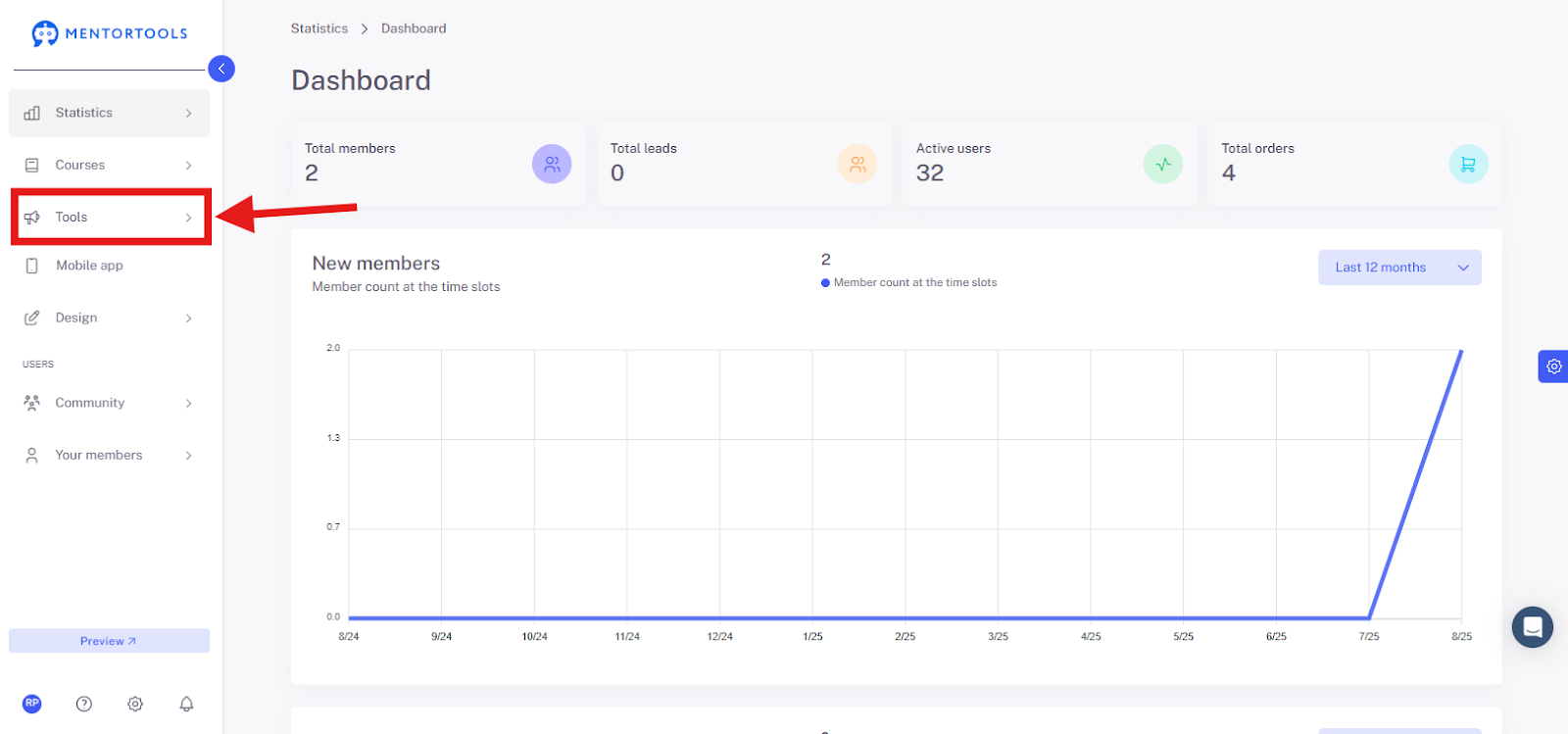
Navigate to the "Tools" Section
Go to "Tools" in your Mentortools dashboard.
Click on "Landing Pages"
Open the "Landing Pages" menu item to manage existing pages or create new ones.

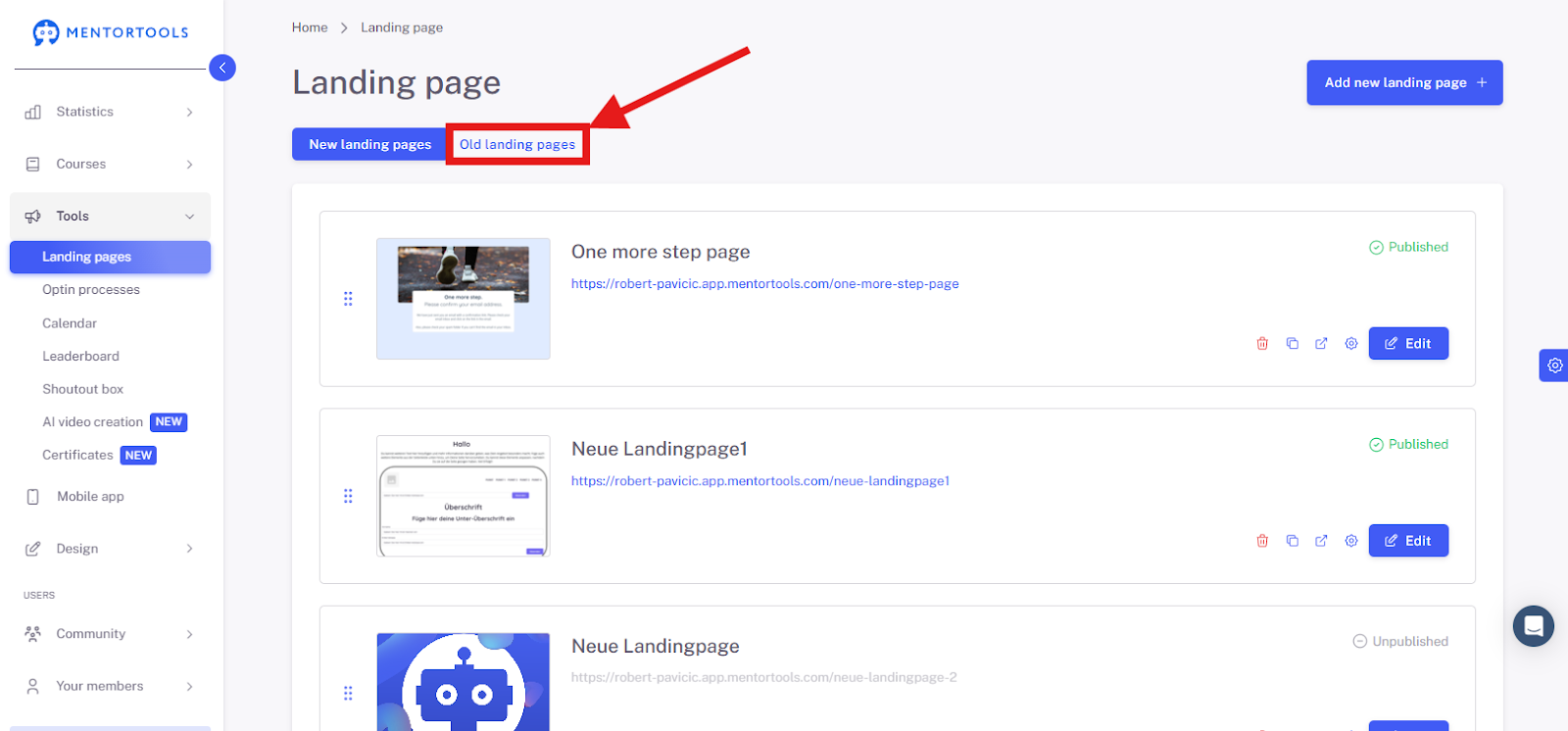
Select "Old Landing Pages"
In the page overview, you will find the "Old Landing Pages" tab at the top. Click on it to access existing landing pages from the old editor.
Old Landing Pages Overview
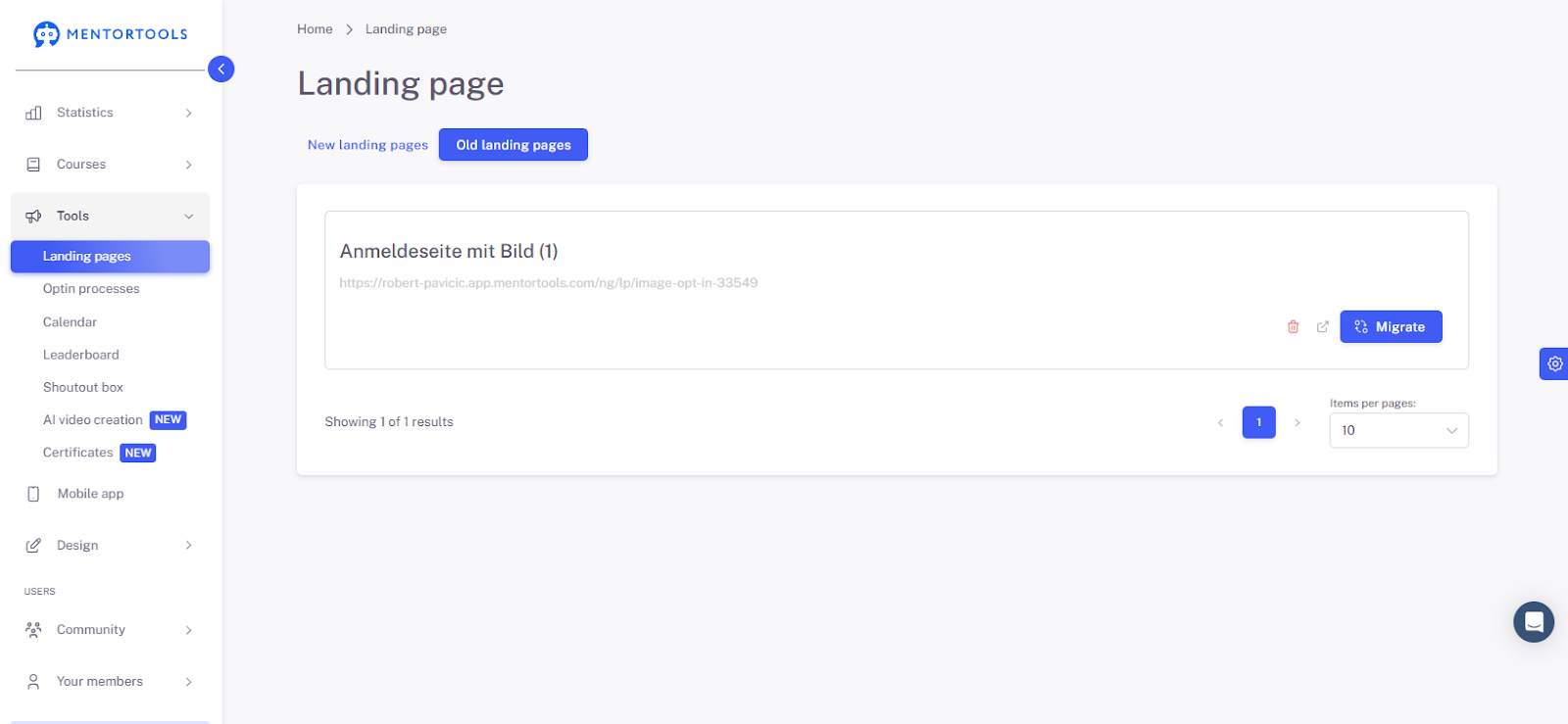
In the overview, your landing pages are displayed with the title, for example, "Anmeldeseite mit Bild (1)" (Sign-up page with image (1)). Below the title is the corresponding URL: https://robert-pavlicic.app.mentortools.com/ng/lp/image-opt-in-33549.
On the right side of the landing page overview, you will see several icons:
A trash can icon: This allows you to delete the landing page.

A blue button "Migrate": This button is used to transfer the landing page to the new design.

How to transfer the Landing Page?
Click the "Migrate" button.
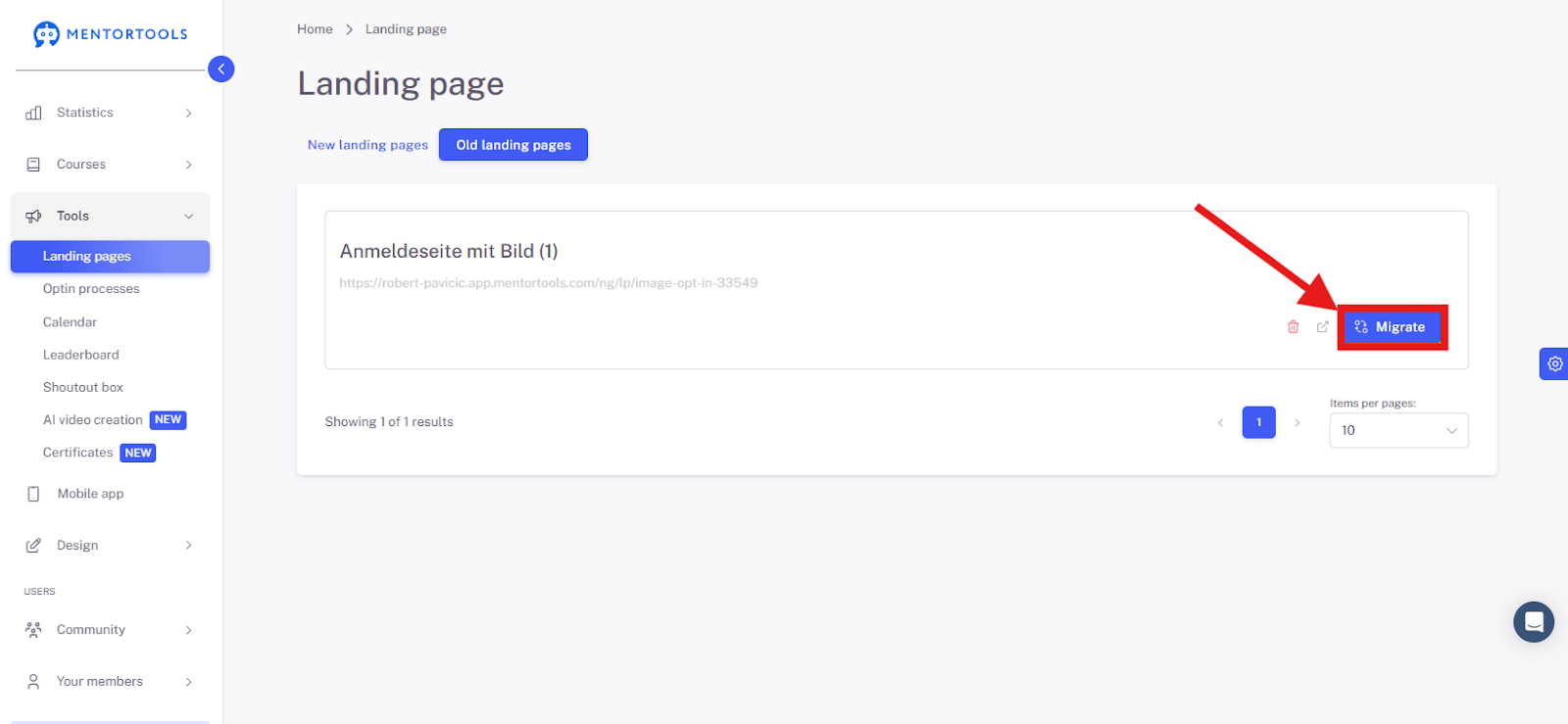
This will open our Mentortools Landing Page Editor. You can make any necessary changes to your landing page here.
Note: As soon as you click the "Create copy in new format" button, a copy of the old landing page is immediately transferred to the new design. You don't need to make any changes or save anything in the editor for the landing page to appear under "New Landing Pages" and be editable. If you click the "Create copy in new format" button multiple times, you will create several copies of this landing page under "New Landing Pages." You can edit and publish them there at any time.
The landing page will now be displayed under "New Landing Pages" and can be edited.
Summary
You now know how to find your old landing pages and transfer them to the new system. Remember: Clicking "Create copy in new format" creates a copy of your old page and makes it editable in the "New Landing Pages" section. You don't have to save or change anything in the editor for the page to appear there. This way, you can easily update and reuse old projects.