Landing Pages – How to Create a New Landing Page with a Template?
This guide shows you how to quickly create a landing page in Mentortools using a template—ideal for sign-up pages, freebies, or challenges.
Last updated 12 months ago
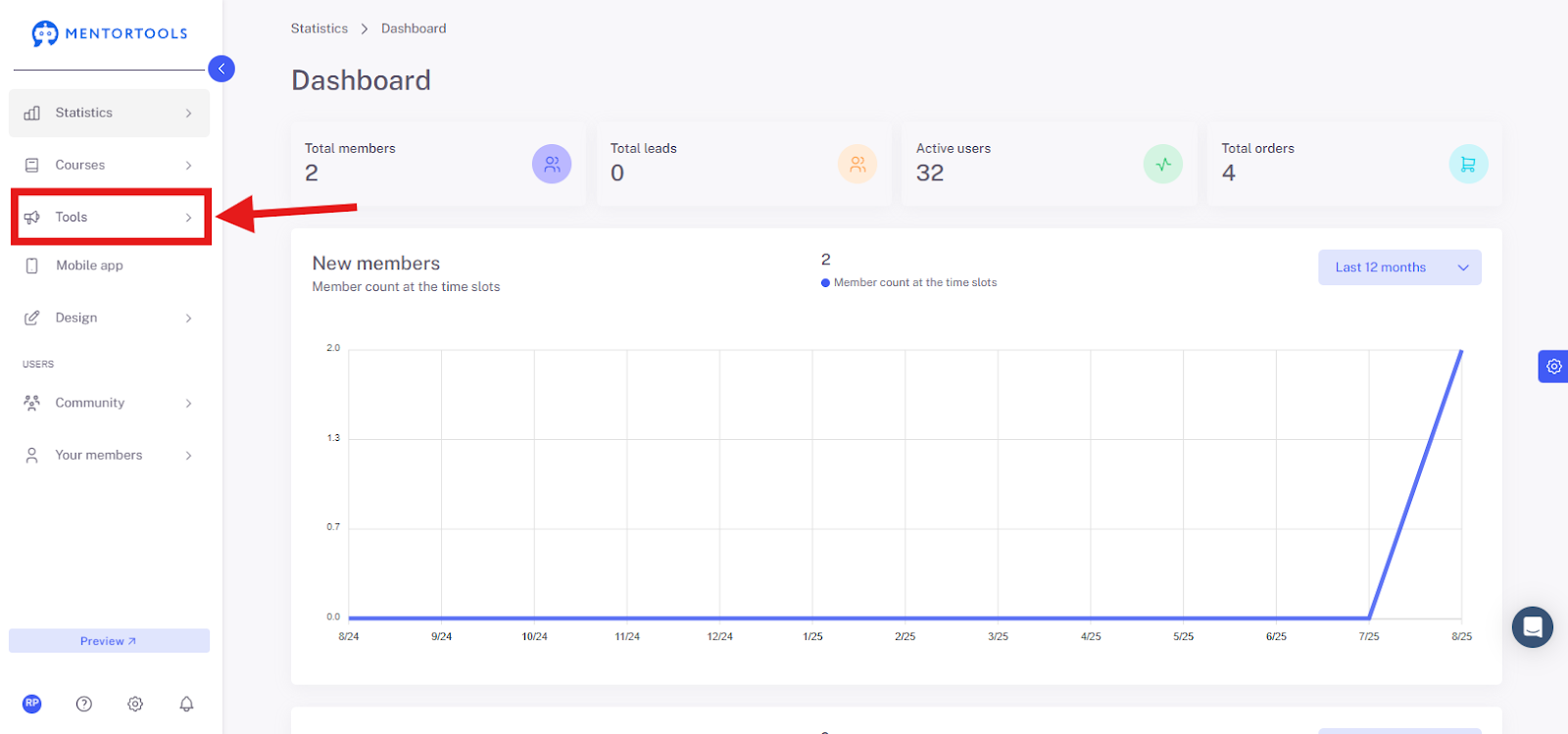
1. Navigate to the "Tools" Area
In your Mentortools dashboard, go to "Tools."
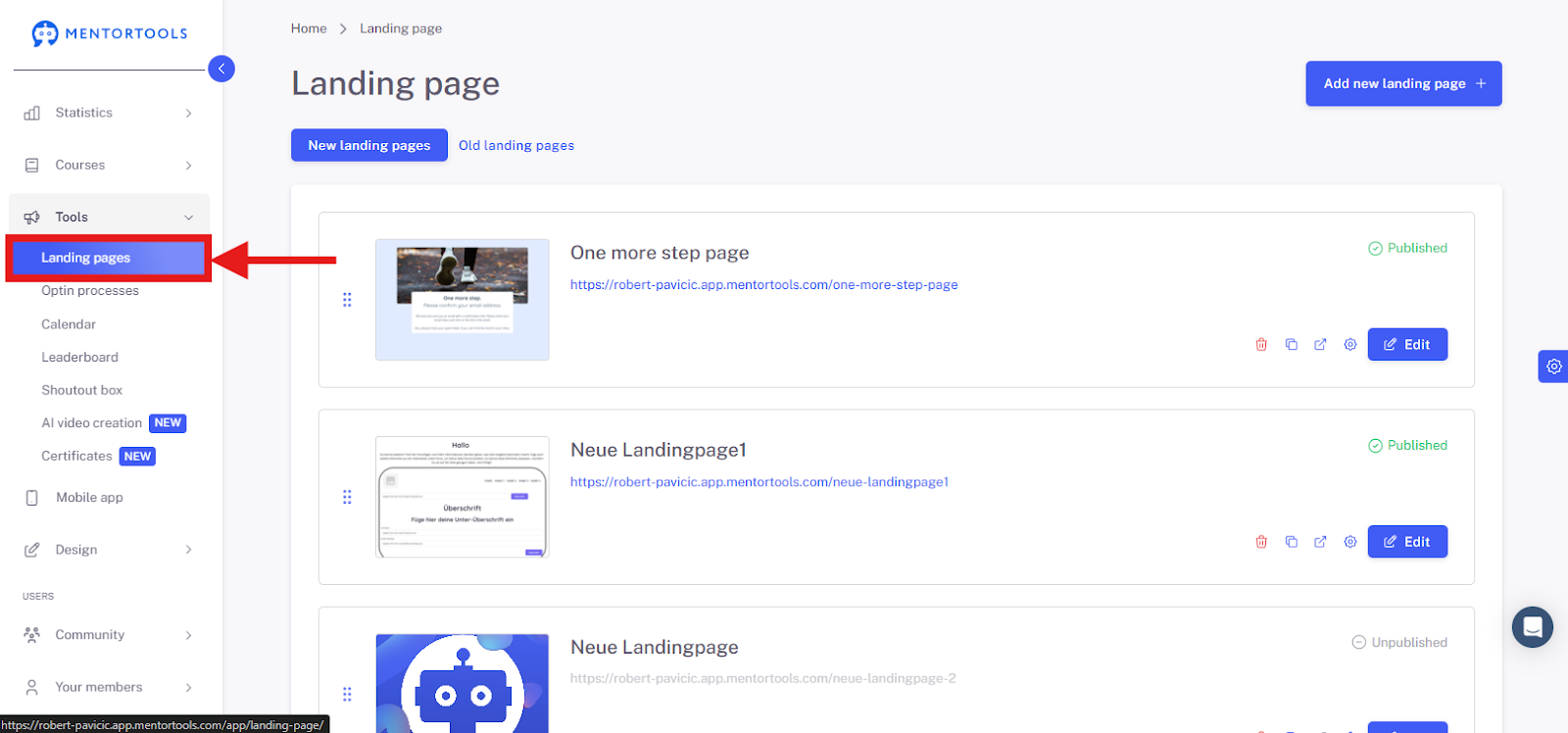
2. Click on "Landing Pages"
Open the "Landing Pages" menu item to manage existing pages or create new ones.
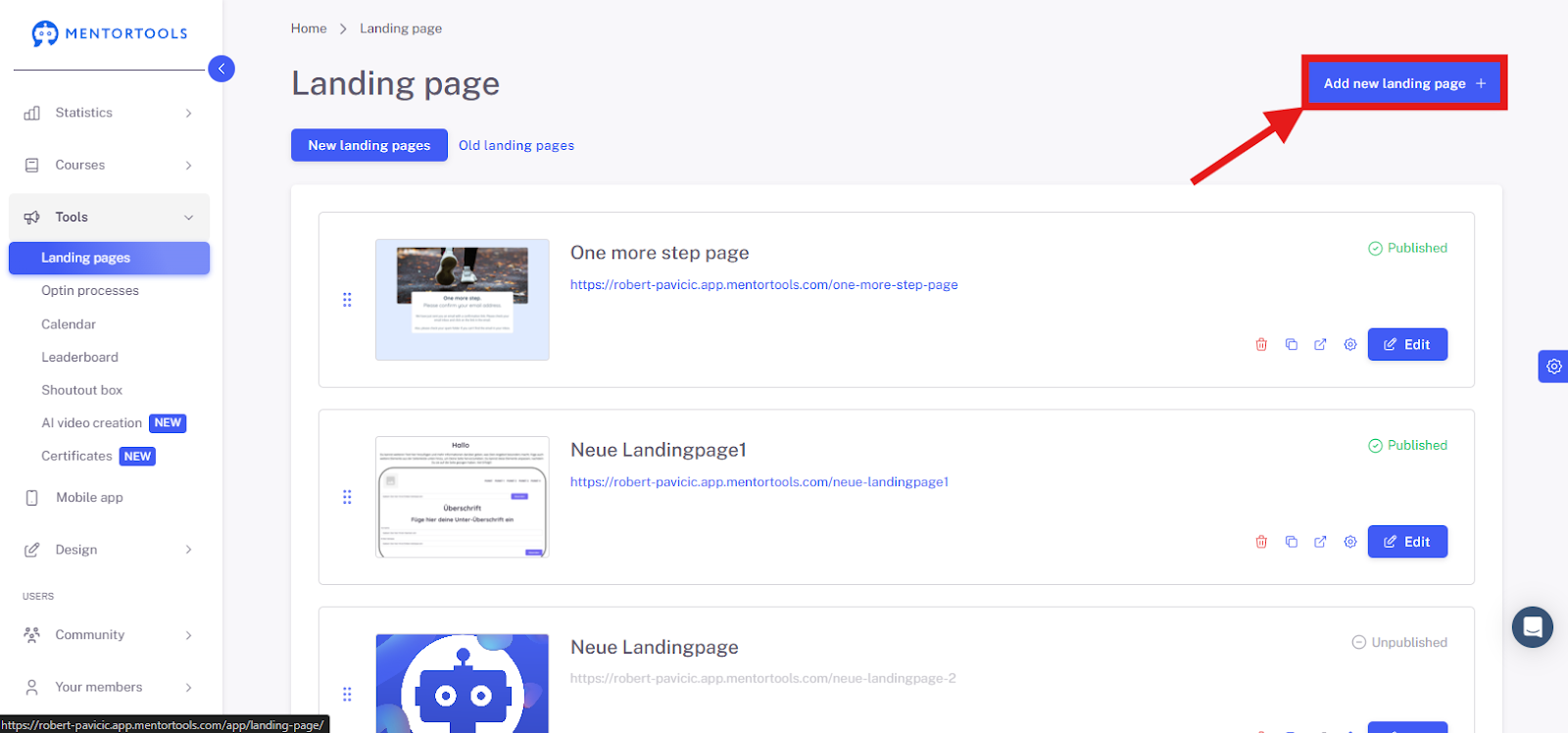
3. Add a New Landing Page
Click the "Add new landing page" button.
4. Select a Template
Click the "Browse Templates" button to use a design template.

5. Choose Opt-in page with Image
Select the "Opt-in page with Image" template, for example, to create a structured page. Then, click "Continue" on the bottom right.

6. Assign an Internal Name
Give the page an internal name. This name is not displayed to users—for example, "Freebie Landing Page Spring Promo."
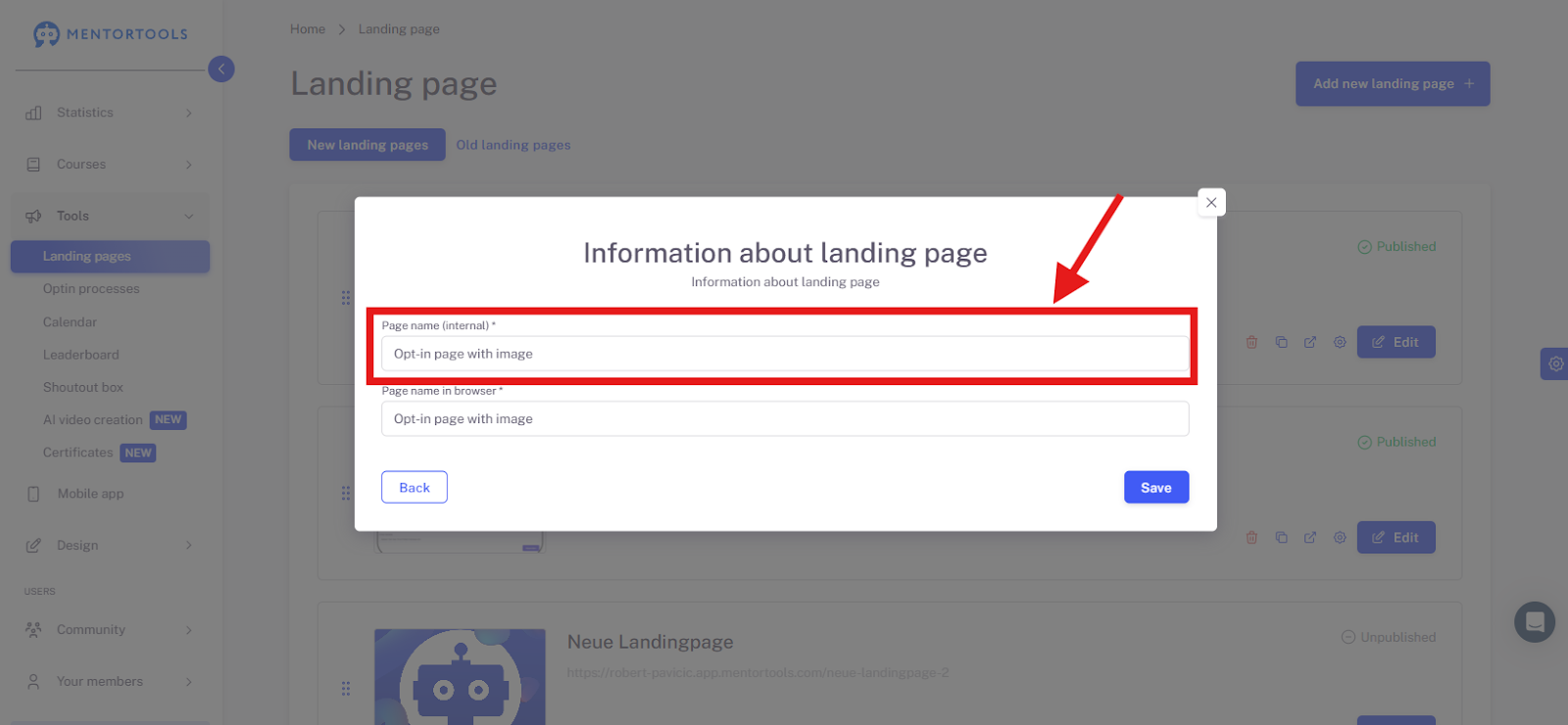
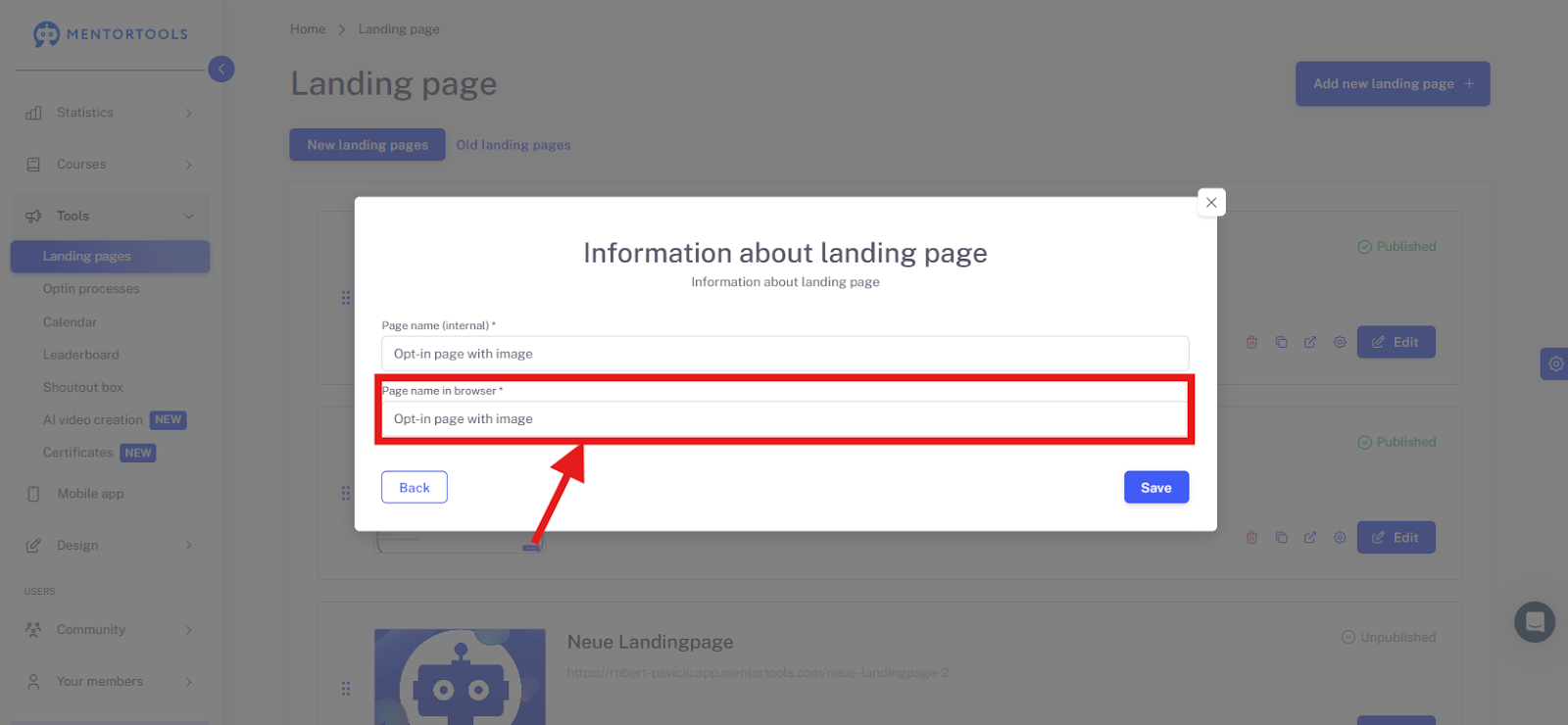
7. Define the page name in the Browser
Enter the title that should appear in the browser tab—for example, "Freebie Landing Page Spring Promo."
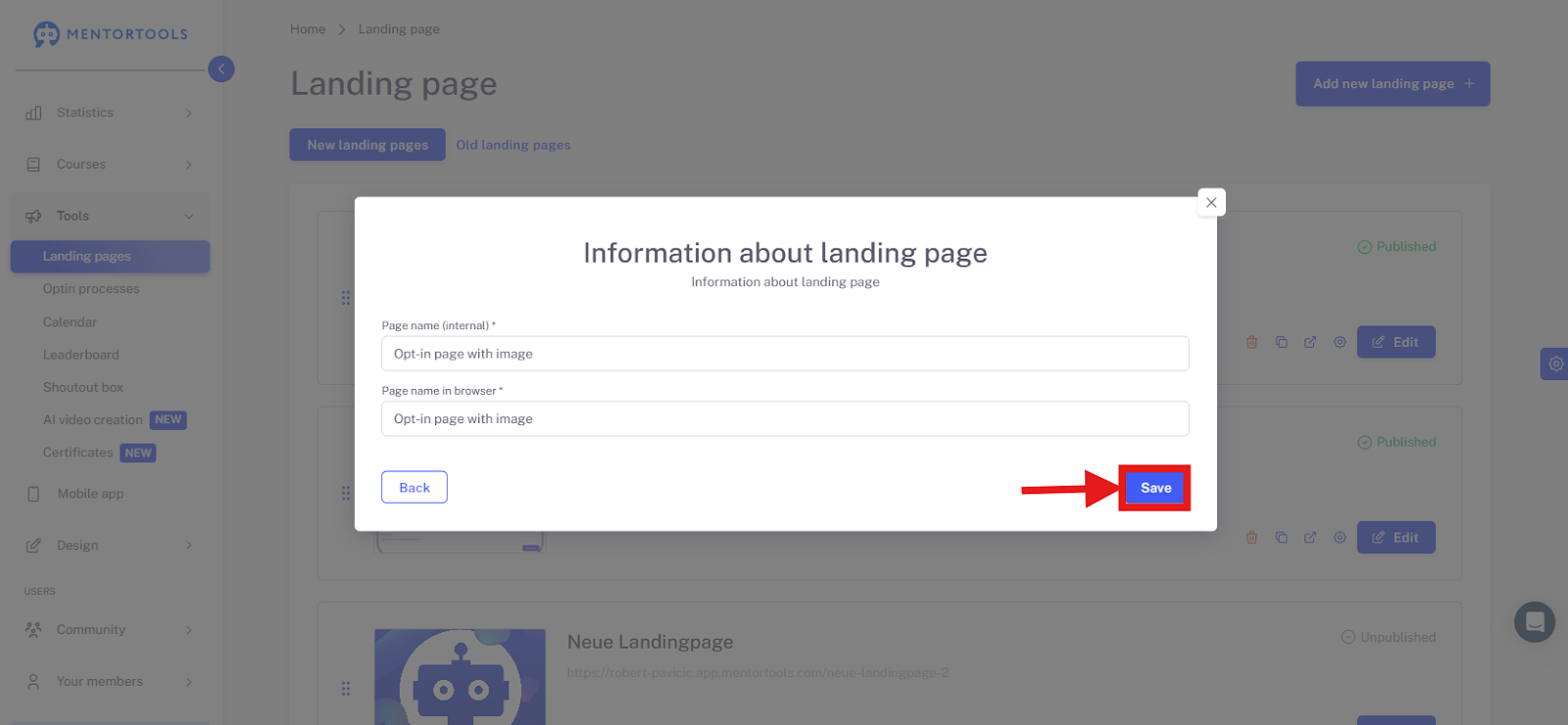
8.Save
Save your landing page to continue editing or publish it later.
Conclusion
With just a few clicks, you can create a landing page in Mentortools based on a template—perfect for recurring formats, challenges, or lead magnets. Afterward, you can customize the content and, if necessary, link it to an opt-in process or a course.