Activating and Setting Up Your Community
In this guide, you will learn how to activate your own community in your member area. This allows you to create a group where users can post and comment—all without social media.
Last updated 12 months ago
To do this, go to Settings > Community Settings and activate the community. You can also decide whether the access should be visible in the menu and whether posts should be displayed chronologically. It is recommended to activate all options so your users stay well-informed and can easily find content.

General Settings
Under the General Settings section, you activate the community.
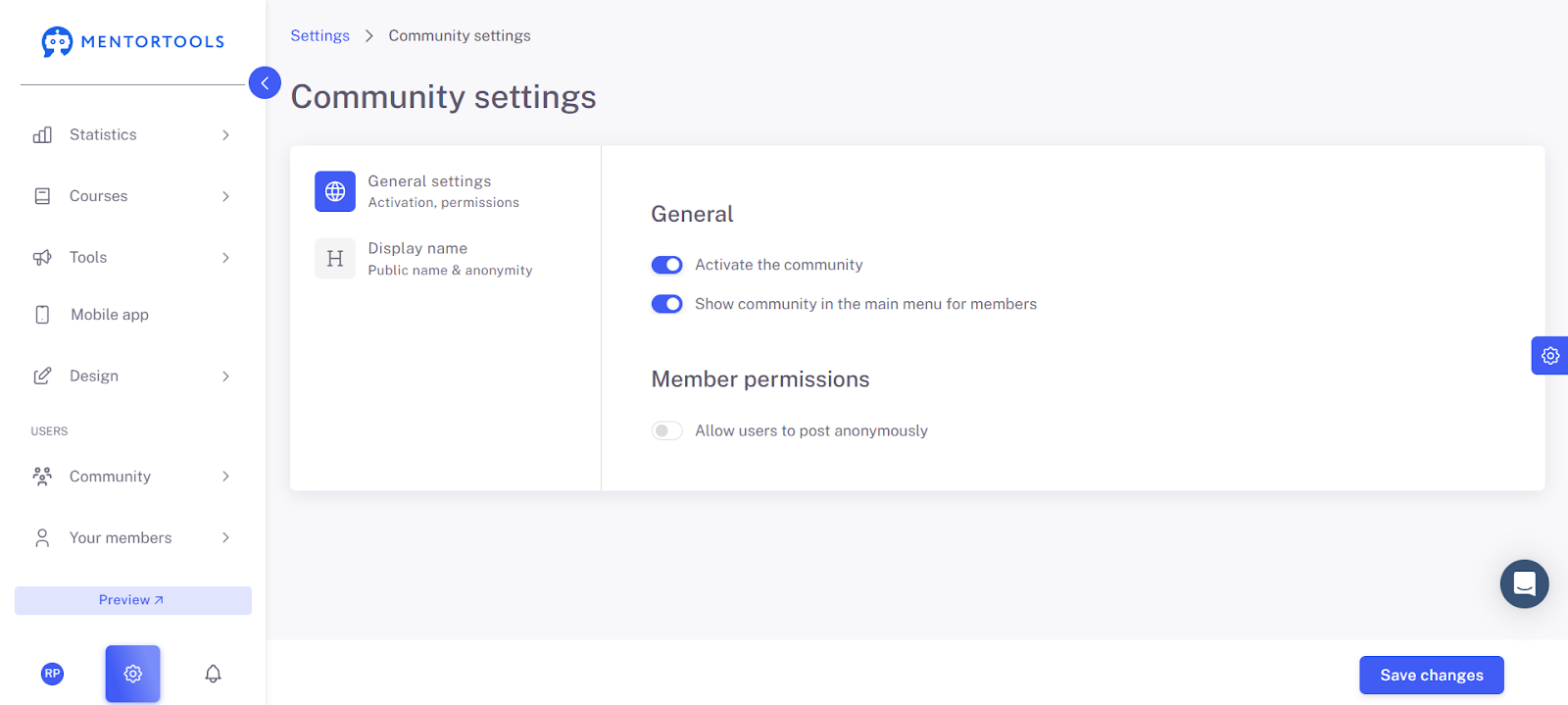
The two upper blue tabs mean:
Activate Community Functionality: Your community is activated and available.
Show Community in Main Menu: A menu item for the community appears for your members. You can set the name for this in the "Custom Menu" section.
After clicking "Save," you can make further settings.
If you want to allow your members to post anonymously, you must activate the switch under Member Permissions: Allow users to post anonymously. This is a good option, especially for personal and emotional topics.
Under Display Name in the community settings, you define how community members can display their name.
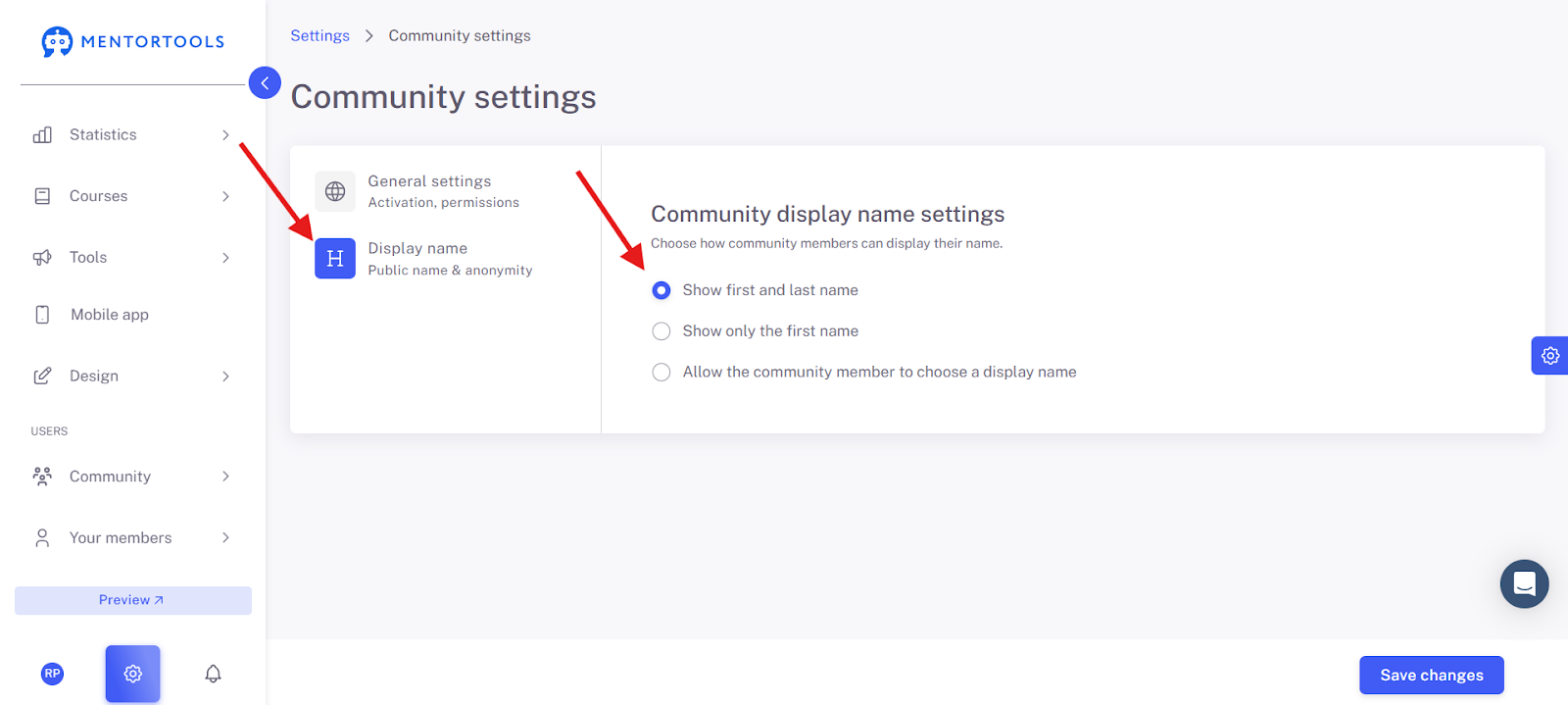
Important: Don't forget to save.