Creating a New Community
This guide will show you how to create a new online community directly within your online academy.
Last updated 12 months ago
How to Create a Community?
Use the community feature as a place for exchange and discussion—between your members and with you as the community operator. This creates real added value and can even partially automate support. In this guide, you will learn how to set up a new community in Mentortools with an icon, description, access rights, and notifications.
Navigate to Community in the menu bar and click on + Add community.

In this window, under the General section, you can set your community to active, give it a name (you can change this at any time), select an icon, and add a short description of the community.
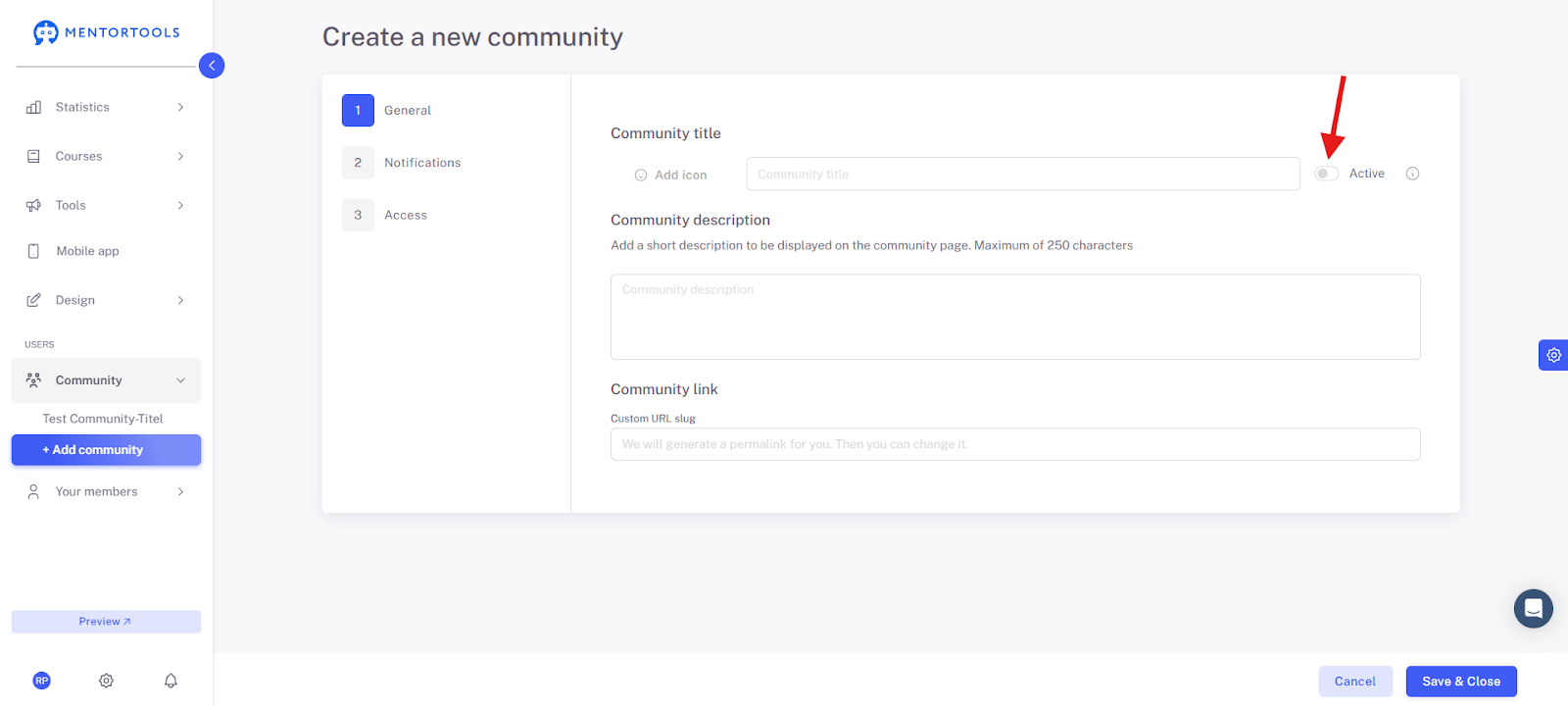
Under Add Icon, you can either upload an icon
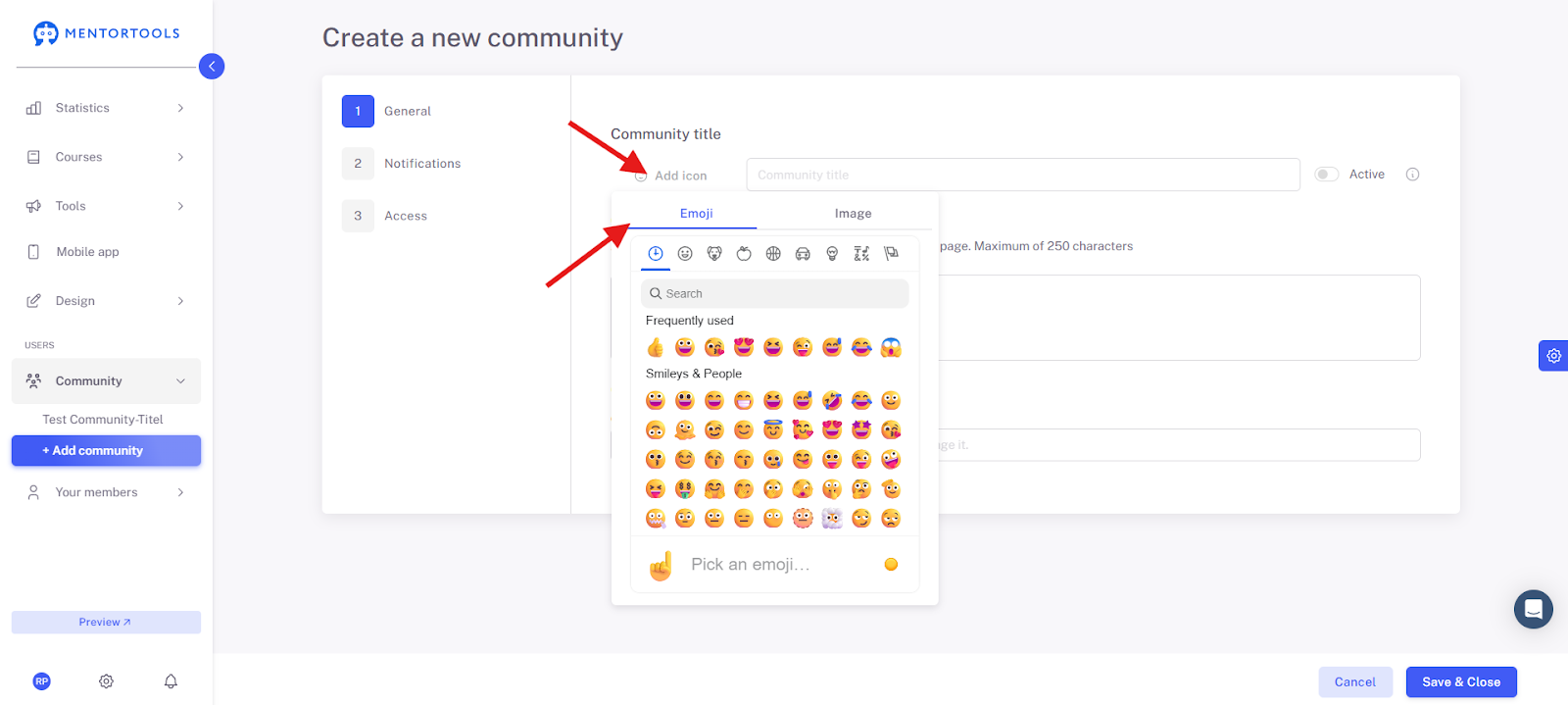
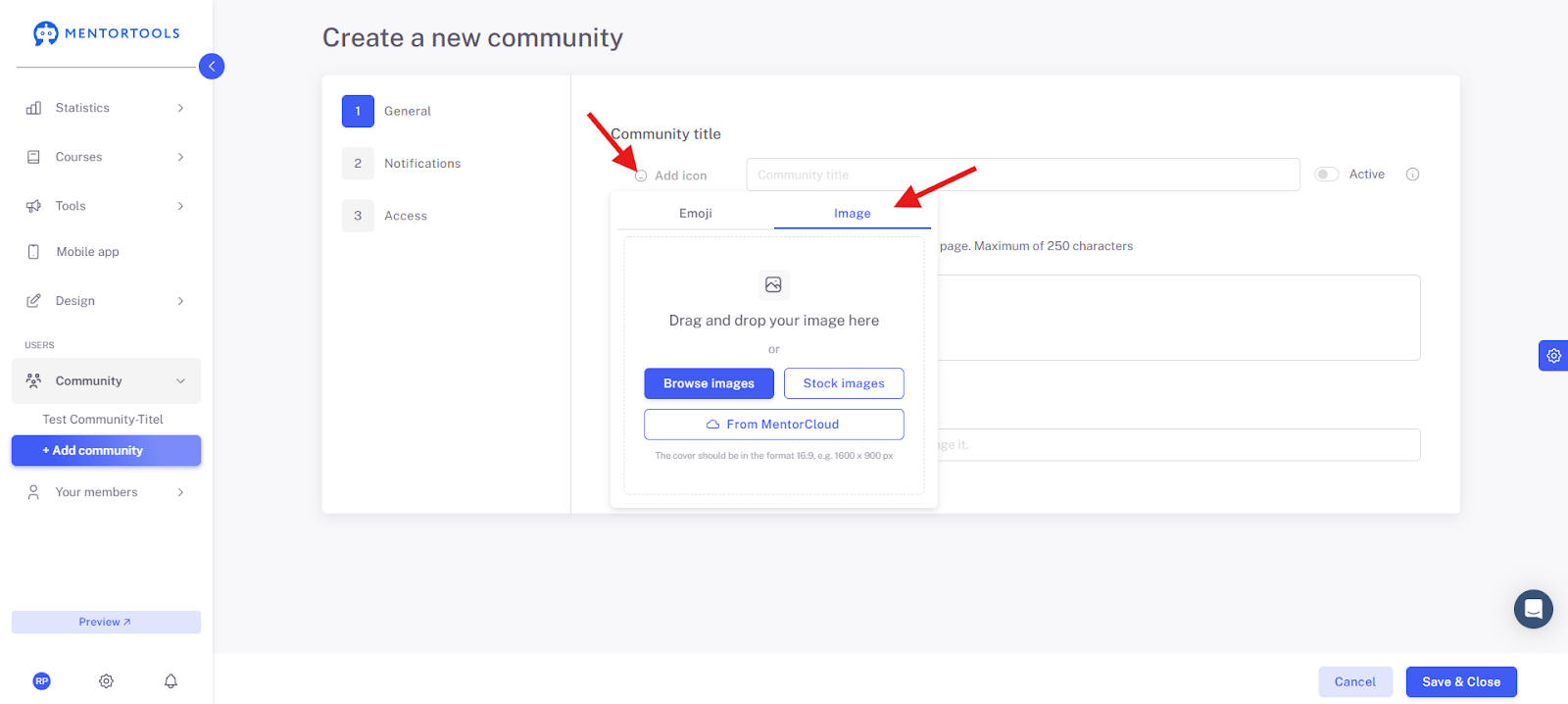
or an image from the Mentorcloud, your own files, or our license-free images.
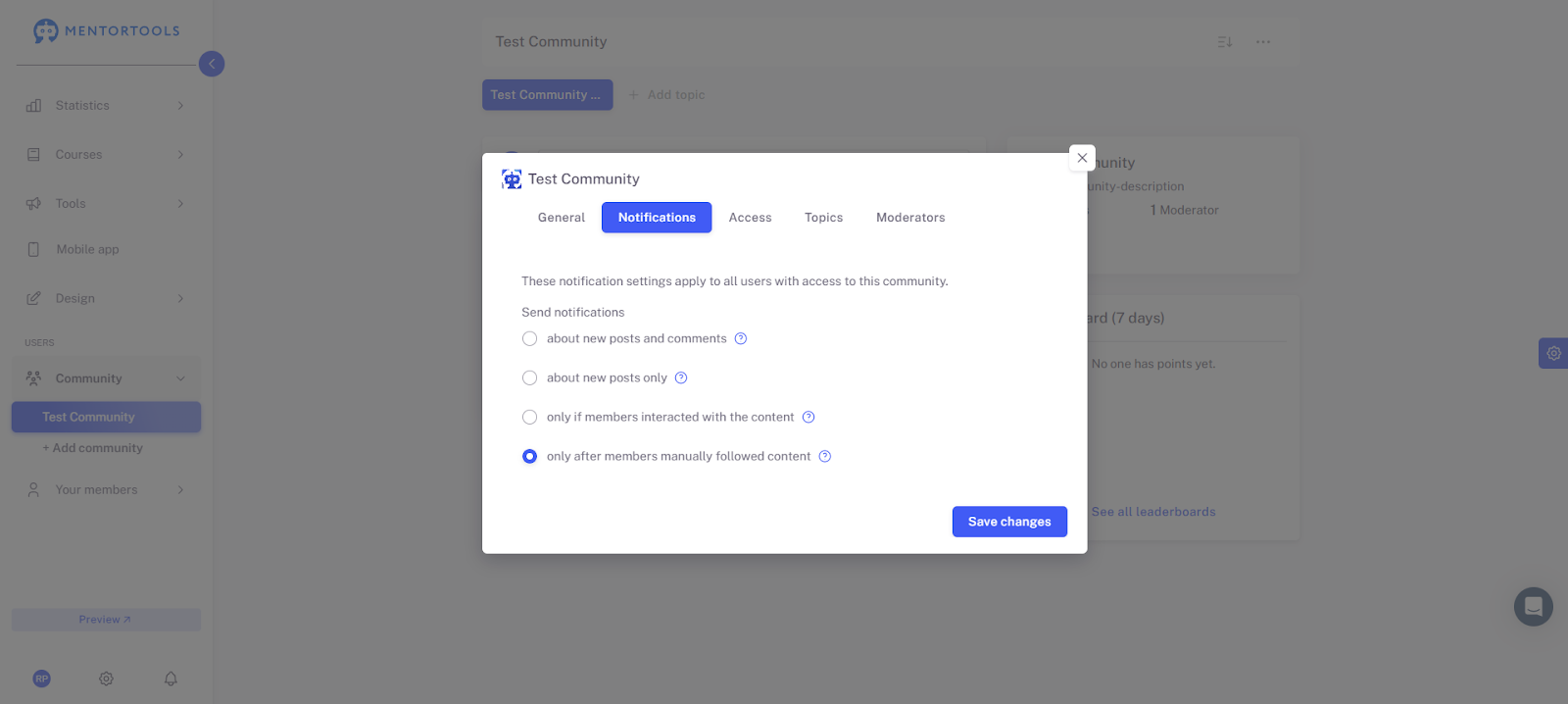
Under the Notifications section, you define how your members should be notified of activities in the community.
Under the Access section, you decide who has access to this community. You can choose between "For everyone" or "Only with course(s)."
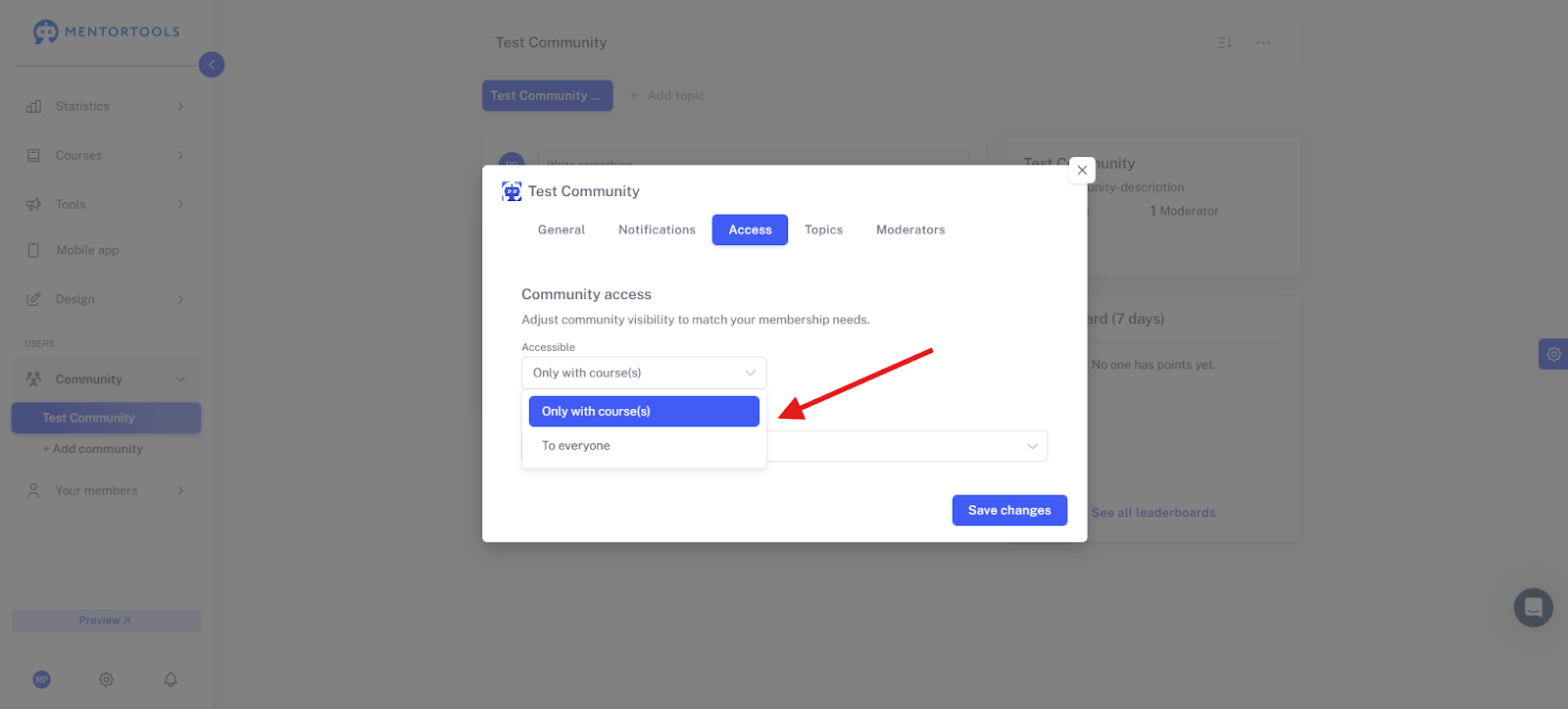
A community that is accessible to everyone is public. Anyone who is registered in your member area has access to this community.
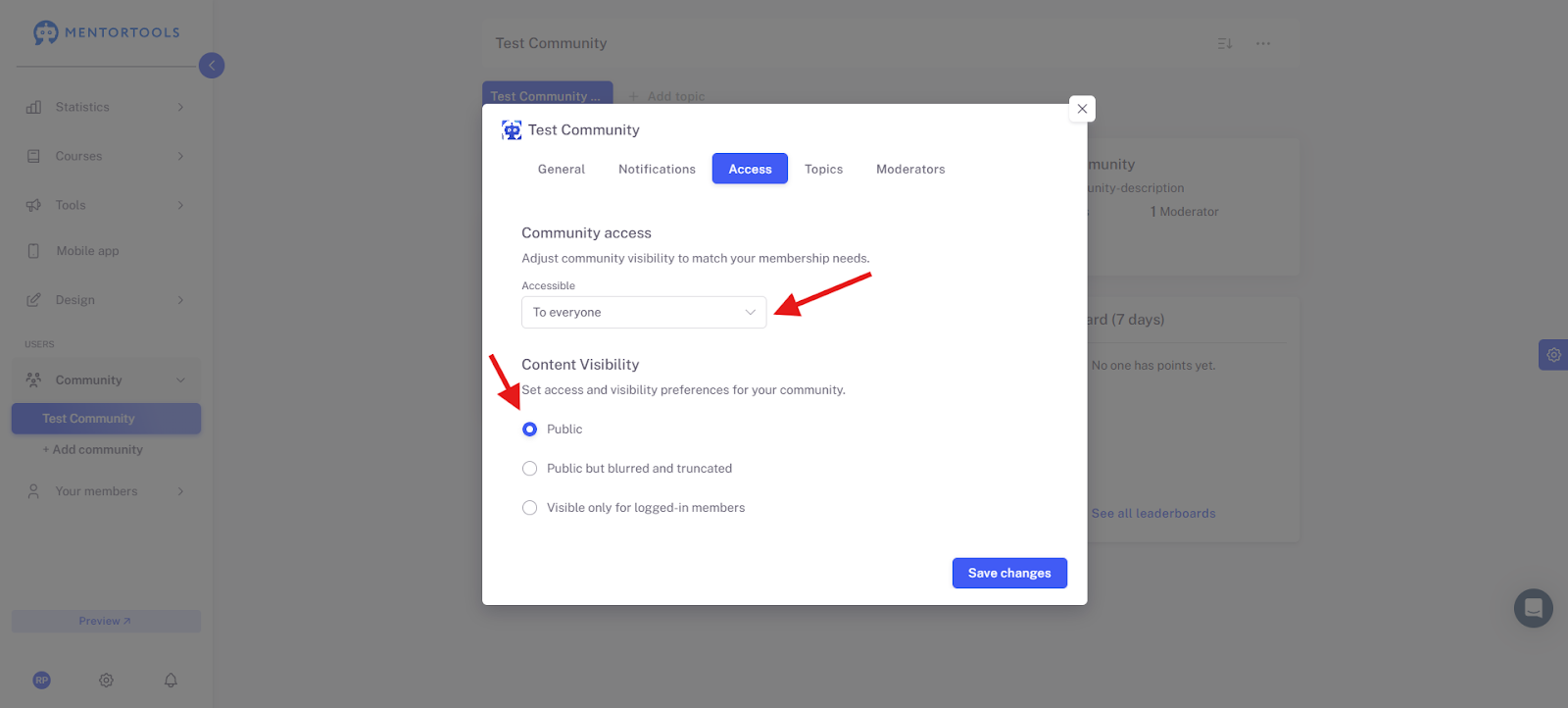
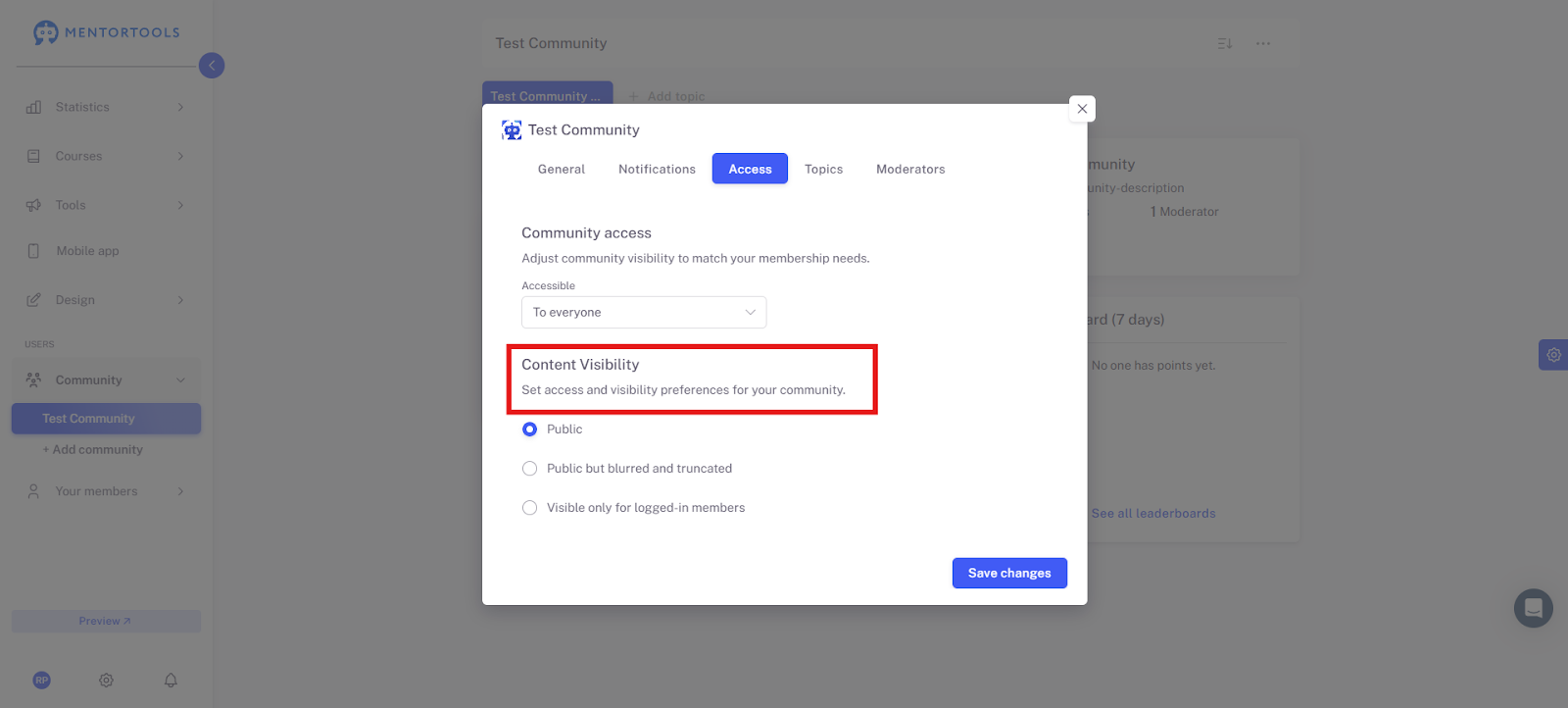
In the next step, you can then set who the community content is visible to.
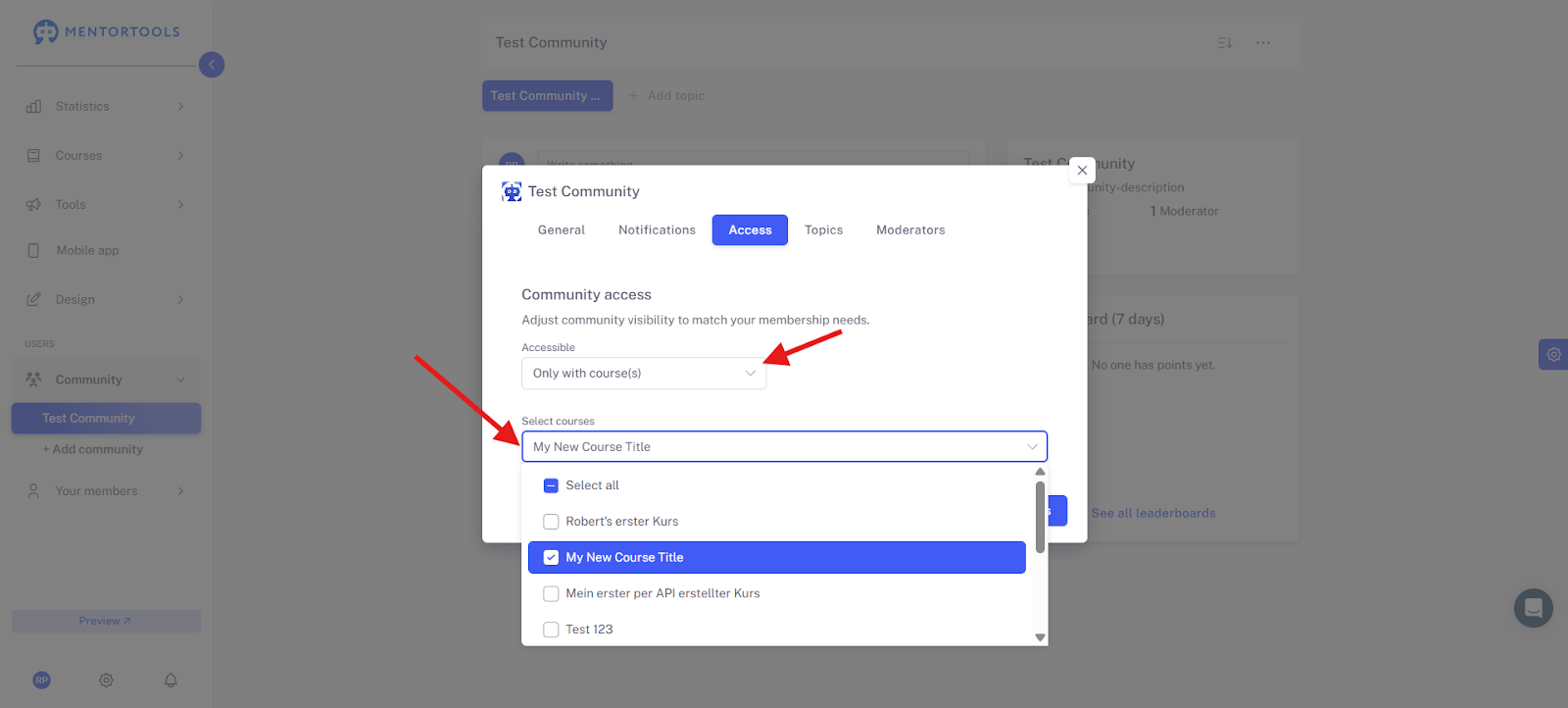
You can also link your community to a course. This means that only members who have that course will have access to this community.
To do this, select "Only with course(s)" under Access and activate the course or courses that should be connected to the community.
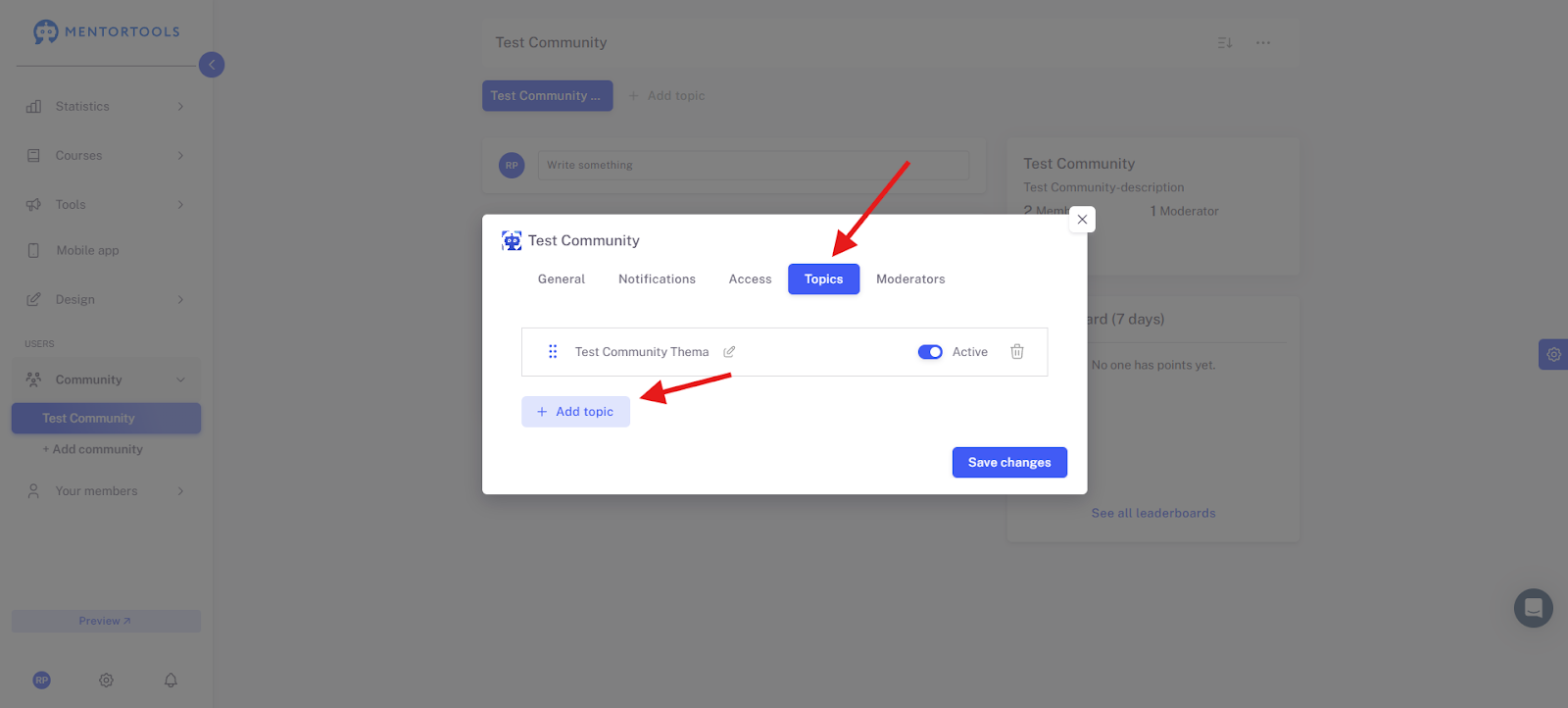
How to create a Topic?
Now we want to fill your community with content. To do this, you can create topics. Frequently used topics are, for example, "Introductions," "FAQ," and then specific topics related to your offerings and member area.
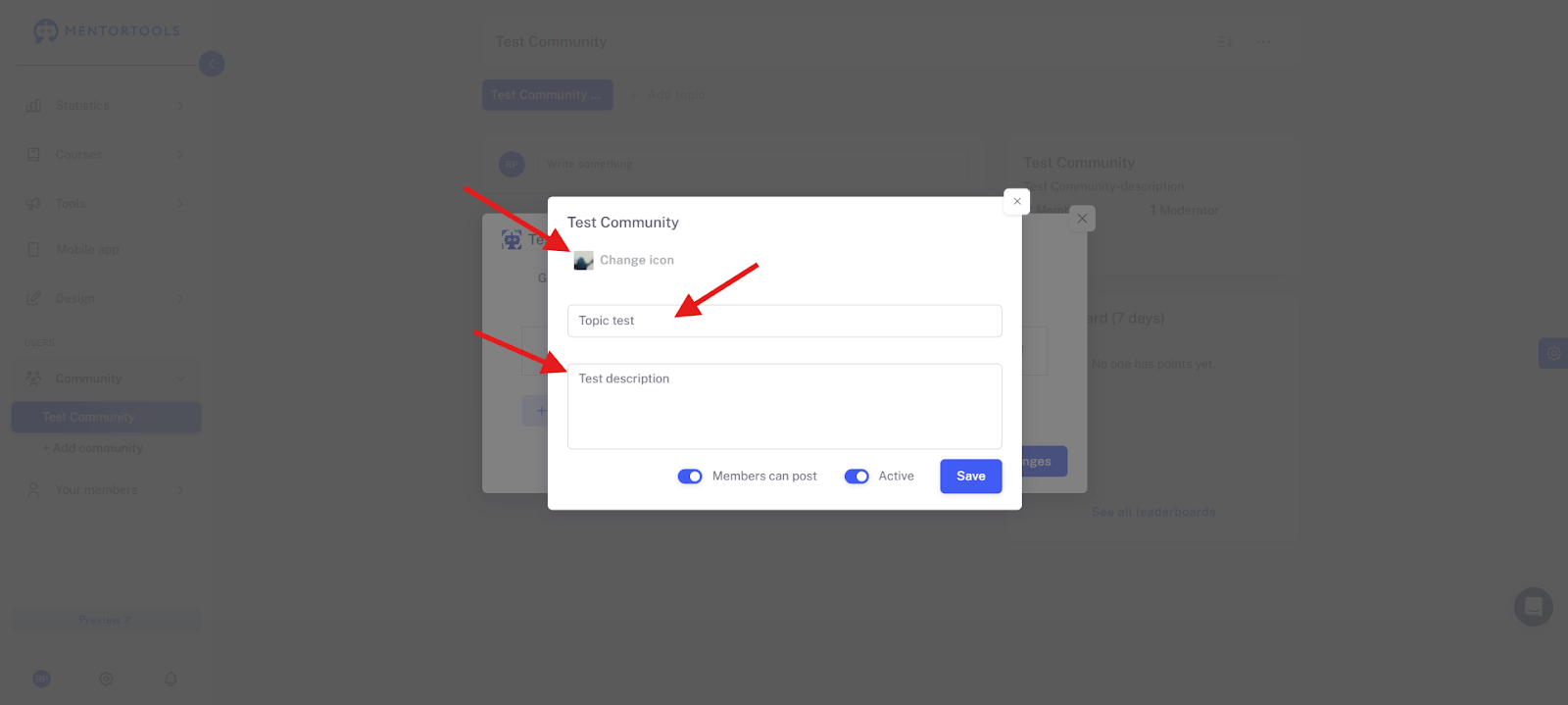
Add an icon or image for the topic here. Give the topic a title and write a short description.
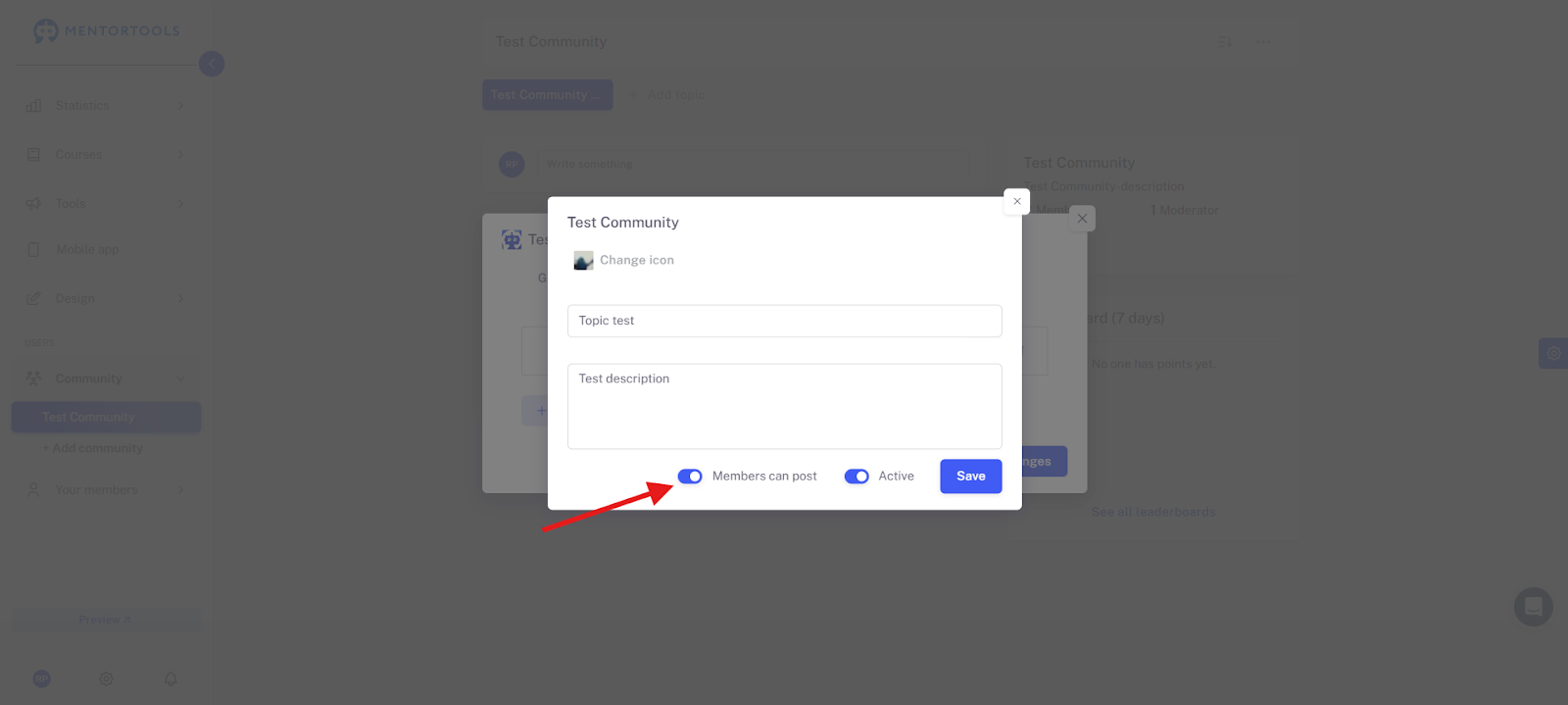
Here you can also decide whether you want to allow your participants to create their own posts. If you activate this tab, they are allowed to create posts. If you deactivate the tab, your members are "only" allowed to comment but not post their own contributions.
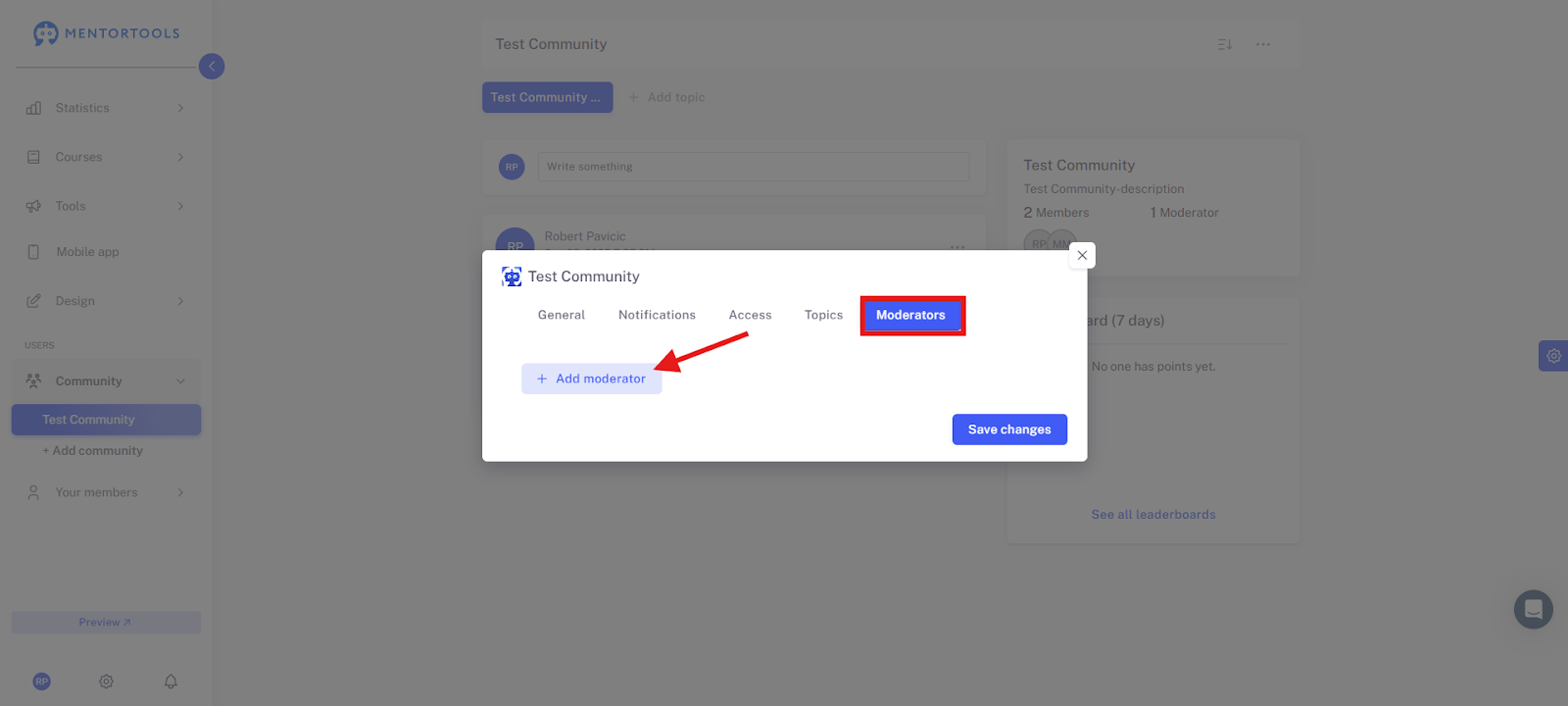
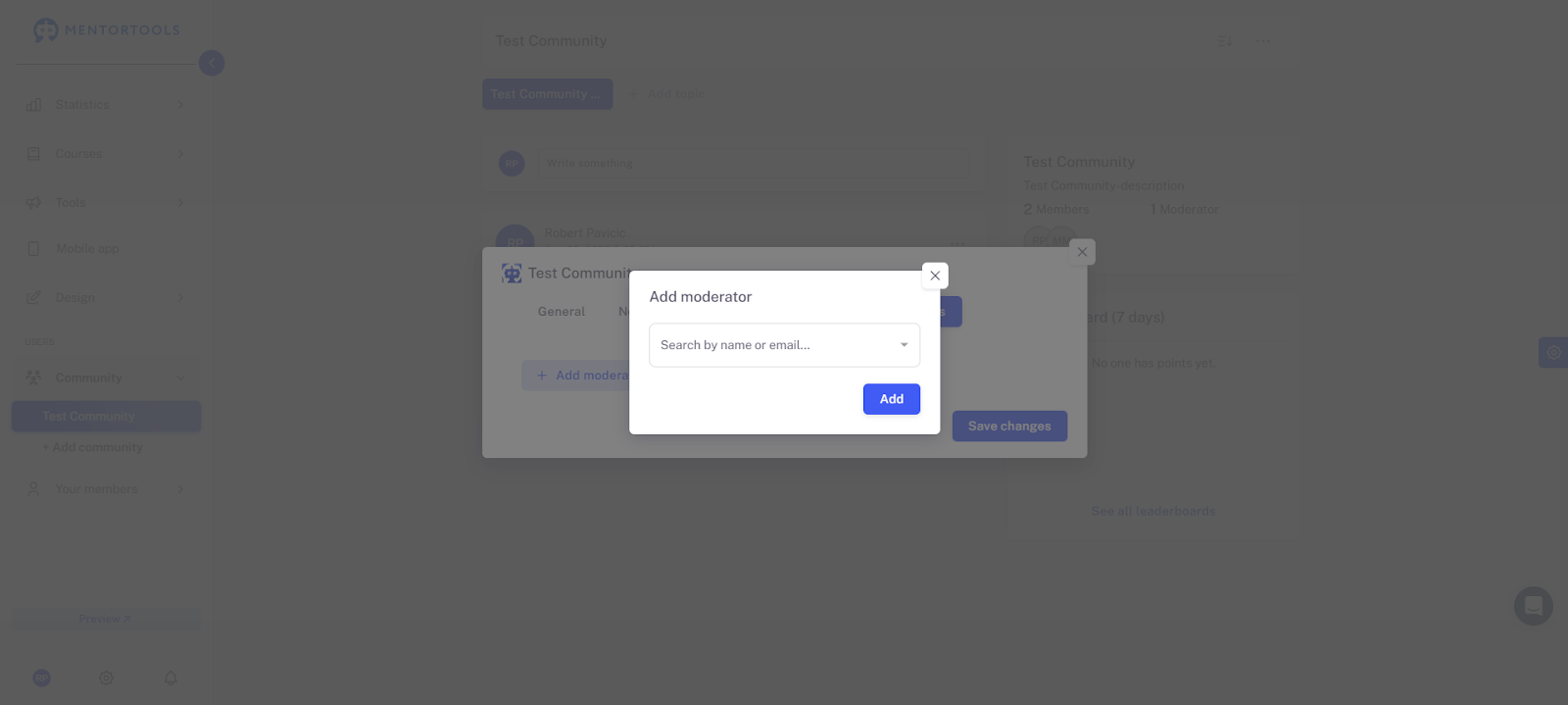
Under the Moderator section, you can add moderators. This function can make your work easier with a large, active community. For example, you can also allow guest moderators to be active here.
Select the person who should be added as a moderator here.
In the next step, learn how to fill your topics with content.
How to create a Post?
To do this, go to the "Write something here" field in the topic.
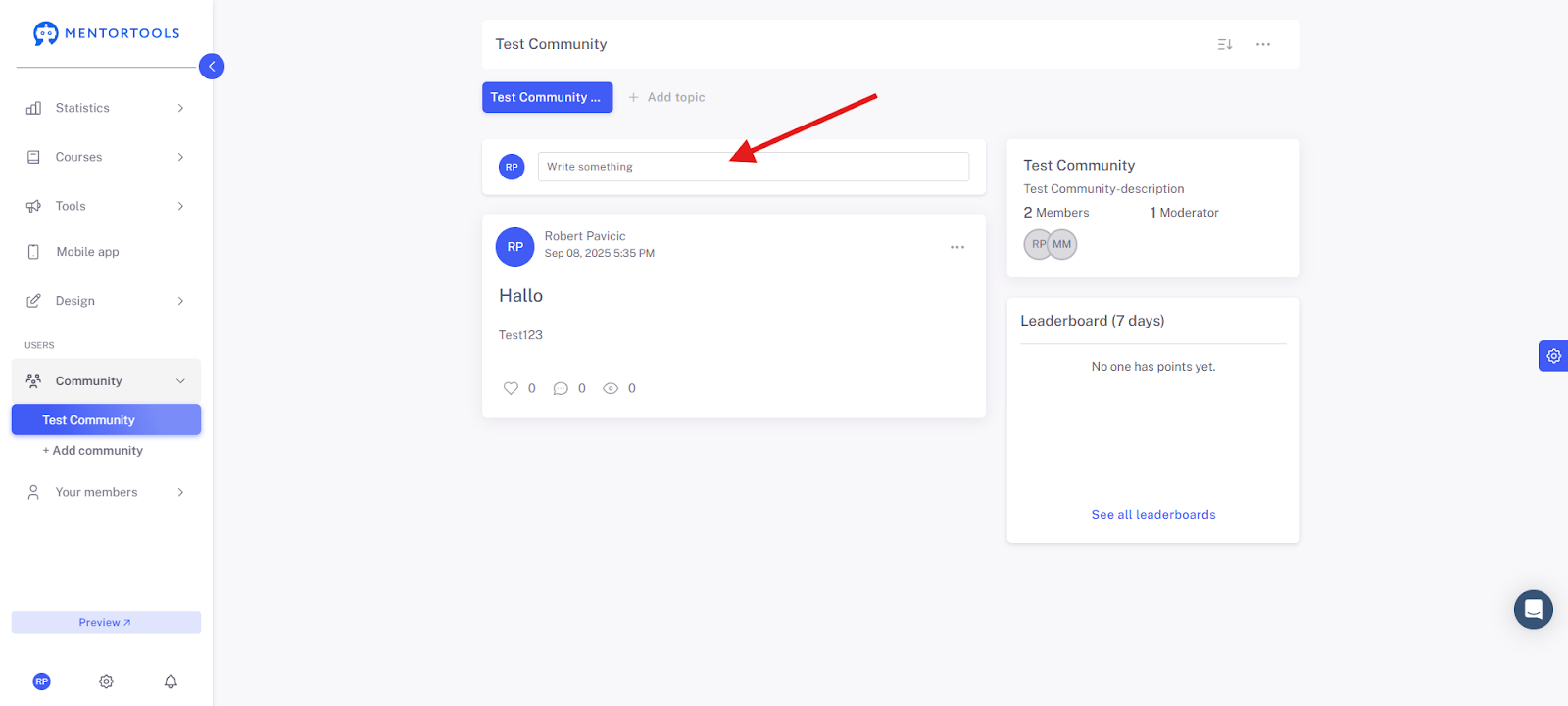
Give your post a title and write your text.
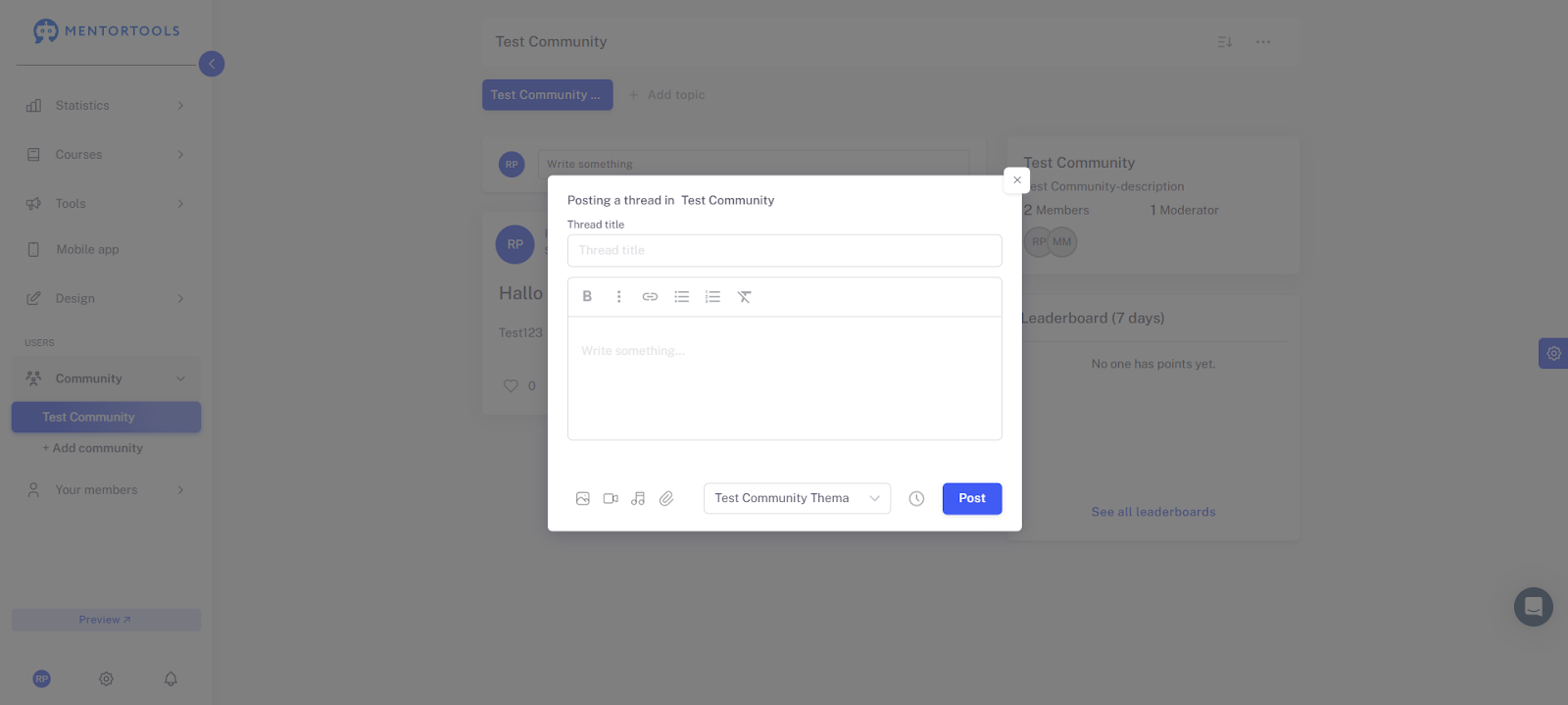
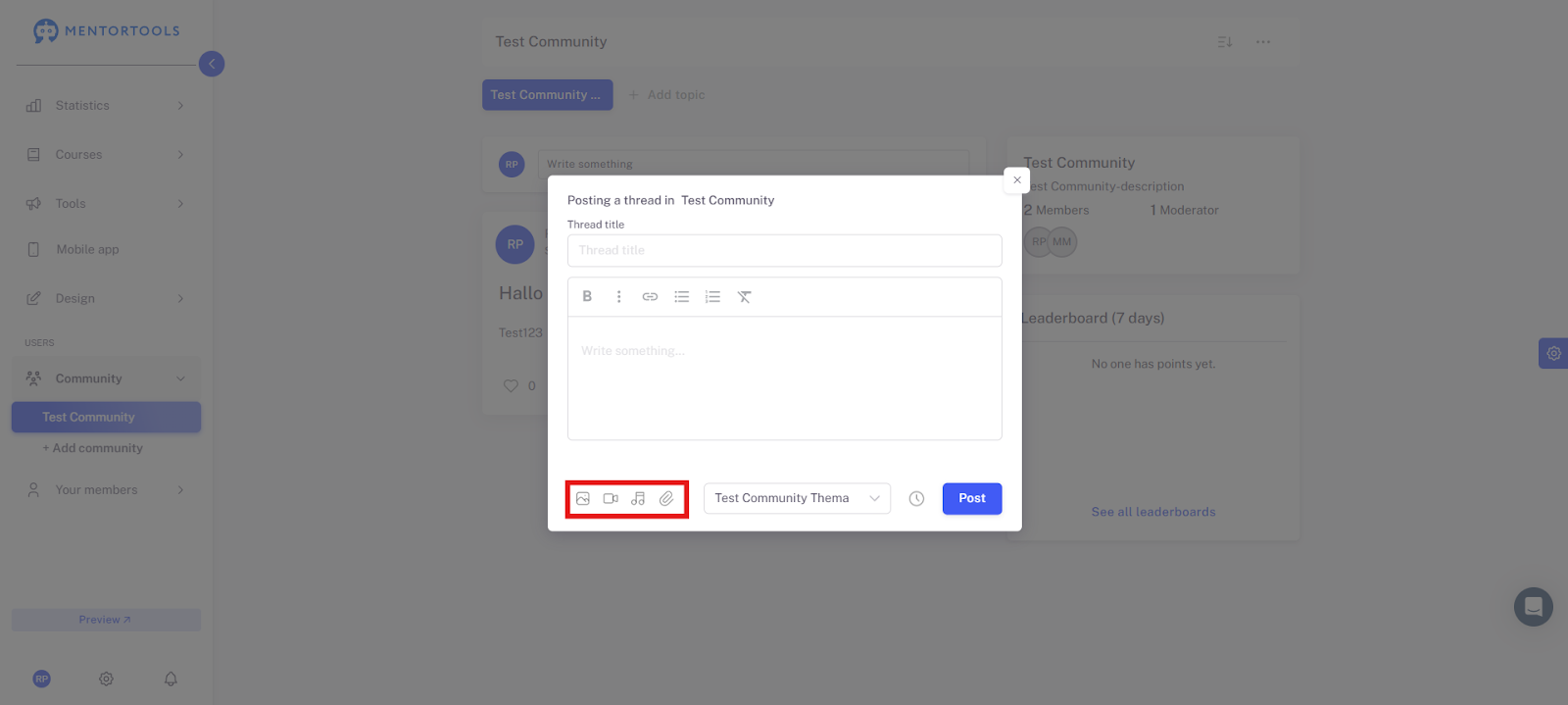
You can also upload an image, video, audio, or attachment here.
How to schedule Posts in Advance?
If you want to schedule a post, please click the small clock icon.

This will open a window where you can set when—date and time—the post should be published.
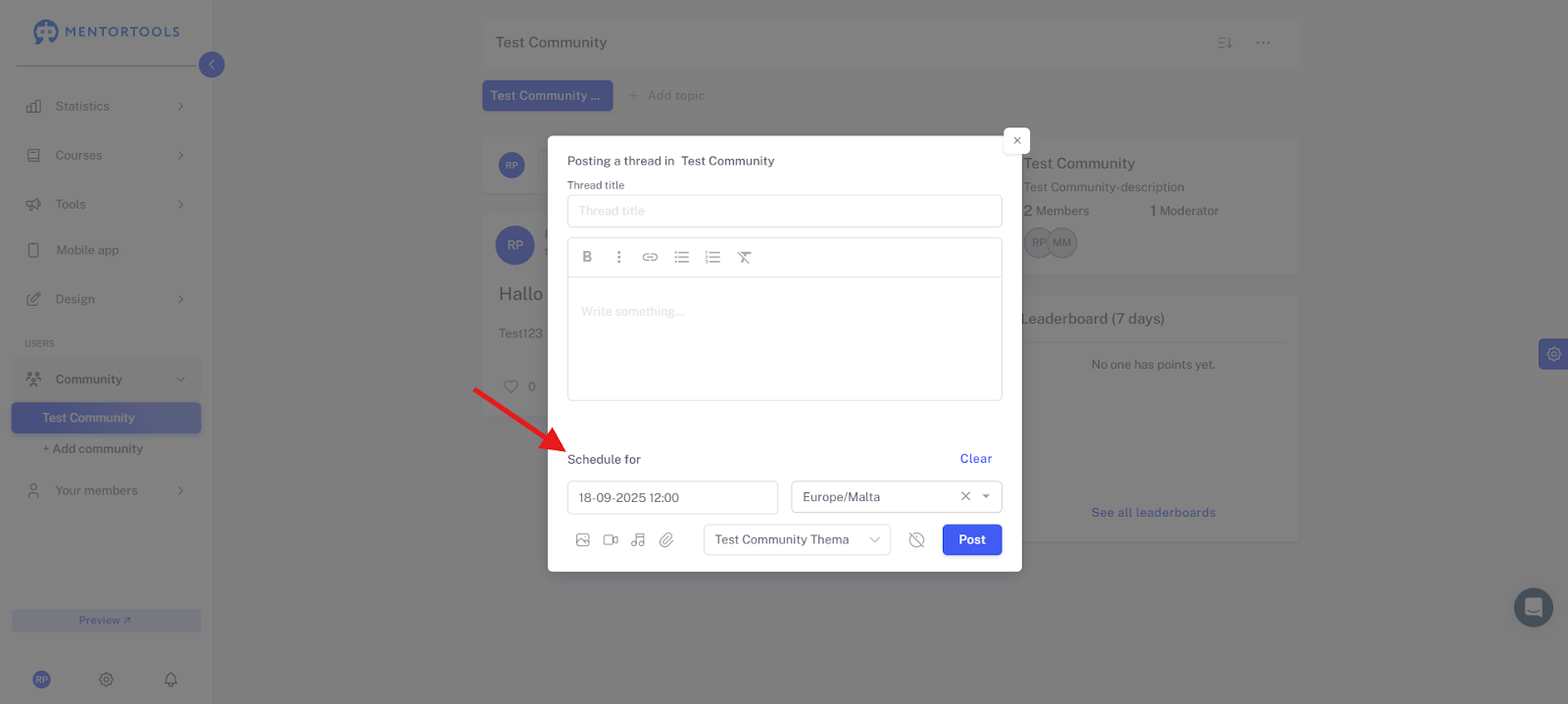
With these steps, you have created a community, a post, and a topic. The number of communities you can create is unlimited.
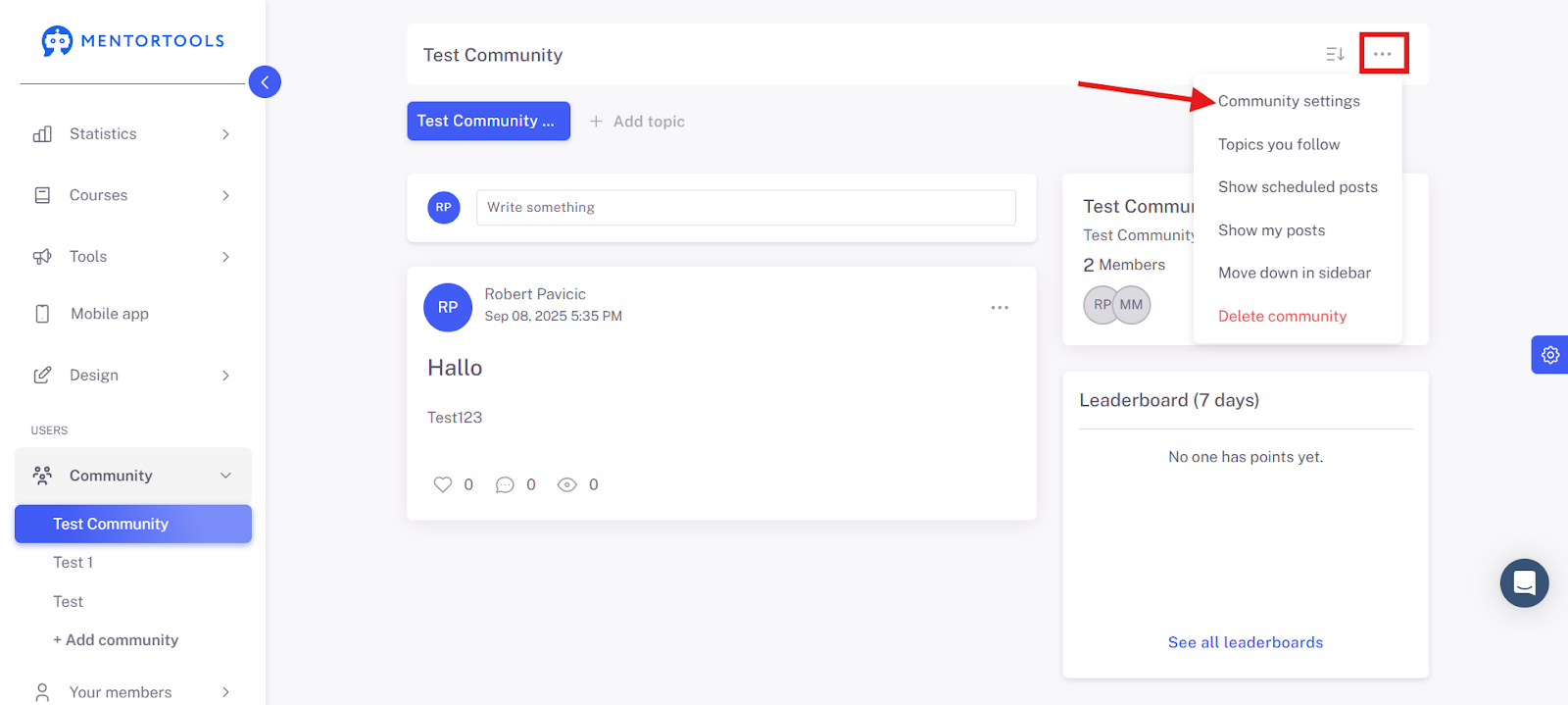
To subsequently edit a community, topic, or post, please go to the three dots and then to "Community Settings."
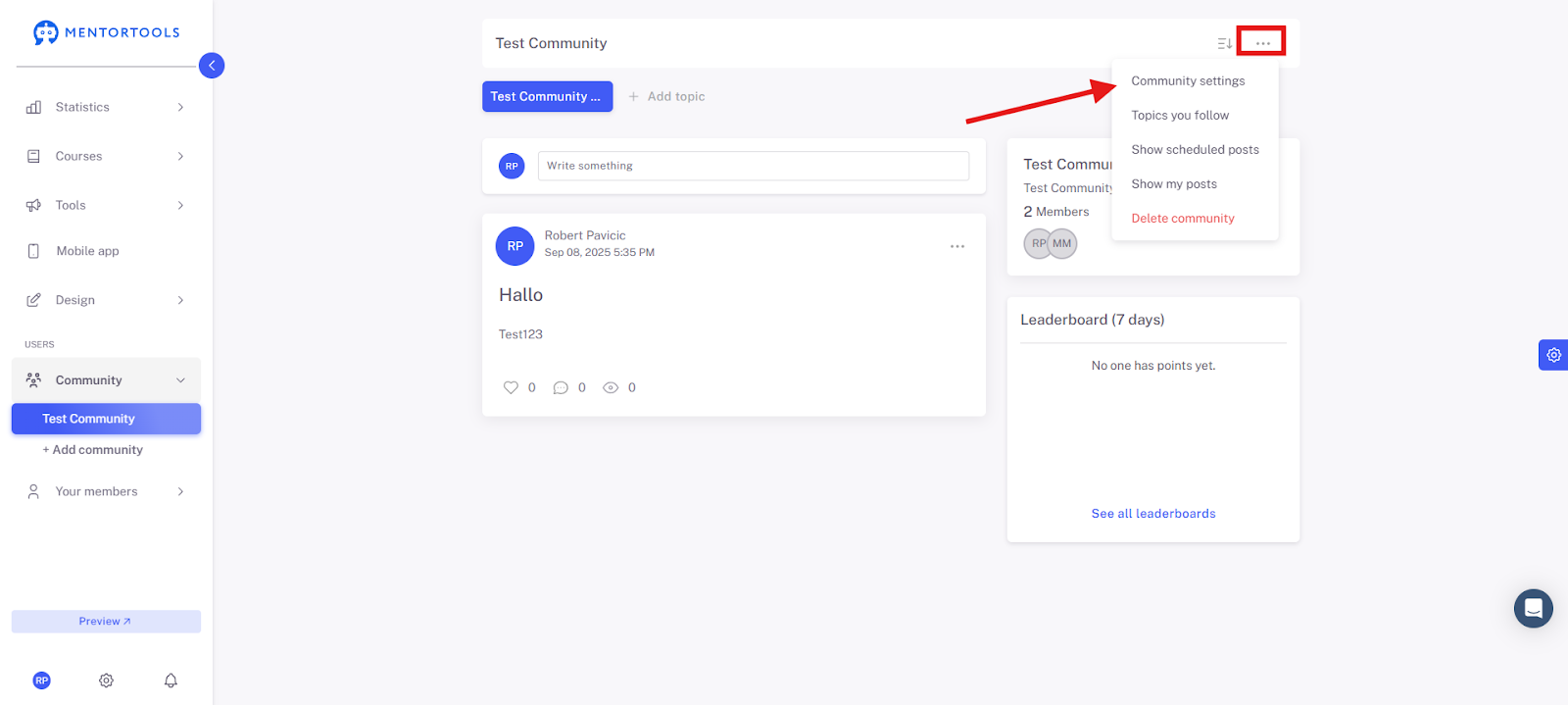
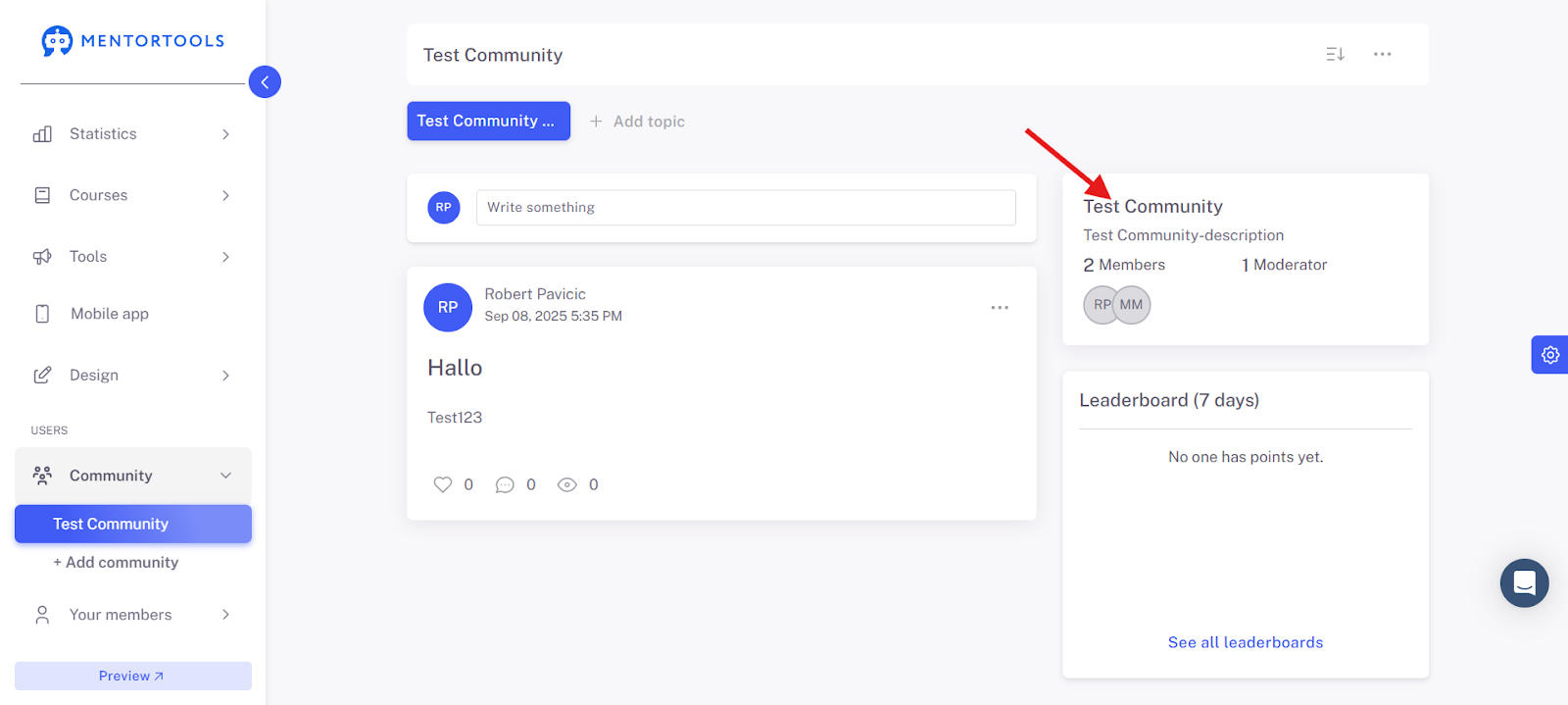
In this image, you can see how many members and moderators your community has.
How to Change the Order of Communities?
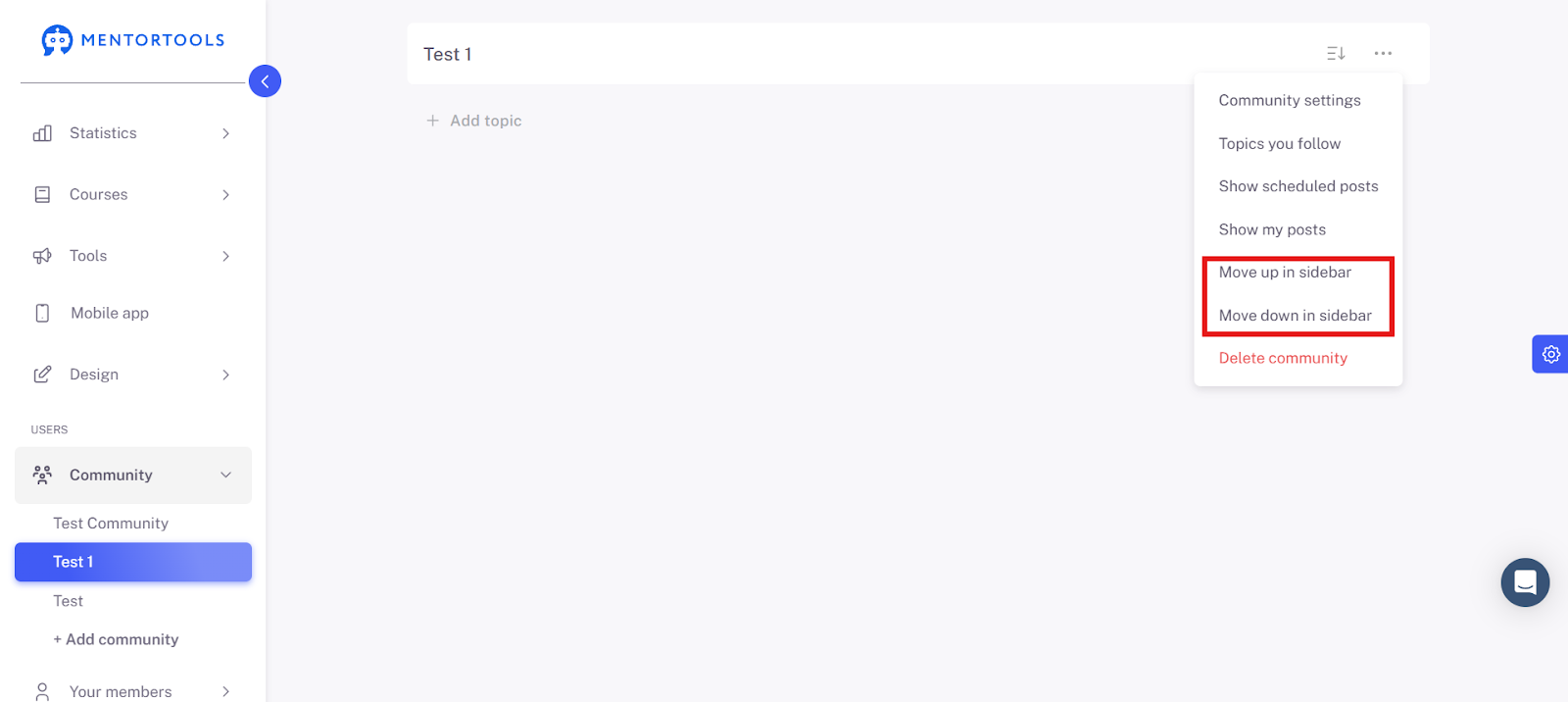
If you have multiple communities and you want to change the order, please proceed as follows.
In the community you want to move, click on the three dots and then either "Move to top" or "Move to bottom" in the sidebar list.
How to Move Topics Within the Same Community?
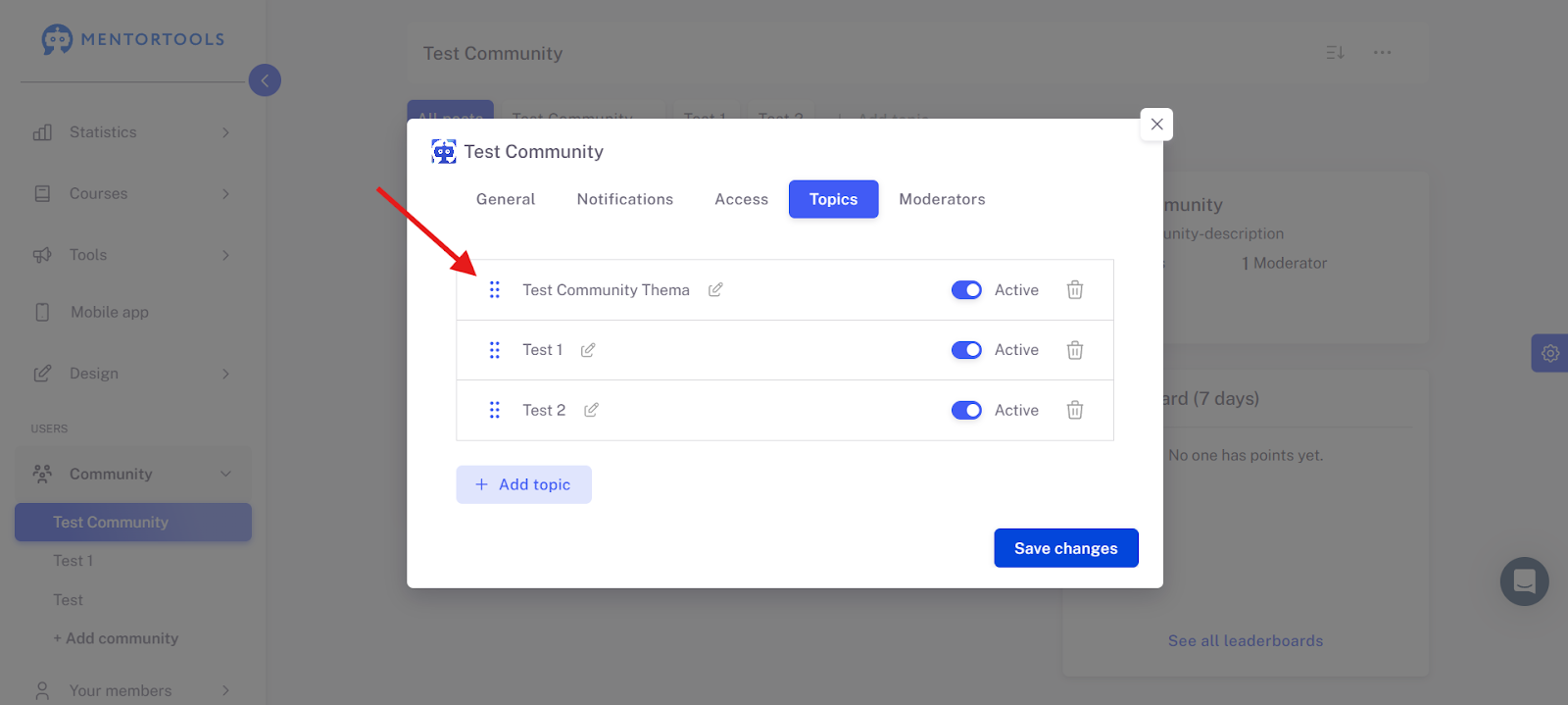
If you have created a new topic within a community, it is always automatically aligned to the left. However, you can manually move it to your desired position.
To do this, please go to the three dots and to "Community Settings."
In the Topics section, you can then move the topic by activating the icon and thus change the order
How to Move Posts?
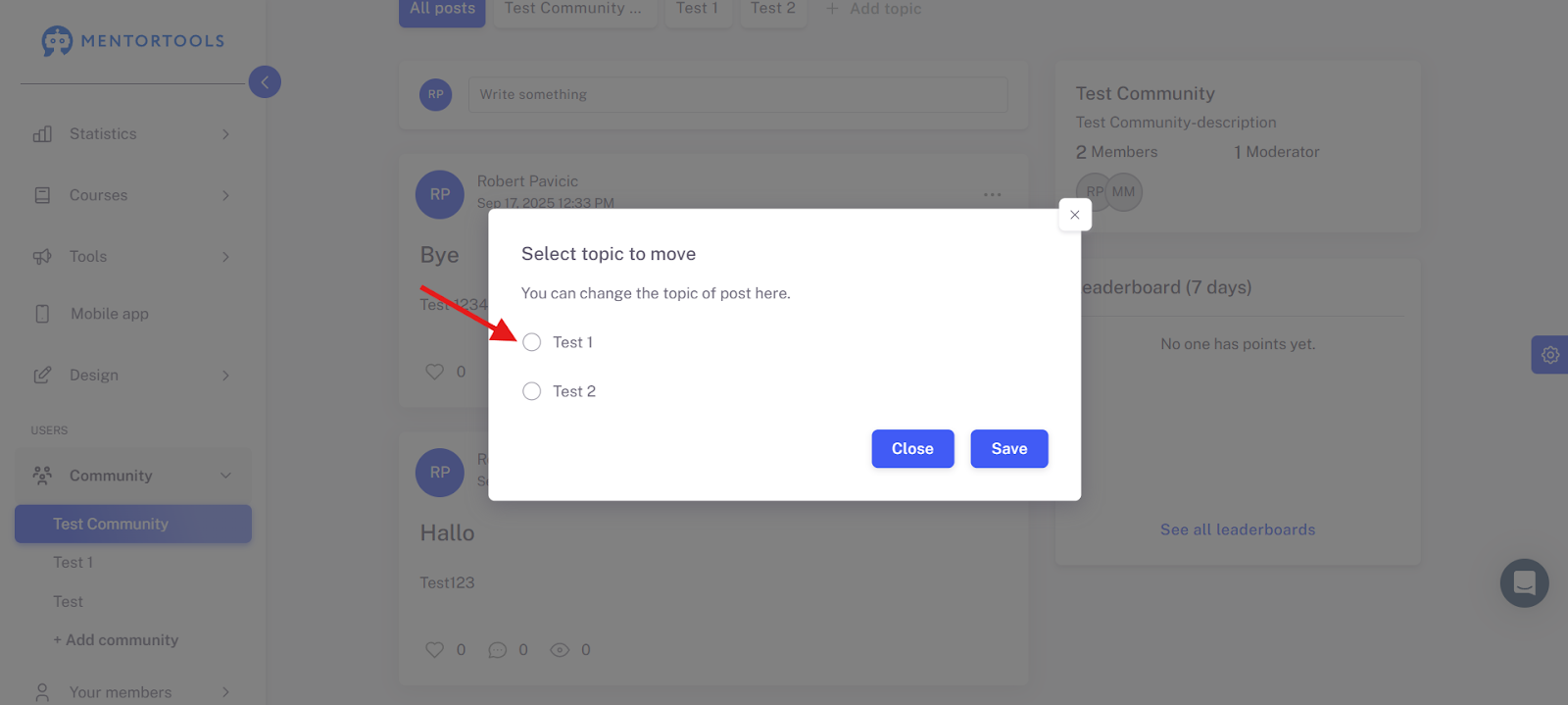
If a member has accidentally posted in the wrong topic, you can simply move it.
To do this, go to the three dots in the post and click on "Move post."

Now, select the topic to which the post should be moved.
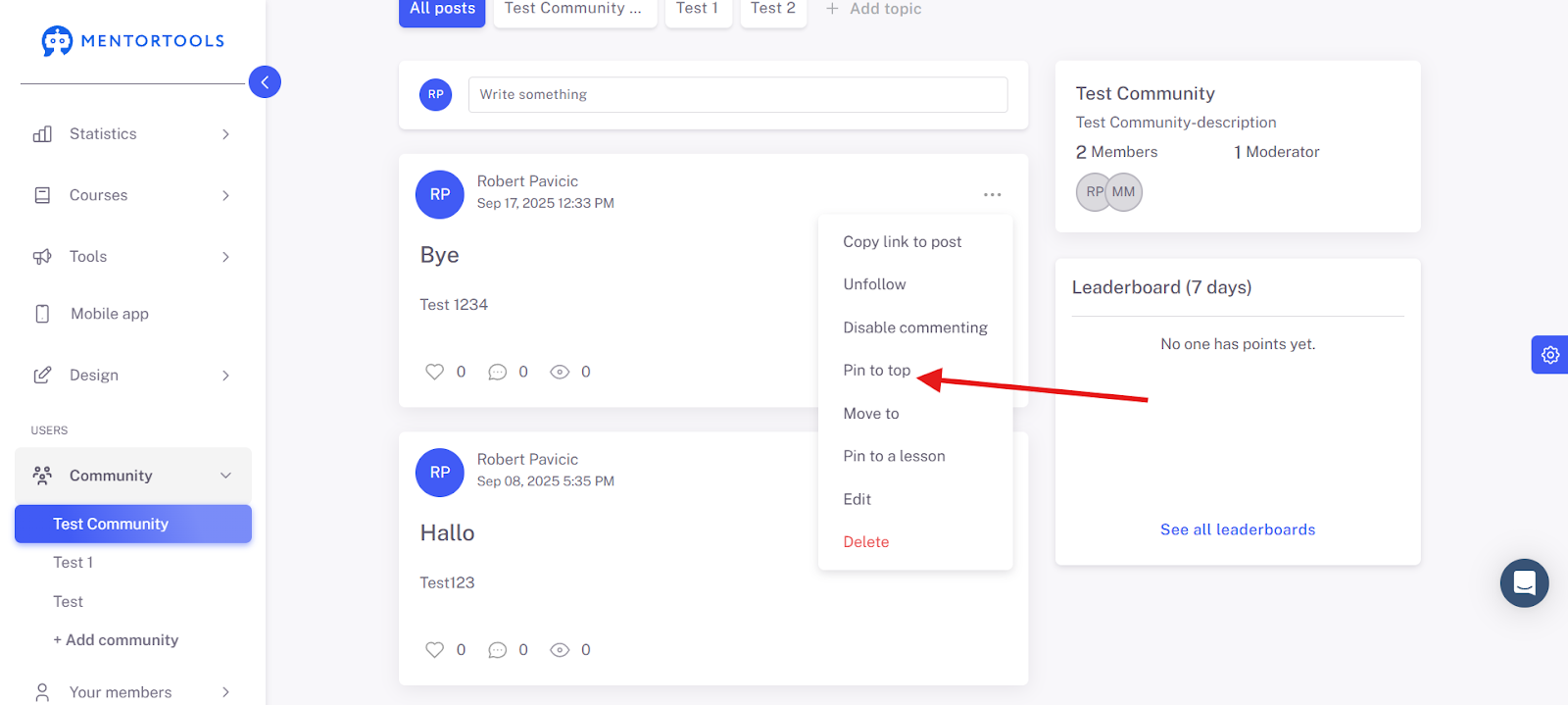
Activate the comment function here if you do not want anyone to be able to comment on the post.
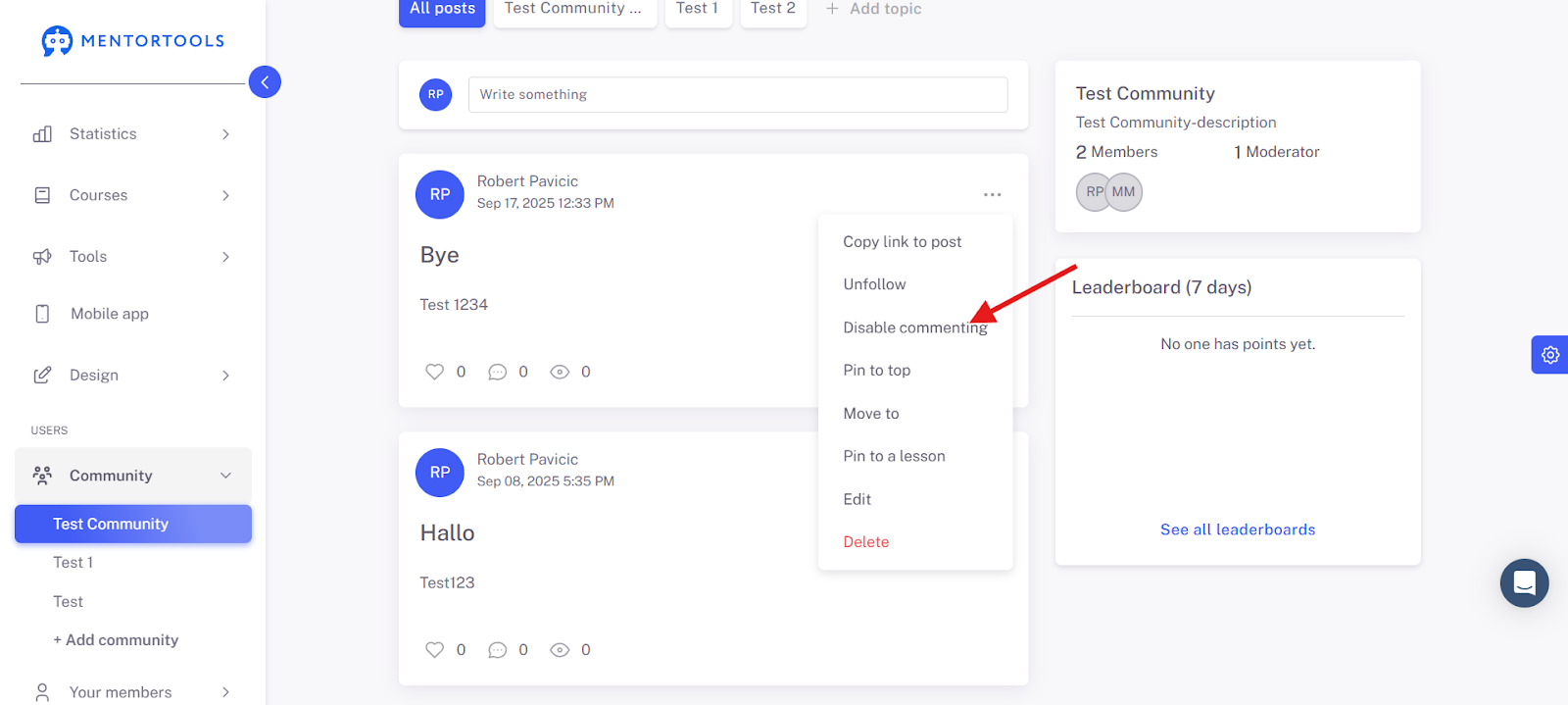
If you want this post to be displayed at the very top of a topic as the first post, click on "Pin to top" here.
Allowing Your Participants to Create Posts - or Deactivating This Function
You can decide for each topic whether your members are also allowed to create their own posts or only you as the community operator.
To do this, please go to the "Community Settings," then to the "Topics" menu item, and into the respective topic.
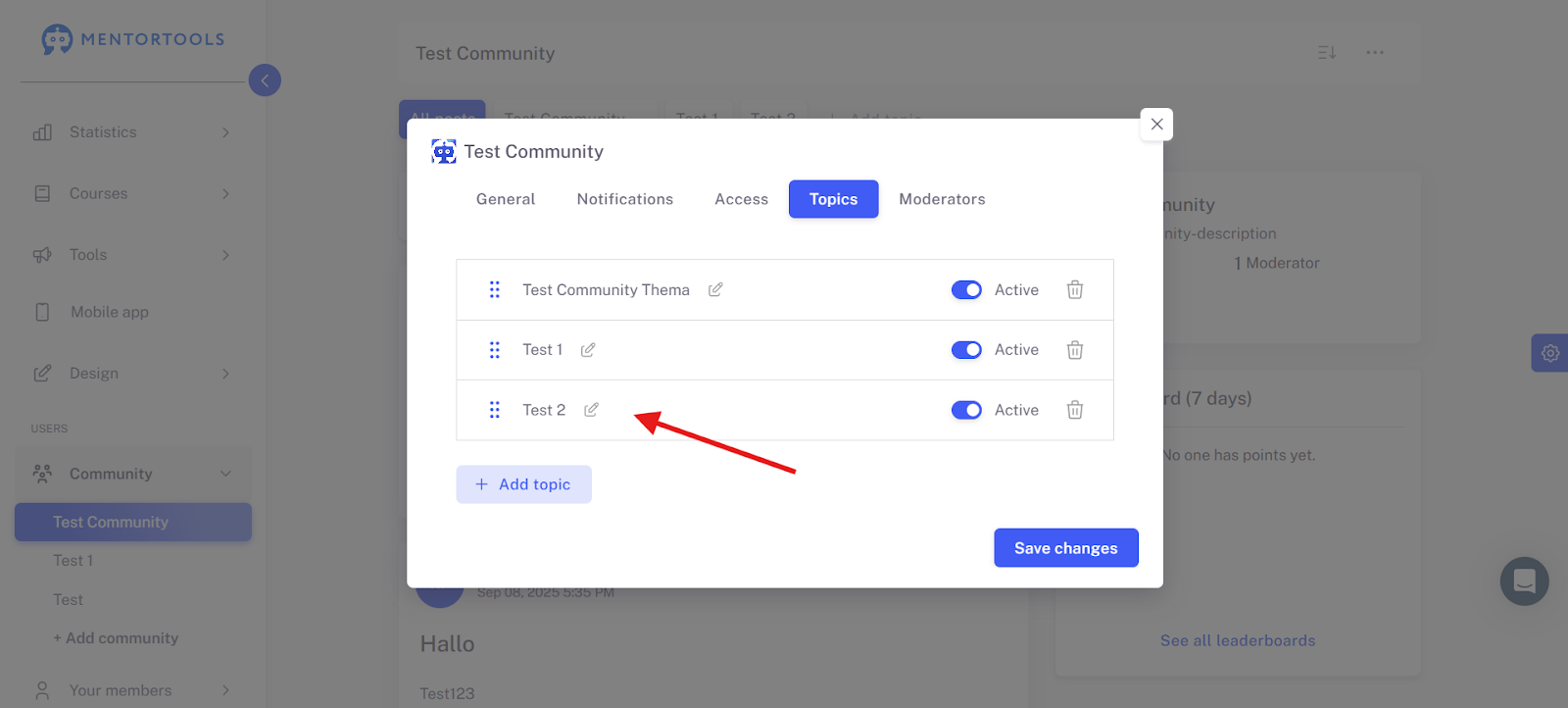
Here you can activate or deactivate this function.
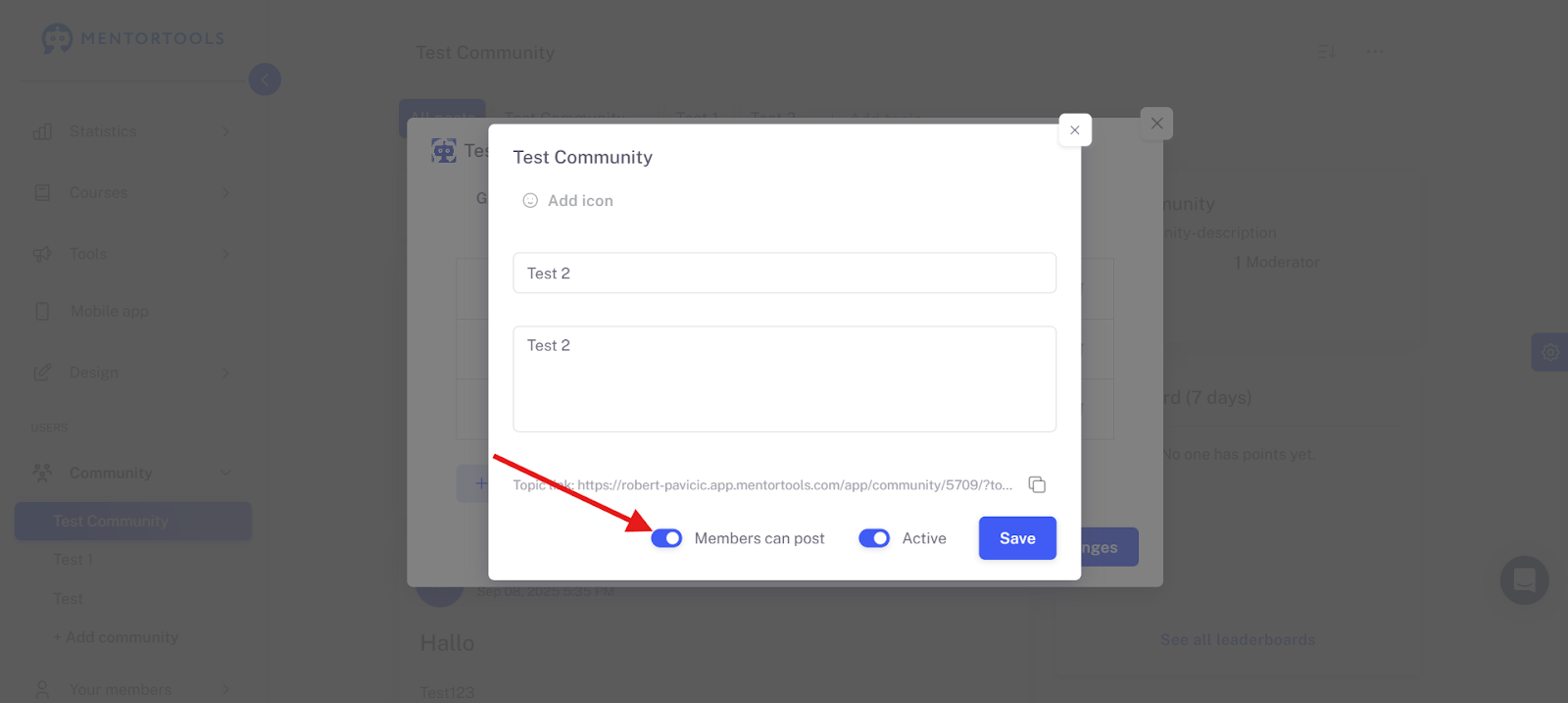
You can make this setting in every topic in all your communities.
By default, the tab is active. This means members can create posts in a topic.
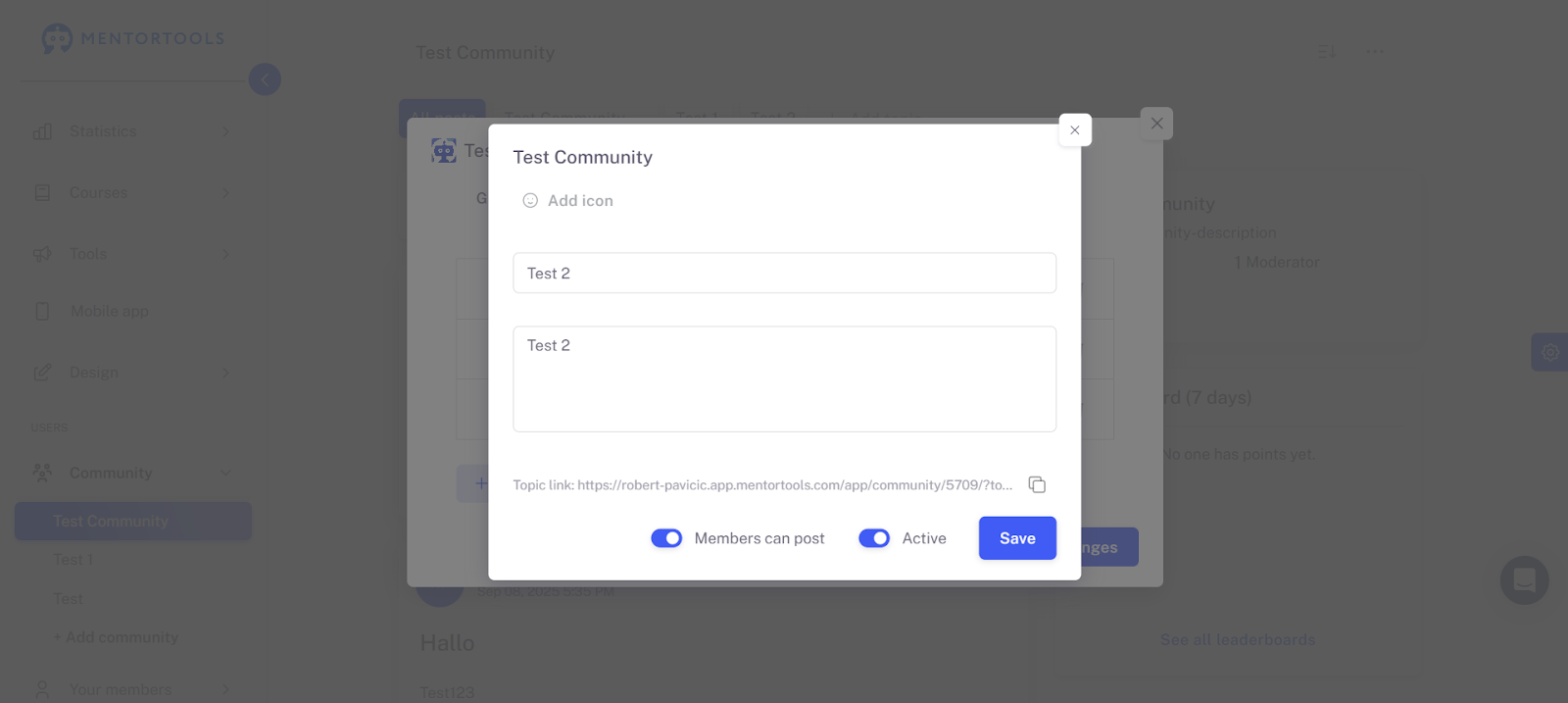
Important: Don't forget to save.