Quiz – Quiz content
This guide will show you how to manage the content of a quiz in Mentortools. This includes creating, editing, and organizing questions within an existing quiz.
Last updated 12 months ago
How to Add Content? – How to add Questions to the Quiz?
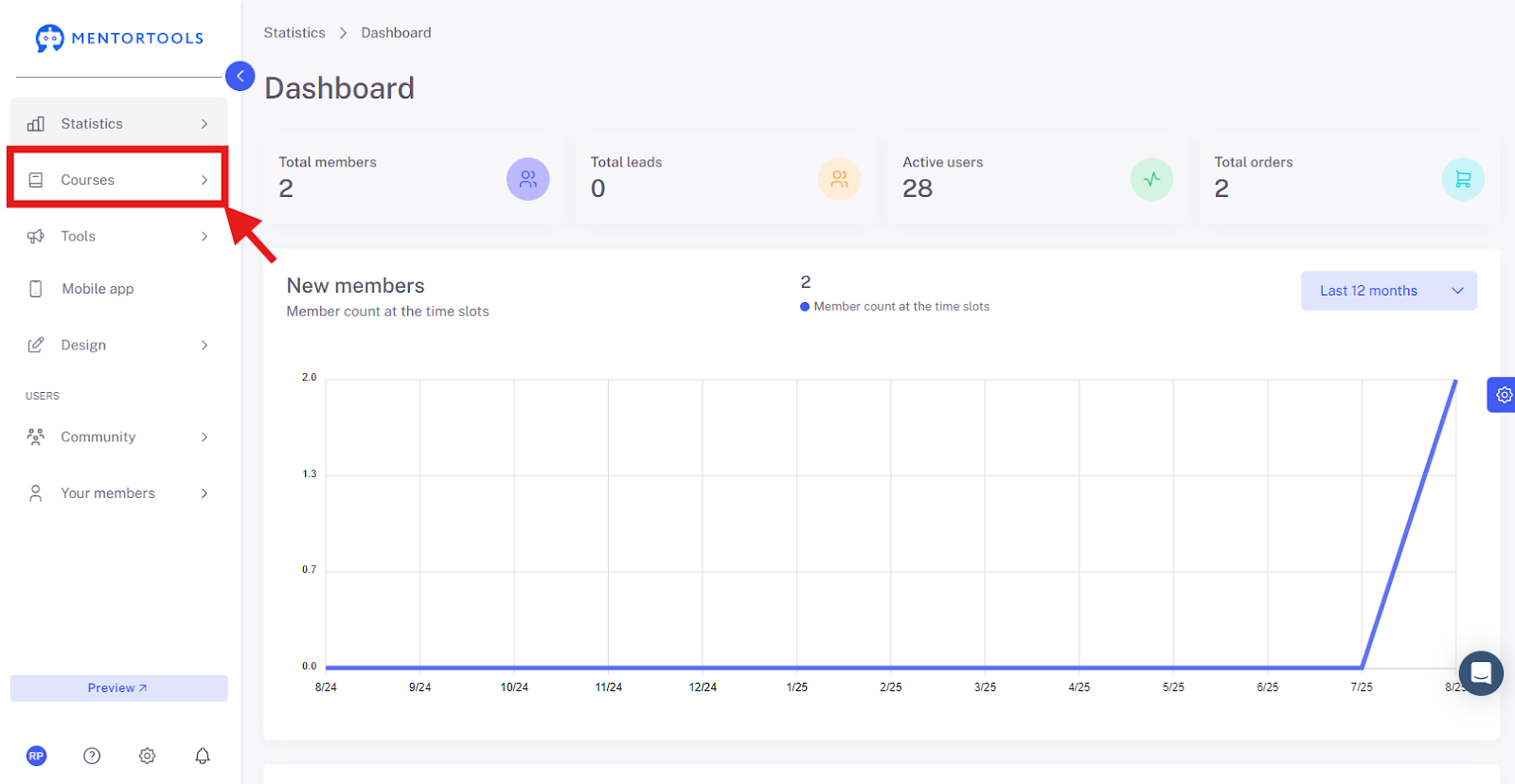
Log in to your member area and go to "Courses" in the side menu.
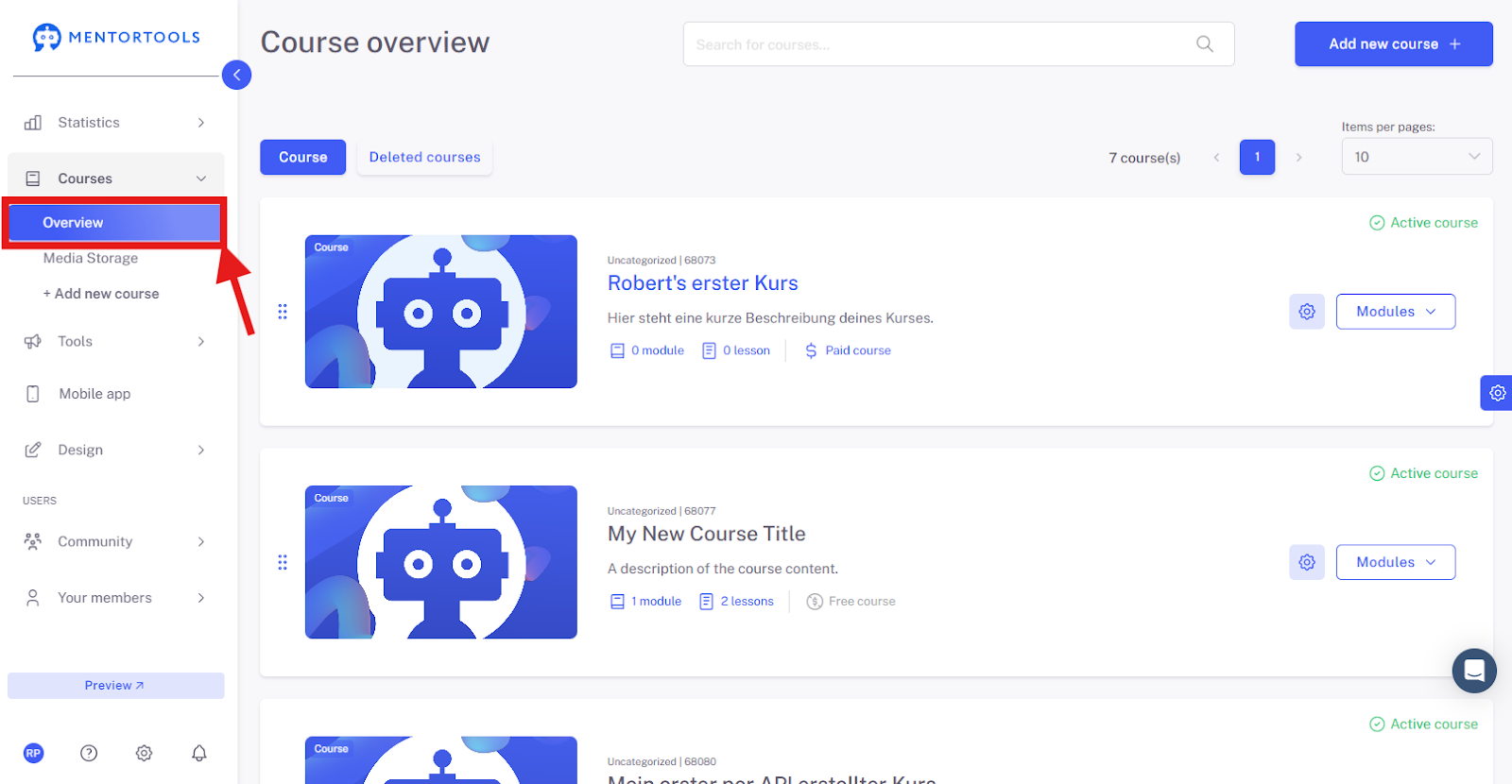
Then, click on "Overview" to see the list of all your courses.
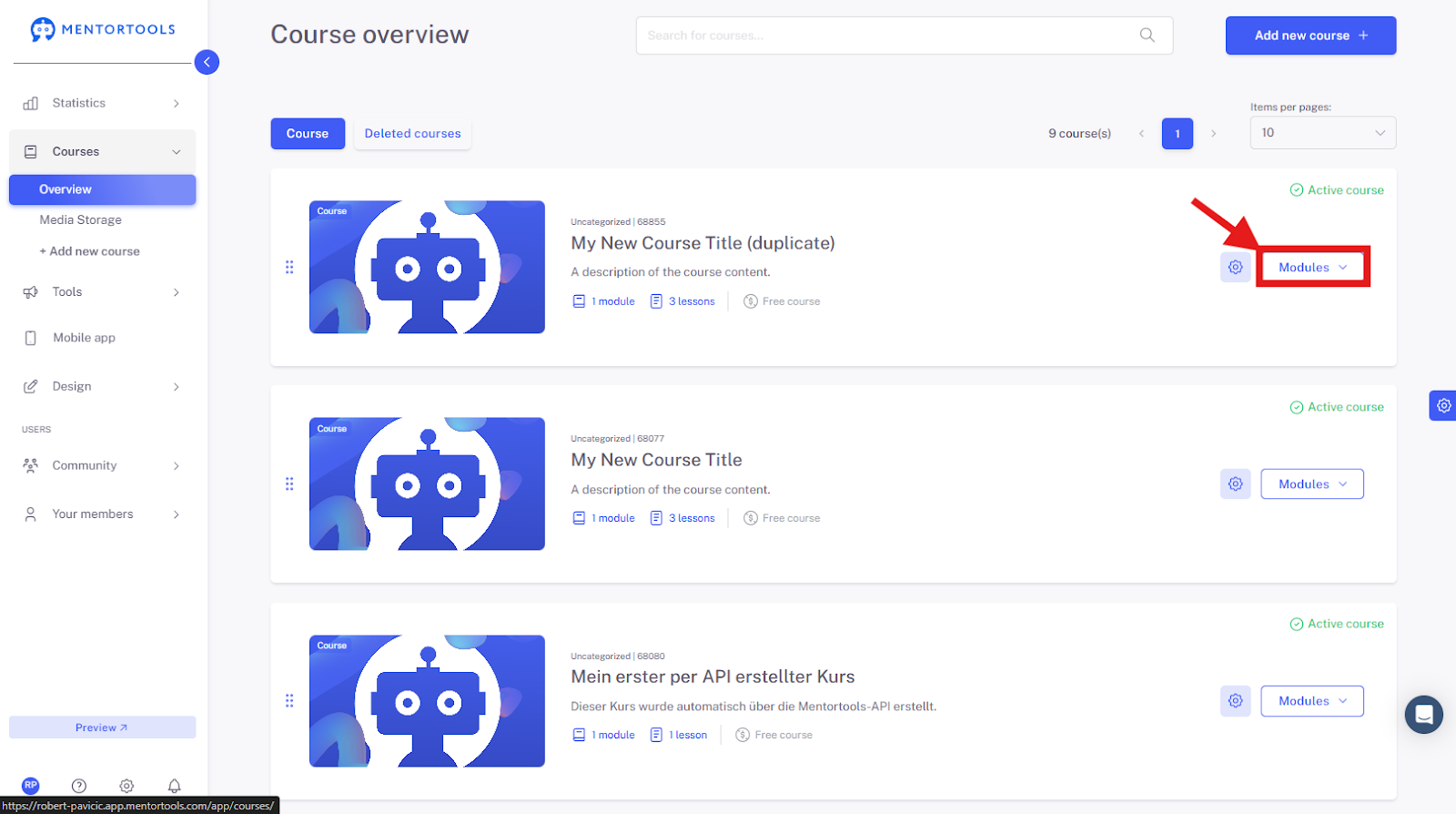
Select the course and module where you want to edit the quiz. By clicking on "Modules," all existing modules in this course will be displayed.
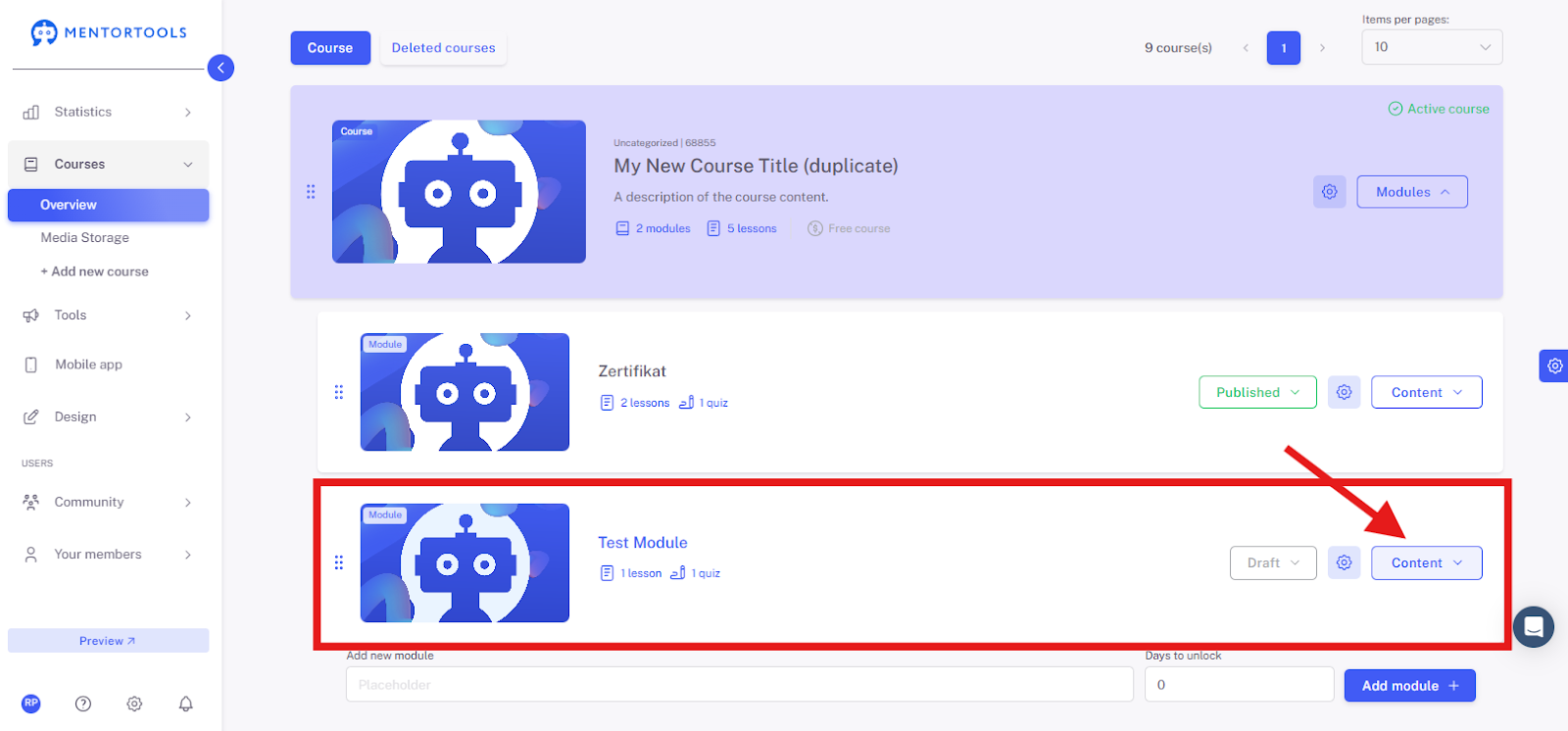
By clicking on "Content," you can see all existing lessons and quizzes in this module.
To edit the quiz, click on the title of the quiz you want to edit. After clicking the title, all settings will be displayed.
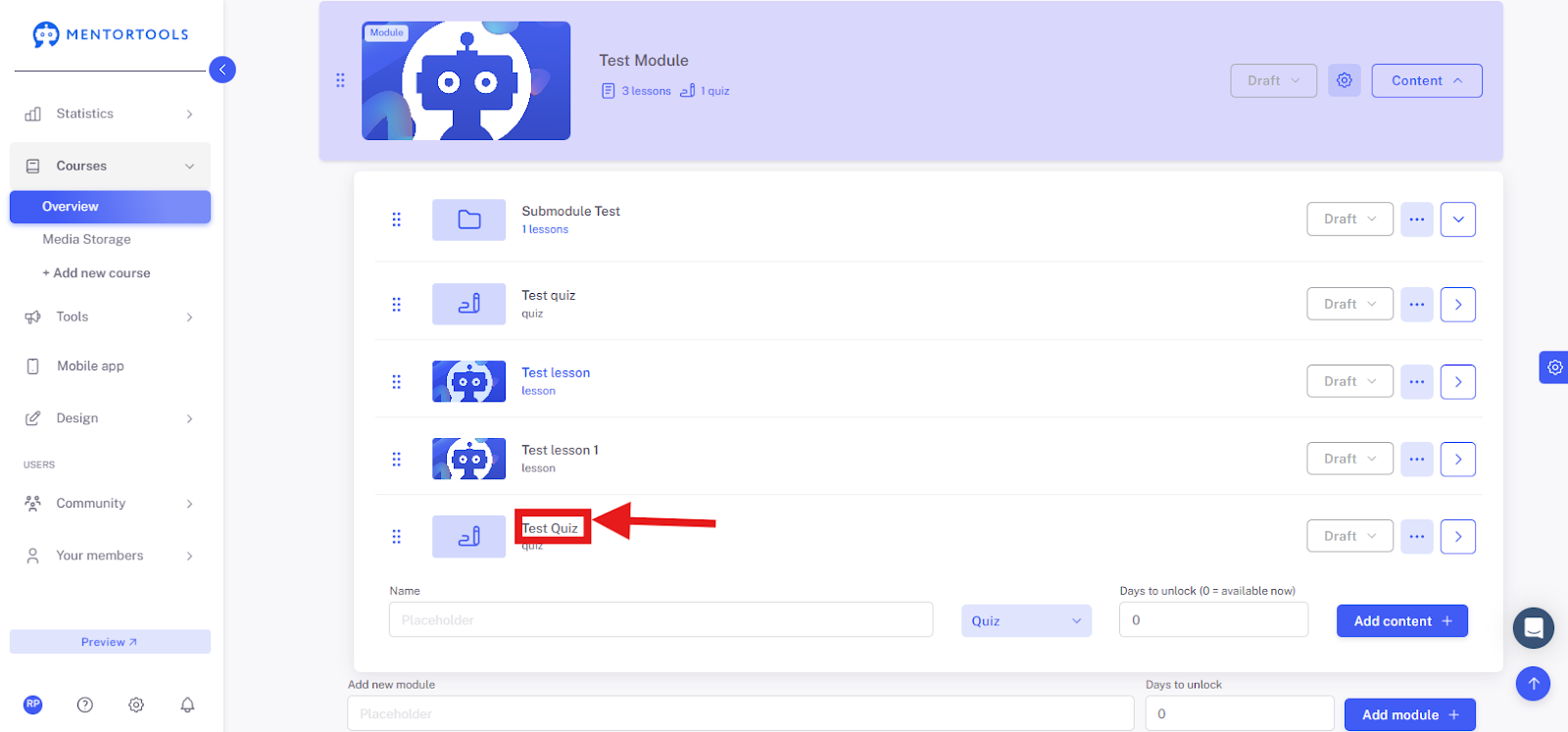
To edit the quiz content, go to "Quiz Content." In the editor on the right side, you can now add individual questions to your quiz, step by step.
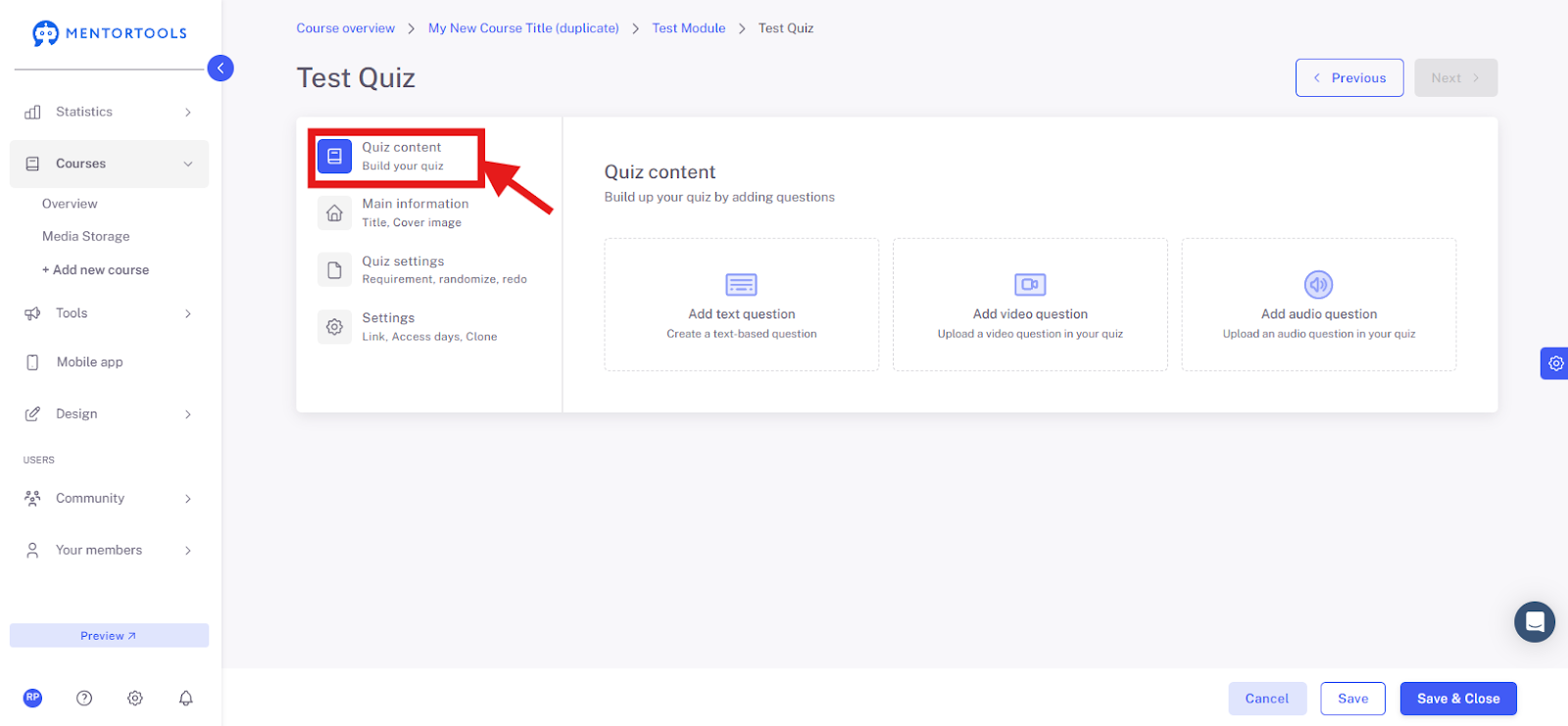
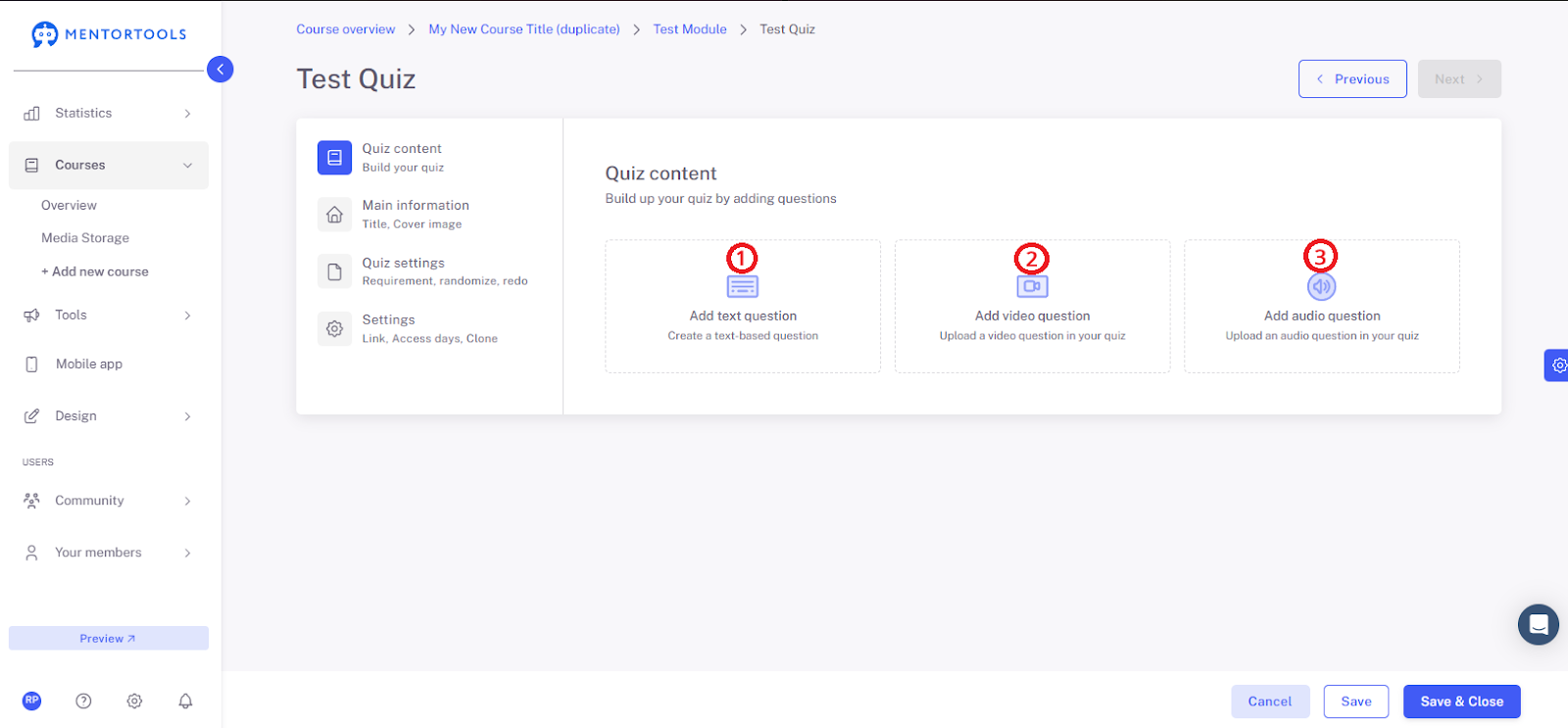
You have a choice of 3 question types that you can insert into your quiz:
Text question (1)
Video question (2)
Audio question (3)
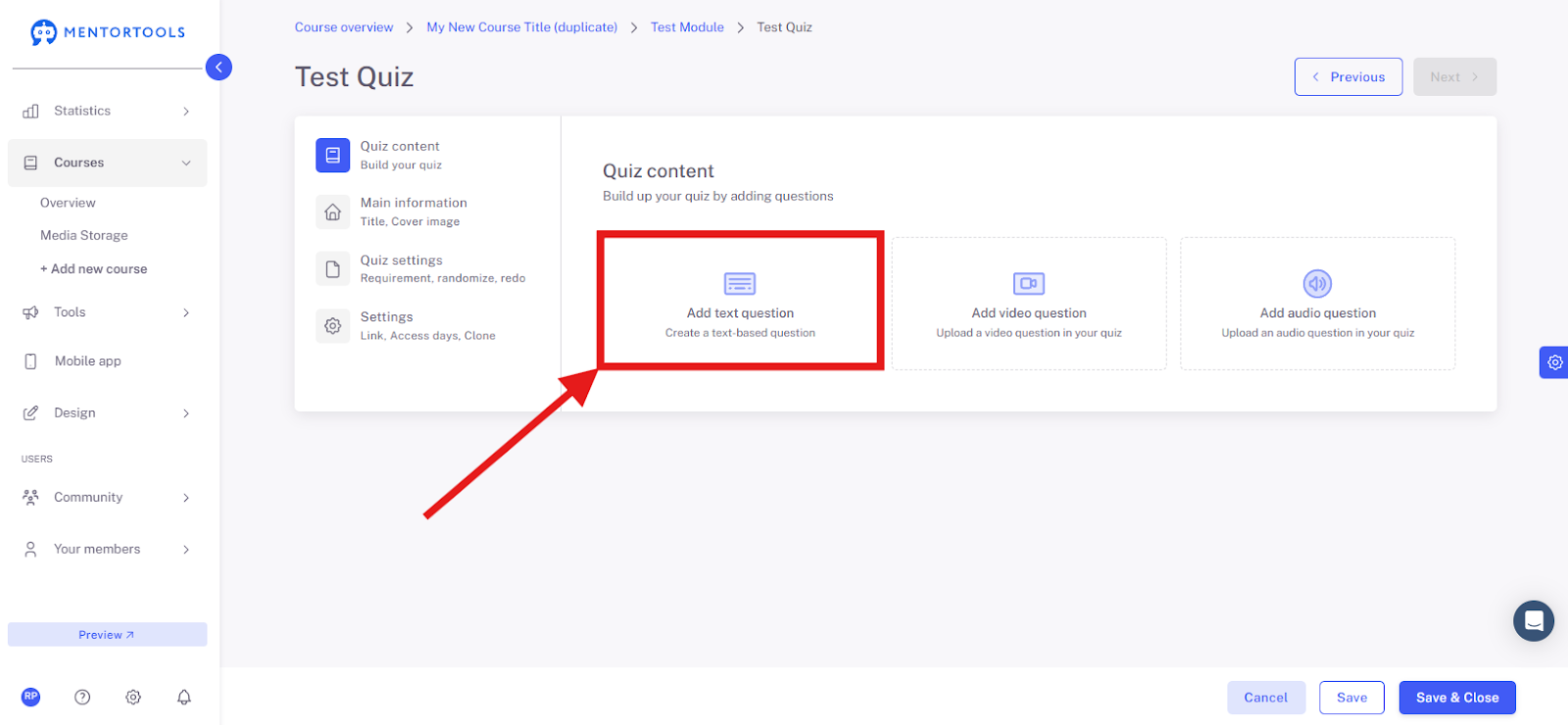
How to Add a Text Question to the Quiz?
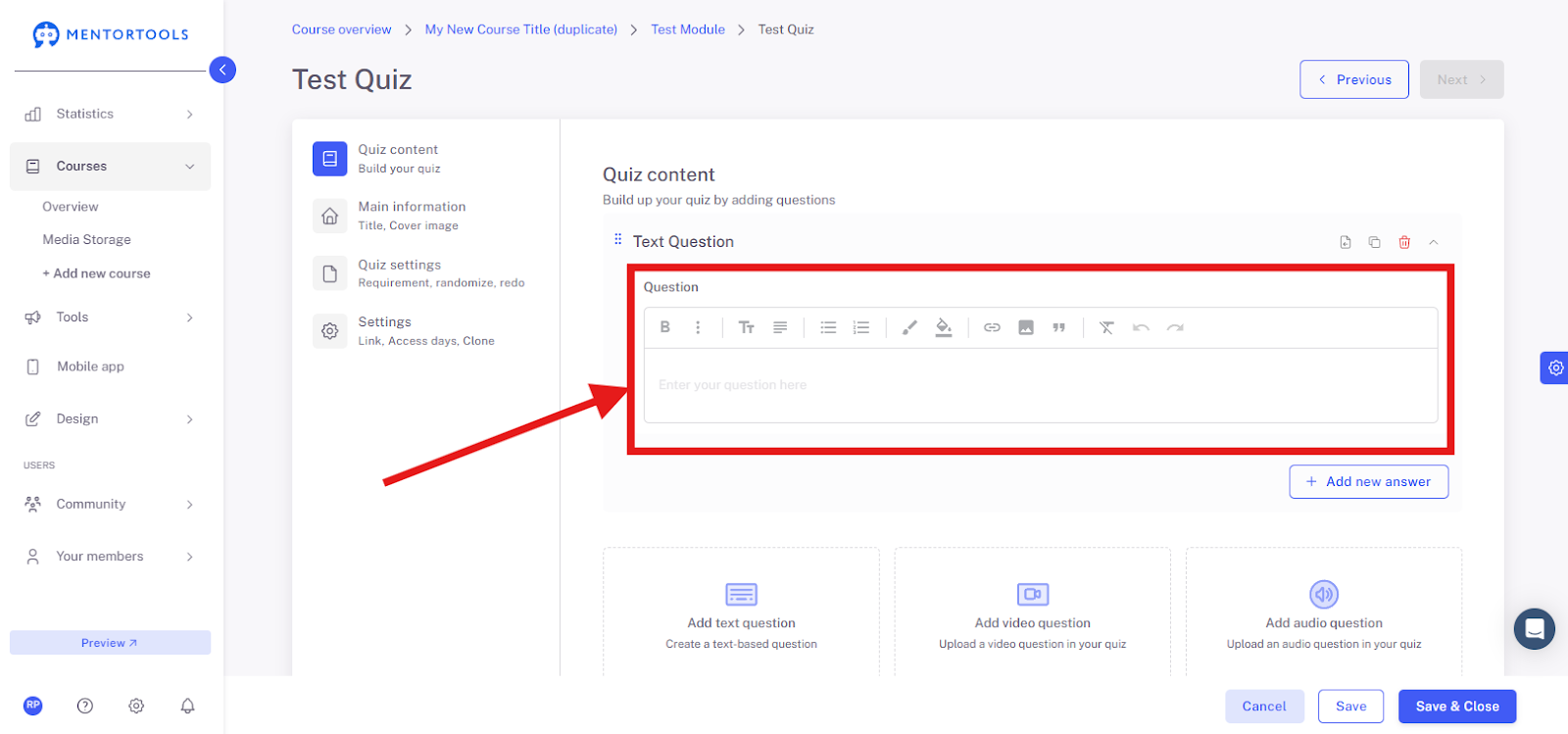
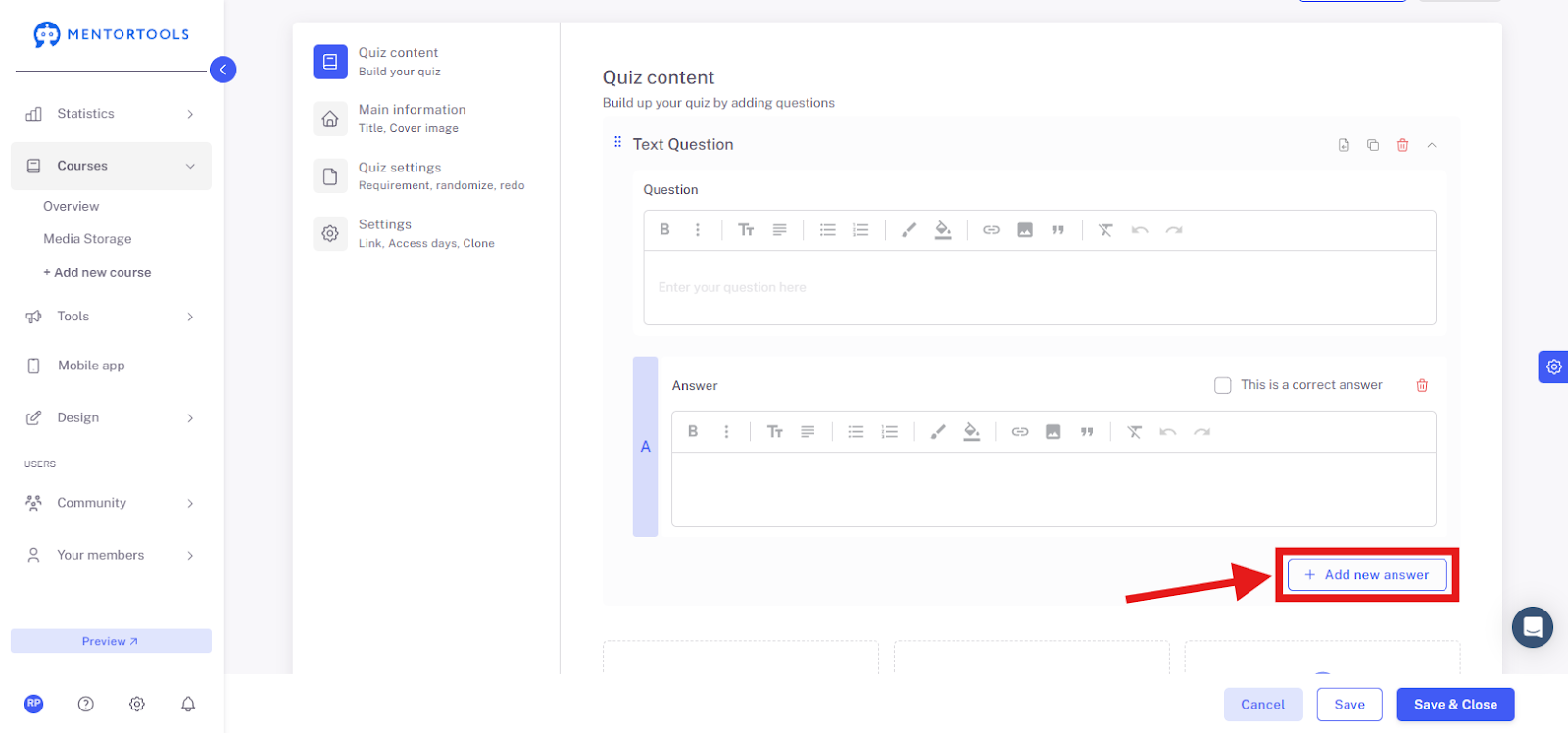
By clicking on "Add Text Question," you create a new text question.
Write the text of your question in the empty field.
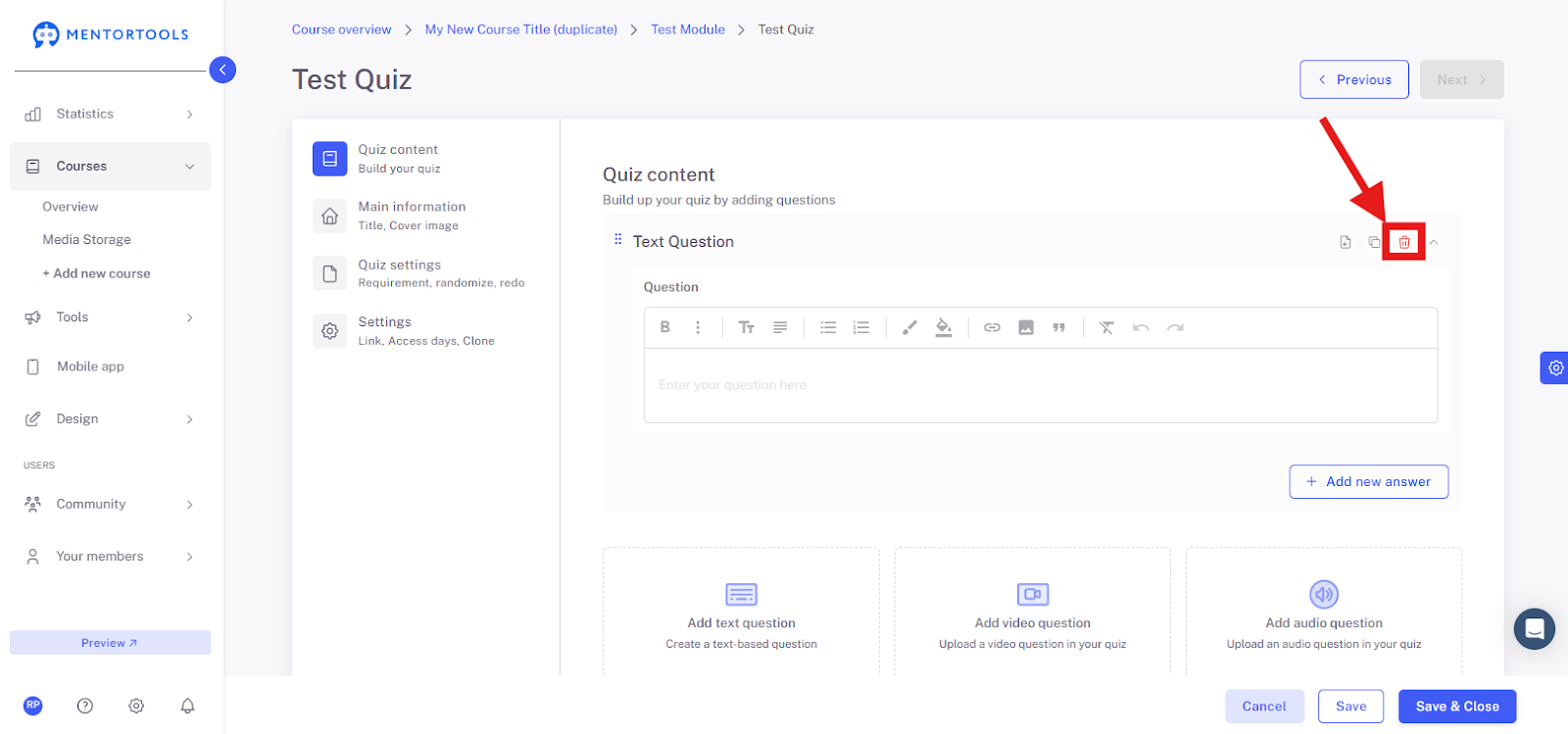
You can delete the question by clicking the red trash can icon in the top right.
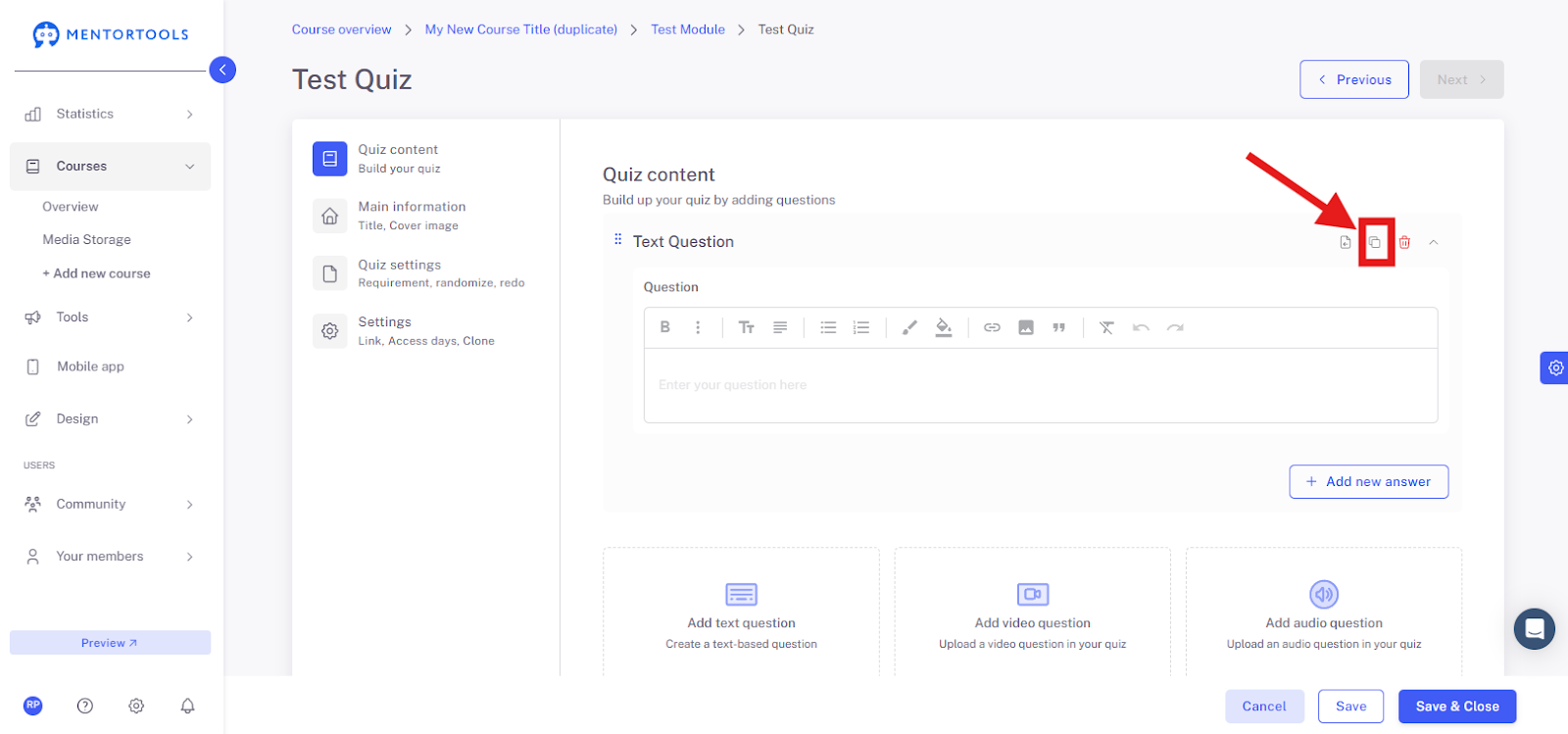
You can duplicate the question (within the same quiz) by clicking the copy icon in the top right.
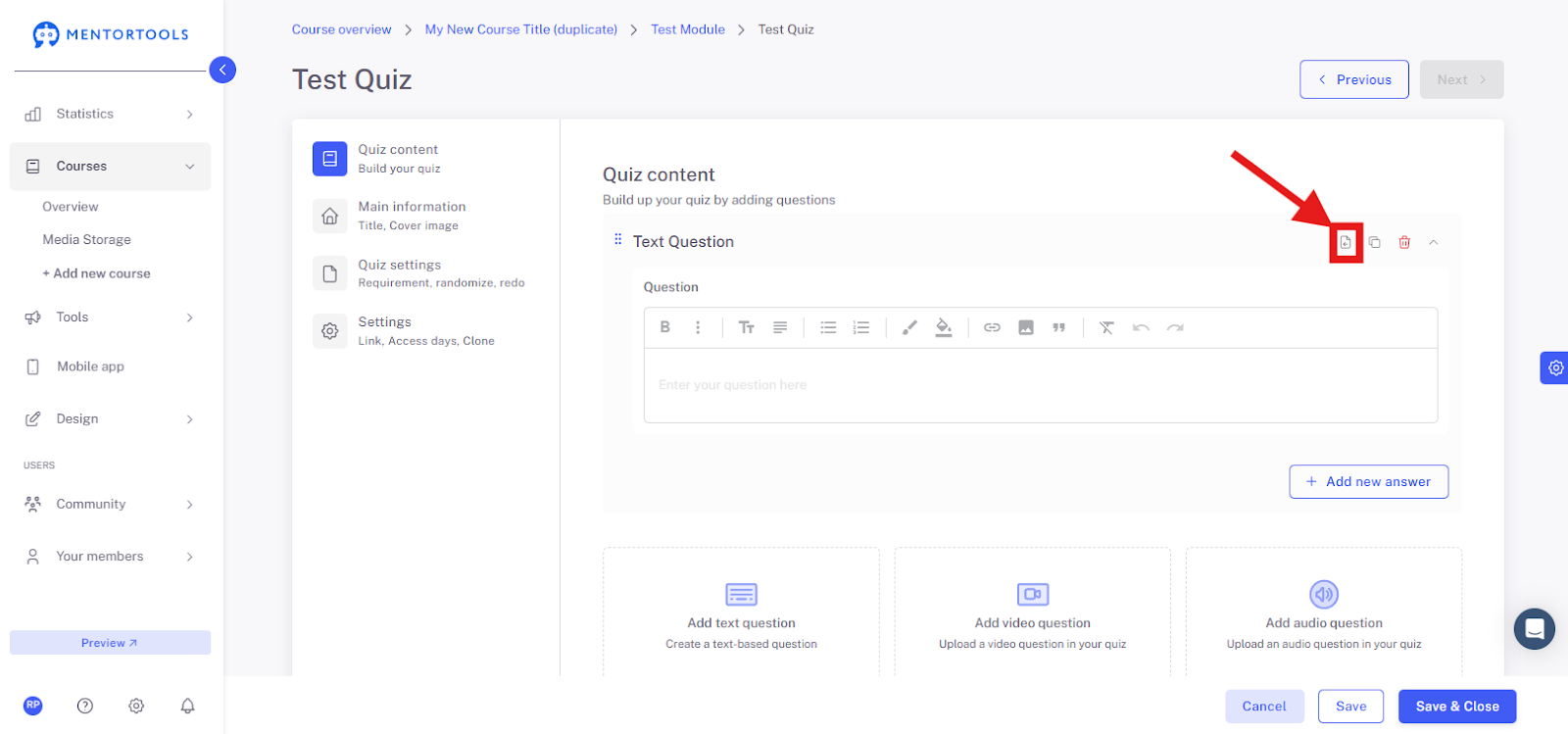
You can copy the question to another quiz by clicking this icon in the top right. After you select this option, choose the specific quiz from the list of quizzes you want to copy the question to.
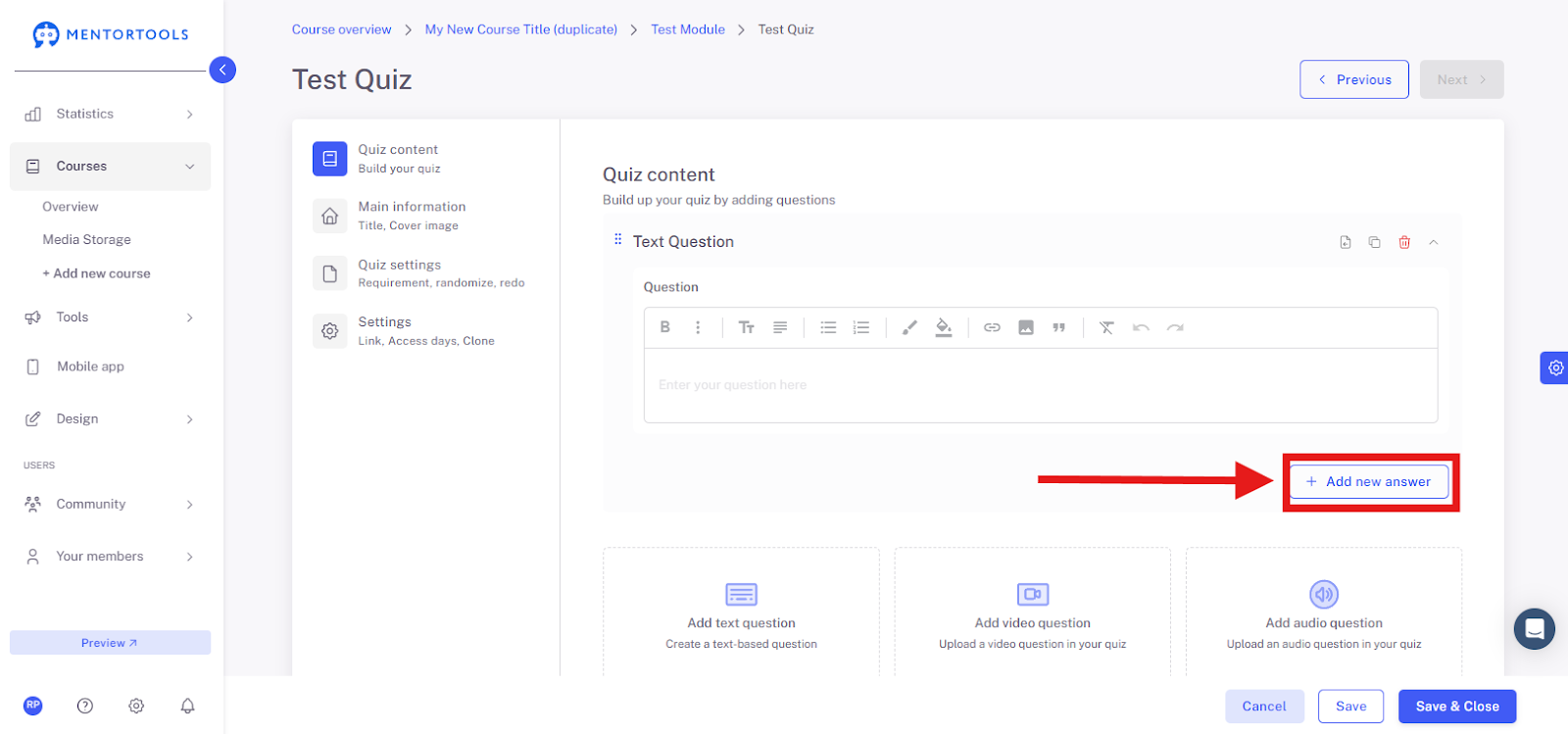
By clicking the "+ Add New Answer" button below the question, you add answer options. You can add as many answer options as you like.
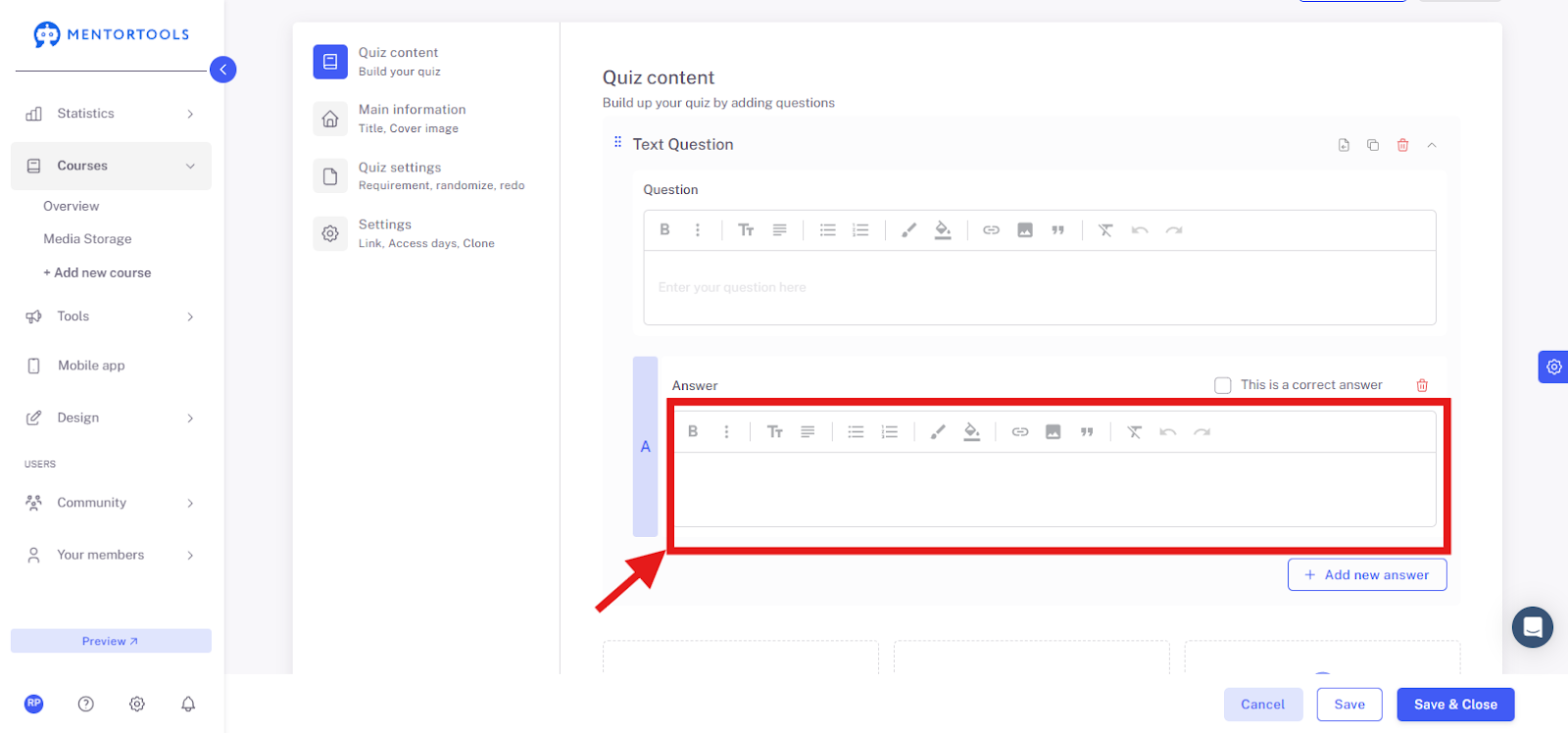
Enter the text for the answer option in the empty field.
If a specific answer is the correct answer to the question, activate the "This is a correct answer" checkbox in the top right.
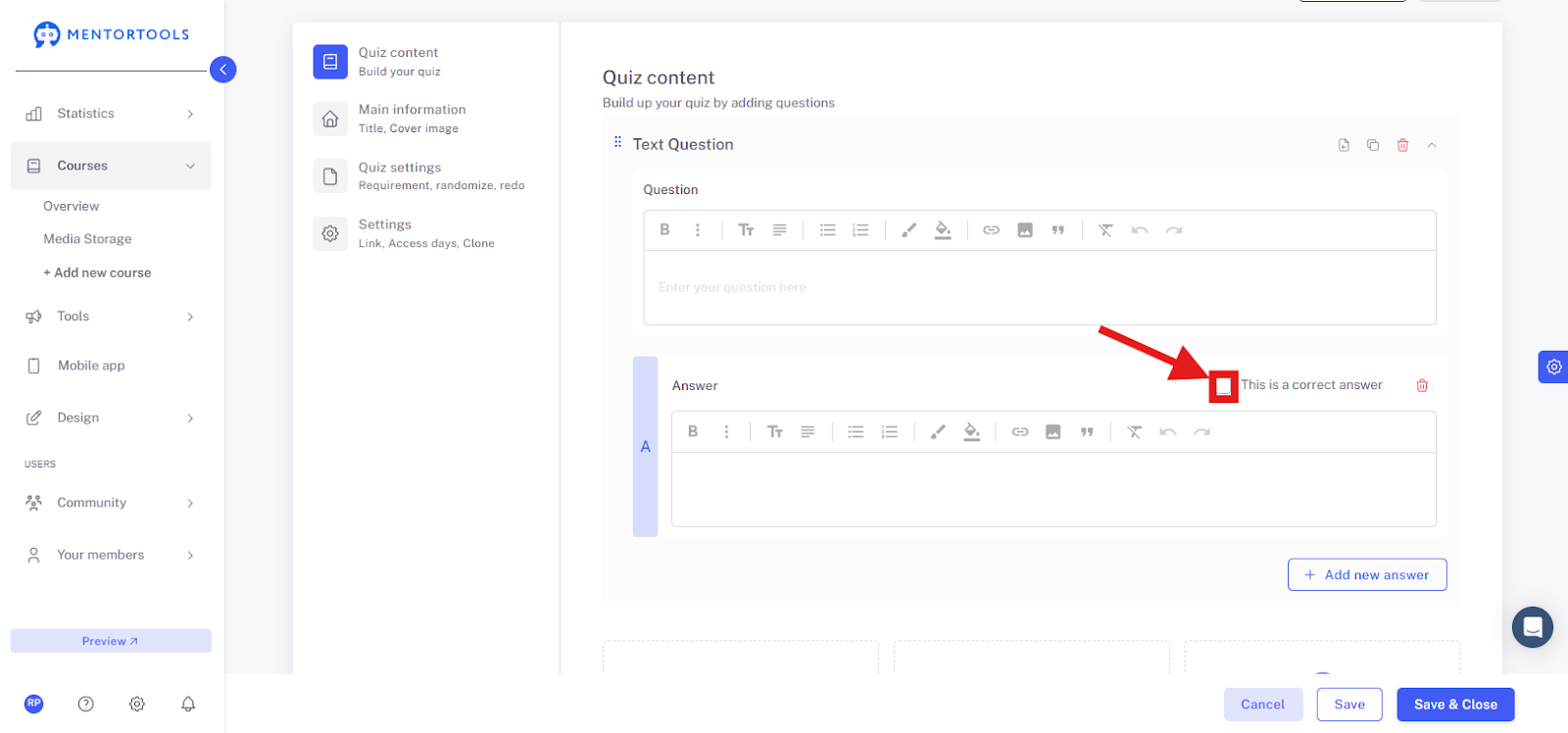
A question can also have multiple correct answers. Each question must have at least one correct answer.
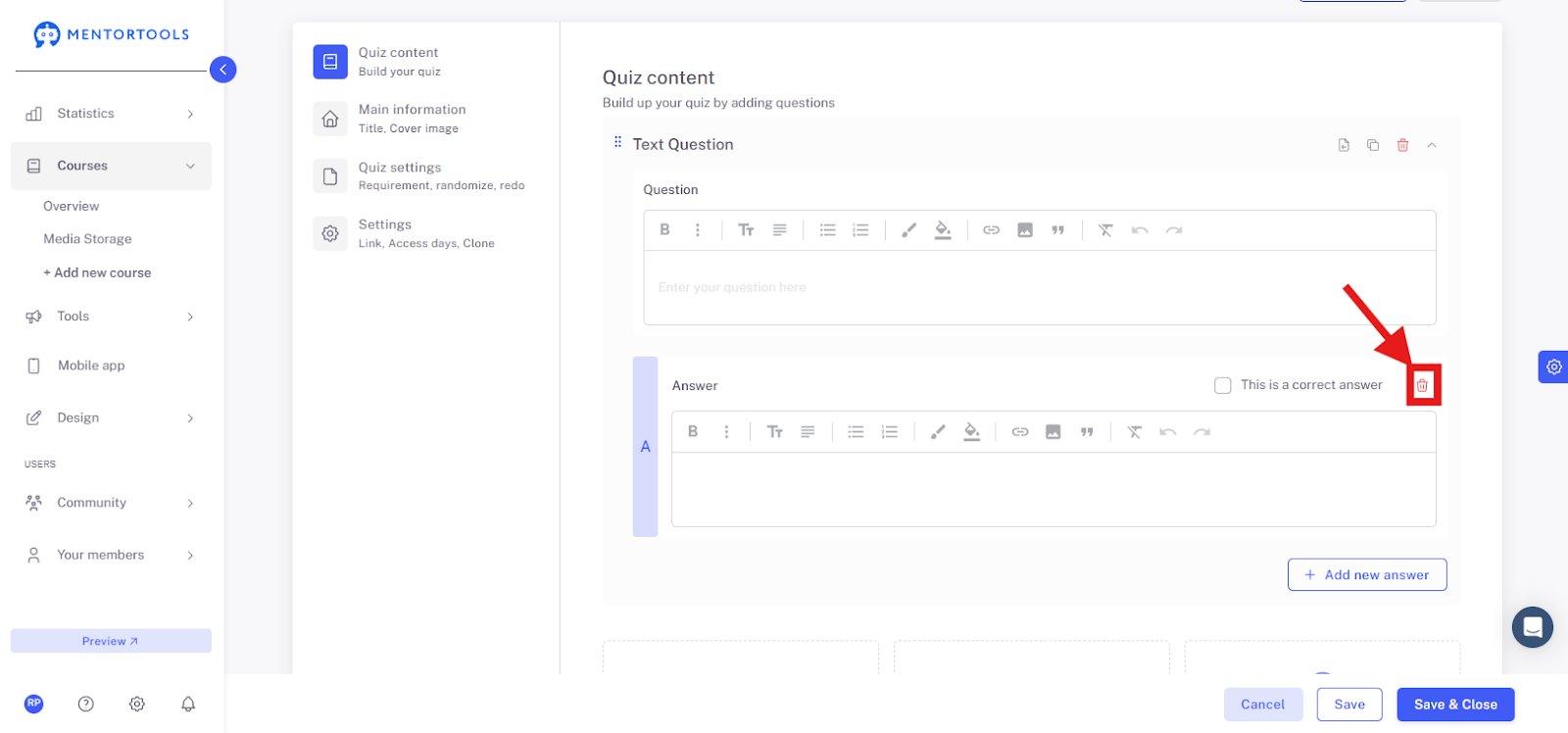
You can easily delete an answer option by clicking the red trash can icon in the top right.
You can add another answer option by clicking "+ Add New Answer" again.
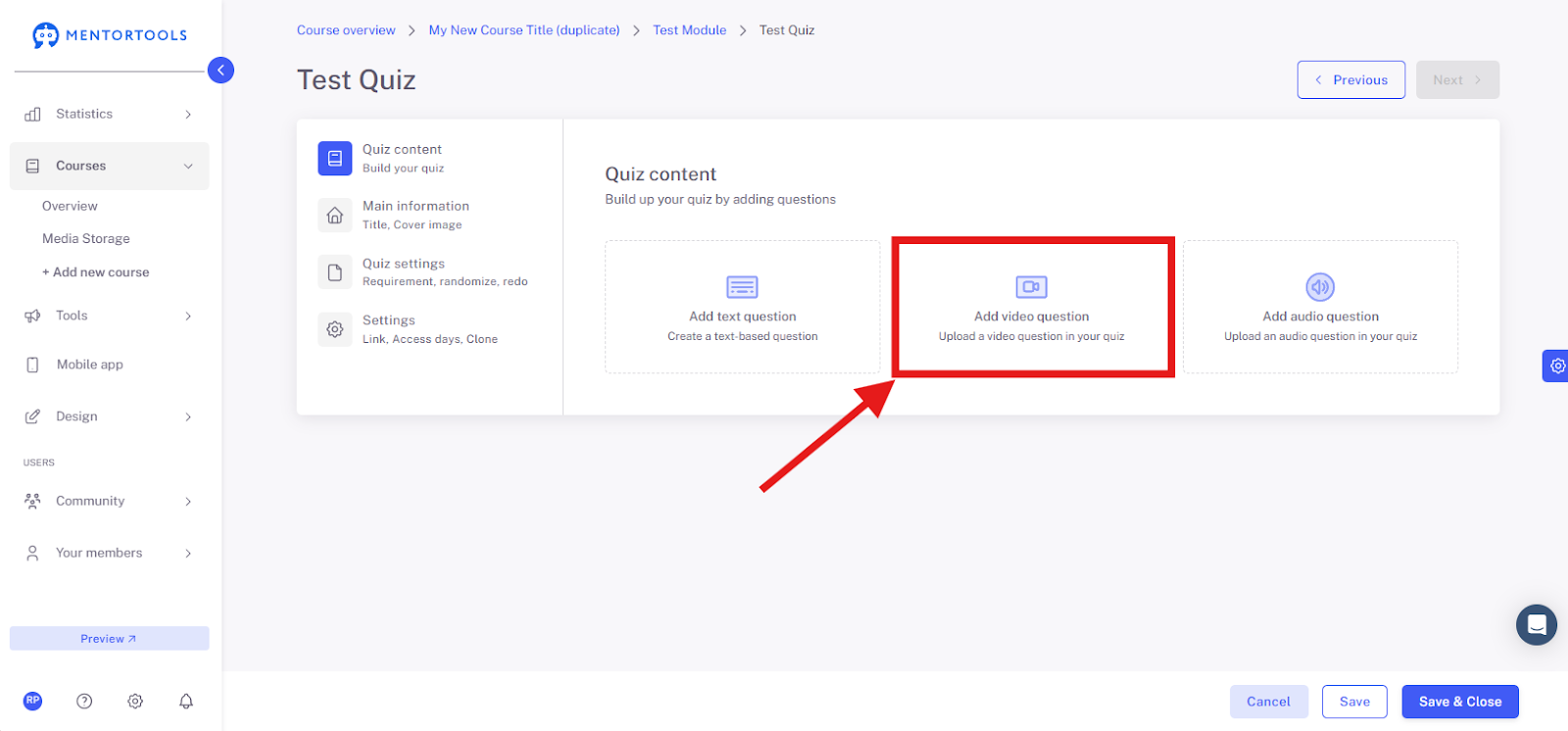
You can add a new question by clicking one of the three options (Text question/Video question/Audio question). You can add as many questions as you like.

How to Add a Video Question to the Quiz?
If you want to insert a video question into your quiz, click on the "Add Video Question" option. A video question is a question whose content is presented through a video rather than in text form.
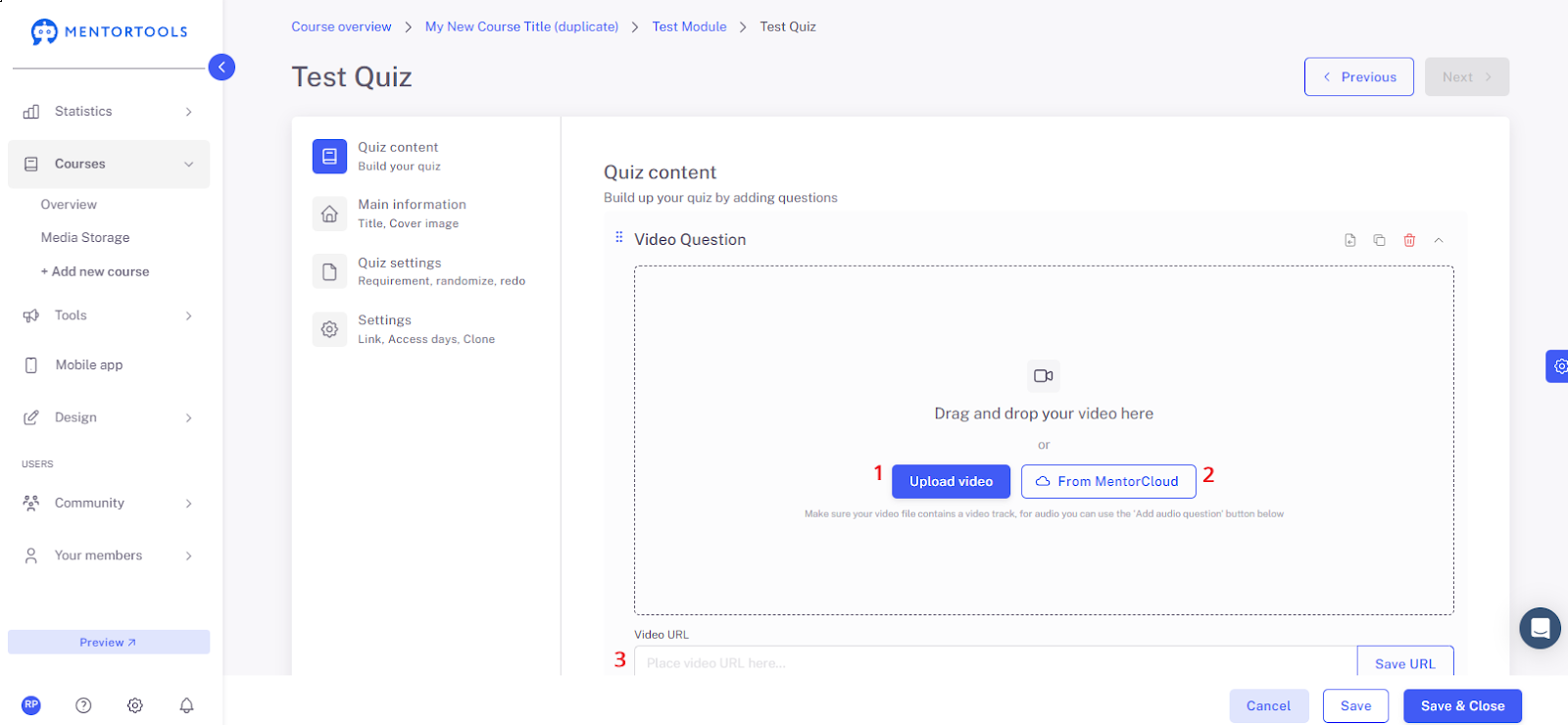
You can insert the video in the following ways:
Move or upload a file from your computer (1).
Upload a file from the MentorCloud – Media Library (2).
Insert the video URL (Vimeo, YouTube) into the field (3).
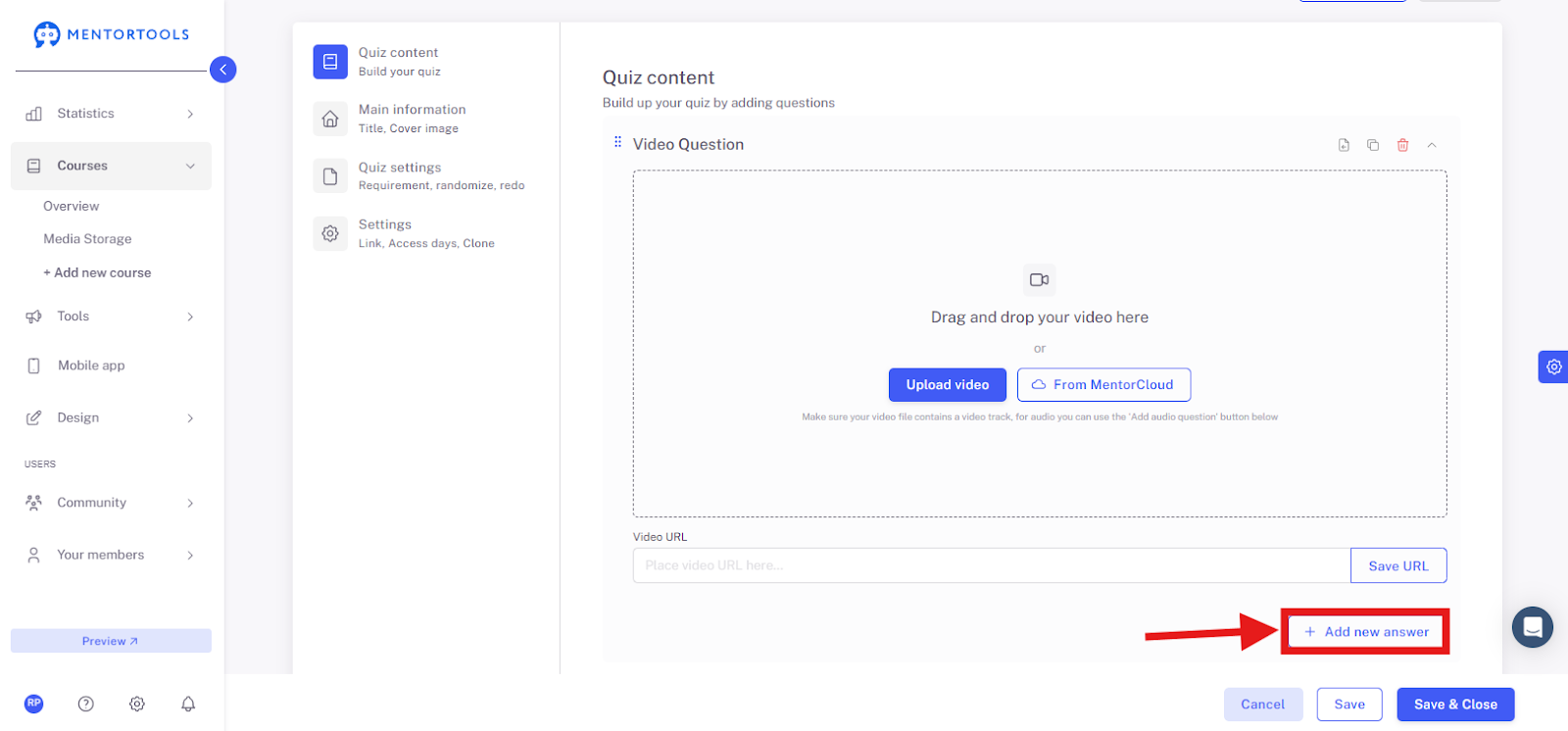
After you have added the question, you can add answer options. You add the answer options in the same way as with a text question—via "+ Add New Answer."
How to Add an Audio Question to the Quiz?
If you want to insert an audio question into your quiz, click on the "Add Audio Question" option. An audio question is a question whose content is presented through an uploaded audio file rather than in text form.
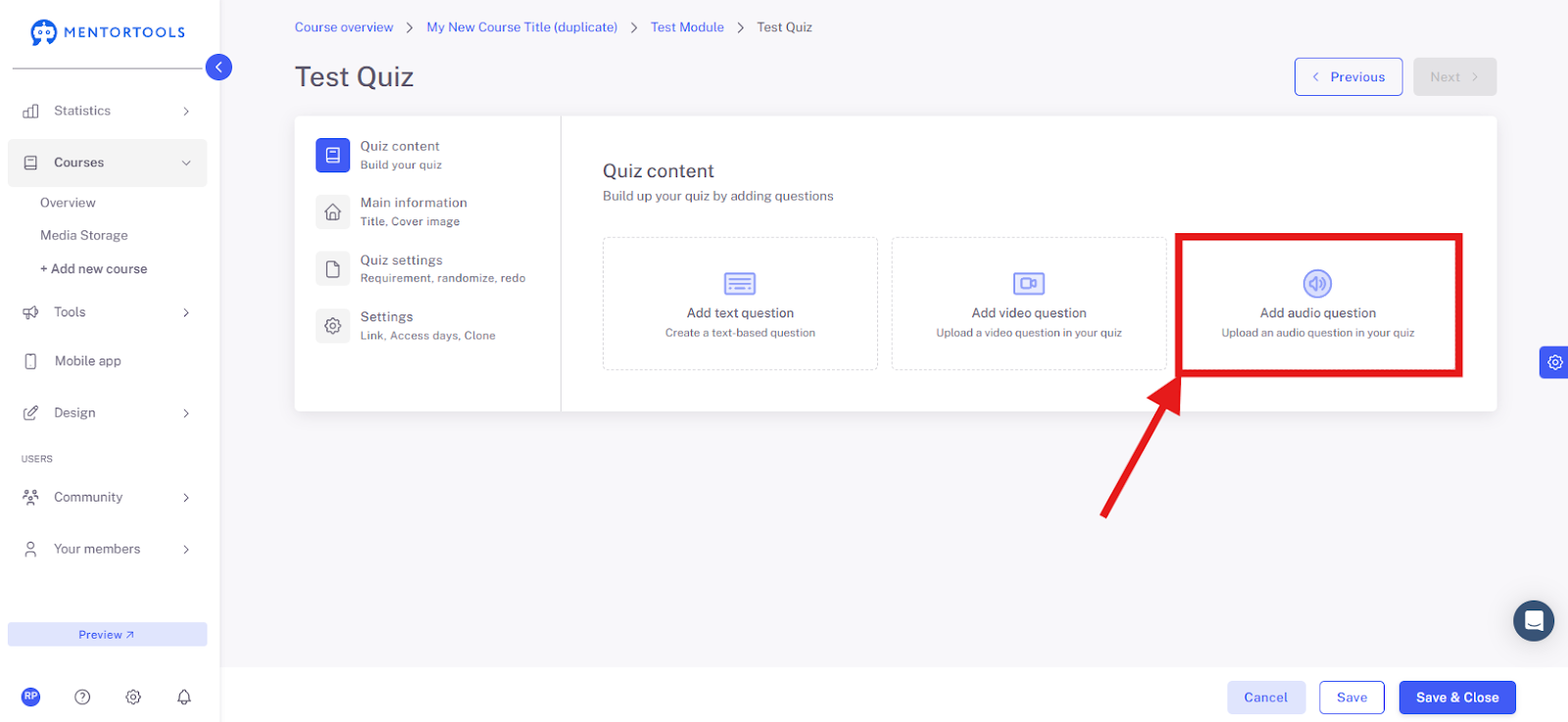
You can insert the audio in the following ways:
Move or upload a file from your computer (1).
Upload a file from the MentorCloud – Media Library (2).

After you have added the question, you can add answer options. You add the answer options in the same way as with a text question—via "+ Add New Answer."
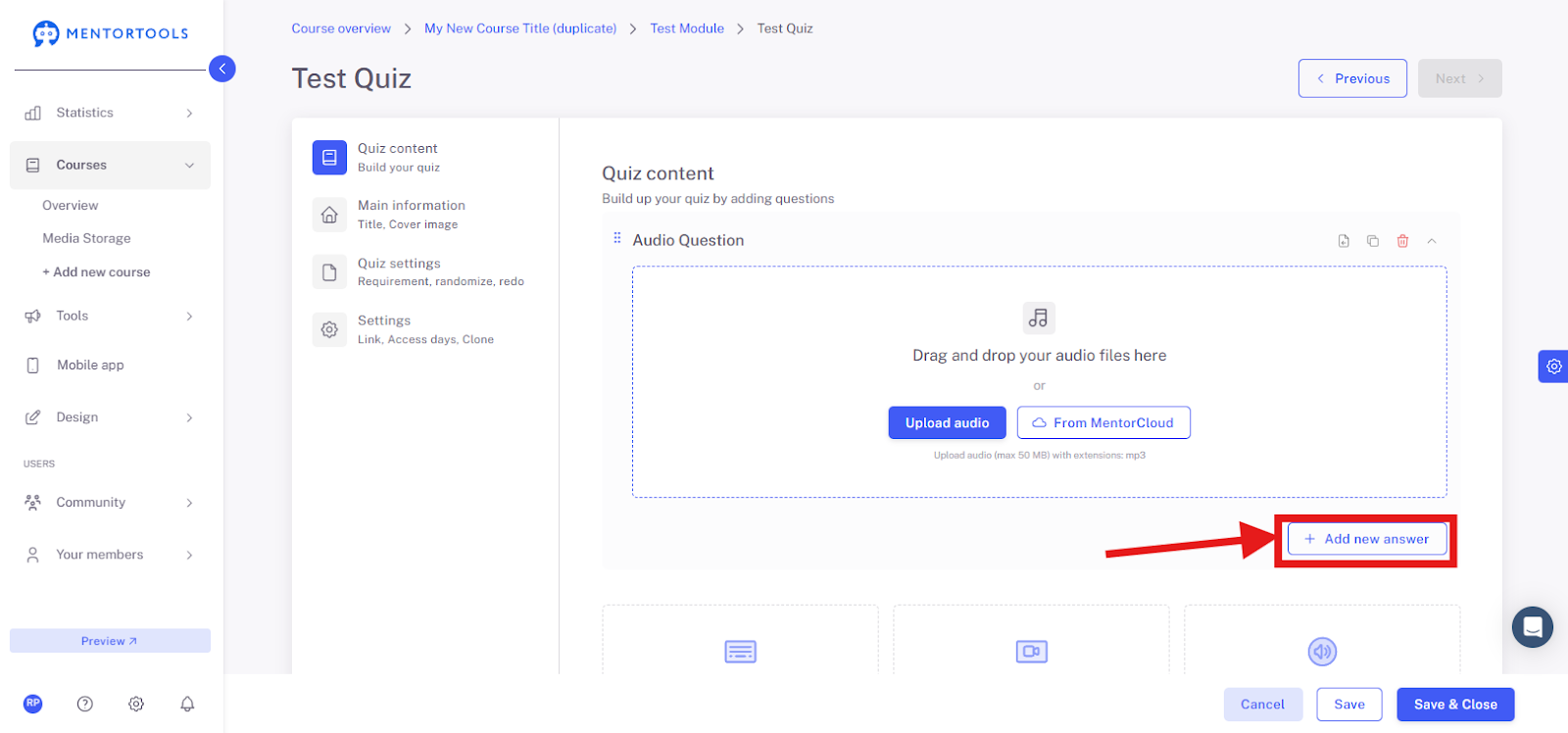
Saving Changes
After you have added all the content—all the questions—click on "Save" or "Save and Close" to save your quiz.
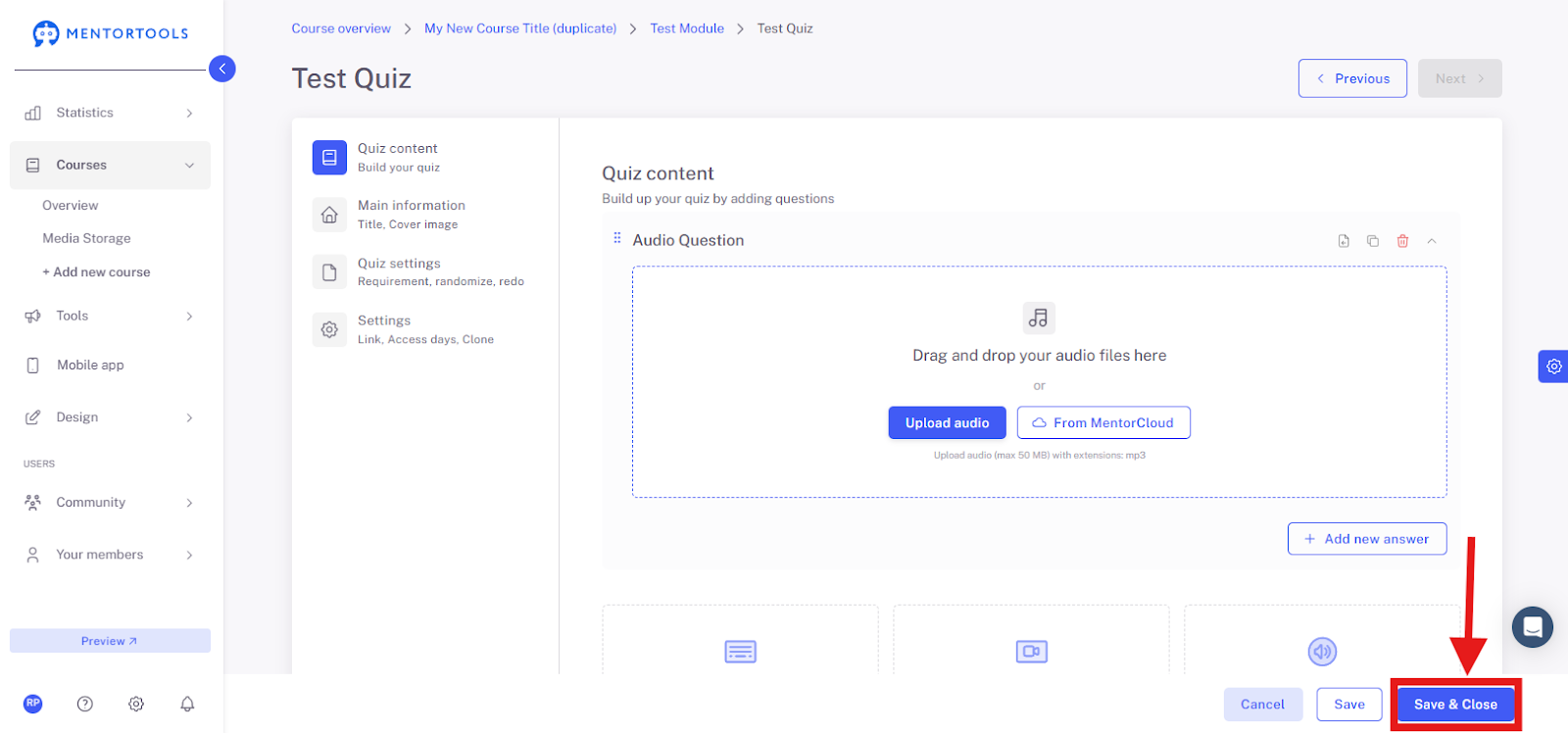
Tips for Creating Quiz Content
Ensure a clear structure and understandable language.
Use shorter answer options to maintain clarity.
Combine easier and more challenging questions to achieve a balanced level.
Mix question types—text questions/video questions/audio questions; single correct answer/multiple correct answers.
How to Preview the Quiz?
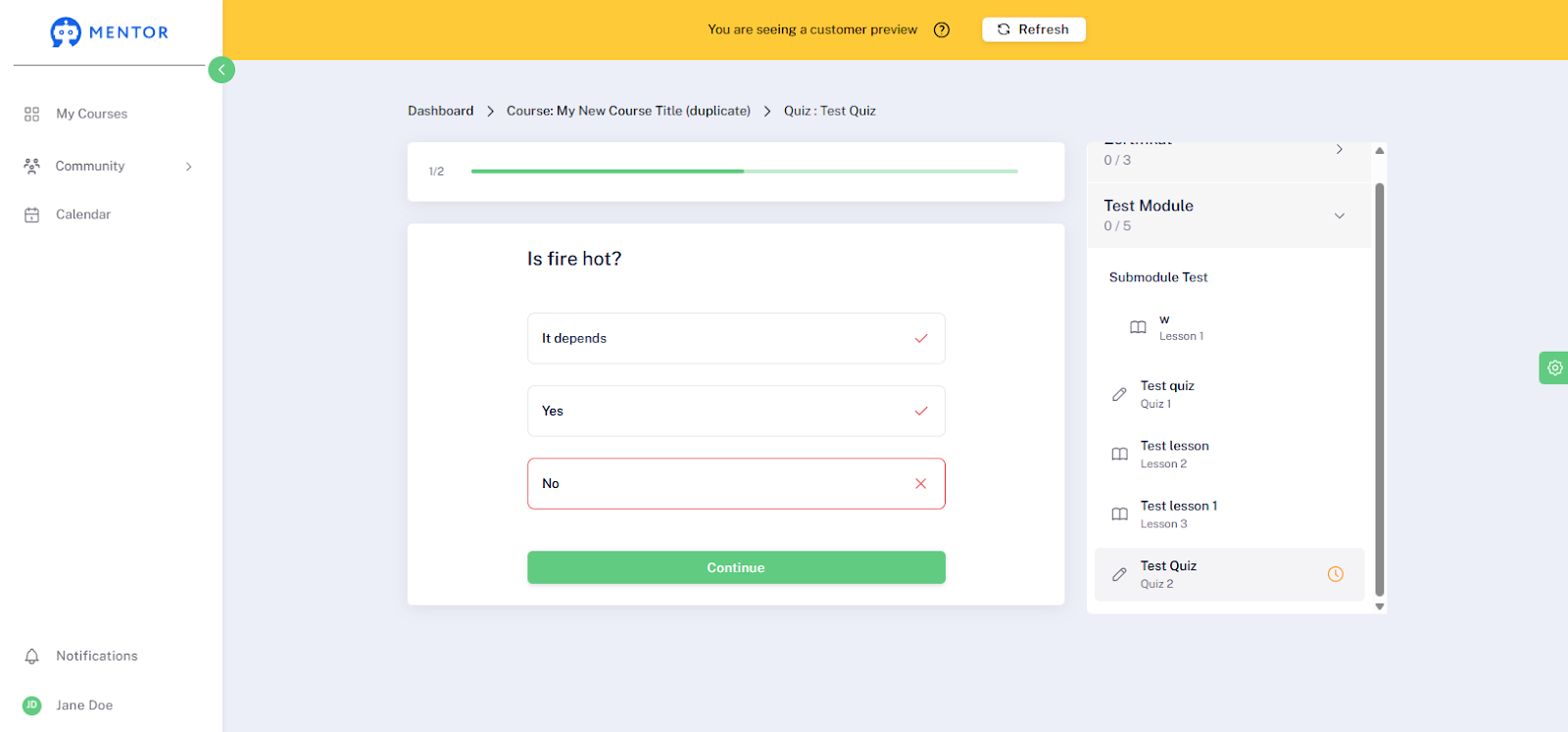
After adding or editing questions, you can view the quiz using the preview function. This allows you to see exactly how the content—the individual questions—will be displayed to participants.
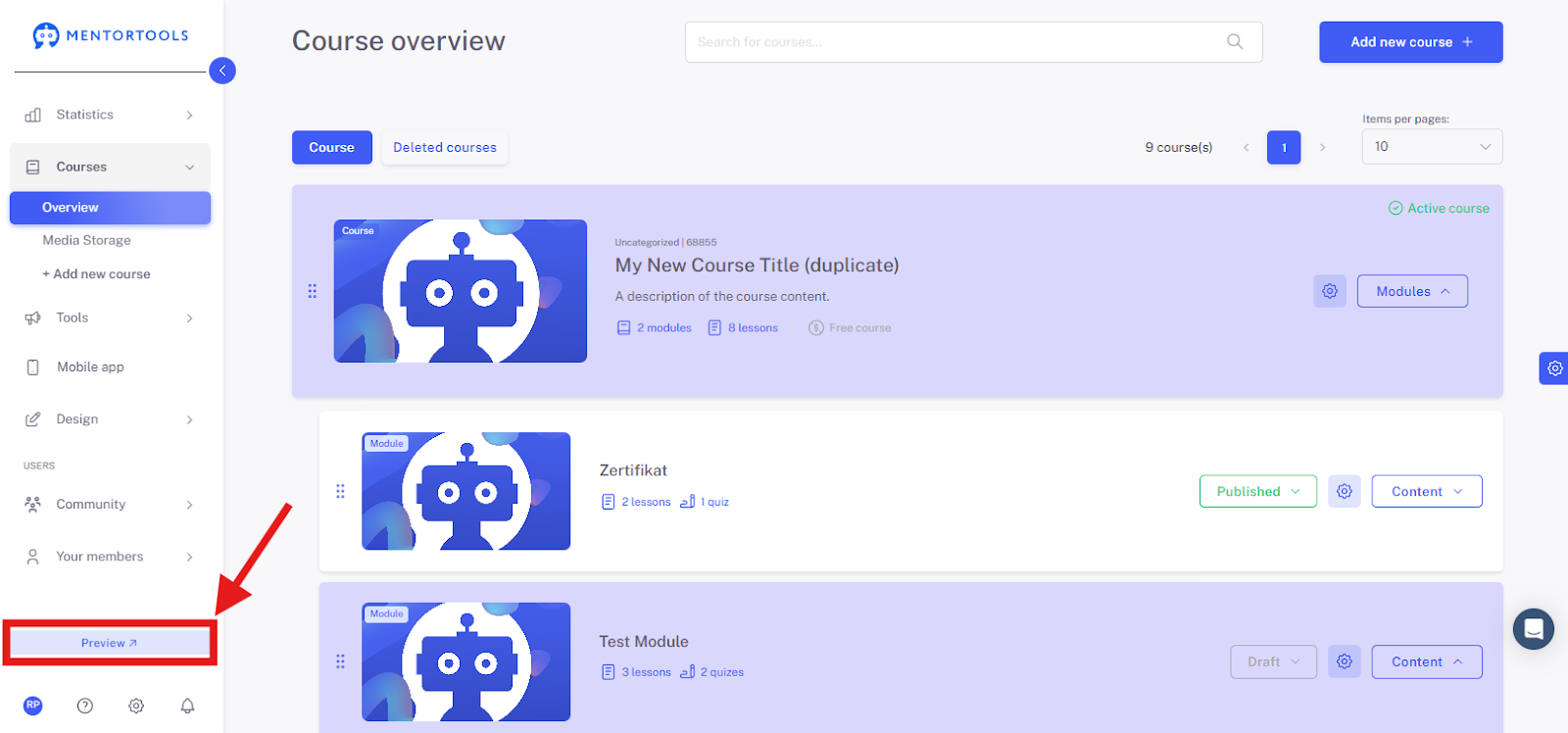
Preview of the quiz from the customer's perspective:

Preview of the quiz from the customer's perspective—the marked answer was correct:

Preview of the quiz from the customer's perspective—the marked answer was wrong:
Preview of the quiz from the customer's perspective—the quiz was successful:

Preview of the quiz from the customer's perspective—the quiz was not successful:
