Adding a Certificate to a Course
In this guide, you will learn where and how to assign certificates to a course. You can set whether a certificate is available immediately or only after the completion of other lessons or a quiz.
Last updated 12 months ago
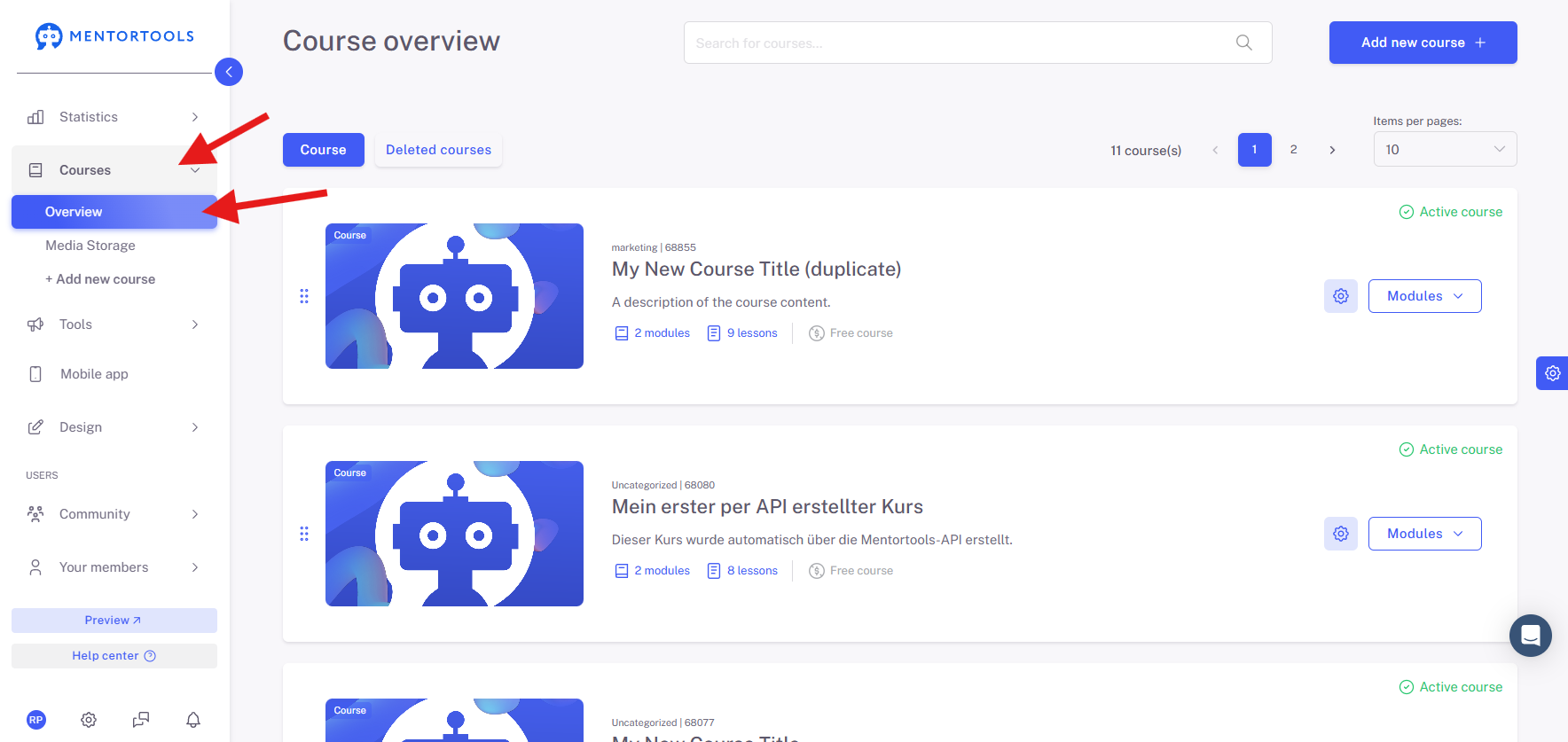
1. Navigate to "Courses" and "Overview"
In the left-hand menu, click on "Courses" and then on "Overview." There you will find the list of all the courses you currently have. You can also add more courses.
2. Navigate to a Lesson or Create One
Click on the settings of a lesson or create a new lesson. There, you can then create a block at the bottom called "Certificates."
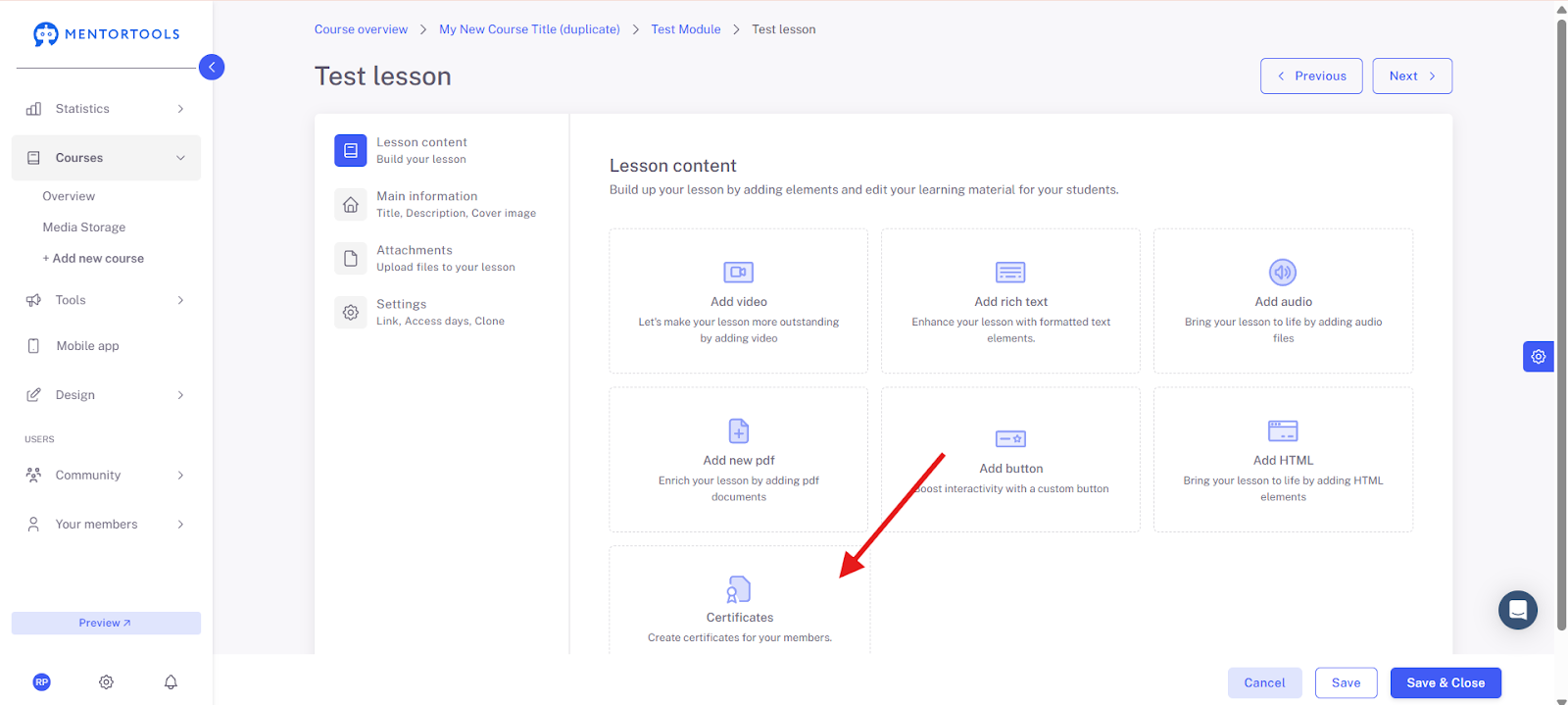
You can create as much content as you want in a lesson. A lesson does not have to consist of just a certificate. In most cases, however, customers only create one certificate per lesson. Typically, this lesson is placed at the end of a course as the last or second-to-last lesson.
3. Choose When the Certificate is Available
You can now select when the certificate is available. There are three options here:
The certificate is always available.
The certificate is only available after all previous lessons have been completed.
The certificate is only available after successfully completing a quiz.
If the certificate should always be available, the member can simply go to the lesson in the course and will find their certificate directly. You can also set it so that a member must first complete all the lessons before this certificate is able to view it. The lesson in which the certificate is displayed is, of course, not included in this requirement. Finally, you can also set that the member must have successfully passed a quiz to be able to display the certificate.
You can also enter a message that the customer sees when the certificate is not yet displayed. Of course, you can also use a text block outside of the certificate, for example above it, to explain how the certificate is obtained and what the customer should do with it.
Handling Missing Data
If, for example, you have specified a birth date on the certificate, the certificate can only be issued if the member's birth date is known. For this reason, the certificate will appear blurred beforehand. The member can then enter their birth date in a pop-up. After that, the certificate will be unlocked immediately.
Have fun and much success using the certificates!