Look & Feel – Footer
Under Look & Feel, you manage central design elements like colors, fonts, and logos so your entire academy has a consistent look. Here you can incorporate your own corporate identity.
Last updated 12 months ago
Footer
A member area would not be complete without a footer. This element rounds off your area and contributes to a good impression. The footer is displayed on all pages—except for landing pages and the login/registration page.
If you want to use this function, you must set the tab to active here.
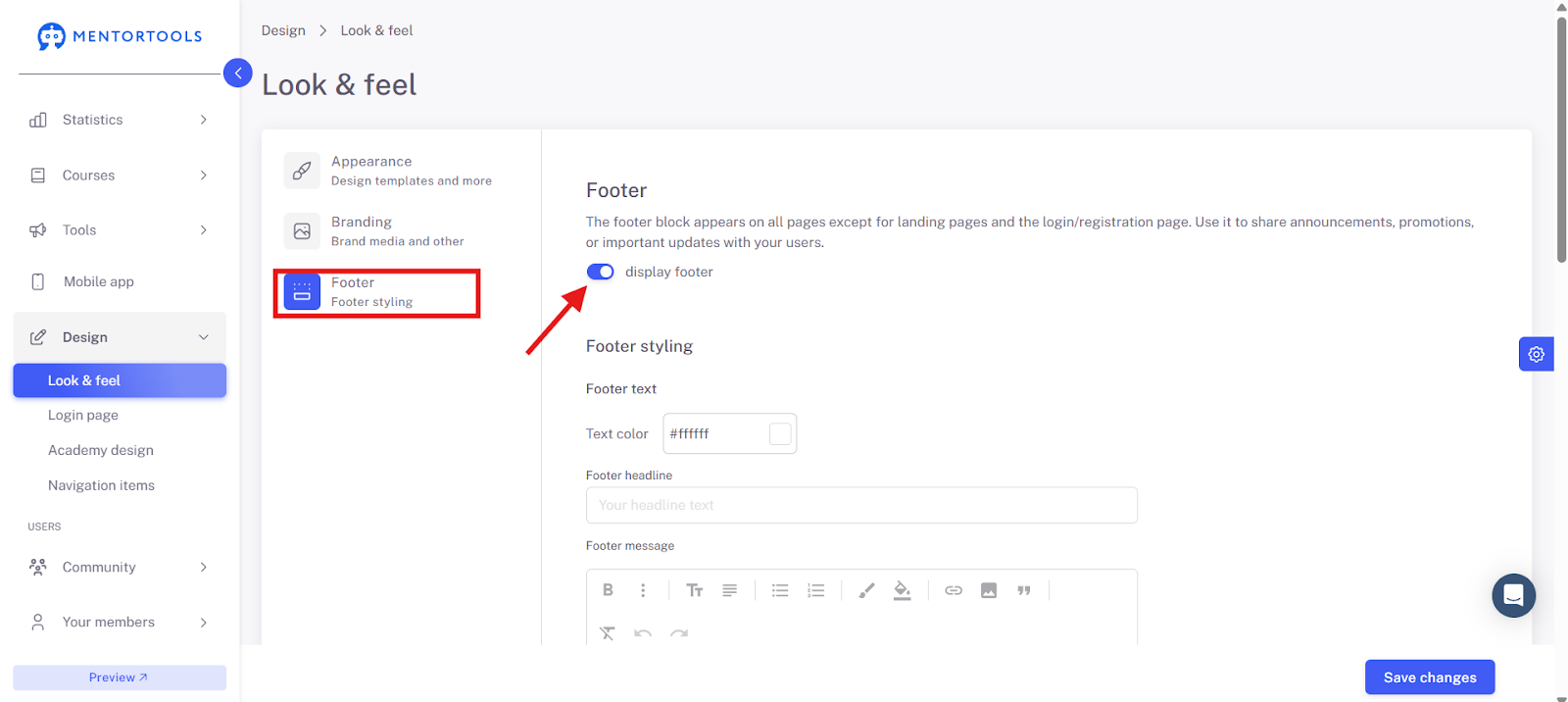
As an example, we show you the footer of the Mentortools Academy here.
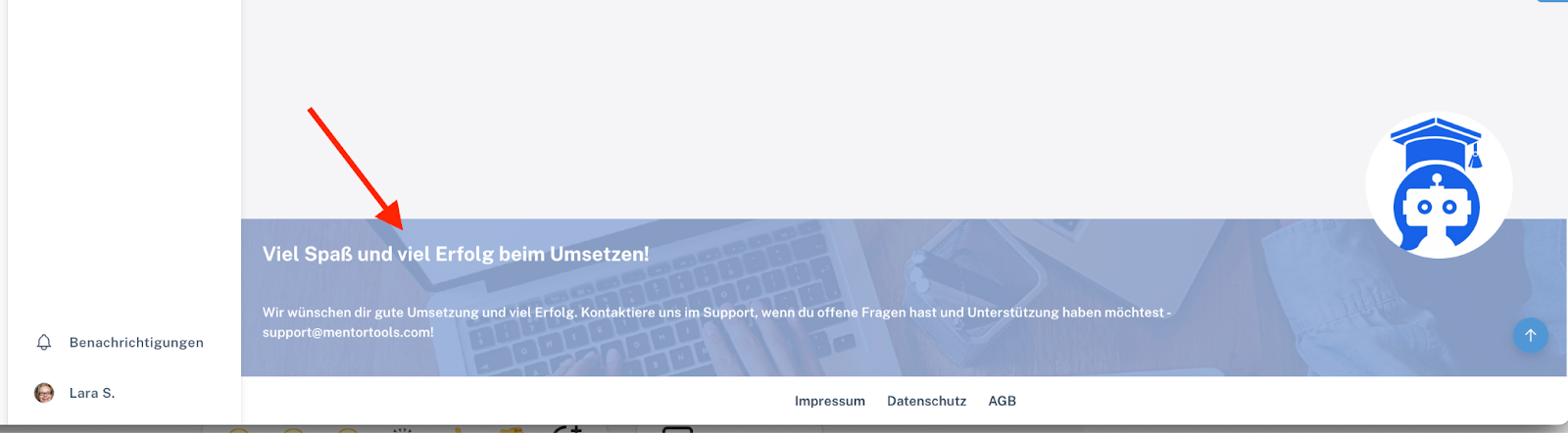
We have uploaded a fun version of our logo and linked to our support email address. This should be well-placed so that your customers don't have to search for it when they have a question or want to contact you.
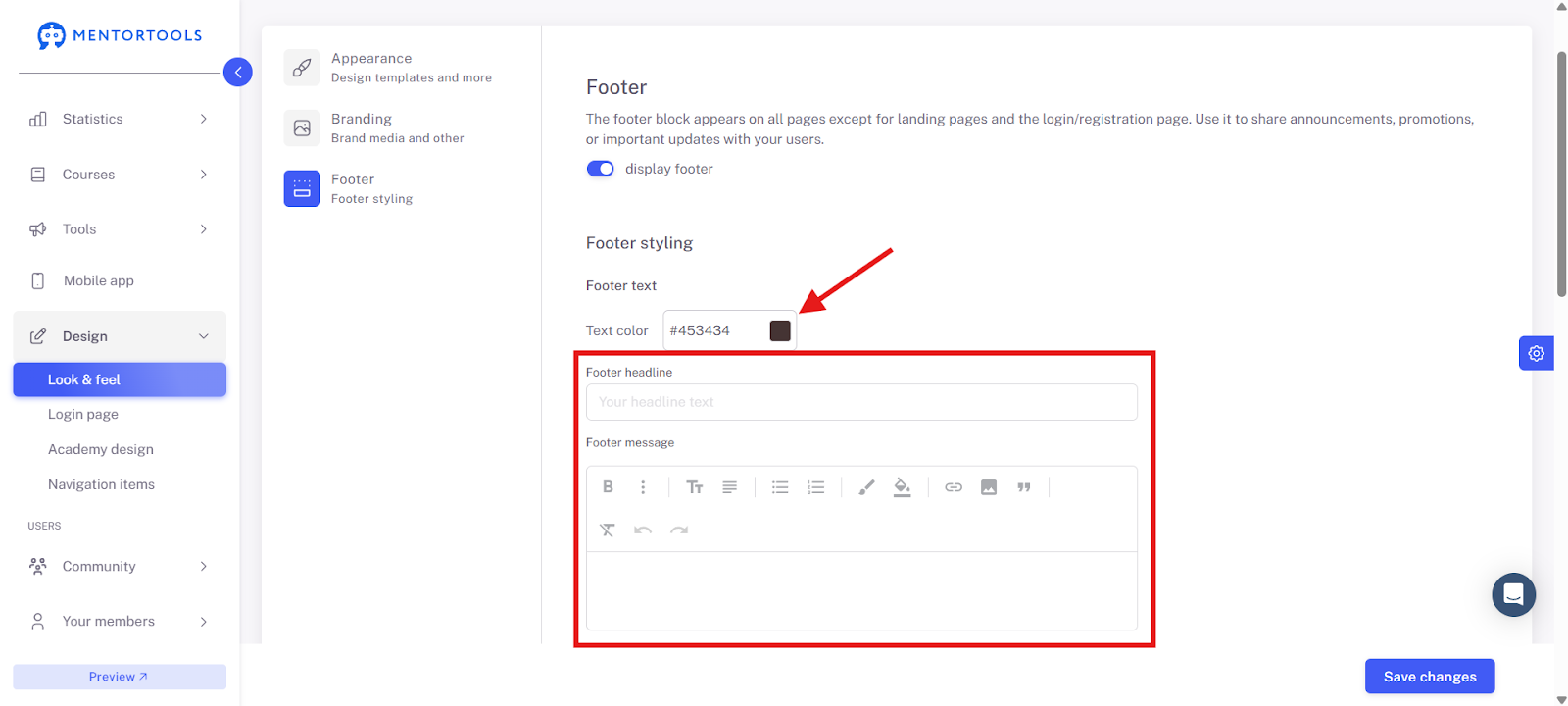
Choose a color for your text and write your text in these two fields here.
In the large text field, you can also upload an image or add a link.
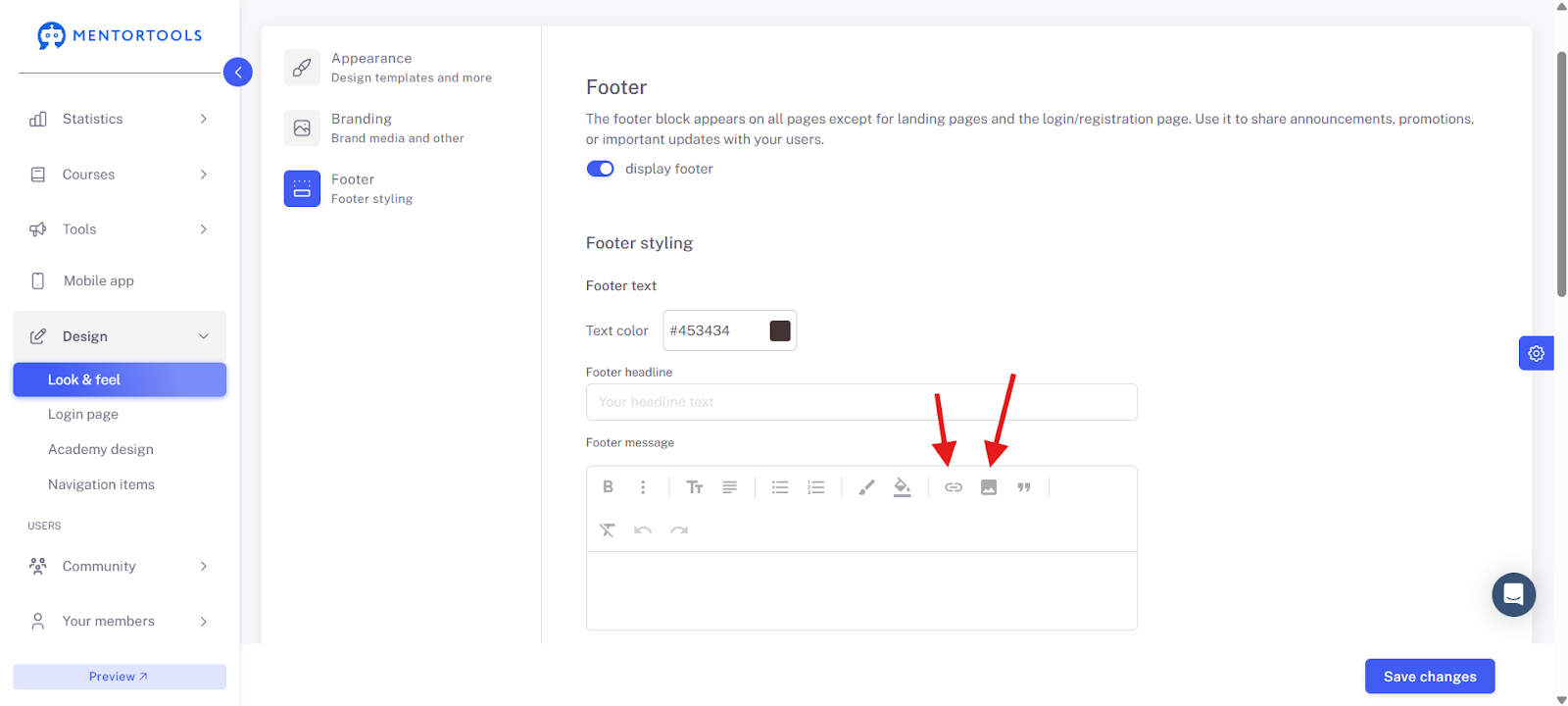
You can also upload a small image to the footer. This could be your logo, a profile picture of yourself, or something that represents you and your topic. This is another way to incorporate your own brand here.
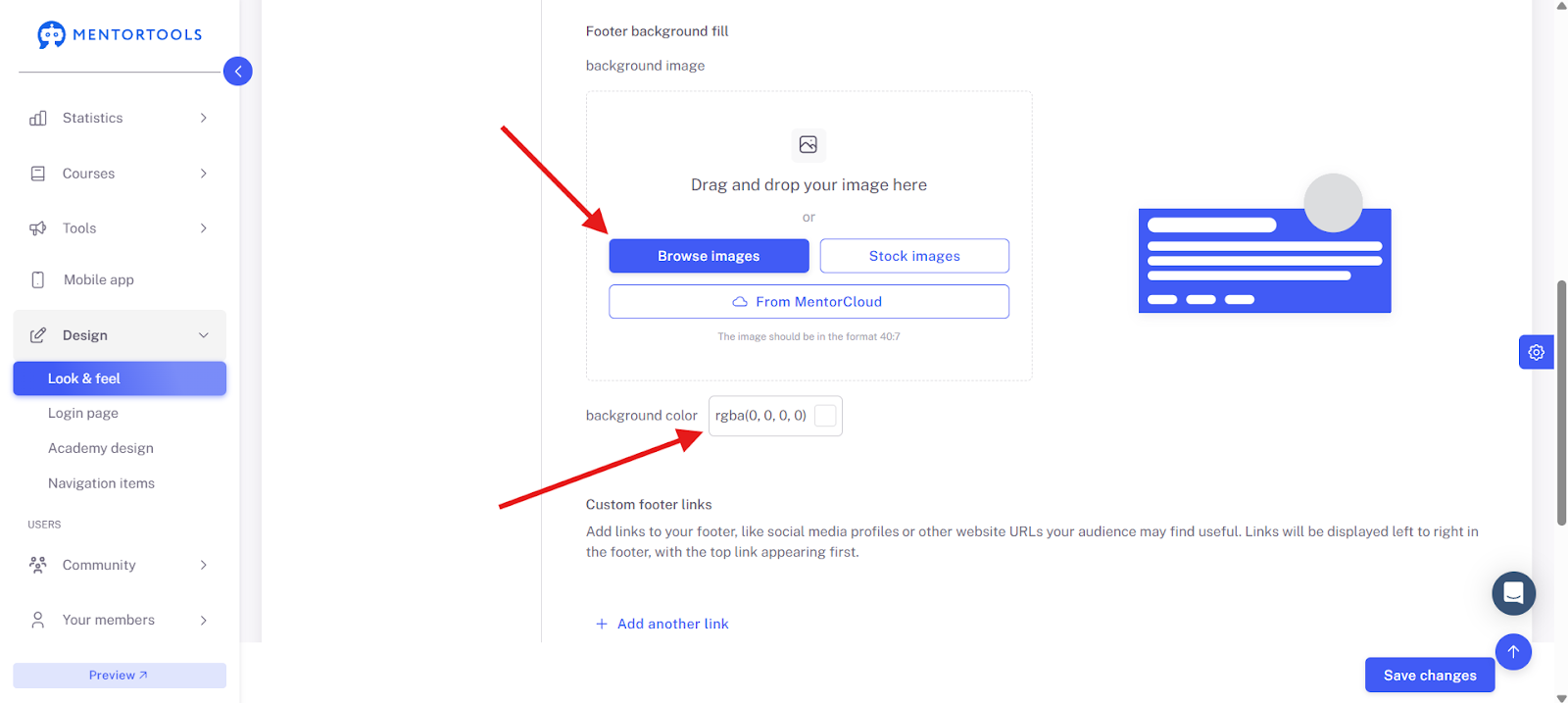
Important: Click "Save Changes" regularly.
It's best to use the preview function here. This way, you can quickly get an idea of the current state and see if everything looks good.