Payment Providers – Connecting Mentortools with Copecart
In this guide, you will learn how to connect CopeCart as a payment provider with Mentortools to sell your courses directly and automatically.
Last updated 11 months ago
How to Connect Mentortools with CopeCart?
Here you will learn how to connect the payment provider CopeCart with your Mentortools account so you can generate your first sales. First, you need an active account with CopeCart.
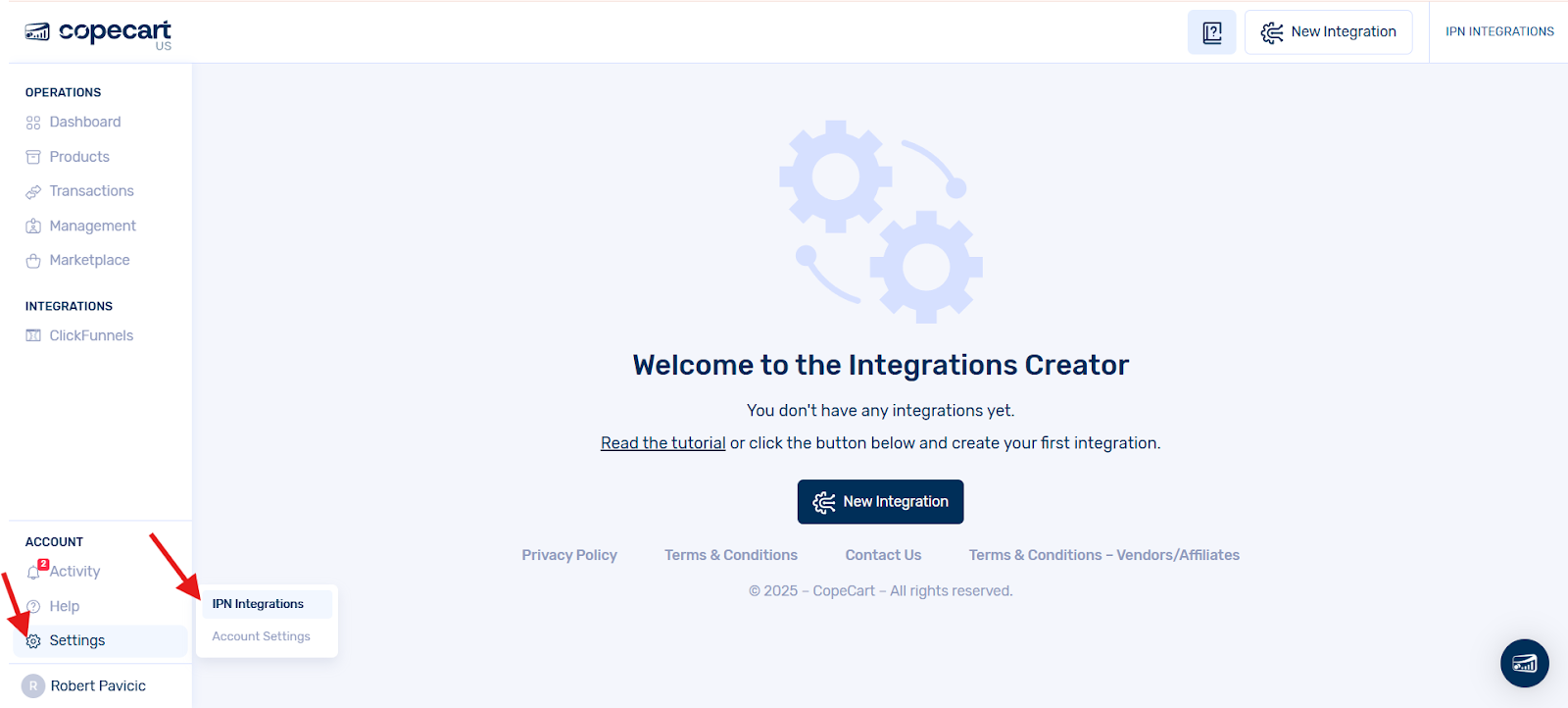
Please make sure that your account is verified and fully activated. Only then can you correctly implement the connections. If the prerequisites are met, log into your CopeCart account and navigate with your mouse to the bottom left to the settings and click on the sub-item "IPN Connections."
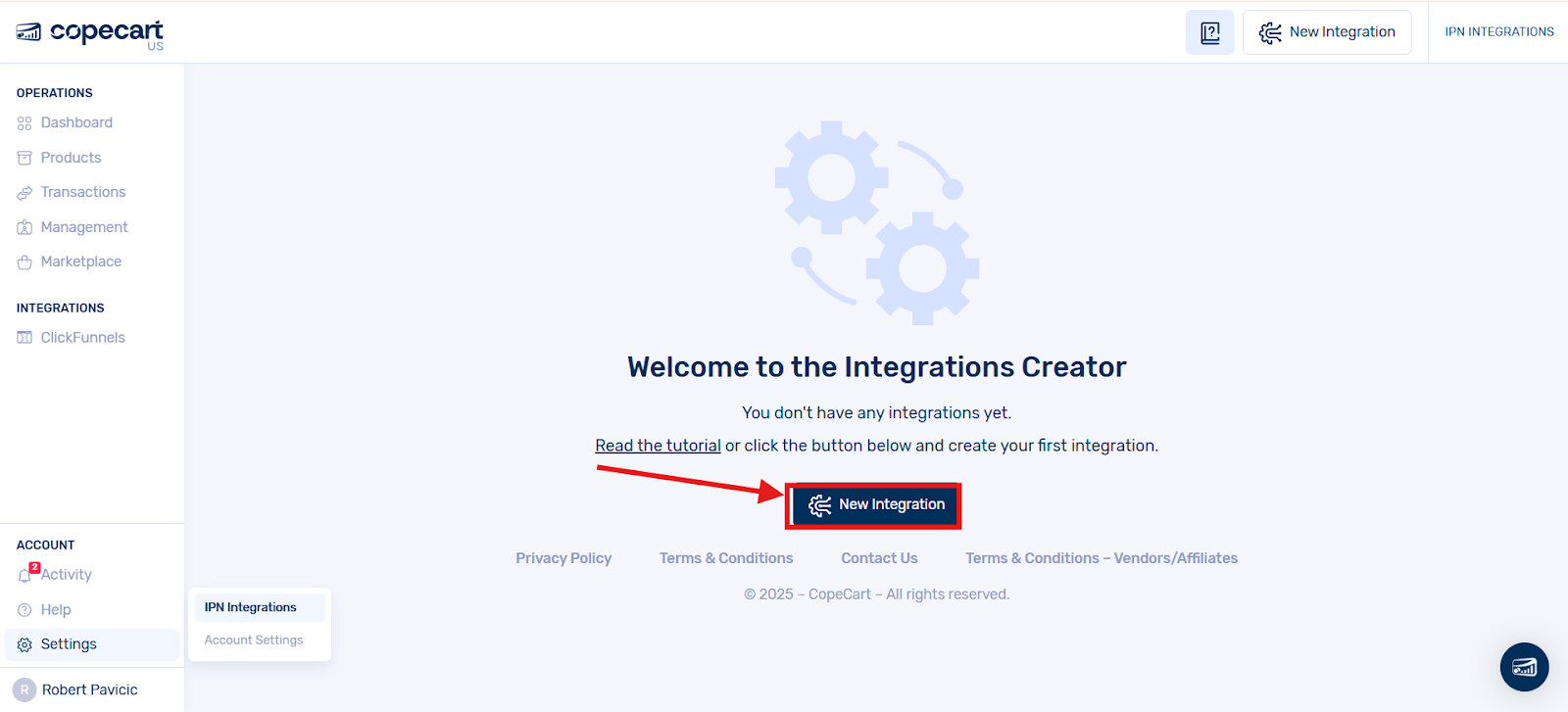
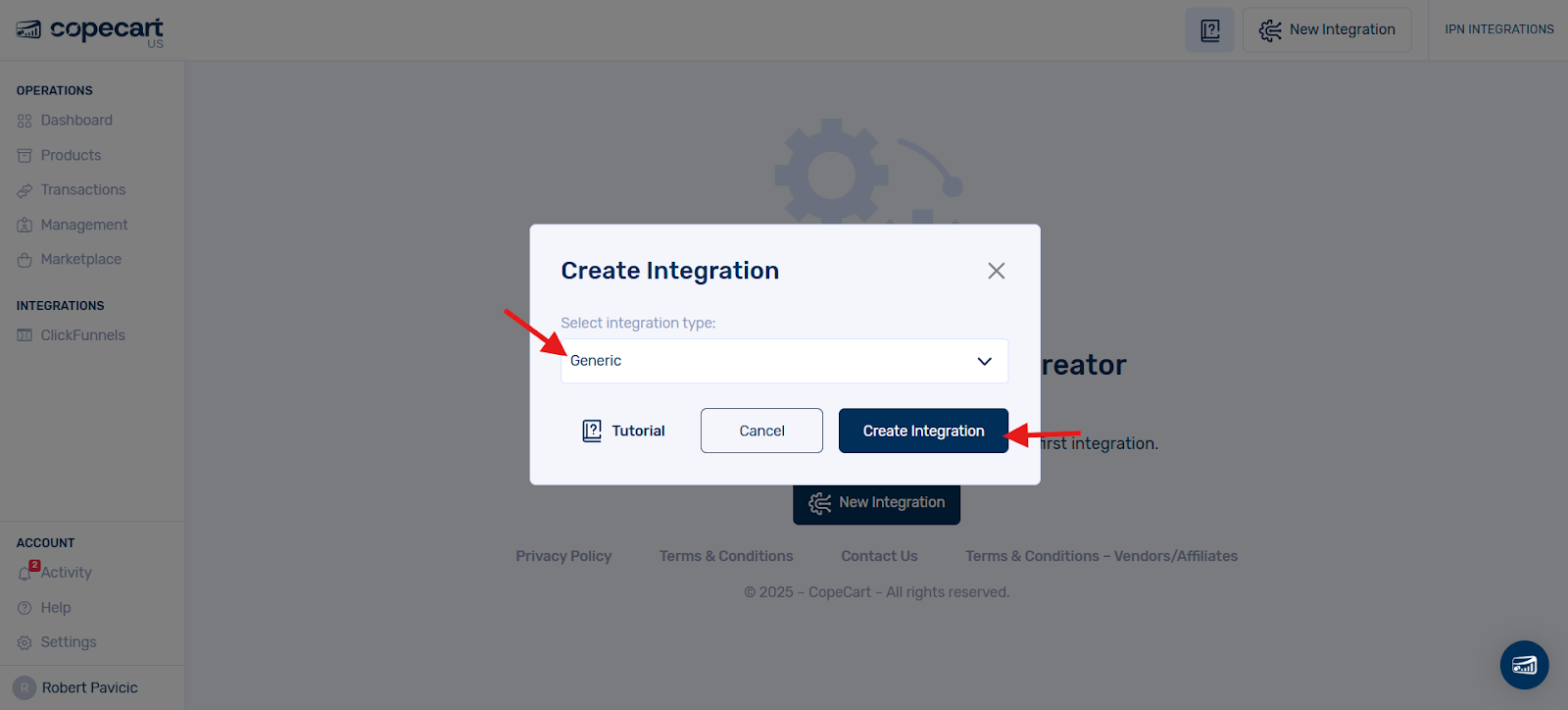
You will then be taken to a new page. Click on the "New Integration" button. A window will then appear on your screen. There you select the item "Generic" and click on the "Create" button.
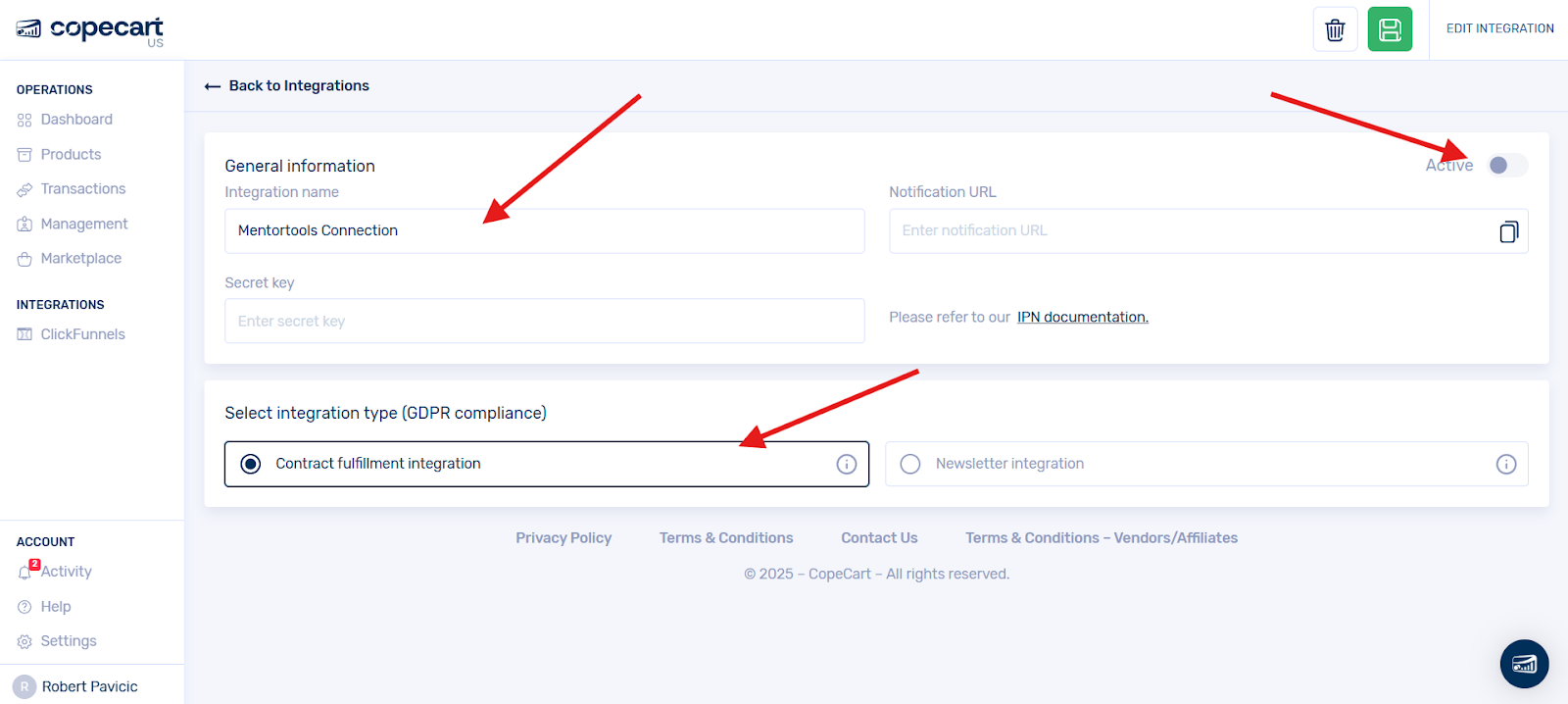
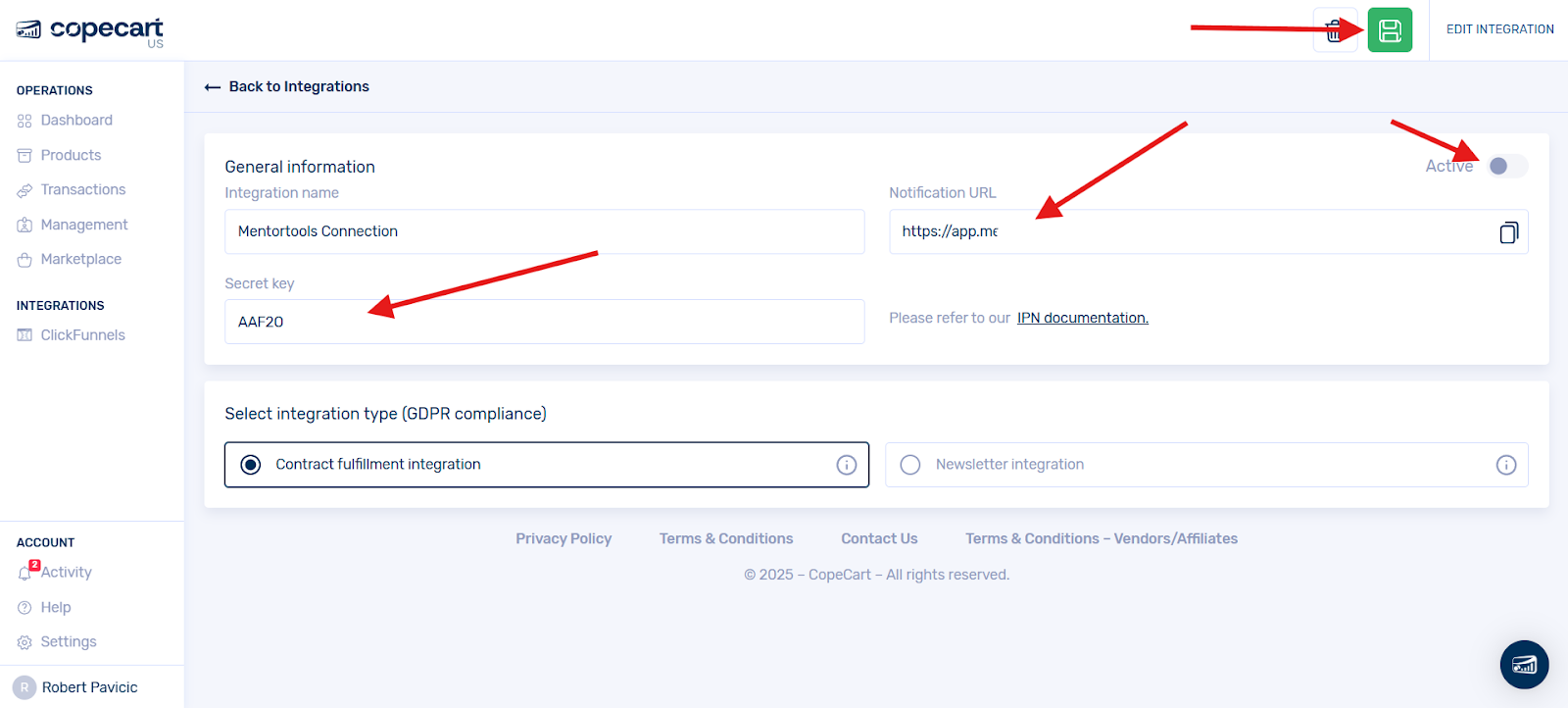
After you have done that, you will land on a new page where you can generate the connection. Enter, for example, "Mentortools Connection" in the first field.
In field two "Notification URL" as well as in field 3 "Password" you need the data from your Mentortools account. We will get to that after you have selected the integration type.
Then select the first item "Integration for contract fulfillment" and activate the connection.
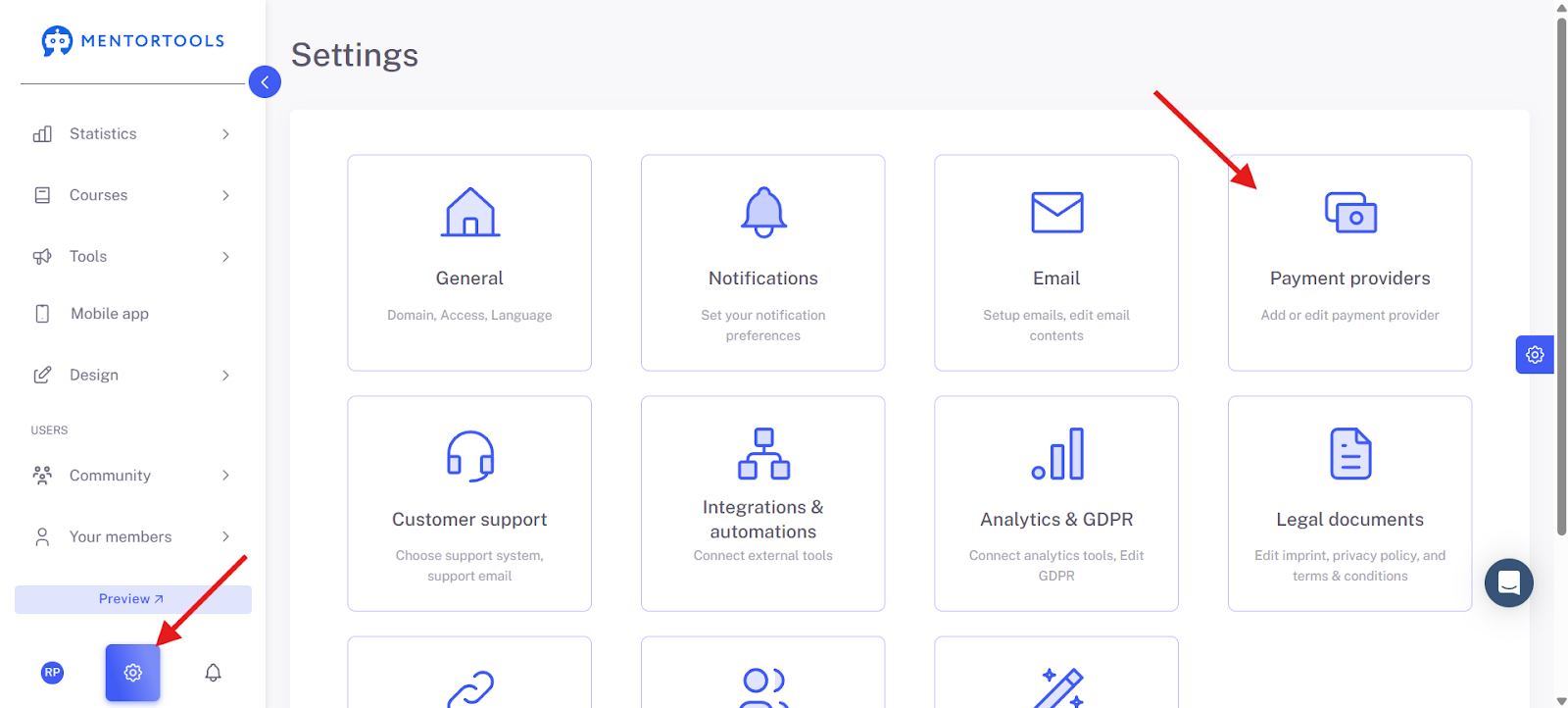
To fill in fields 2 and 3, log into your Mentortools account and navigate via the menu item "Settings," then the sub-item "Payment Providers."
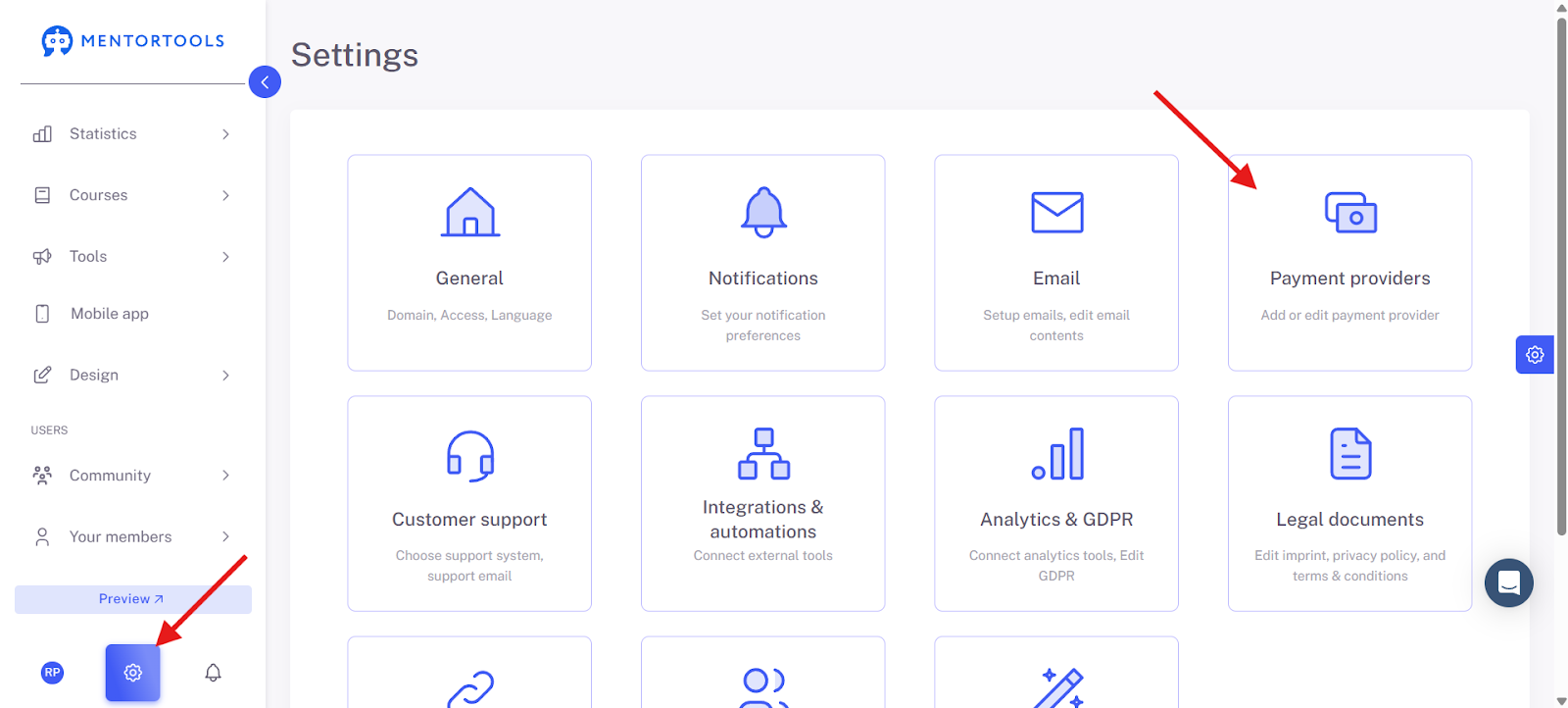
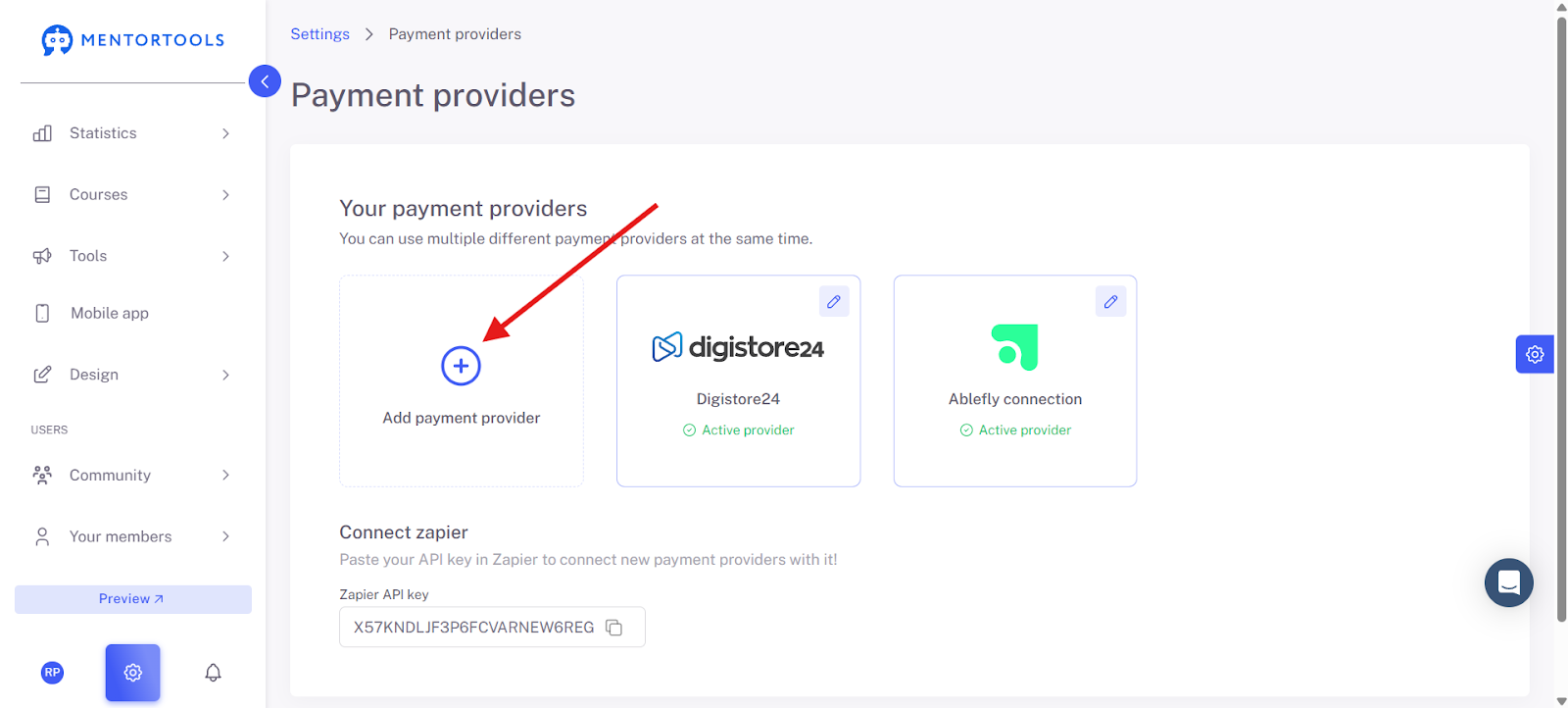
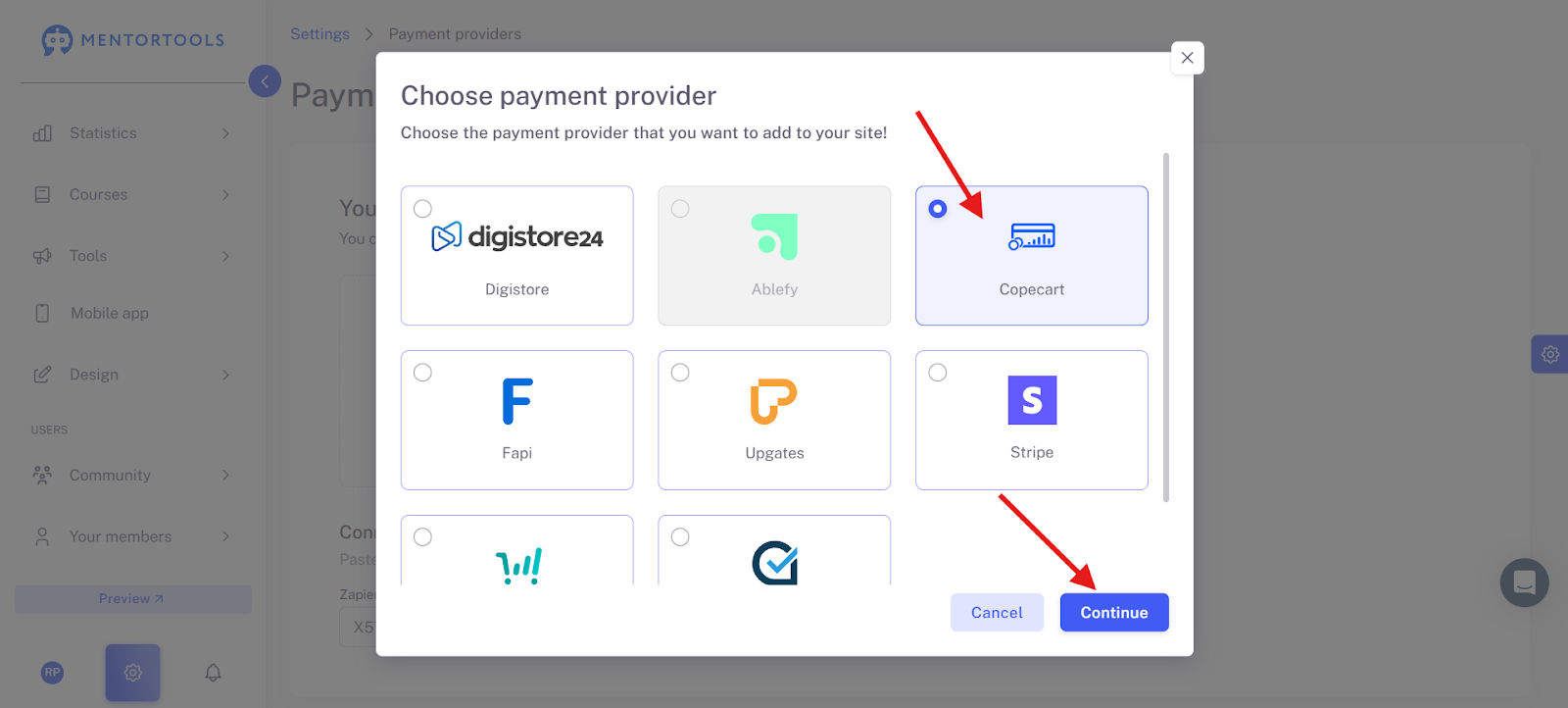
Now click on "Add Payment Provider" and select "CopeCart." Then click on the "Next" button.
You will then be taken to a new window. Name the connection, for example, "CopeCart Connection," and create the API key by clicking on the "Generate credentials" button.
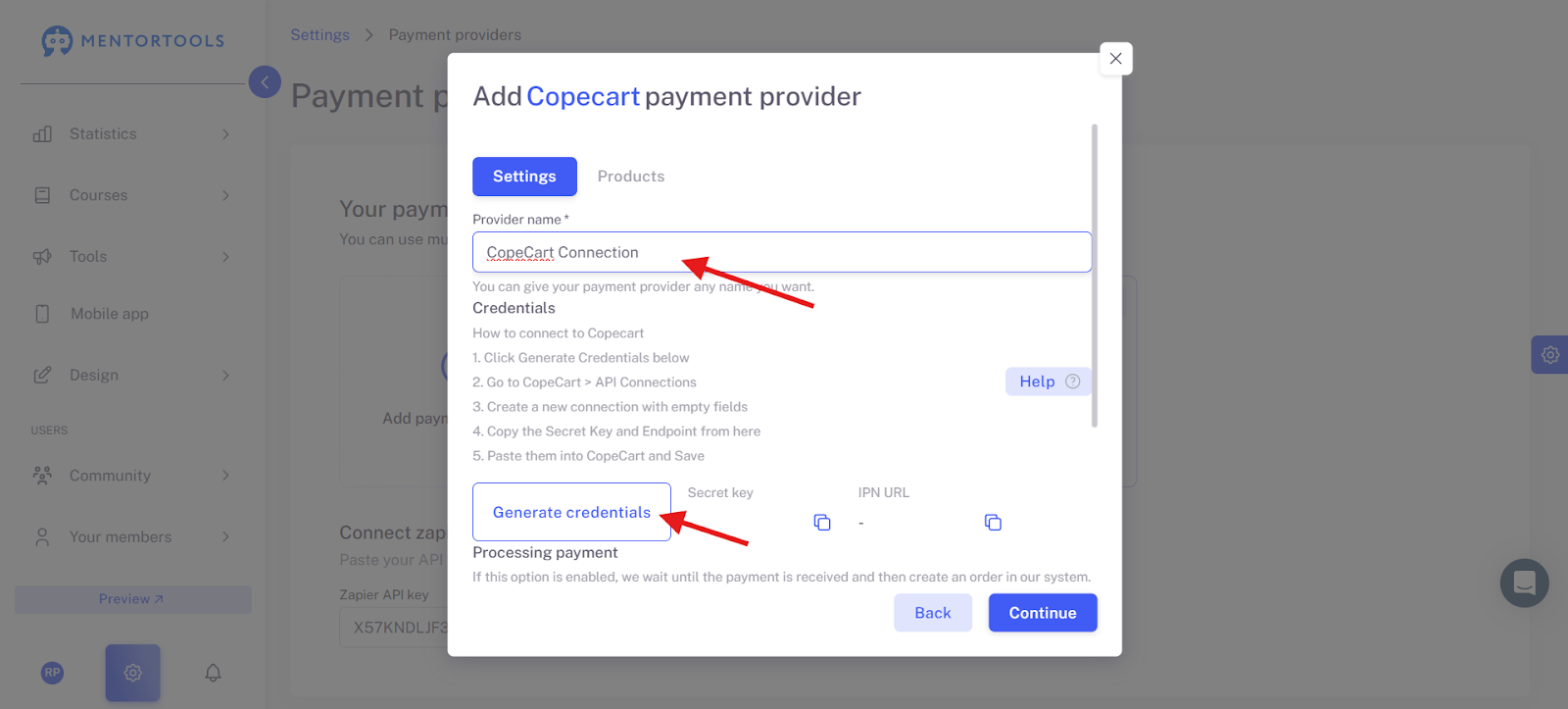
The password (first field) and the notification URL (second field) will then be displayed immediately.
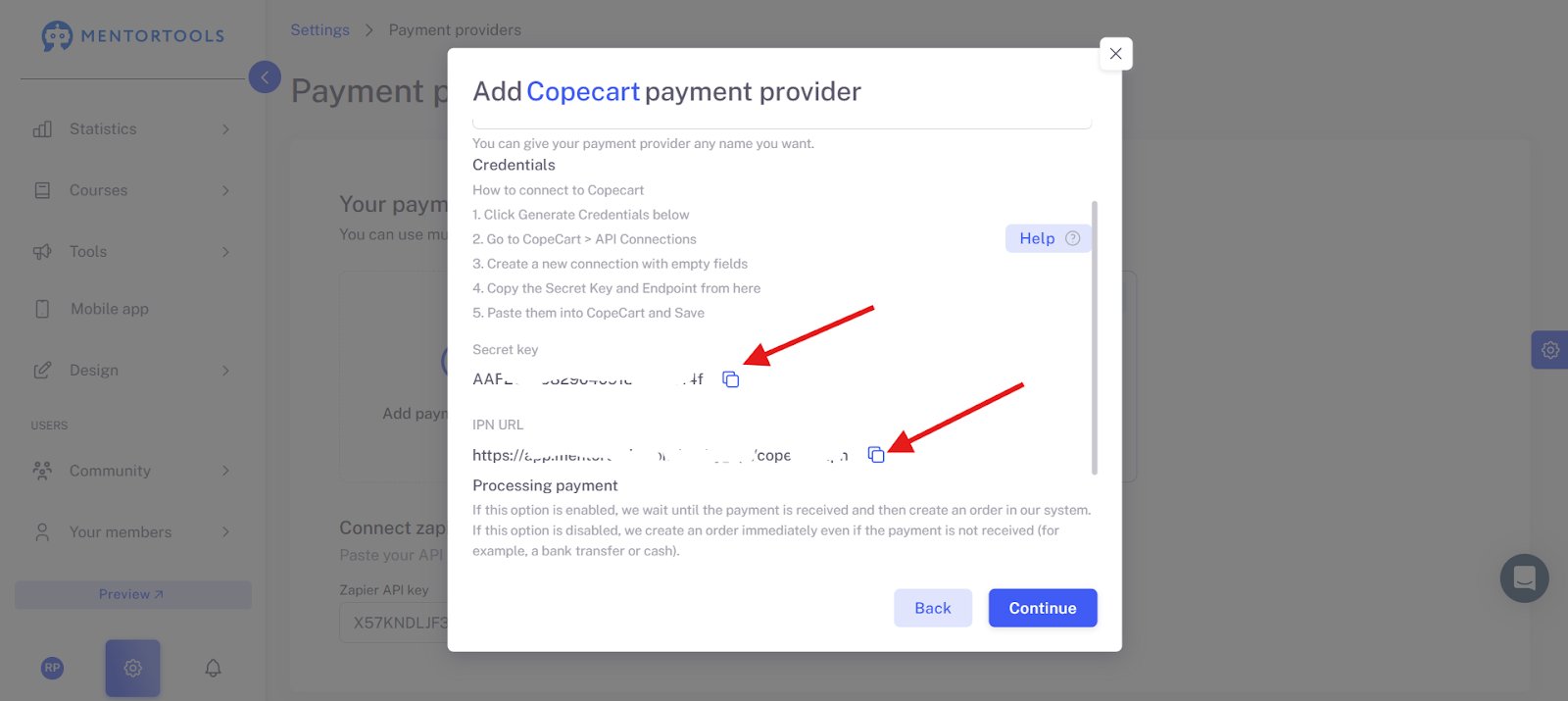
You can now store these two data points in your CopeCart account. Activate and save the connection by clicking on the green "Save Icon" at the top right.
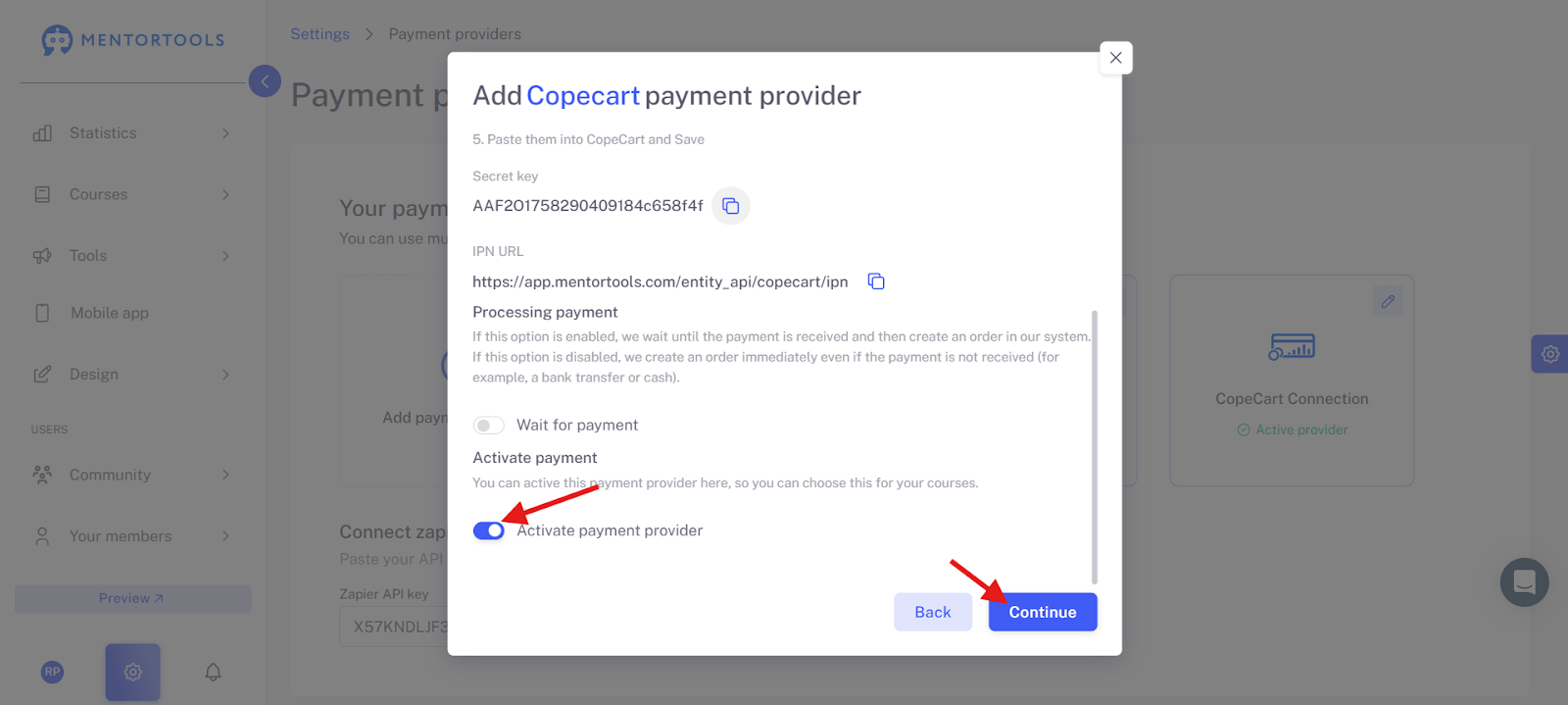
Finally, activate the payment provider and save the connection in your Mentortools account.
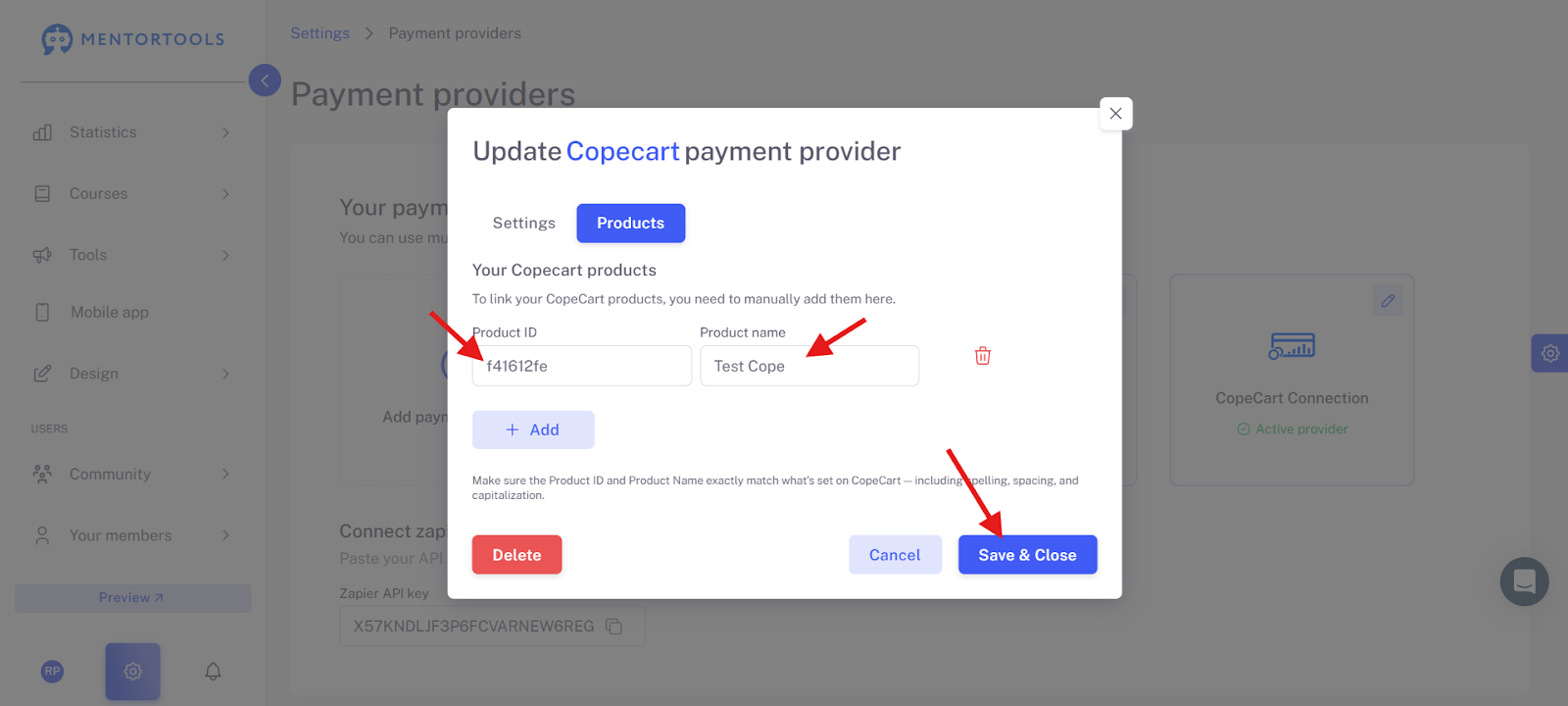
Now enter your Product Name and the Product ID and click “Save and close”
You have now successfully connected the payment provider CopeCart with your Mentortools account.
Connecting the CopeCart Product with the Online Course
If you now want to connect your products from your CopeCart account with the products in your Mentortools account, navigate again to the menu item "Settings," then sub-item "Payment Providers," and "CopeCart." Then click on the CopeCart connection you just created.
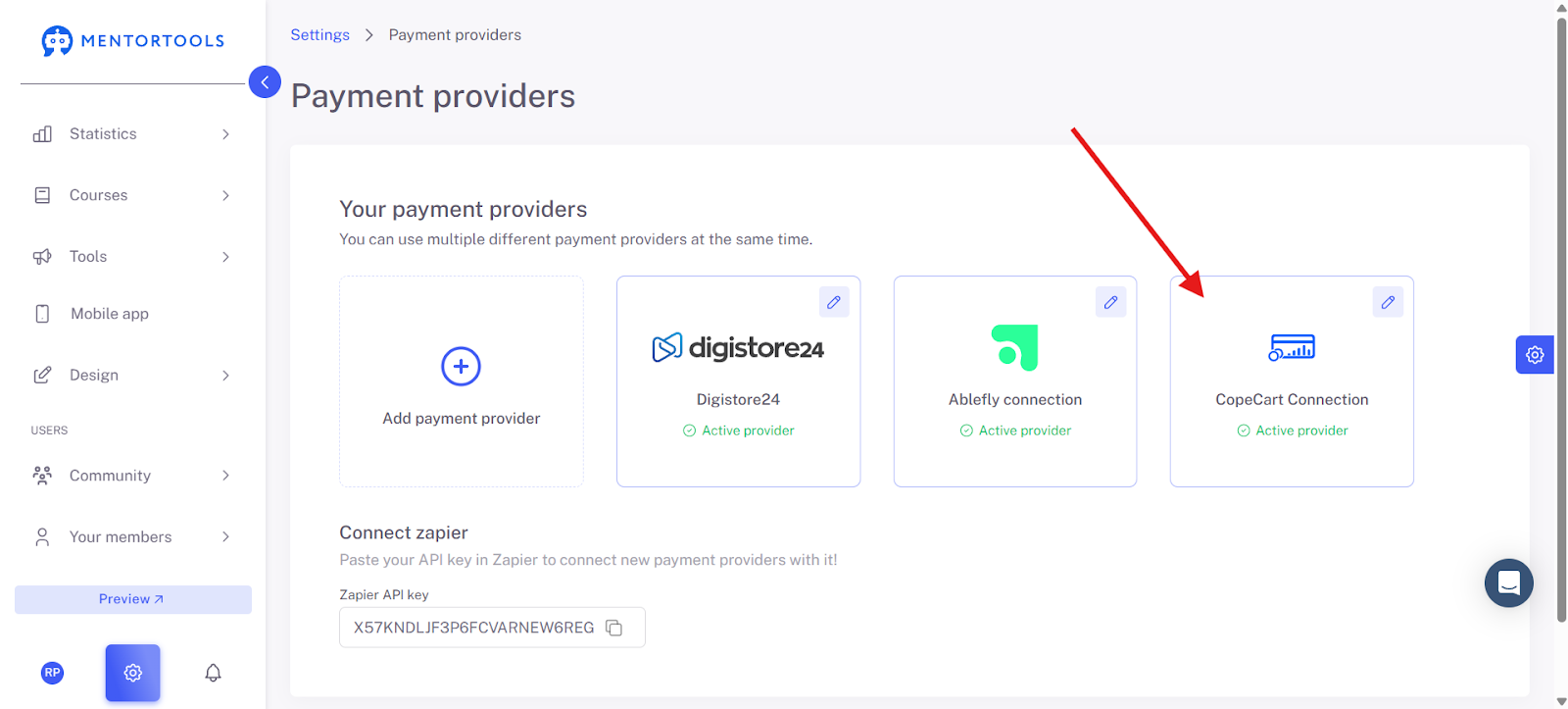
Then navigate to "Products" and click on the "Add" button.
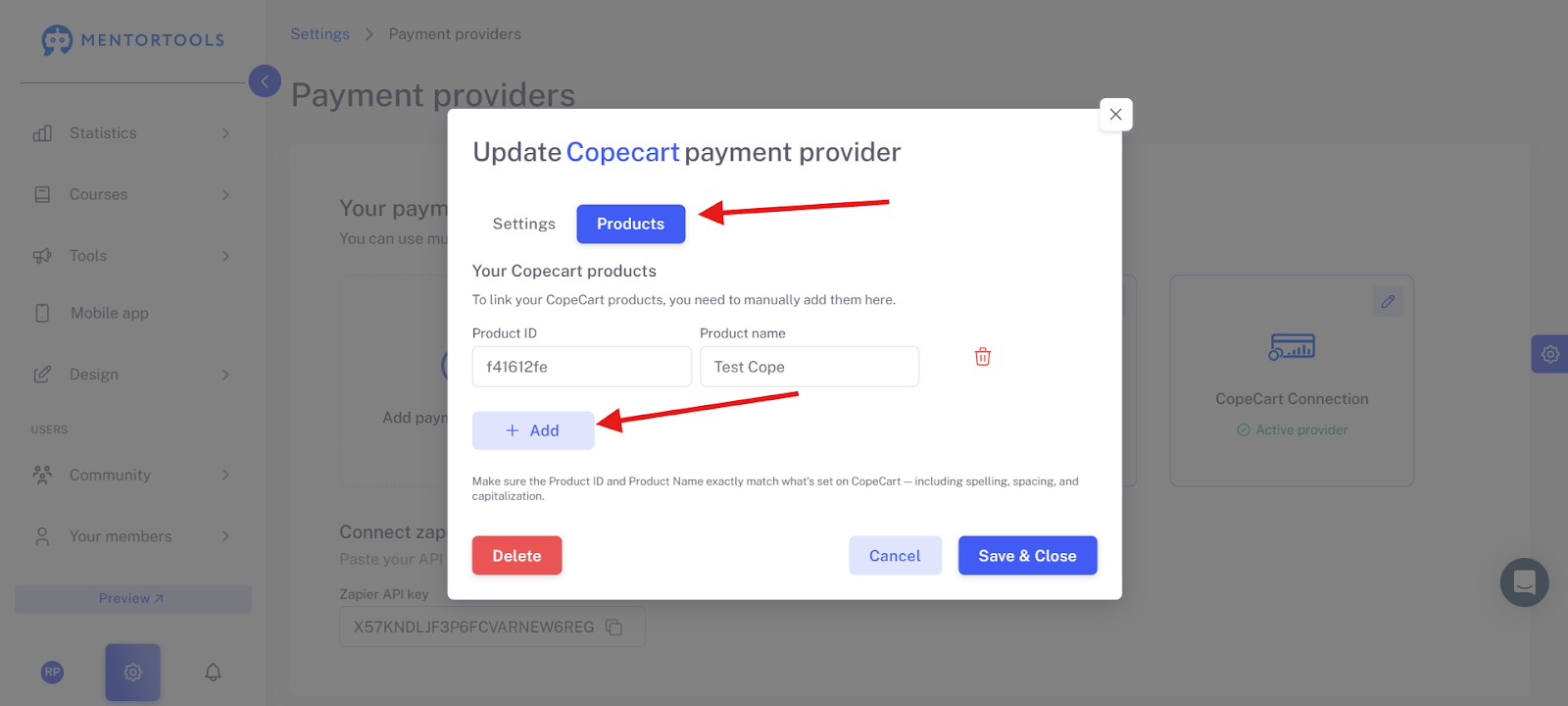
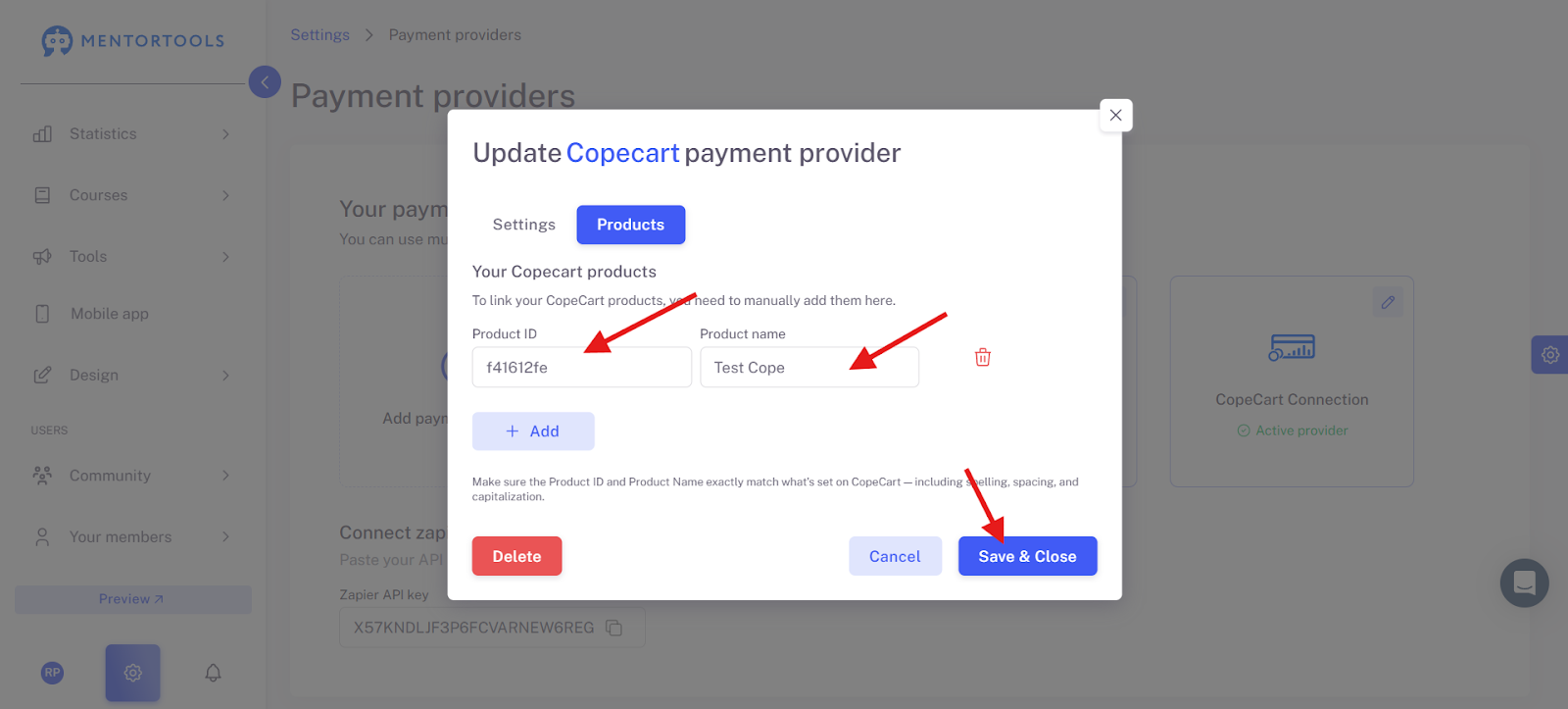
You will then see two fields where you can insert a product ID and the name of the product from CopeCart.
To properly represent the connection to your product, you should have already created a product with CopeCart. In the editing mode of the product in CopeCart, copy the product ID and the name. Here is an example of what that looks like in CopeCart.

Then you add the data in Mentortools. Then click on the "Save and Close" button.
After you have done that, you just have to connect your online course to the product. To do this, go to your course overview in your Mentortools account and click on the name of the selected course that you want to connect to the product from CopeCart.
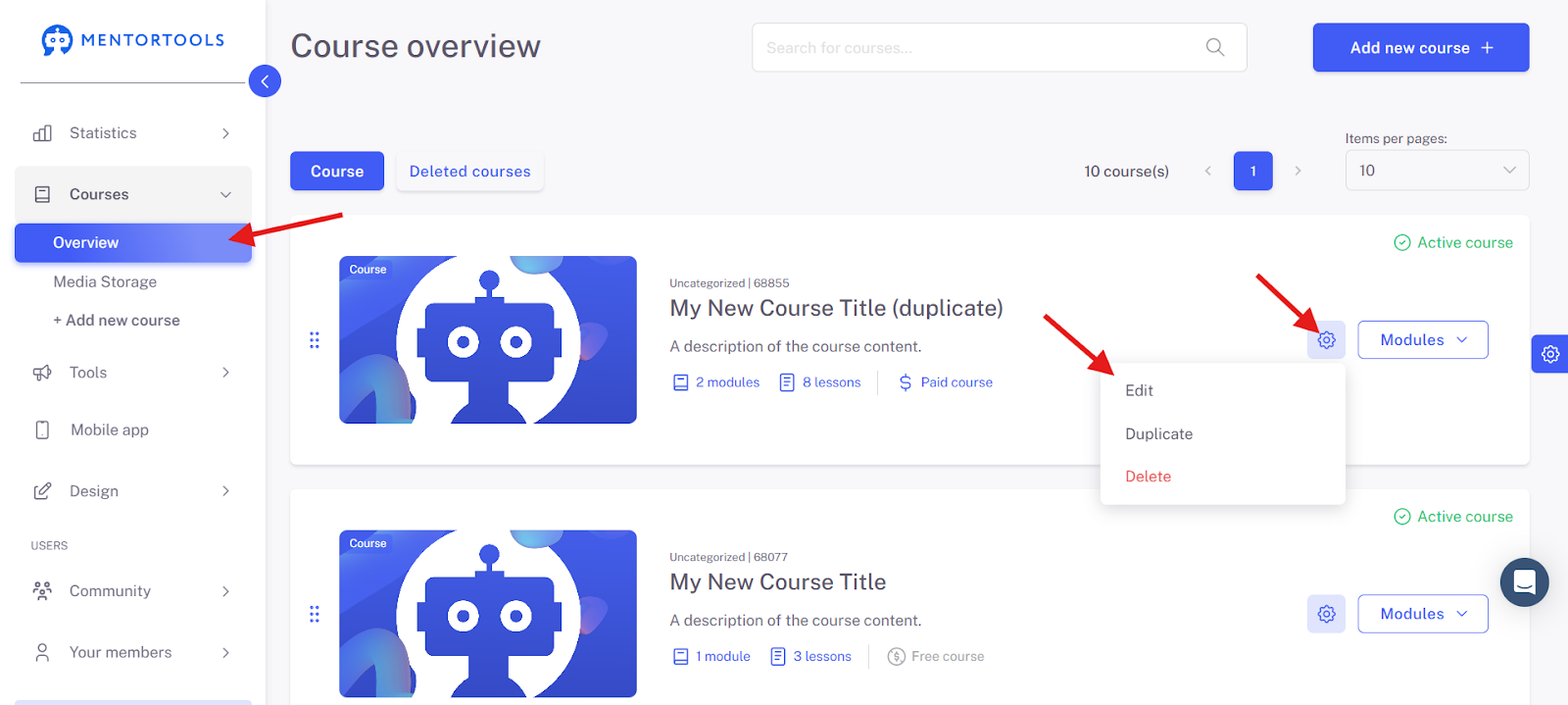
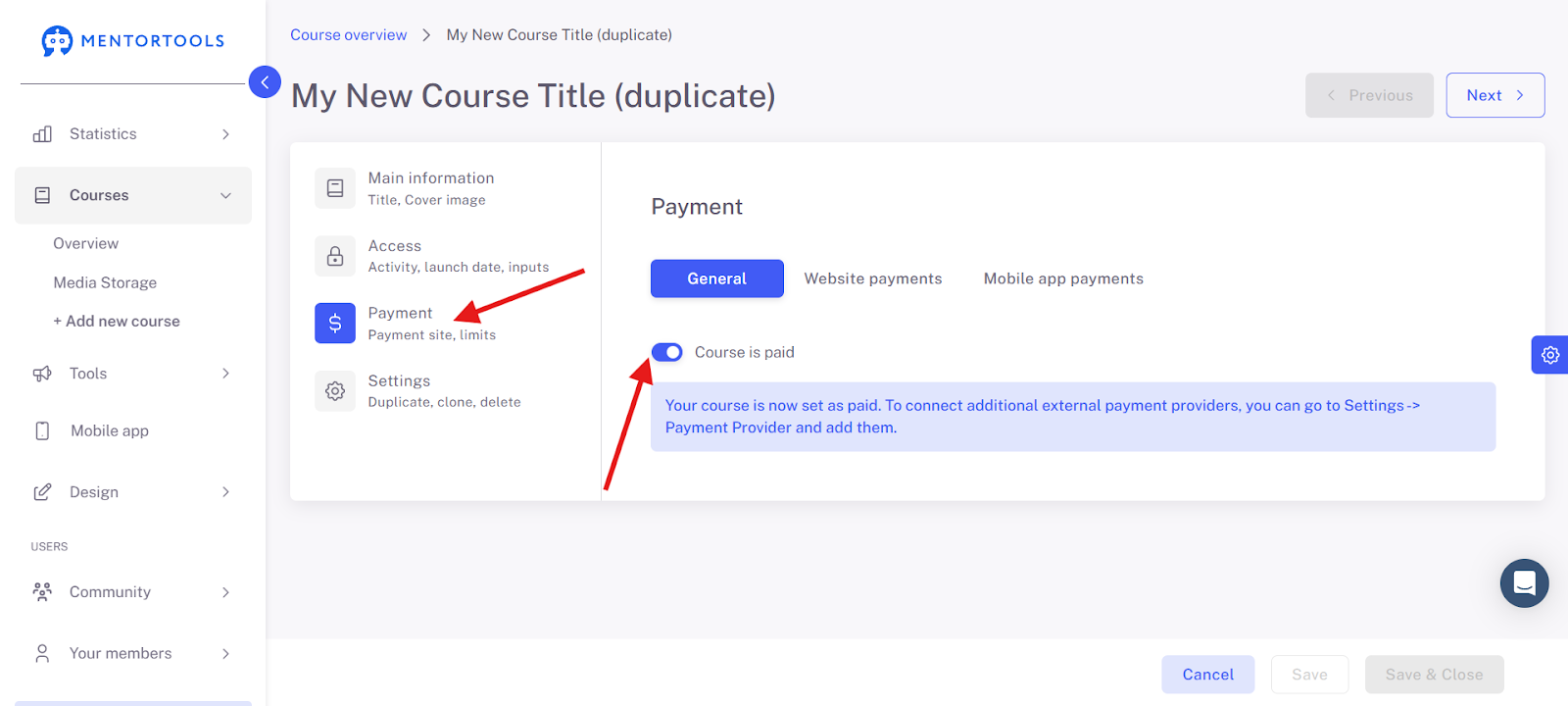
Make sure that the online course is chargeable.
Then navigate to "Website payments."
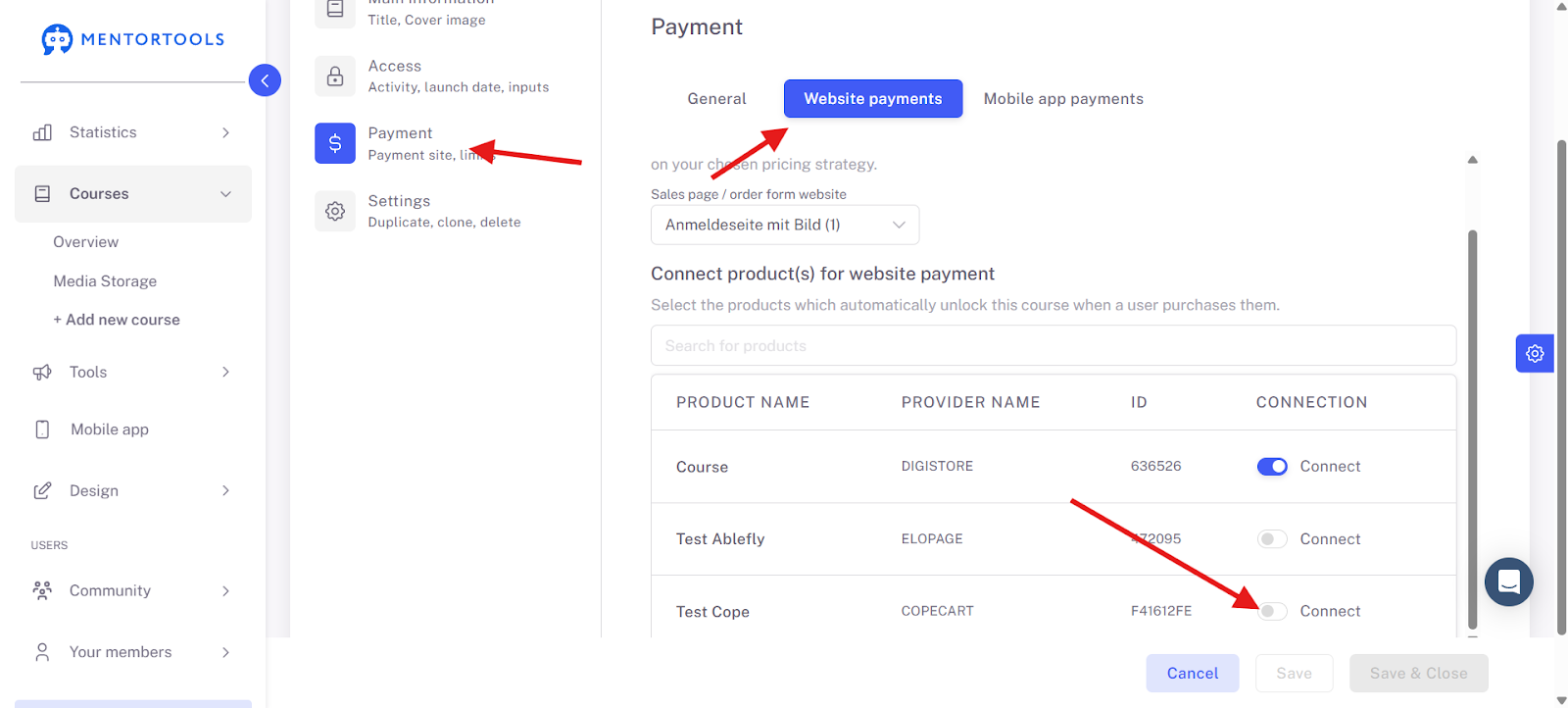
The pointer should appear blue. Then click on "Save and Close."
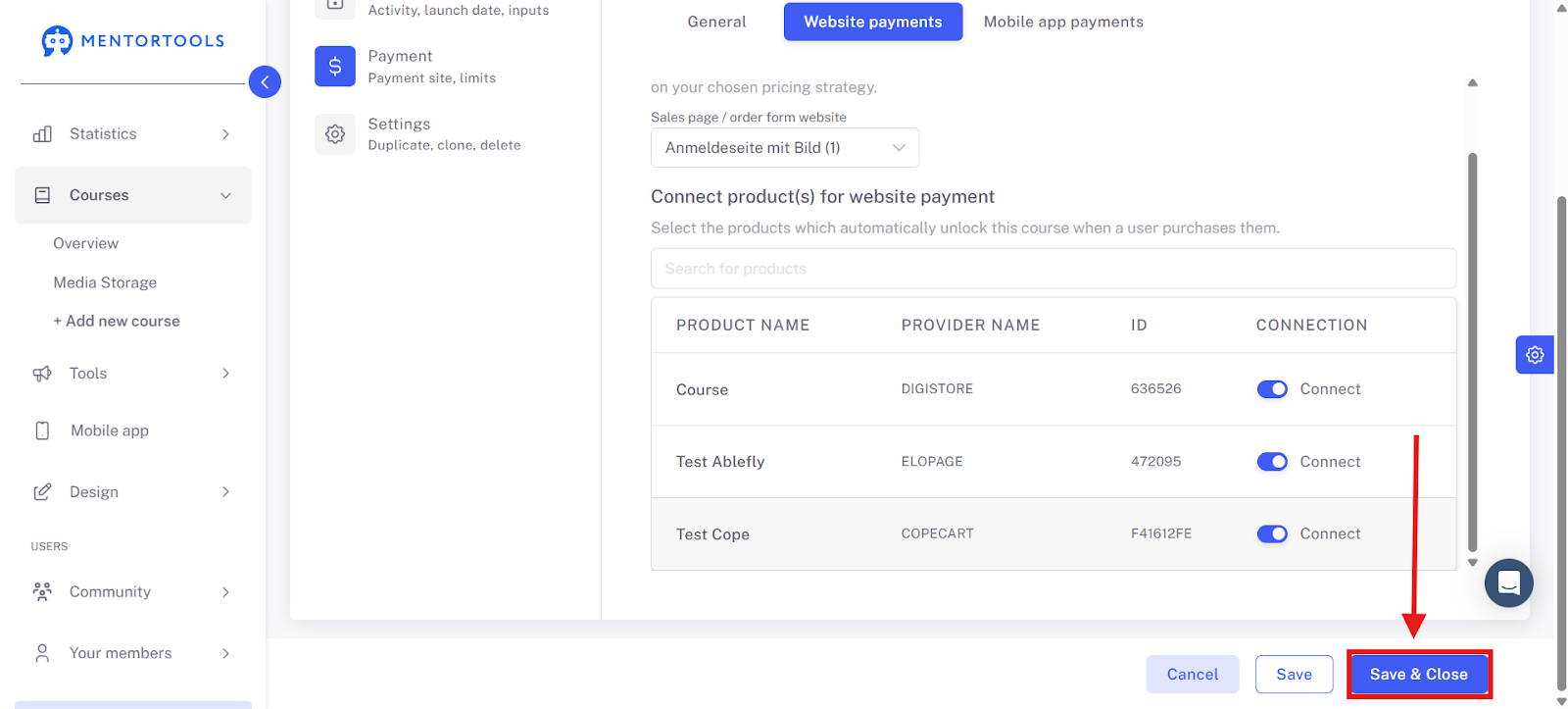
Finally, you can add a landing page that makes it possible to buy the product. It can be an external landing page or a landing page from your Mentortools account. After that, click on the button (bottom right) "Save and Close."
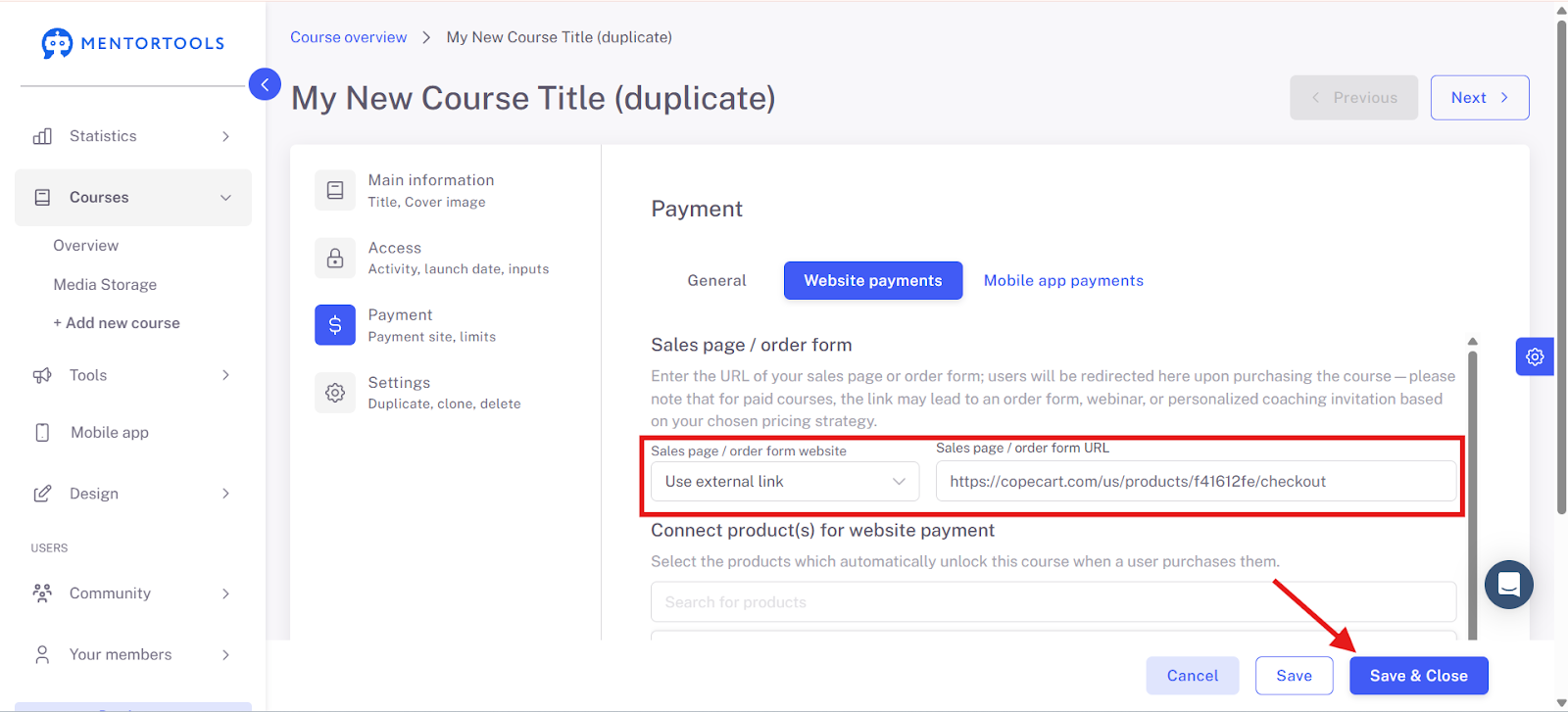
The sales page appears in your member area for users who have not yet purchased the course. If you do not have a sales page yet, you can enter the payment link of the payment provider in the meantime.
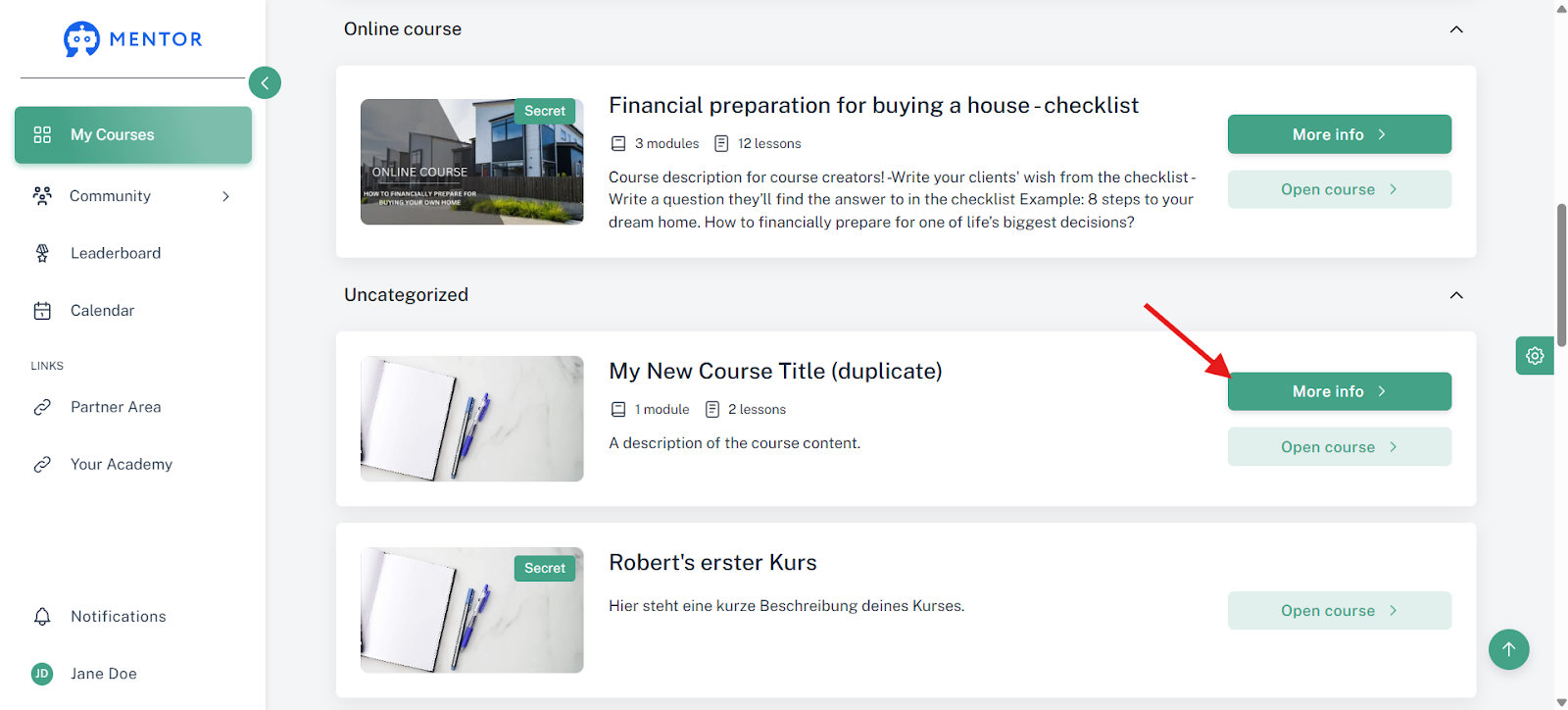
IMPORTANT: Finally, you only have to activate the interface in your CopeCart product. To do this, navigate to the desired product in your CopeCart account. Click on the integration once until it is framed in blue.
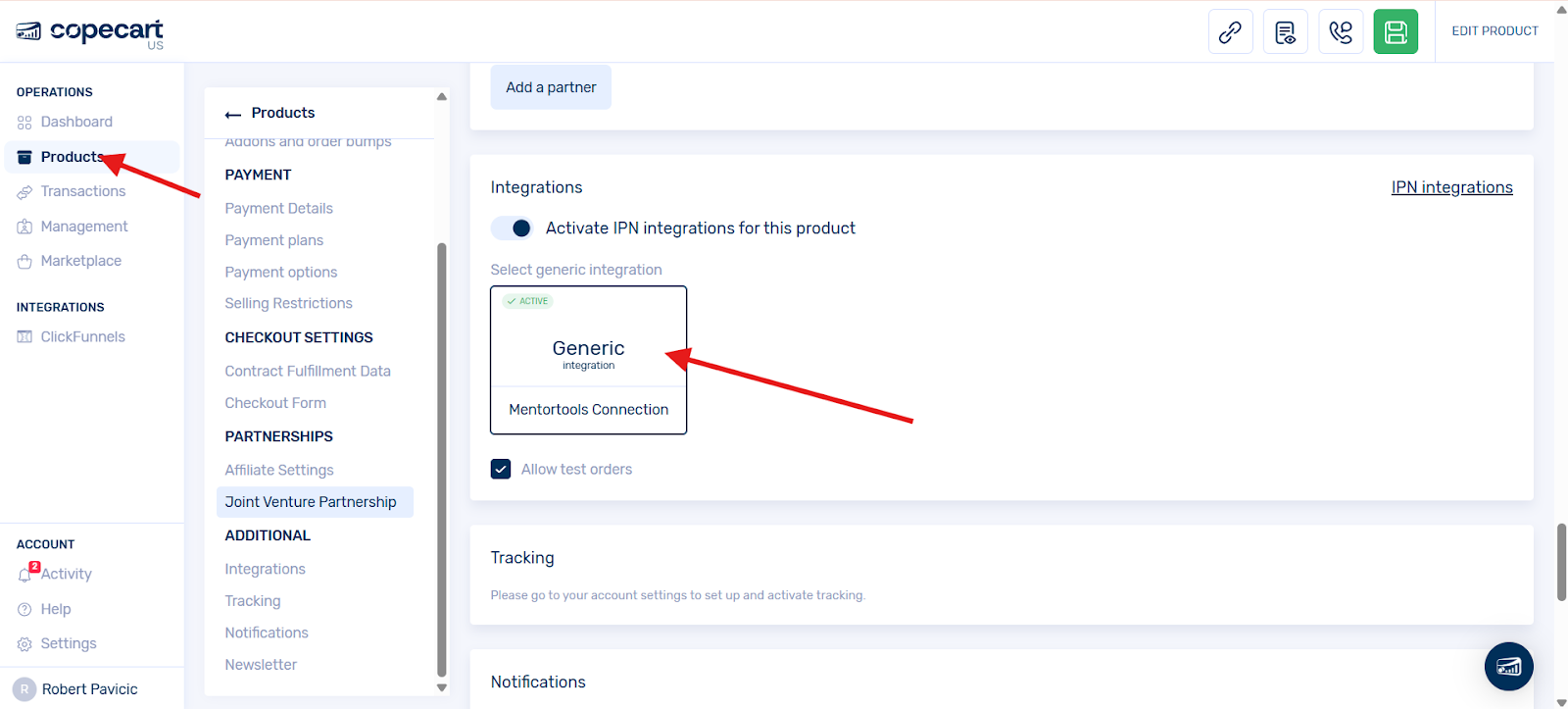
Click the integration once until it is framed in blue.
Save the change in your CopeCart account
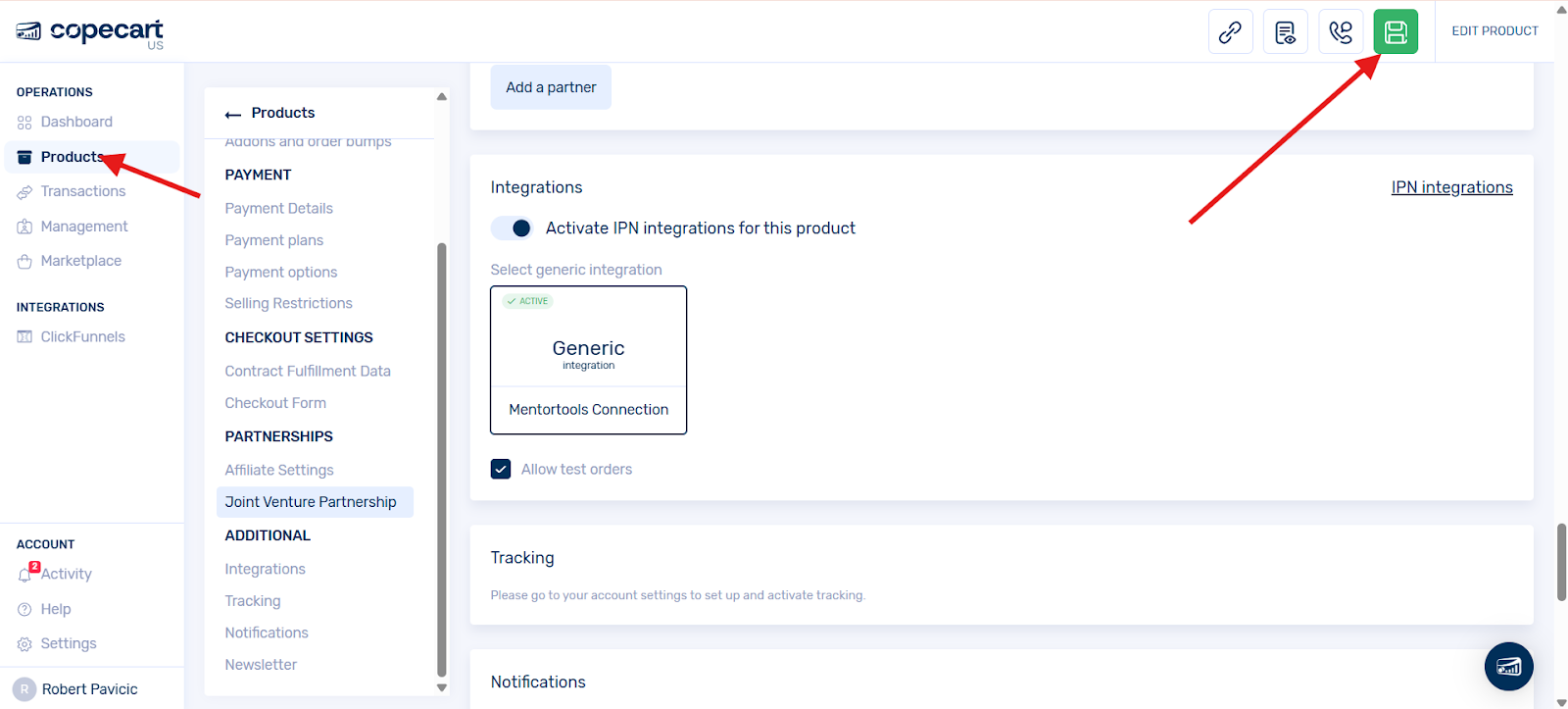
You have done it and you can sell your online course.
Good luck!