Notifications – Community
Do you want to set up your community notifications exactly as you wish? No problem! In this short tutorial, we will show you step-by-step how you can customize your notifications in Mentortools. Whether it's email, in-app, or both—you decide how and when you are informed about the latest events.
Last updated 12 months ago
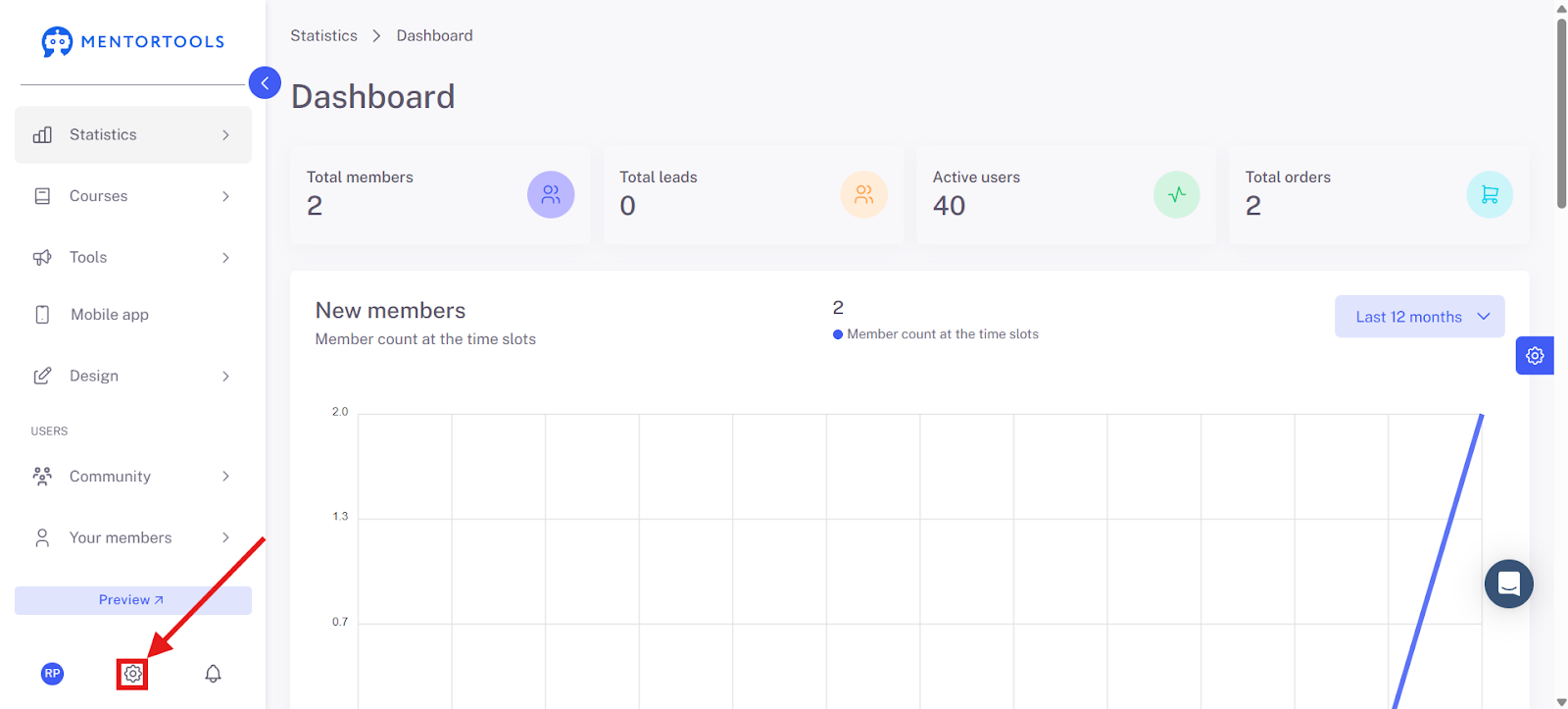
1. Open Settings
Click on the gear icon in the bottom-left menu bar.
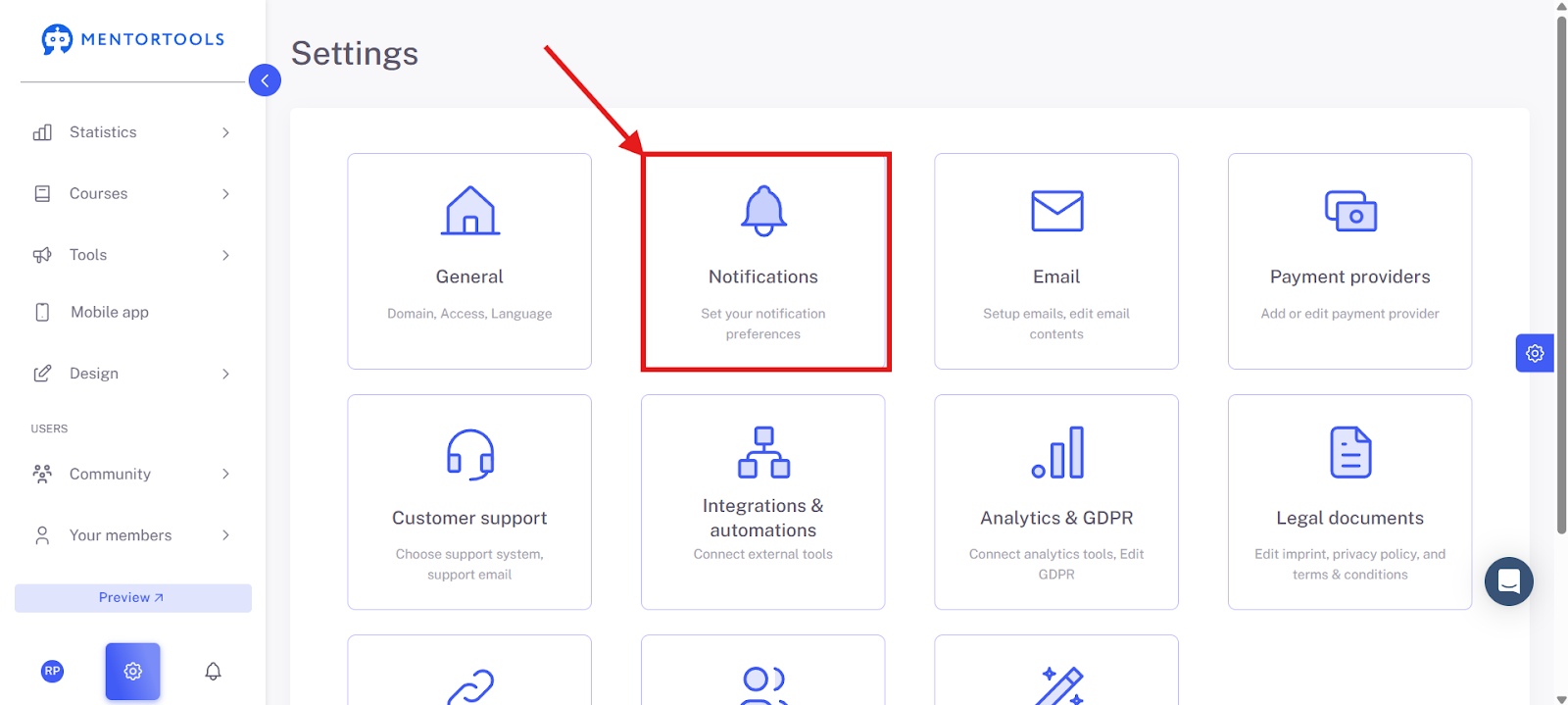
2. Open "Notifications"
Here you can configure your individual preferences.
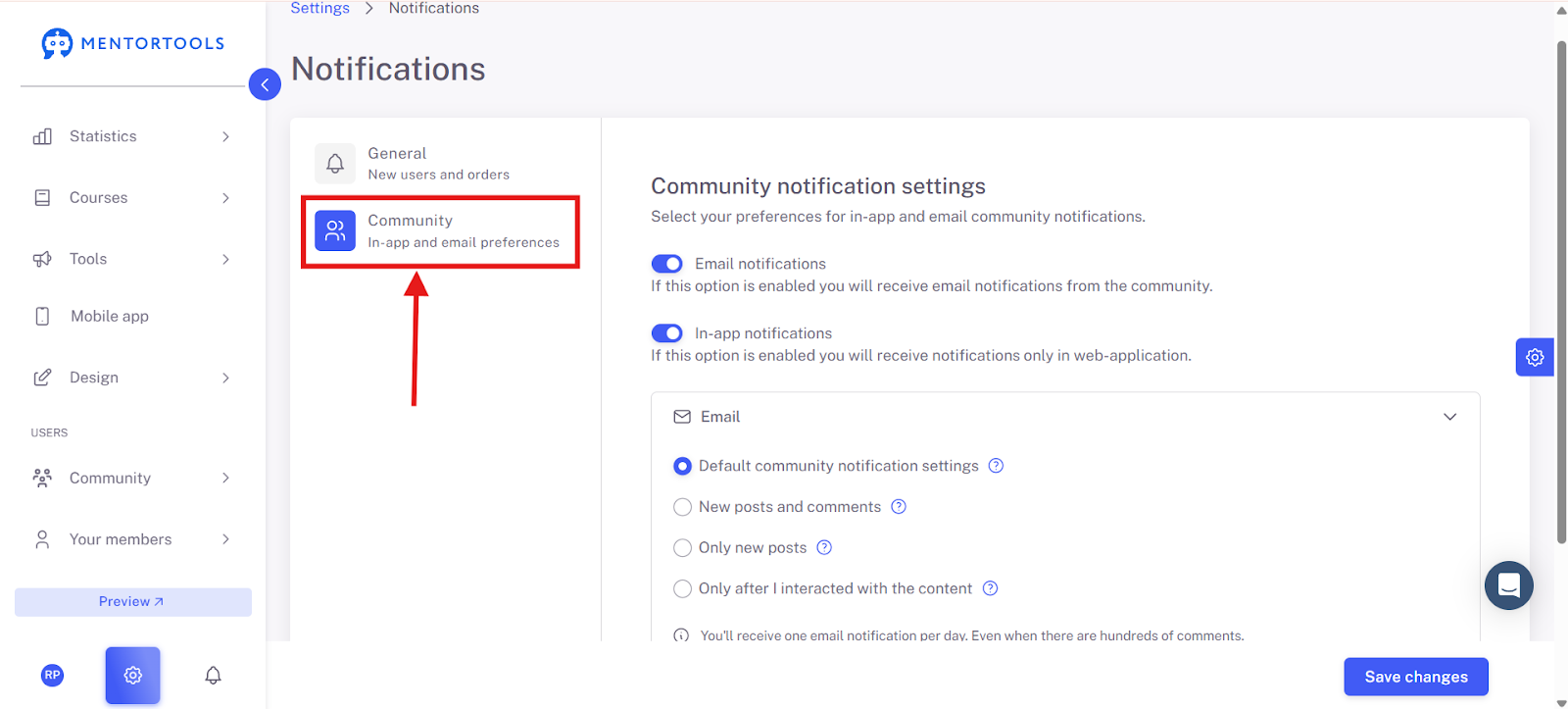
3. Select "Community"
Notifications – Community Overview
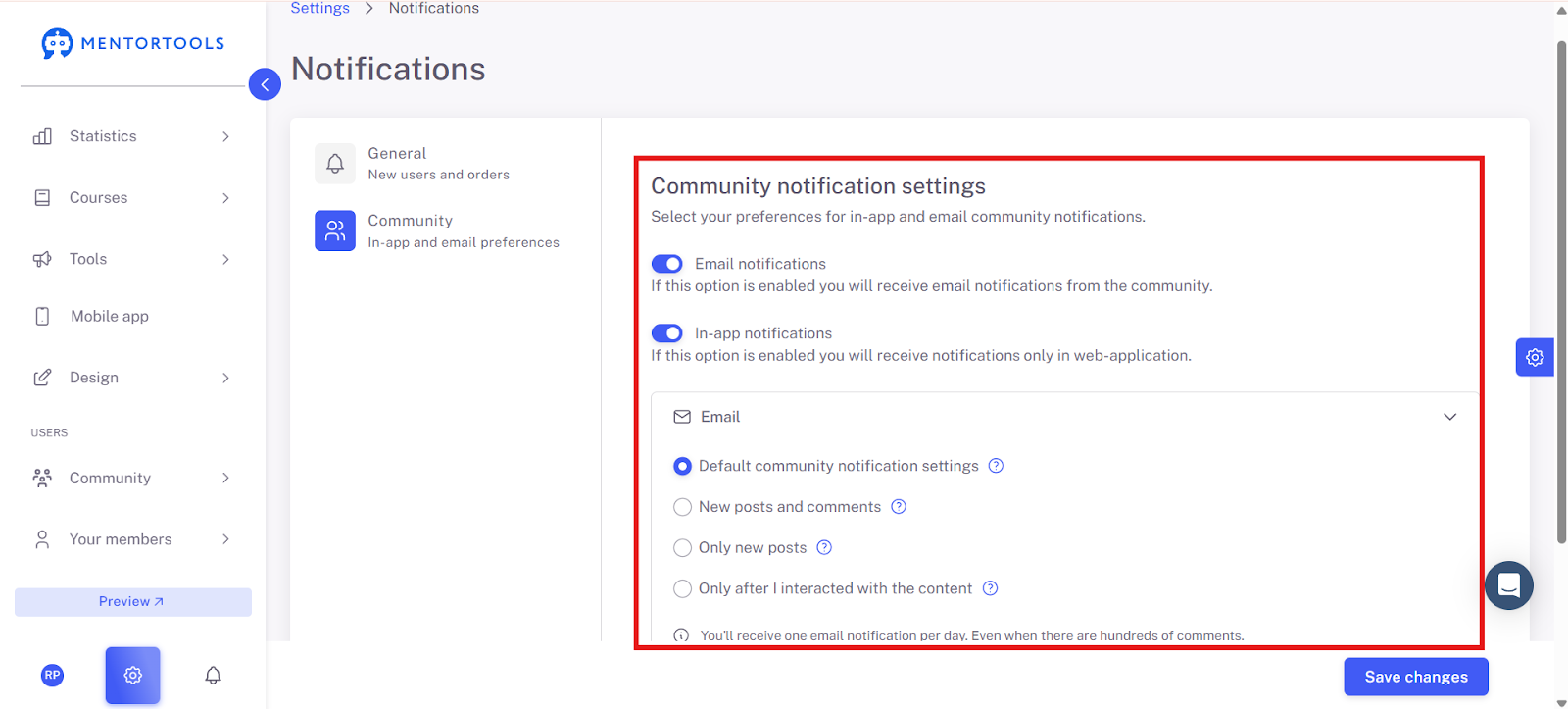
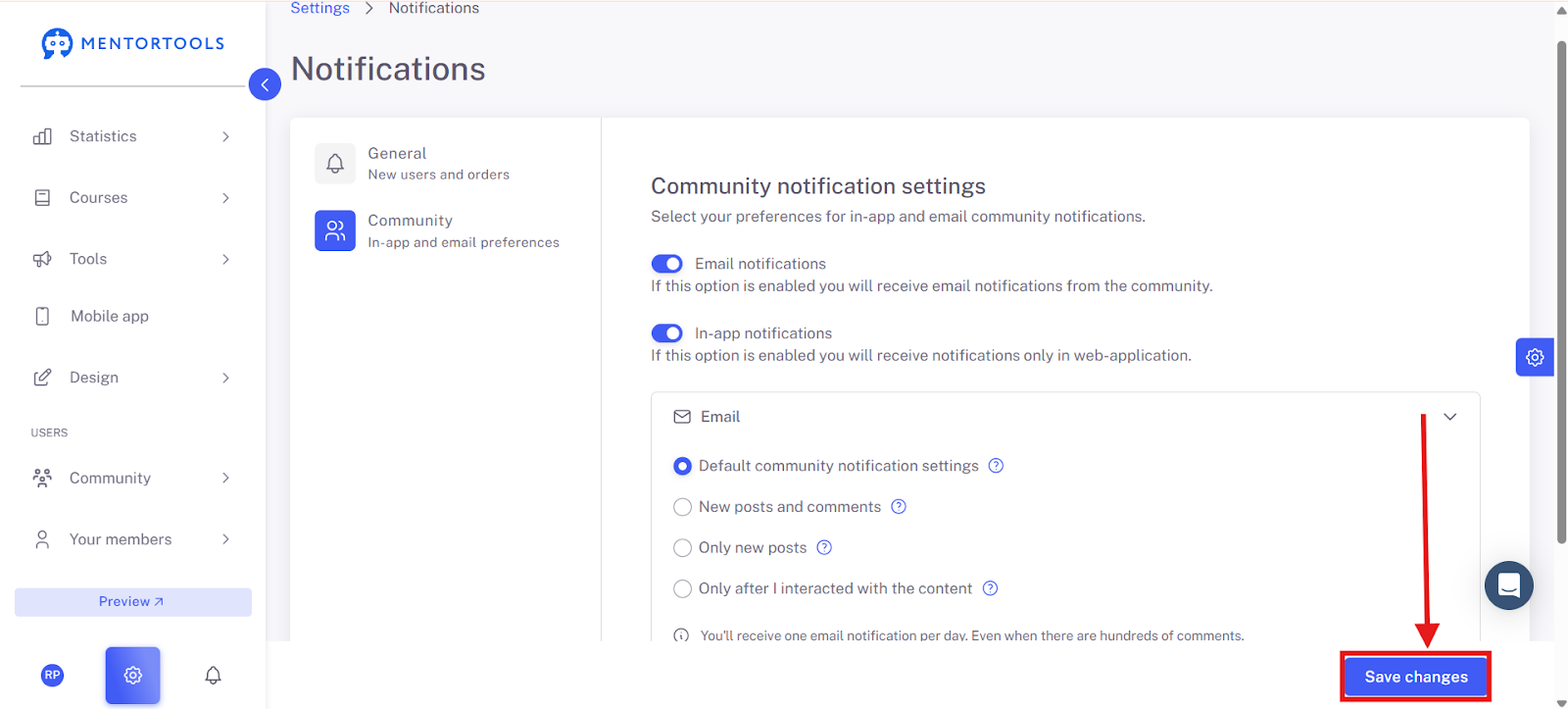
The settings shown control how and when you receive notifications from the community. They are divided into two main areas: the type of notification and the frequency.
Type of Notification
Here you can select how you would like to receive notifications. You can activate both at the same time or select only one of the options.
Email Notifications: If this slider is activated, you will receive notifications via email. You can then specify more precisely in the section below how often these emails should be sent.
In-App Notifications: If this slider is active, you will see notifications directly within the web application when you are using it.
Email Frequency
In this section, you set exactly which emails you want to receive.
Default Community Notification Settings: With this option, you receive all notifications that are set as the default in the community. This is the basic setting and covers the most important events.
New Posts and Comments: Choose this option if you want to be informed about every new post and every new comment in the community.
Only New Posts: If you only want to be informed about new posts and not the comments on them, this is the right choice.
Only After I Have Interacted with the Content: This setting is ideal if you only want to be notified when there is a reaction to something you were involved in yourself (e.g., if someone comments on your post or replies to a comment of yours).
Once you are satisfied with your changes, click on "Save Changes" in the bottom right to apply your changes.
Summary
In this tutorial, we learned how to manage community notifications in Mentortools. First, you go to the settings (the gear icon) and then select "Notifications." There you will find the "Community" section. Here you can set whether you want to receive notifications via email or in-app. In the email section, you can even specify more precisely which emails you want to receive—for example, only new posts or only notifications that relate to your own interactions. Finally, you save your changes to apply the settings.