Account Settings - Change Password
This article will show you how to securely and easily change your password in Mentortools, step by step.
Last updated 11 months ago
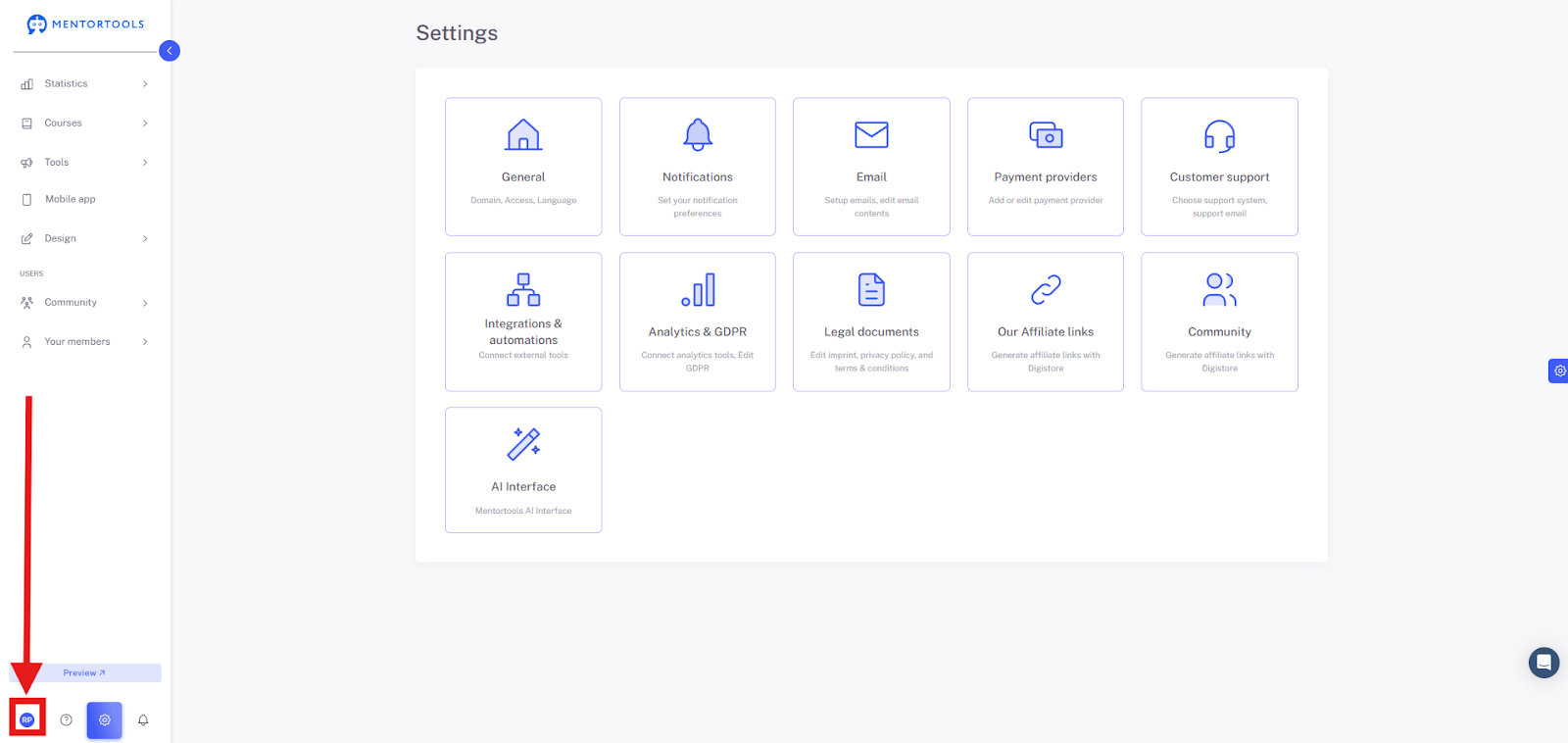
1. Go to the image in the bottom left corner.
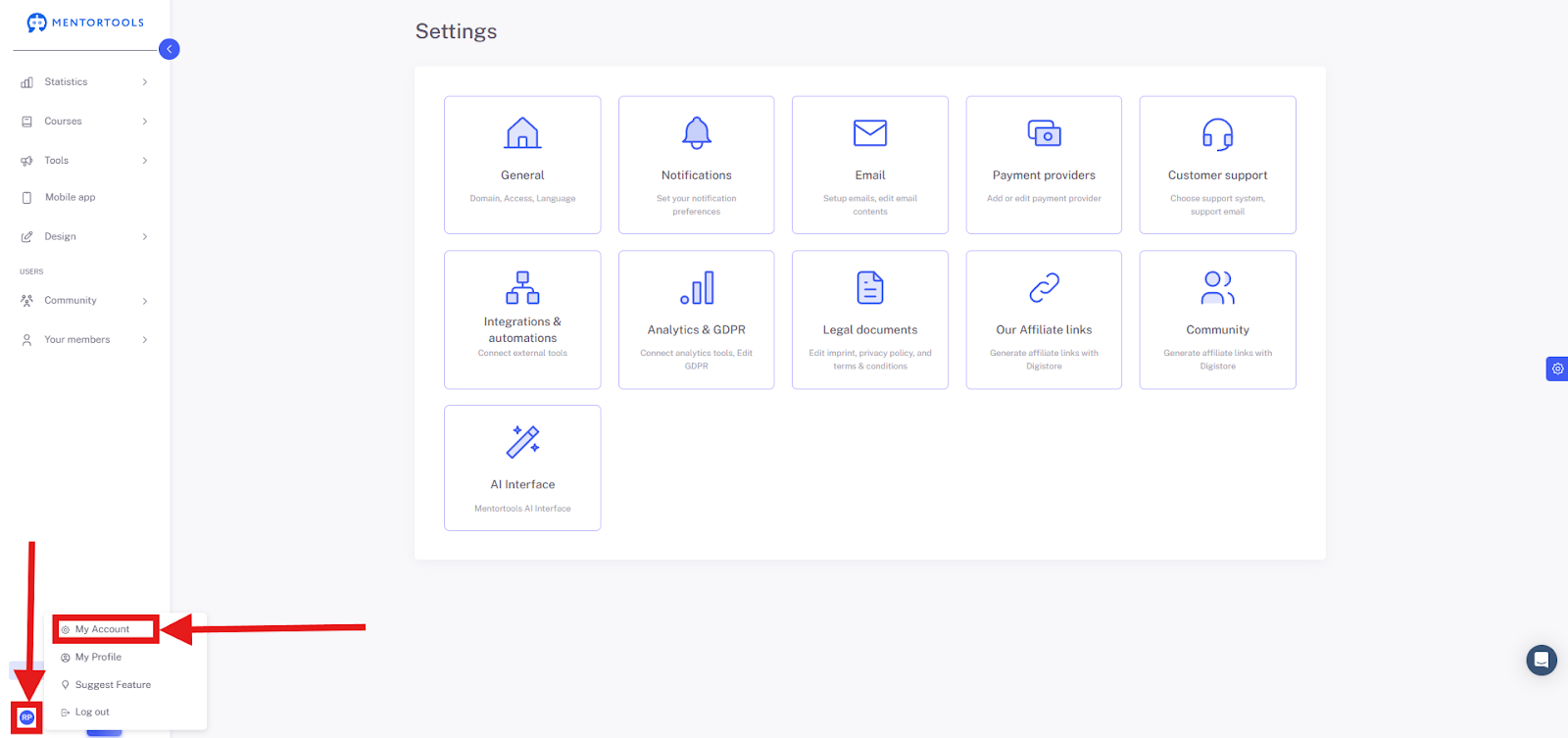
Click the button at the bottom left to bring up your account options.
2. Select "My Account"
3. Select "Password"

Changing Your Account Password
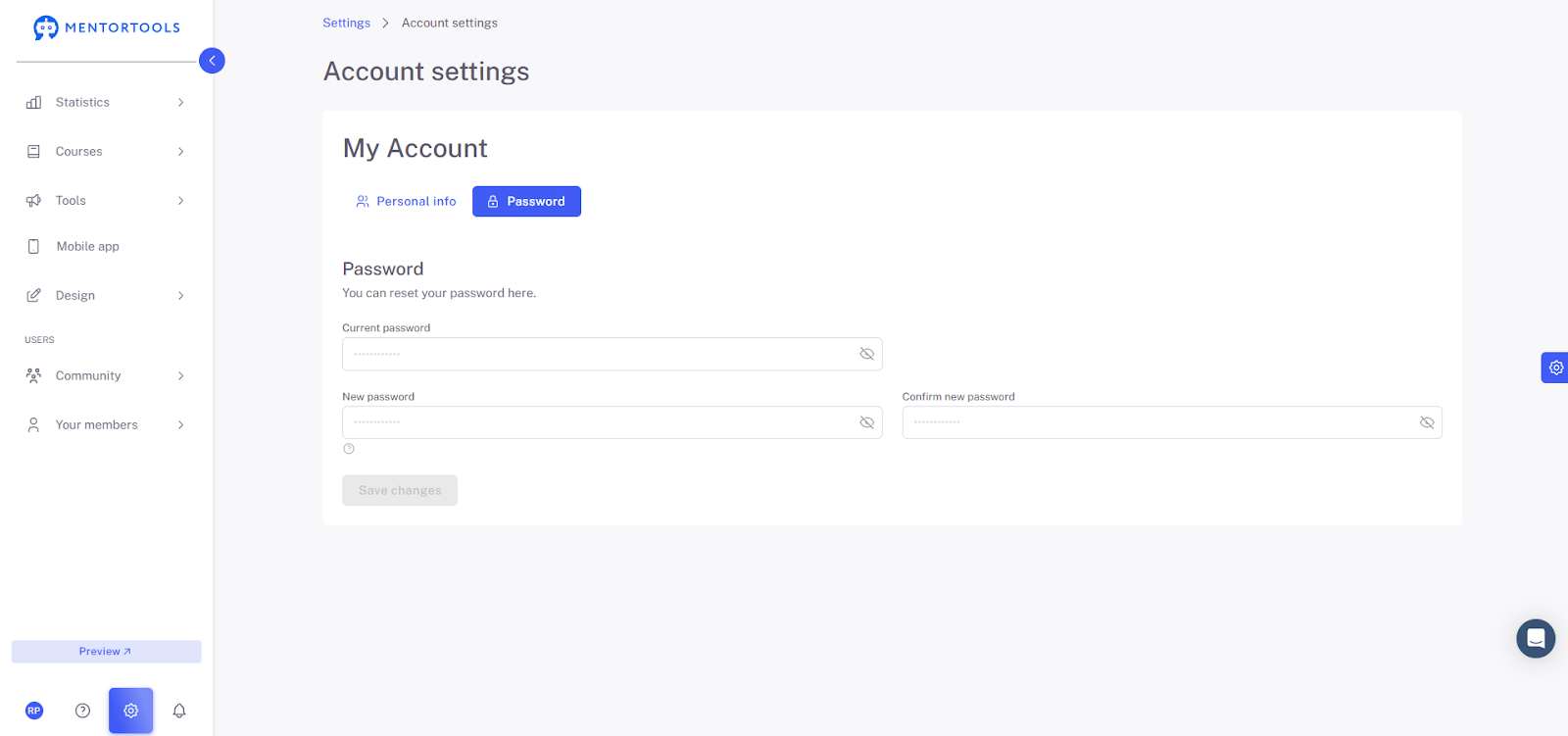
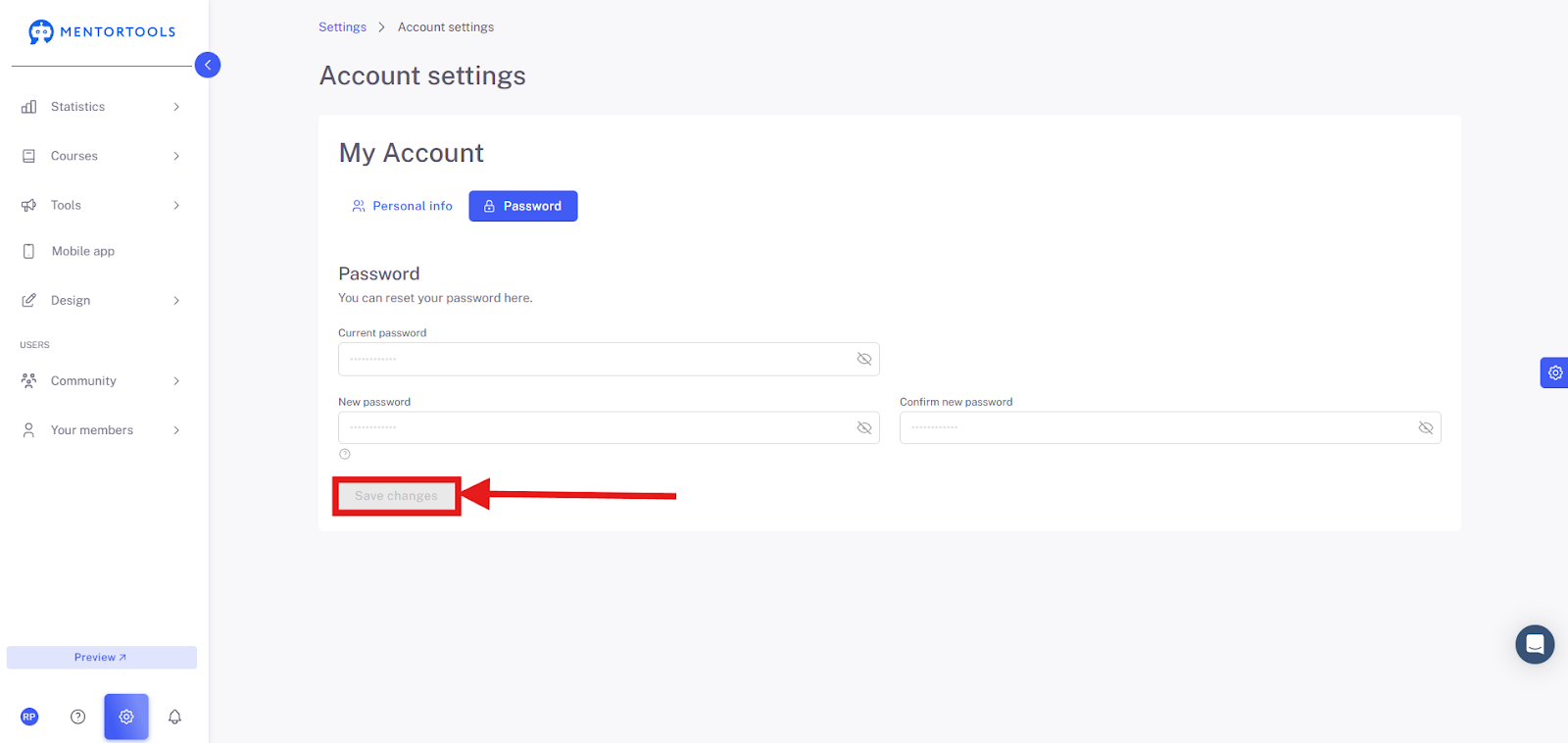
You are now in the "Password" section of your account settings. Here, you can change your old password and set a new one.
The Input Fields and Their Functions
This page has three fields you need to fill out to successfully change your password:
Current Password: In this field, you must enter your current, old password. This is a security measure to ensure that only you can change your password.
New Password: Enter your new, future password here. It's a good idea to think of a strong password that's difficult to guess!
Confirm New Password: Re-enter the new password in this field. This ensures you haven't made a typo and that your new password is exactly what you want it to be.
If you click the crossed-out eye icon, you can view and check your current entry.
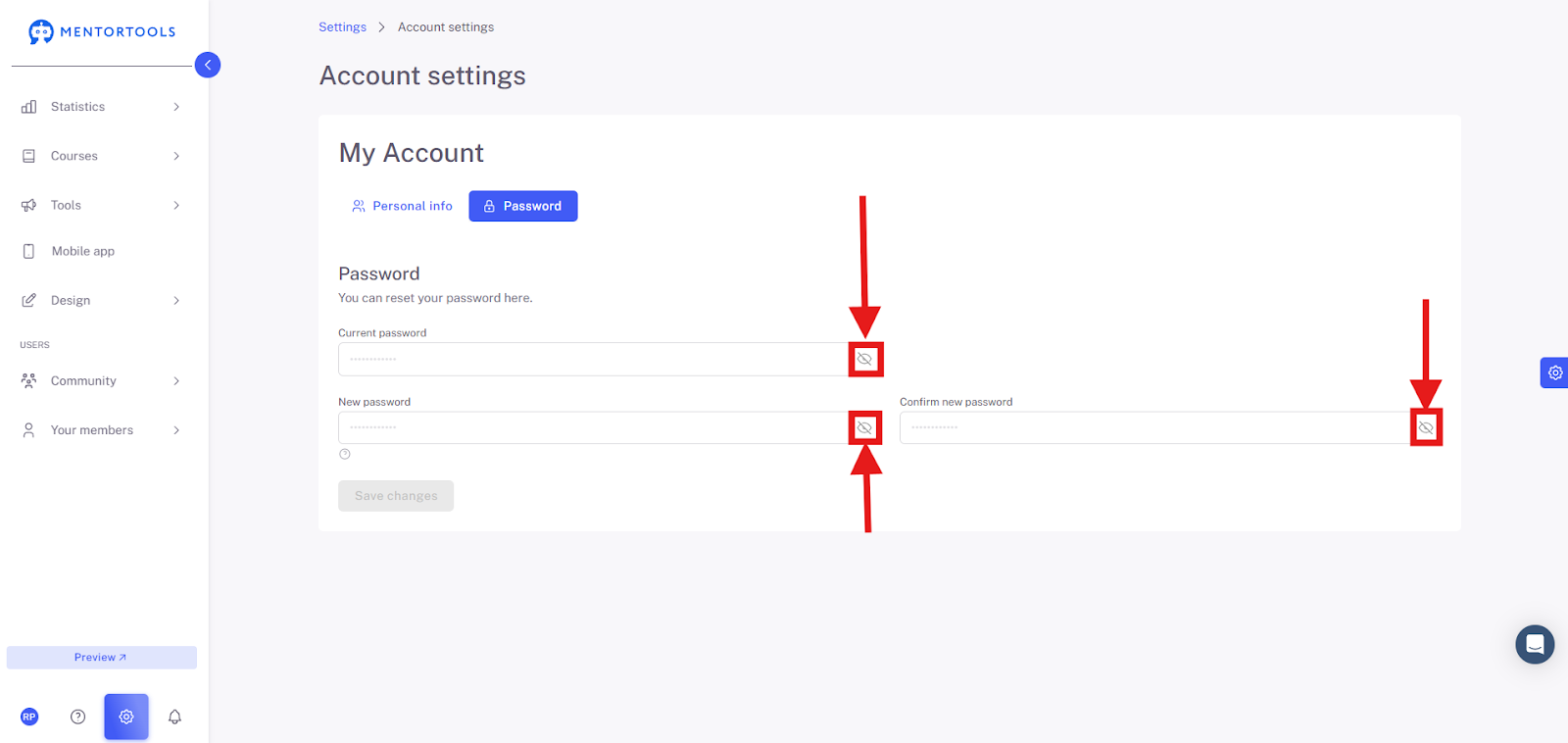
Once you have correctly filled in all the fields, click Save Changes. Your password will then be updated.
Regularly changing your password is important to protect your account from unauthorized access. In this tutorial, you've learned how to do this step by step.