Payment Providers – Connecting Mentortools with Stripe
Last updated 12 months ago
What you need to set up the connection:
A Stripe account
Products in your Stripe account that you want to sell
A Mentortools account
First, log in to your Stripe account and navigate to "Developers," then "API keys."
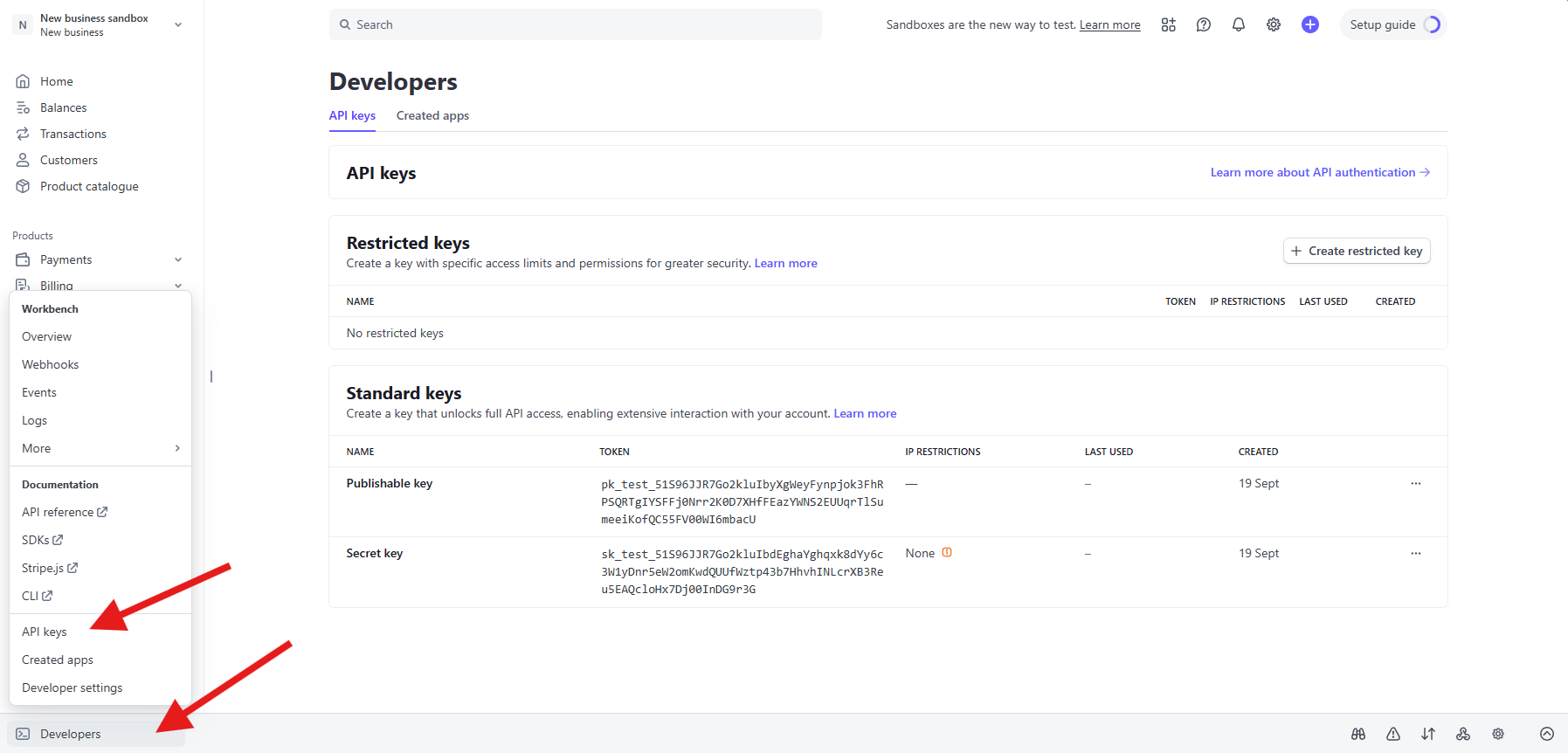
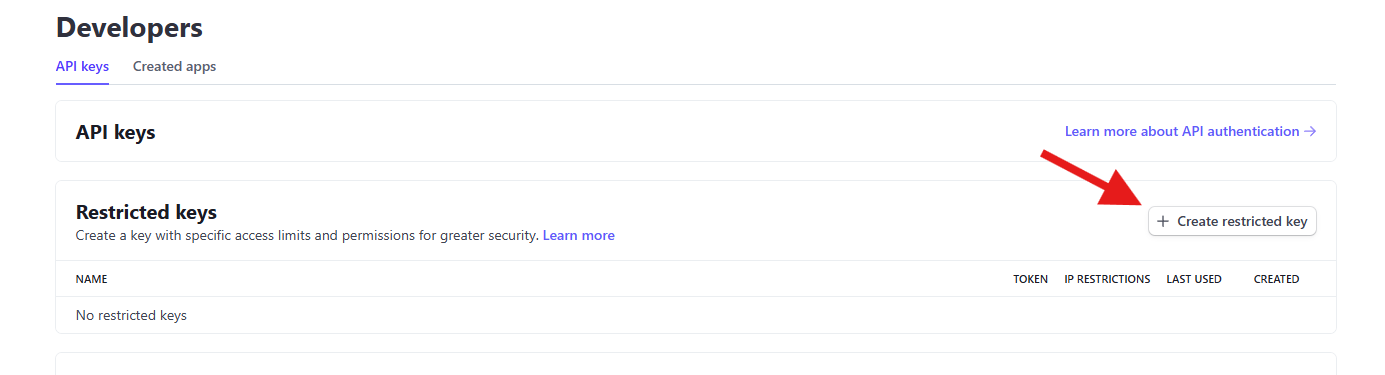
Click on "Create secret key."
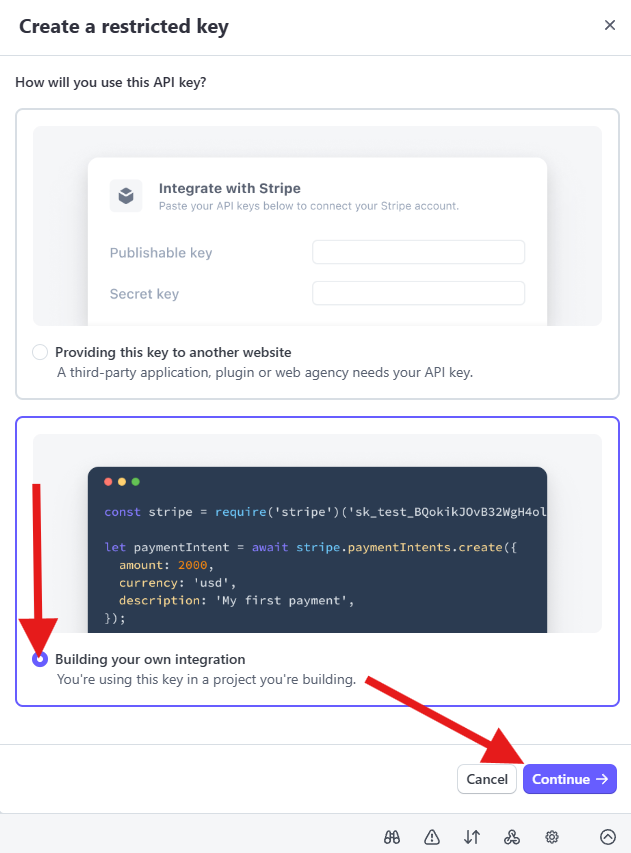
Make sure to select "Build your own integration." Then click on "Continue"
You may be asked to enter a security code. This will be sent to you via email, SMS, and/or an authenticator app.
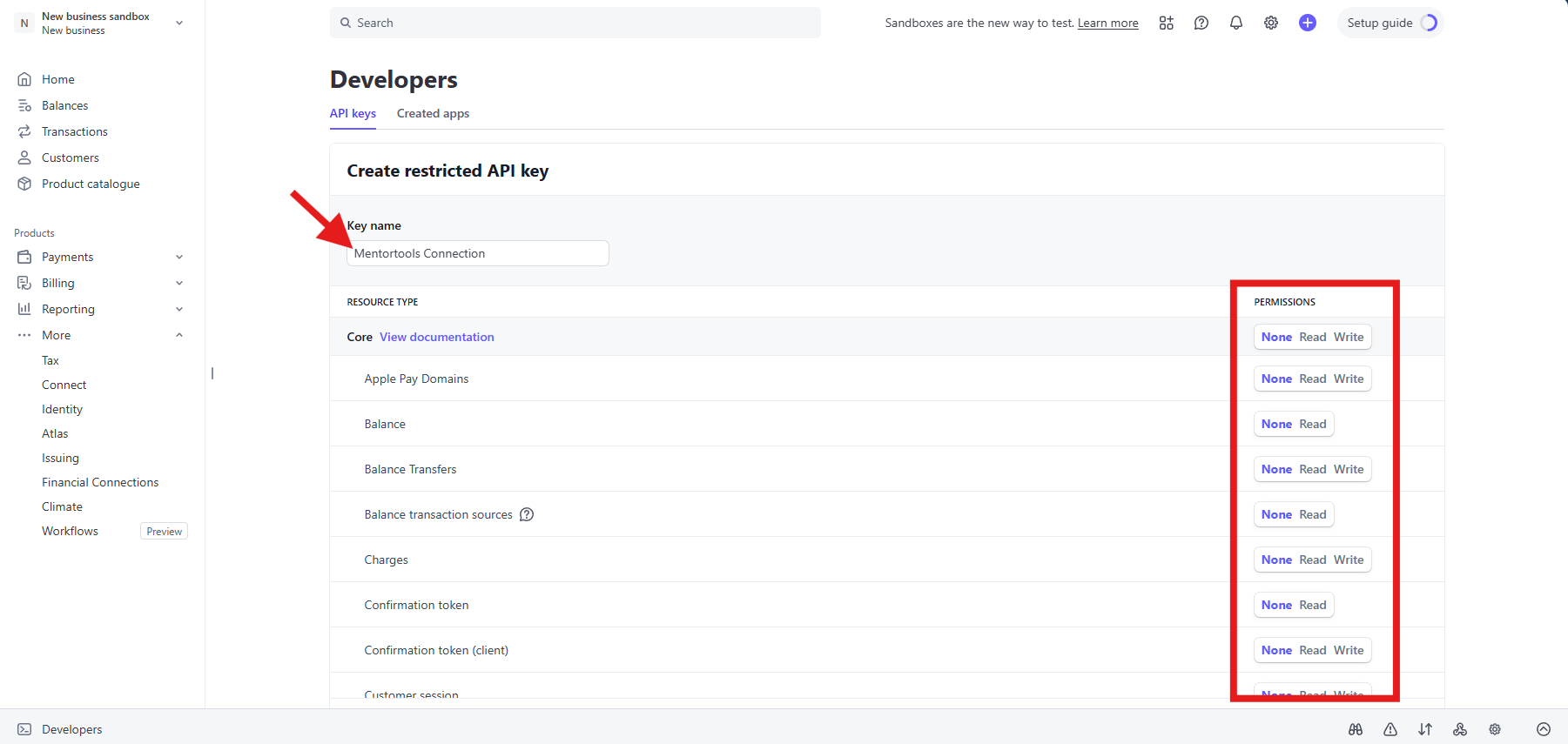
Afterward, name the new API key, for example, "Mentortools Connection.", select the permissions and scroll down and click on the "Create" button.
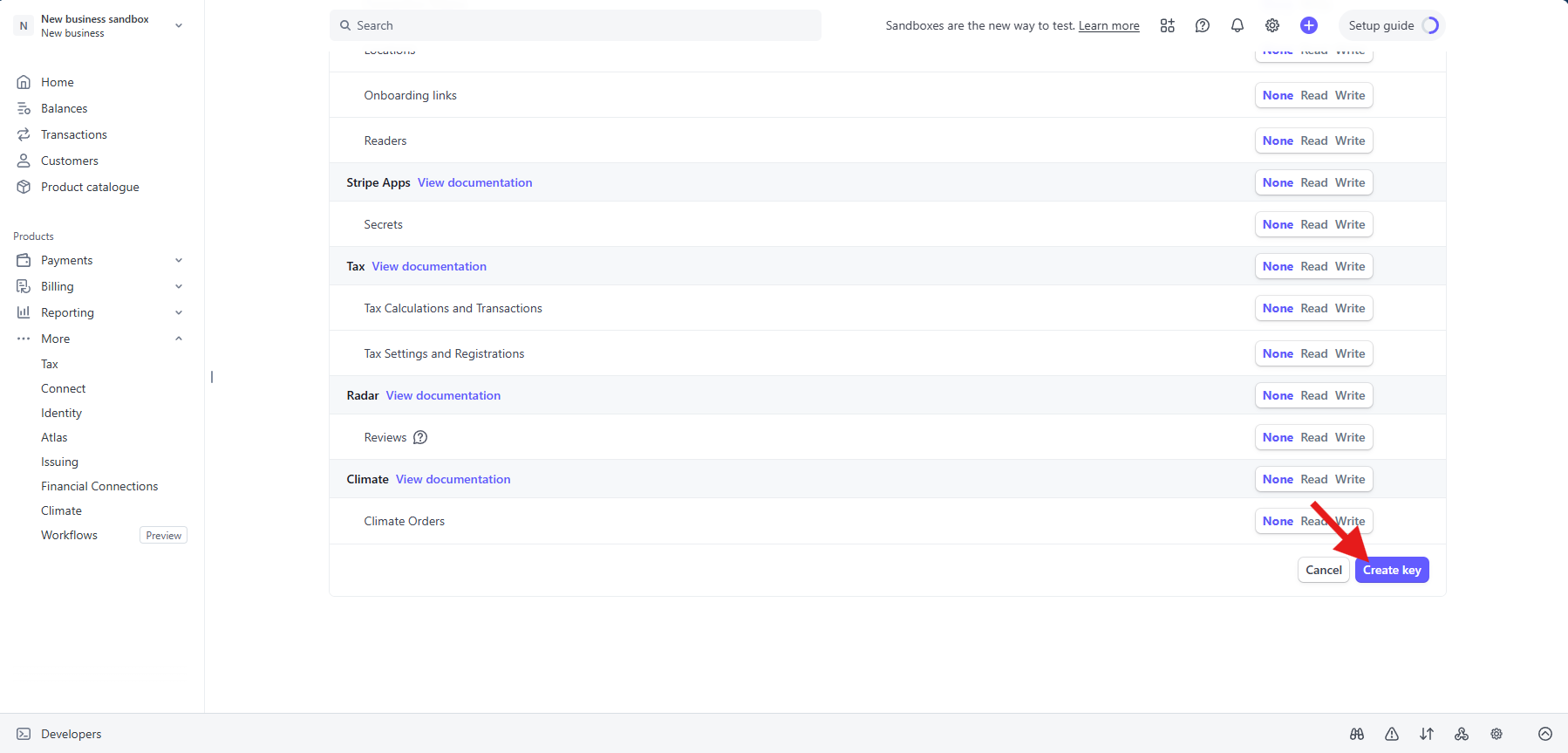
You can then copy your secret API key. This is a password generated by Stripe so that Mentortools can retrieve product sales data from your Stripe account. Please treat this API key as securely as a password.
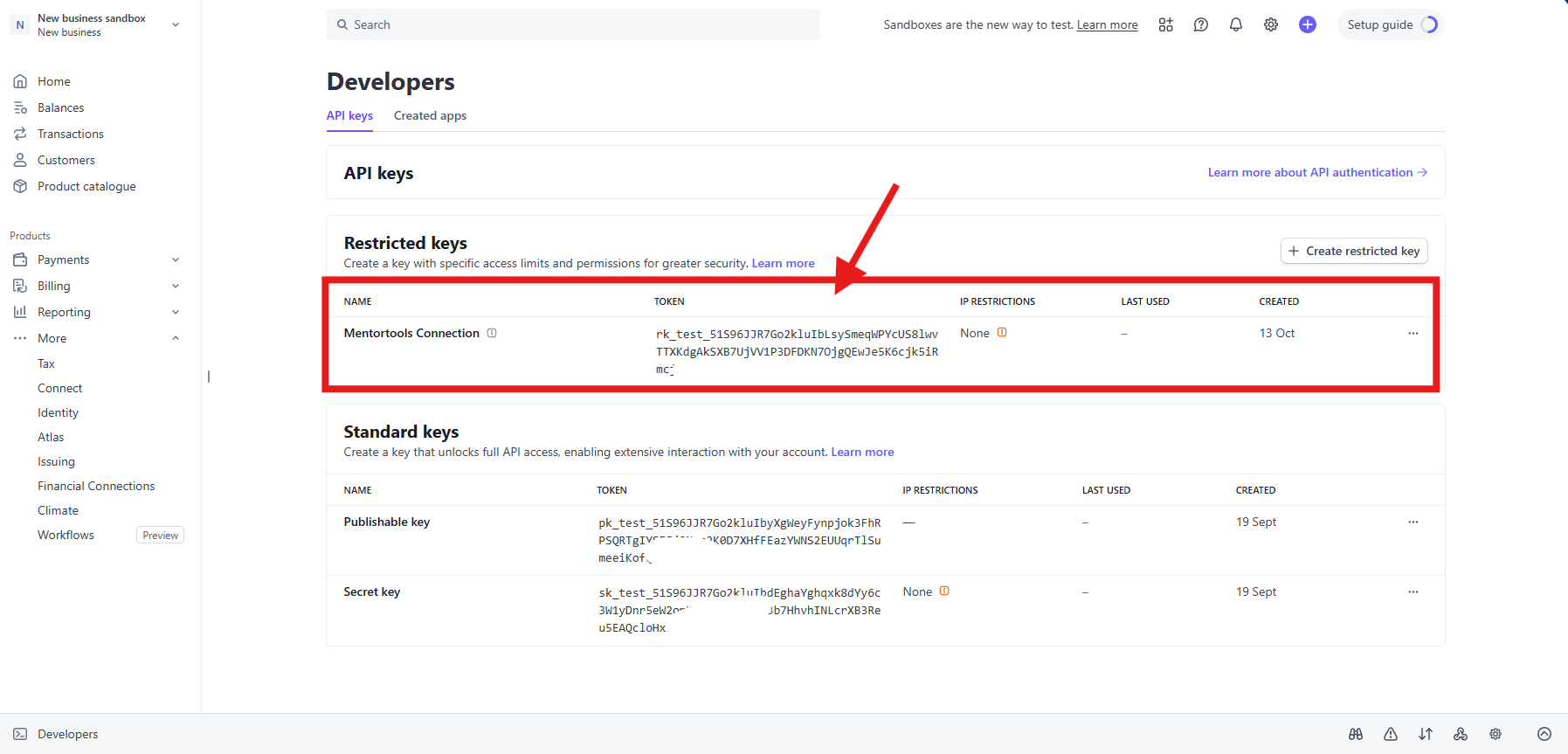
Attention: This exact key cannot be retrieved again from Stripe at a later time. If you lose your key, you can always create a new one and delete the old one.
Now, navigate back to your Mentortools account and create a connection with the API key.
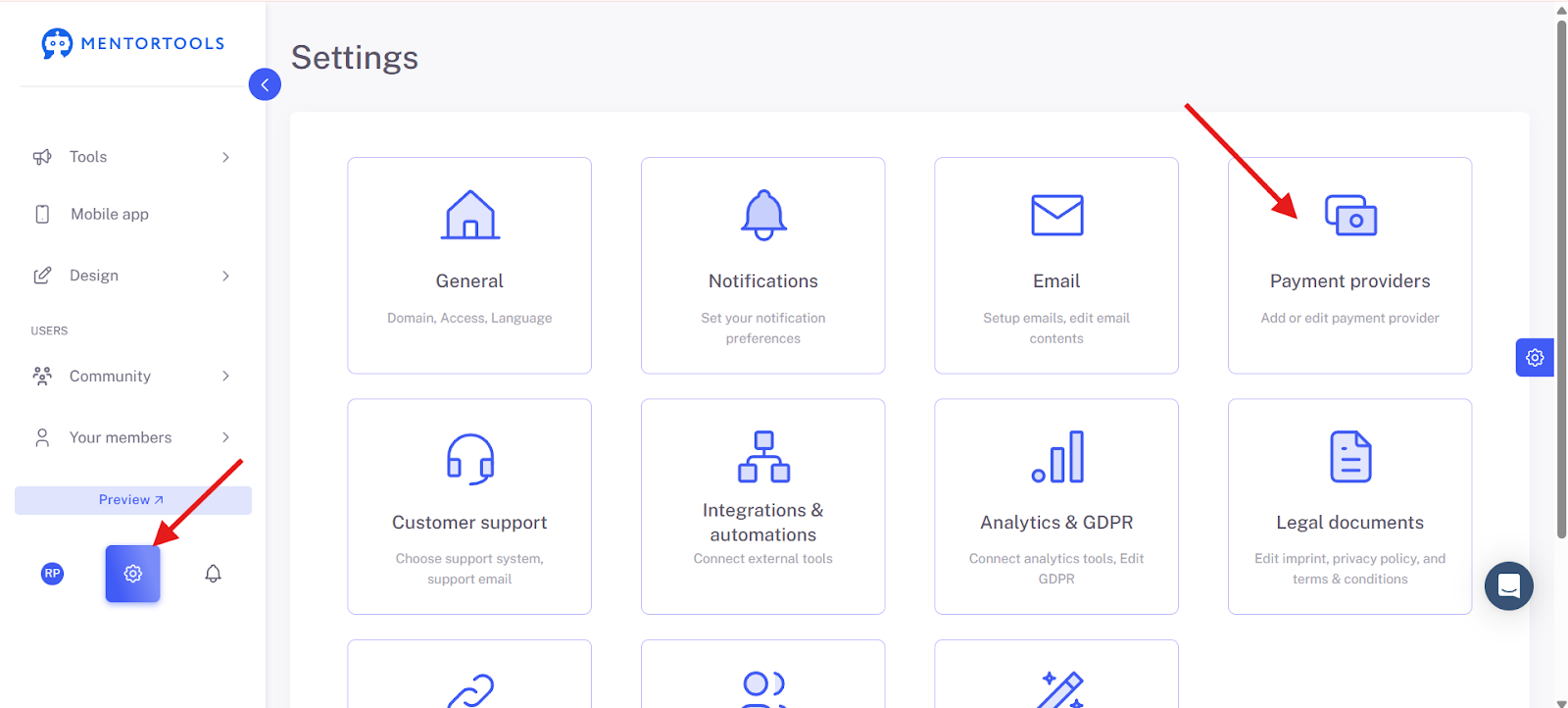
Then click on "Add payment provider" and select "Stripe." Click on the "Next" button.
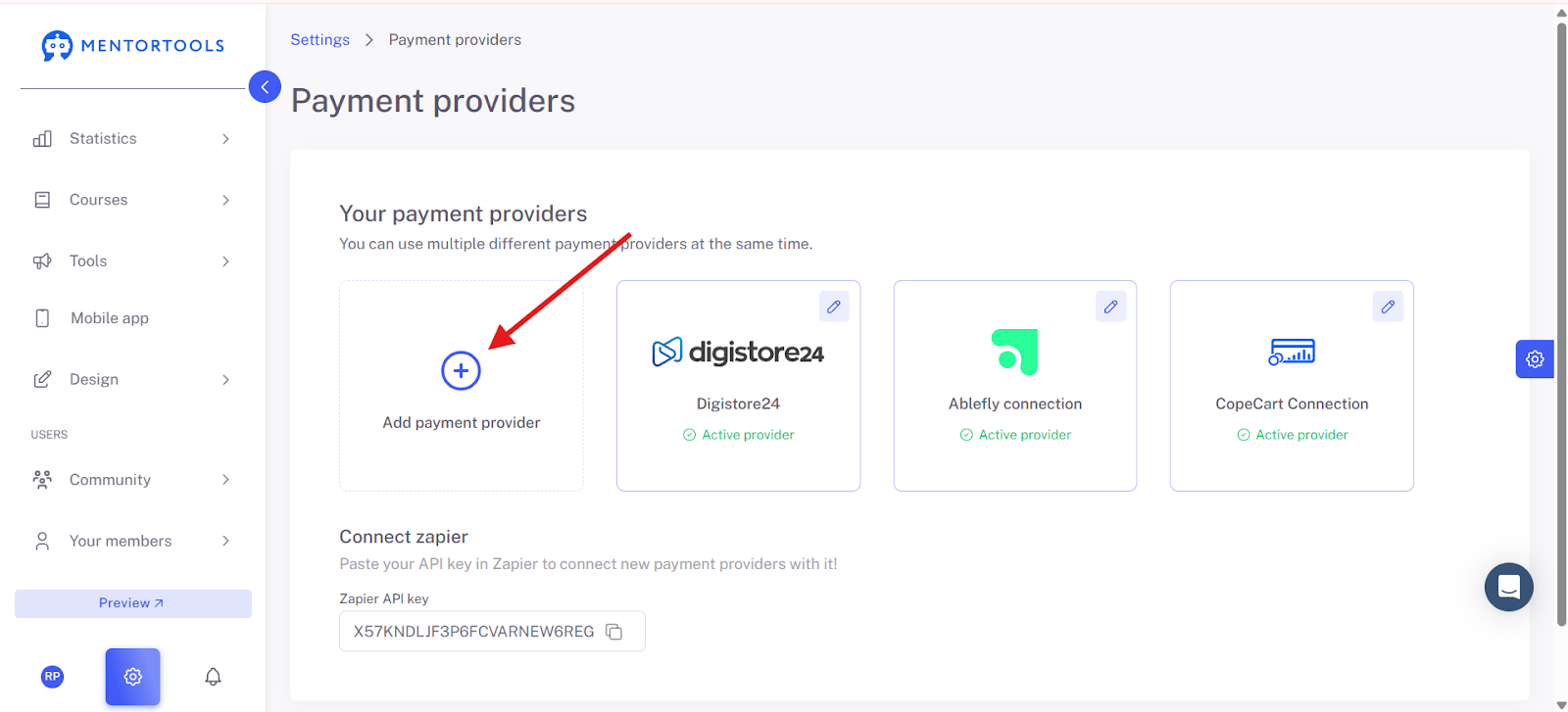
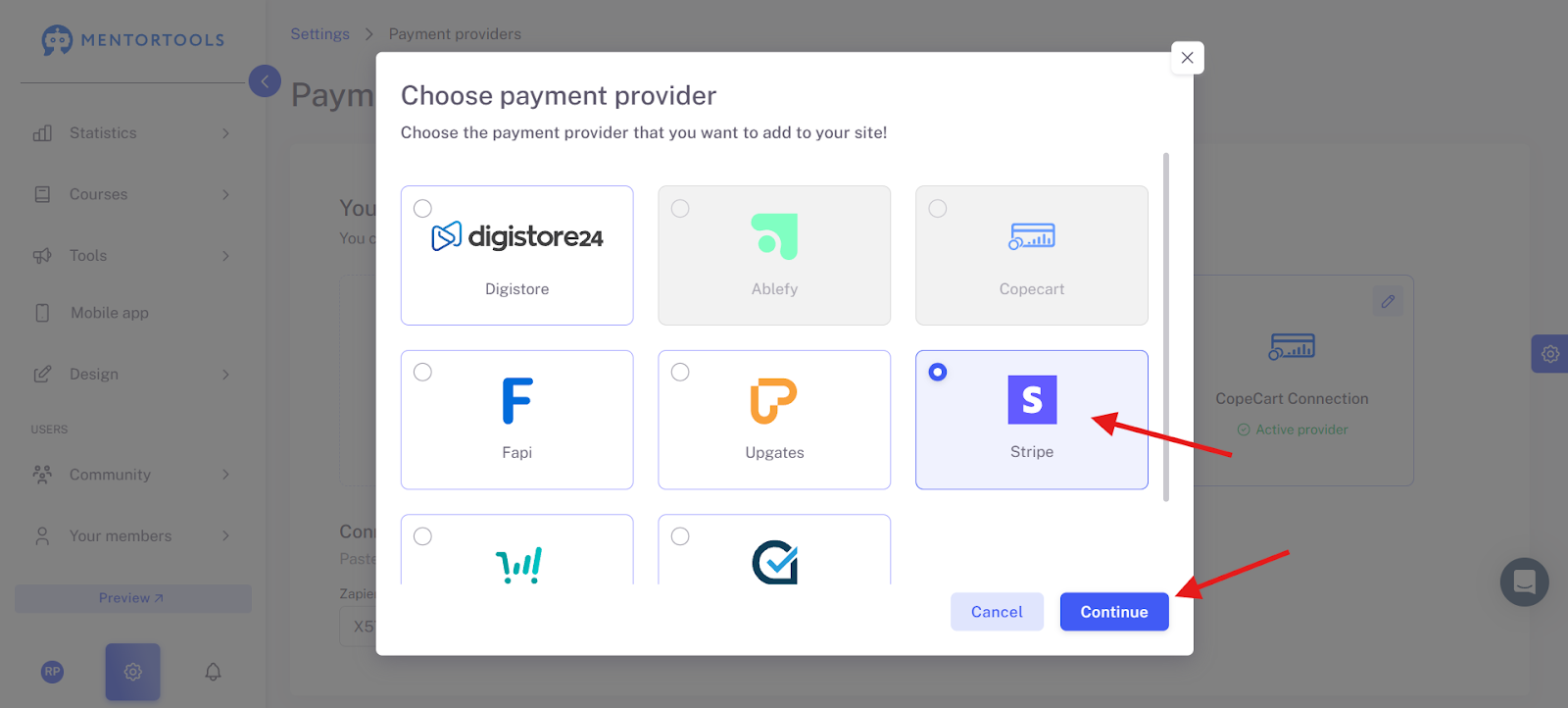
Give it a name, for example, "Stripe Connection," so you will always know it is the Stripe payment provider at a later time. Paste the copied API key into the designated field and set the connection to active. After that, you can click on the "Save and Close" button.
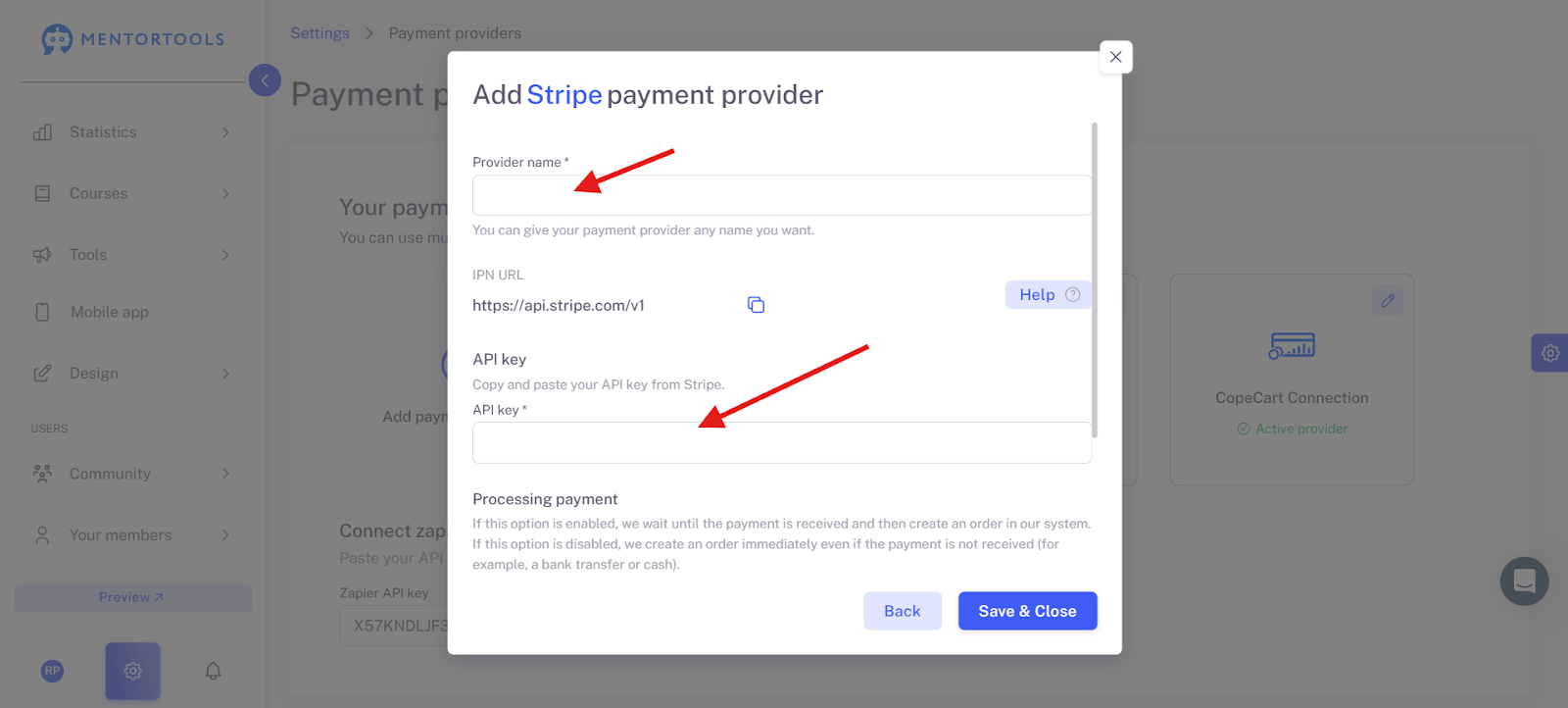
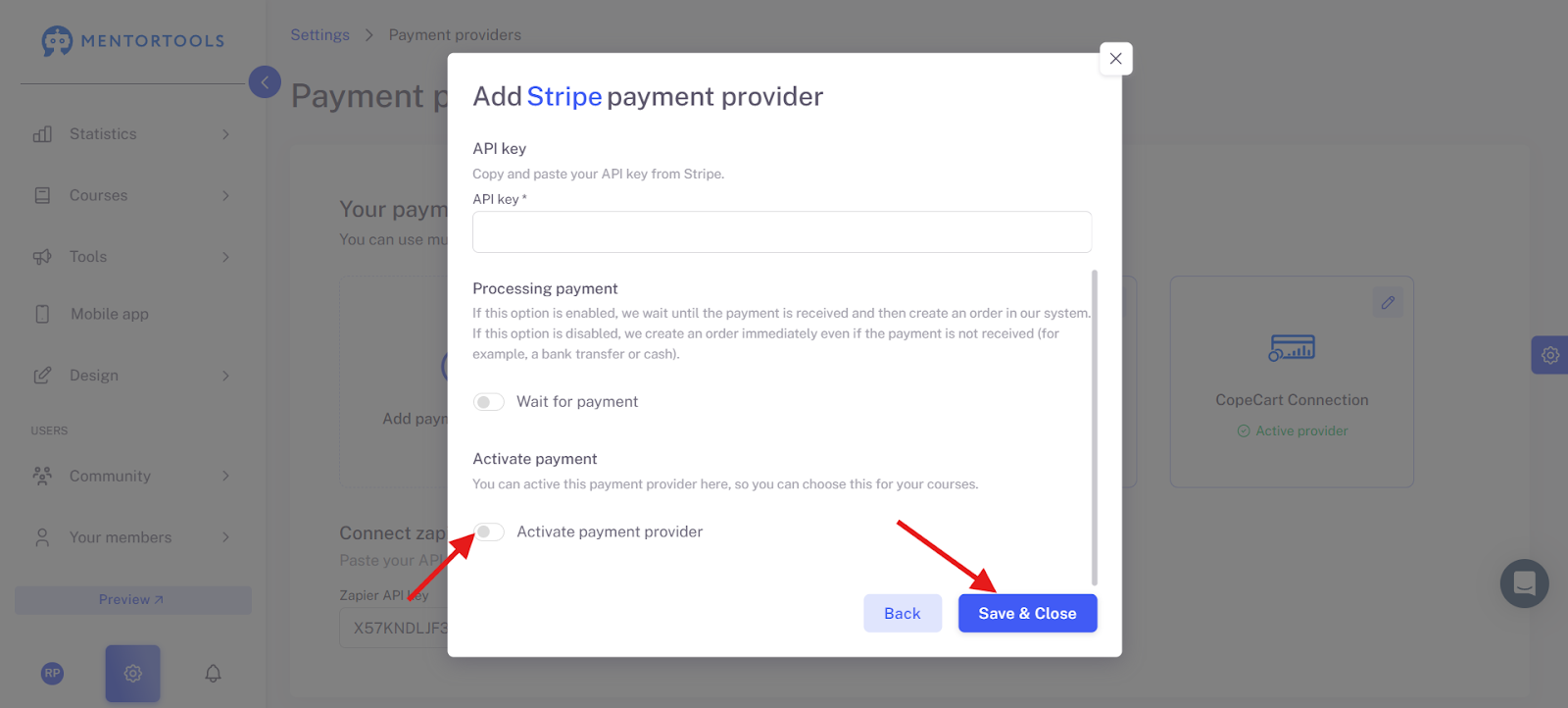
Please note: In early April 2024, Stripe made an API update. You must accept this as the default if necessary, so that the connection to Mentortools can be established or re-established, as it seems old API connections are no longer supported by Stripe.
How to connect a Stripe Product with an Online Course?
If you now want to connect a Stripe product with an online course, you should have already created a product in your Stripe account. Navigate to the course overview in your Mentortools account and click on the name of the online course you want to connect to the Stripe product.
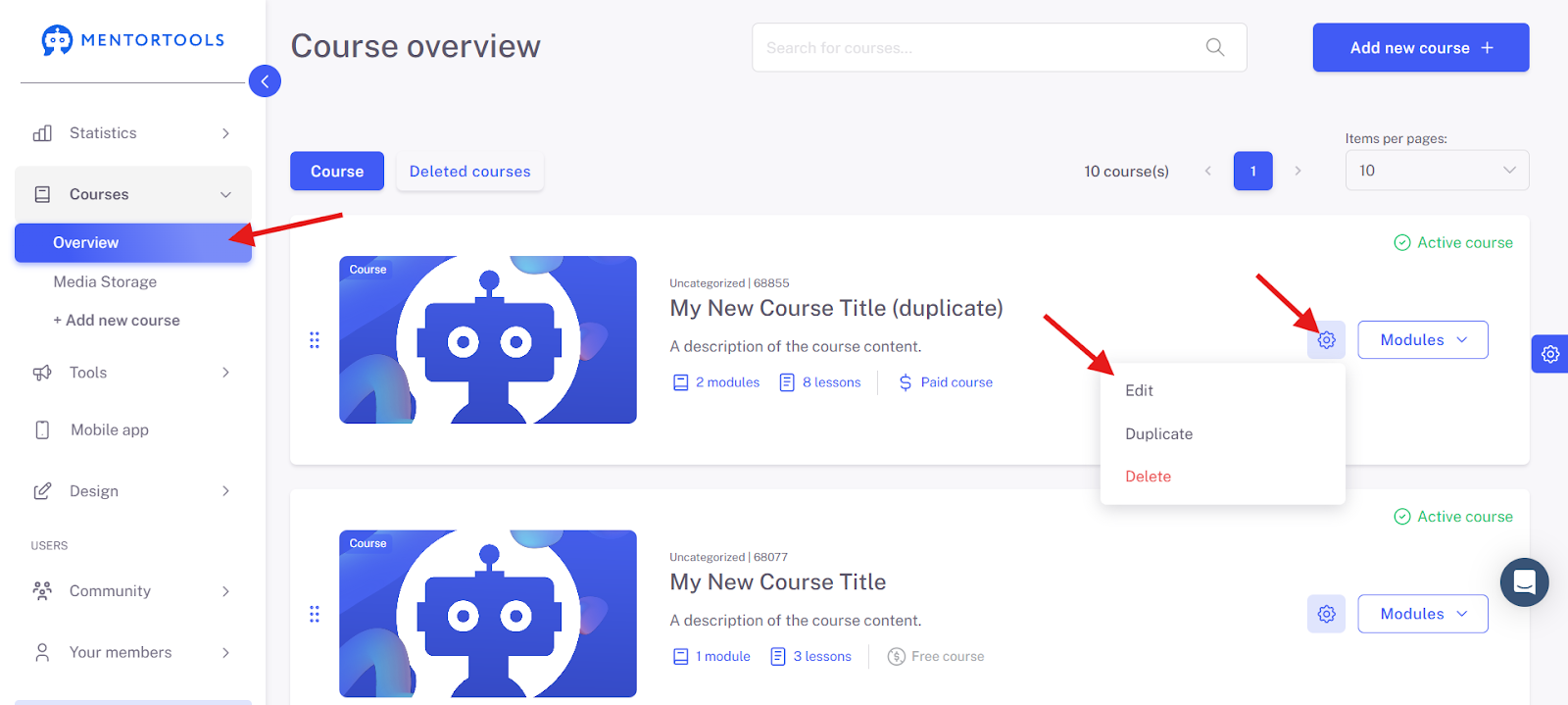
An editing window will then open. Navigate down to the "Payments" section. Make sure the online course is set to be chargeable.
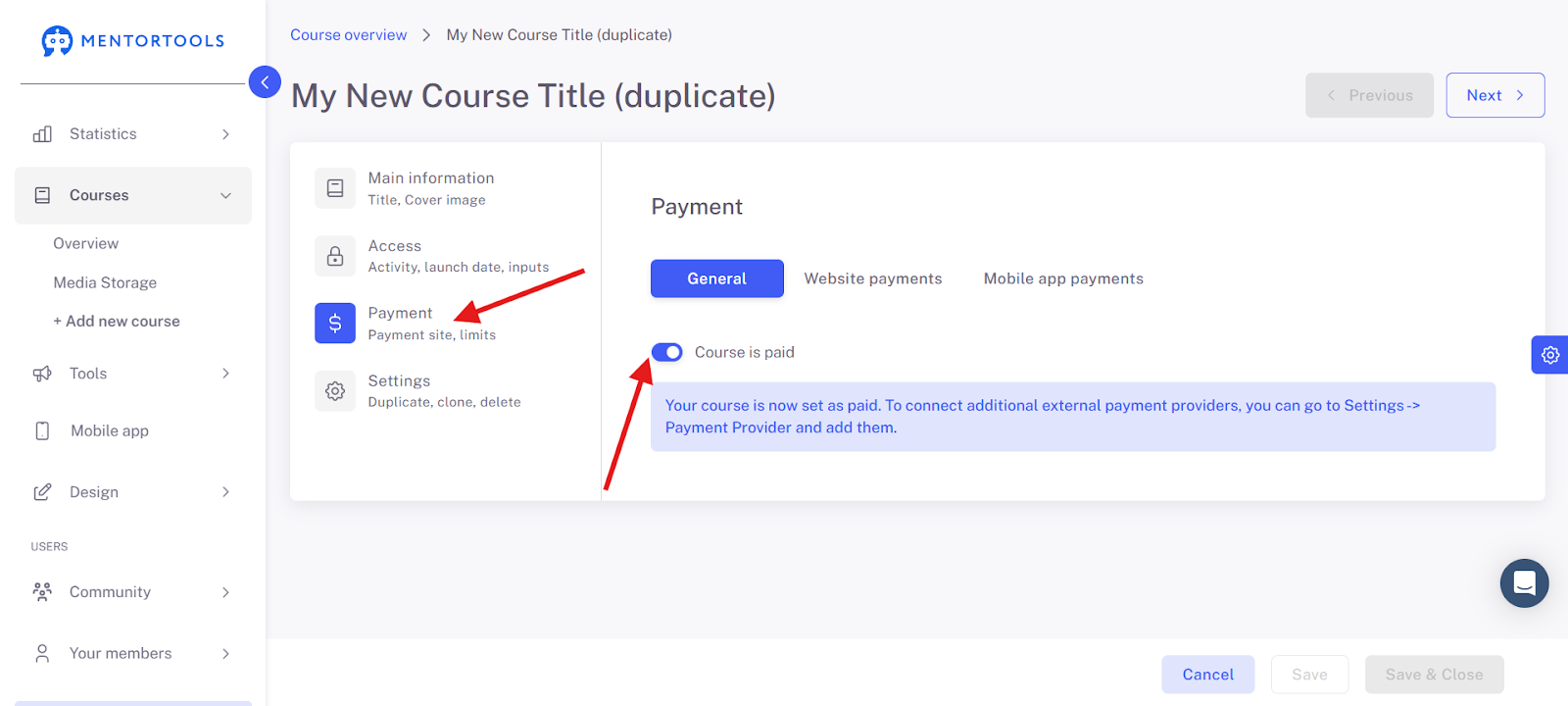
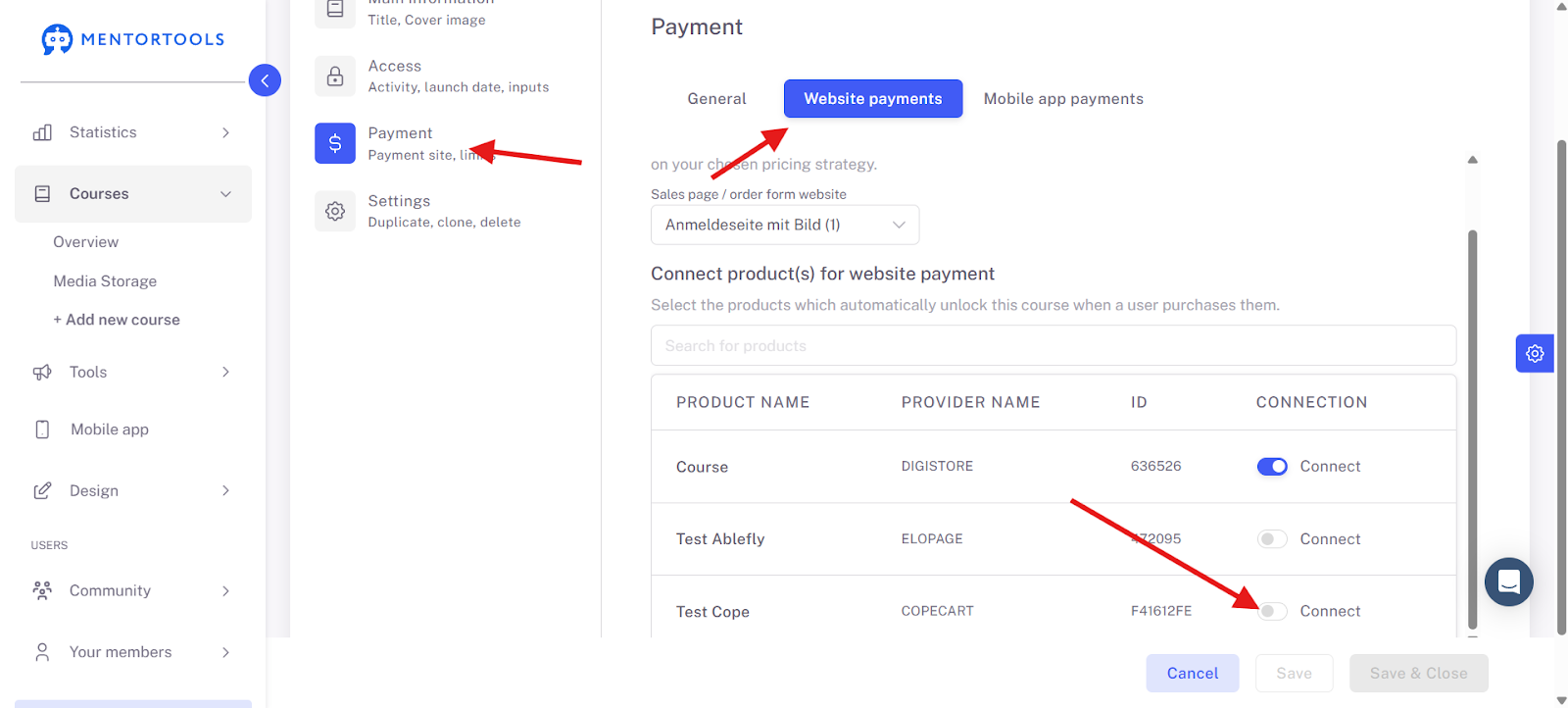
Finally, you can add a landing page that makes it possible to buy the product. It can be an external landing page or a landing page from your Mentortools account. After that, click on the button (bottom right) "Save and Close."
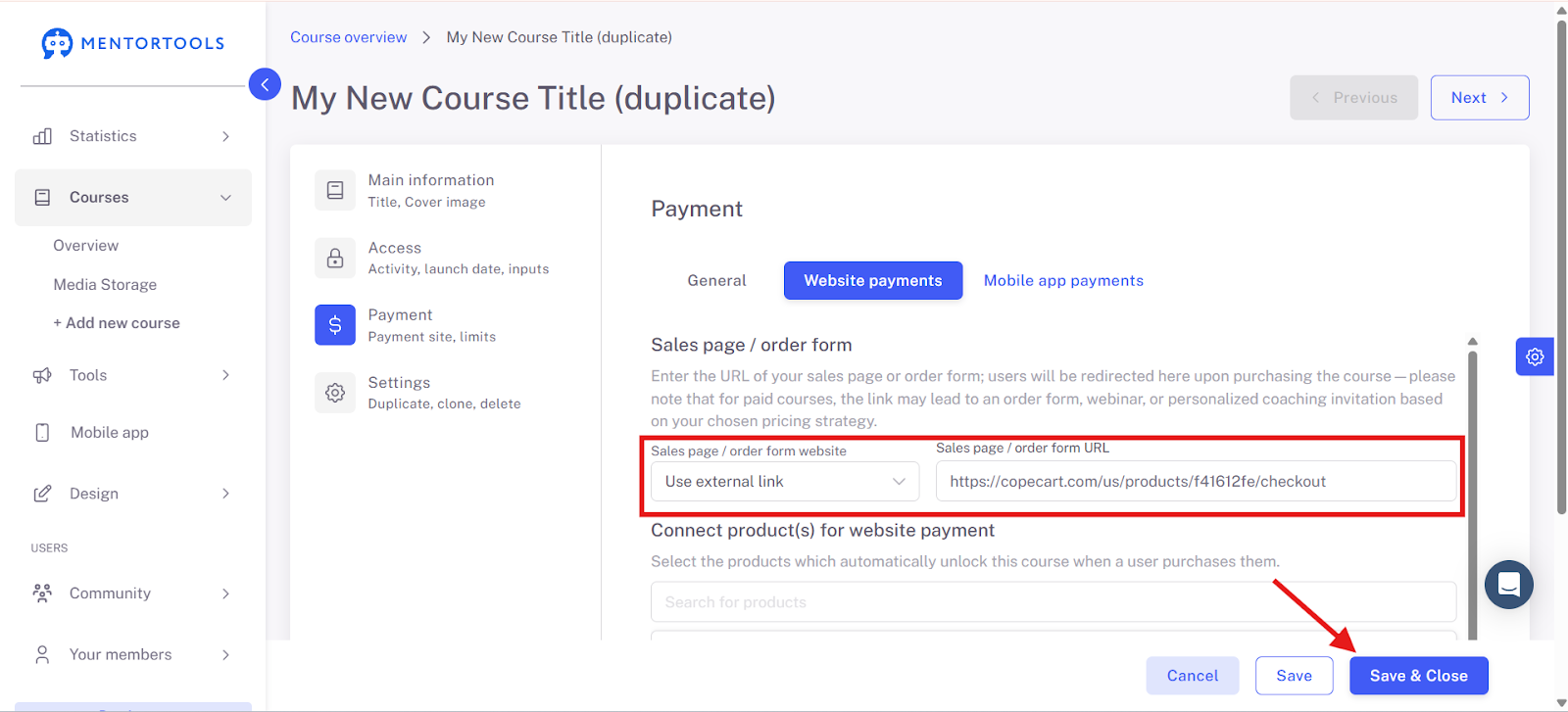
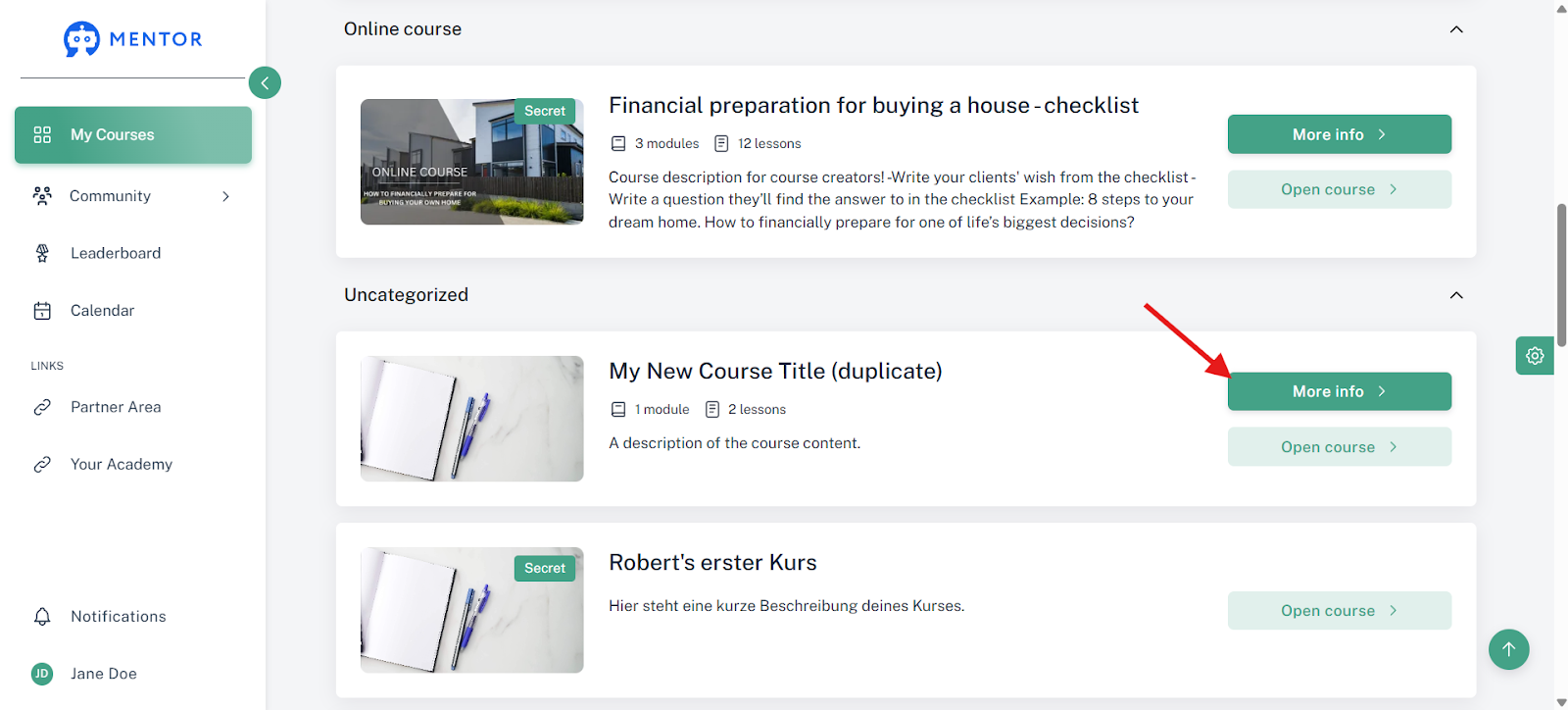
The sales page appears in your member area for users who have not yet purchased the course. If you do not have a sales page yet, you can enter the payment link of the payment provider in the meantime.
You have now completed the process, and you can sell your product.
Note
If you have connected Stripe as described above, it can happen in rare cases that the API does not work as it should.
This is because Stripe has not activated all the webhook monitoring for it. This can happen depending on the settings of your Stripe account.
Usually, the following monitoring events are activated:
charge.pending
charge.refunded
customer.subscription deleted
invoice.payment_succeeded
payment_intent.succeeded
You will usually have to manually add one more monitoring event:
checkout.session.completed
This setting can be found in the webhook settings of the API key. You are welcome to use this guide from Stripe as well. Only after this will Stripe send the purchase data to Mentortools, including for 100% vouchers.
Have fun with it and good luck!
Your Mentortools Support Team
Was this helpful?