Payment Providers – Connecting Mentortools with Digistore24
In this guide, you will learn how to integrate Digistore24 as a payment provider in Mentortools—fast, secure, and directly connected via API keys. Perfect for automated course sales and smooth payment processing.
Last updated About 1 year ago
How to Connect Digistore24 with Mentortools?
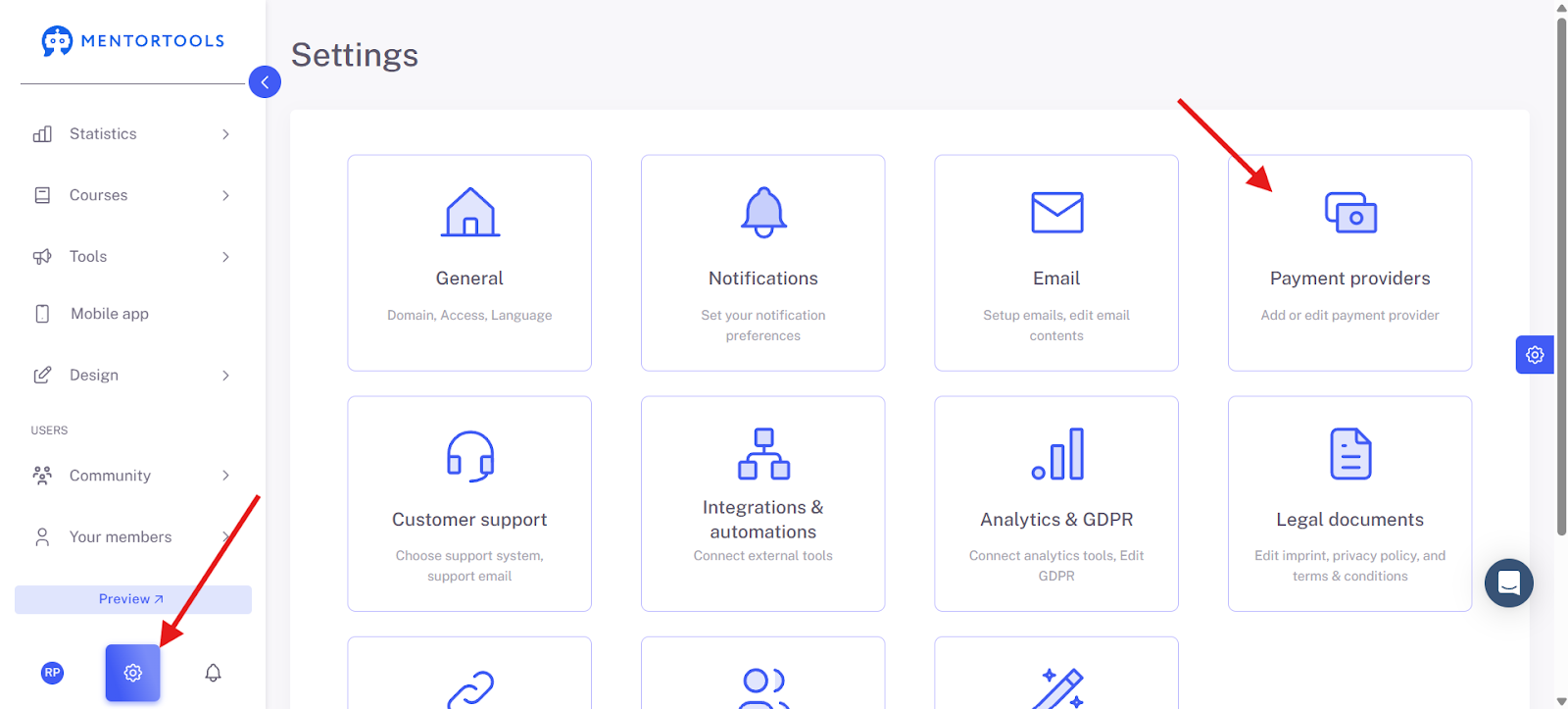
To connect the payment provider Digistore24, you first need a Digistore24 account. If you have already created one, first navigate to the selection of payment providers. To do this, go to "Settings," then to the "Payment Providers" section.
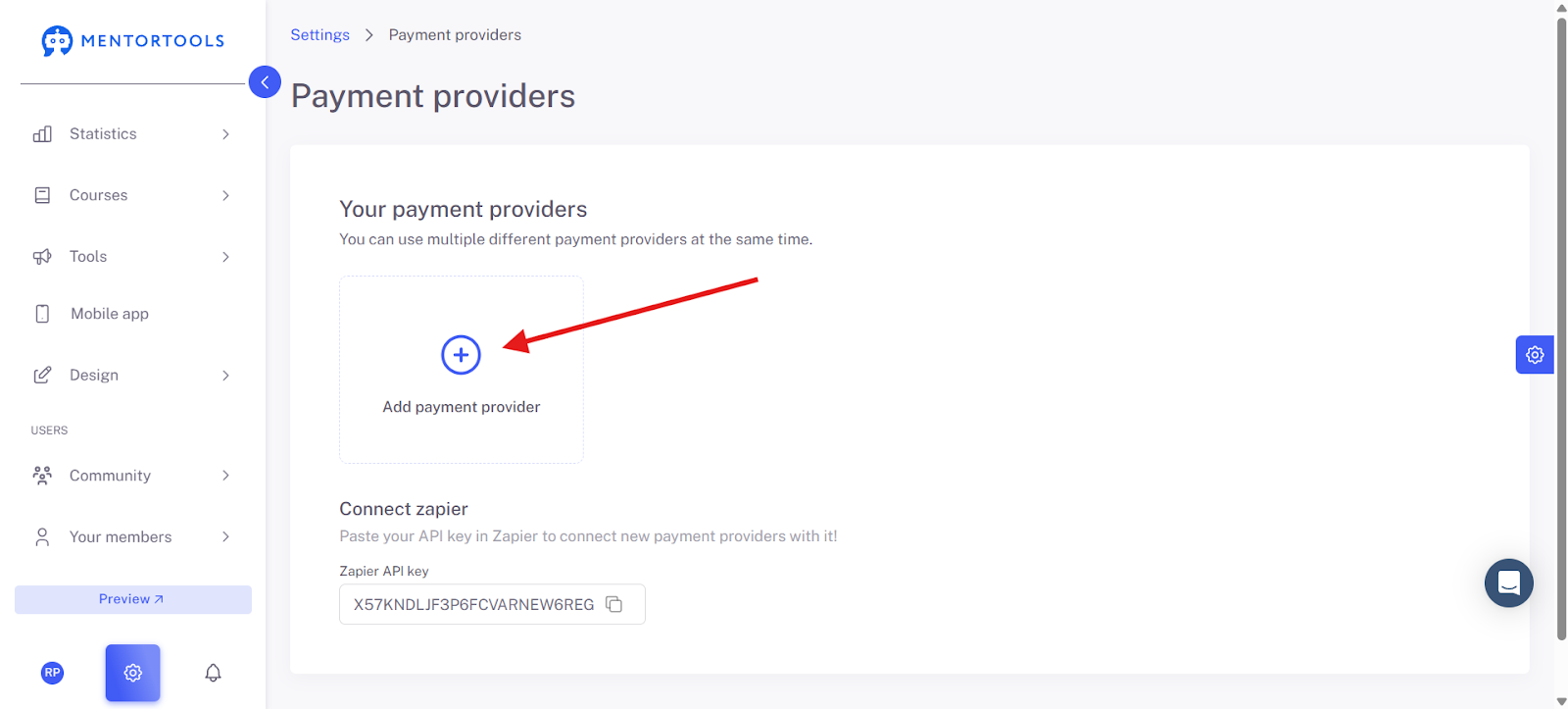
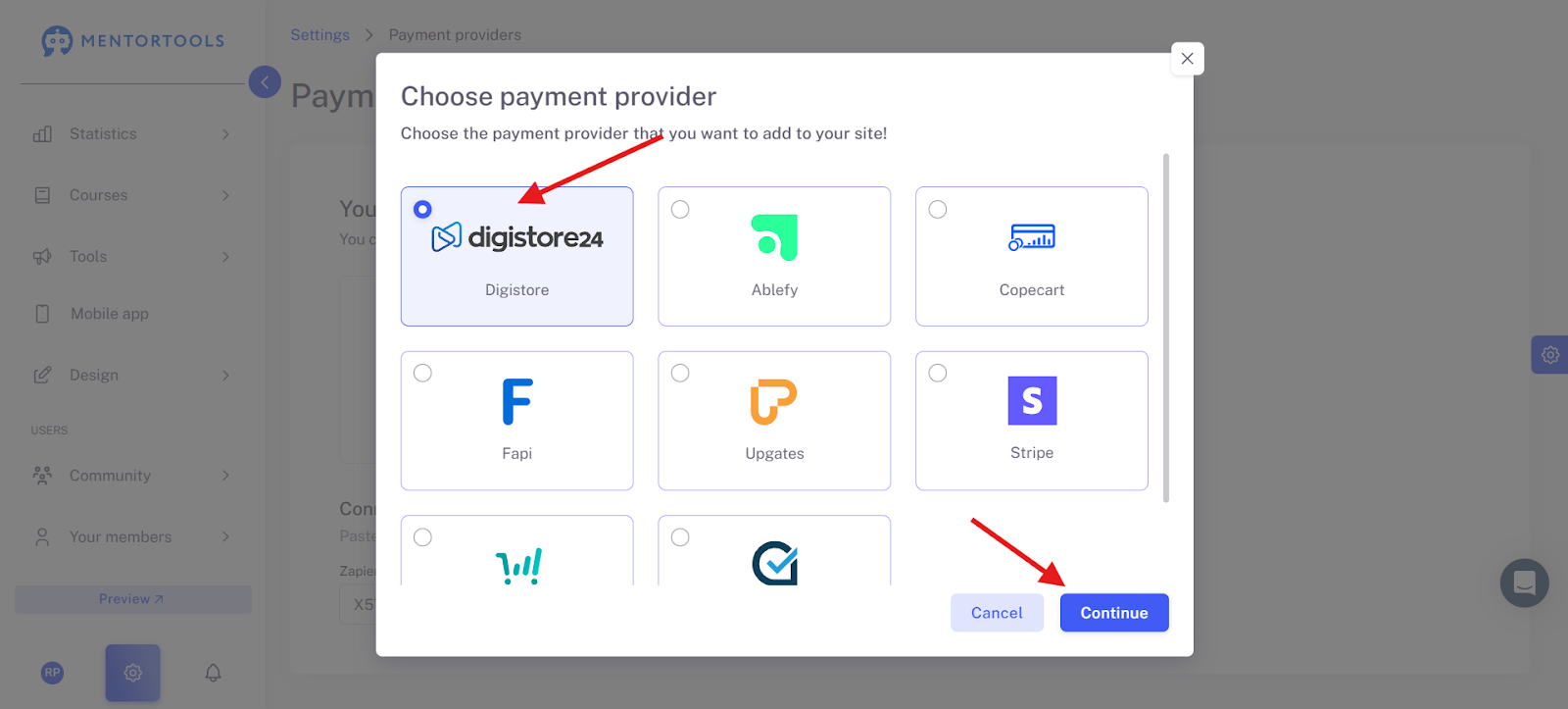
Click on "Add Payment Provider." Then select the payment provider "Digistore24" and click on "Continue."
Now open a new browser tab and log into your Digistore account. Make sure you are logged in as a "Vendor."
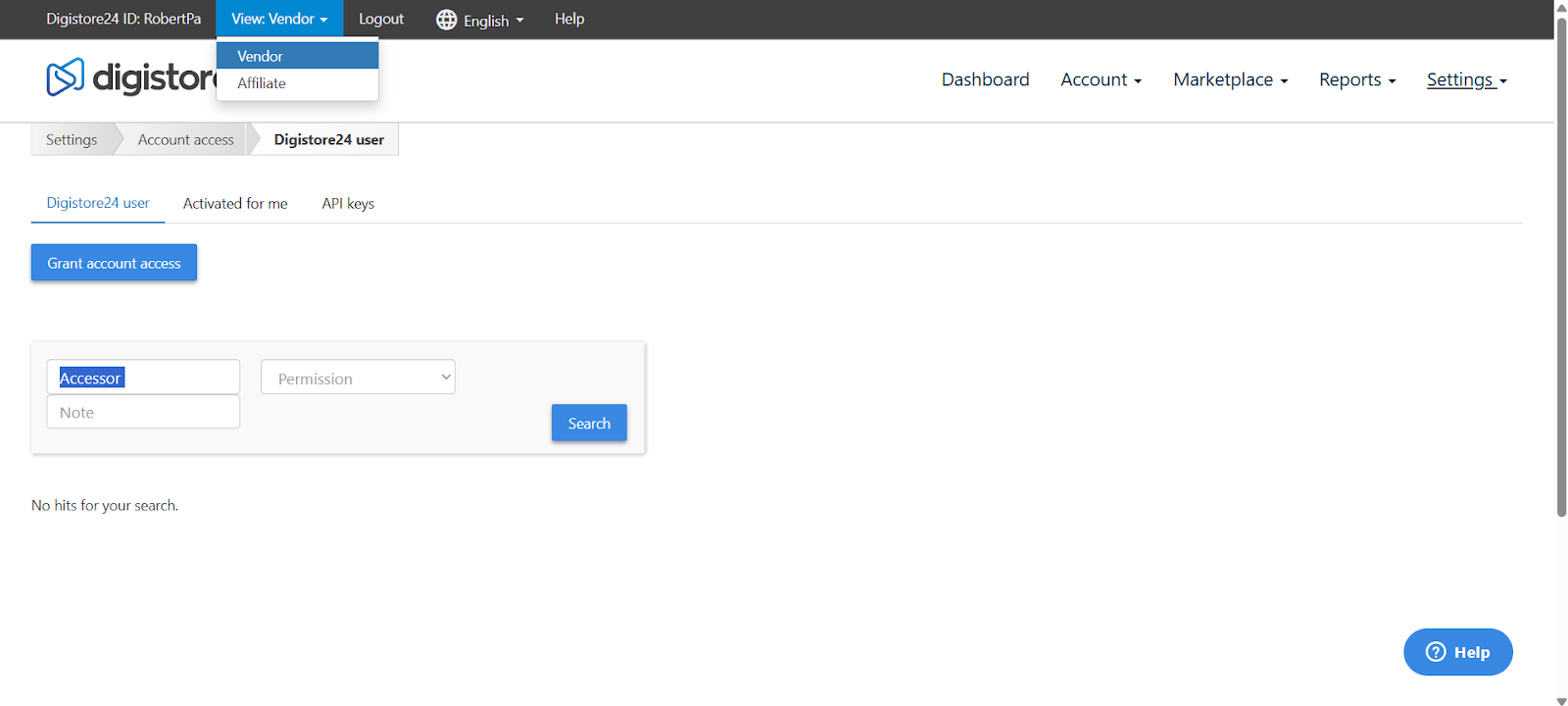
Then navigate to the access settings. Click on "Settings" and select "Account Access."
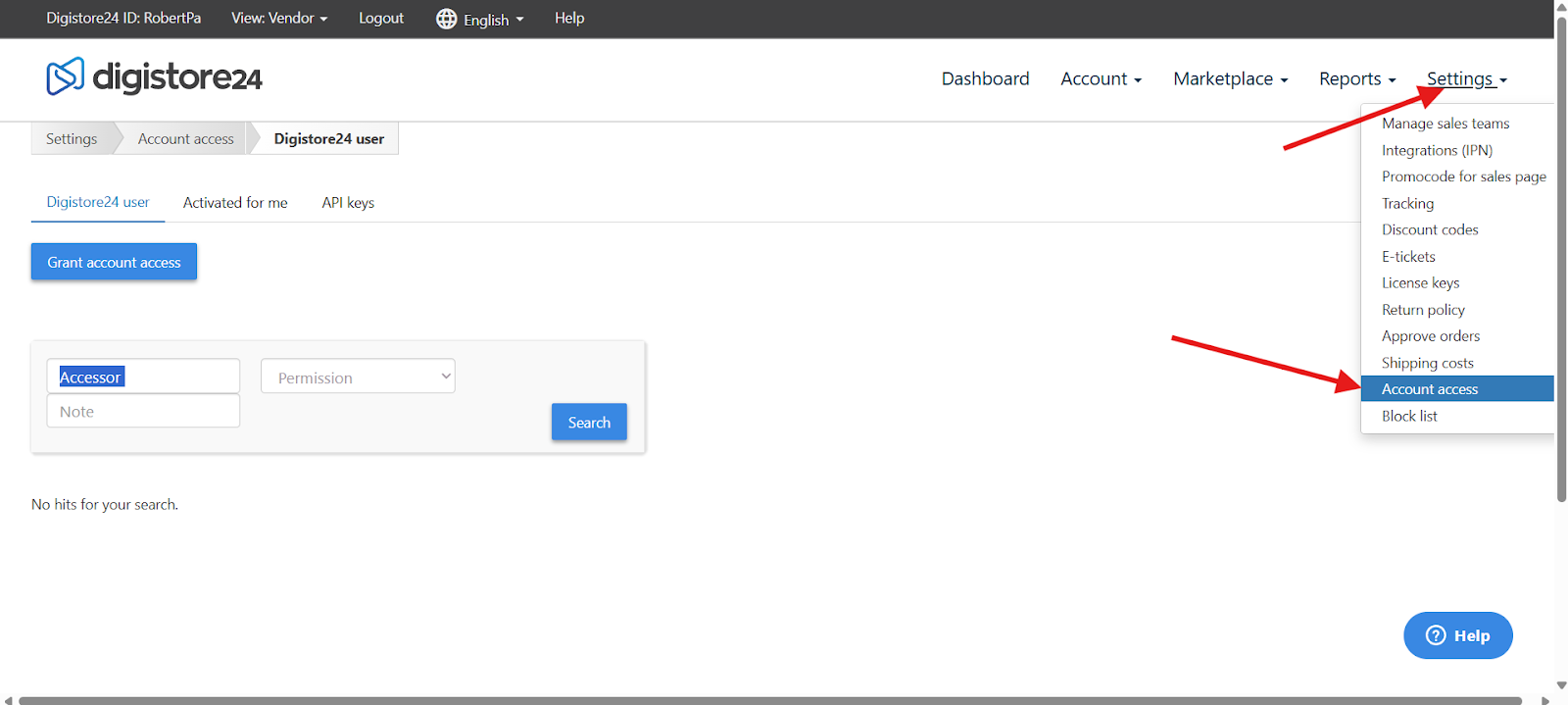
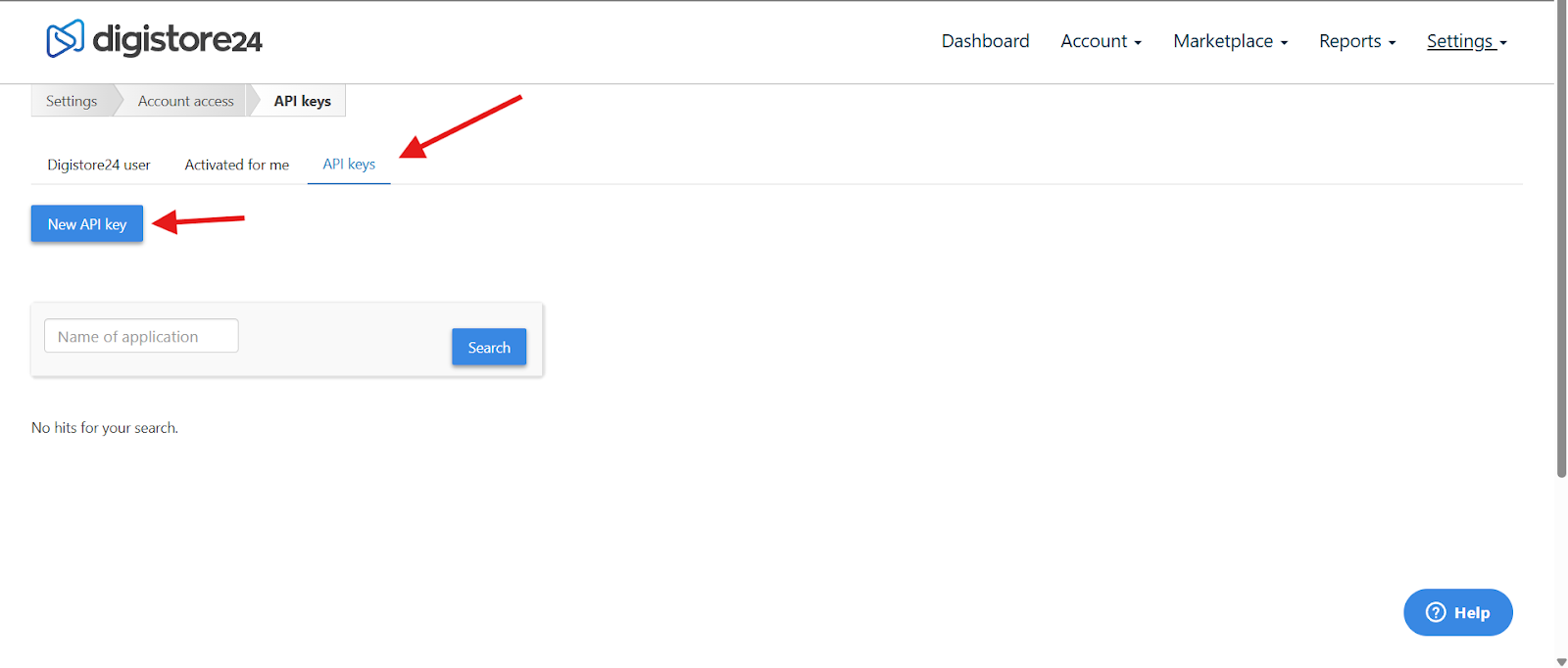
Then click on the "API key" and create a new key for Mentortools.
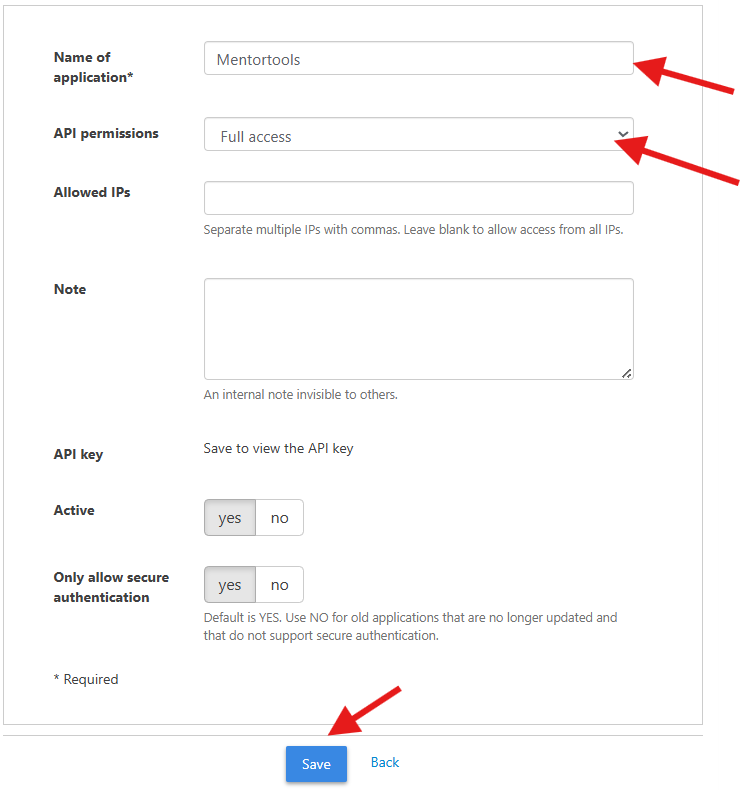
Then add a name, e.g., "Mentortools," and set the API rights to "Full Access." Don't forget to save!
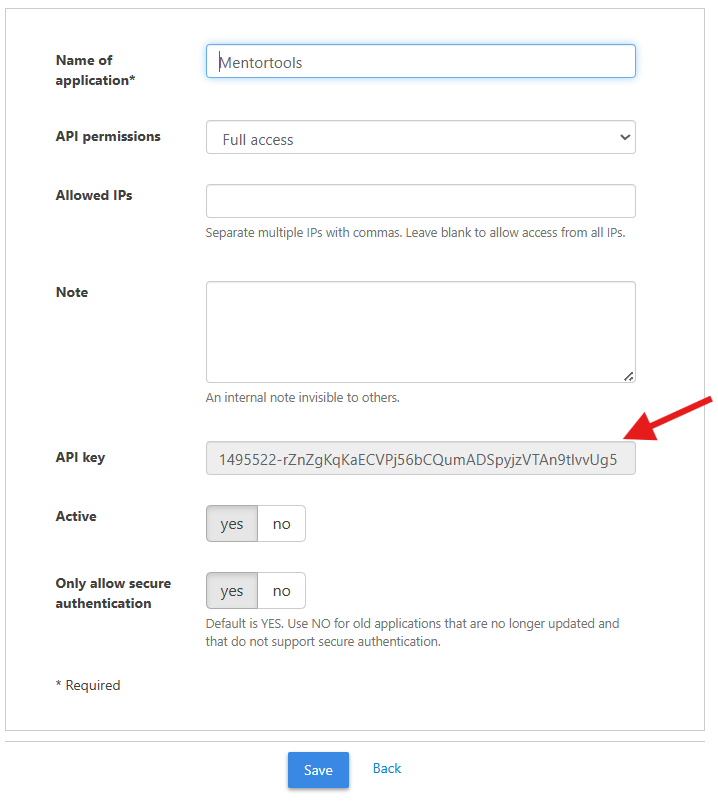
Next, an "API key" will appear in the lower part of the window. Select and copy this code.
In the next step, navigate back to your Mentortools account and paste the copied API code into the empty field for the Digistore24 payment provider.
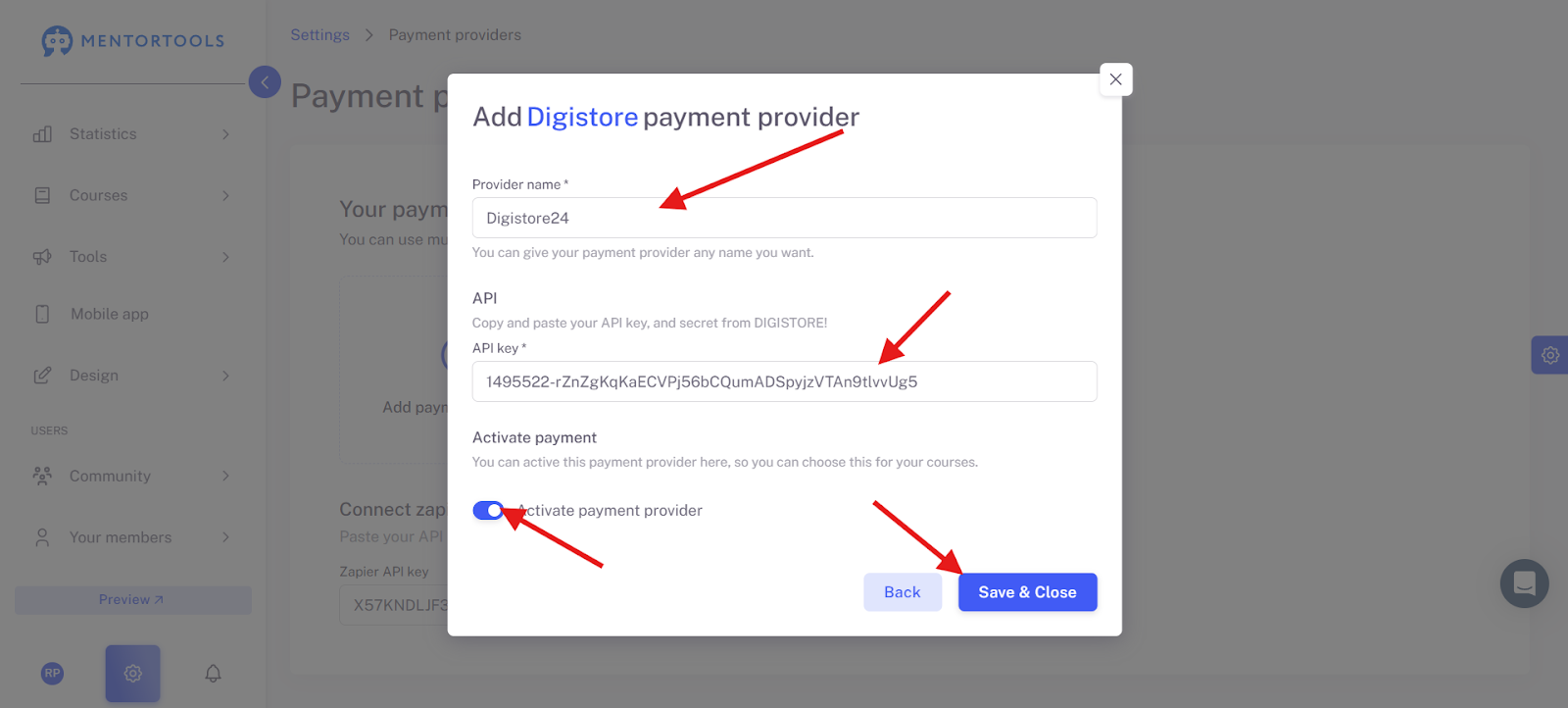
First, choose a name for your payment provider (here, Digistore Connection).
Then paste your API key from Digistore into the field, activate the connection, and click on "Save and Close."
Connect the Online Course with Your Digistore Product
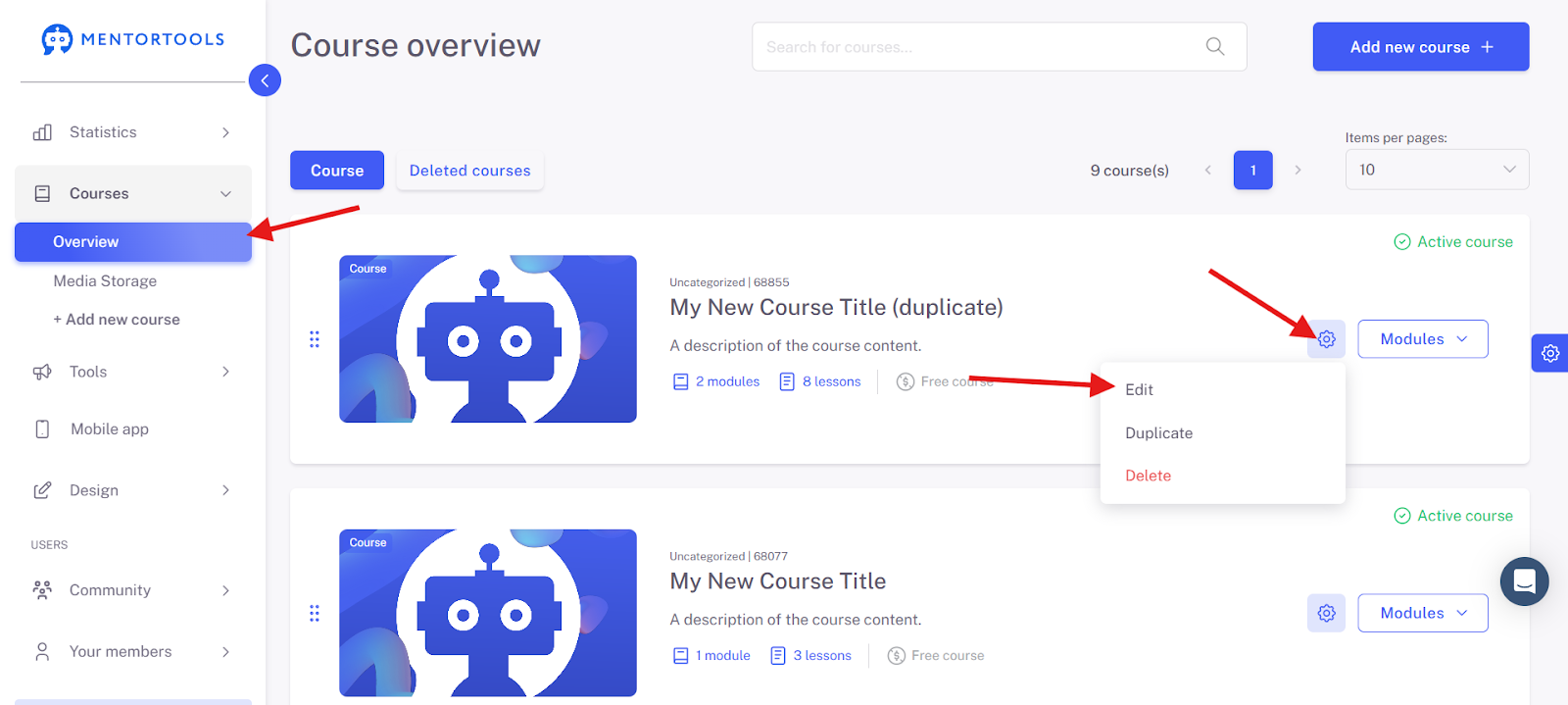
If you now want to connect a Digistore product with an online course, you should have already created a product in your Digistore account. Navigate to the course overview in your Mentortools account and click on the name of the online course you want to connect to the Digistore product.
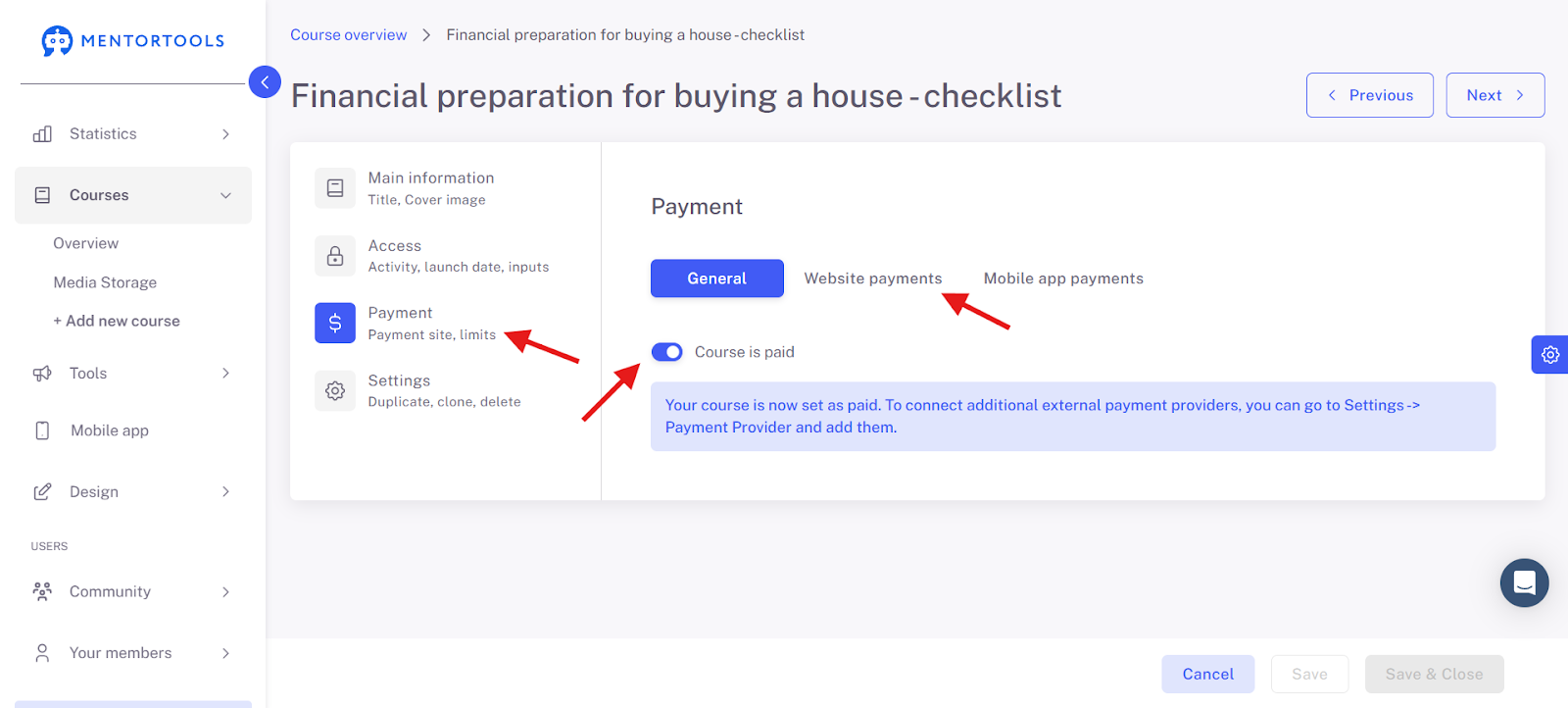
An editing window will then open. Scroll all the way down to the "Payments" section. There, select "Course is paid" as the payment setting. Then click on "Website Payments".
The name of your Digistore product will then be displayed. You can activate the product until it turns blue.
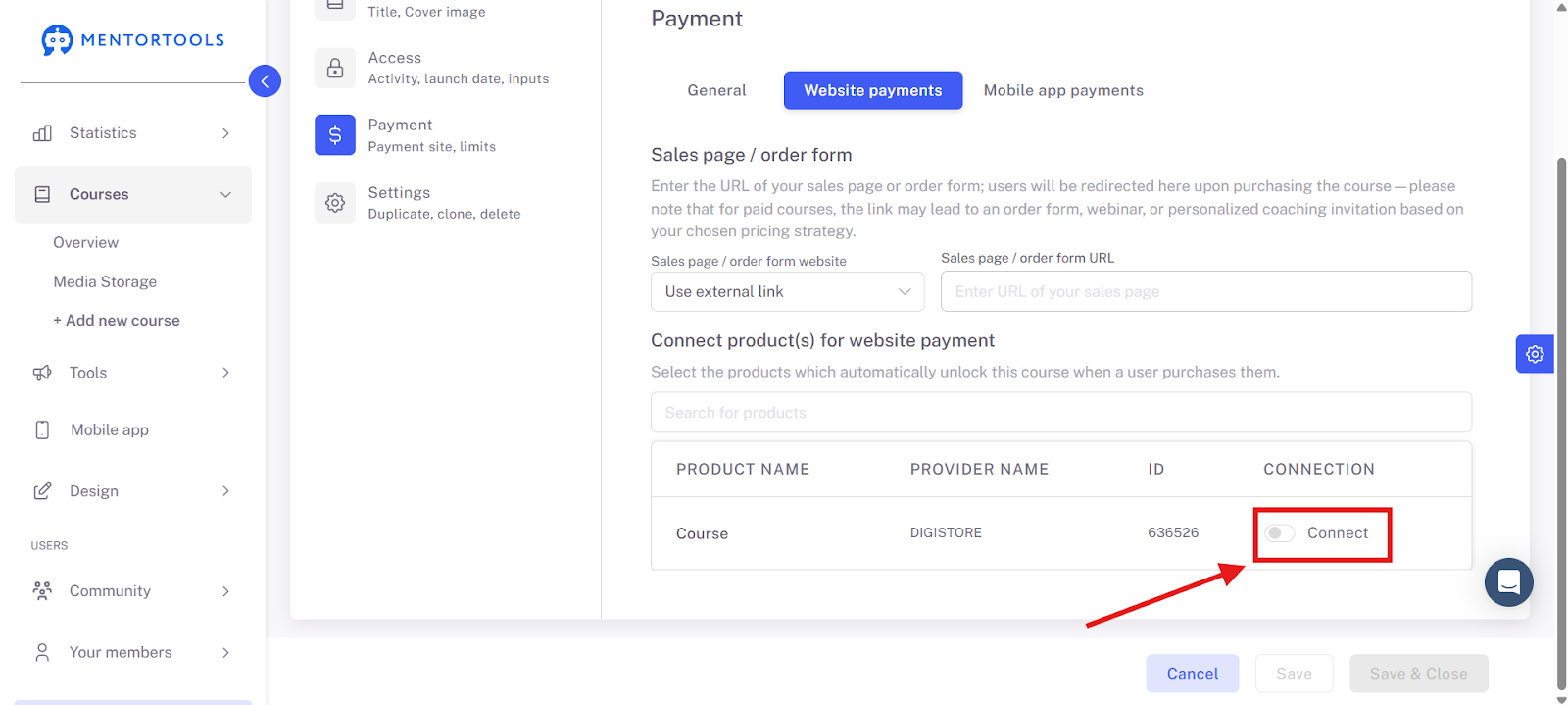
Finally, you can add a landing page that makes it possible to buy the product. It can be an external landing page or a landing page from your Mentortools account. After that, click on the button (bottom right) "Save and Close."
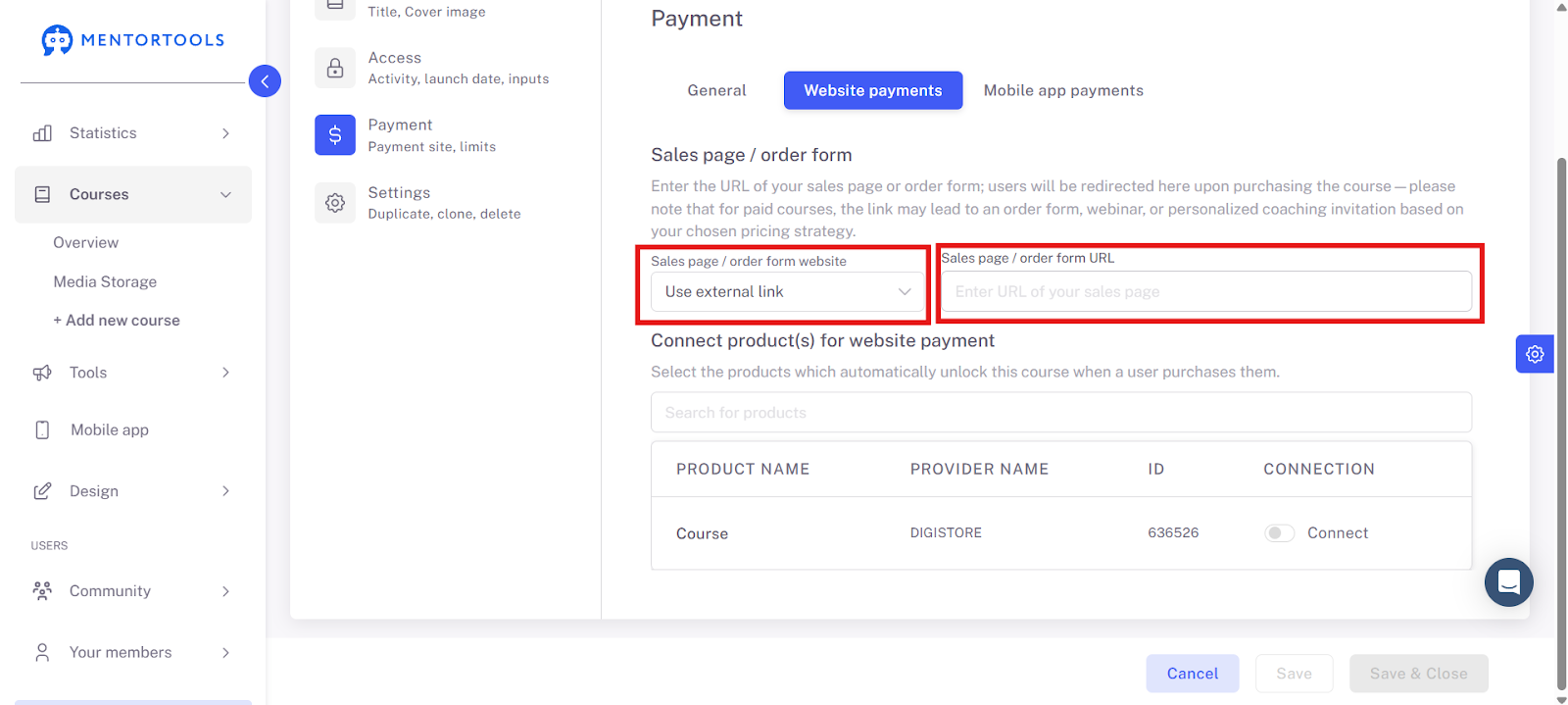
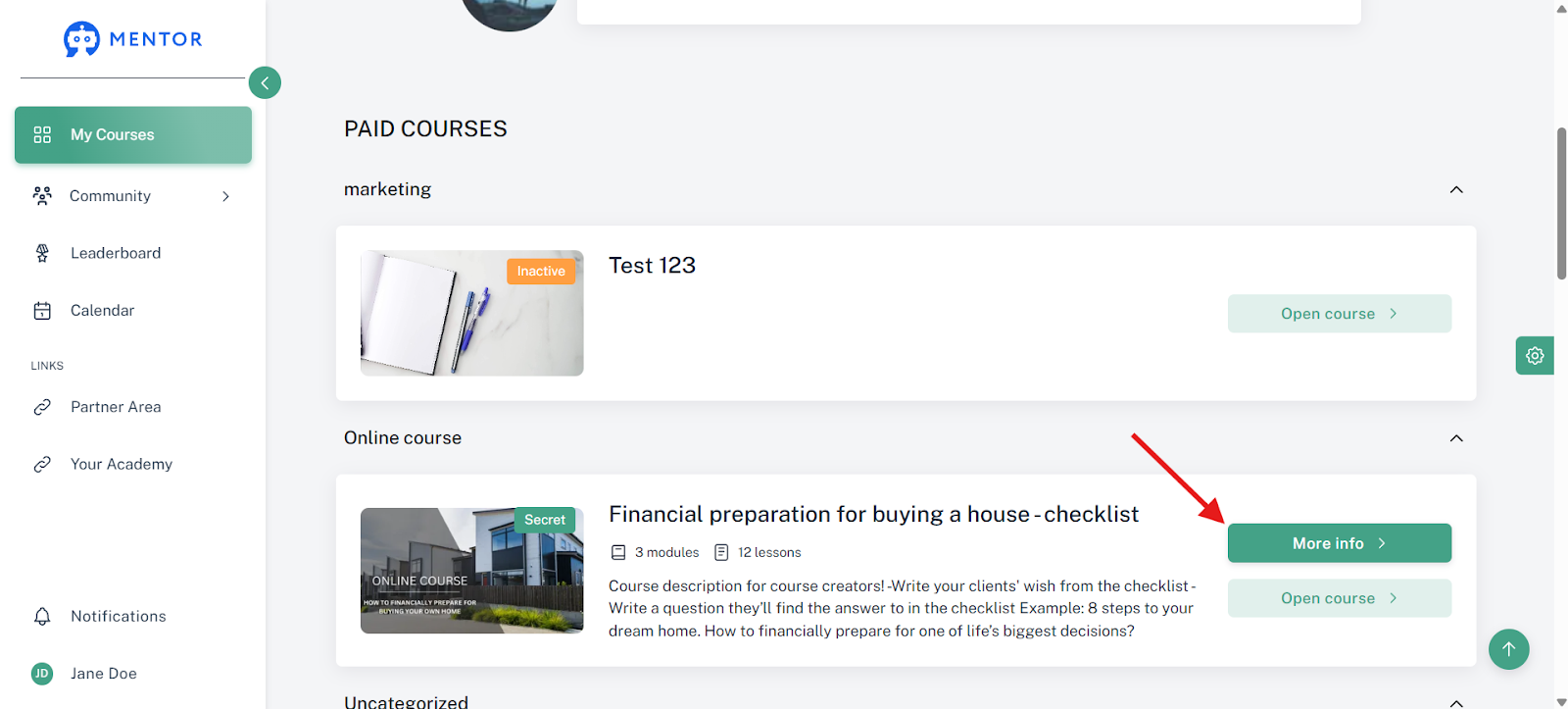
The sales page appears in your member area for users who have not yet purchased the course. If you do not have a sales page yet, you can enter the payment link of the payment provider in the meantime.
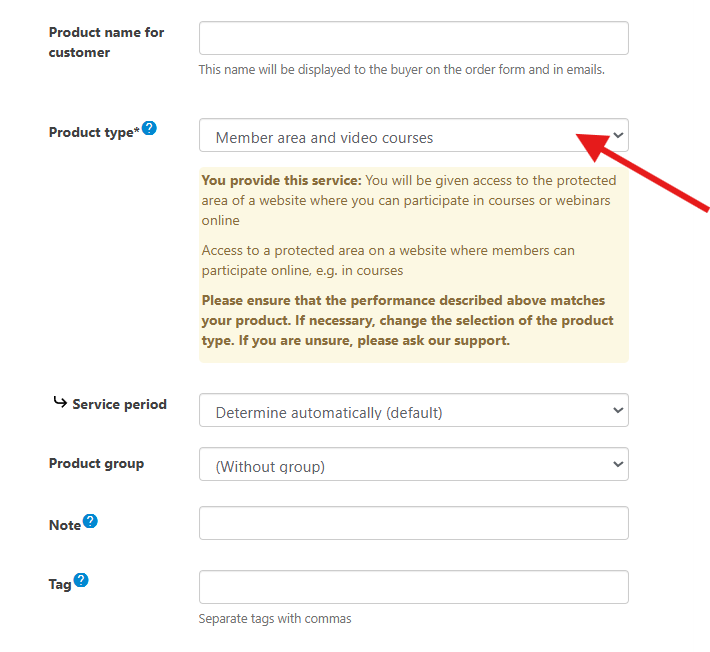
IMPORTANT: Note that the product in Digistore should be stored as a "Member area and video courses." Navigate to your product properties in Digistore and make sure that the product type is "Member area and video courses."
You have now completed the process, and you can sell your product.
Good Luck!
Was this helpful?