Legal Documents – General Terms and Conditions
In this guide, I'll show you how to easily create and manage your General Terms and Conditions (GTC) on Mentortools. The GTC are extremely important for legally securing your business relationship with customers.
Last updated 12 months ago
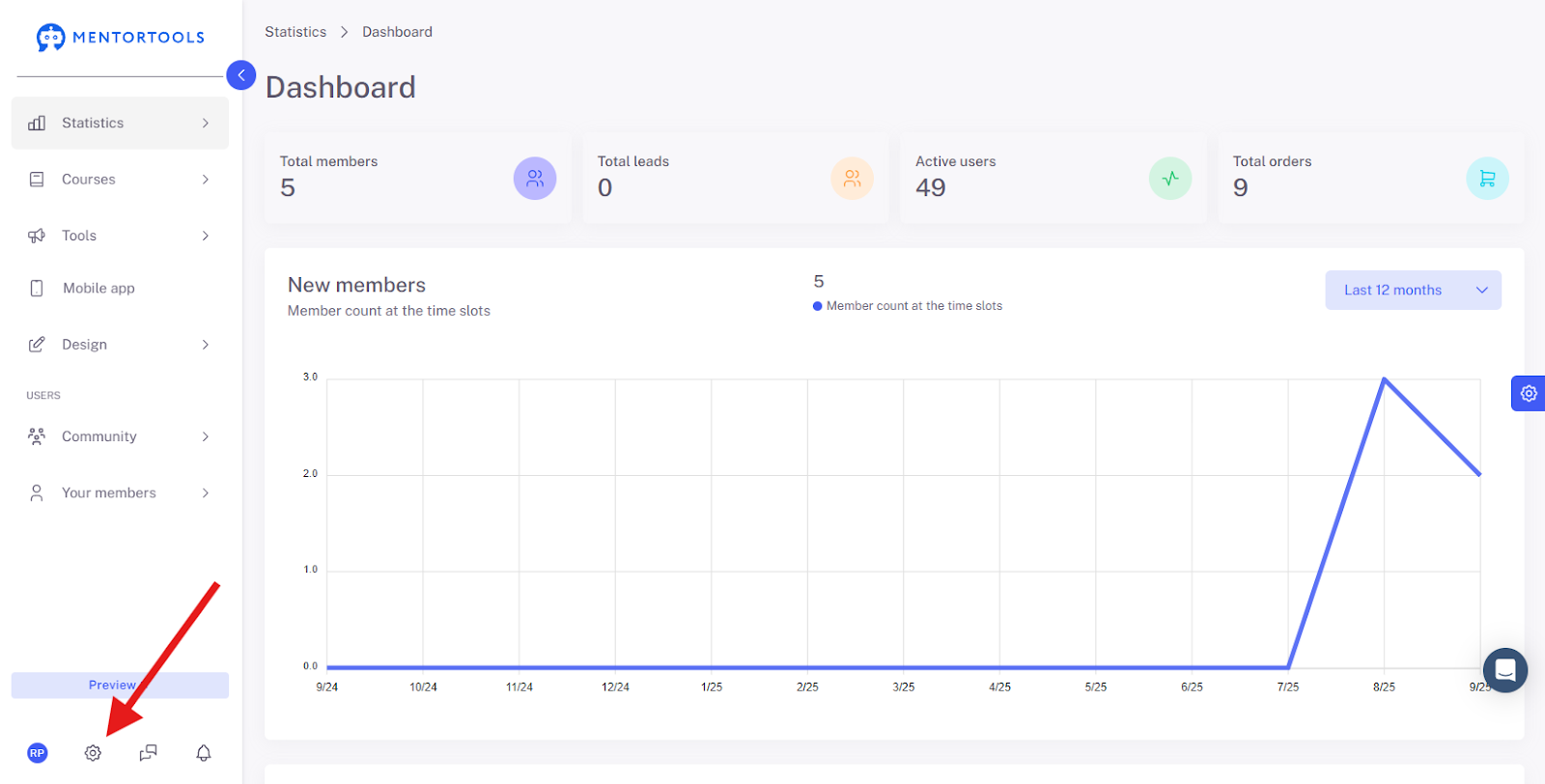
1. Open the Settings
Click on the gear icon in the bottom left menu bar.
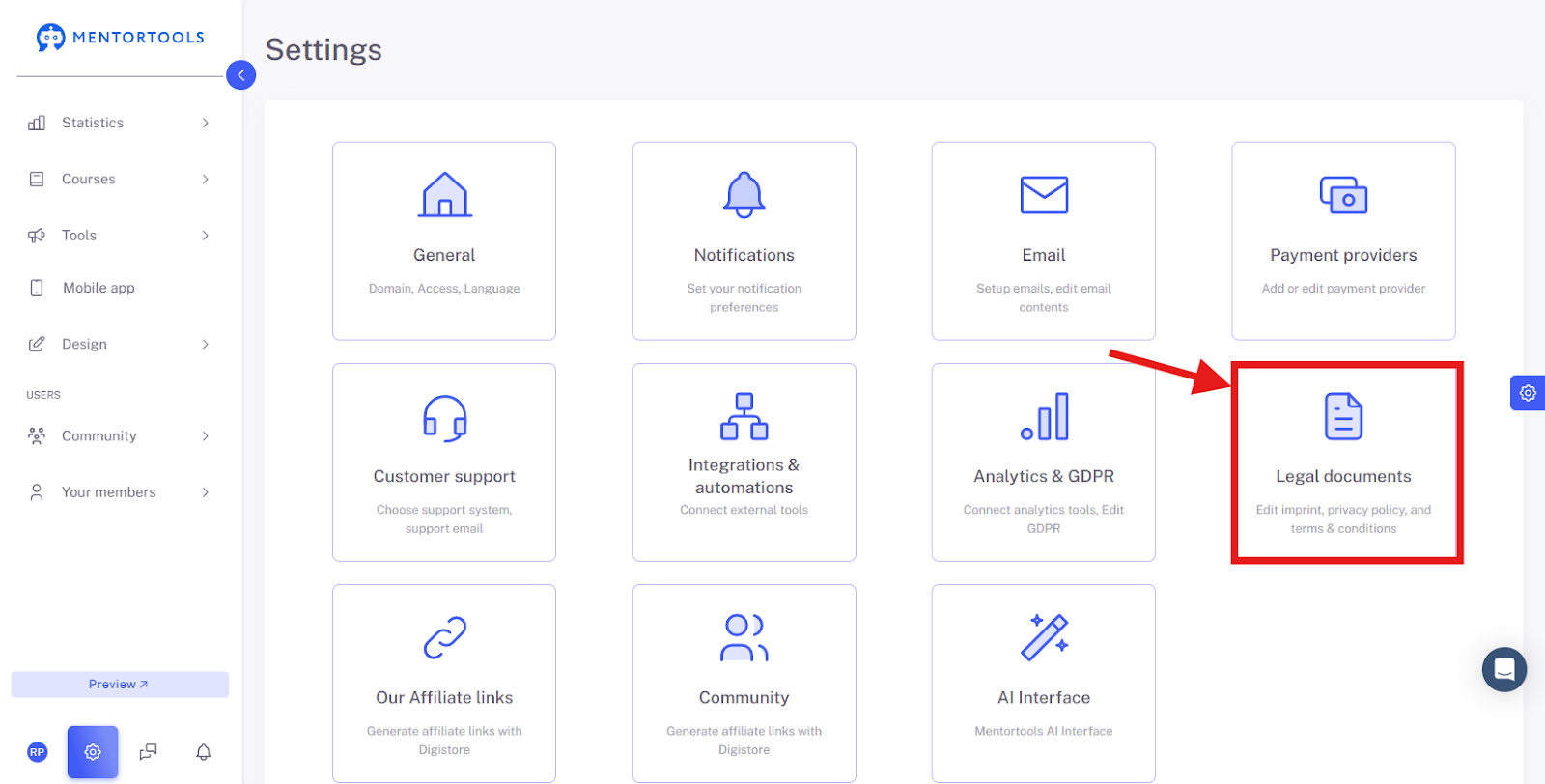
2. Click on "Legal Documents"
Switch to the corresponding area for legally relevant content such as Imprint, T&Cs, Privacy Policy, etc.
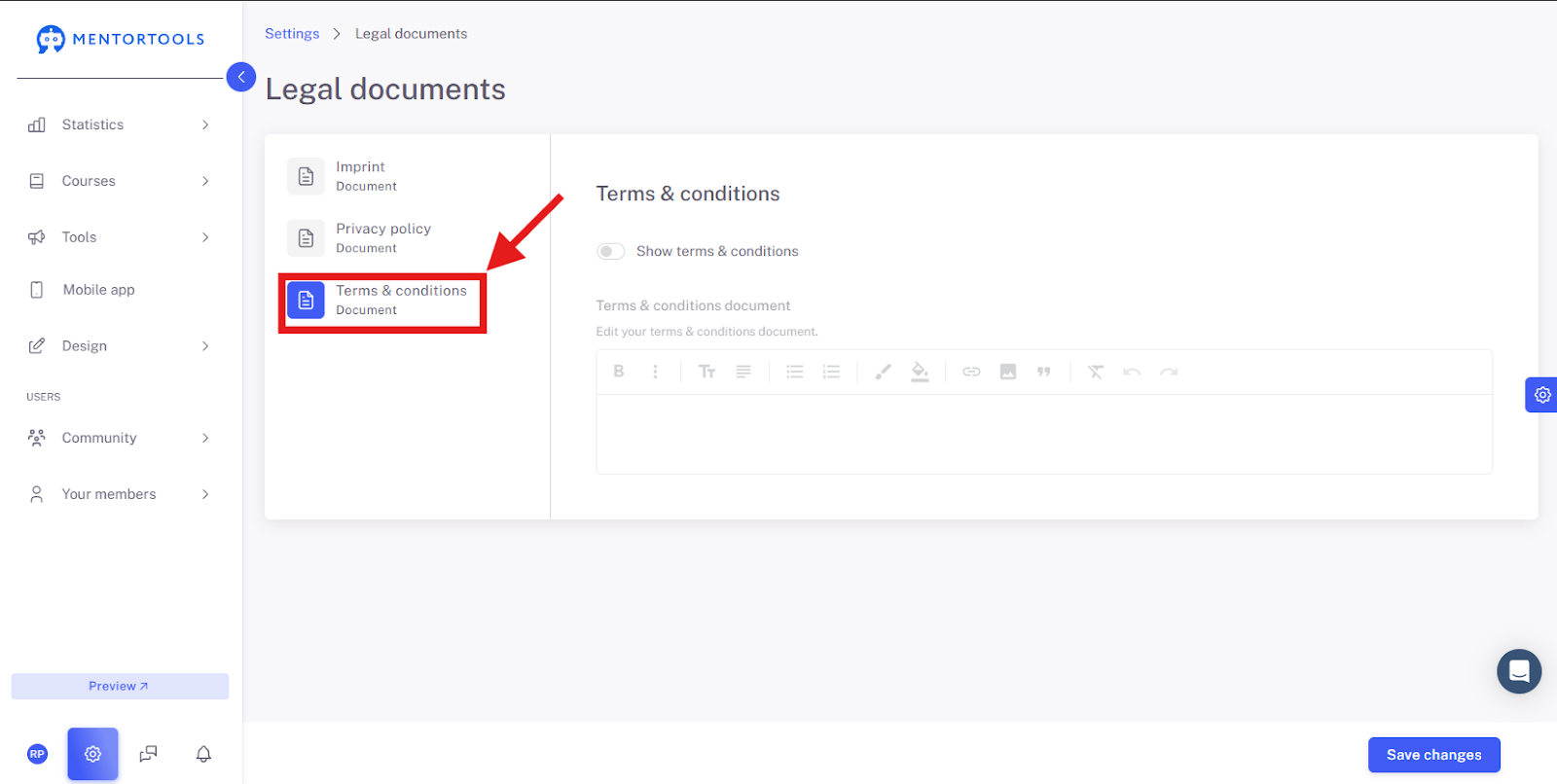
3. Select “Terms and Conditions”
Choose "Terms and Conditions" to edit your page with the General Terms and Conditions (GTC).
Terms and Conditions Overview
What are they? These are your "rules of the game" for everyone who uses your services or buys your products. With the GTC, you establish the legal framework for your business relationship.
What are they for? Here you clarify important points like payment, shipping costs, return policies, and liability. This creates security for both you and your customers.
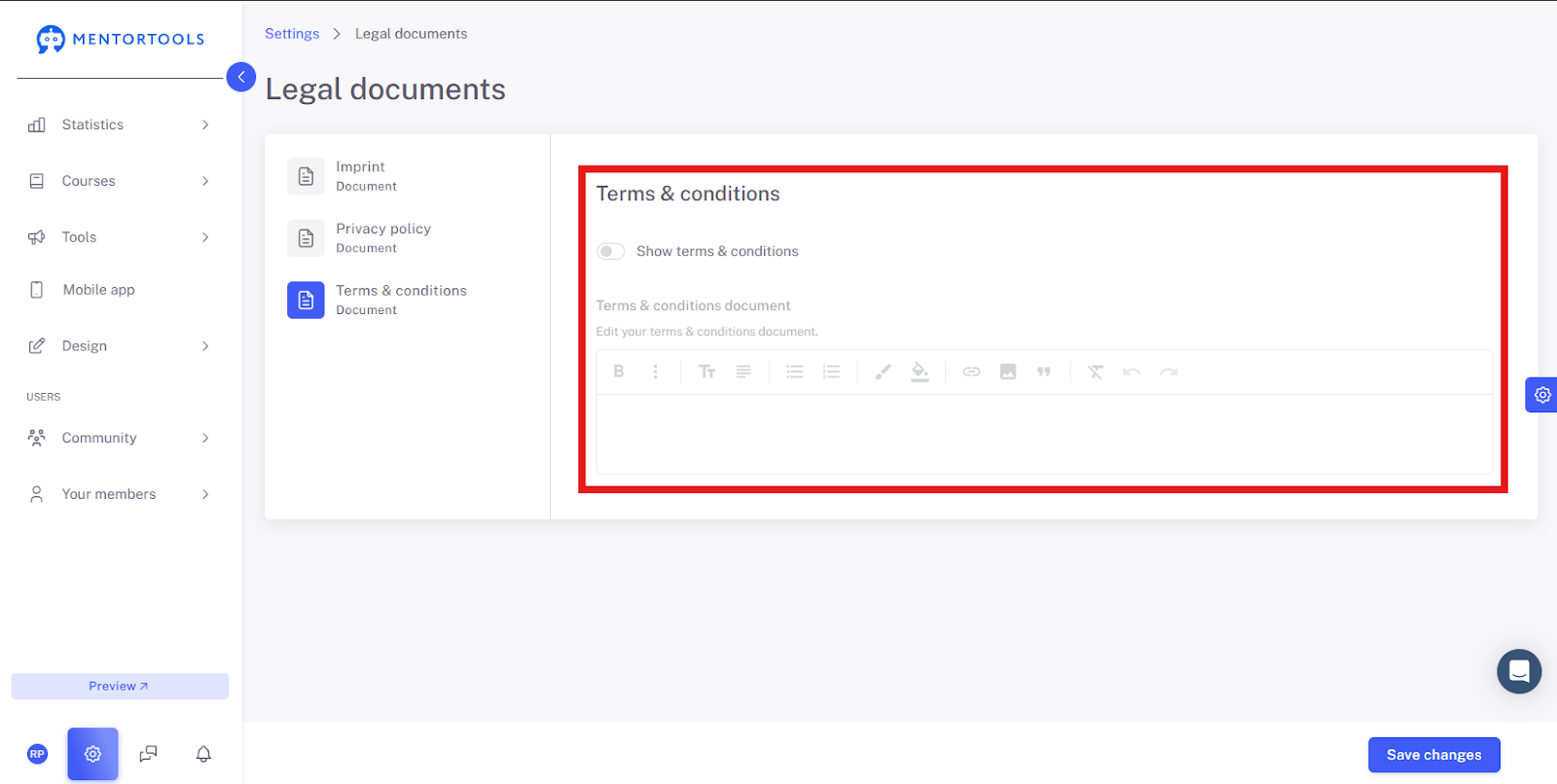
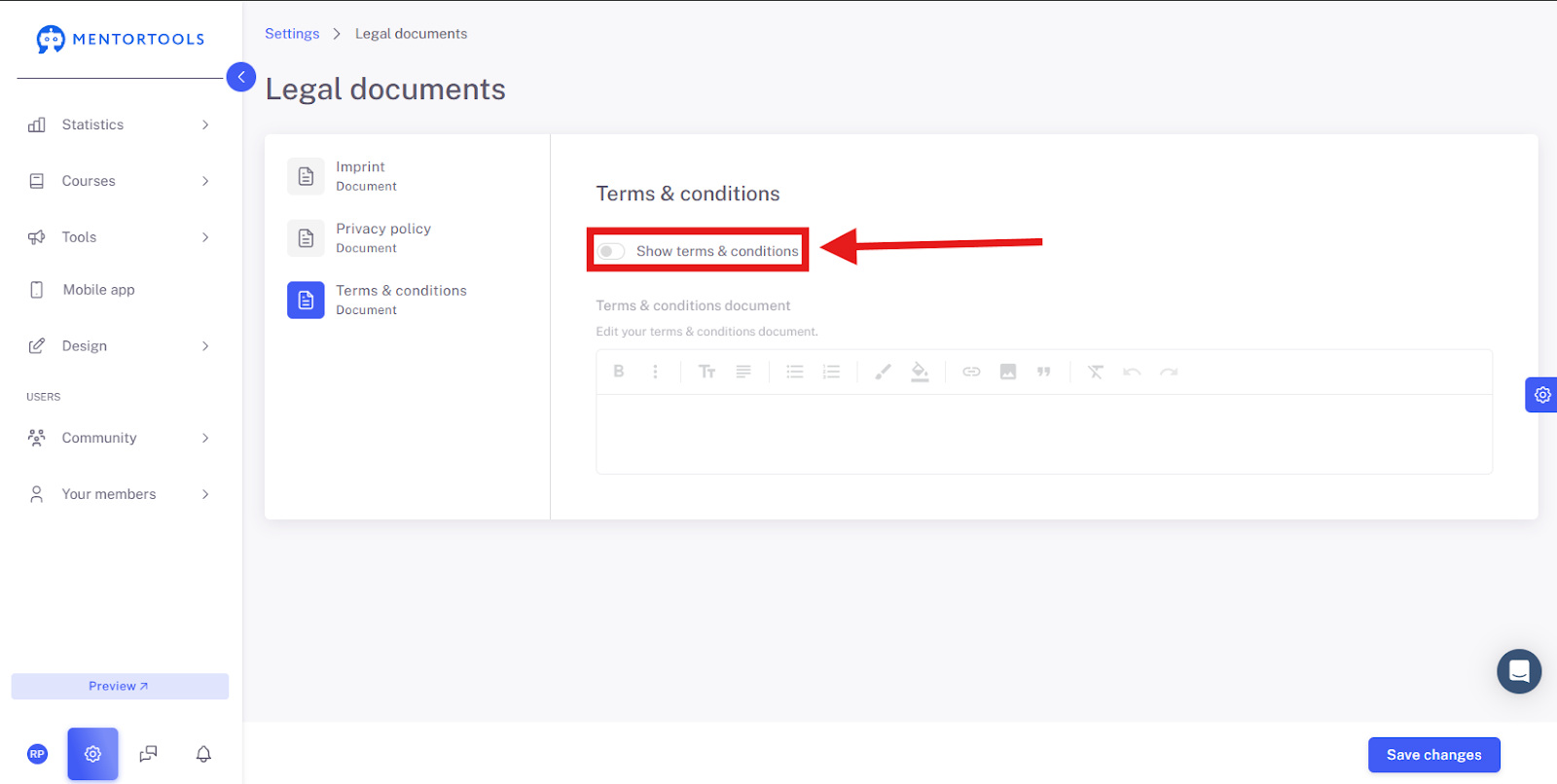
Show Terms and Conditions
By clicking the switch next to "Show Terms and Conditions," you can choose whether the General Terms and Conditions (GTC) are displayed to your customers. If the switch is blue, the GTC will be displayed. Otherwise, your customers will not see these terms and conditions. They are not absolutely mandatory.
Text Editor
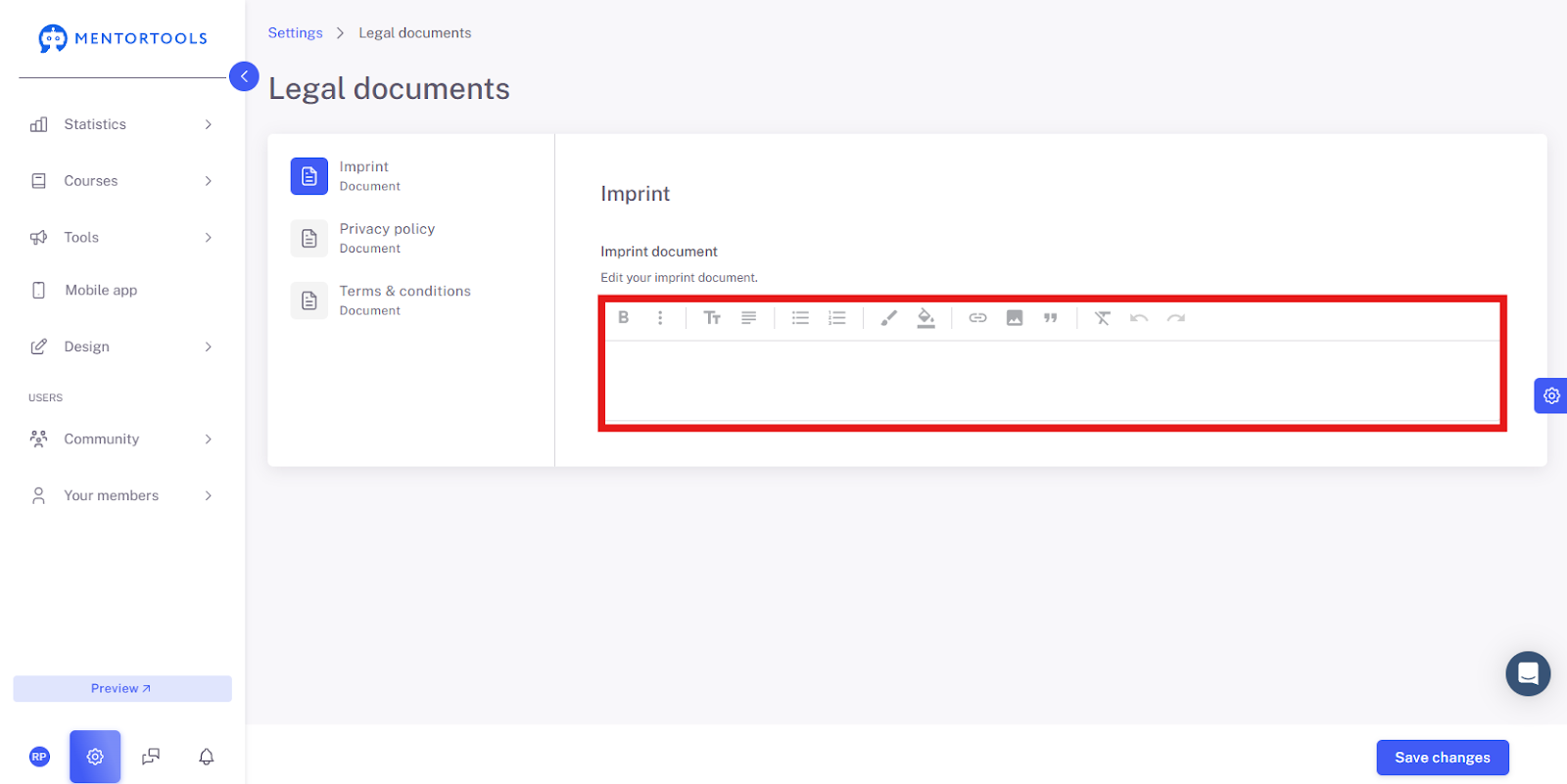
This is your workspace where you write and edit the text for the selected document.
In the middle, you see the text editor. It works like a simple writing program and has all the tools you need:
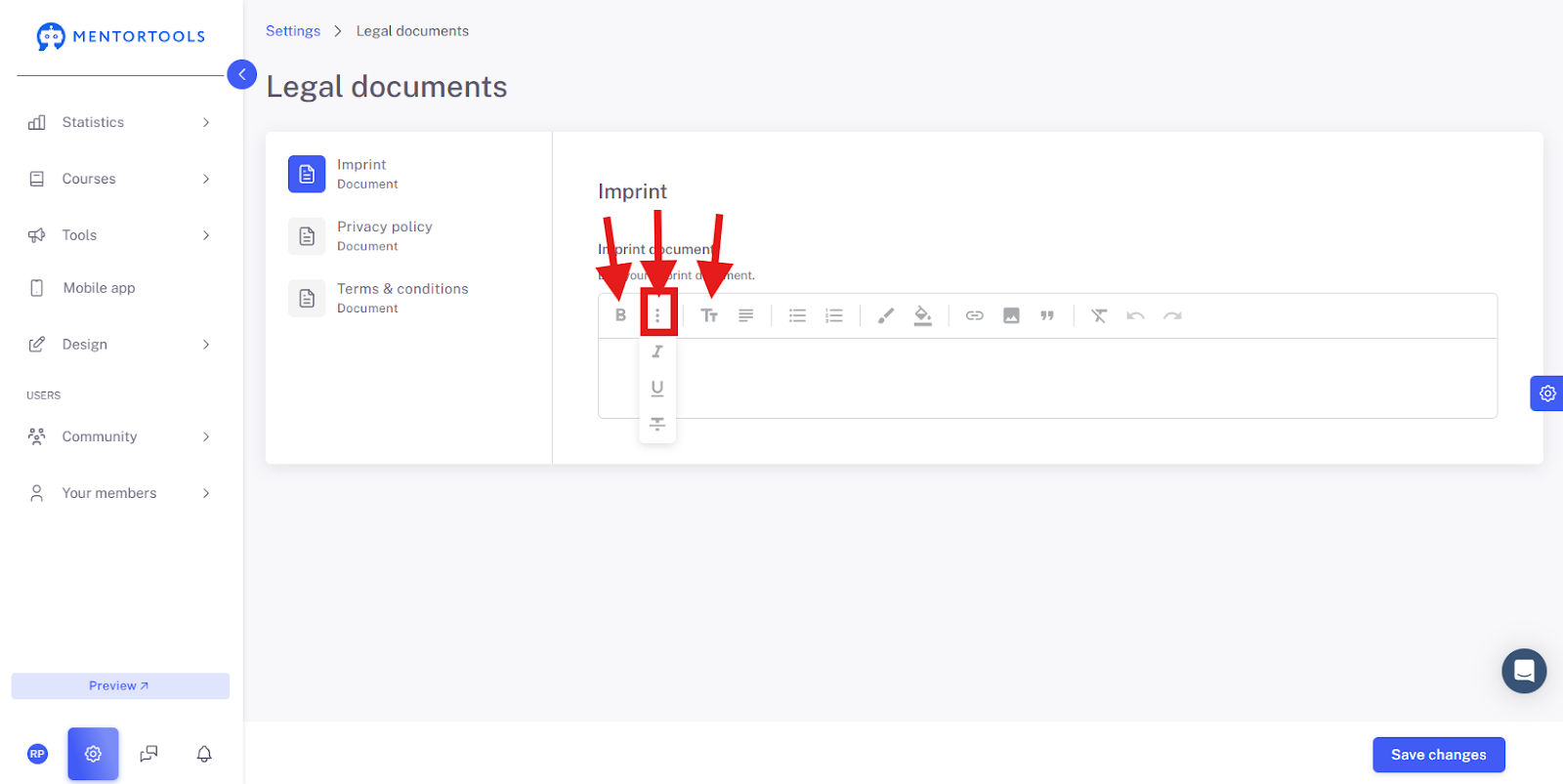
Standard Formatting: You can make text bold, italic, strikethrough, or underline, and insert headings.
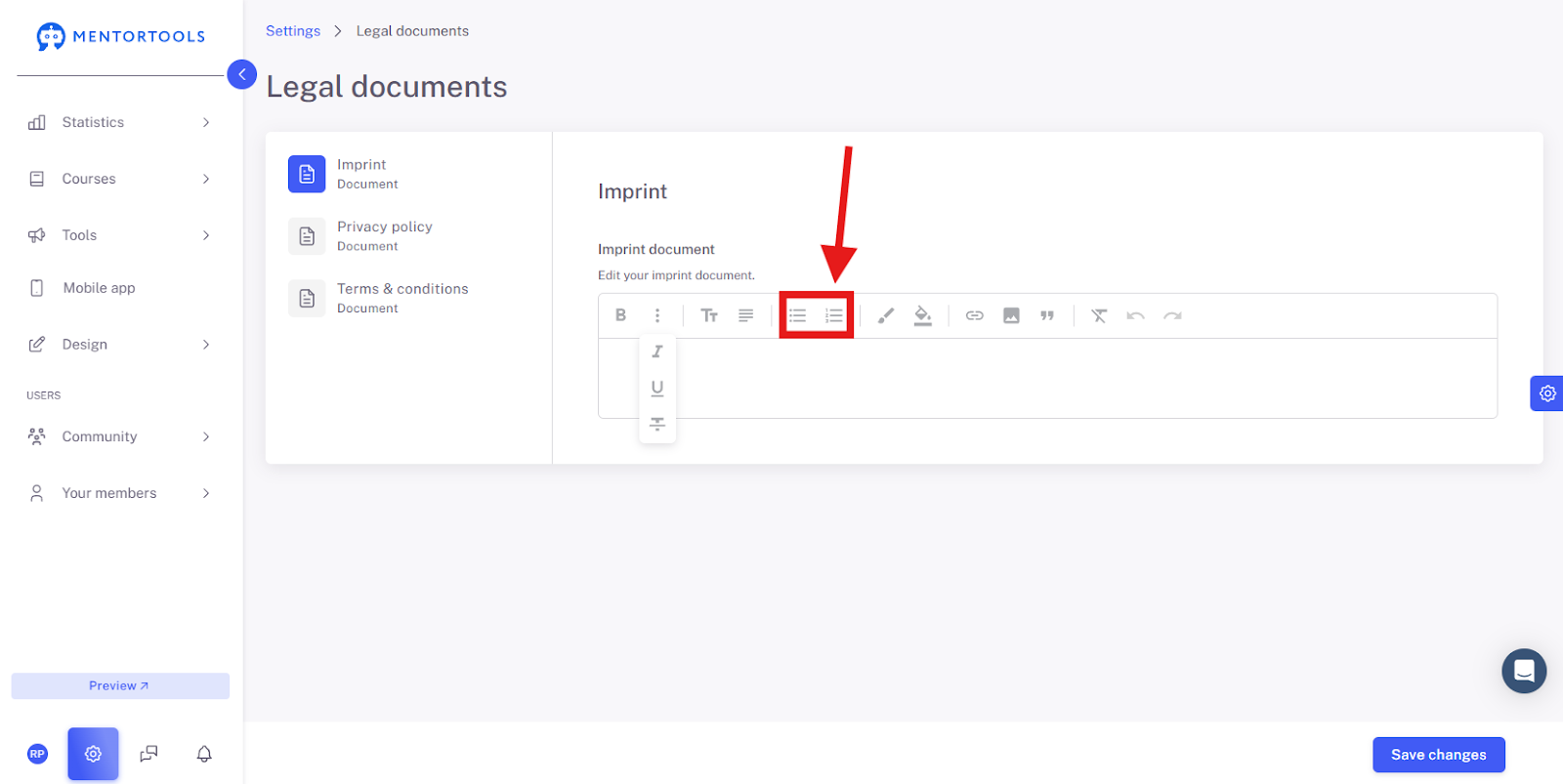
Lists: Create bulleted or numbered lists.
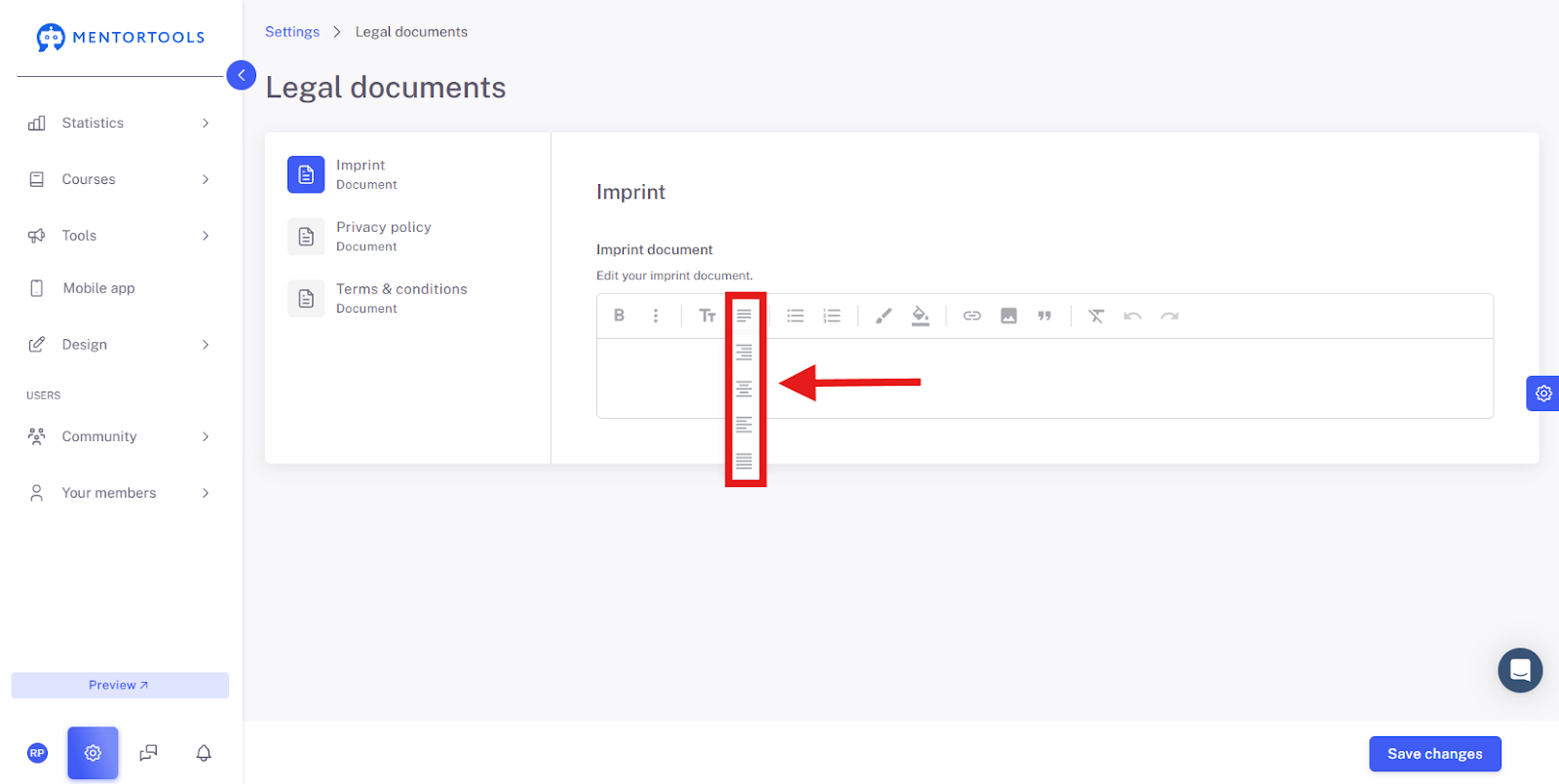
Alignment: Align your text left, centered, or right.
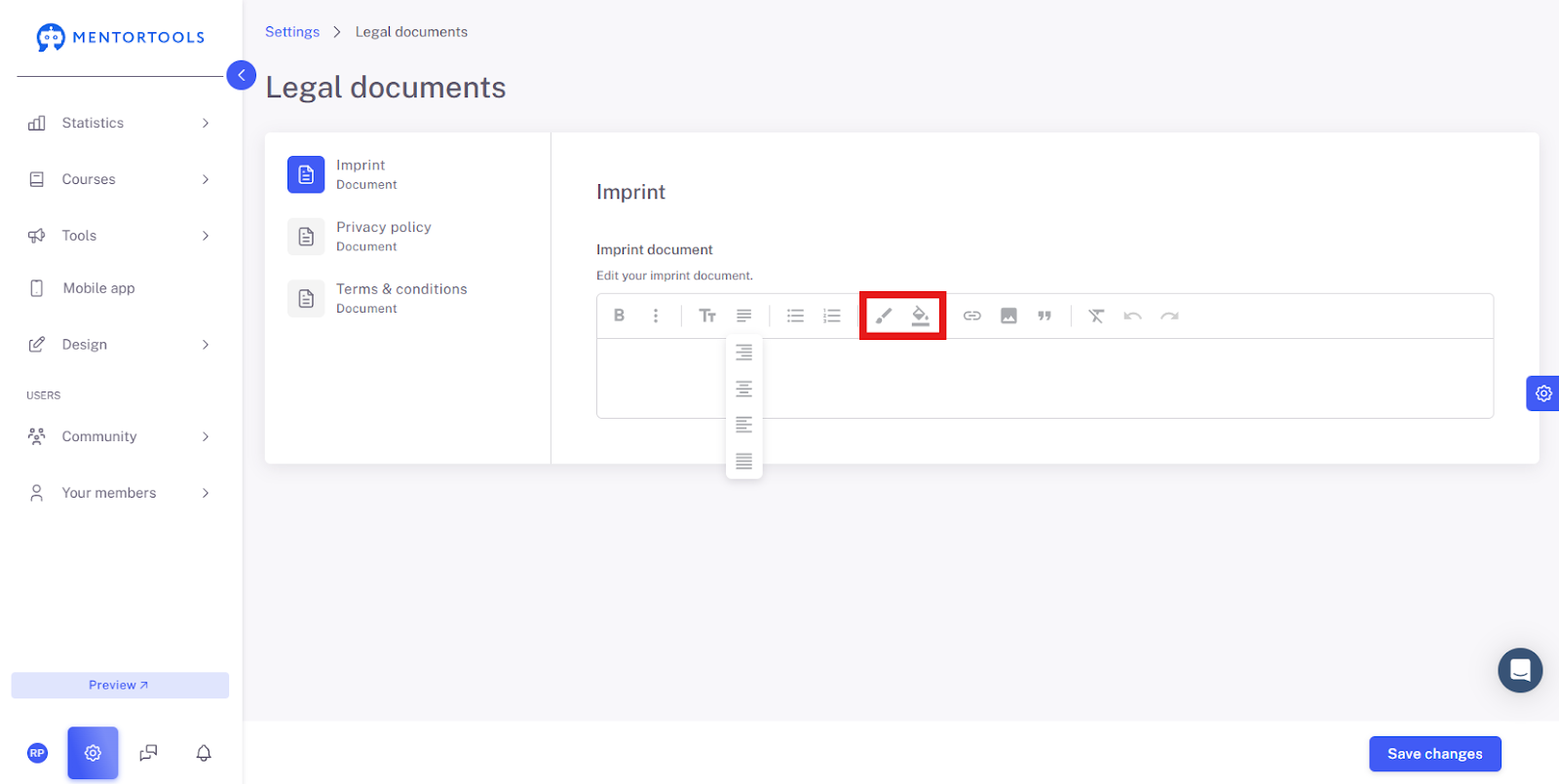
Color Settings: Here you can change the font color or background color.
More Tools: You can (explained in order from the left) insert links, upload images, insert quotes, clear formatting, or undo your last steps.
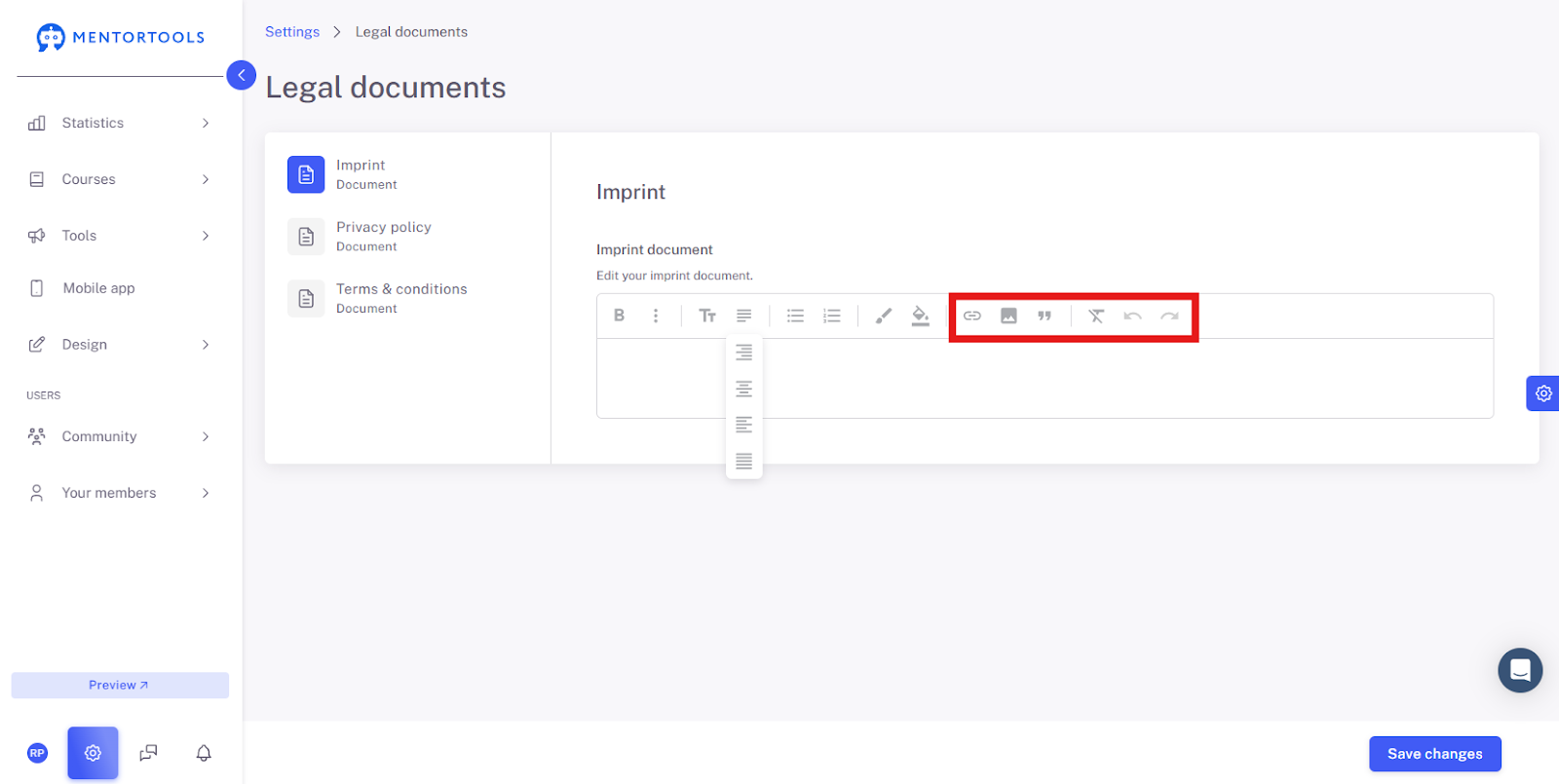
Here you have a simple and clear interface that allows you to quickly create your Terms and Conditions document.
Save Changes
When you have finished writing the Terms and Conditions and checked all the details, click on "Save Changes" so that everything is saved and applied.
Summary
As you've seen, it's very easy to create and edit your GTC on Mentortools. The gear icon in the settings quickly takes you to the "Legal Documents" area. There, you select "General Terms and Conditions," enter your text into the editor, and use the switch to decide whether the GTC should be visible on your platform. Don't forget to Save Changes at the end so that everything is correctly applied.
Was this helpful?