Affiliate Links
Want to promote Mentortools products and earn money? Great! With our affiliate links, you can easily receive commissions by sharing products like the 72-Hour Business Book or the Consulting Call with your community.
Last updated 12 months ago
In this short tutorial, we'll show you step-by-step how to create your personal affiliate links, use them correctly, and what you need to consider to be successful and legally compliant.
How to Access the Affiliate Links Page?
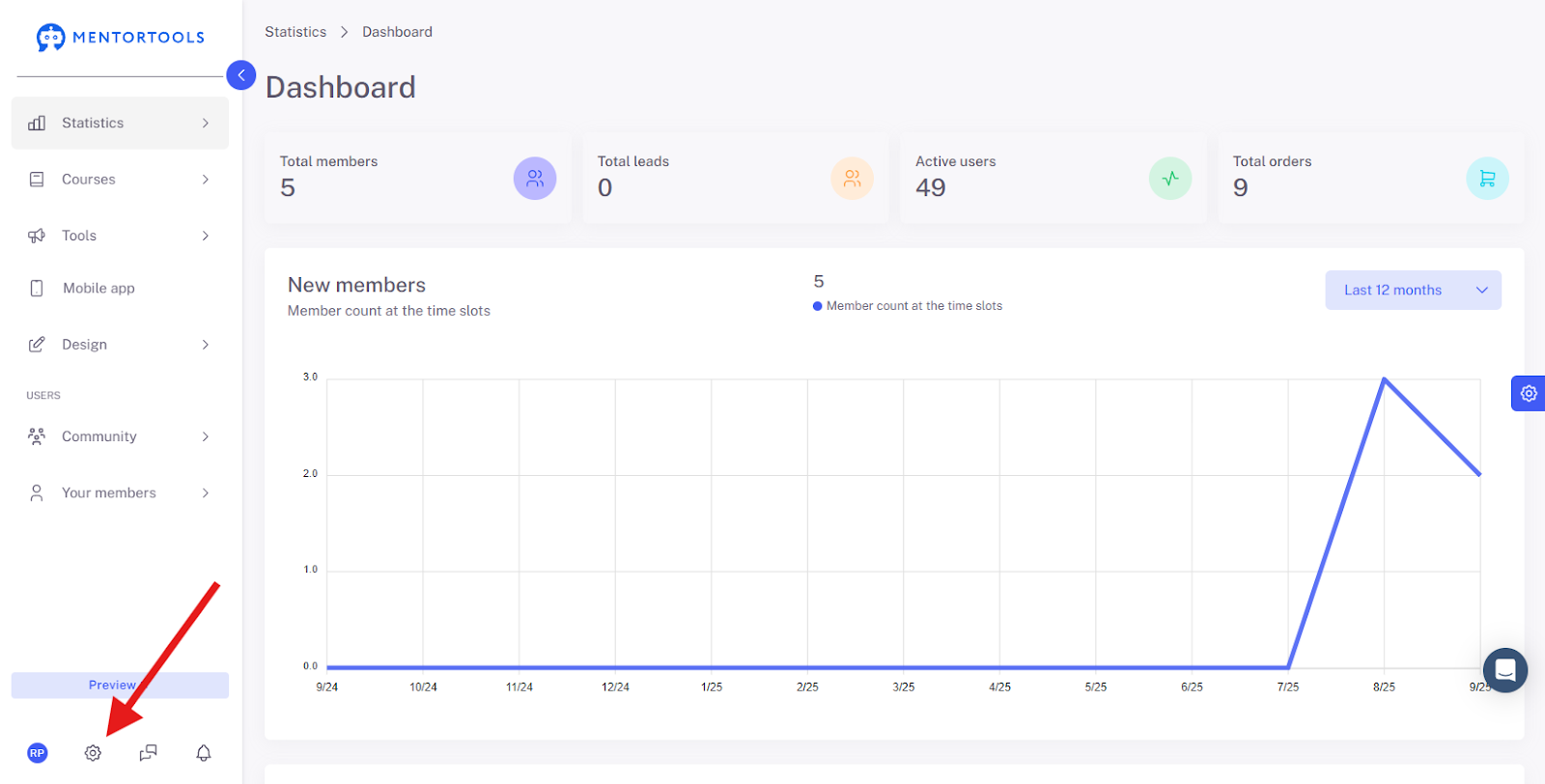
Open the Settings
Click on the gear icon in the bottom left menu bar.
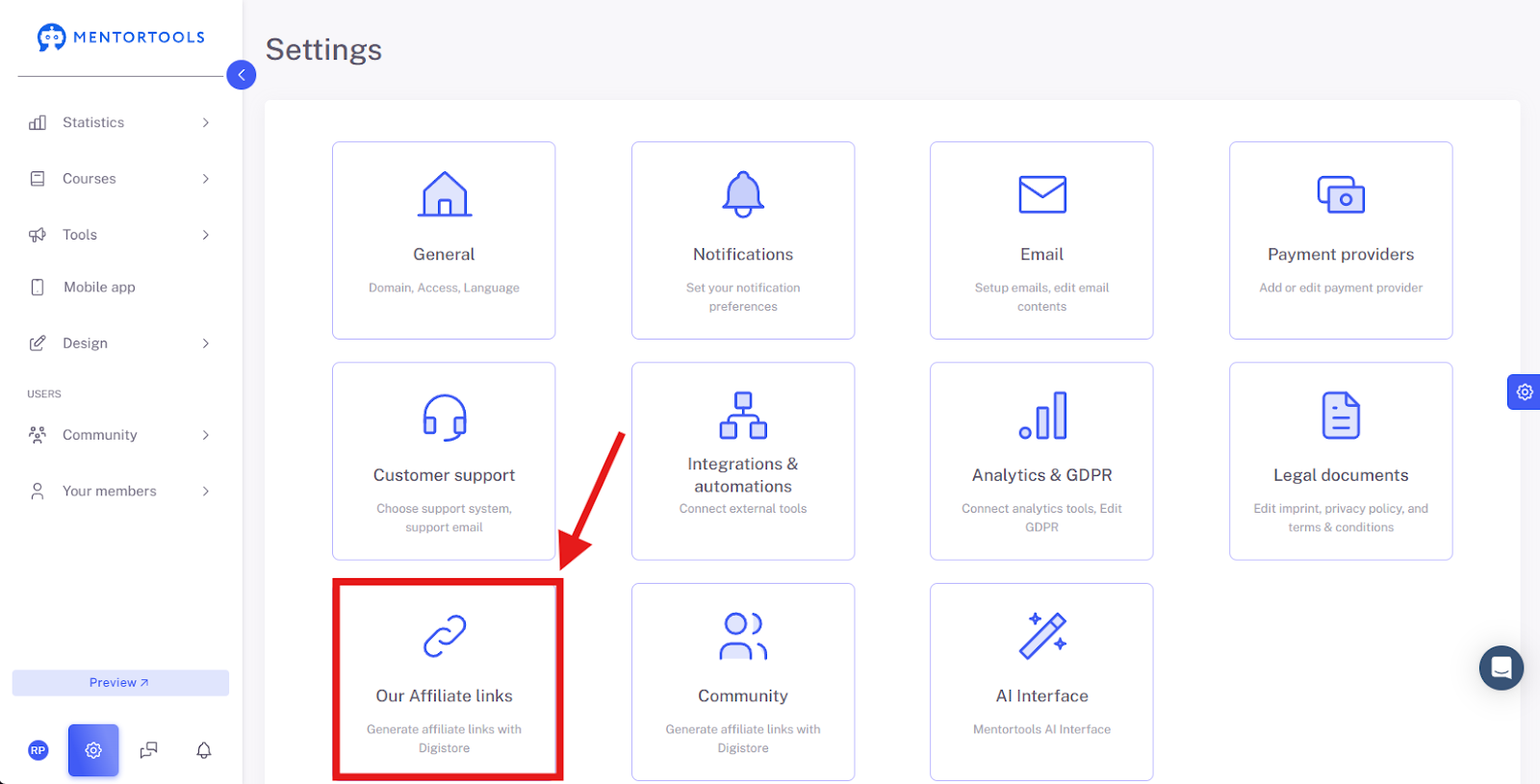
Click on “Our Affiliate Links”
Click on "Our Affiliate Links" to view and manage your existing links or to create new ones.
Affiliate Links Overview
Create Affiliate Links
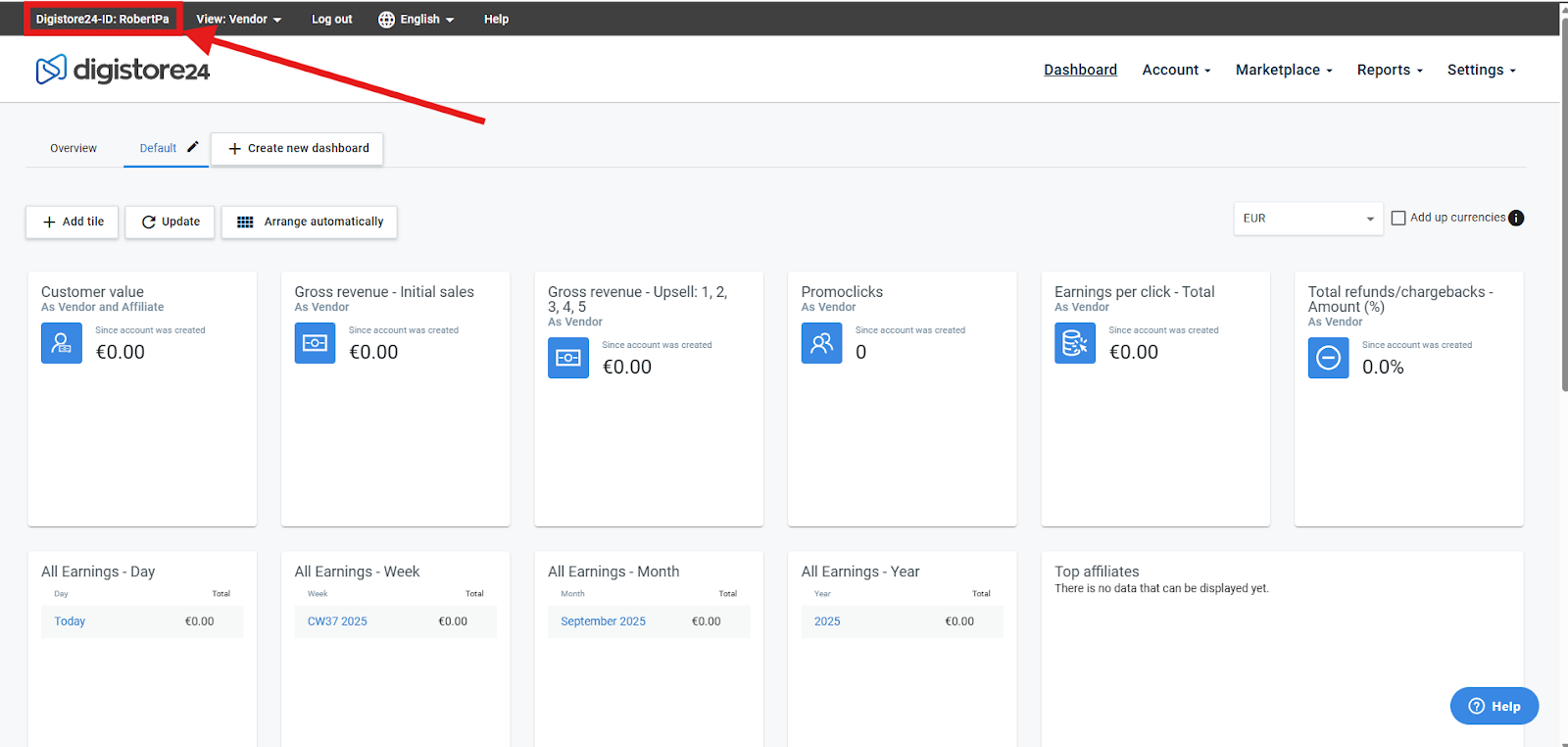
First, you need a Digistore24 ID. This ID is your personal identifier that Digistore24 uses to track your sales and assign commissions to you.
If you don't have an account yet, you can register for free on digistore24.com.
You can find your ID in the top left corner of your account.
Enter this ID into the "Digistore ID" text field on Mentortools.
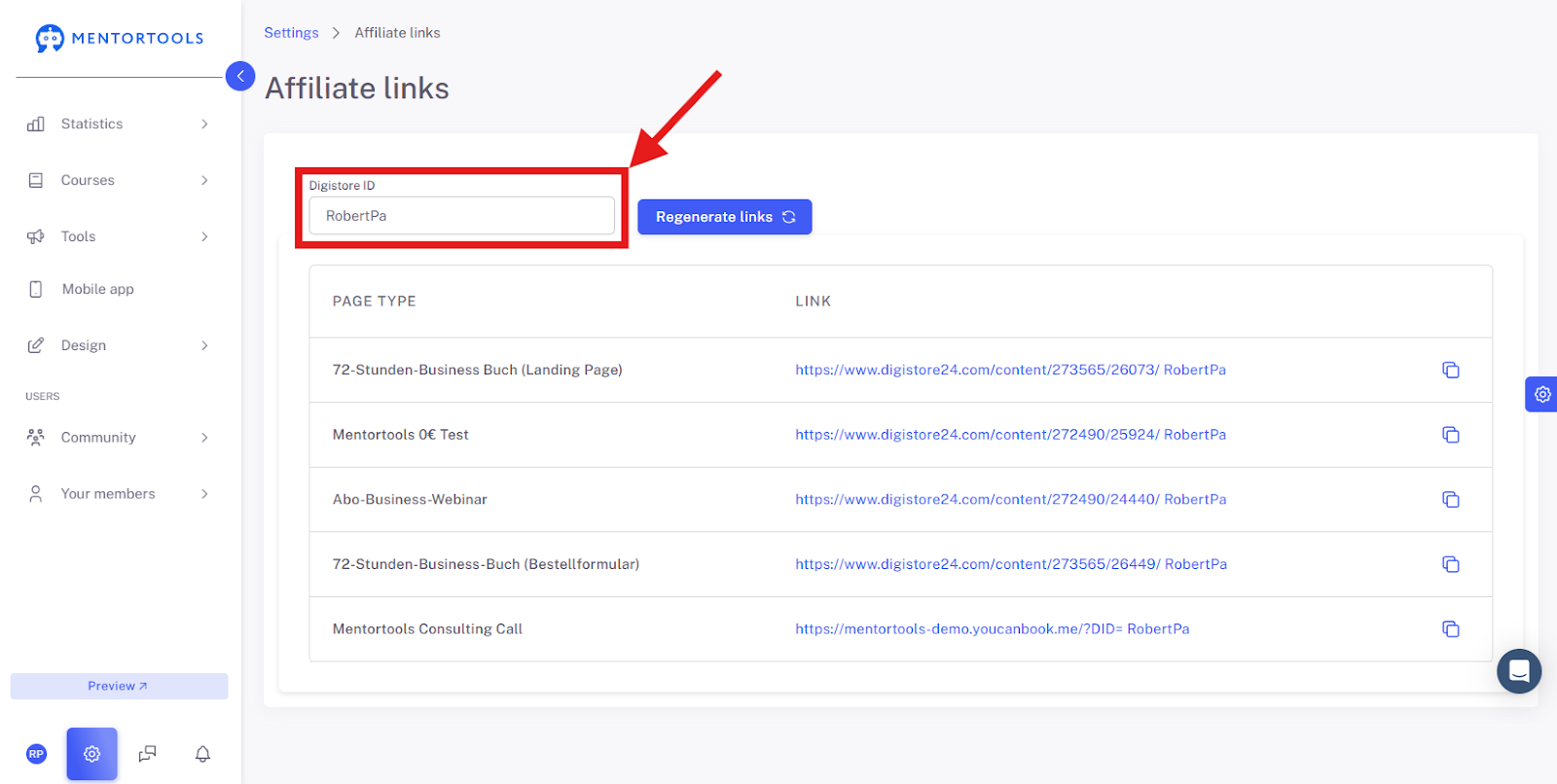
Click the "Regenerate Links" button.
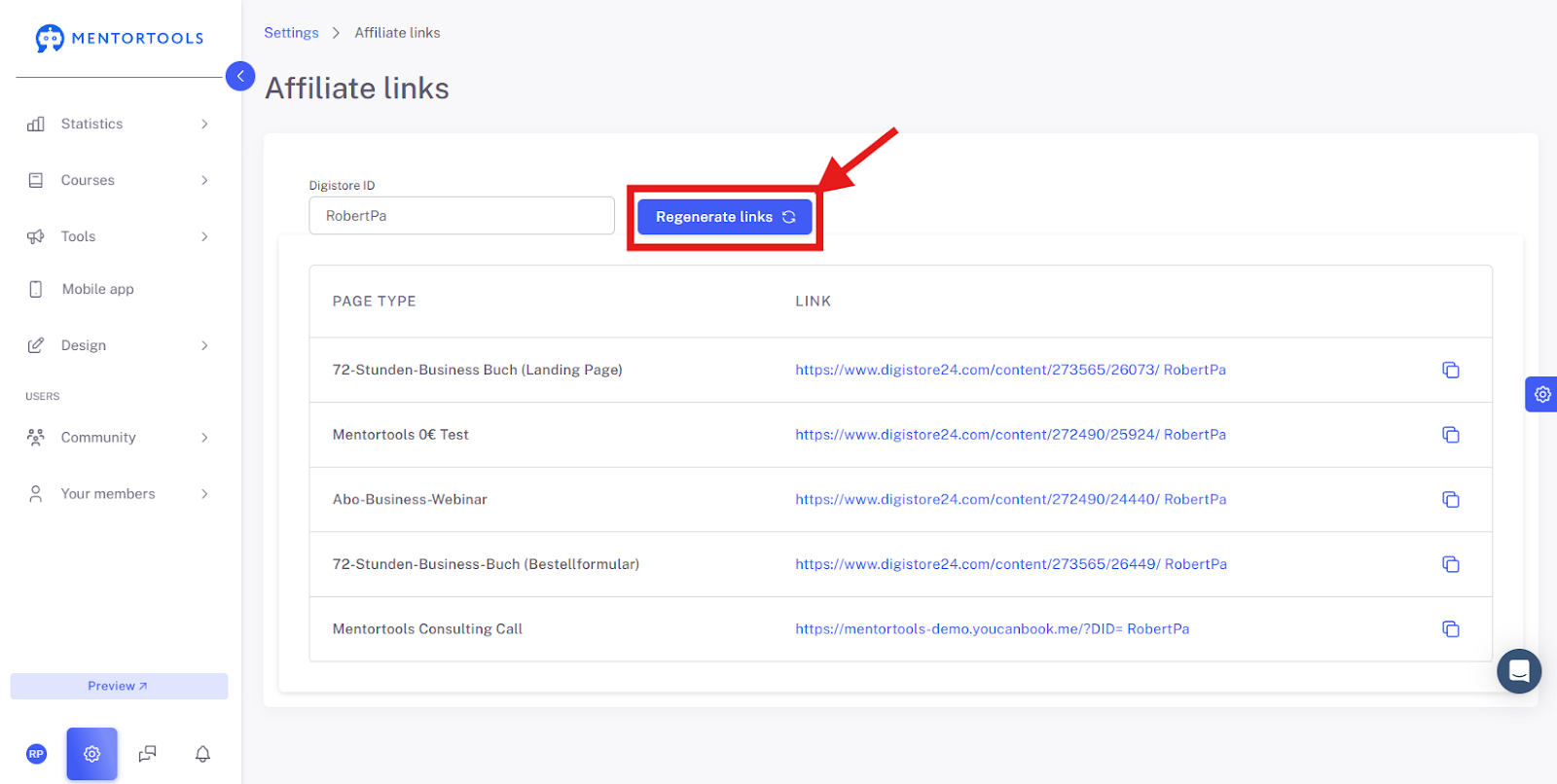
Once you have done this, the links in the table below the input field will be regenerated. Your personal affiliate link is now equipped with your Digistore24 ID.
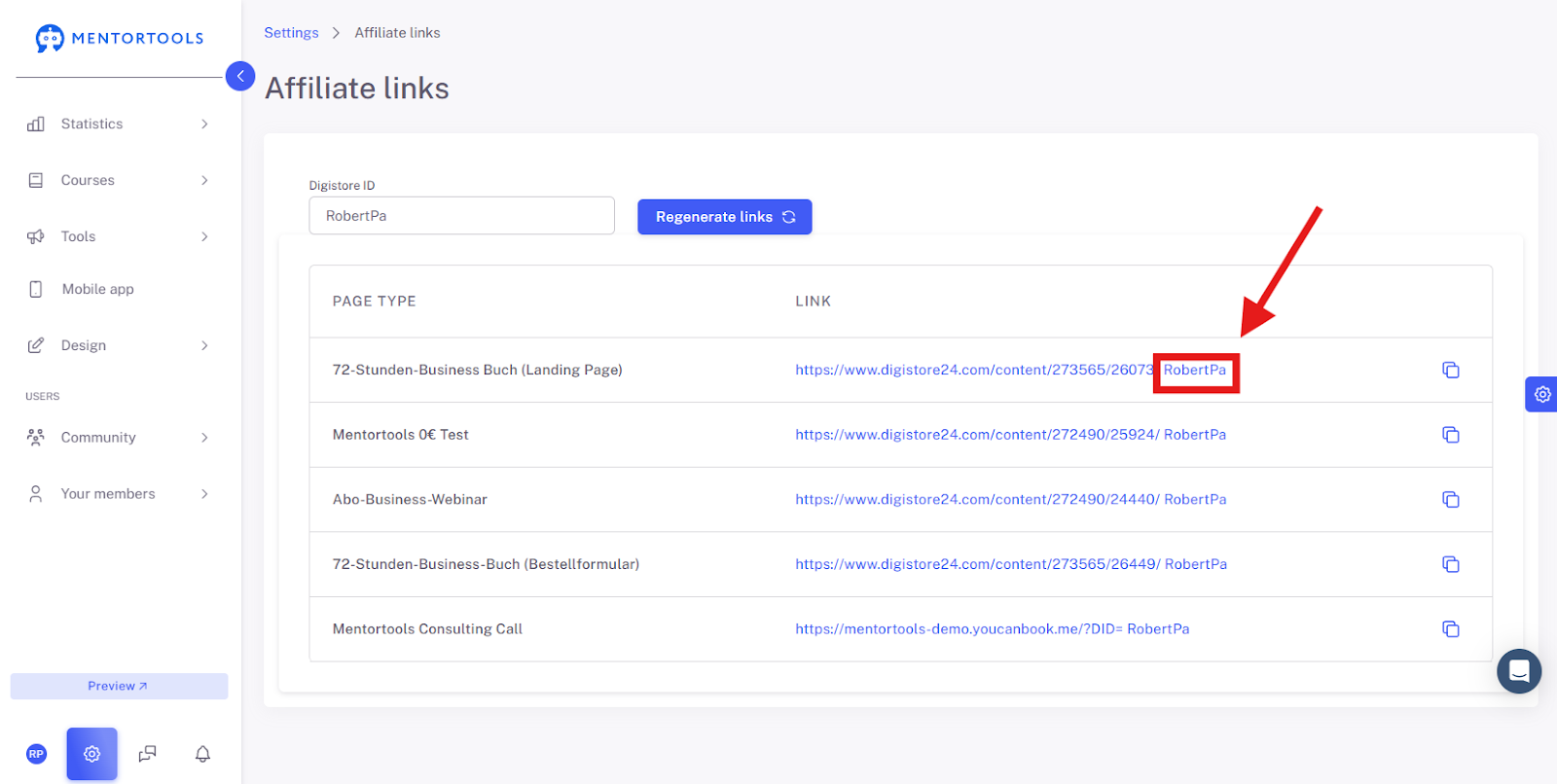
Copy and Share Links
Each link in the table leads to a specific Mentortools product. To use a link, simply click the copy icon at the end of the row. You can then easily paste the link on your website, in your community, in emails, social media posts, or wherever you like.
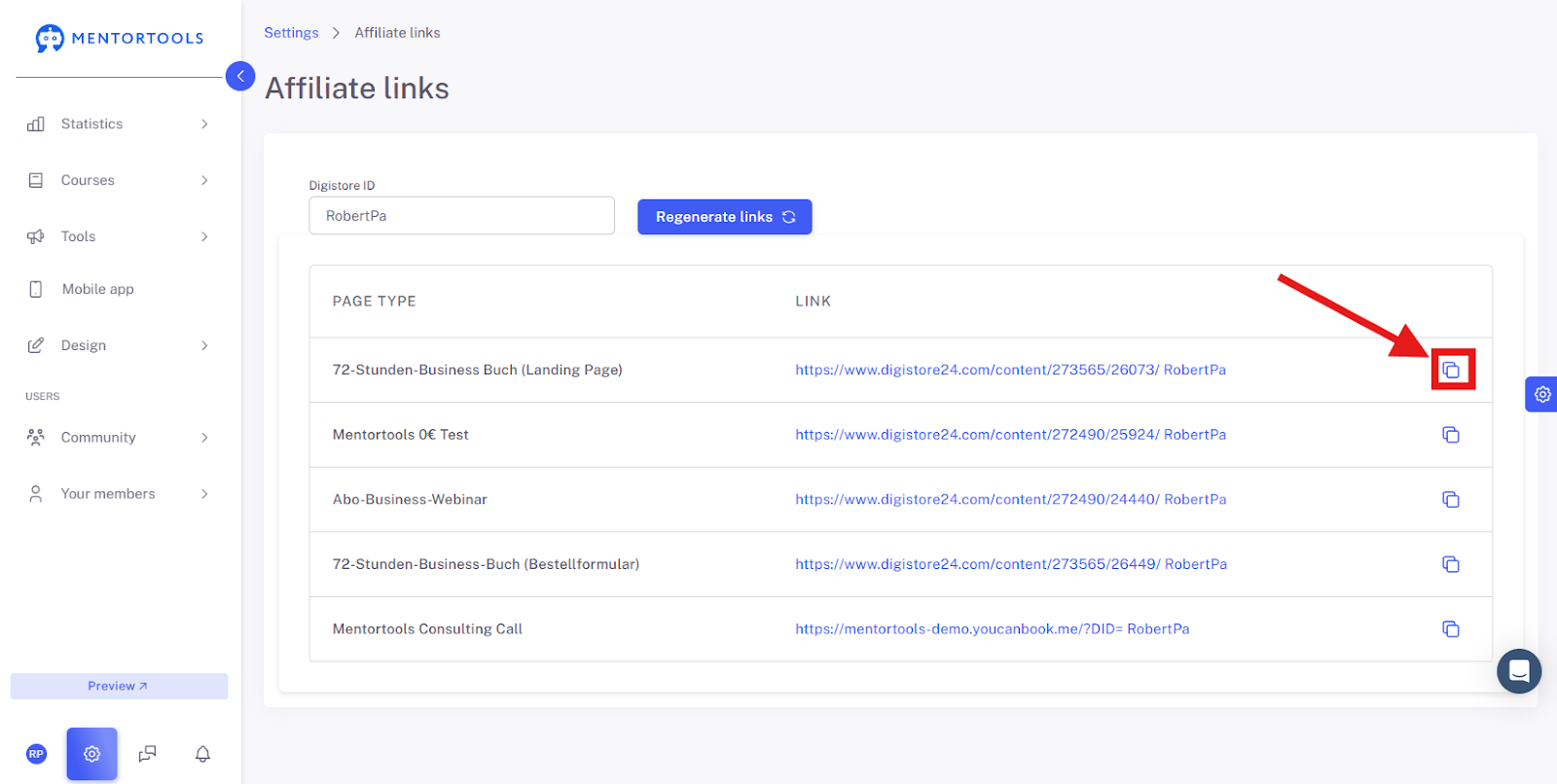
Helpful Tips for Your Success
Start with the Right Product: Consider which Mentortools product best fits your community.
Create Real Value: Just sharing links is often not enough. Explain to your community why the product is useful and how it can help them. Share your own experiences and give them a reason to buy through your link.
How to copy a Affiliate Link and Insert into a Landing Page?
After you have copied the affiliate link, you can implement it into the button on a sales page.
Hover your mouse over the "Tools" menu item, then click the submenu item "Landing Pages," and select "Edit" for the desired Landing Page.
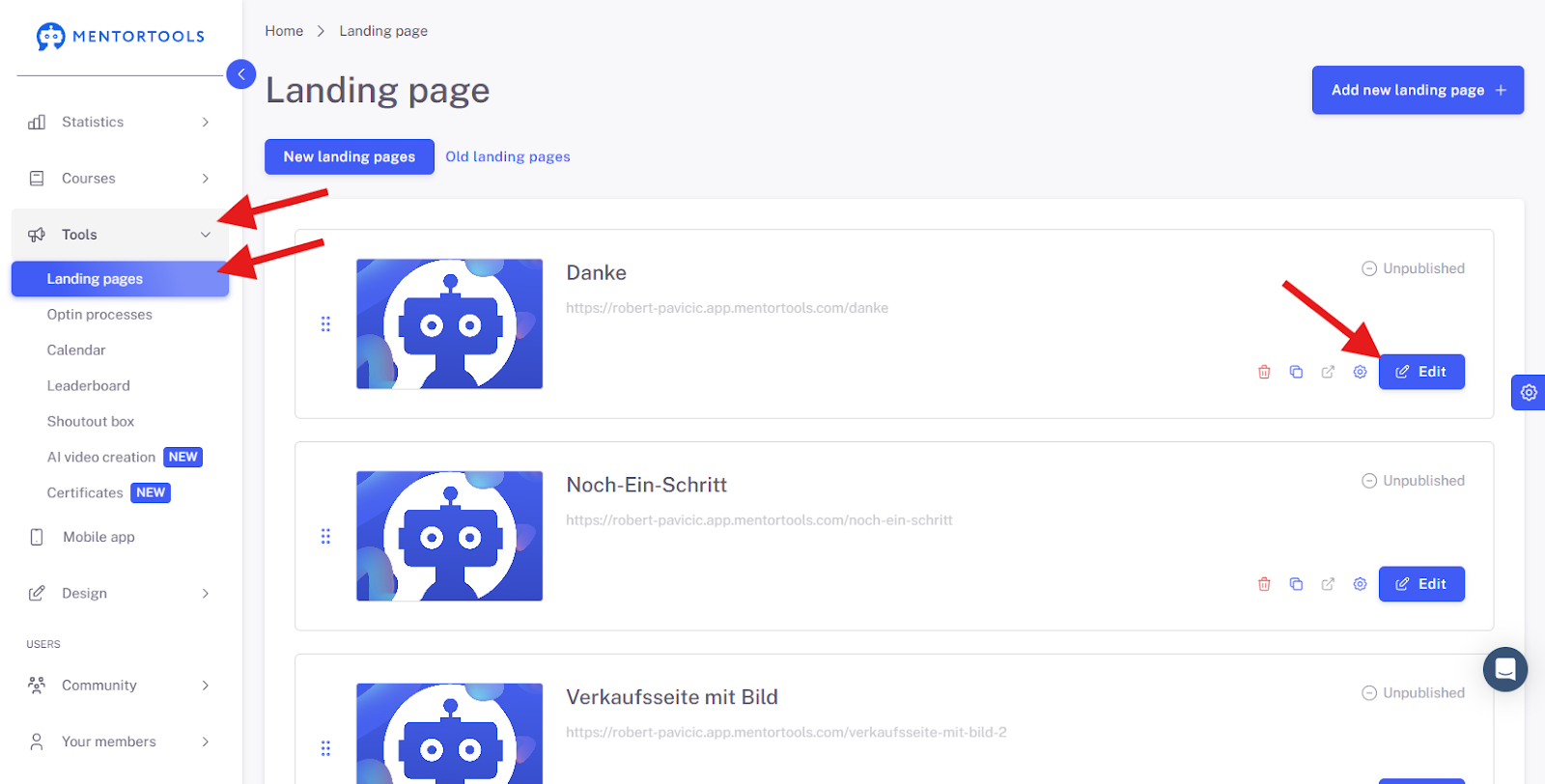
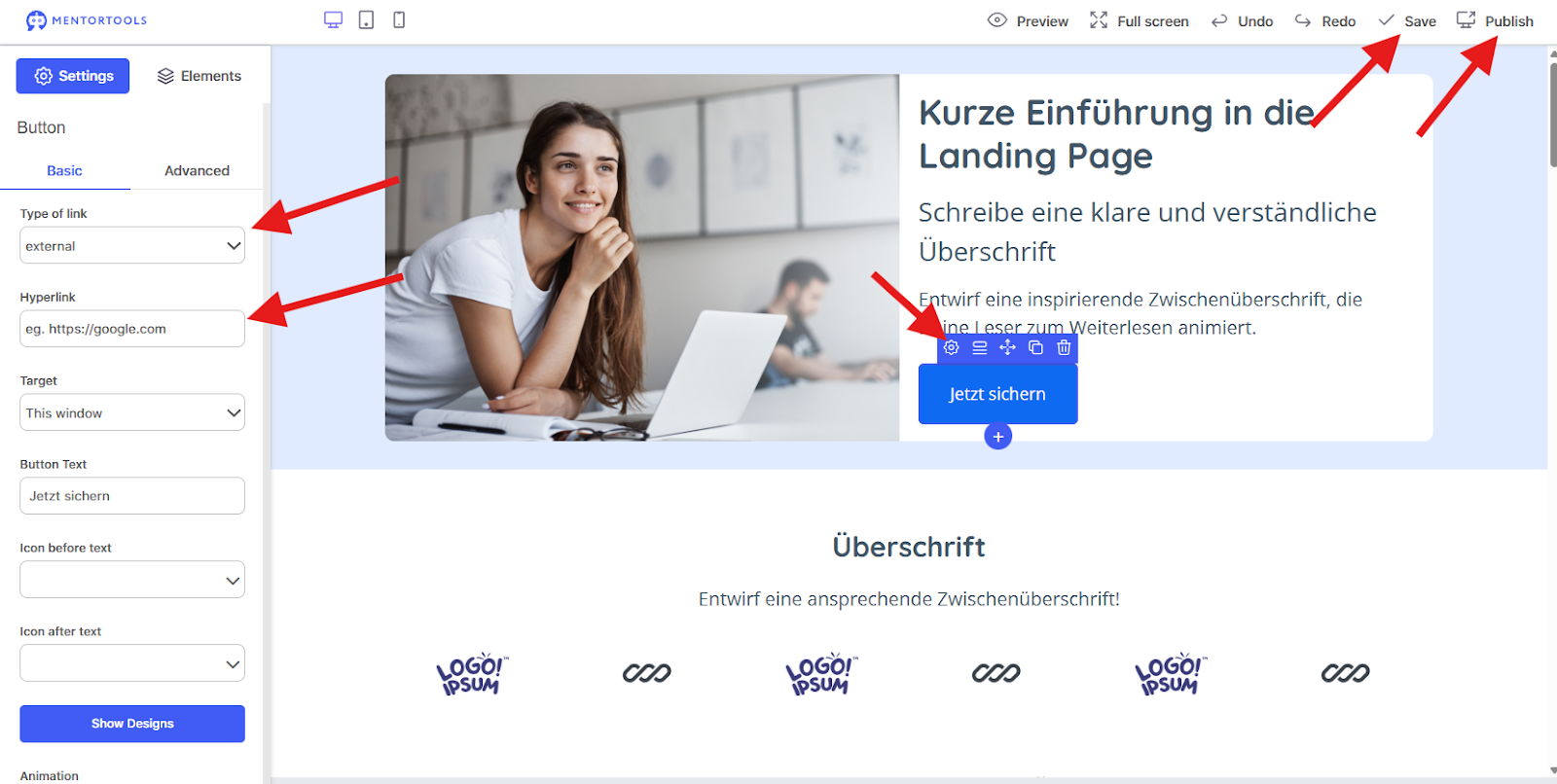
Next, scroll down in the Landing Page editor to the button where you want to insert your copied affiliate link and click the gear icon to open the button settings. Then, under "Type of link," select "External" and insert the link under "Hyperlink." To apply the changes, click the "Save" button and then click "Publish."
Summary
Creating your affiliate links for Mentortools is very easy. All you need is your personal Digistore24 ID, which you can find in your Digistore account. Once you have entered your ID into Mentortools and clicked "Regenerate Links," your personalized links are immediately ready to use.
Was this helpful?