Legal Documents – Imprint/Contact
This guide shows you how to edit your Imprint (Impressum) or contact details and maintain legal information on Mentortools—essential for GDPR compliance and a legally sound online presence.
Last updated About 1 year ago
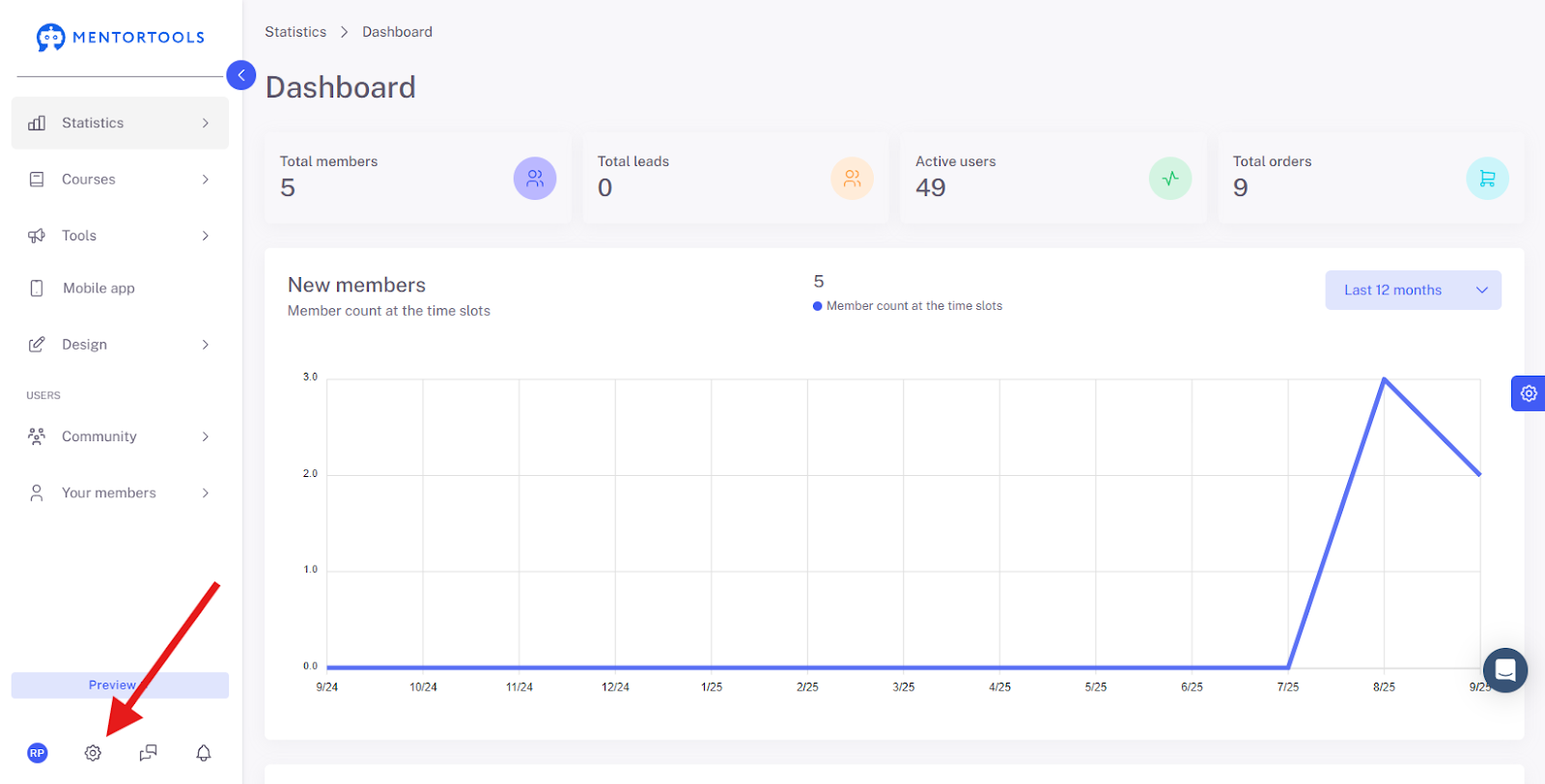
1. Open the Settings
Click on the gear icon in the bottom left menu bar.
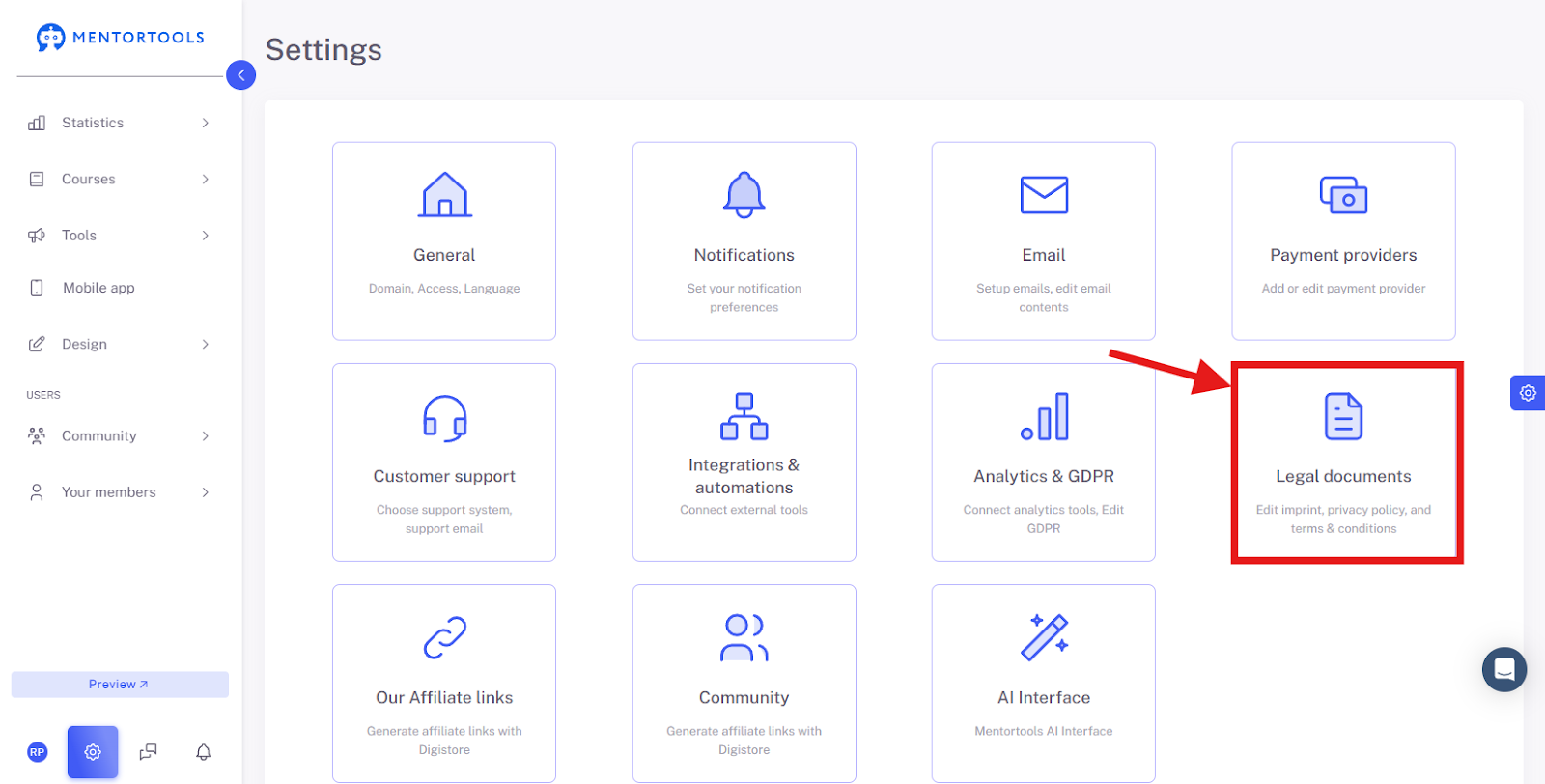
2. Click on "Legal Documents"
Switch to the corresponding area for legally relevant content such as Imprint, Terms and Conditions (T&Cs), Privacy Policy, etc.
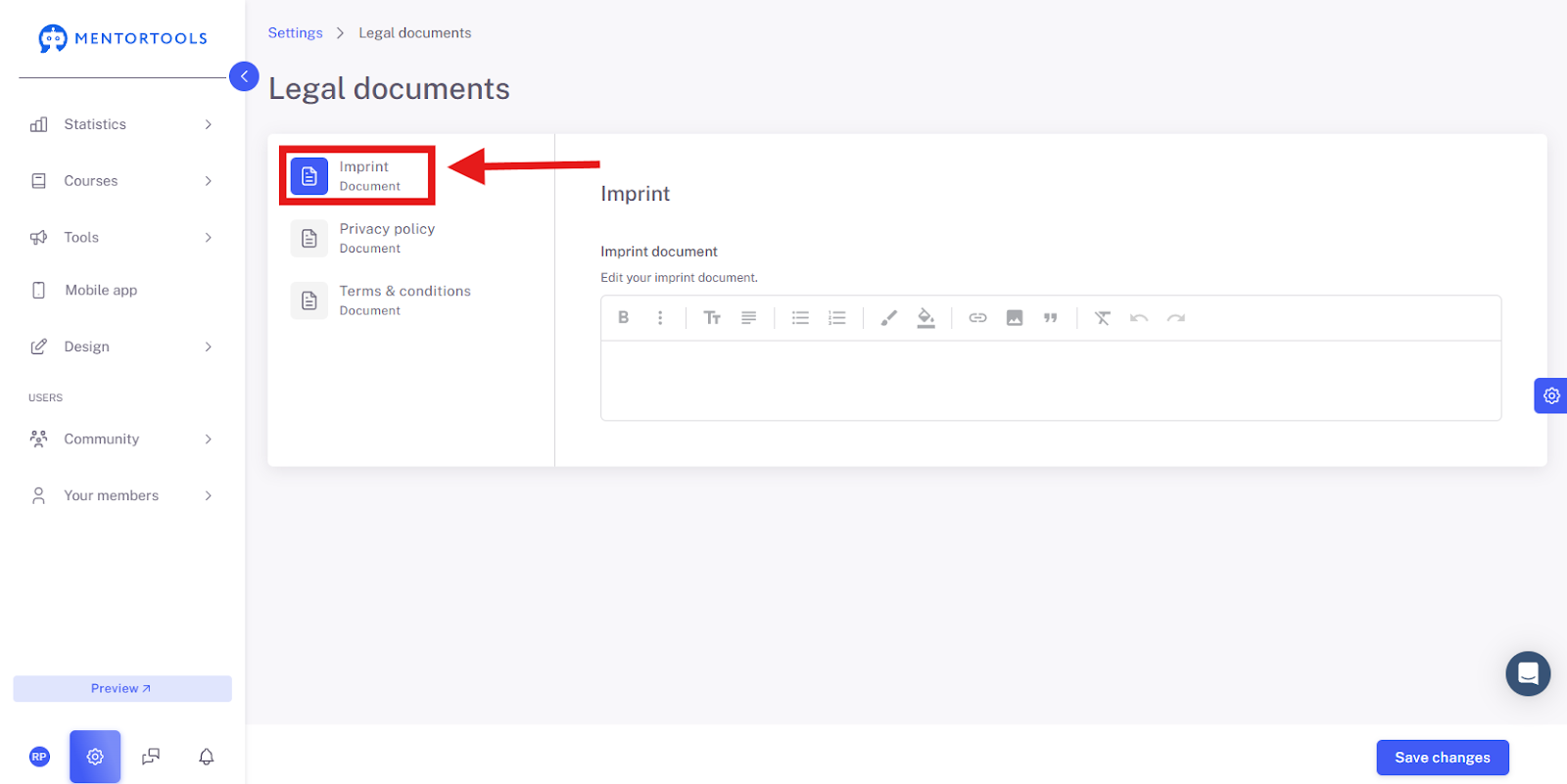
3. Select “Imprint”
Choose "Imprint" to be able to edit your imprint details.
Imprint Overview
What is it? The Imprint (Impressum) is mandatory in Germany and other countries. It’s essentially your business card so people know who is behind the site. It ensures transparency and makes it easy for users to contact you with legal questions.
What belongs here? This must include your full name and address, an email address, and, for companies, the legal form and commercial register number. Be sure to use the correct mandatory information according to the TMG (Telemedia Act).
Text Editor
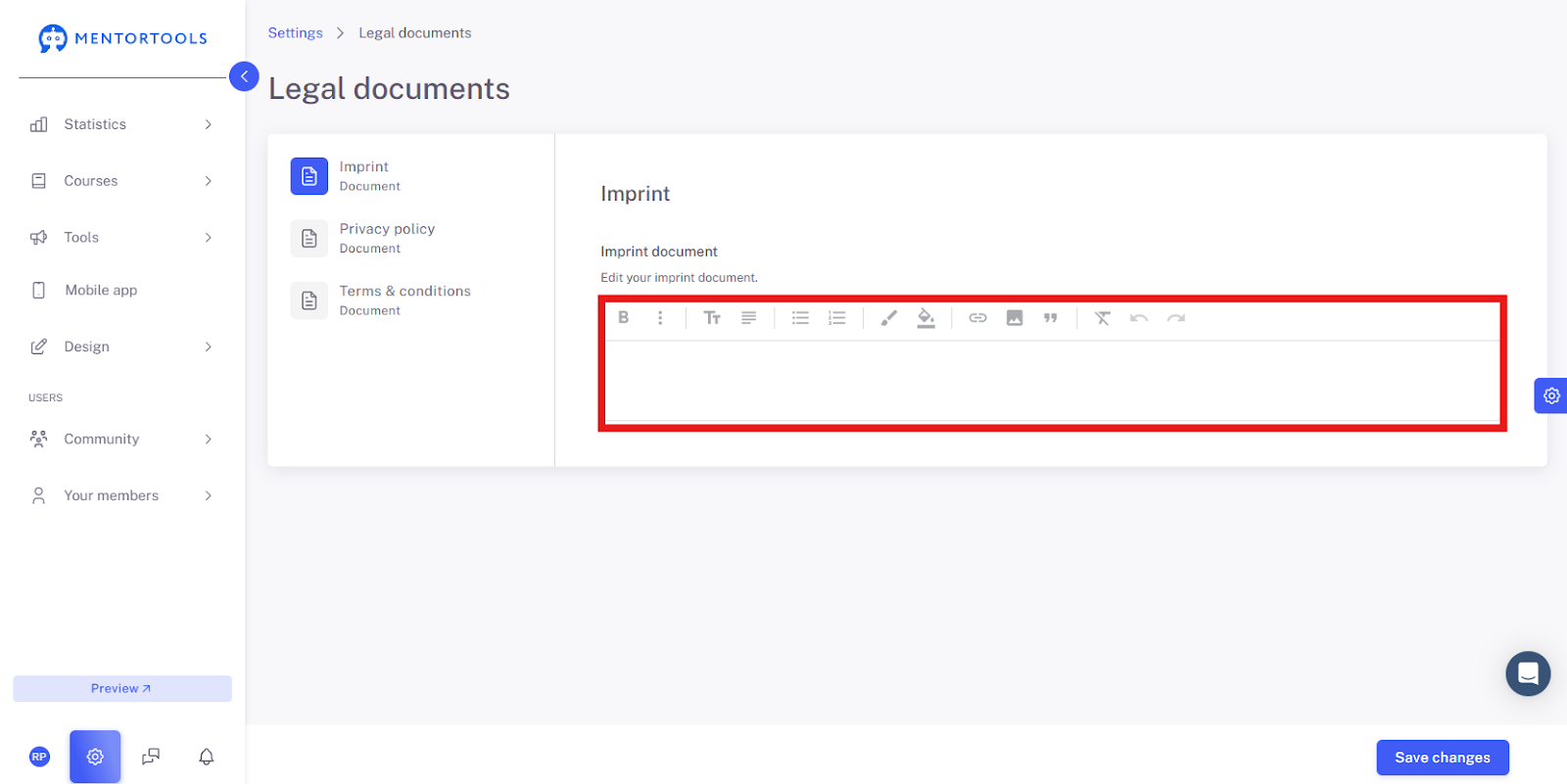
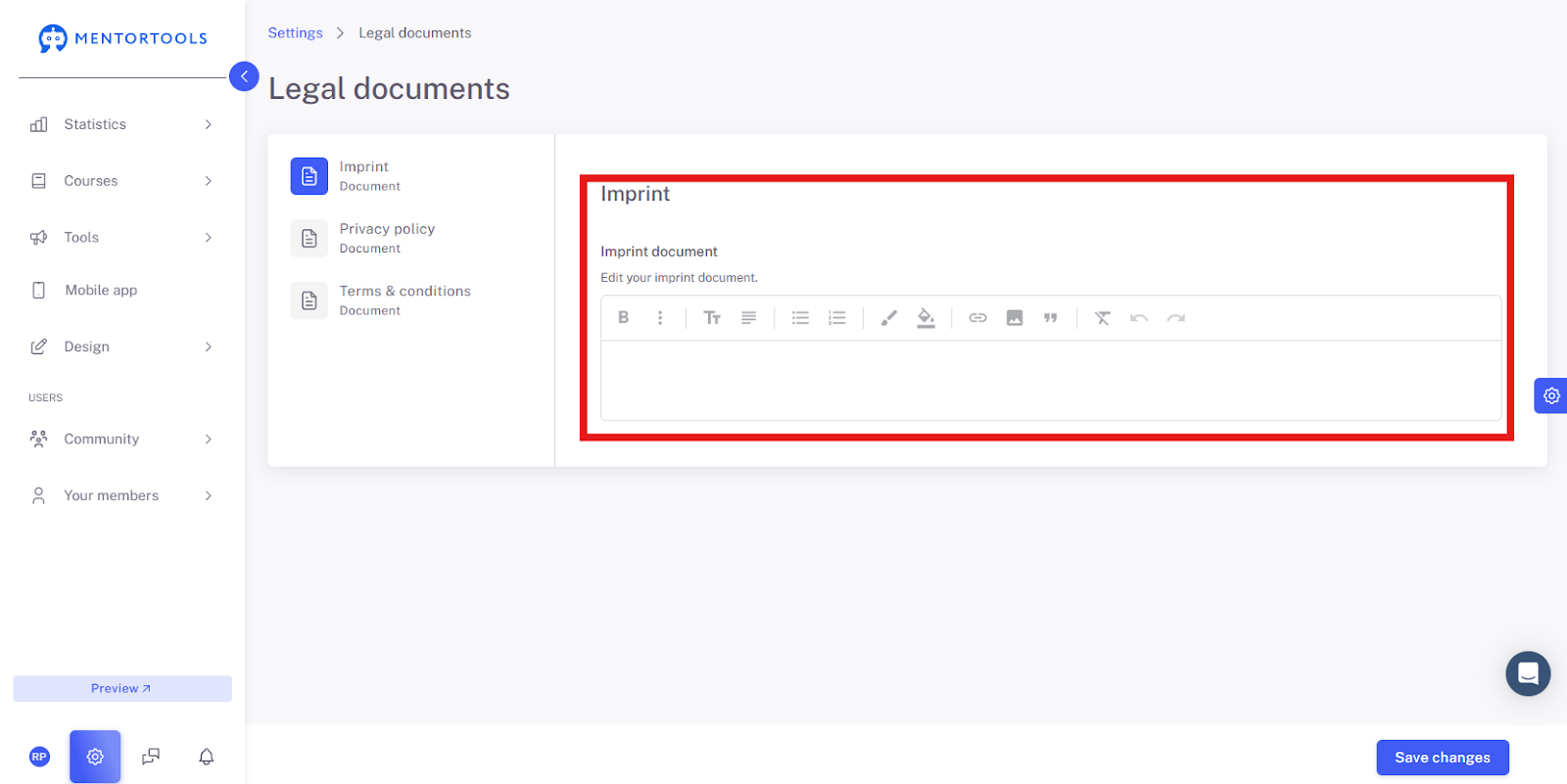
This is your workspace where you write and edit the text for the selected document. At the top, you see the title, in this case, "Imprint," and below it says "Edit your Imprint page."
In the middle, you see the text editor. It works like a simple writing program and has all the tools you need:
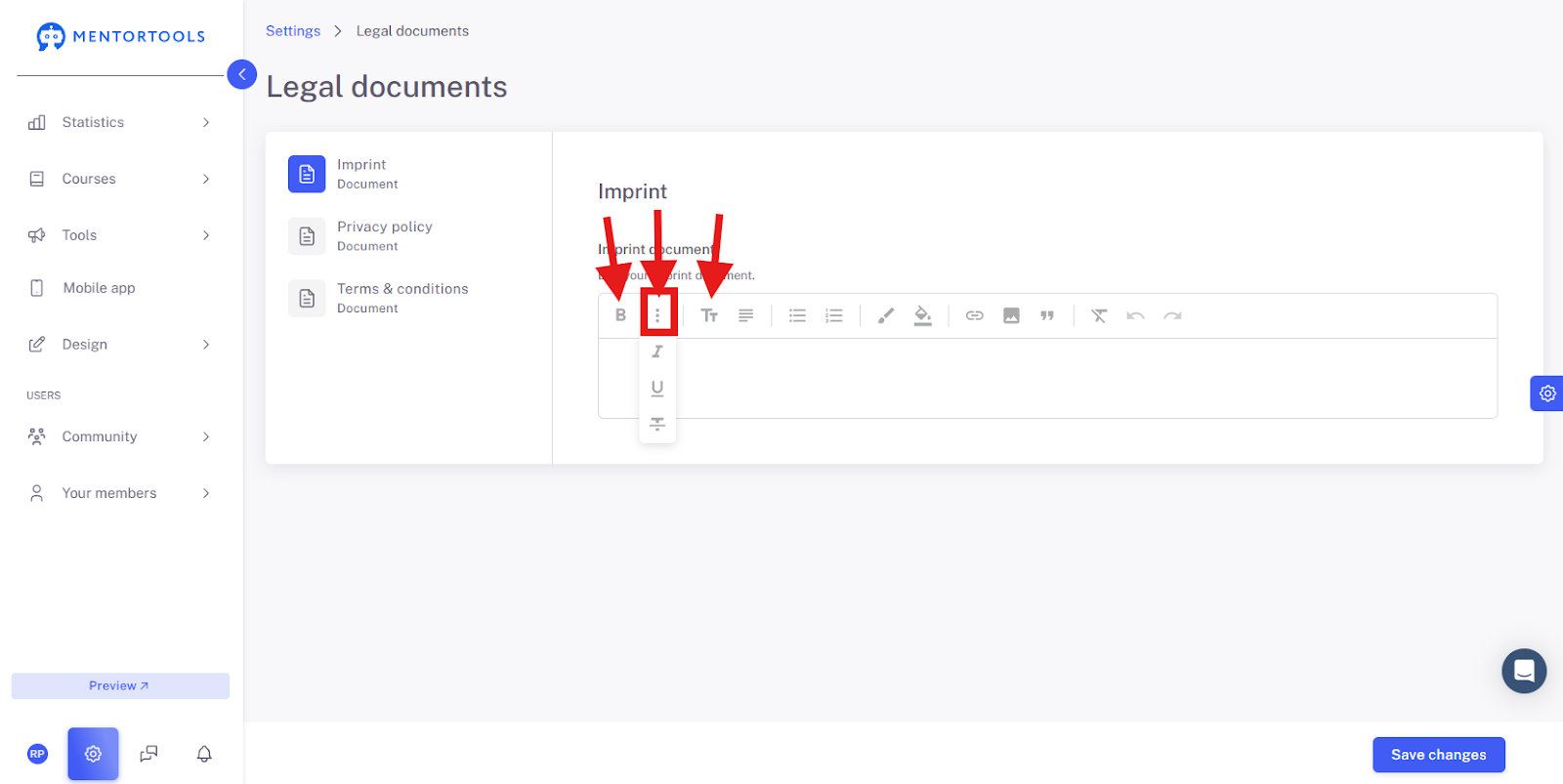
Standard Formatting: You can make text bold, italic, strikethrough, or underline, and insert headings.
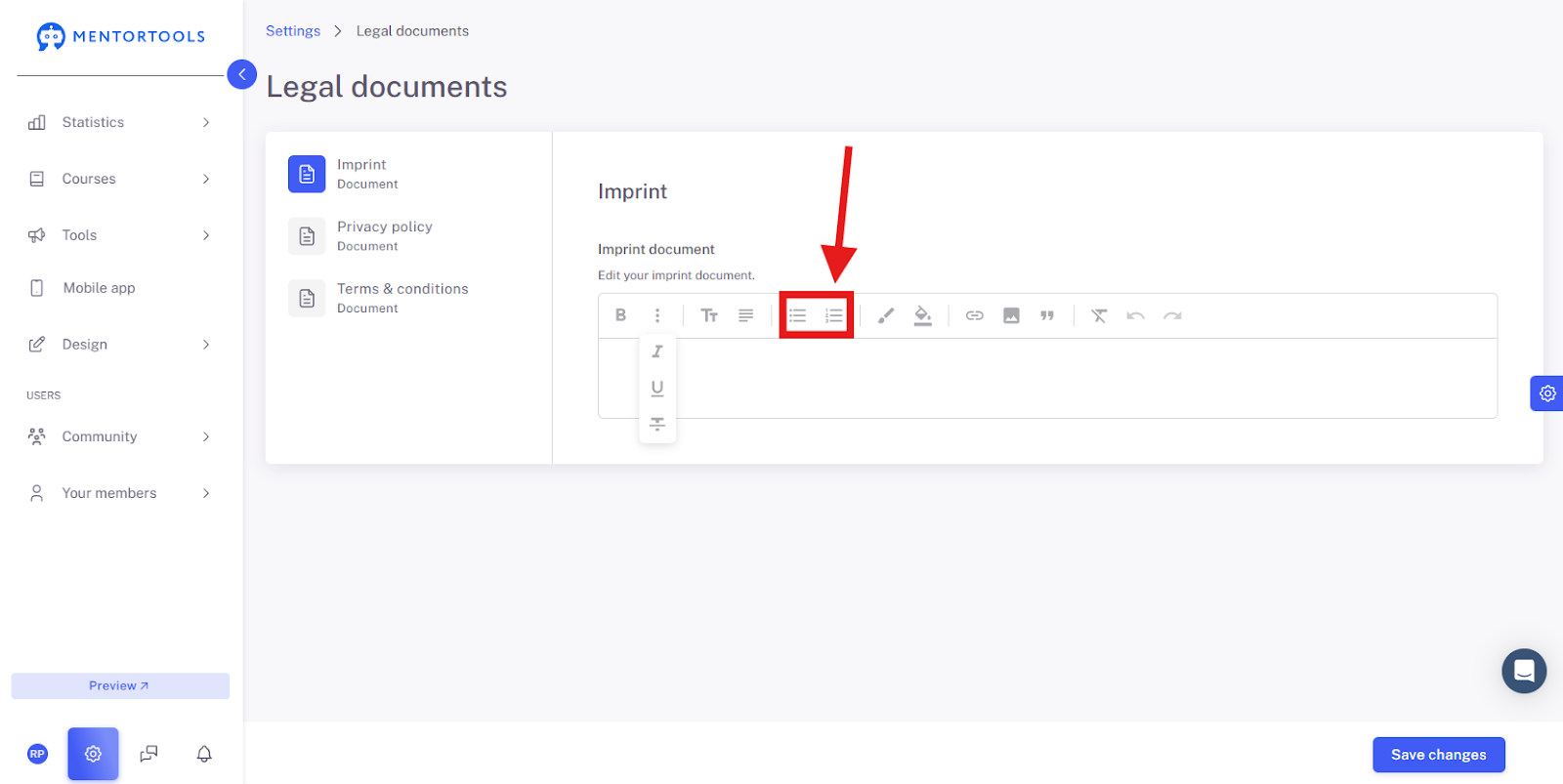
Lists: Create bulleted or numbered lists.
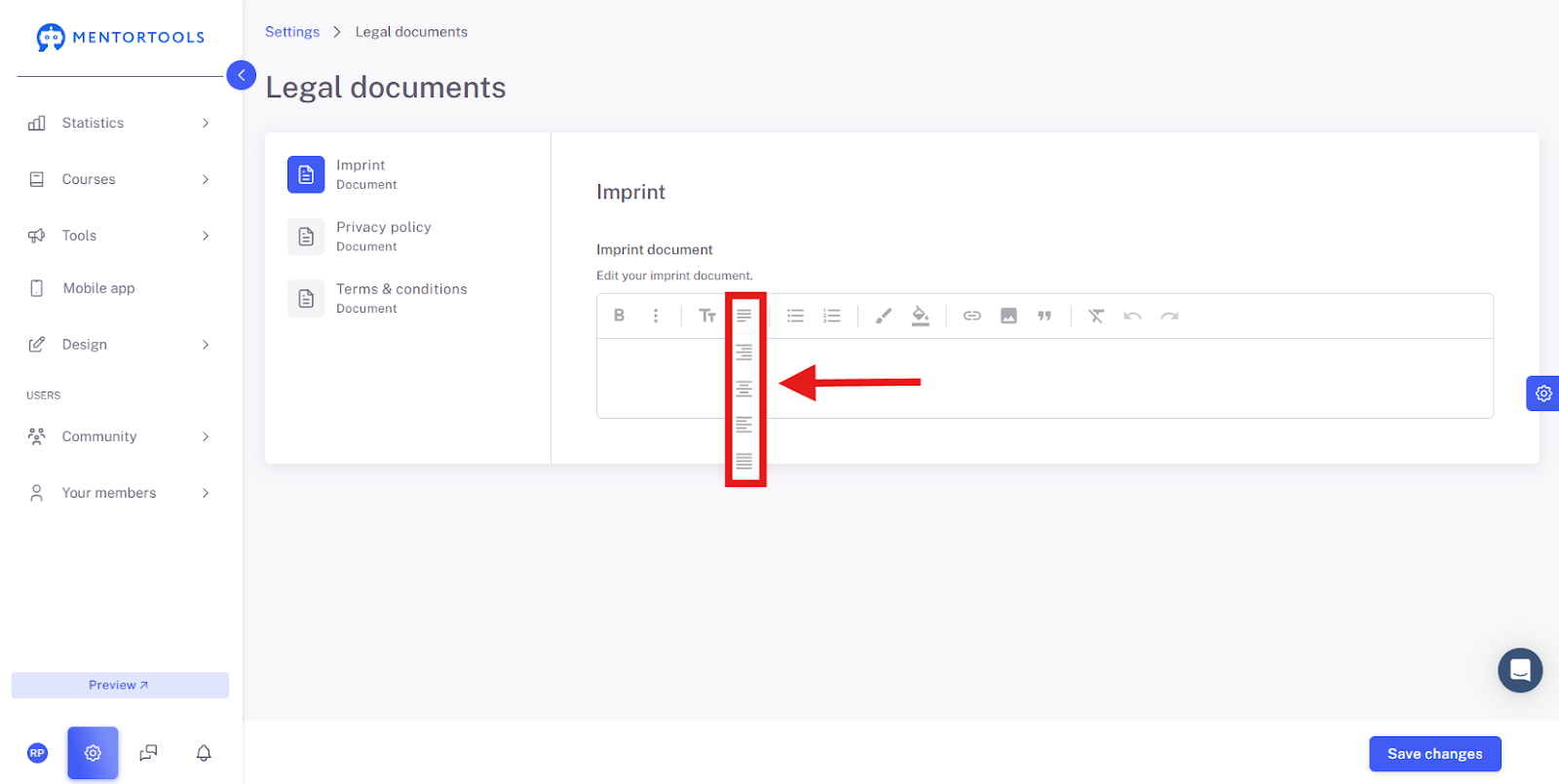
Alignment: Align your text left, centered, or right.
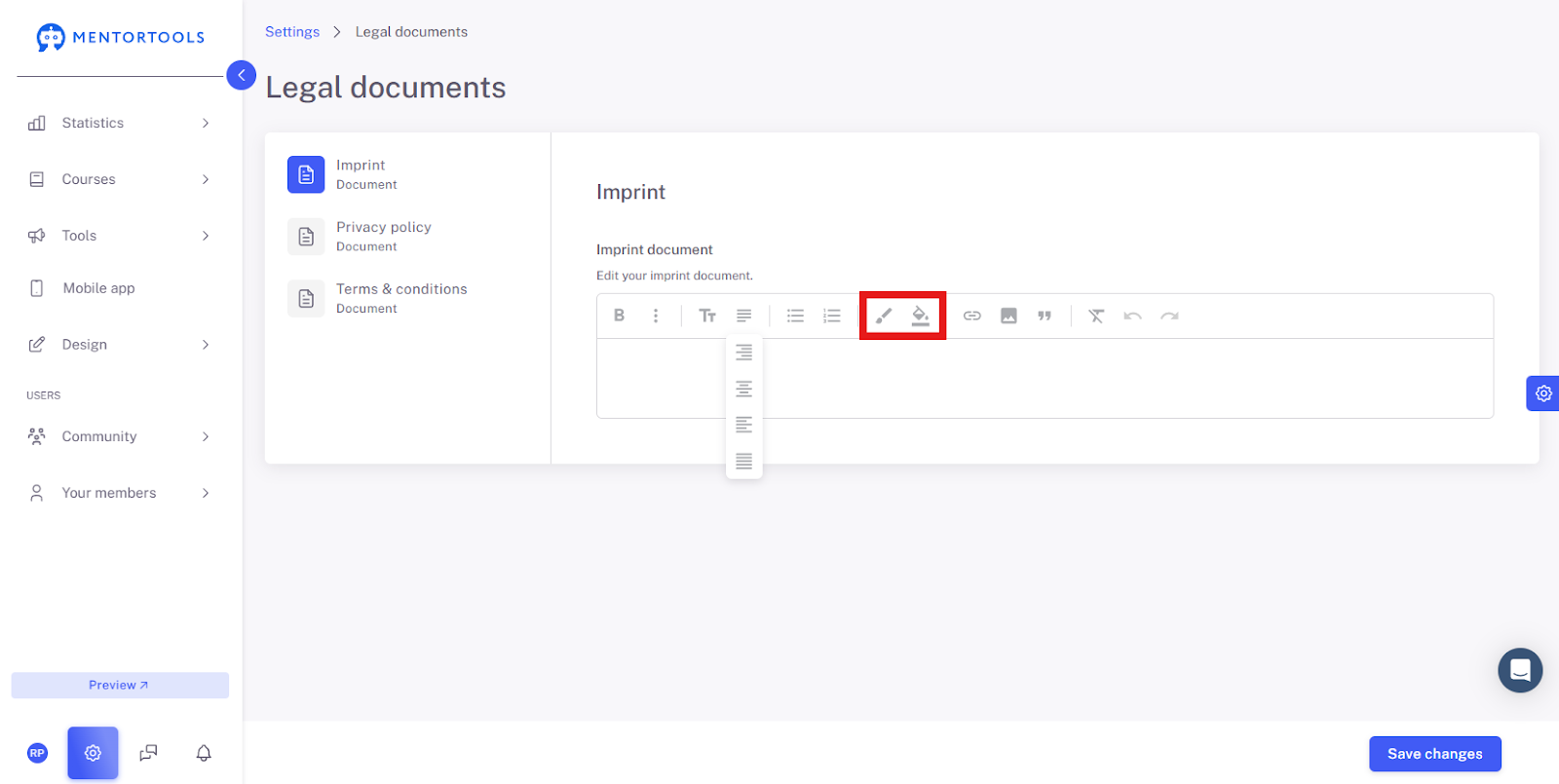
Color Settings: Here you can change the font color or background color.
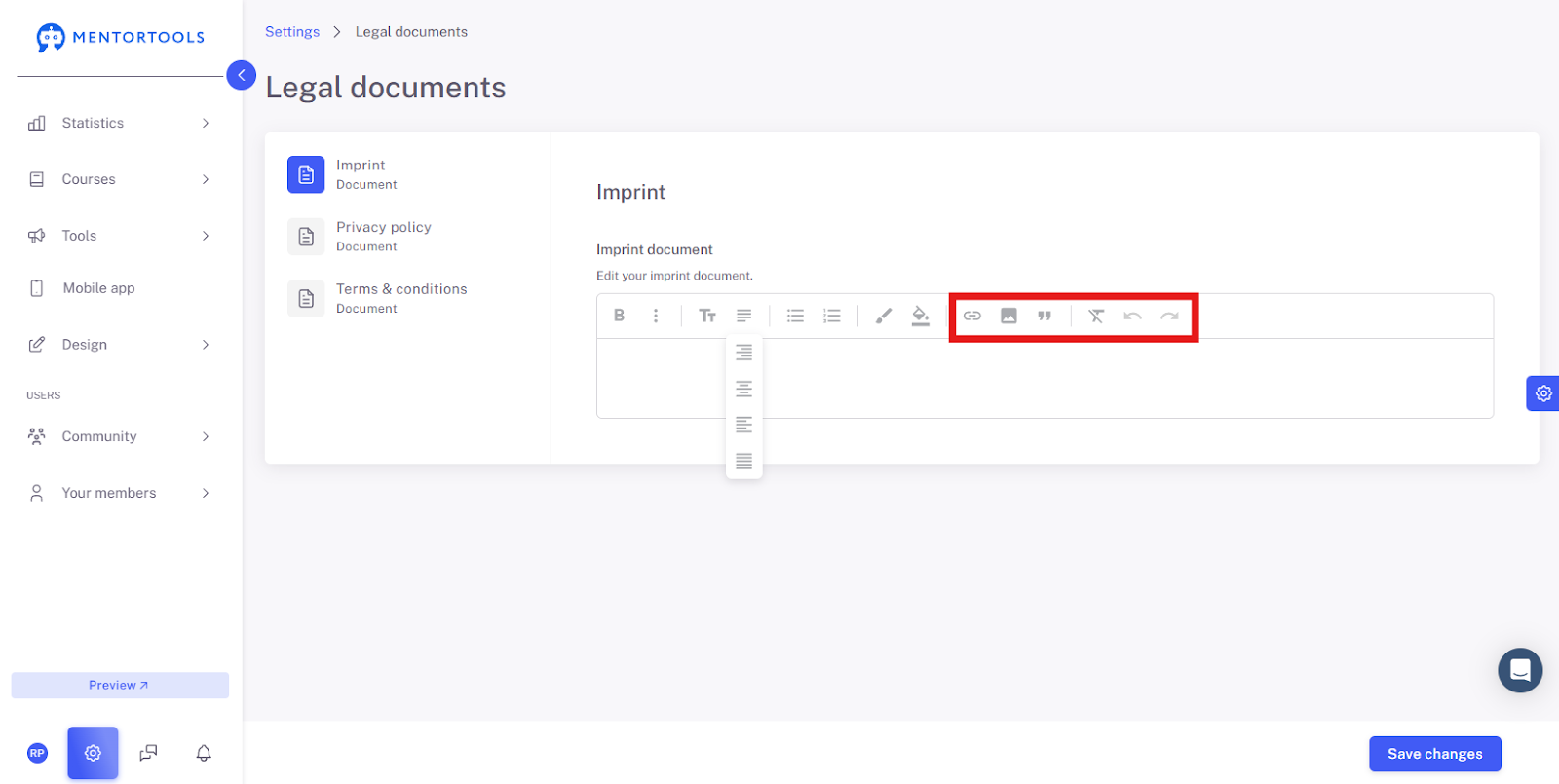
More Tools: You can (explained in order from the left) insert links, upload images, insert quotes, clear formatting, or undo your last steps.
Here you have a simple and clear interface that allows you to quickly create your imprint.
Save Changes
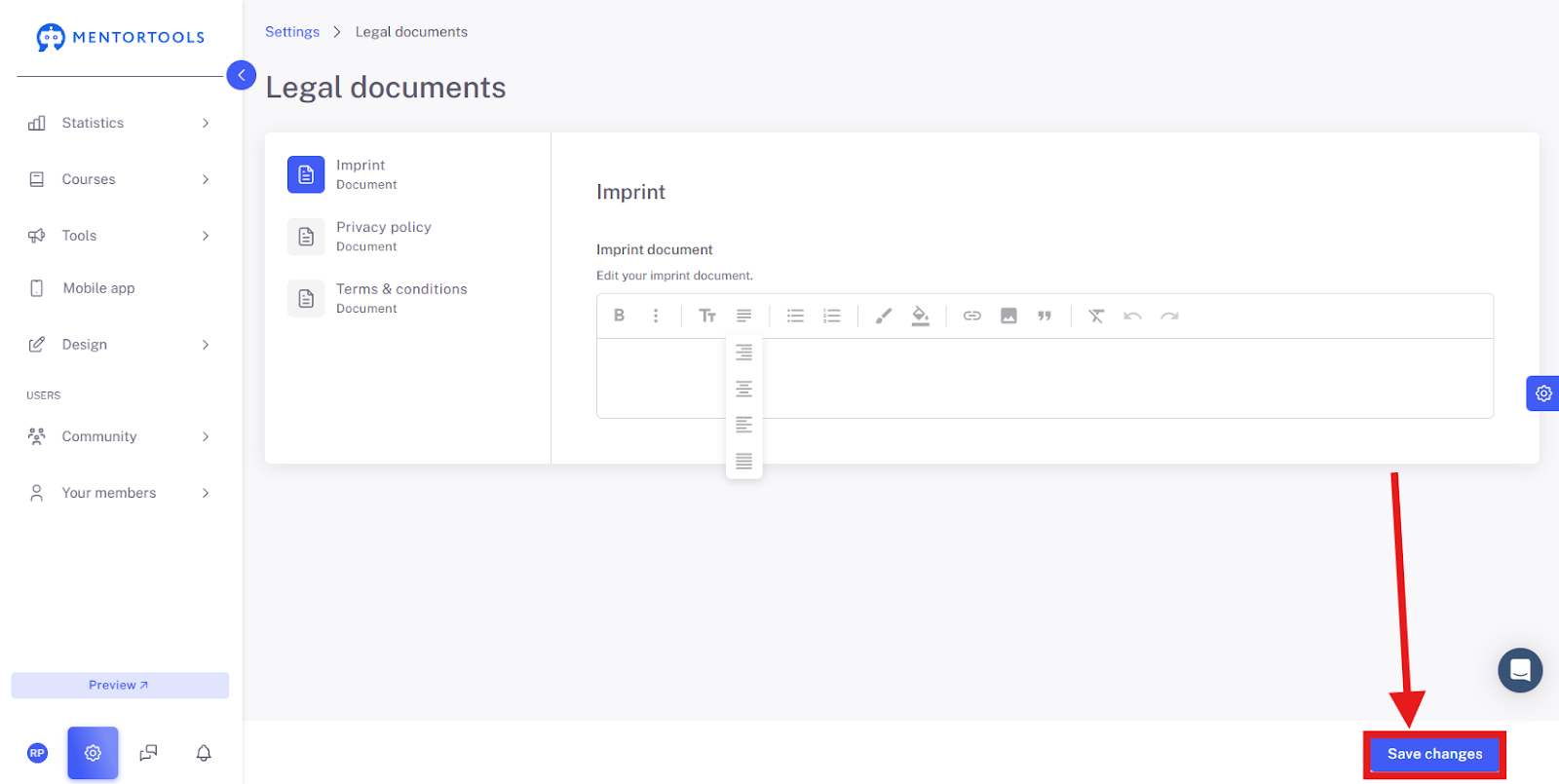
When you have finished writing the Imprint and checked all the details, click on "Save Changes" so that everything is saved and applied.
Summary
As you've seen, creating and maintaining your Imprint on Mentortools is truly uncomplicated. With just a few clicks via the gear icon in the settings, you get to the "Legal Documents" area. There, you can select the Imprint and use the user-friendly text editor to enter and format all the necessary information.
The most important thing at the end: Remember to always click "Save Changes." This ensures that your changes are applied and your page continues to meet all legal requirements.
Was this helpful?