Analytics and GDPR – Cookies
In this guide, you will learn how to customize the Cookie Banner in Mentortools, configure tracking, and change the button texts so that your academy is GDPR compliant while maintaining control over your tracking.
Last updated About 1 year ago
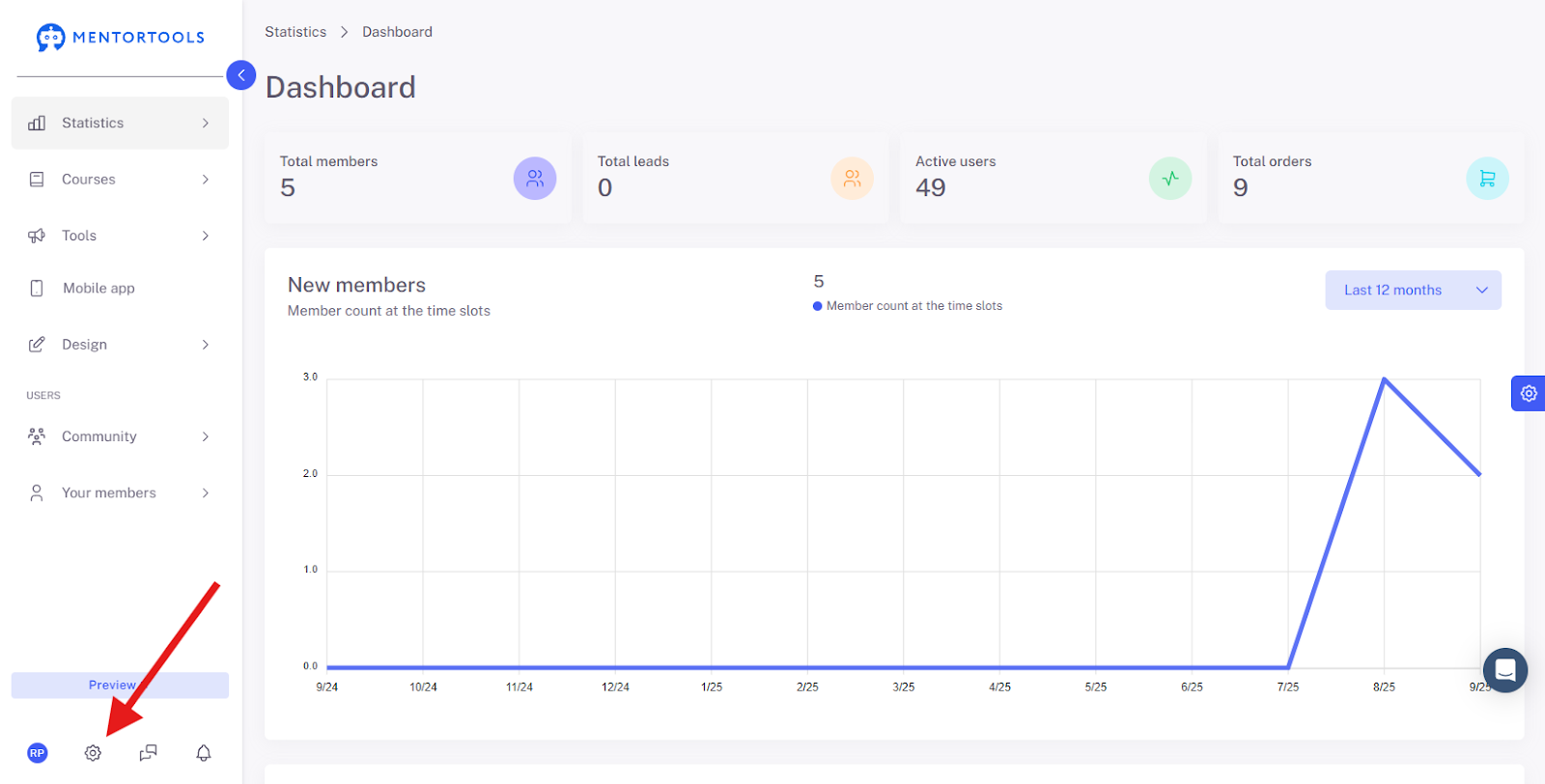
Open the Settings Click on the gear icon in the bottom left menu bar.
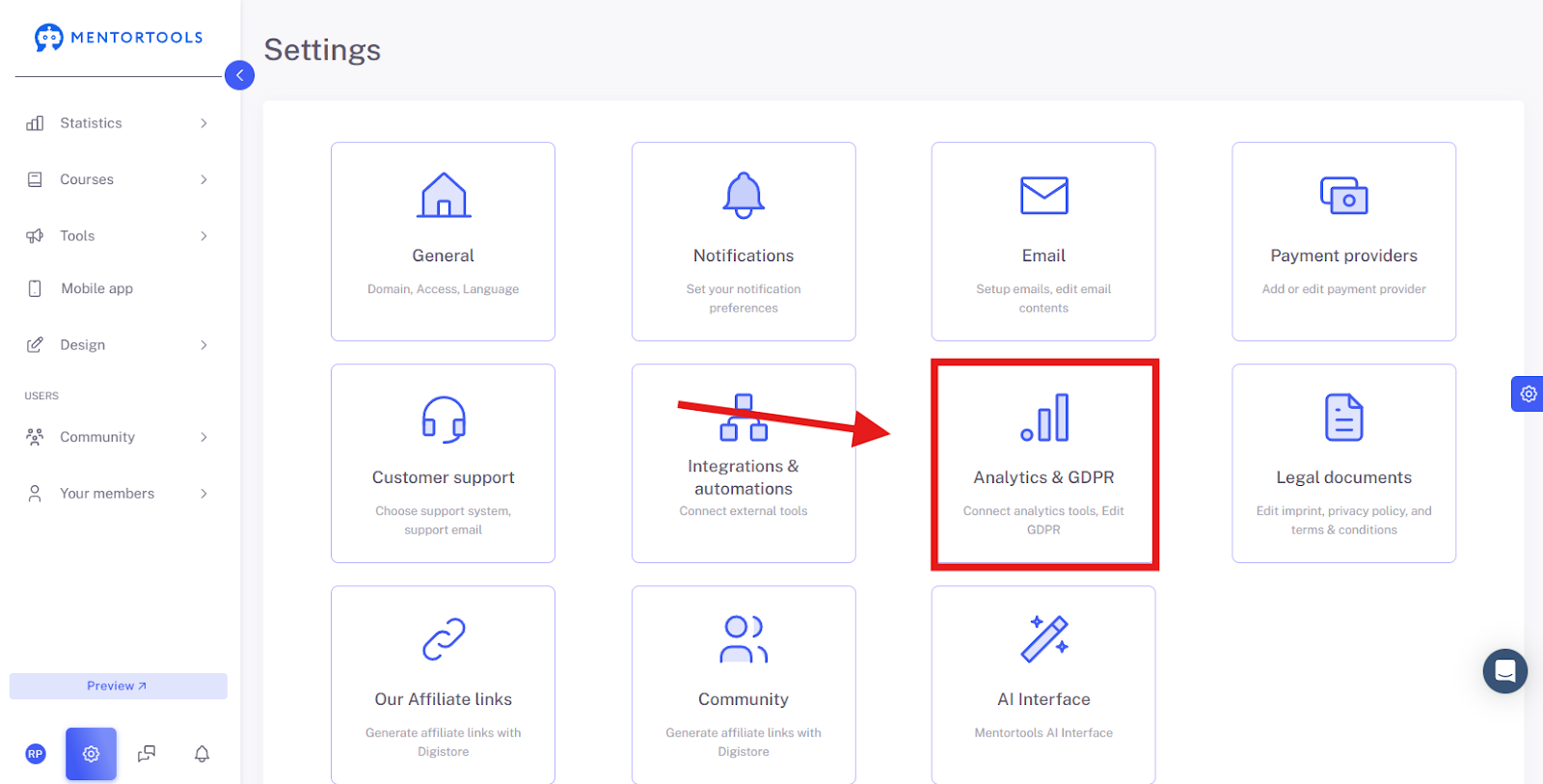
Navigate to “Analytics & GDPR” Select "Analytics & GDPR" from the list of settings.
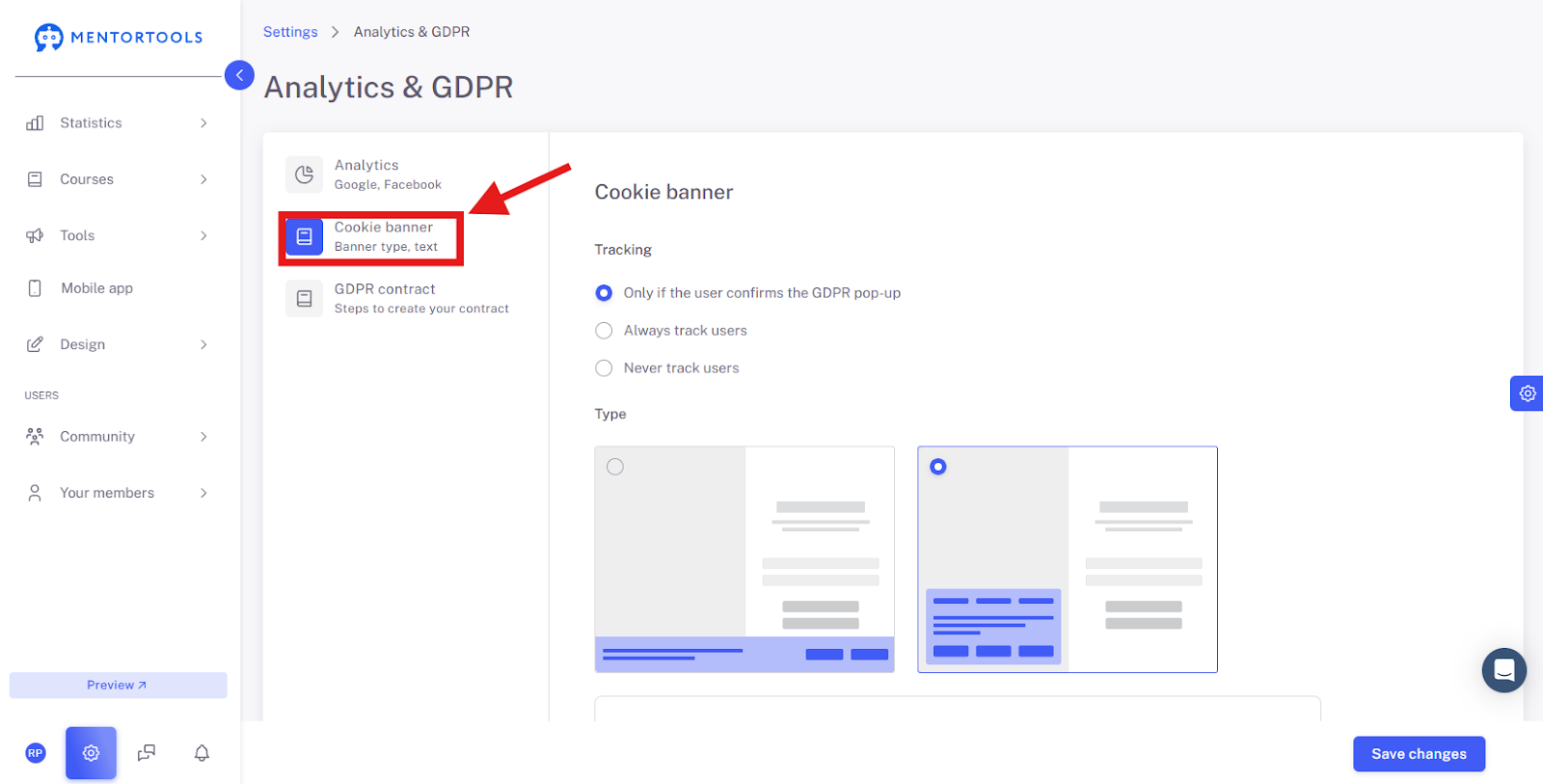
Select “Cookie Banner”
Cookie Banner Overview
Tracking
This area determines when the tracking of user data is activated.
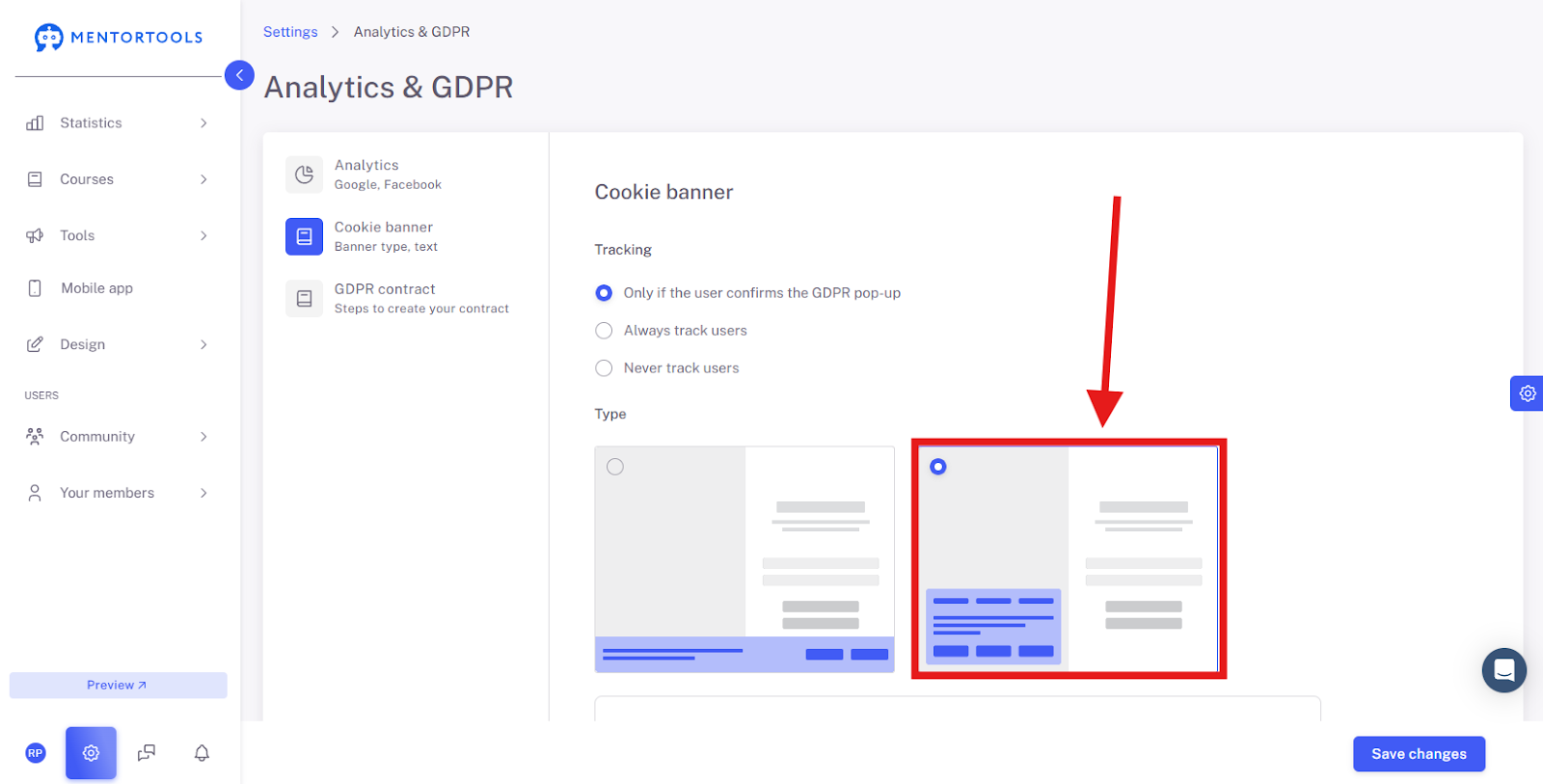
Only when the user confirms the GDPR popup: This is the default and most data-protection-friendly option. Tracking only begins if the website visitor actively consents. This complies with the requirements of the General Data Protection Regulation (GDPR).
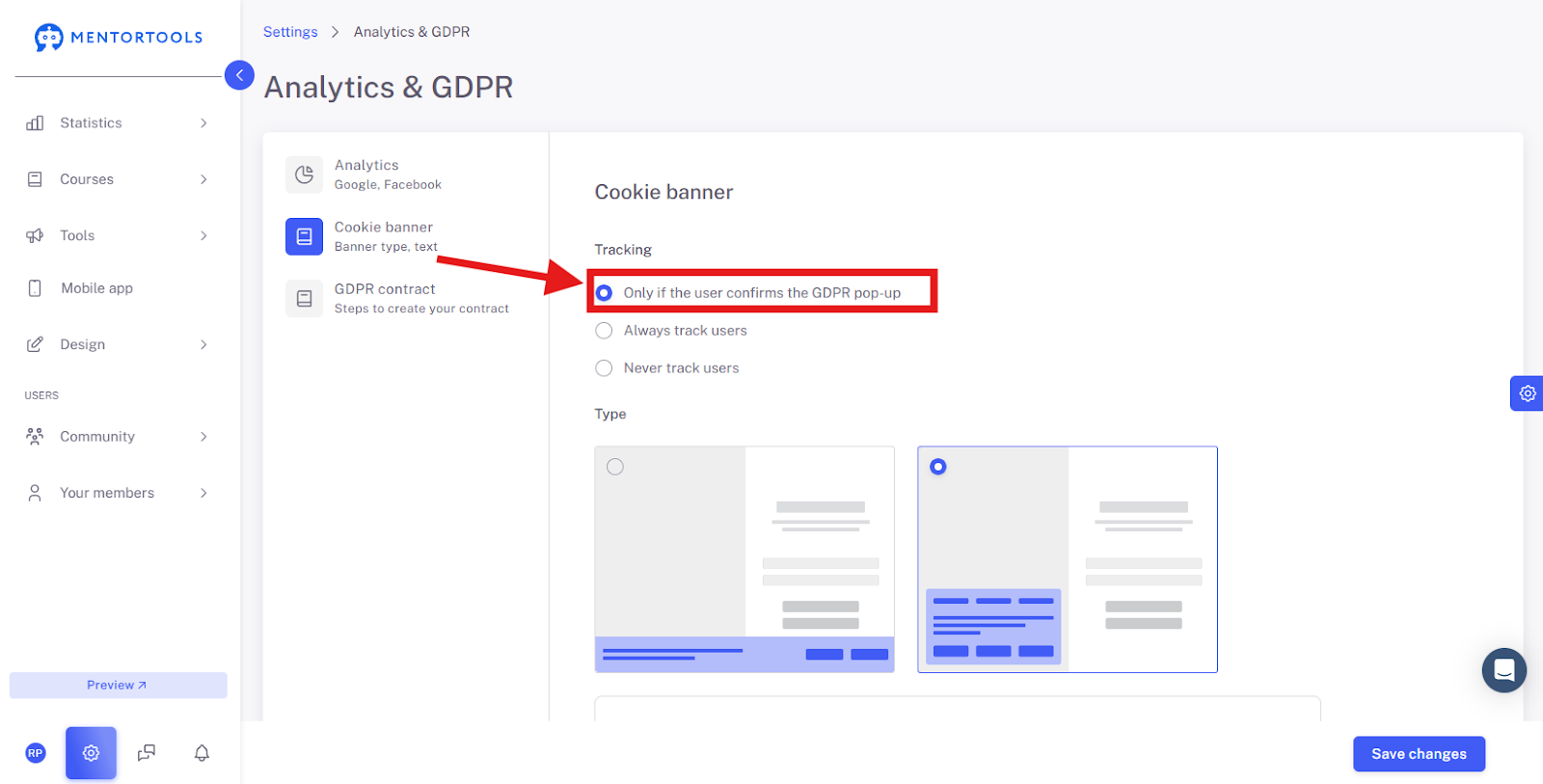
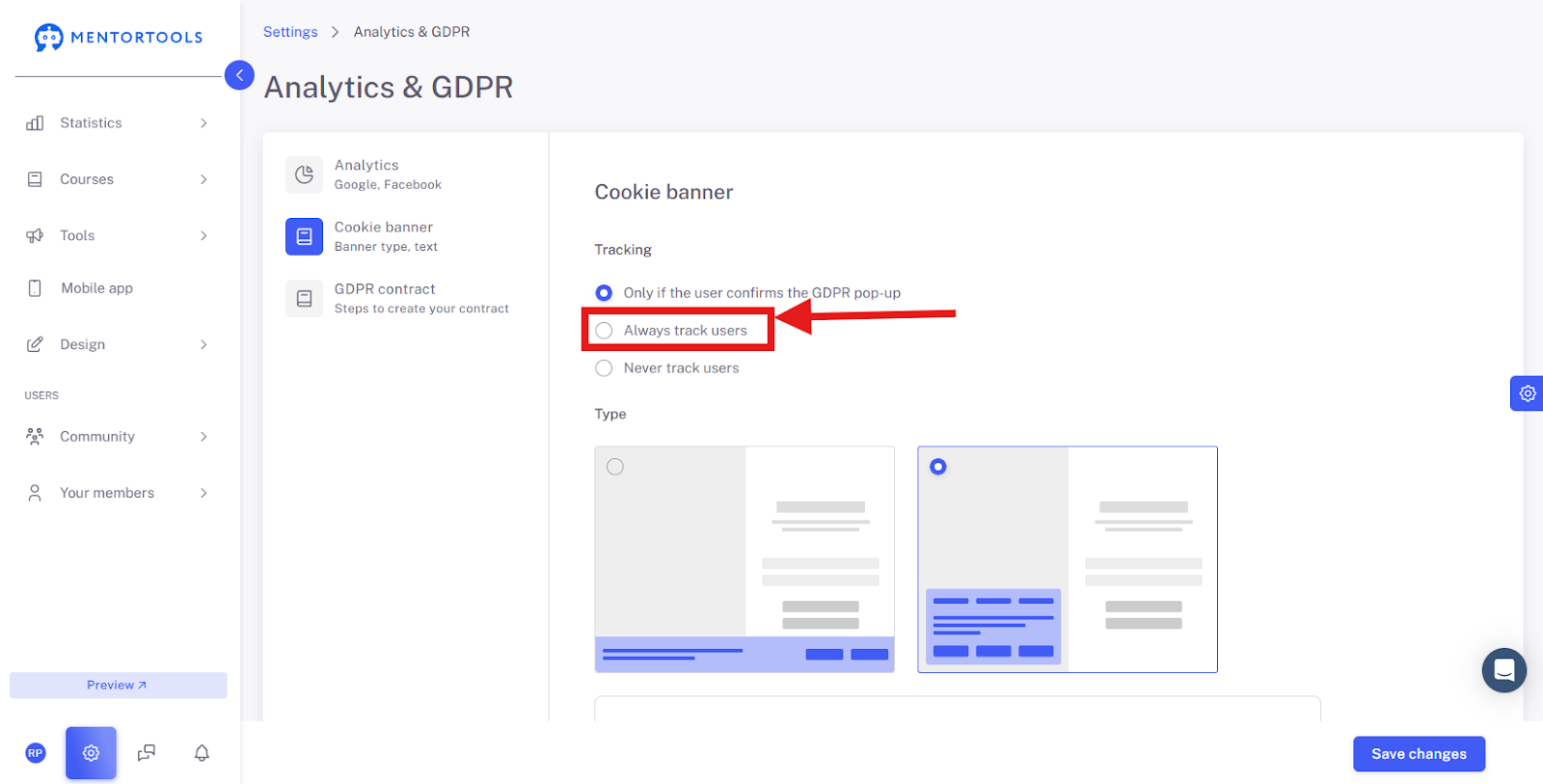
Always track users: With this setting, users are always tracked, regardless of whether they have agreed to the cookie banner or not. In most cases, this is not GDPR compliant and should be avoided.
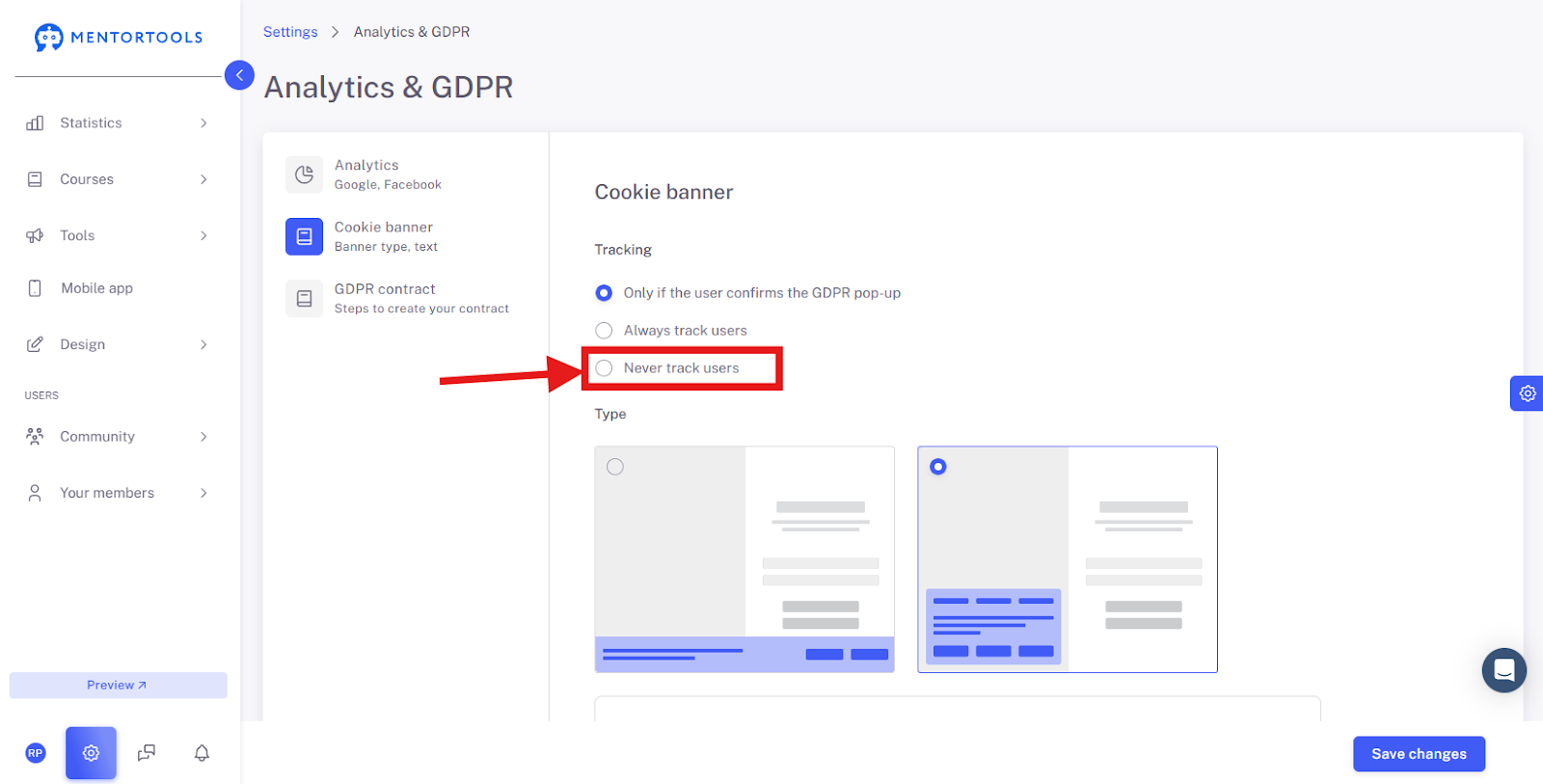
Never track users: With this option, tracking is completely deactivated. This can be useful if you generally want to avoid data collection.
Type (Cookie Banner Design)
This section allows you to select the design and position of the cookie banner.
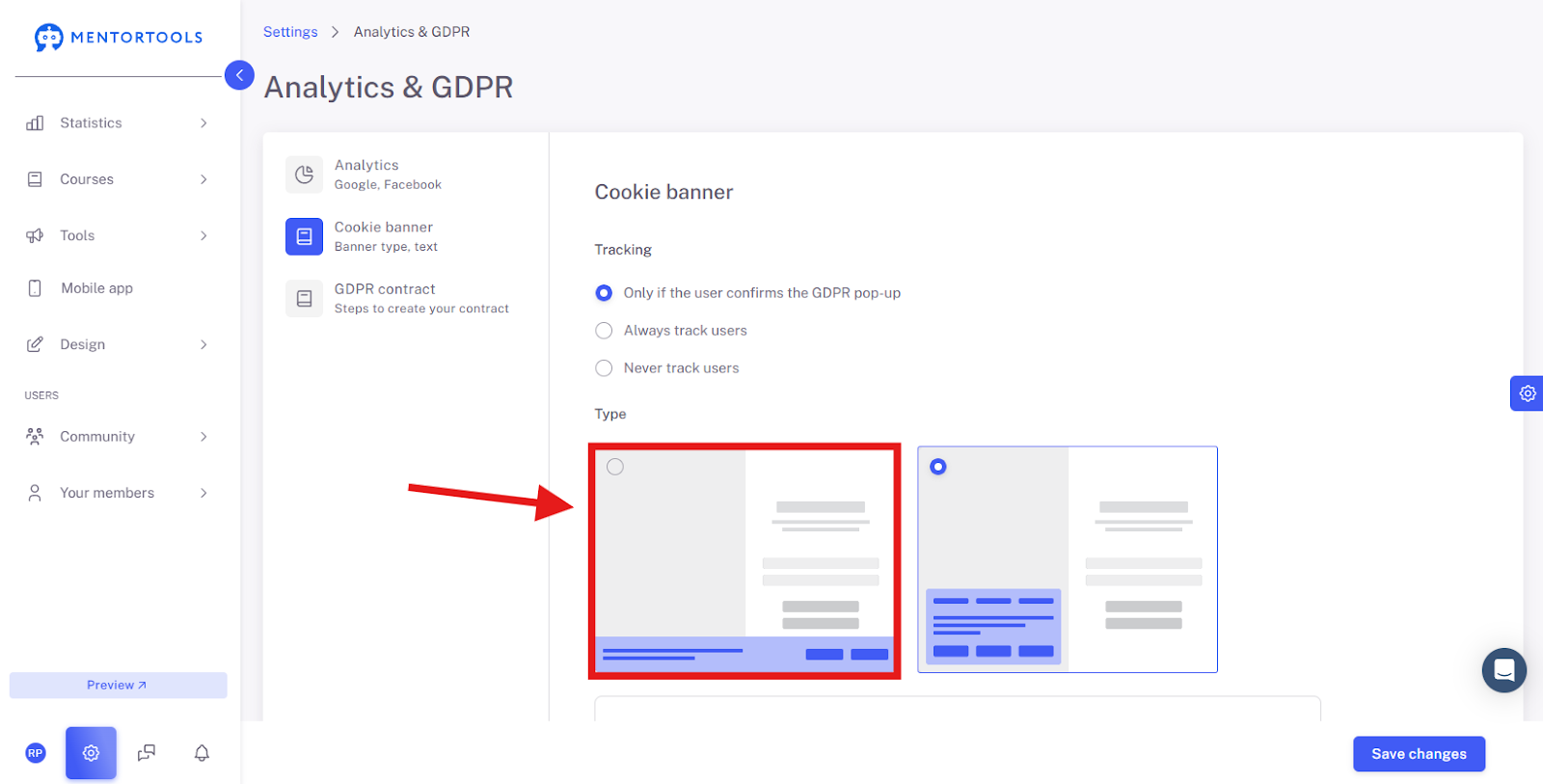
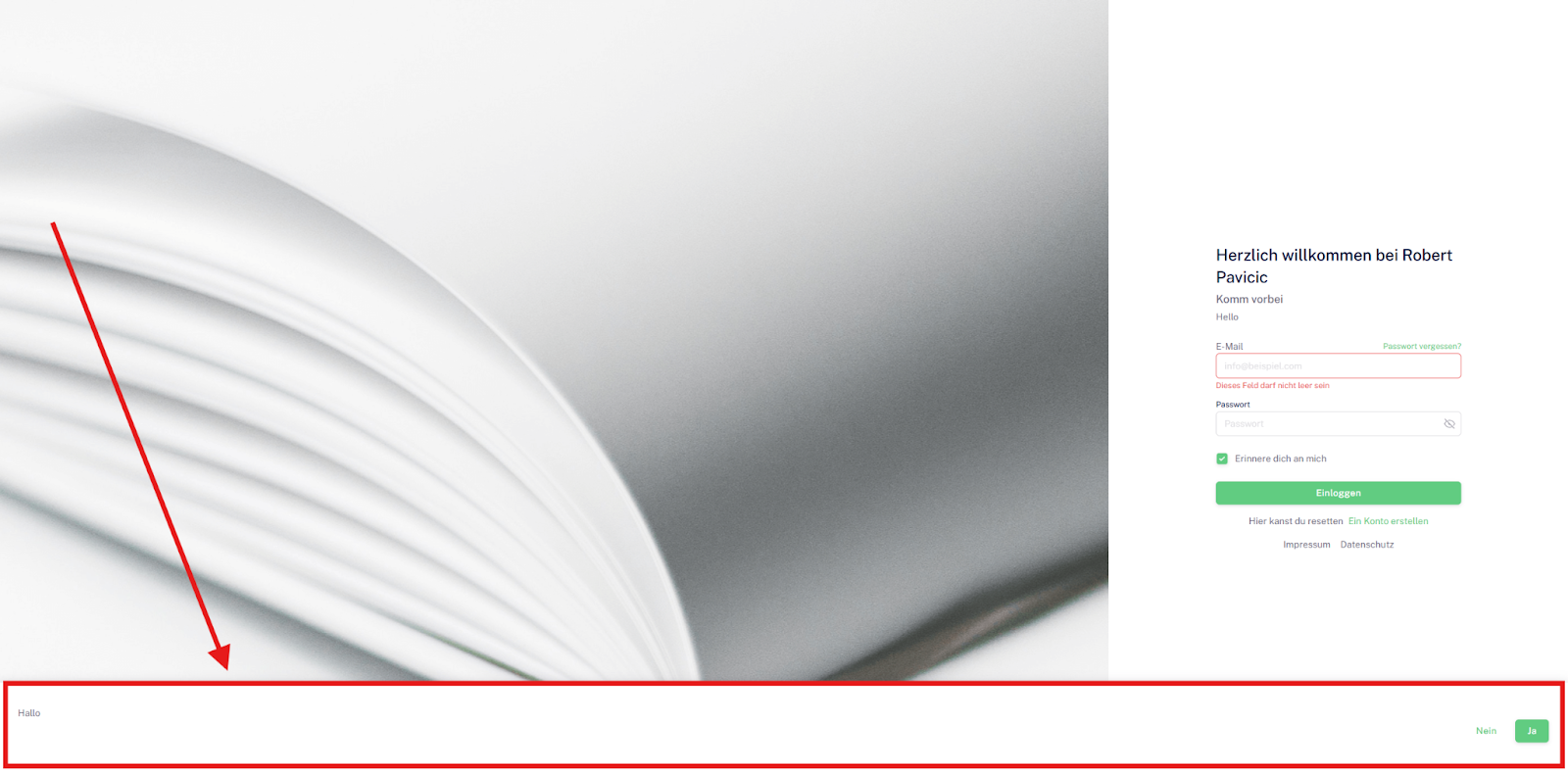
Layout 1 (Left): A narrow banner that is positioned at the bottom of the website. It contains the GDPR banner text and the accept and decline buttons.
Layout 2 (Right): A larger pop-up that opens in the center or at the bottom left of the screen. This design lets the page visitor choose which cookies they want to activate.
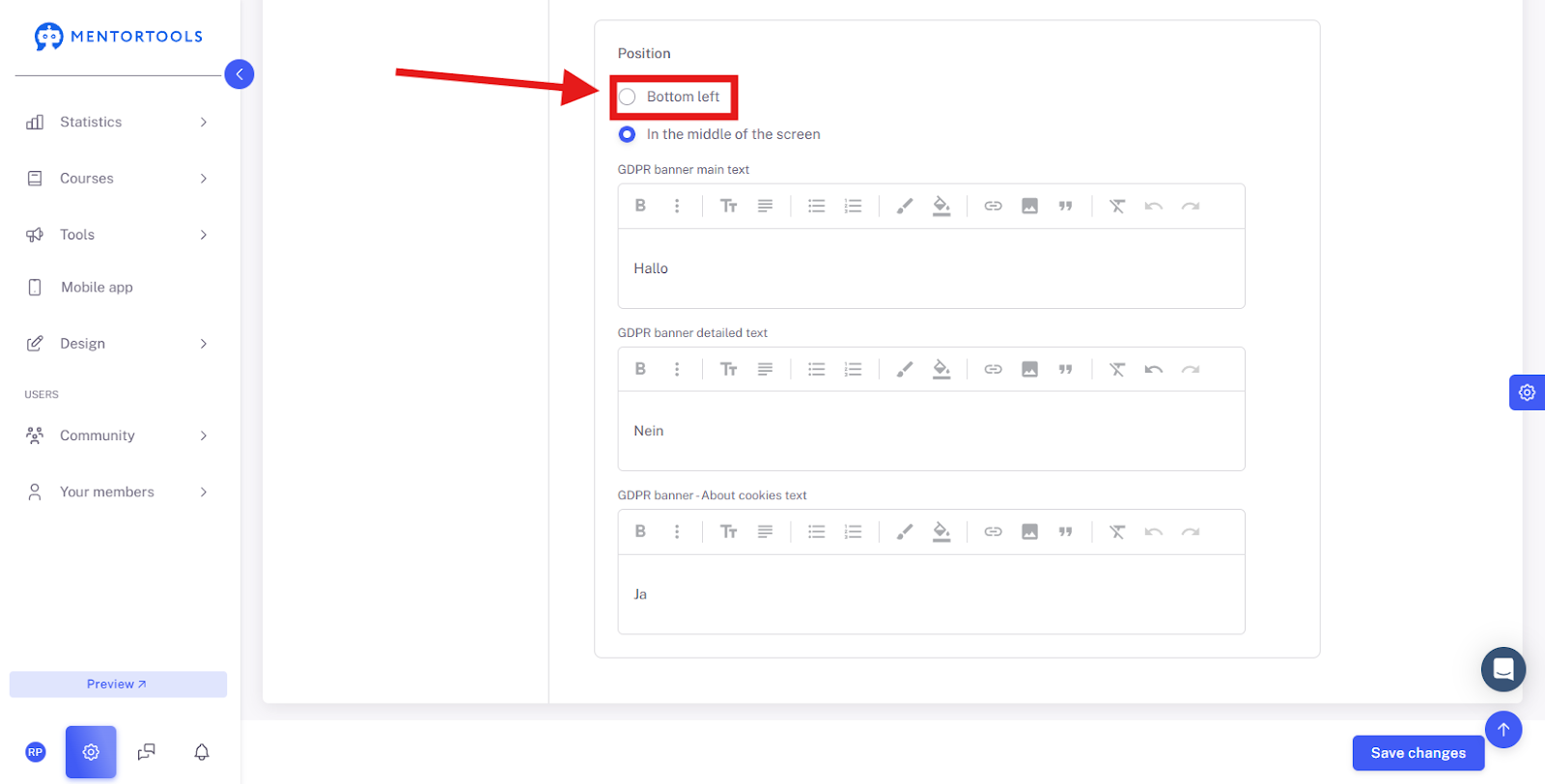
Position: This setting applies specifically to Layout 2 and determines where on the screen it appears.
Bottom left: The banner appears as a smaller window in the bottom-left corner of the screen.
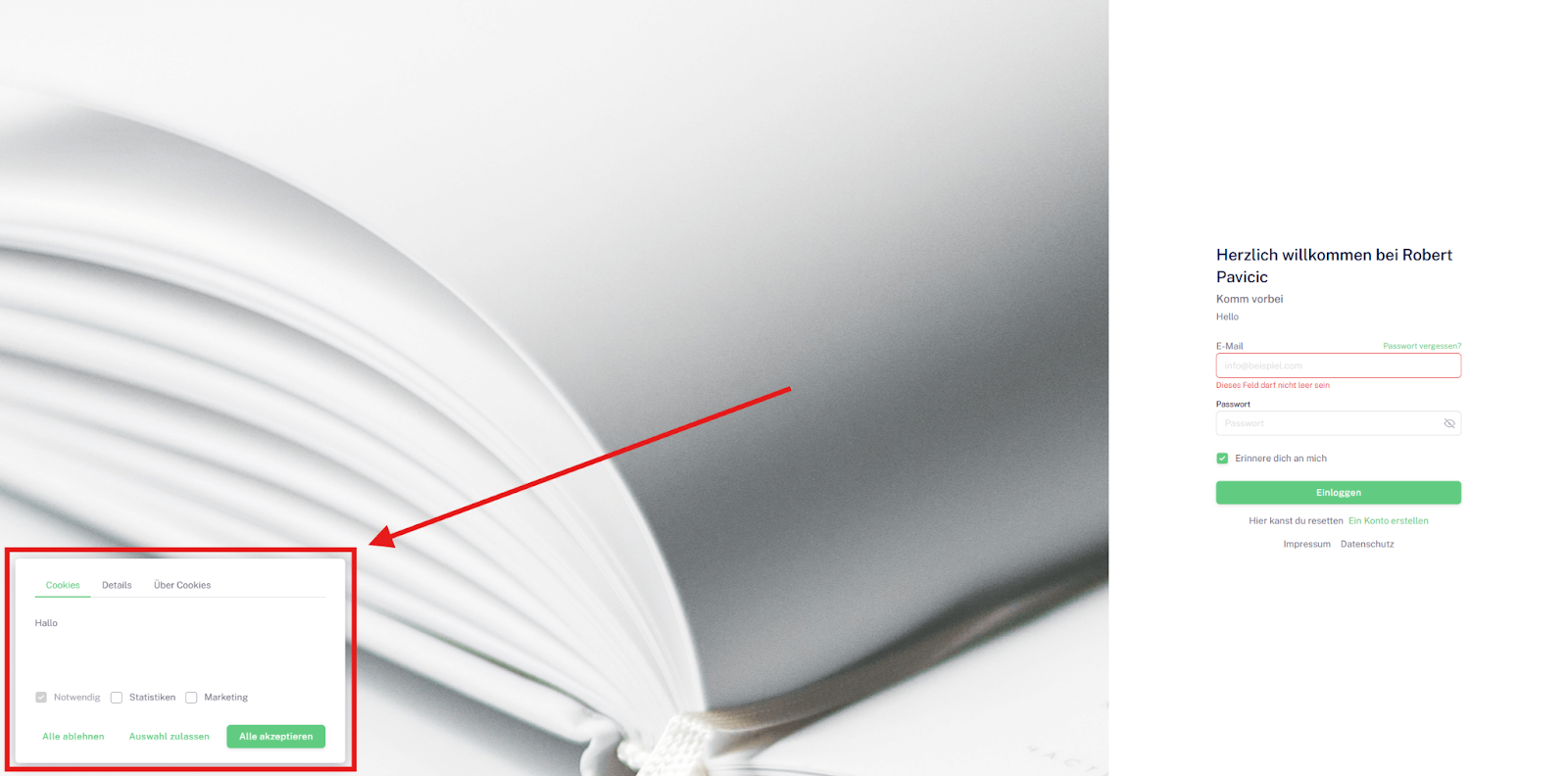
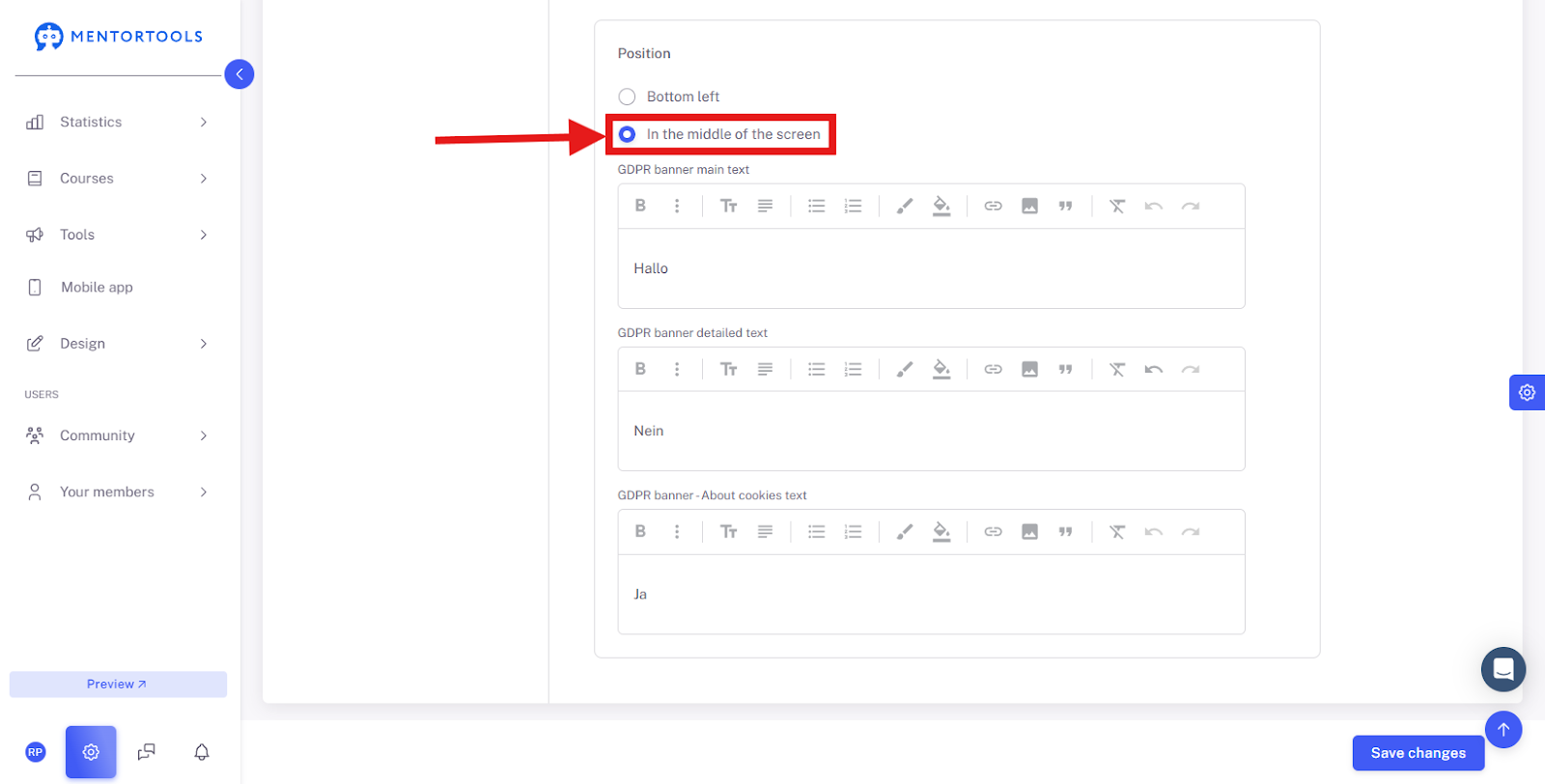
In the center of the screen: The banner appears as a large, centered window that covers the main content of the page.
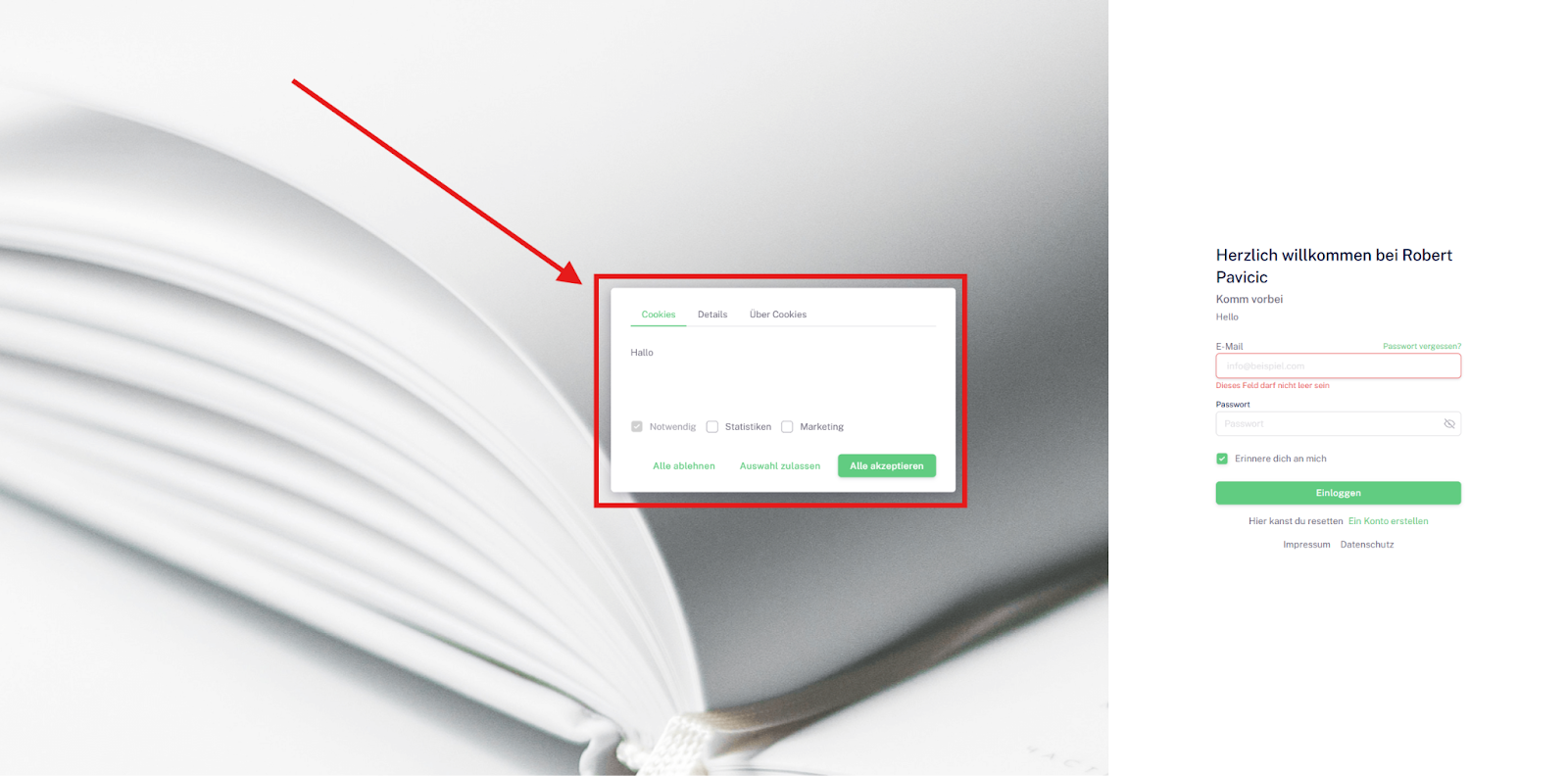
GDPR Banner Text (Cookie Banner Text)
Here you enter the content of the banner. There is a large text field where you can write the text for the cookie banner. This text should clearly and understandably explain what data is collected and what it is used for.
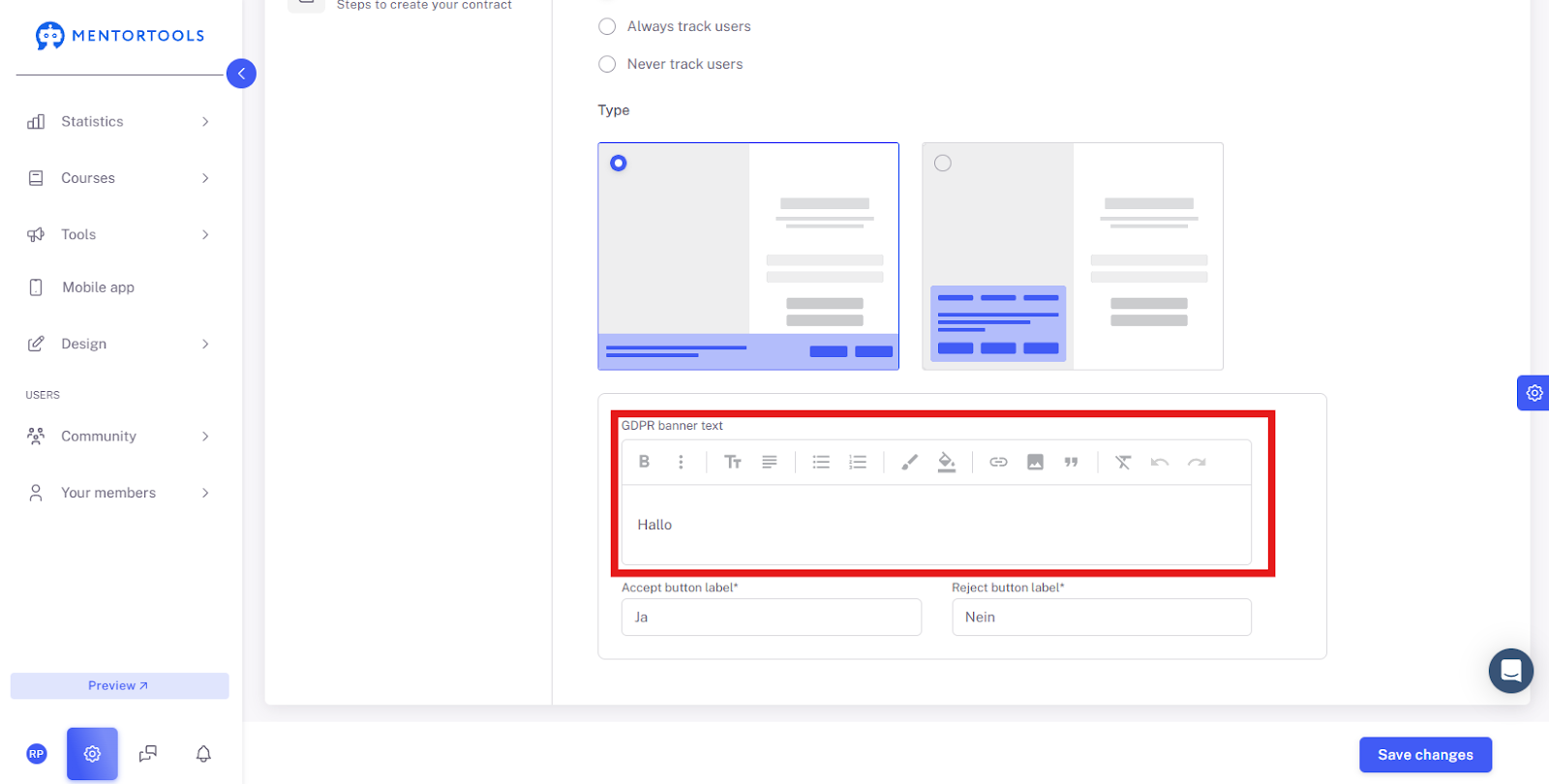
Button Labels
Accept Button Label: In this field, you define the text for the button that users click to consent to data processing. Examples include "Accept," "Agree," or "Allow Cookies."
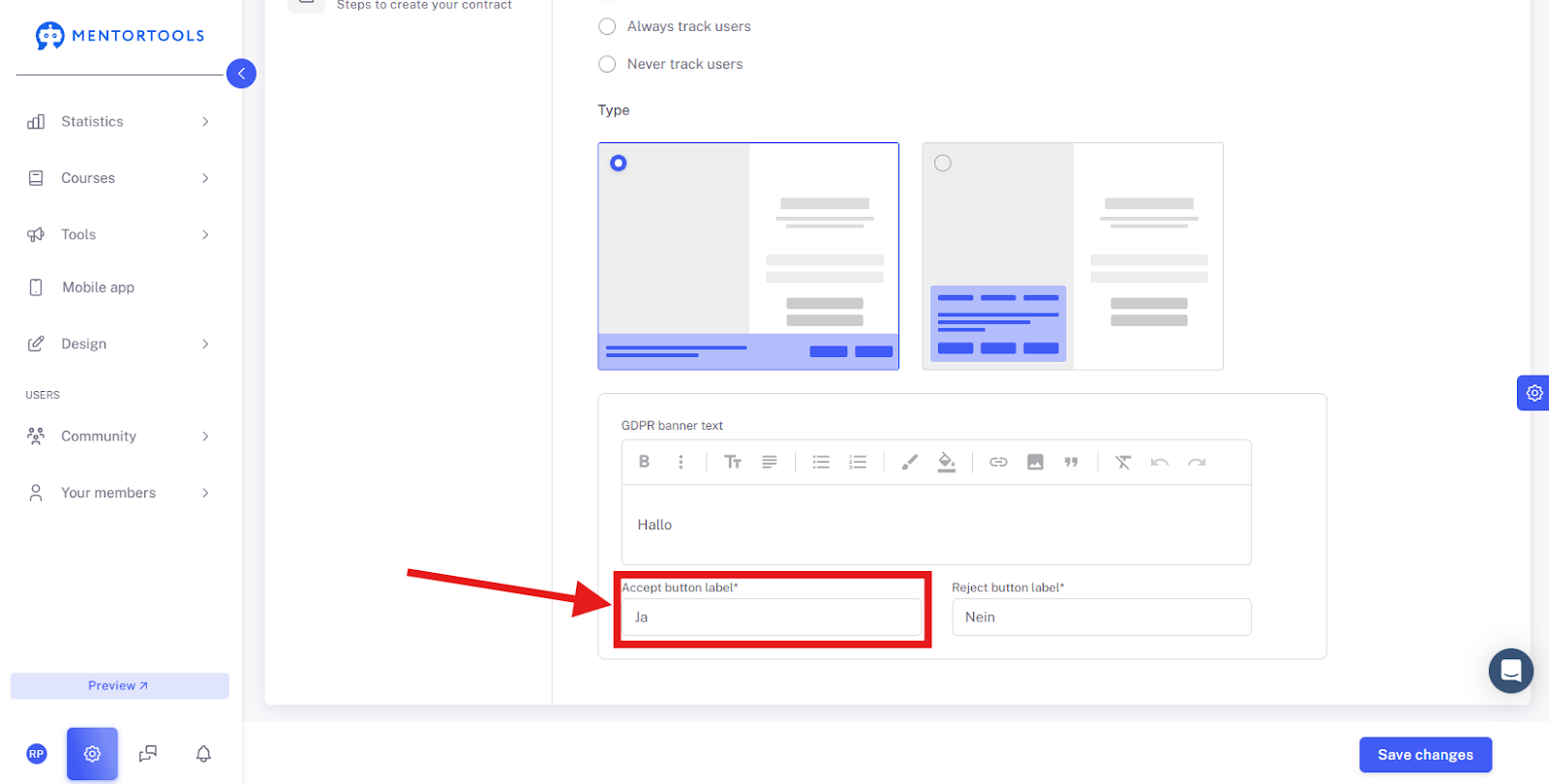
Reject Button Text: Here you define the text for the button that users click to decline tracking. Typical labels are "Decline" or "Reject."
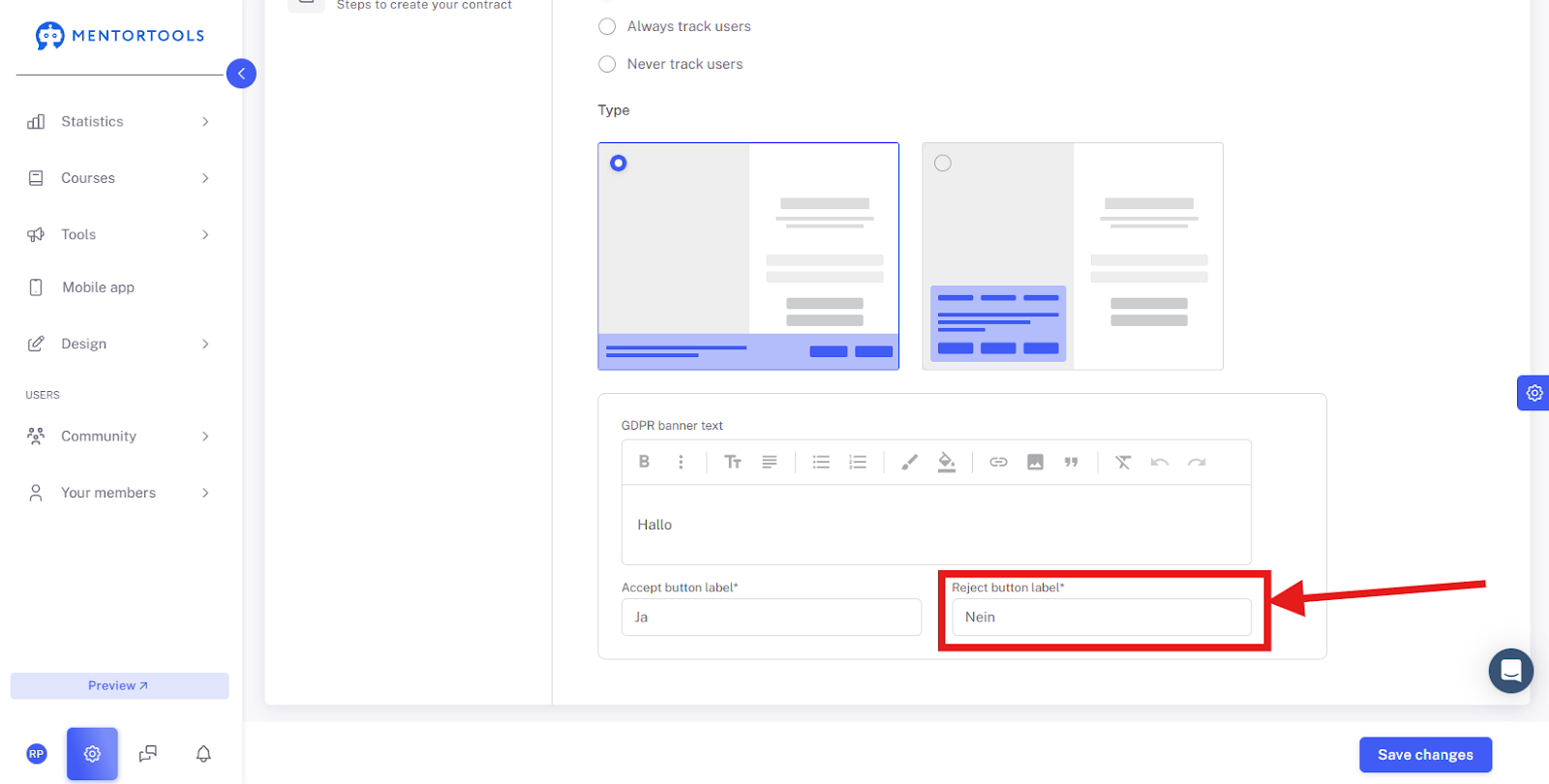
These fields and options are crucial for creating a legally compliant and user-friendly cookie banner.
GDPR Banner Text (Cookie Banner Text) for Layout 2
For the second layout, in addition to the option to choose the position, there are three separate text fields to customize the content of the banner:
Main text of the GDPR Banner: This is the primary text displayed on the banner. It is typically a short introductory sentence that explains the banner's purpose, such as, "We use cookies to improve the user experience."
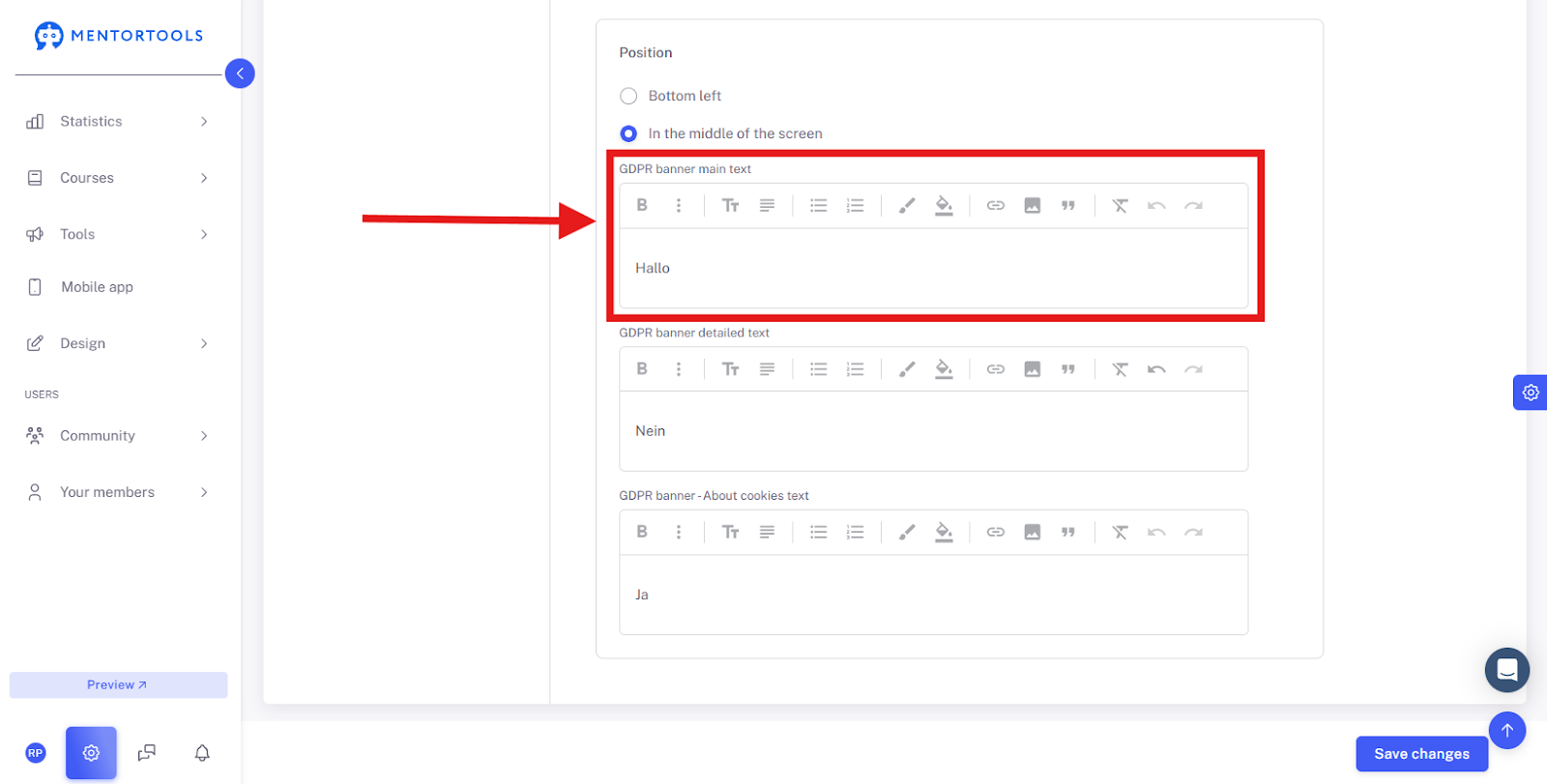
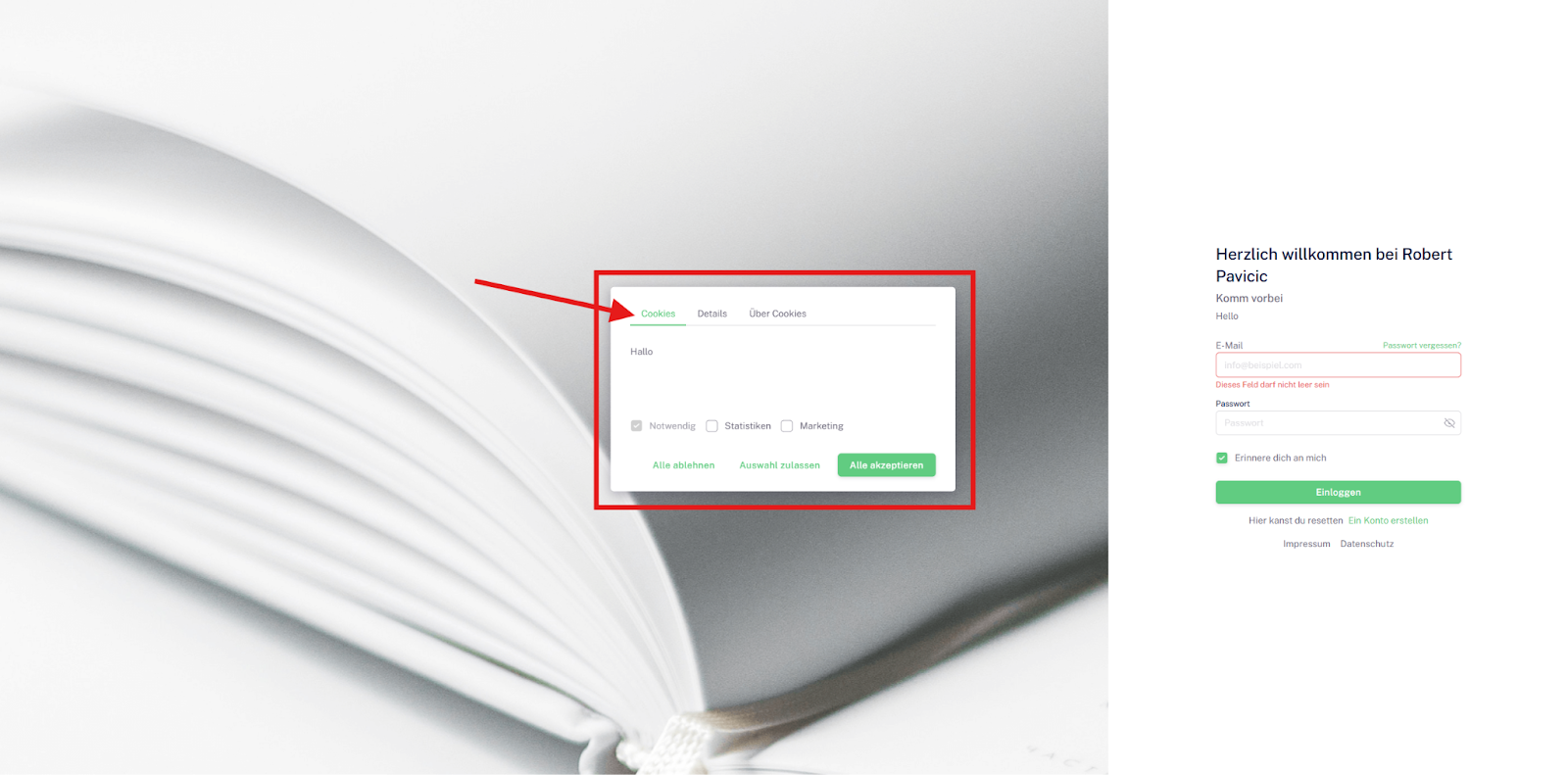
Detailed text of the GDPR Banner: Here you can provide a more detailed explanation of the cookies used and their purpose.
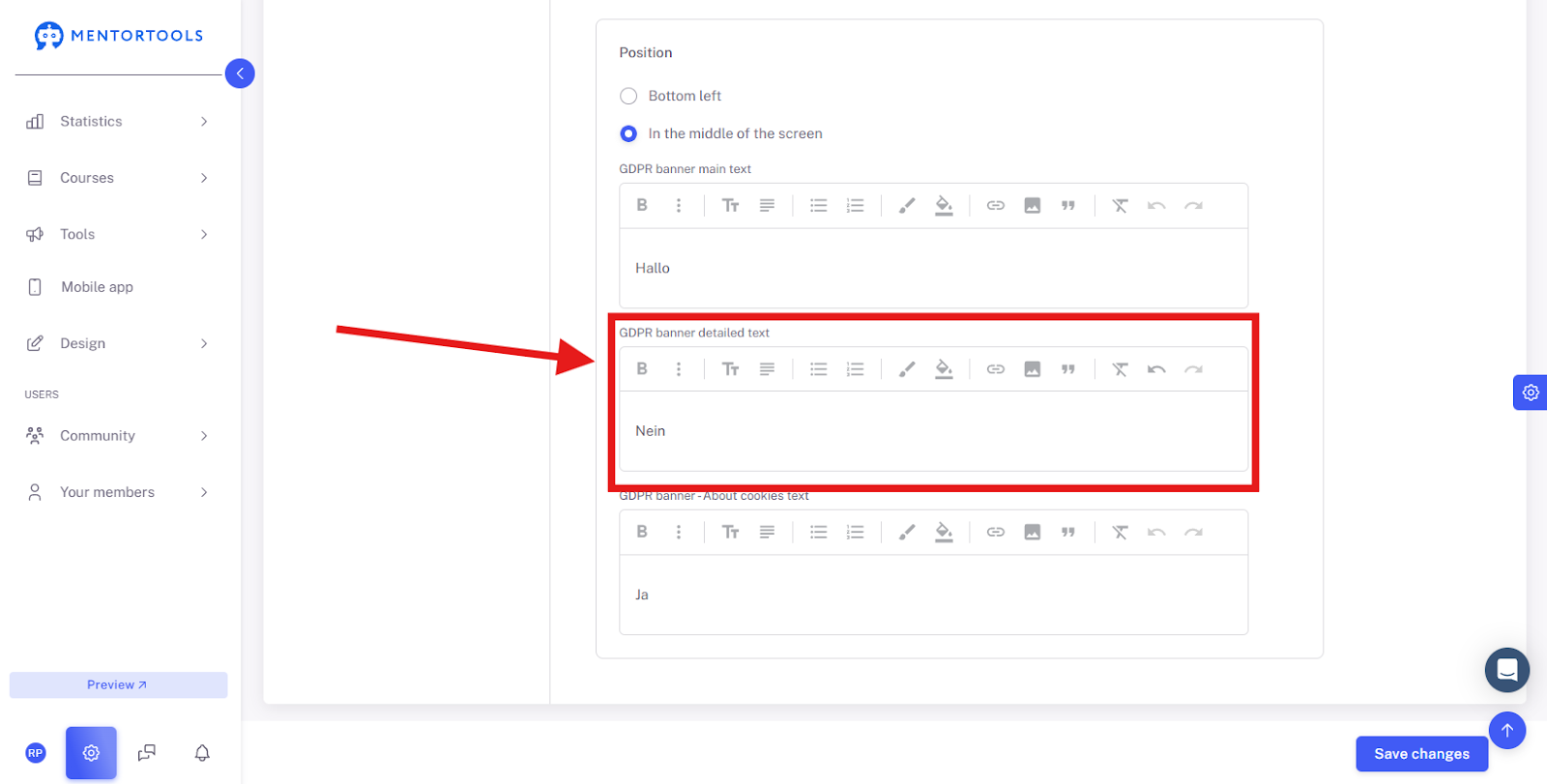
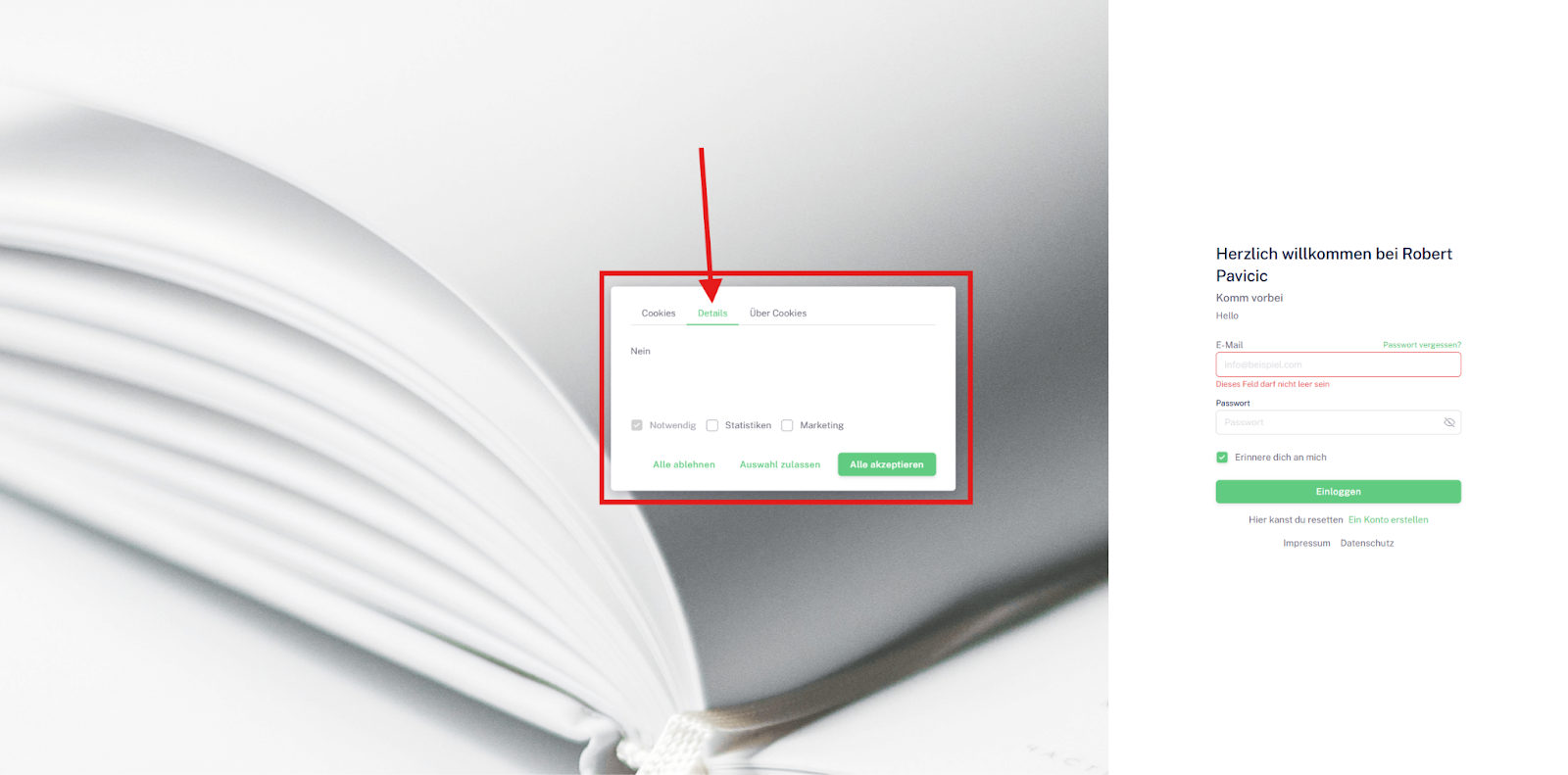
GDPR Banner - About Cookies Text: This field could be intended for a link or a text section that provides further information on cookies and data protection.
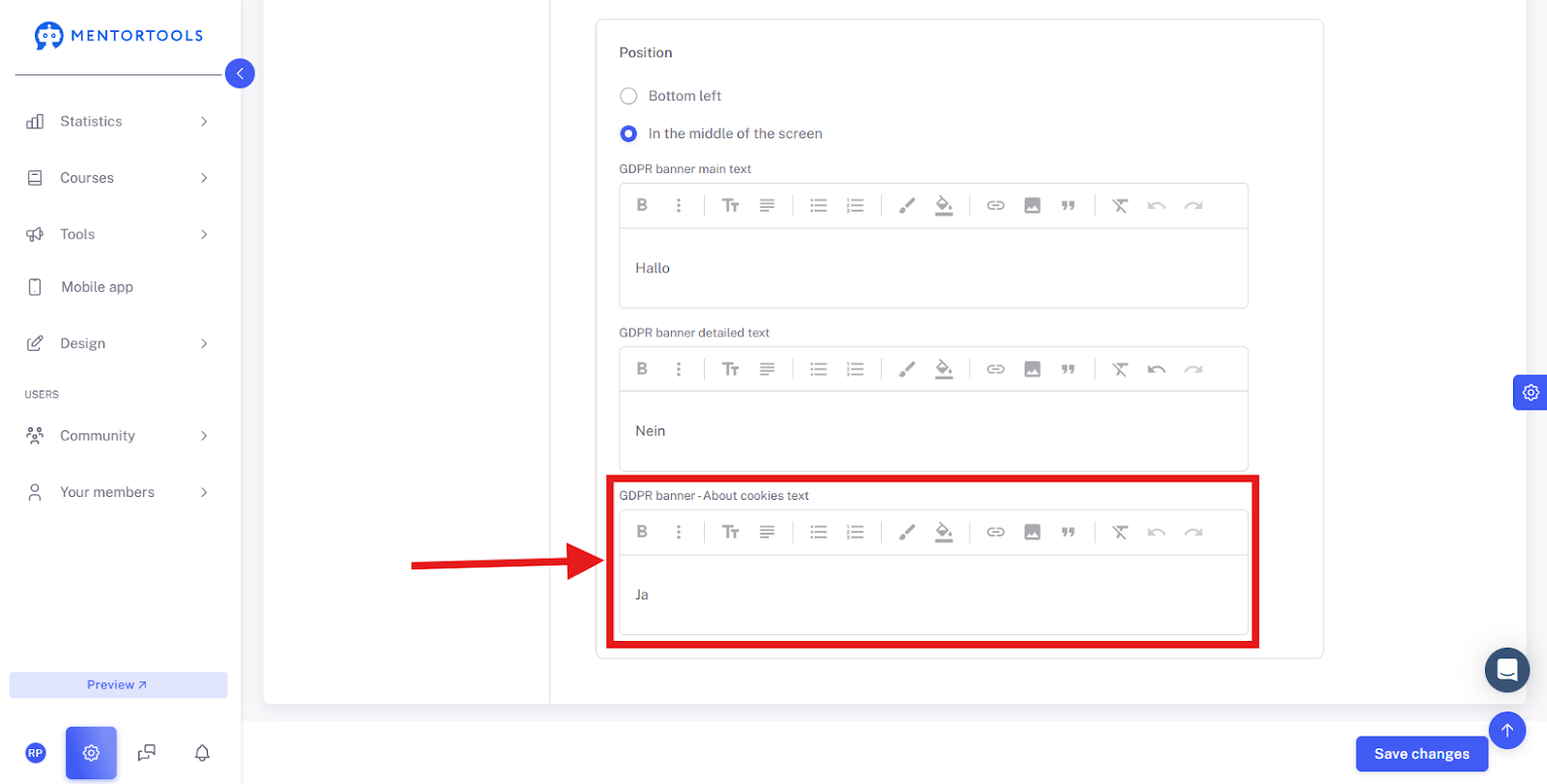
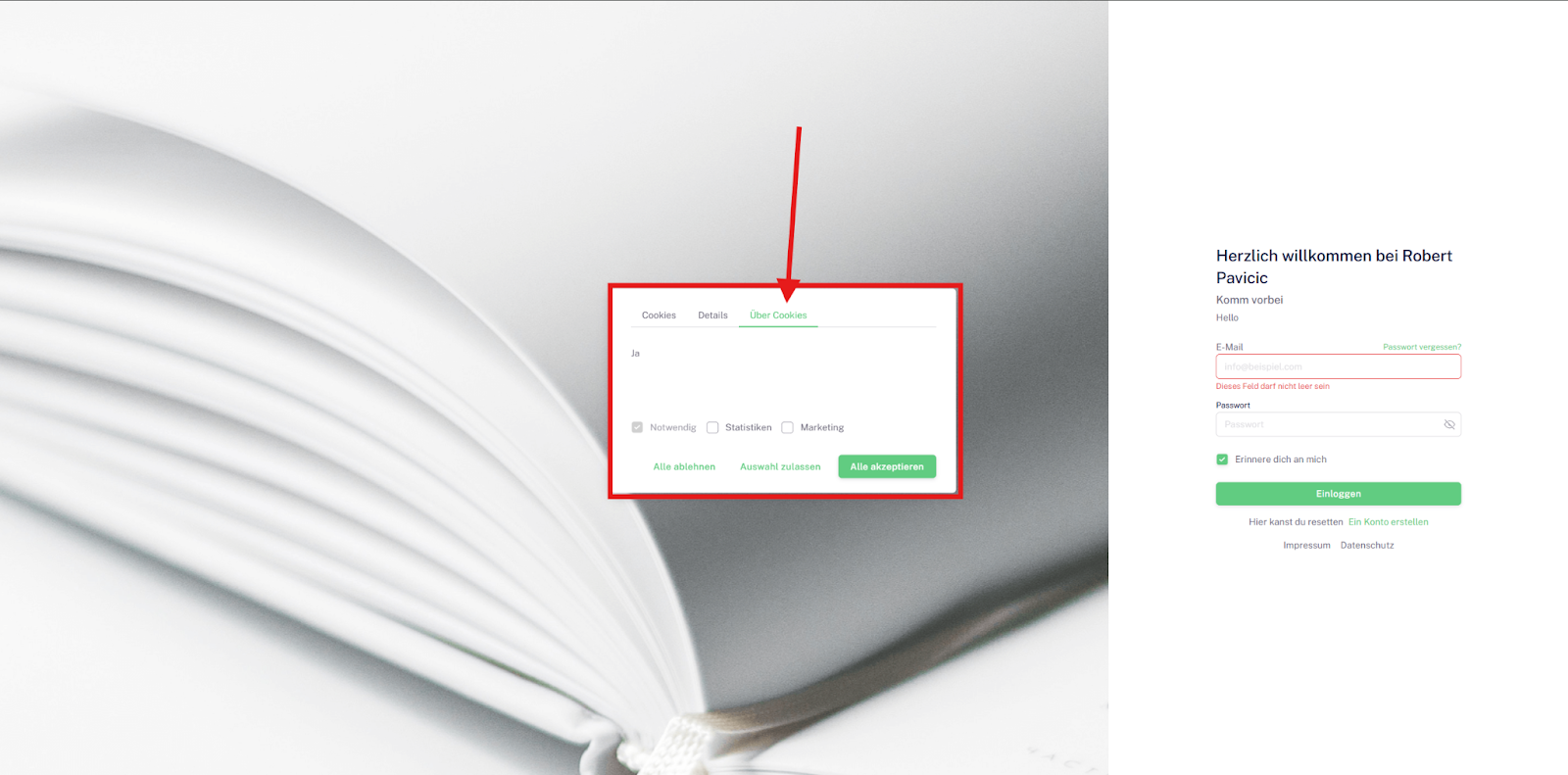
The options shown offer flexible control over the appearance and content of the cookie banner to adapt it to both legal requirements and design preferences.
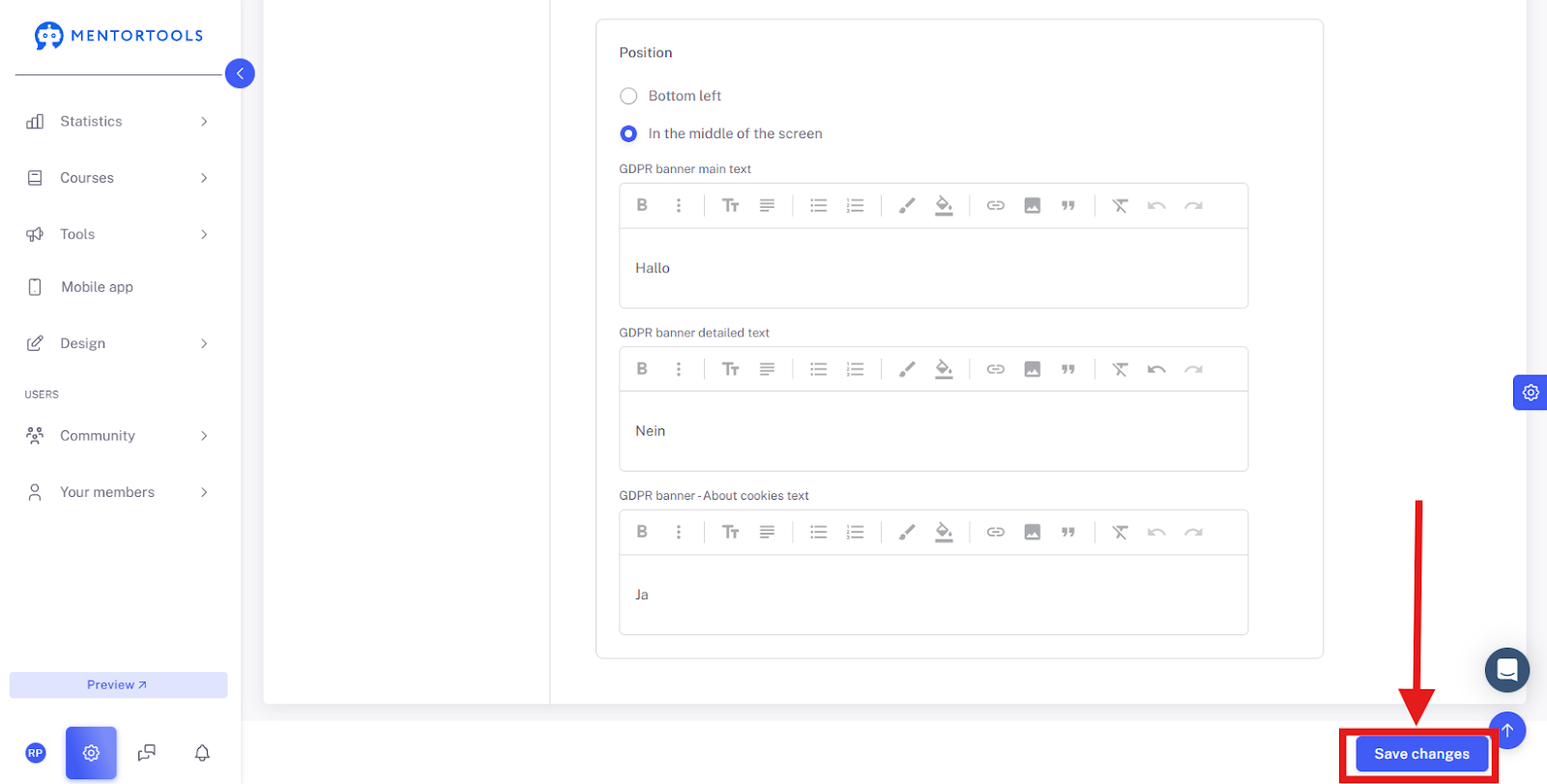
Save Changes
Only when you click this button will all your entries be saved and become active.
Summary
Customizing the Cookie Banner in Mentortools is very easy. You can find all relevant settings under "Analytics & GDPR" after clicking the gear icon in your member area.
Here are the most important points to keep in mind:
Tracking: You can choose when tracking is activated. The safest and most GDPR-compliant option is "Only when the user confirms the GDPR popup." Avoid "Always track users," as this usually does not comply with data protection rules. If you don't want to collect any data at all, choose "Never track users."
Design and Position: There are two layouts for the banner. Layout 1 (Left) is a narrow banner at the bottom, while Layout 2 (Right) is a larger pop-up that you can place either at the bottom left or in the center of the screen.
Customize Text: You can write the text for your cookie banner yourself. For Layout 2, there are separate fields for the main text, a more detailed text, and text about cookies. Make sure your explanation is clear and understandable. You can also change the labels for the Accept button and the Decline button, for example, to "Agree" and "Decline."
Save Changes: Don't forget to click "Save Changes" at the end for your customizations to be applied.
These options give you full control to adapt your cookie banner to legal requirements while integrating it into the design.
Was this helpful?