Academy Design – Course Details
In this article, you will learn how to set up the Academy Design for your member area.
Last updated About 1 year ago
This refers to the Dashboard, which is essentially the main or homepage. This is the page your members land on after they have logged in with their credentials.
The motto here is: The first impression counts. This means this page should be as clear and inviting as possible and should suit you, your members, and your topic.
To do this, please go to Design and then Academy Design in the menu bar.
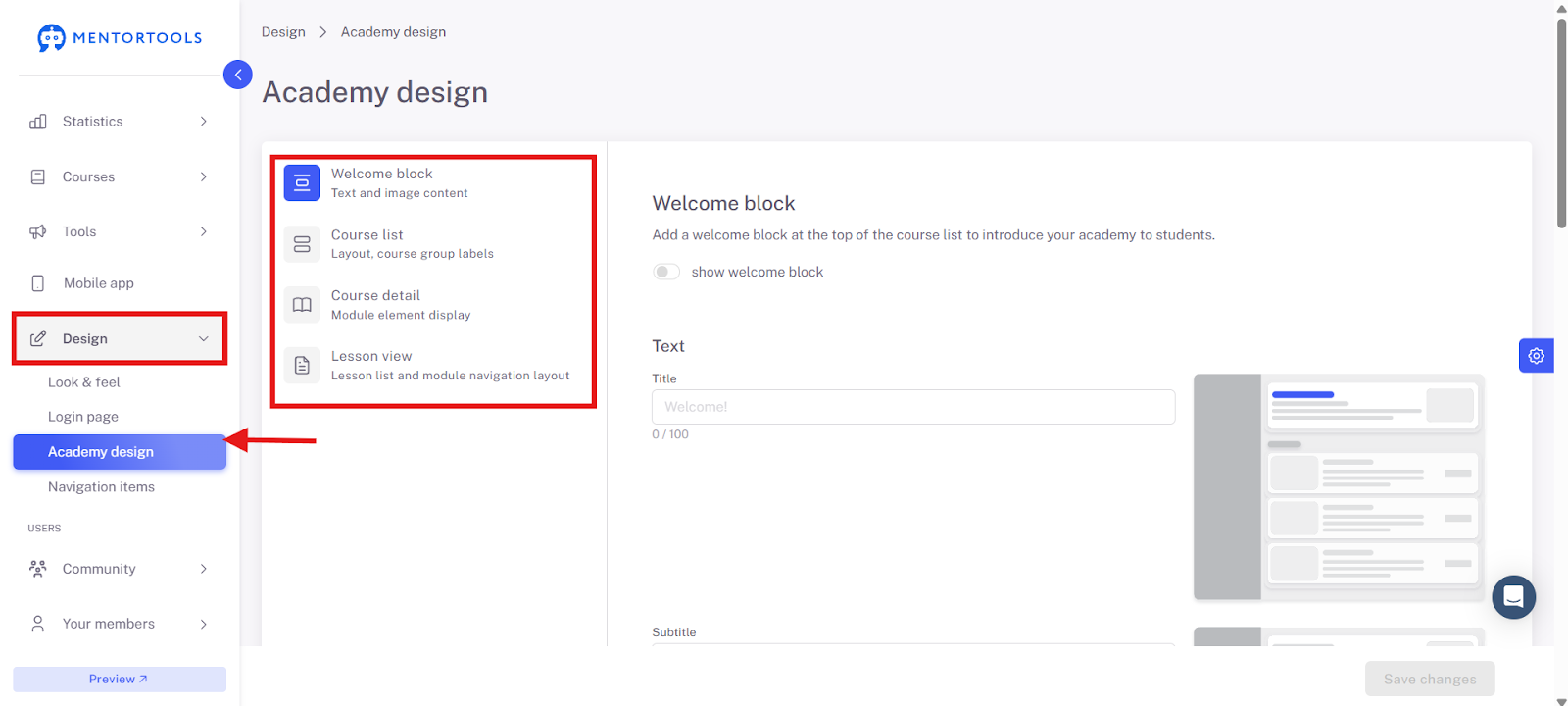
Under Academy Design, you will find 4 sections:
Welcome Block
Course List
Course Details
Lesson View
We will go through these one by one.
Course Details
Display labels like "Lesson" or "Quiz" next to the elements in the course overview list.
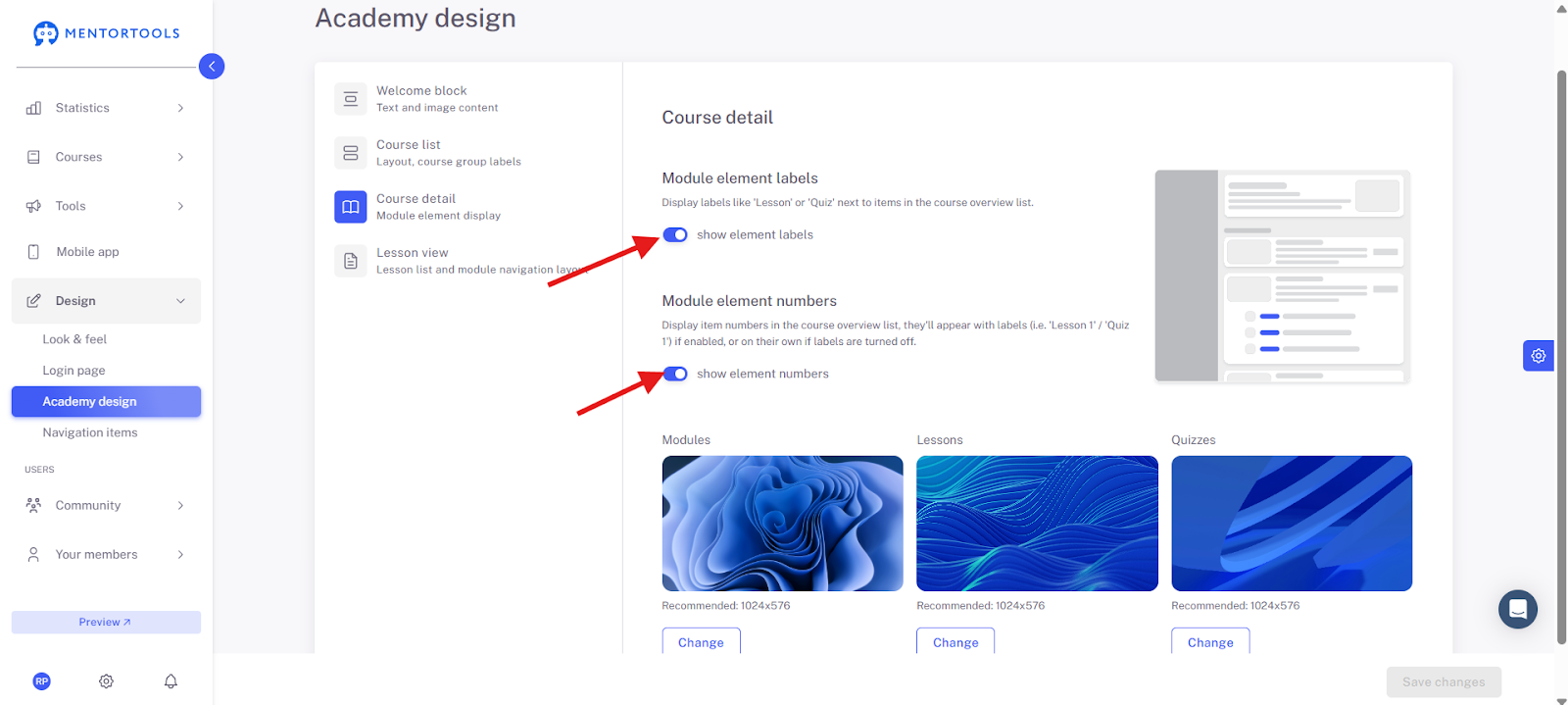
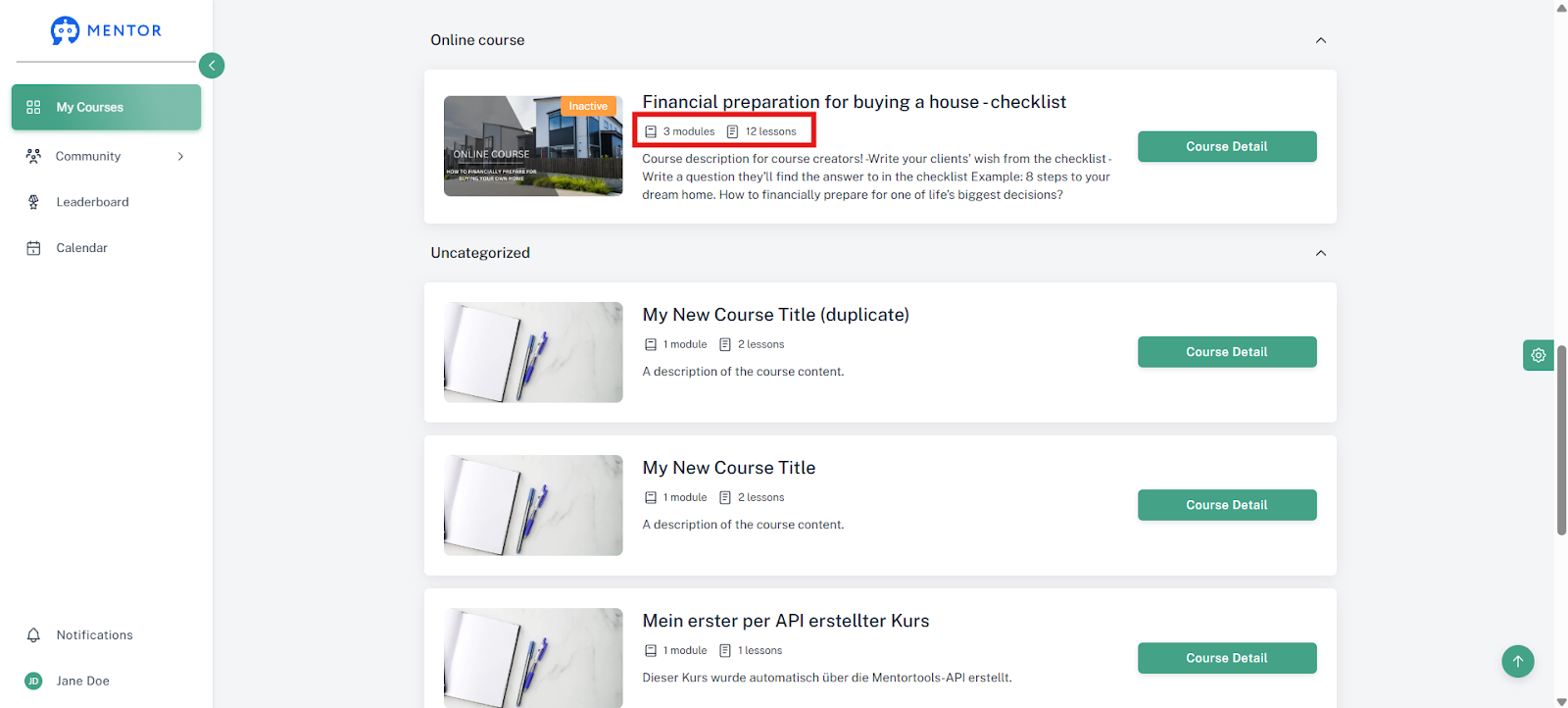
This way, the user can see at a glance what to expect in the module. This is not a requirement, though; you can also leave this function inactive.

For individual elements—module, lesson, quiz—you can also set default cover images here. These images are displayed as cover images for all elements in the course (module/lesson/quiz) for which you do not set your own cover image. The images are automatically used for all new courses.
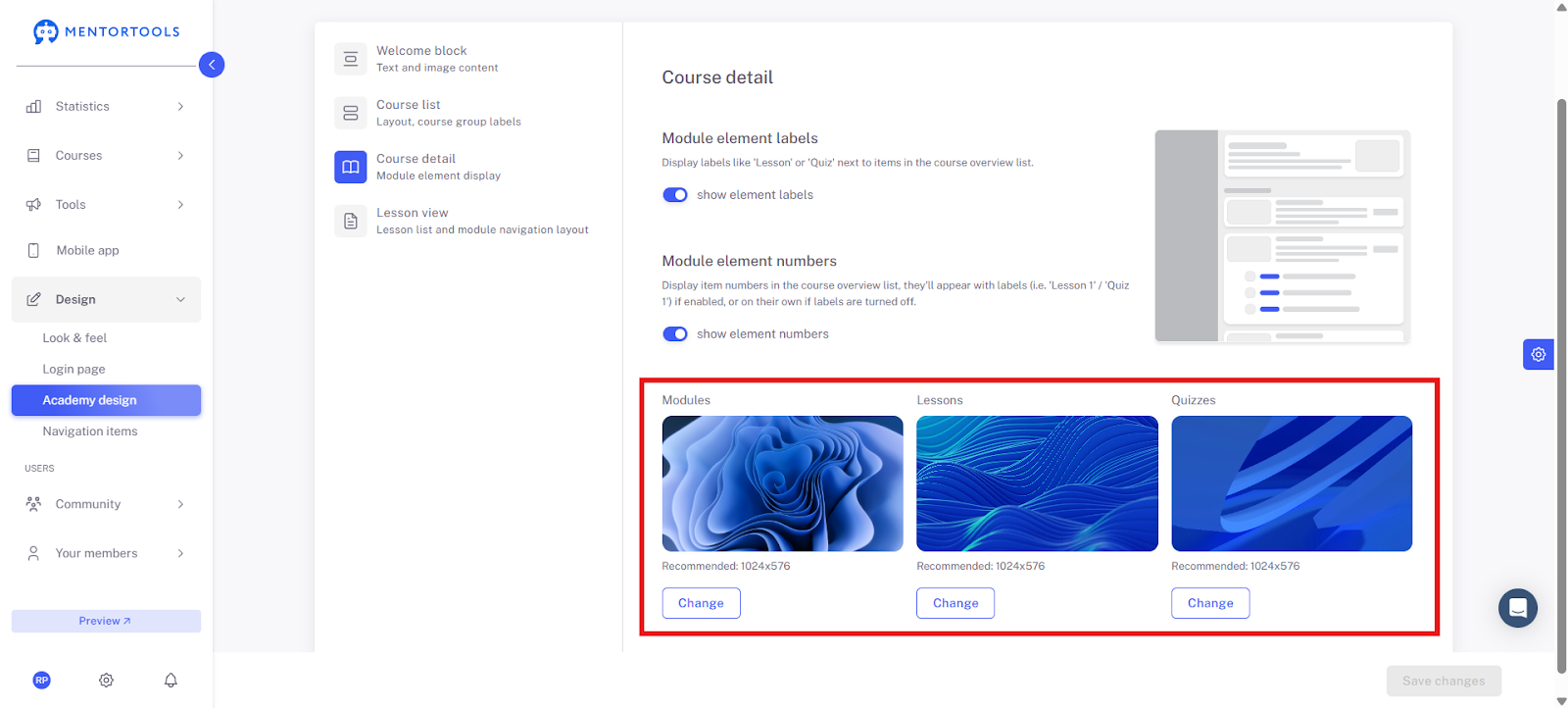
Important: As always, remember to save changes!
Have fun and continued success!
Was this helpful?