Welcome Emails – Email Sender
In the sender settings for emails, you can define the address from which welcome emails are sent to your customers. In this guide, we will walk you through the entire process of setting up your own email sender.
Last updated About 1 year ago
Email Settings
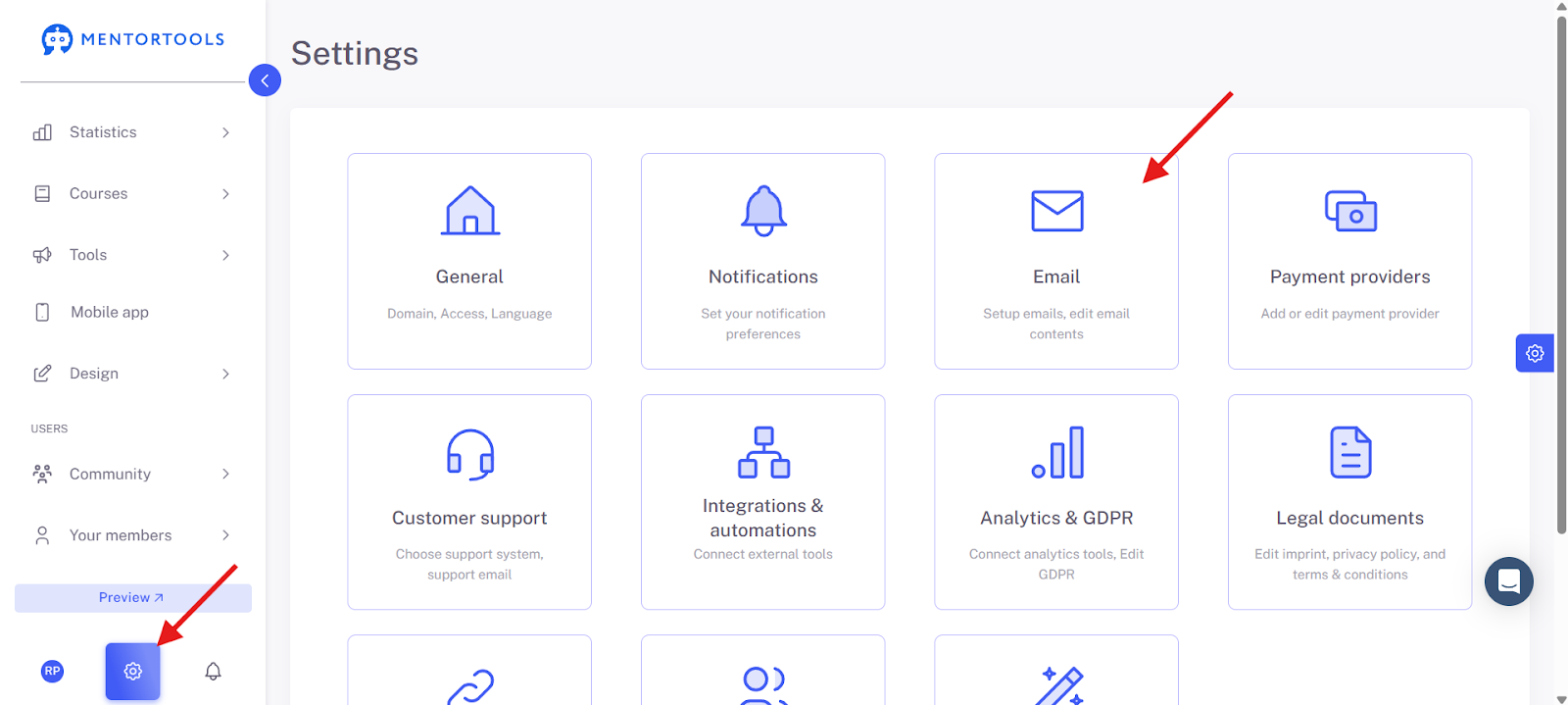
In the email settings, you can define the address from which your emails are sent. By default, we send the emails to your users from info@mentortools.com but with your name as the sender.
For example, if someone buys a course from you and receives the access data by email, your first and last name will be displayed as the sender. Users will immediately know that the course is from you.
However, you can also set up Mentortools to send access data, passwords, etc., from your email address. This way, replies from your users will also go to you.
You can find these settings here in the email settings:
Email Sender via DNS
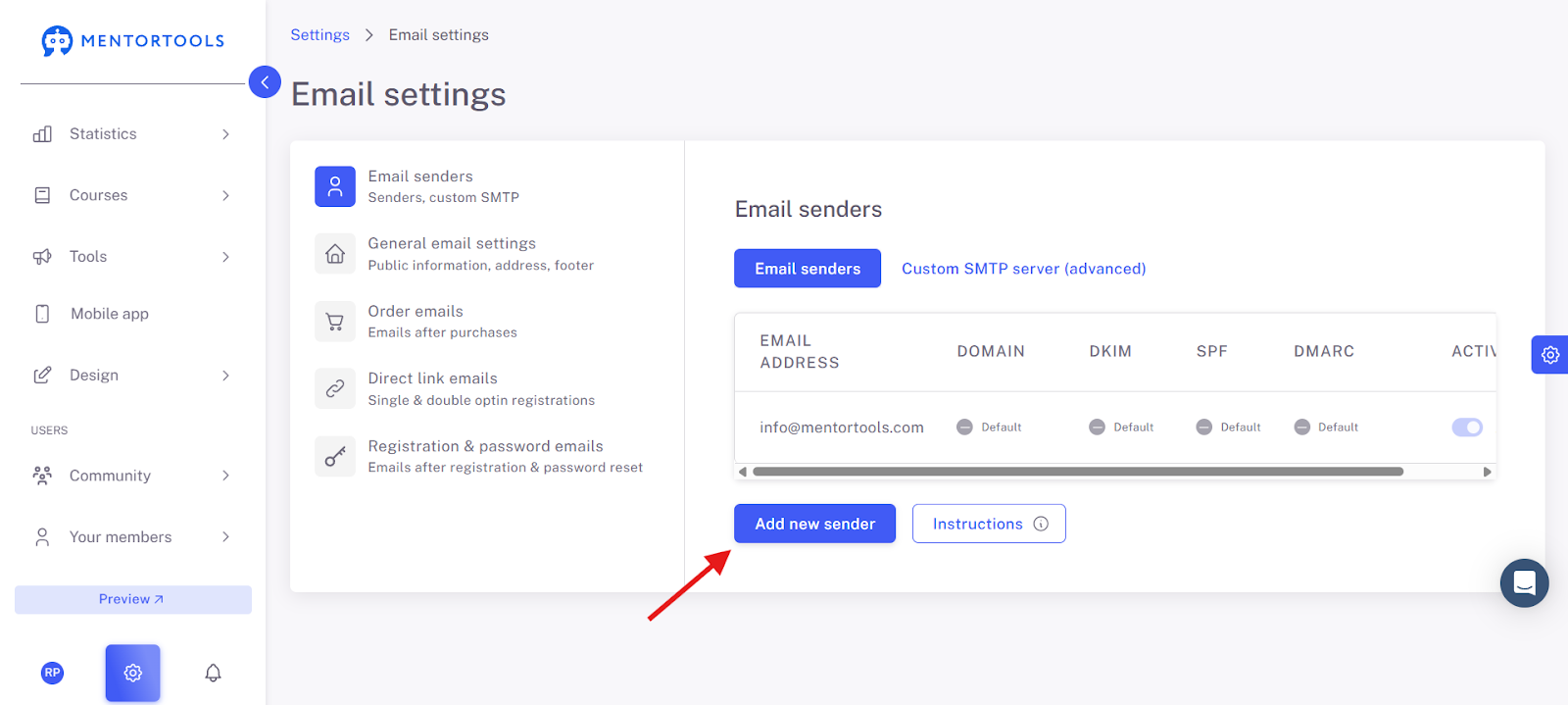
Follow these steps to set up your own sender.
Click on "Add new sender."
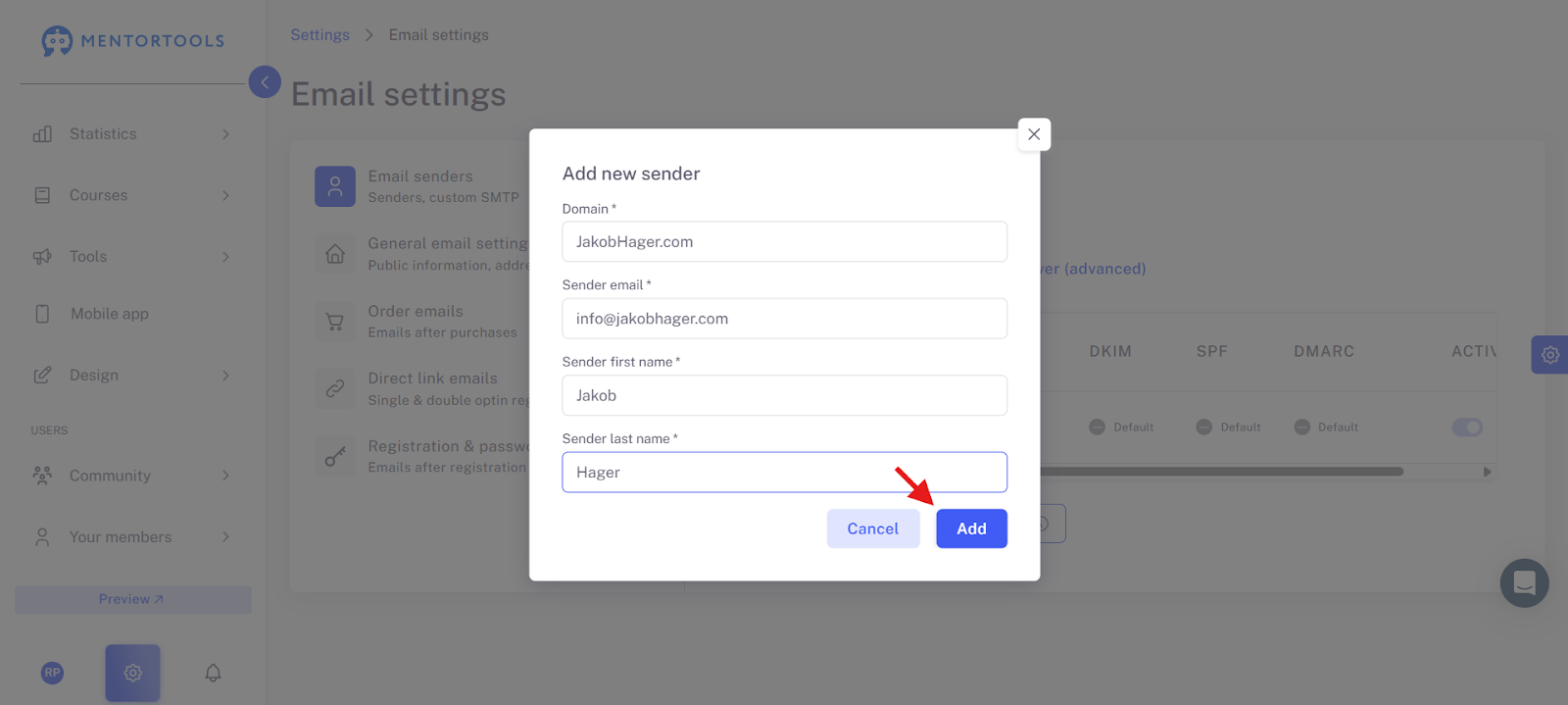
Enter the domain, an existing email address of yours, and the first and last name of the sender. In most cases, this will simply be your first and last name and your business email address. Then click "Add."
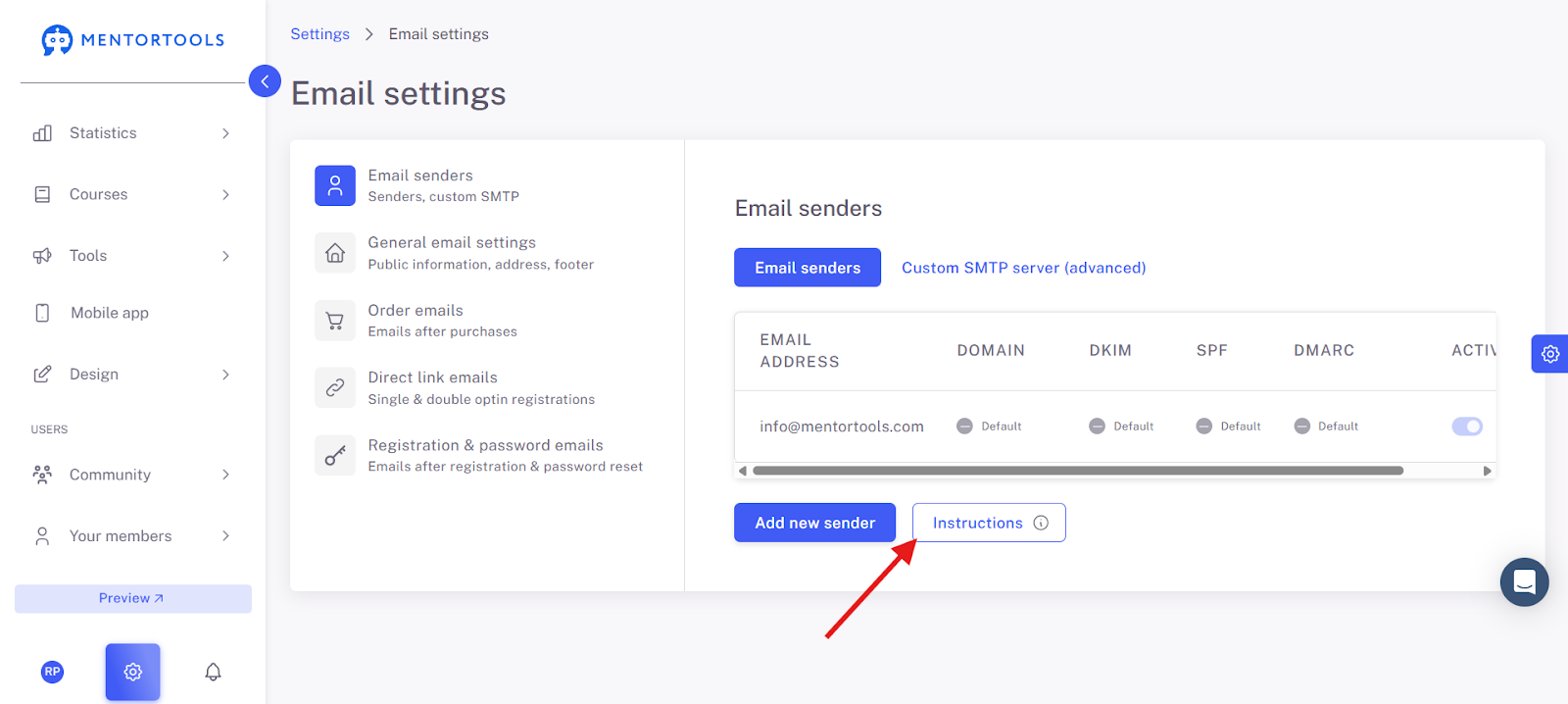
Navigate to Your DNS Settings
In the next step, we need to verify your domain. To do this, we need access to the DNS settings. You can find the DNS settings where you purchased your domain.
This could be at Strato, All-Inkl, IONOS, easyname, name.com, etc. We have also linked numerous guides for many providers on how to find the DNS settings there. These guides are primarily for setting up your own domain, but we need the same settings to verify the domain. Here are the linked guides:
Strato - https://www.strato.de/faq/domains/wie-kann-ich-bei-strato-meine-dns-eintraege-verwalten/
One.com - https://help.one.com/hc/de/articles/115005595925-Verwaltung-Ihrer-DNS-Einstellungen
easyname.com - https://www.easyname.at/de/support/domains/38-wie-kann-ich-meine-dns-eintraege-verwalten
Hosteurope - https://www.hosteurope.de/faq/domains/verwaltung
wix.com - https://support.wix.com/de/article/dns-einträge-in-deinem-konto-bei-wix-verwalten
All-Inkl - https://all-inkl.com/wichtig/anleitungen/kas/tools/dns-werkzeuge/txt-record_157.html
name.com - https://www.name.com/de-de/support/articles/205934397-adding-an-spf-record
GoDaddy - https://www.godaddy.com/de/help/dns-records-verwalten-680
If you are using another provider, that's not a problem either. You just need to look for the DNS settings and ask your DNS hoster's support where you can find these settings.
Verify Your Domain
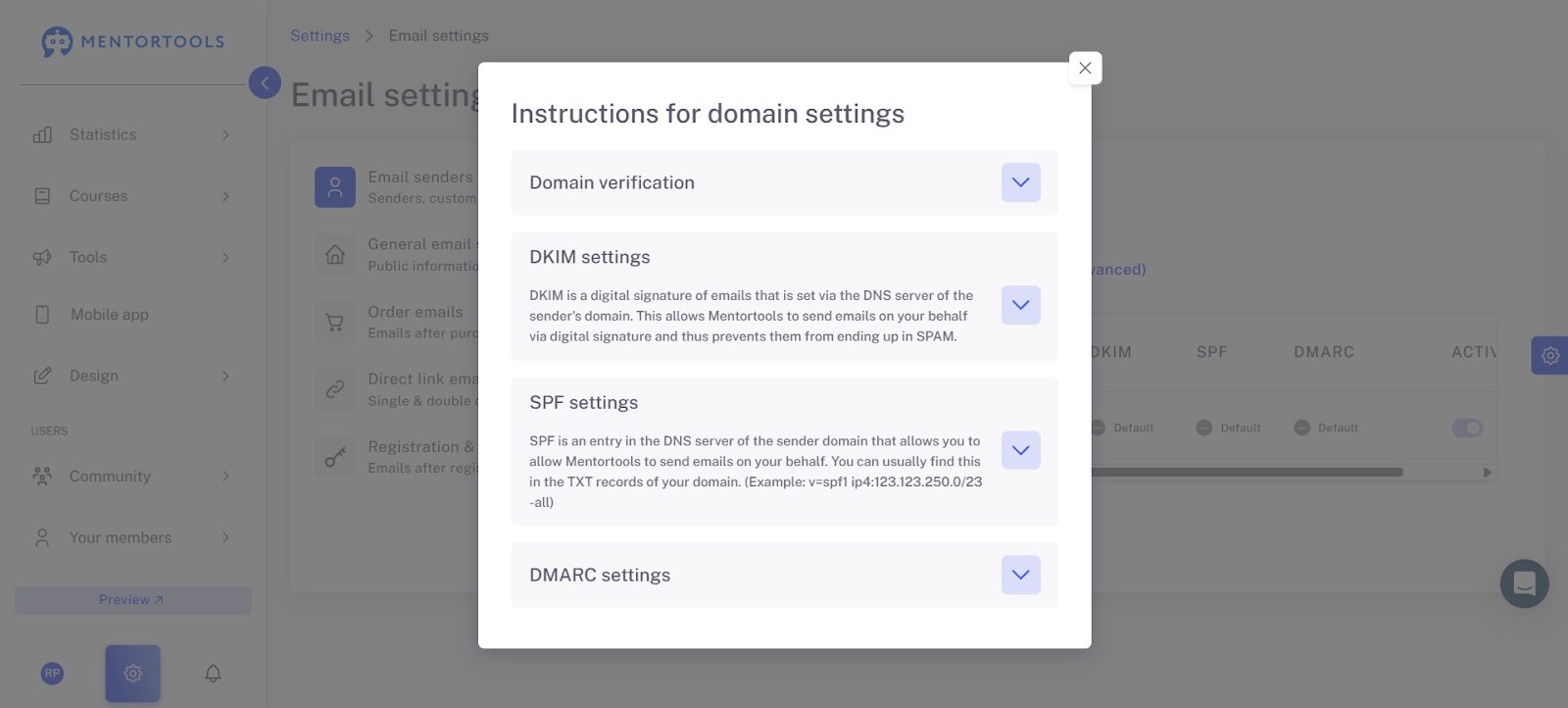
Verify your domain by adding a TXT record. You can find the data for this here:
Here you can copy the value of the TXT entry (the text in the white field):
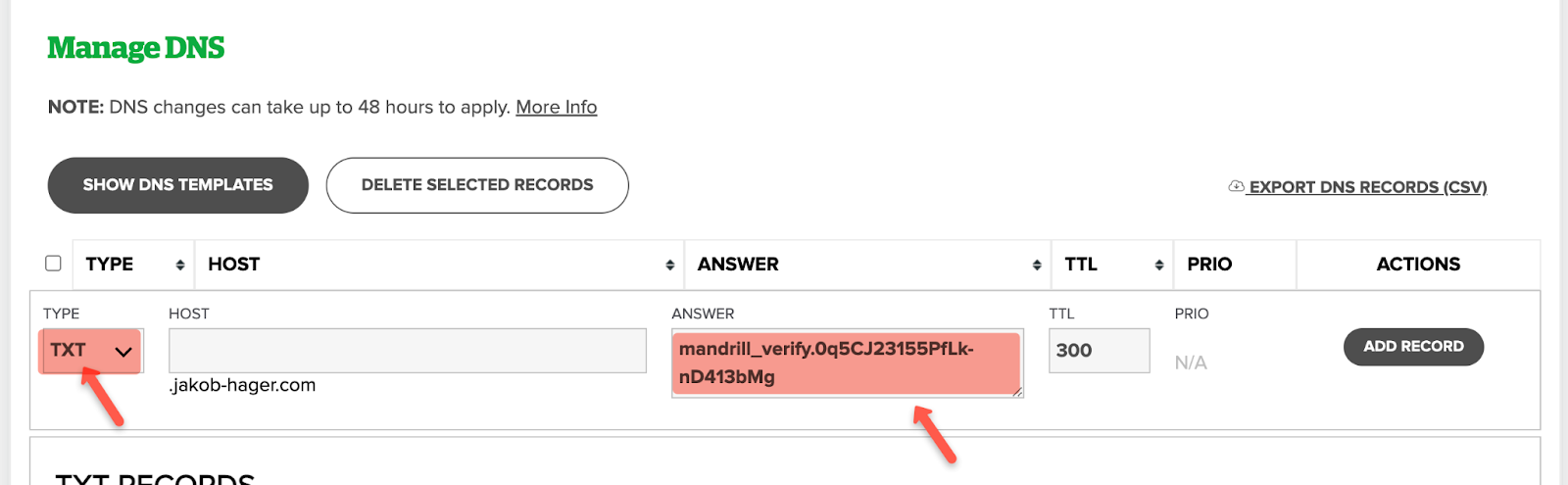
You can set this value as a new TXT record in your DNS hoster. It could look like this:
Create Two CNAME Records for DKIM
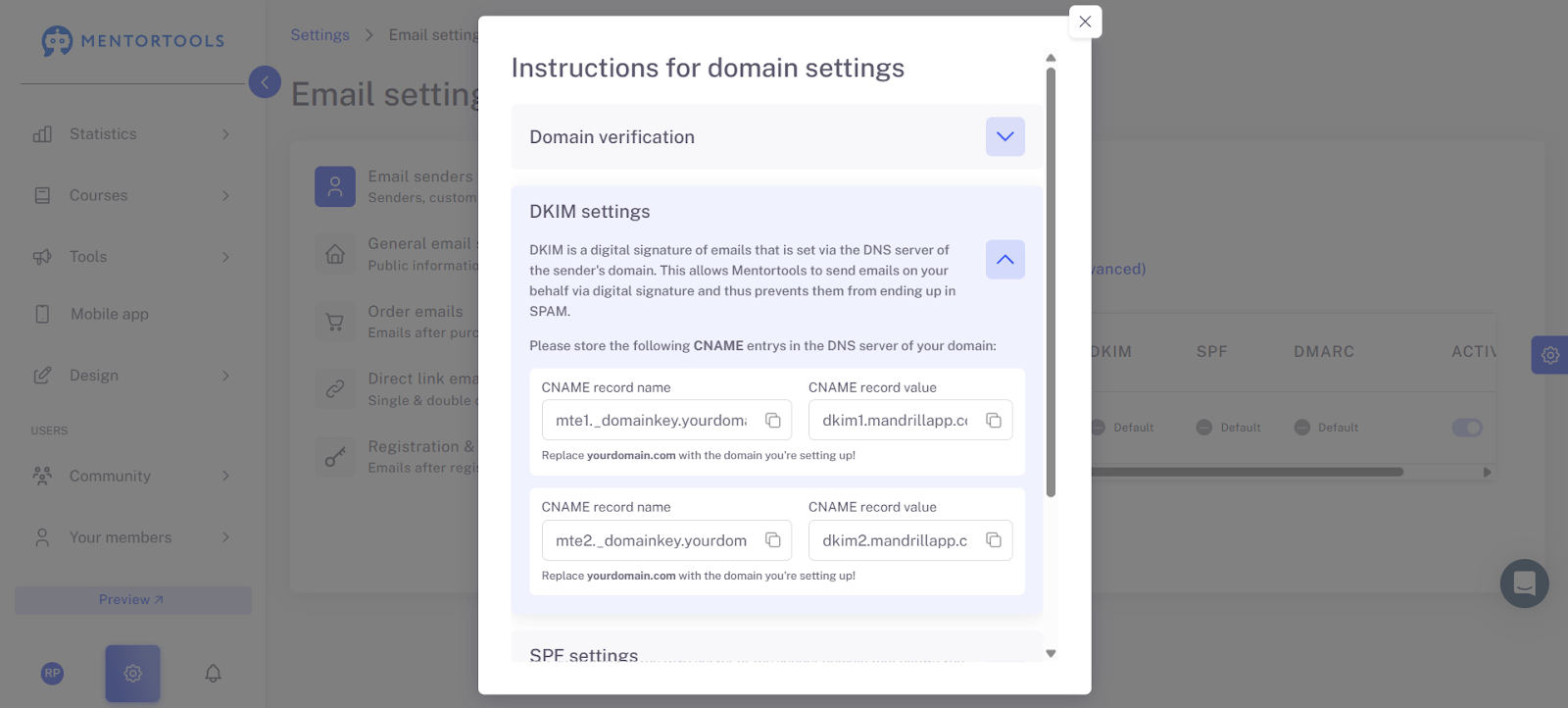
DKIM is a digital signature of emails that is set via the DNS server of the sender's domain. With it, you allow Mentortools to send emails on your behalf using a digital signature, thus preventing them from ending up in spam. To set up DKIM, please click on the DKIM settings and create two CNAME records in the DNS server of your domain.
Create a TXT Record for SPF
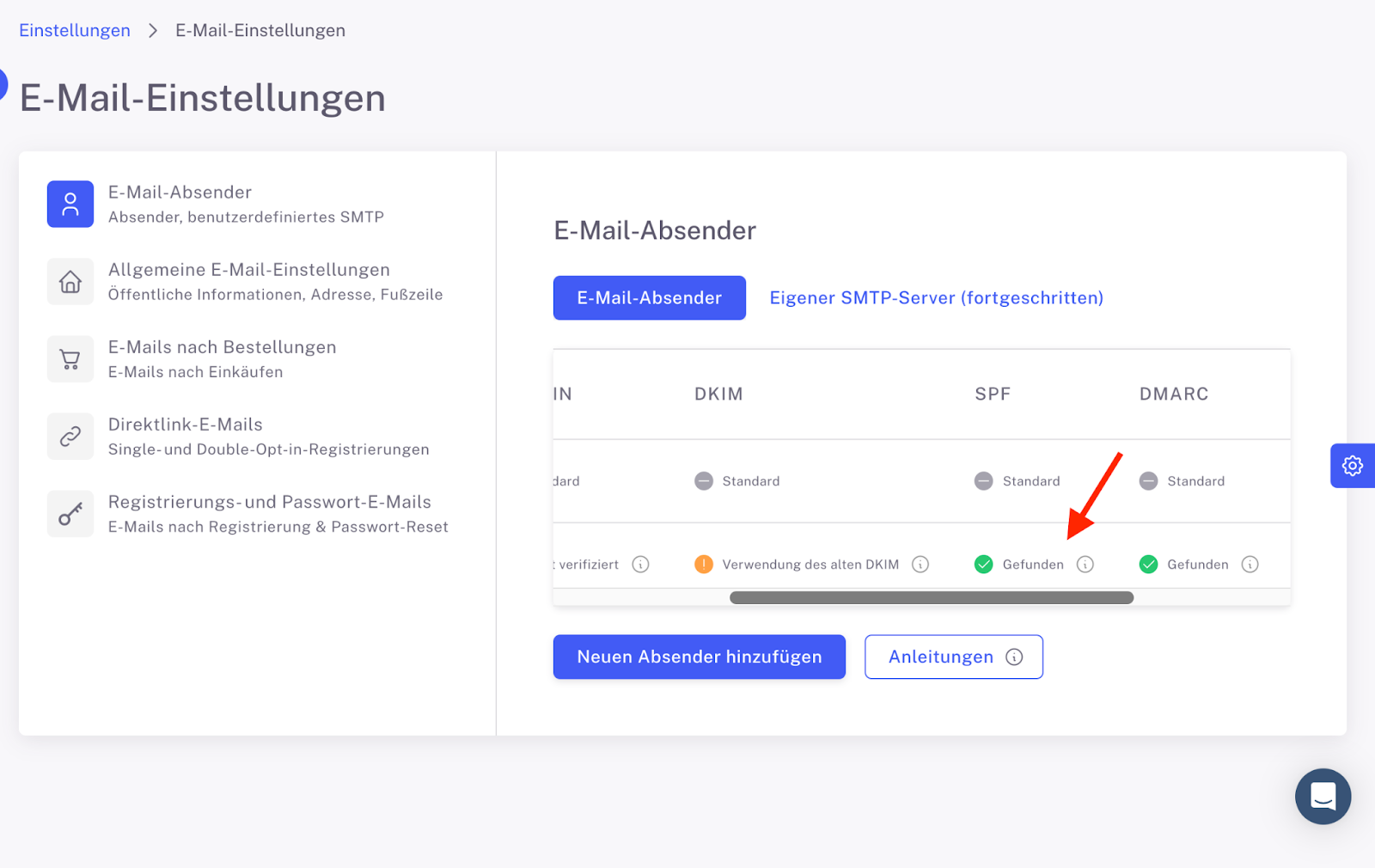
Attention: It's possible that an SPF record is already in place. Therefore, check whether this entry has been found and is already shown in green.
SPF is an entry in the DNS server of the sender's domain with which you allow Mentortools to send emails on your behalf. You usually find this among the TXT records of your domain. (Example: v=spf1 ip4:123.123.250.0/23 -all)
If you do not yet have an SPF record, please add the SPF value as a TXT record in the DNS entries of your sender's domain.
Note: It is possible that an SPF record for your main email service is already set up.
So, if there is already an SPF TXT record in the domain settings, then edit the existing entry and add: include:spf.mandrillapp.com – before the last value (usually this character string: ?all, ~all, or -all). Your SPF record might then look something like this: v=spf1 ip4:123.123.250.0/23 include:spf.mandrillapp.com -all (Example)
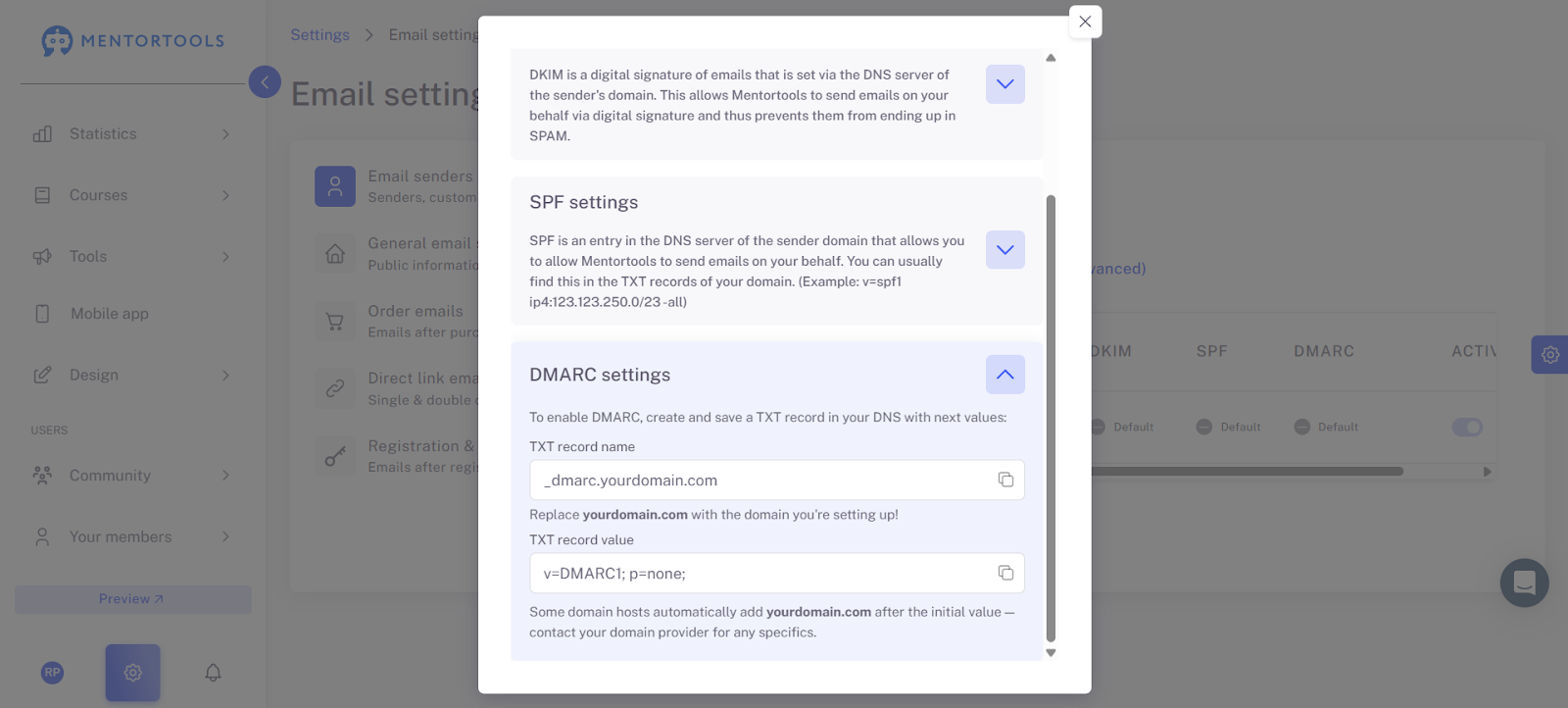
Create a TXT Record for DMARC
Attention: It's possible that a DMARC record is already in place. Therefore, check whether this entry has been found and is already shown in green.
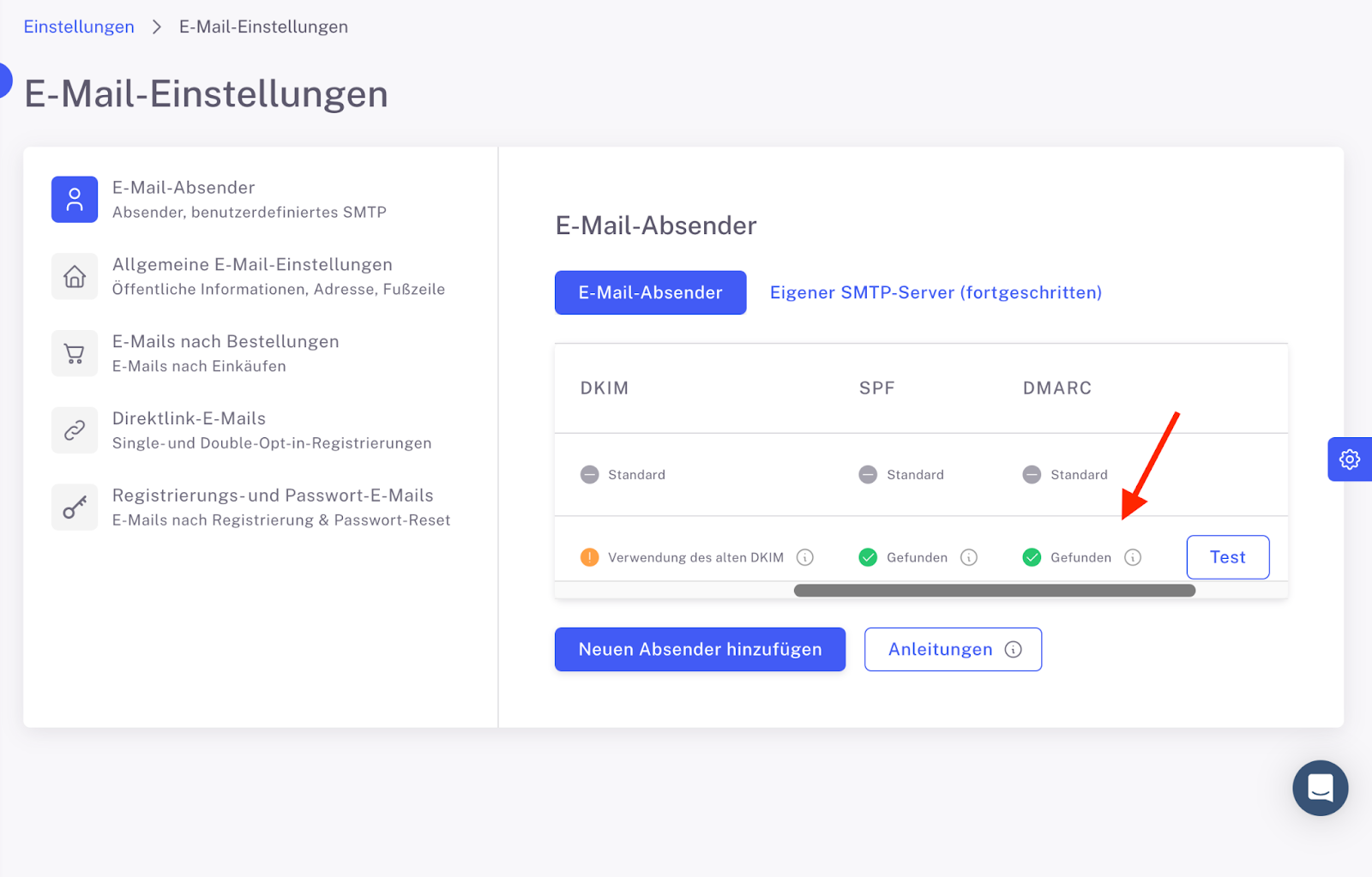
Domain-based Message Authentication, Reporting and Conformance (DMARC) is a specification developed to reduce email abuse, such as occurs with email spoofing. DMARC attempts to address some long-standing inadequacies related to email authentication.
To set up DMARC, please click on the DMARC guide and create a TXT record in the DNS server of your domain.
Test and Activate the New Sending Address
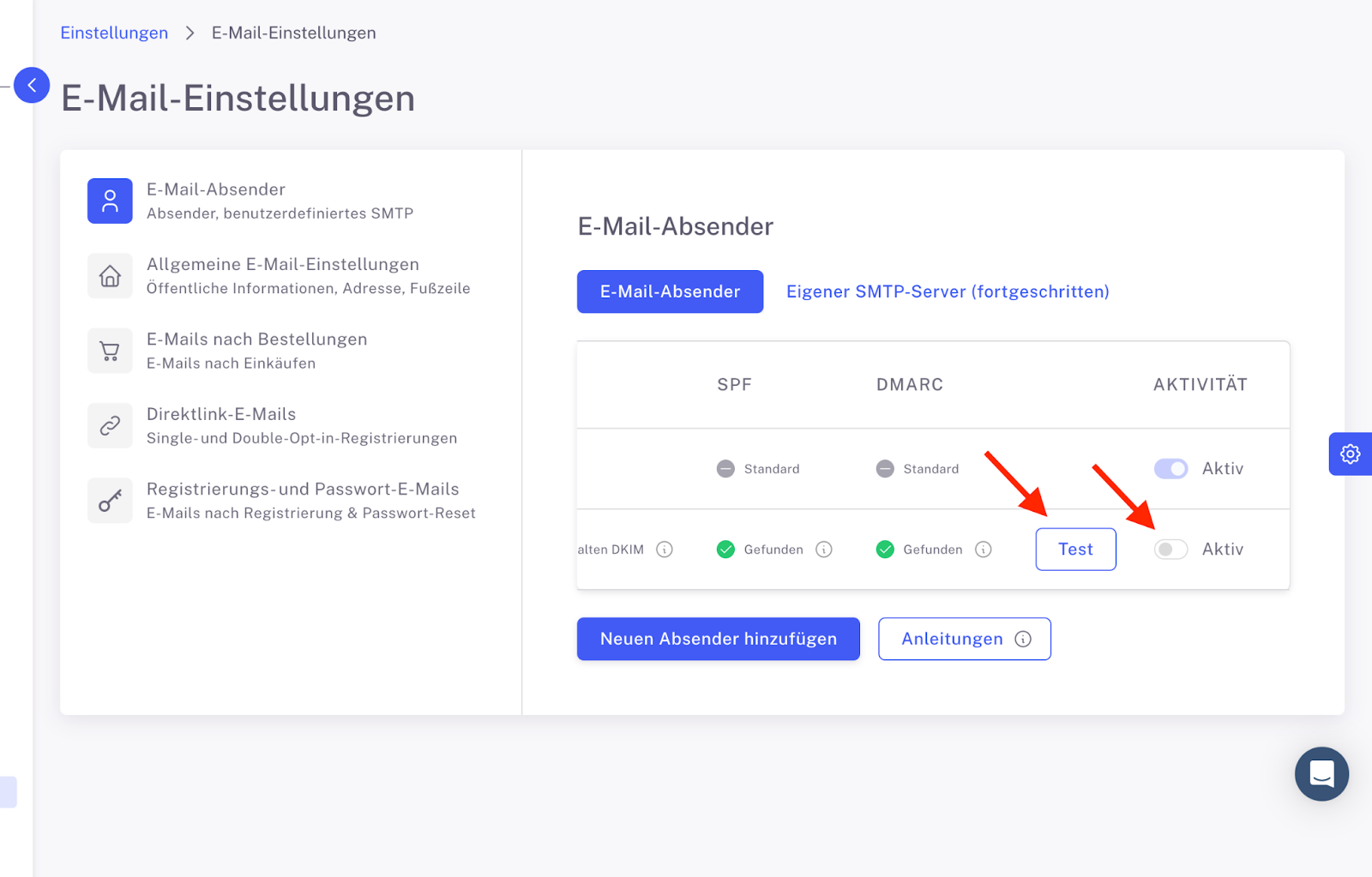
Once you have set these four TXT records, test them again and click on "Test" to the right of your new entry in Mentortools. You can then activate the new sender address and have all your emails sent through it.
Was this helpful?