Manually Adding an Order
In this guide, you will learn how to manually create an order in Mentortools—for example, for external payments via bank transfer or for special access releases.
Last updated About 1 year ago
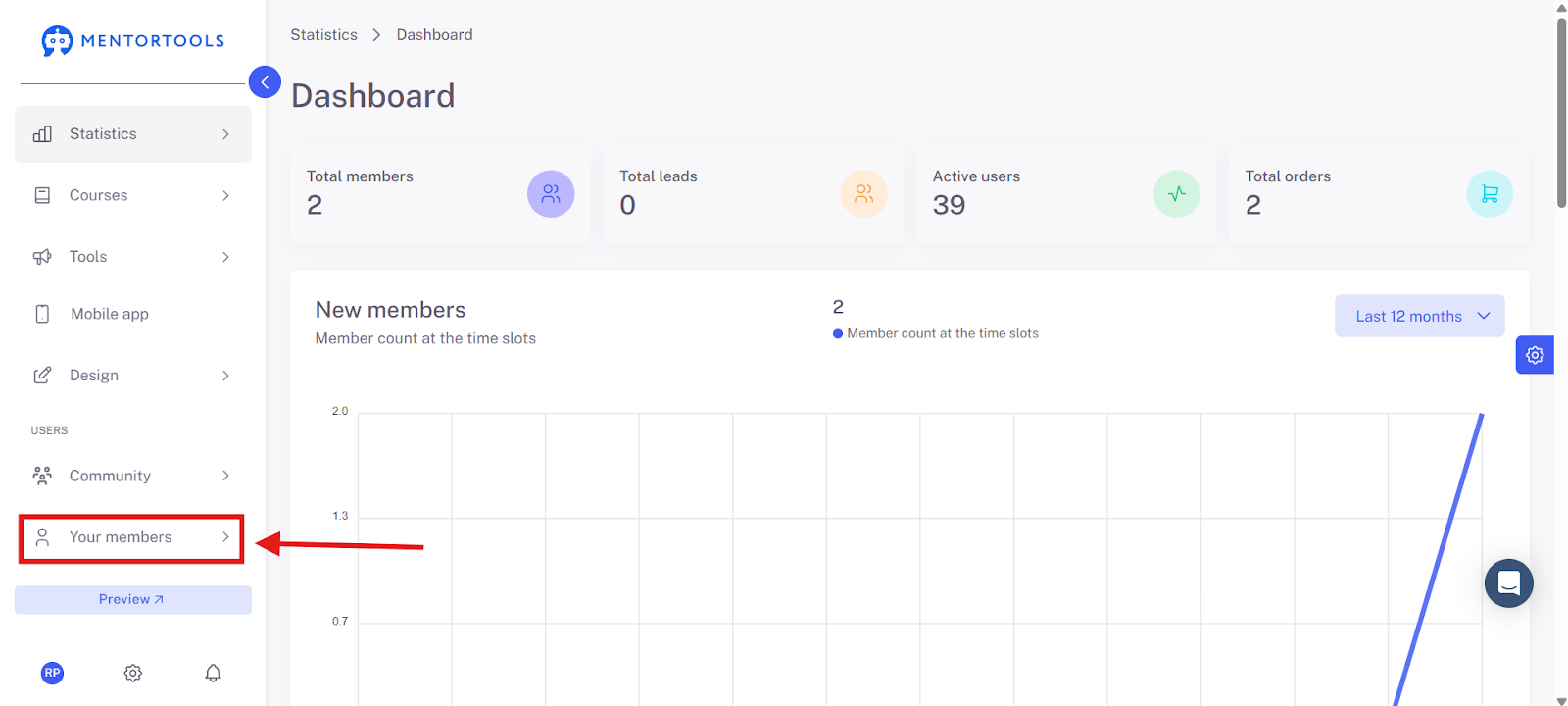
1. Click on "Members" in the left menu.
Go to "Members" in the left sidebar menu to open the user management.
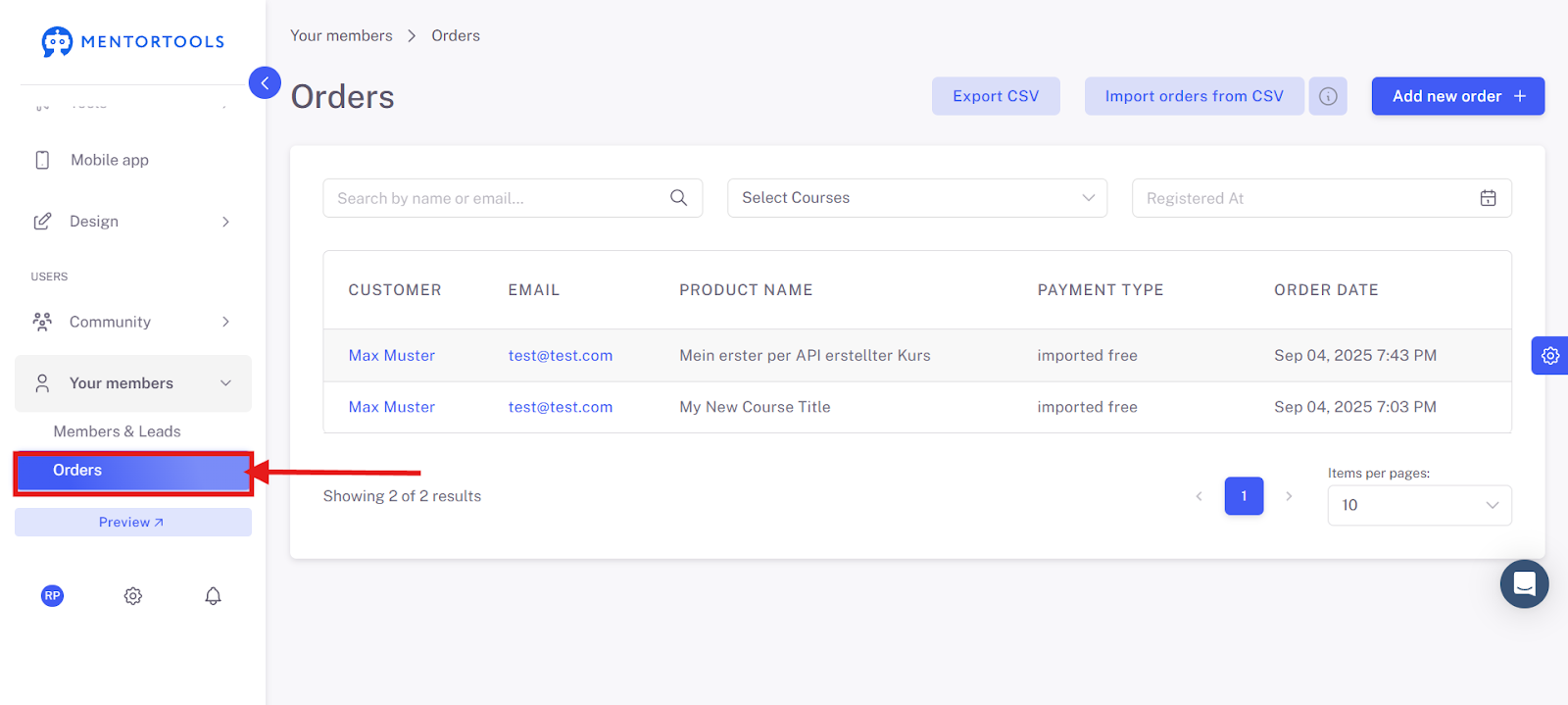
2. Select "Orders."
Select the "Orders" tab to create a new order or manage existing ones.
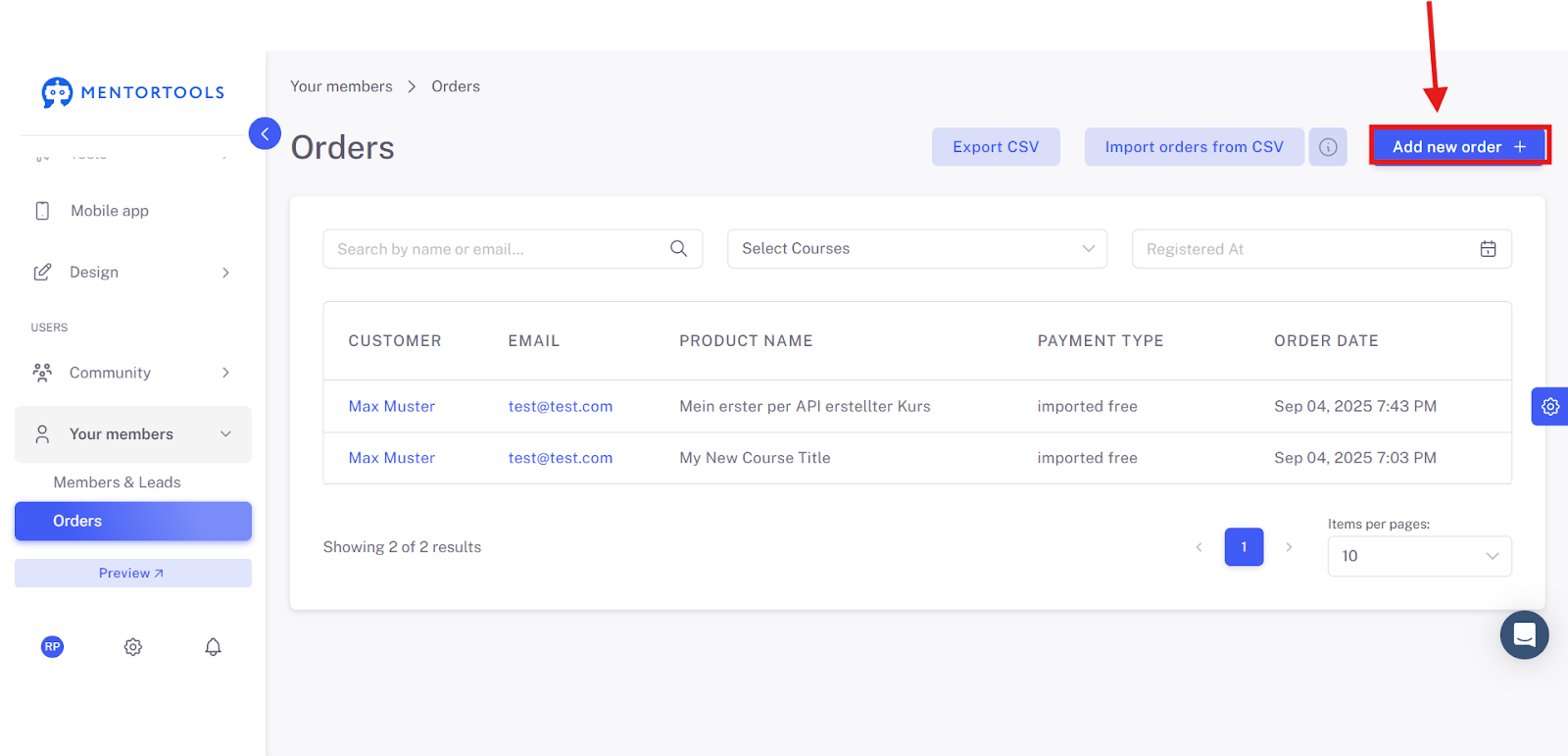
3. Click on "Add new order."
Start the process to manually create a new order.
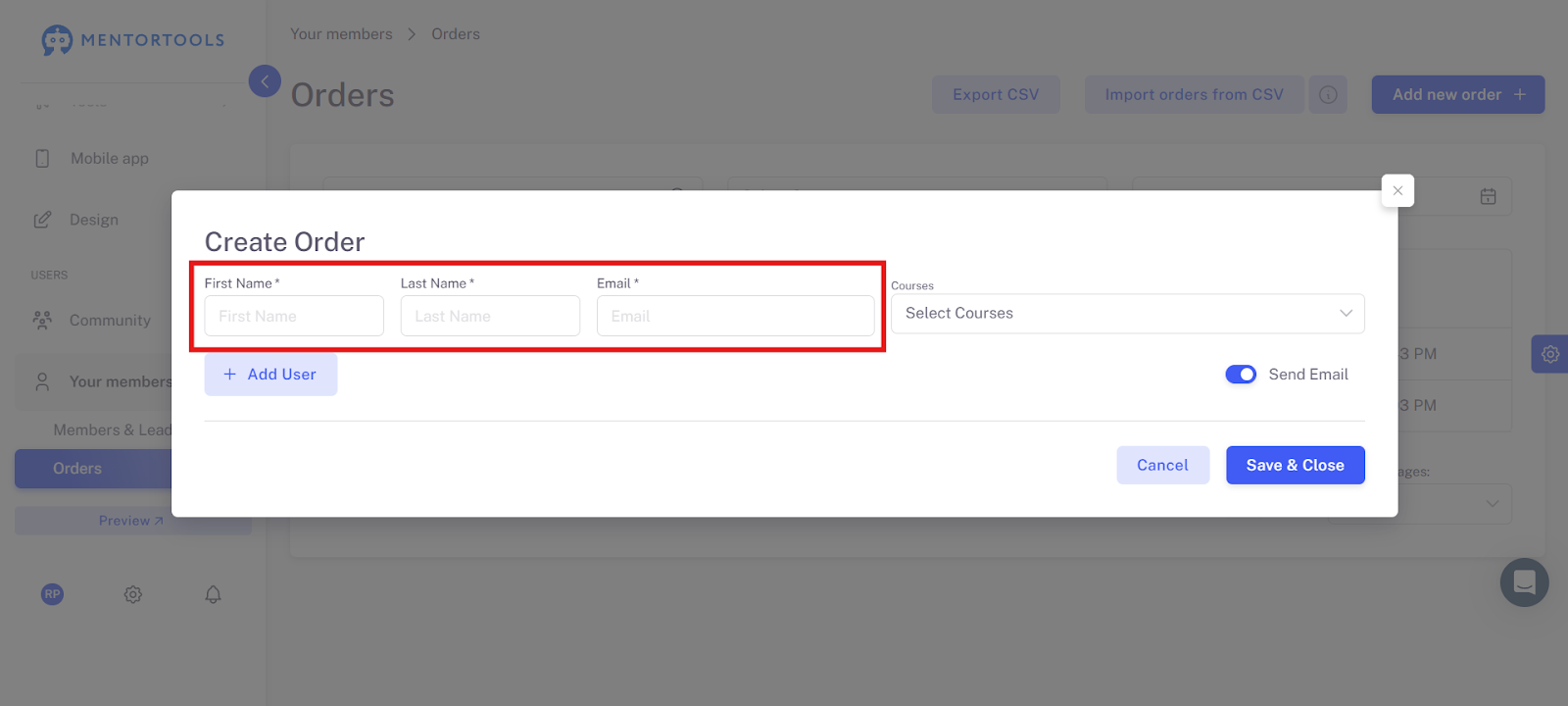
4. Enter customer data.
Enter the first name, last name, and email address of the participant.
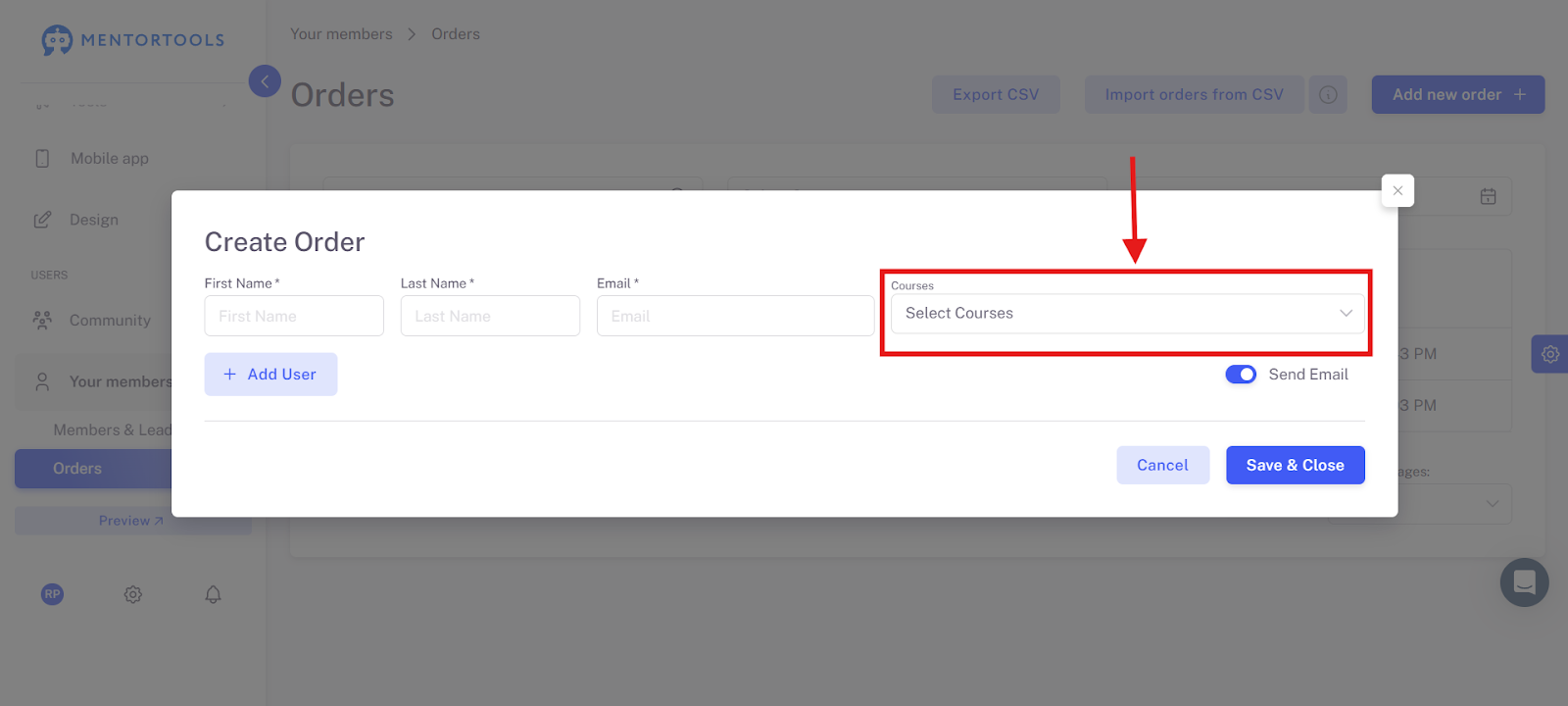
5. Select a course
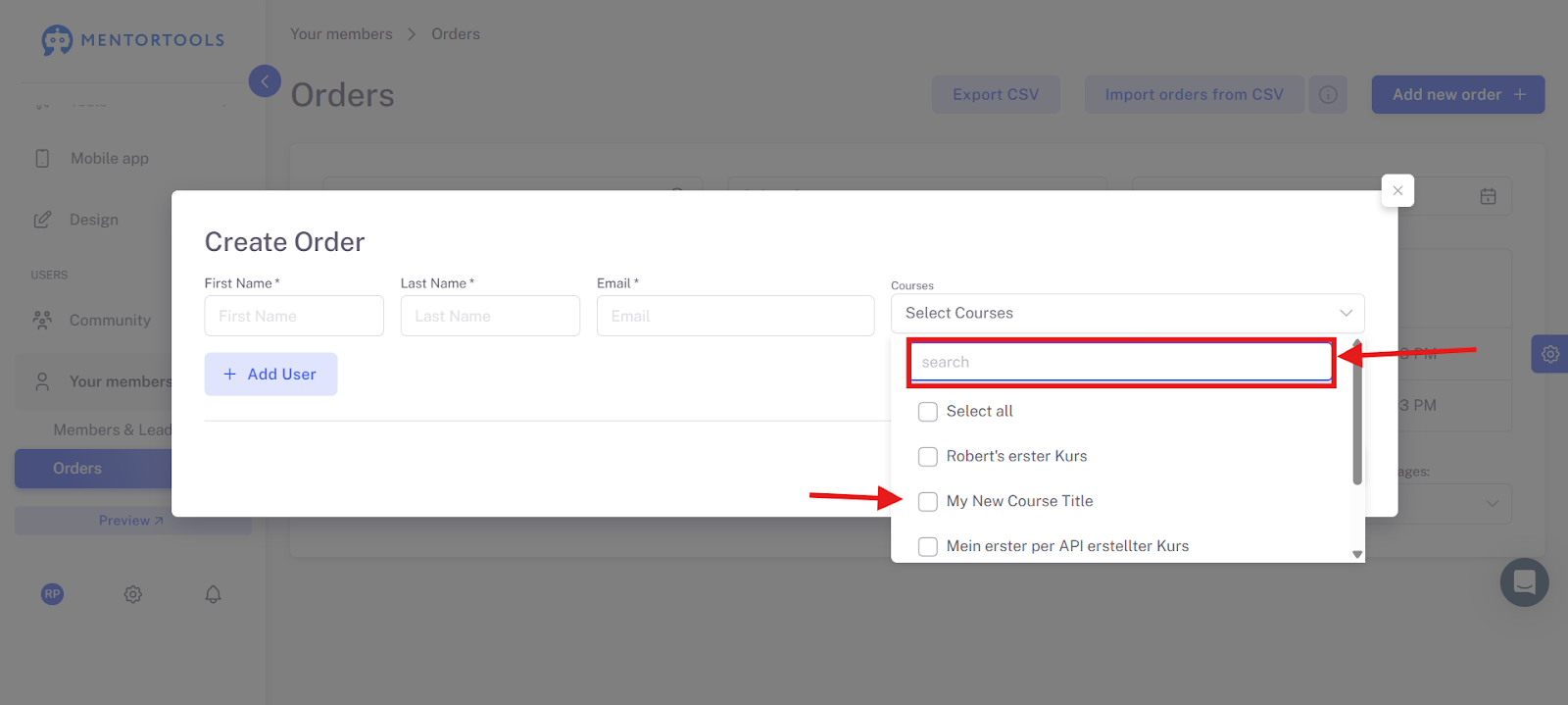
Select the desired courses for the order. You can click the arrow to select the desired courses from the dropdown menu.
You can also use the search function there to look for a specific course.
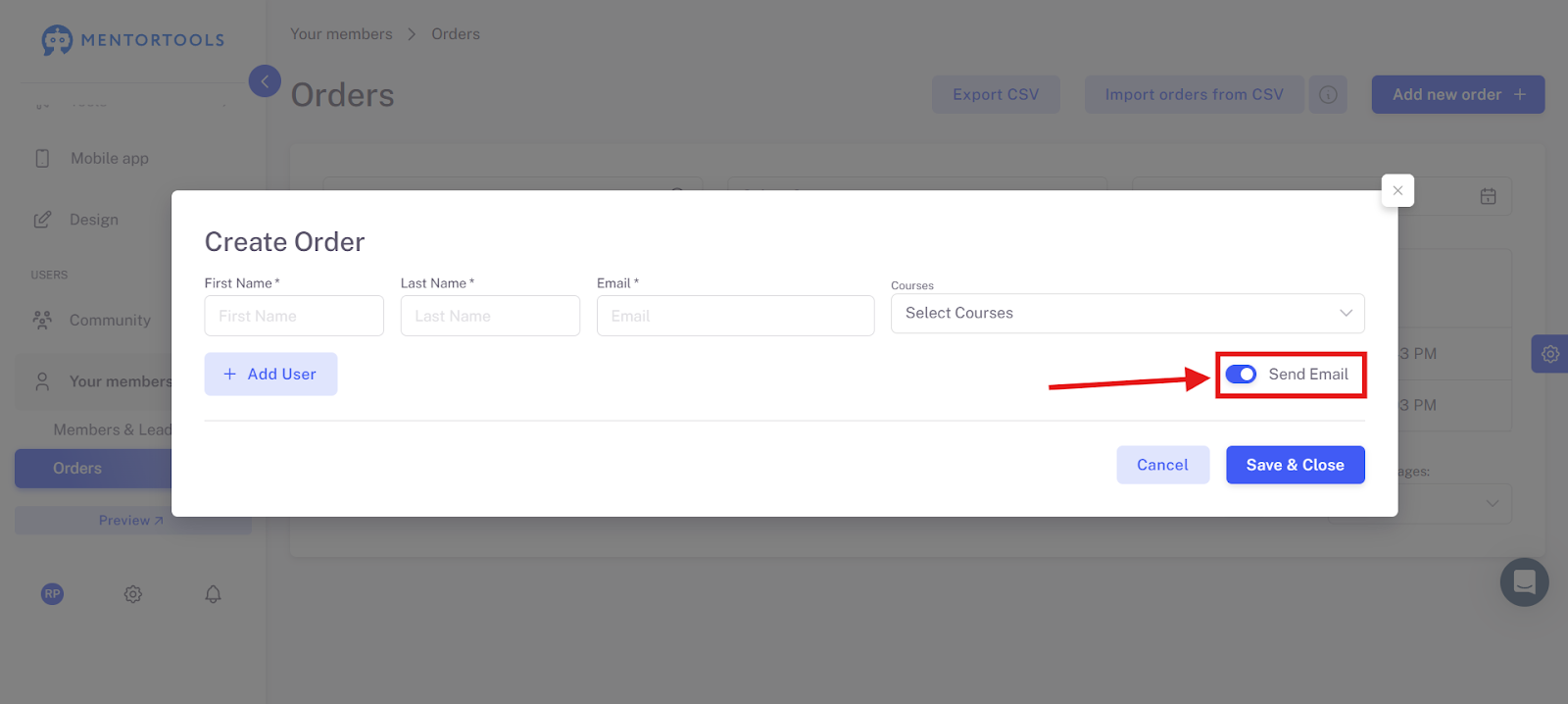
6. Send email
With the "Send email" toggle, you can choose whether the person should be notified of the order by email.
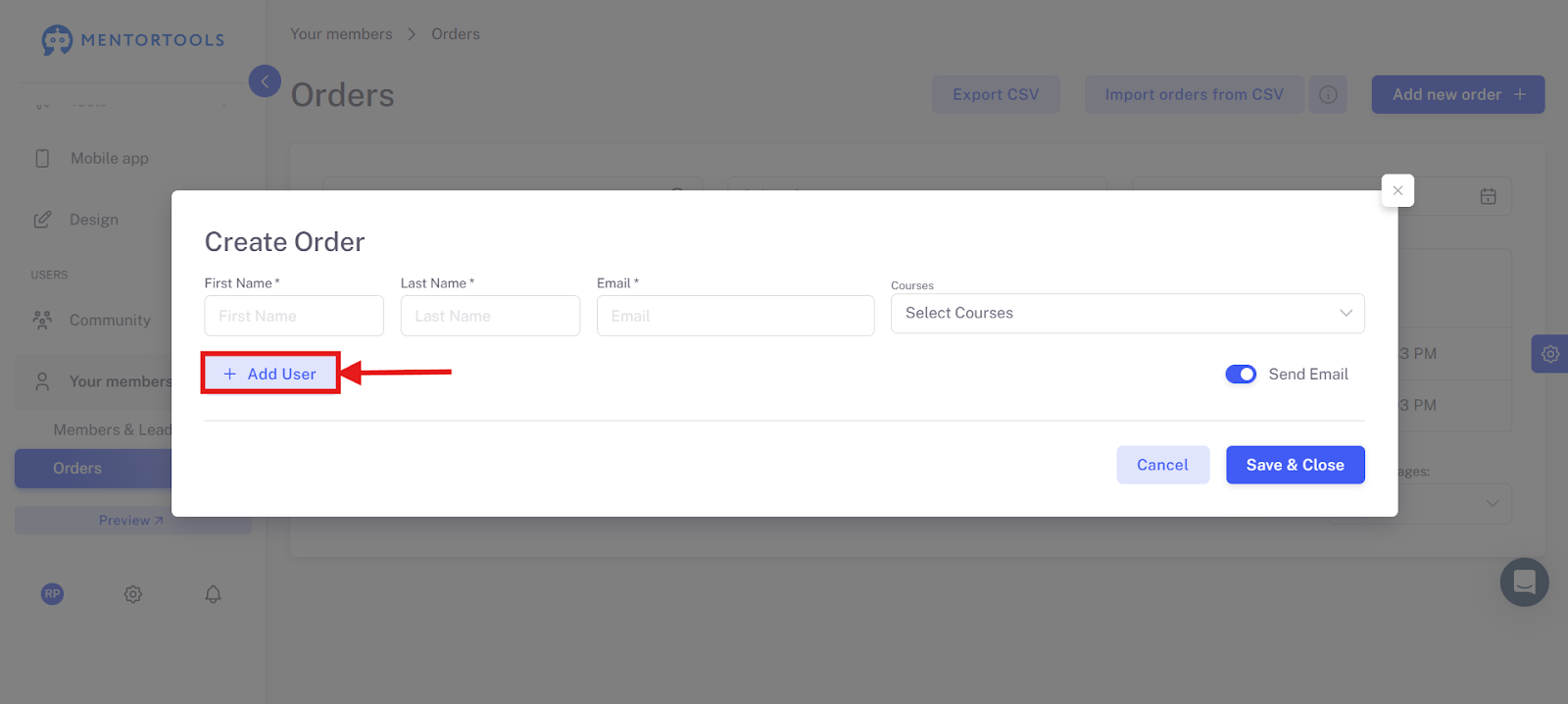
7. Add users.
You can add more people via the "Add user" button and thereby create multiple orders at once for different people.
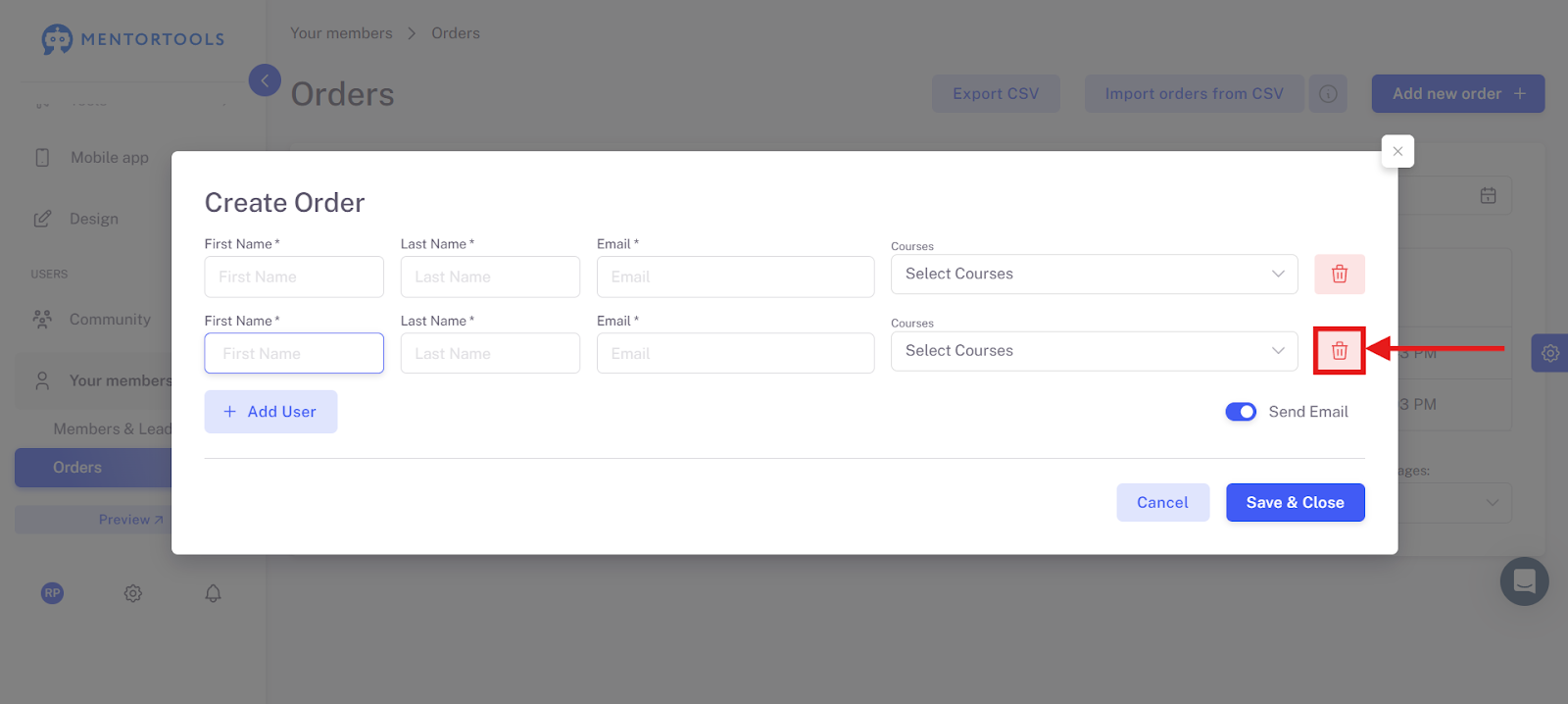
8. Remove users.
With a click on the trash can, you can remove each entered order individually.
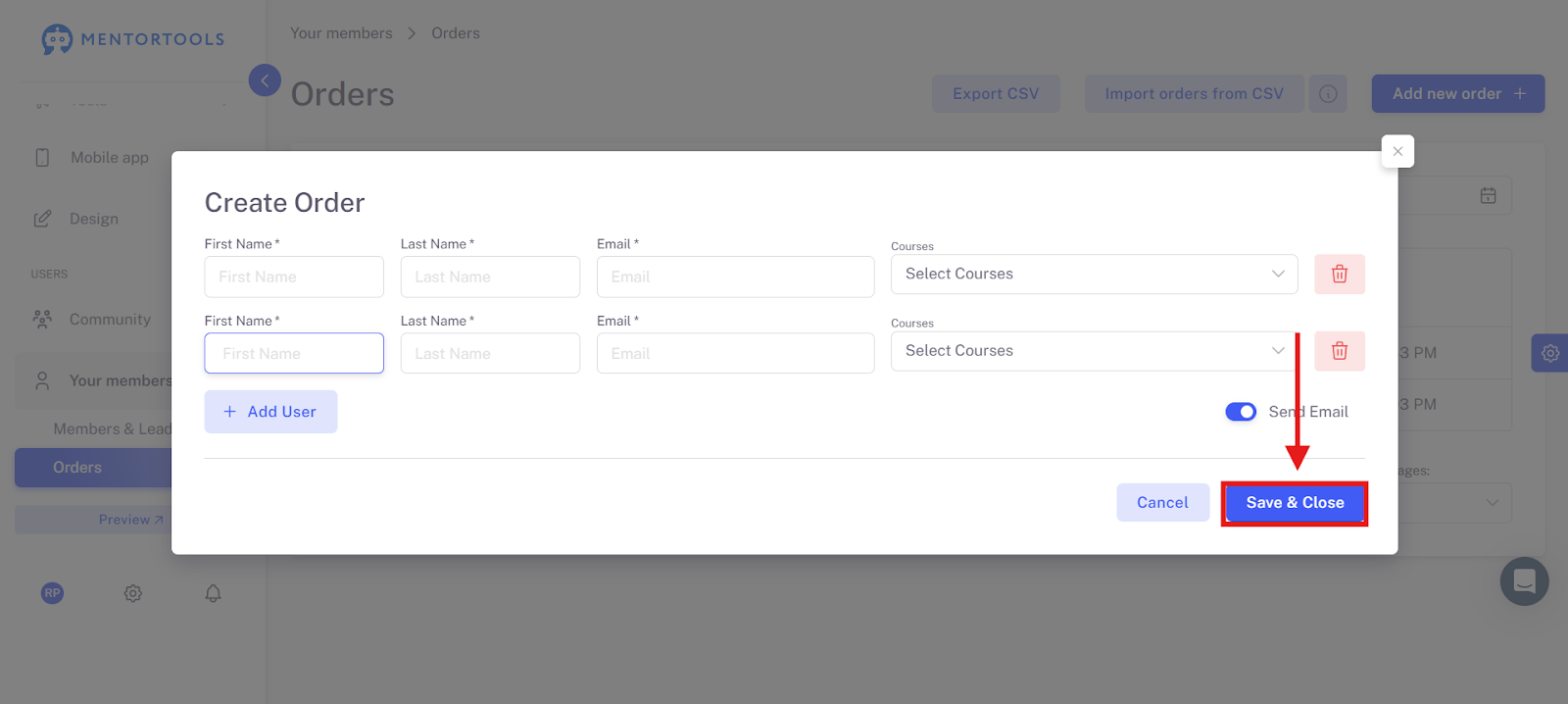
9. Save and close.
Click on "Save and close" to submit the order.
When is a manual order useful?
You create a manual order when a customer has not paid through the platform's automated ordering process or you want to give them free access. Here are a few examples of when this is useful:
The customer pays externally: Someone pays by bank transfer, through another service provider, or an external checkout.
Test access: You want to grant access to a course for a partner or a small group in advance.
Payment problems: A participant had technical difficulties with payment, but you still want to give them direct access to the course.
Summary: Manually Adding an Order
You have learned how to manually create orders in Mentortools. This is very practical if a customer has paid externally or if you want to give someone free access to a course.
With just a few clicks, you can enter the customer data, select the appropriate course, and complete the order. You can also create multiple orders at once and decide whether the customer receives a notification by email.
Was this helpful?