Analytics and GDPR – GDPR Contract
This guide shows you how to find, download, and print your GDPR Contract on the Mentortools platform—perfect for your legal compliance. This contract is extremely important for your online business because it legally secures the data processing between you (as the "Controller") and Mentortools (as the "Processor"). Think of it as an official agreement that defines who processes which data and which rules apply. It ensures you comply with GDPR regulations, which provides you with legal certainty.
Last updated 10 months ago
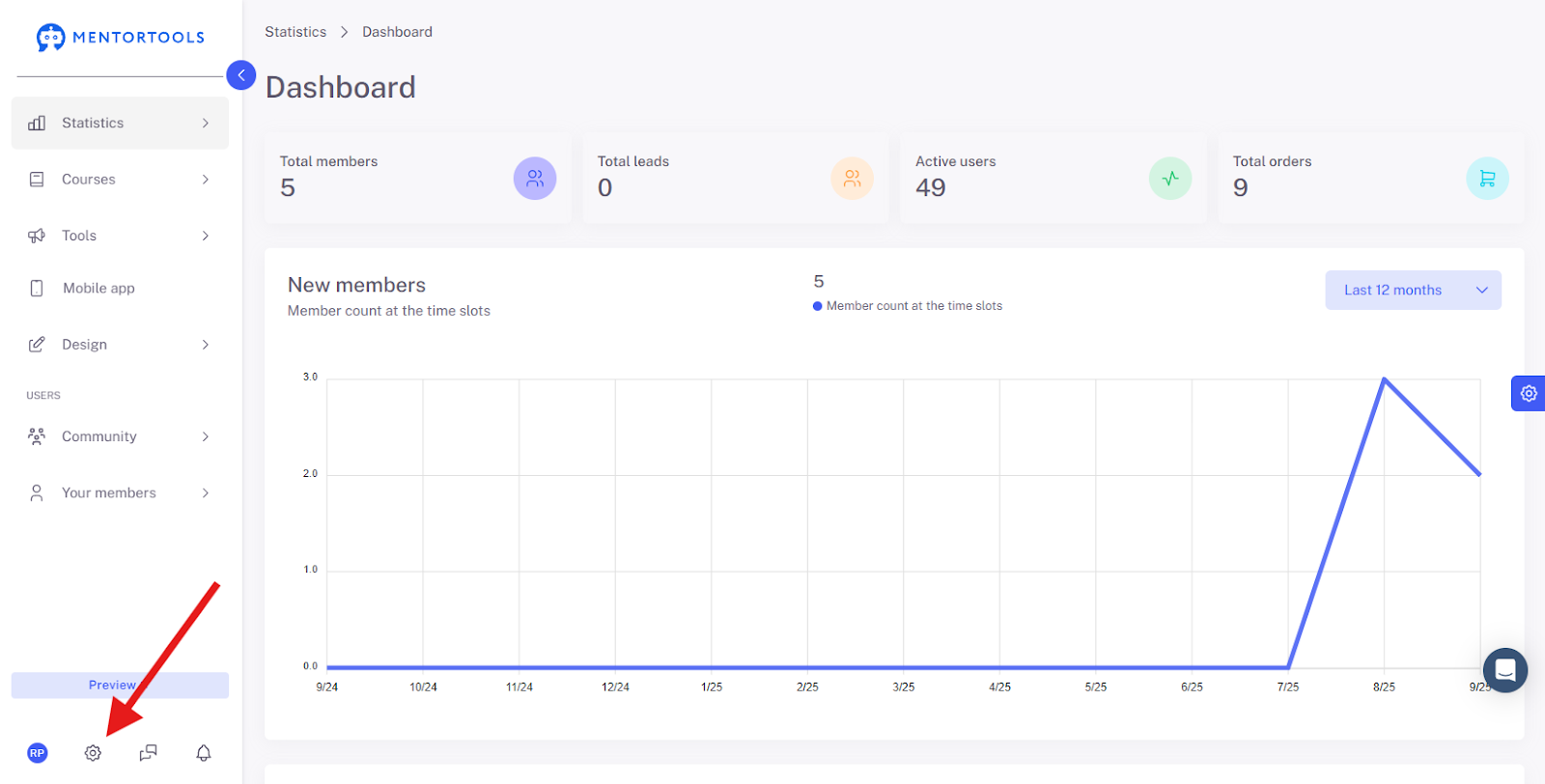
Open the Settings
Click on the gear icon in the bottom left menu bar.
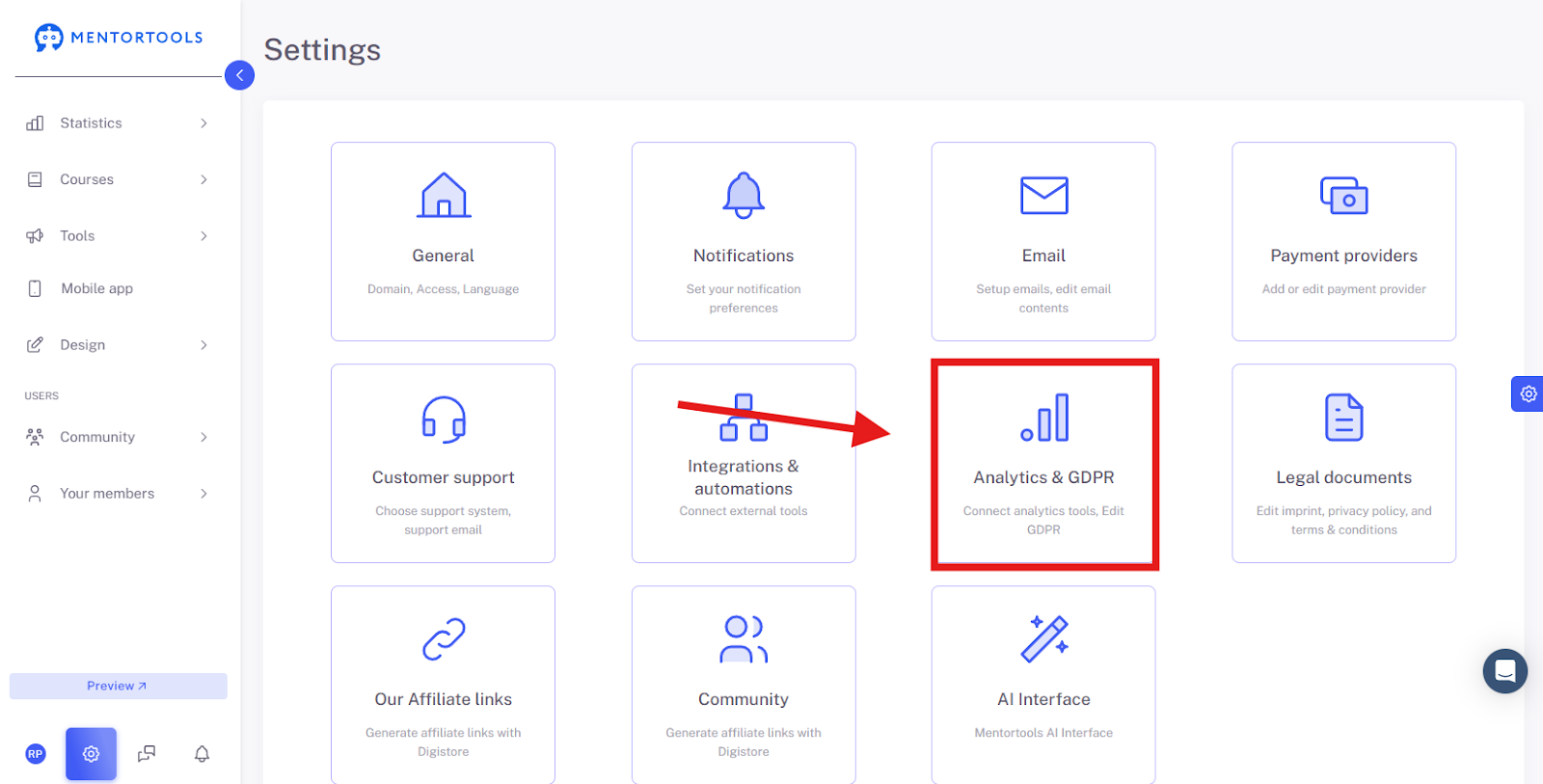
Navigate to “Analytics & GDPR”
Select "Analytics & GDPR" from the list of settings.
Select “GDPR Contract”
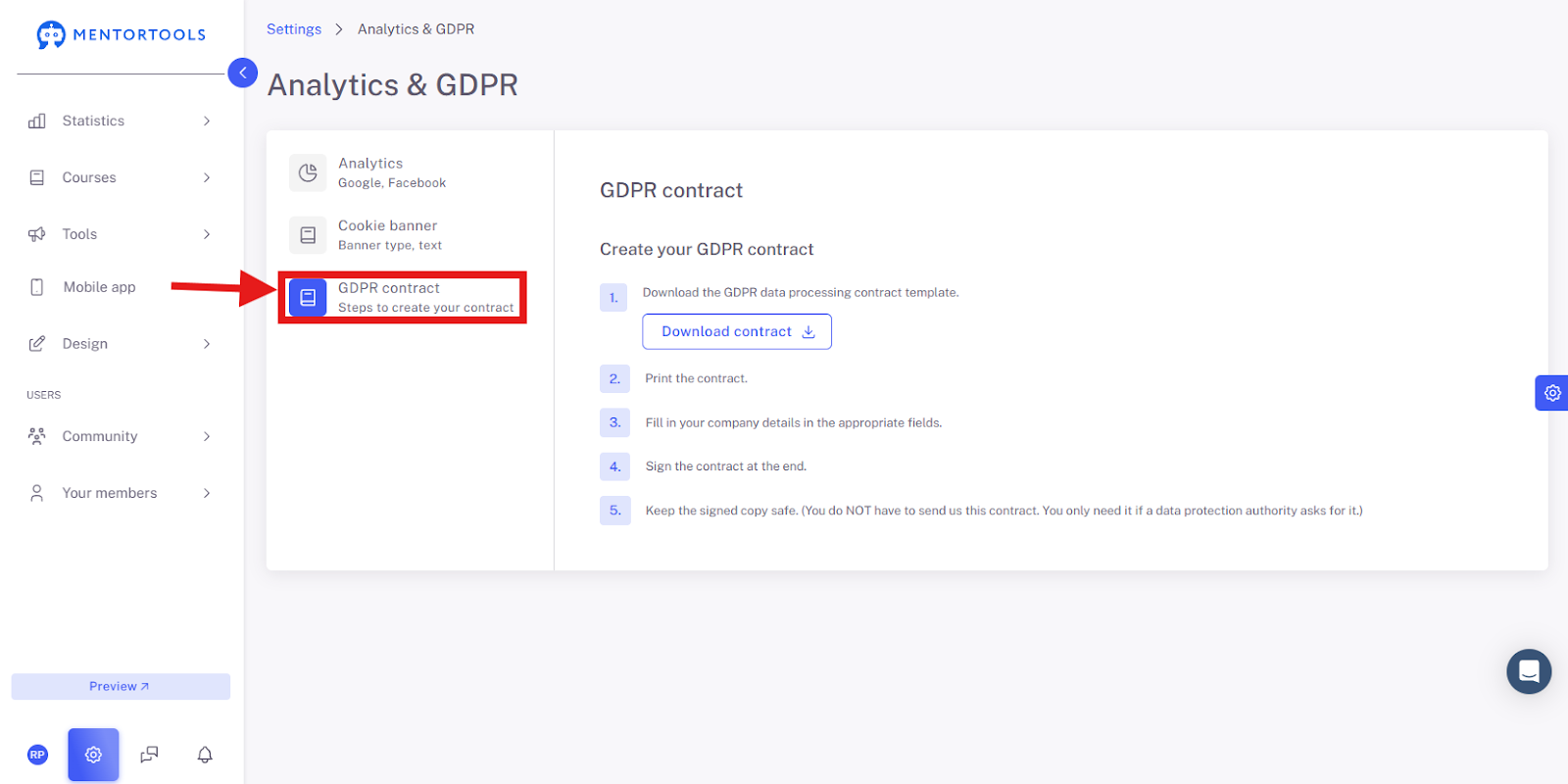
GDPR Contract Overview
Note: You don't have to download the contract in advance. You can easily download it anytime you need it, for example, if an authority requires it. It is not necessary to save or sign it beforehand.
The Individual Steps and Elements
Download the GDPR Data Processing contract template.
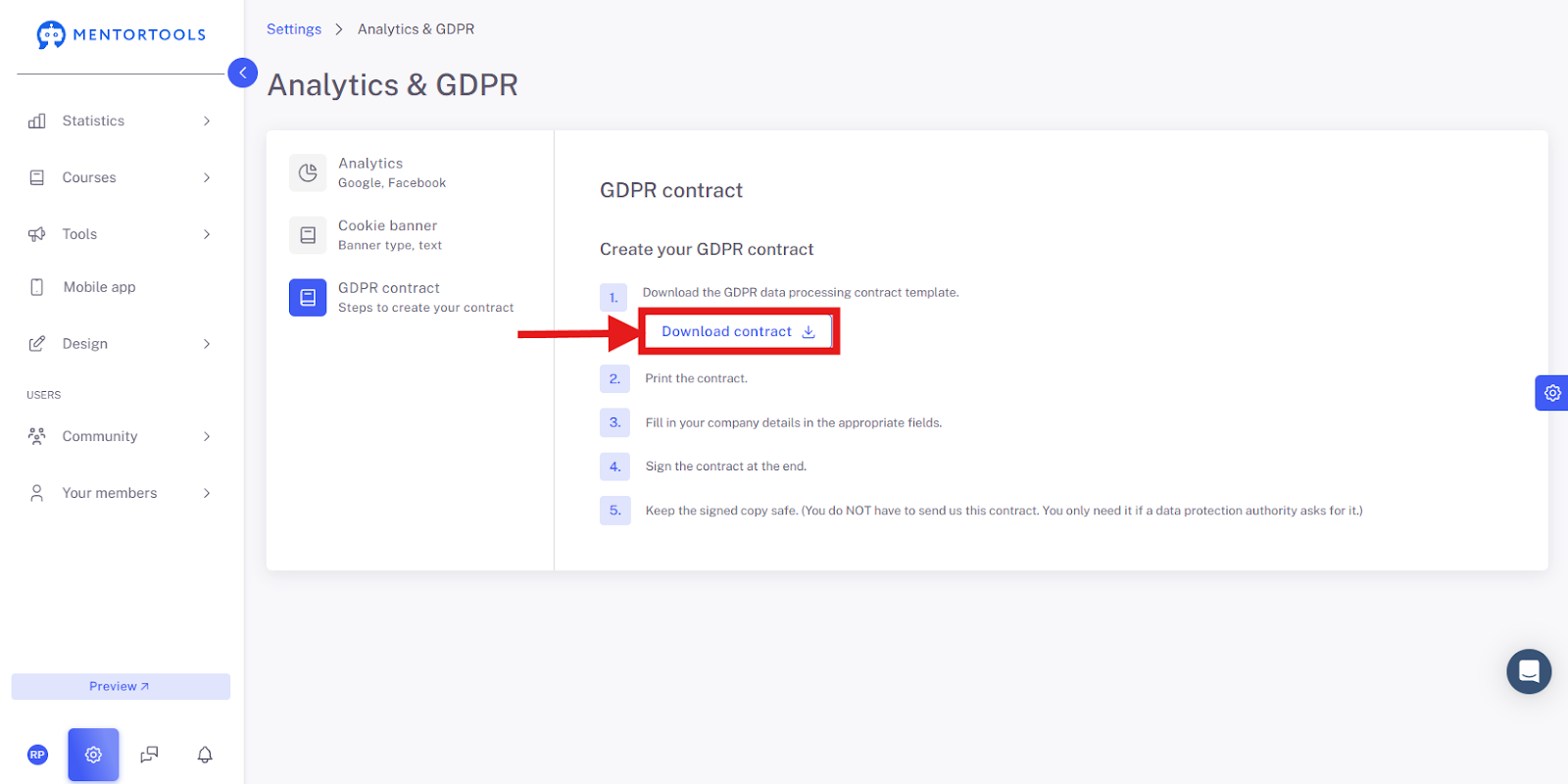
There is a blue button here called "Download Contract." When you click it, the document you described will be downloaded. It is a template for the contract. You only need to supplement it with your own information.
Print the contract.
You must print the downloaded file so you can physically fill it out and sign it.
Enter your company data in the corresponding fields.
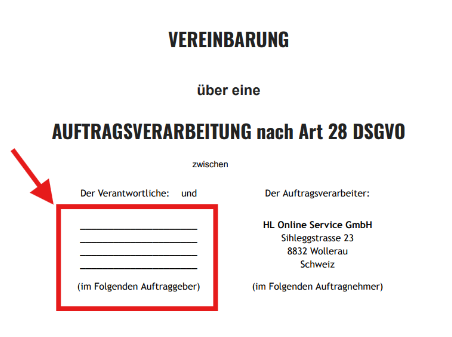
In the contract, there are empty fields where you must enter your data, such as your name, address, and company name. This makes you the "Client" in this agreement.
Sign the contract at the end.
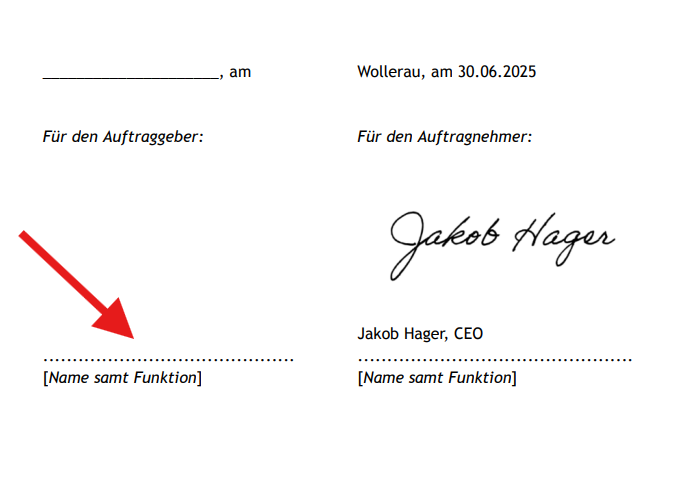
After you have filled in all the fields, you must enter the date and sign the contract at the bottom. This makes it a legally valid document between you and Mentortools. The contract is already pre-signed by Mentortools.
Keep the signed copy safe.
This is an important note: You are not required to send the signed contract back to Mentortools. You simply need to keep it in a safe place in case a data protection authority wants to see it in the future. It serves as your personal proof of proper commissioned processing.
Note: If you require changes to the contract or have questions about data processing, please contact Mentortools Support.
Summary
This guide has shown you how to easily handle your GDPR Contract in Mentortools. First, you log in, go to the settings, and then to the "Analytics & GDPR" area. There, under "GDPR Contract," you will find a blue "Download Contract" button.
After downloading, you only need to print the contract, enter your company data, and sign it. Mentortools has already pre-signed the contract, so it is immediately valid afterward. Remember: You do not have to send the contract back to Mentortools. Simply keep it safe in case you need to provide proof later. If you have any questions, you can contact support anytime.