Connecting Mentortools with Make (Outbound)
In this tutorial, you'll learn how to establish a connection between Mentortools and Make.com. Make is a universal interface that allows you to fulfill many use cases.
Last updated About 2 months ago
There are two ways to link Mentortools with Make: inbound and outbound. Outbound means a trigger happens in Mentortools, which then triggers an action in Make. Inbound means something happens in an external tool, and then an action is sent from Make to Mentortools. You can find that use case in the other tutorial here.
This tutorial focuses on sending information from Mentortools to Make. This is done through the settings in the Integrations and Automations section.
You need a Make account for this. If you don't have one yet, you can create a free Make account here.
Useful Examples
Here are a few practical examples for using automations between Mentortools and Make:
Highly Relevant Emails at the Right Time You can create an automation that triggers every time a user completes the first lesson of your course. You can then link your email marketing tool or personal email program (e.g., Gmail, Outlook) with Make and send an email. The user will receive an email with an offer from you exactly when they are active in your course, leading to very high open rates.
Generate Personal Appointments via a Free Course Create and promote a free online course. As soon as a user completes the first lesson, they immediately receive a personal email with an invitation to a phone call. During the call, you can sell a coaching session or a service.
Automatic Social Media Posting When a customer completes a course or receives a certificate, you can automatically post about it on social media. This shows others that your course is being used successfully, and you benefit from it in your marketing.
Setting Up the Connection
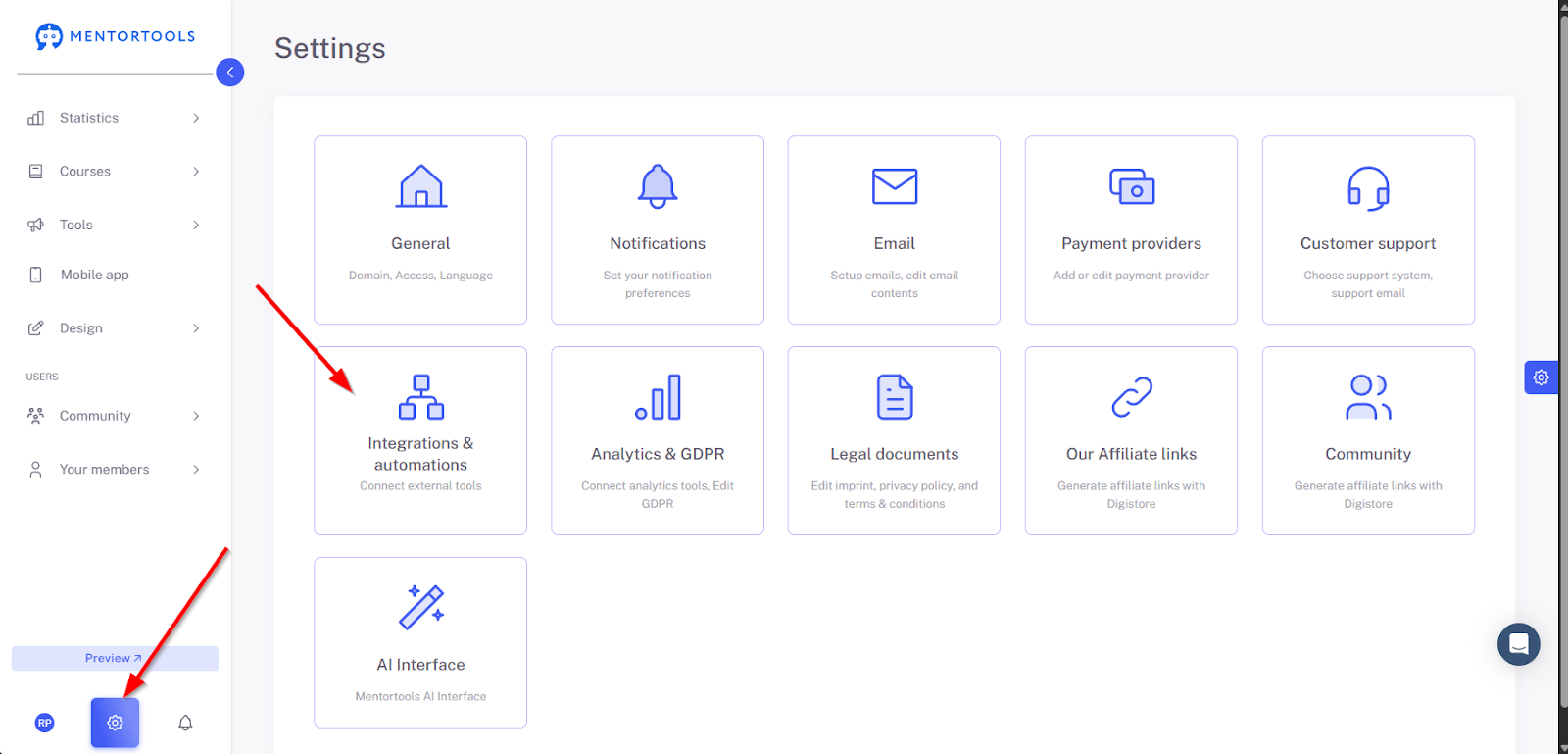
Go to "Settings" and "Integrations and Automations."
Adding Integrations
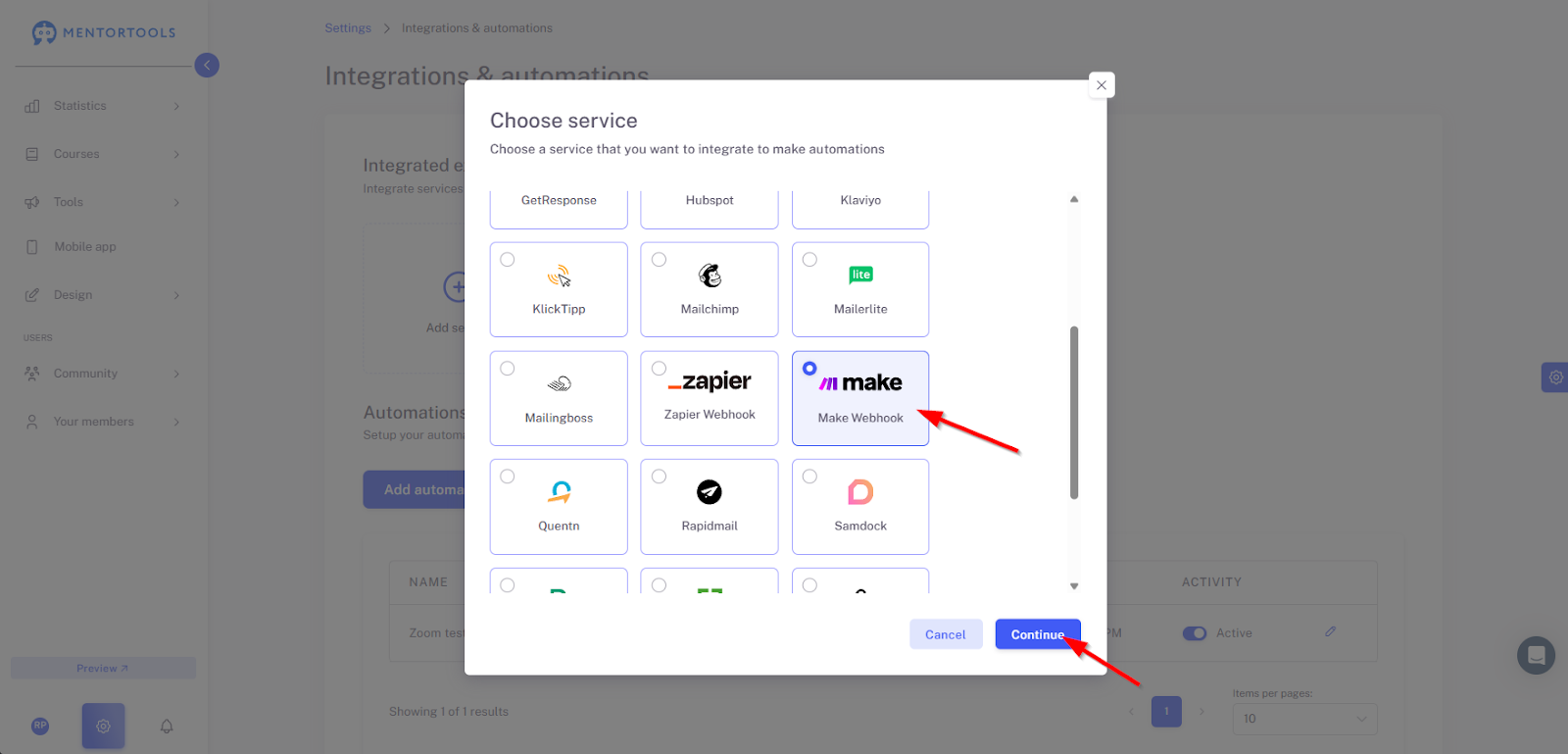
First, establish a connection to Make. To do this, click on "Add Integration" and select "Make."
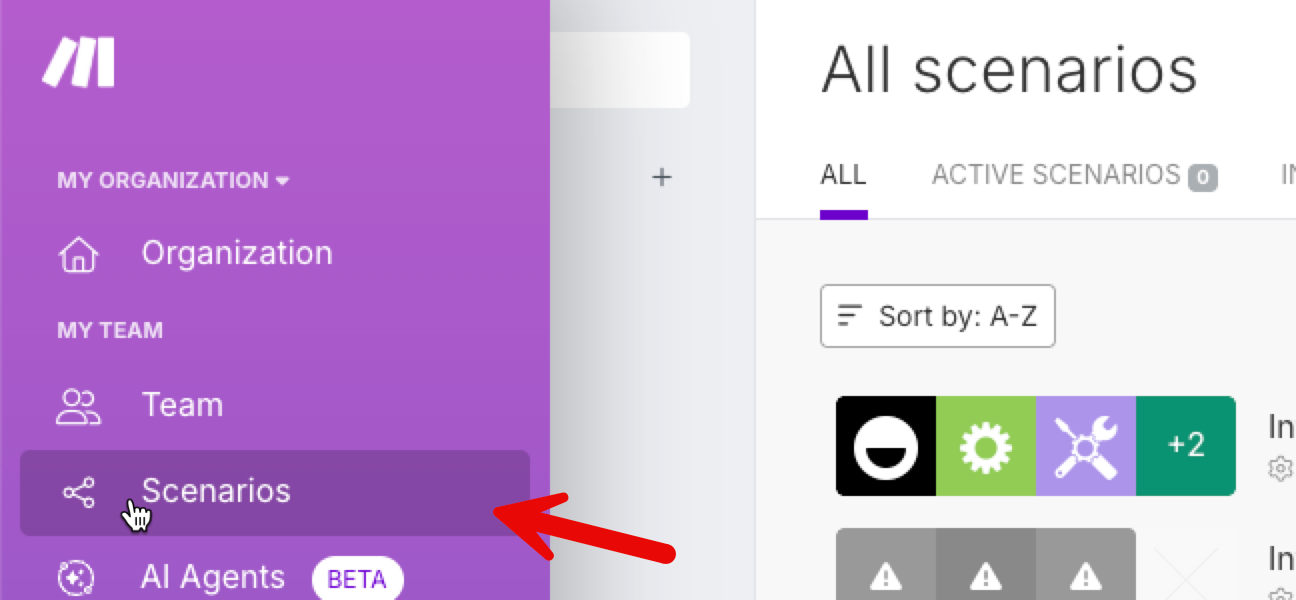
Now, log in to your Make account and go to Scenarios. Create a new scenario.
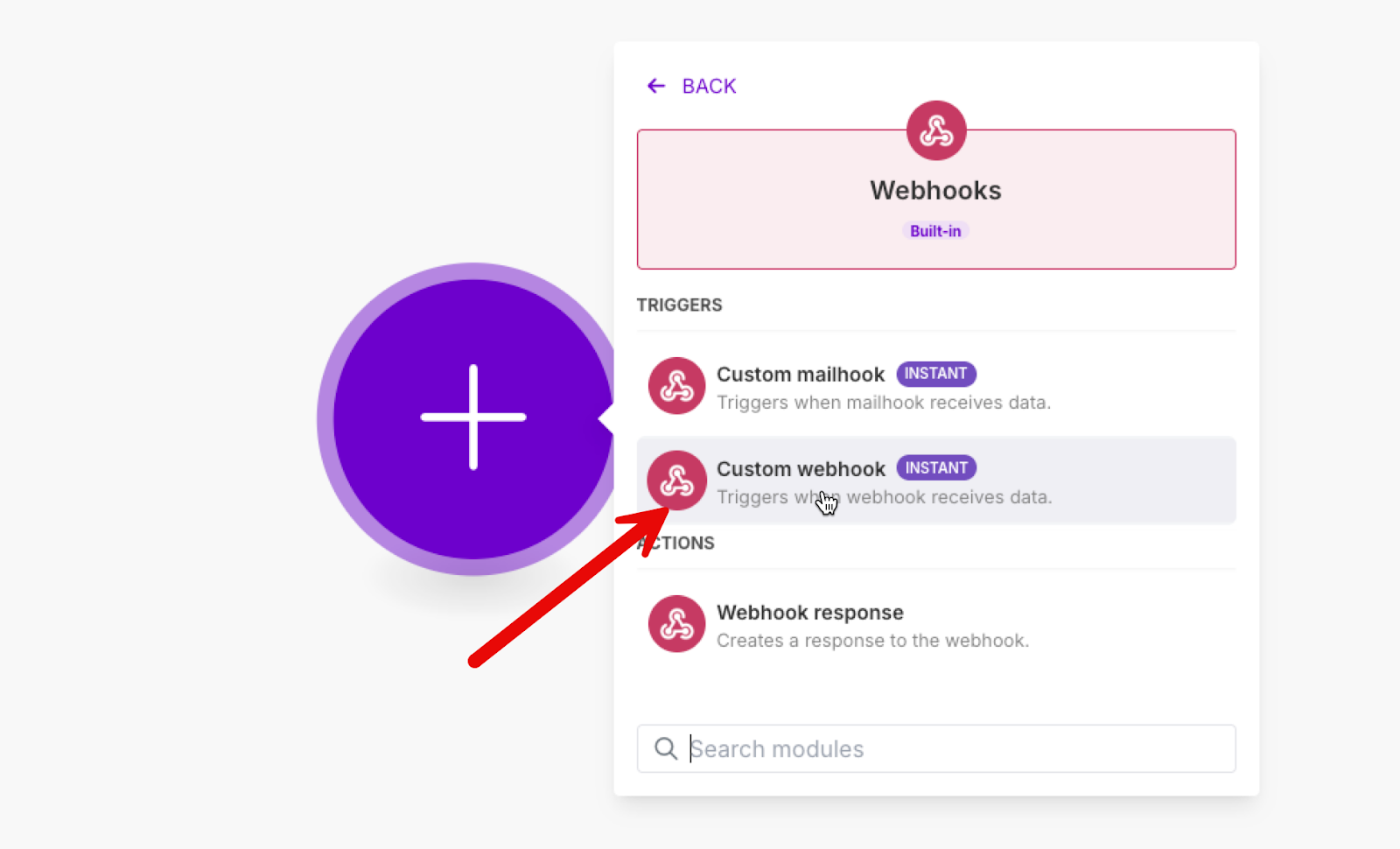
Then, add a Webhook.
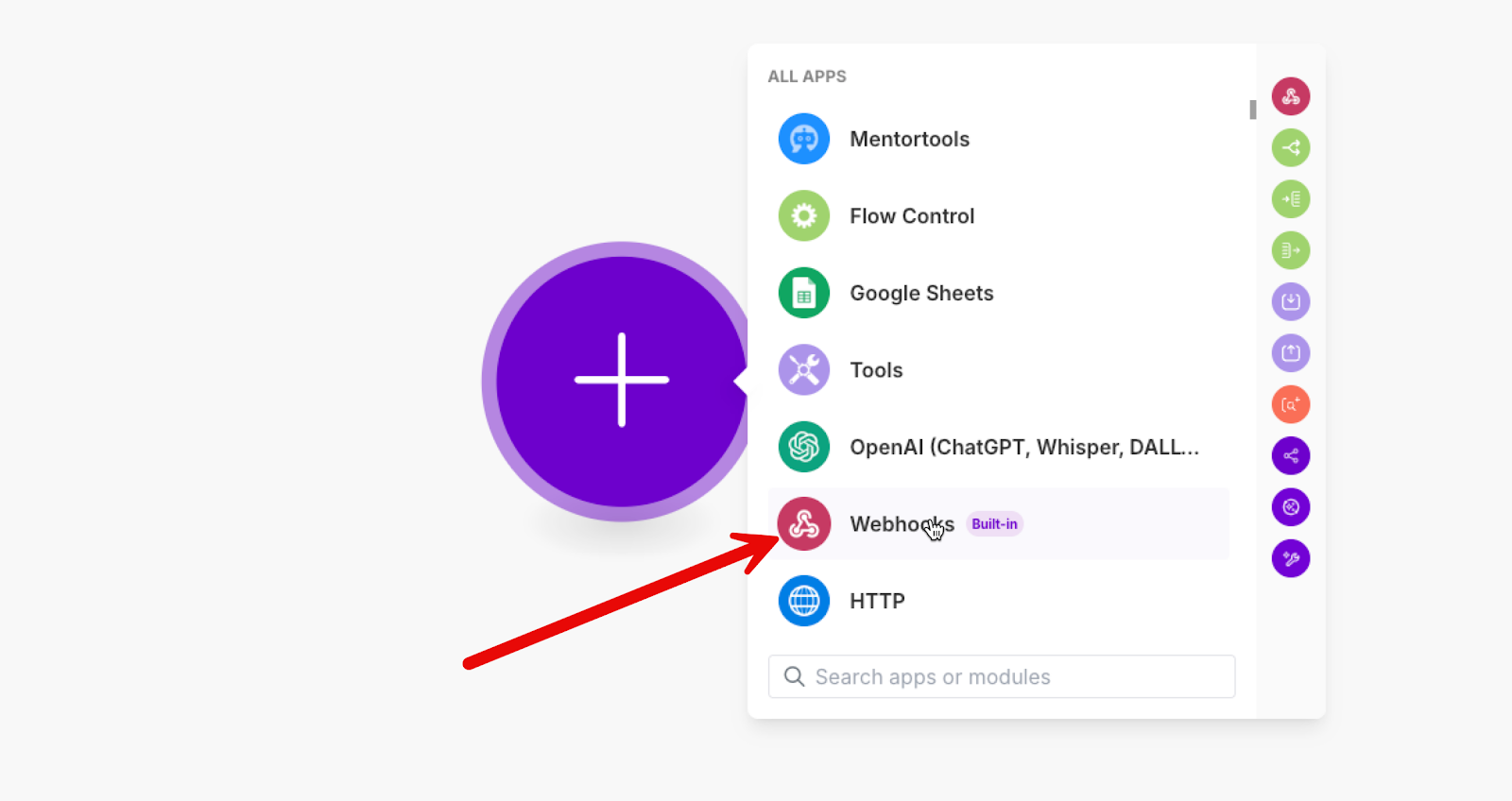
Attention: Do NOT use the Mentortools integration here. This is for inbound automations, not outbound.
Select a Custom Webhook.
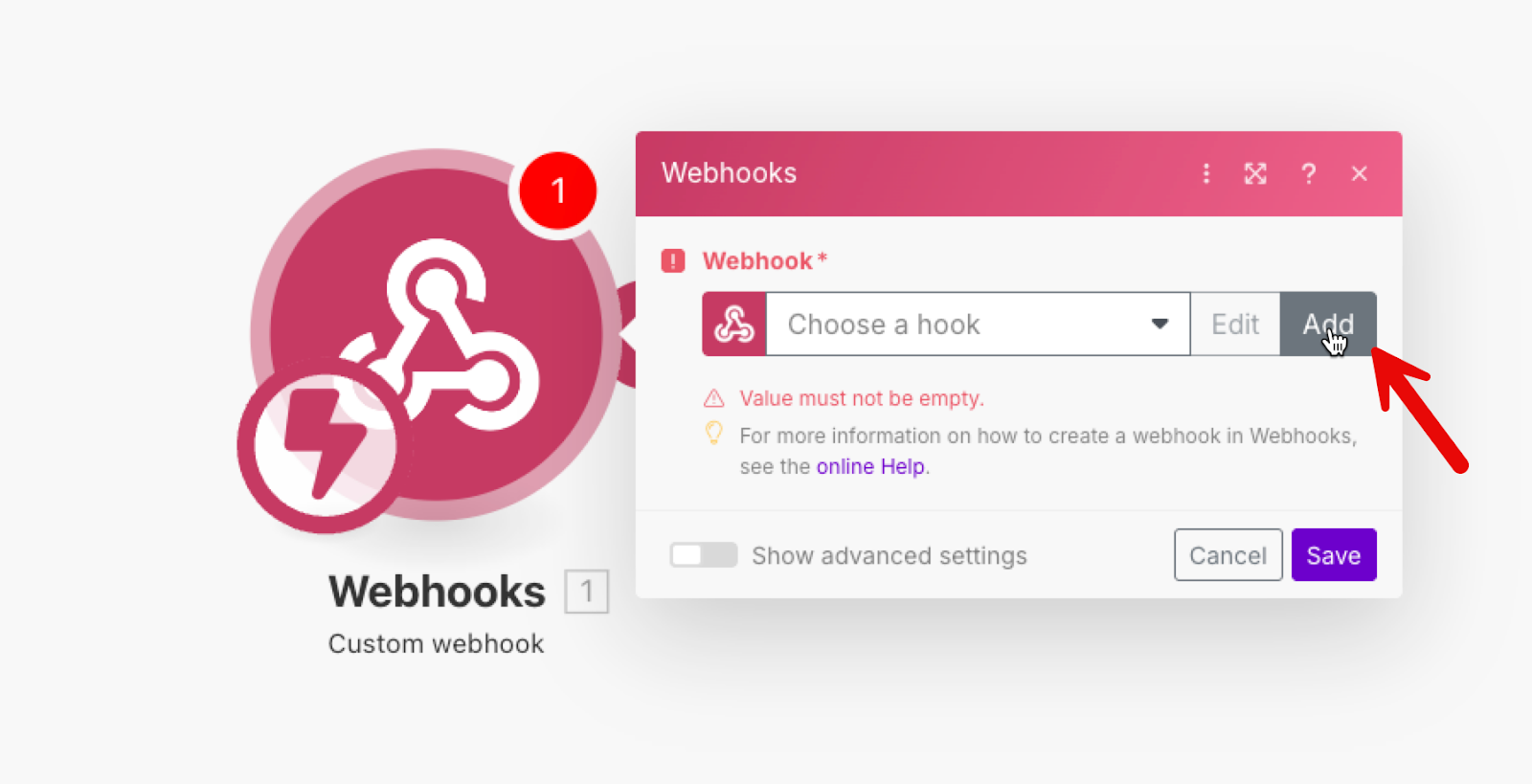
Now, connect this webhook to Mentortools. You can click on "Add" to get started.
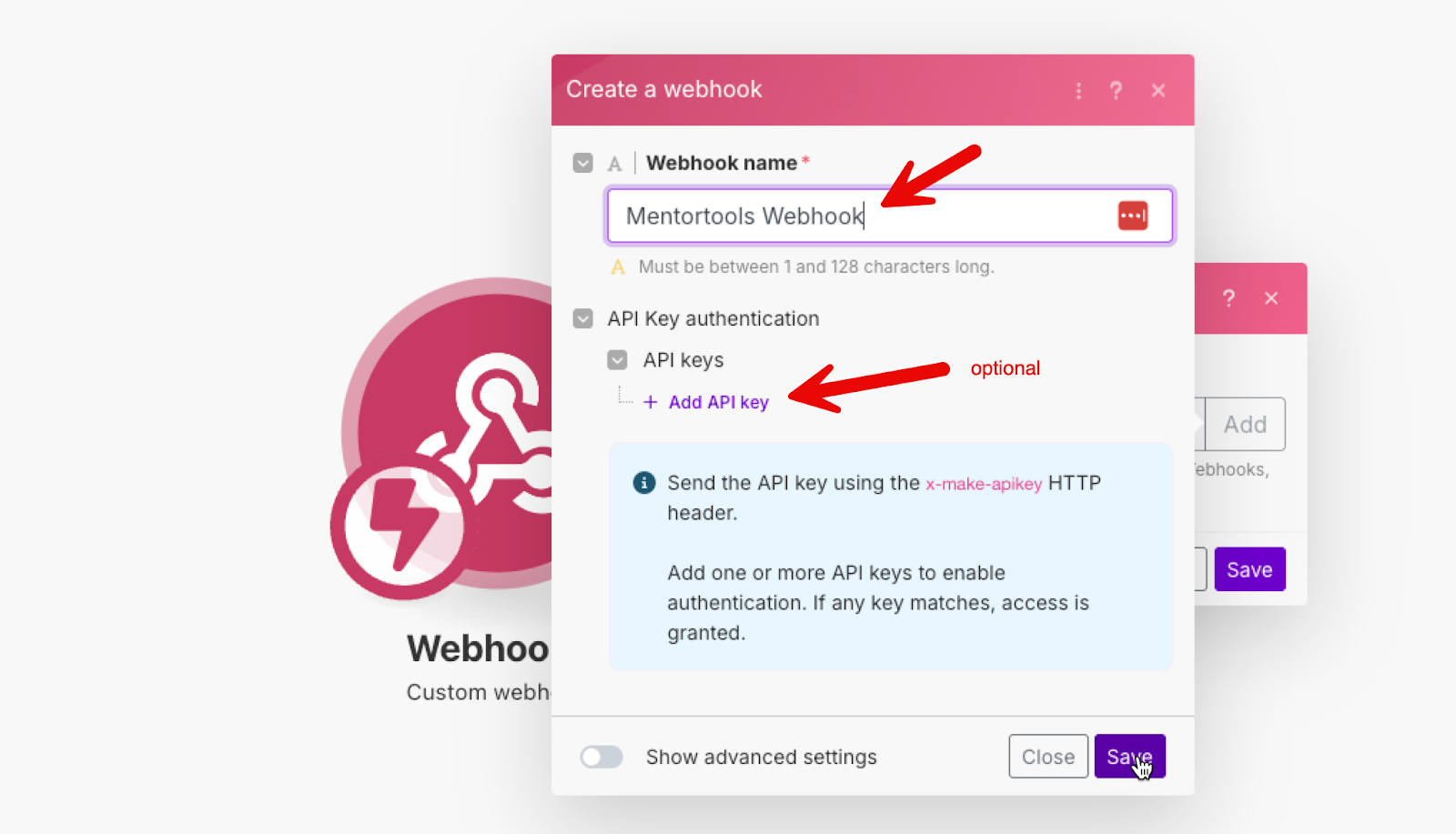
Name your webhook, for example, "Mentortools Webhook." You can optionally use a key, but it's not strictly necessary, as the URL to your webhook is secret, so no one can misuse it to send data. Click on the button “Save”.
Then, highlight and copy this URL - click on the button “Save”:
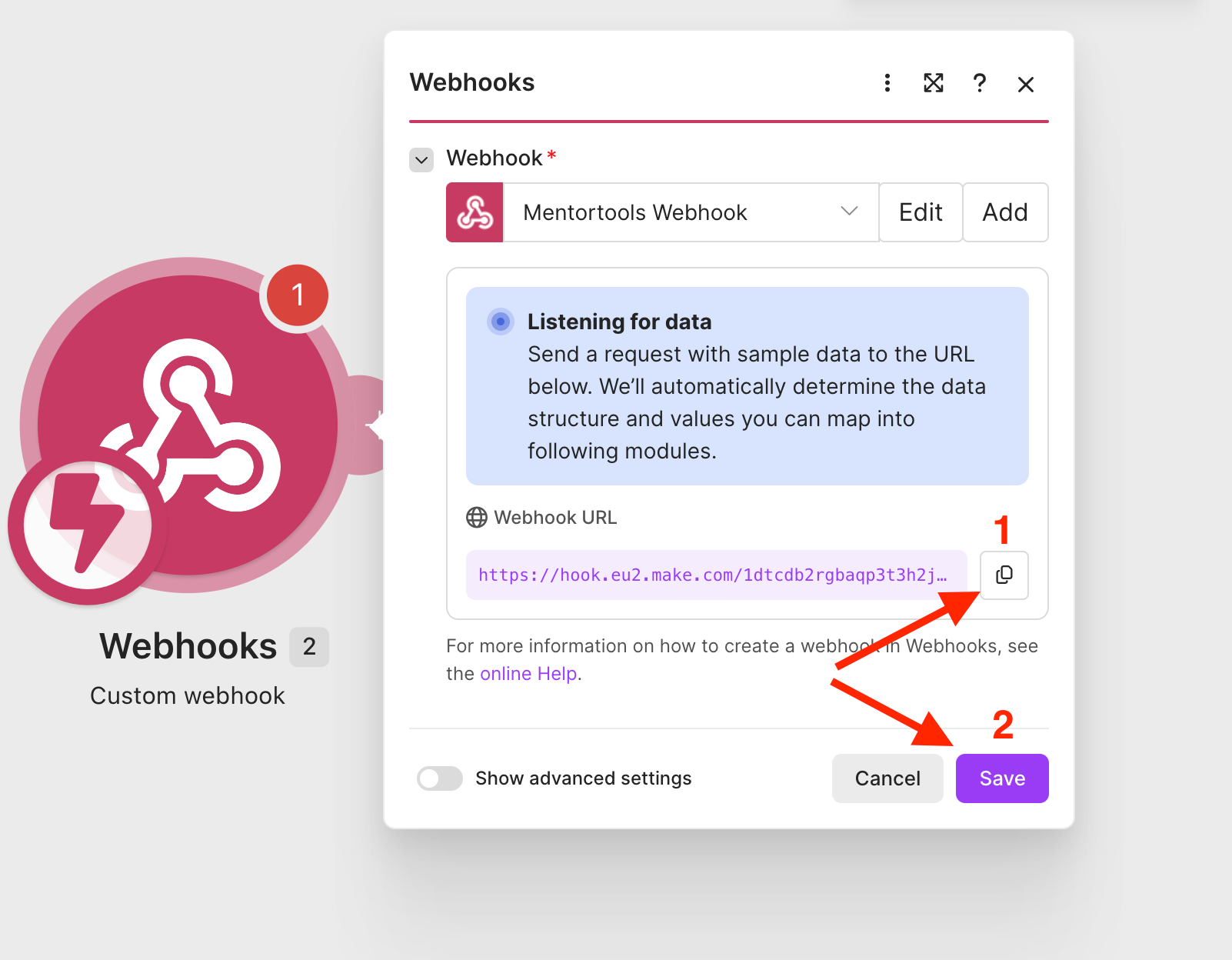
Paste this URL into Mentortools and save. Then, save these changes in Make as well.
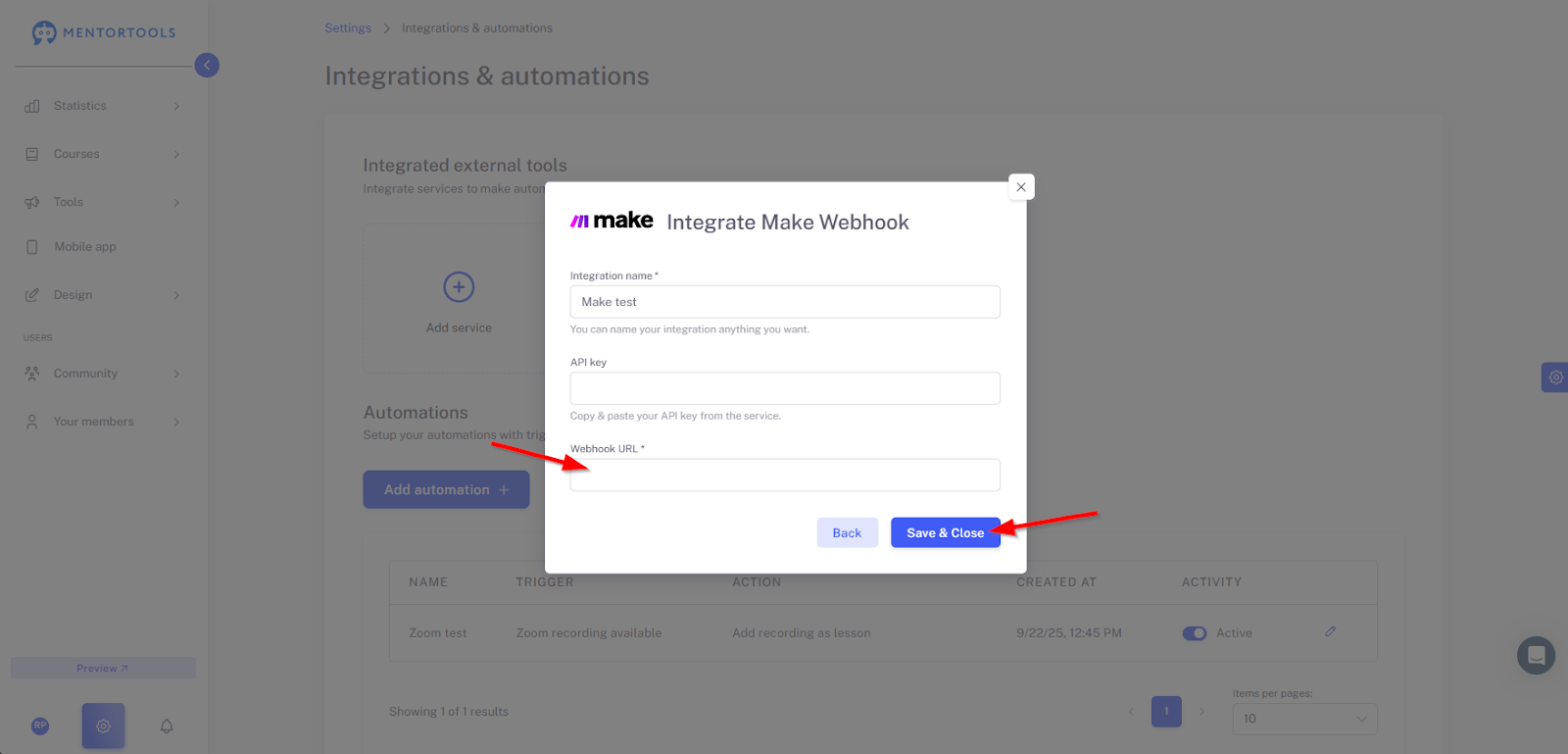
You have now established the connection between Mentortools and Make.
Adding an Automation
You can now add an automation. To do this, click here:
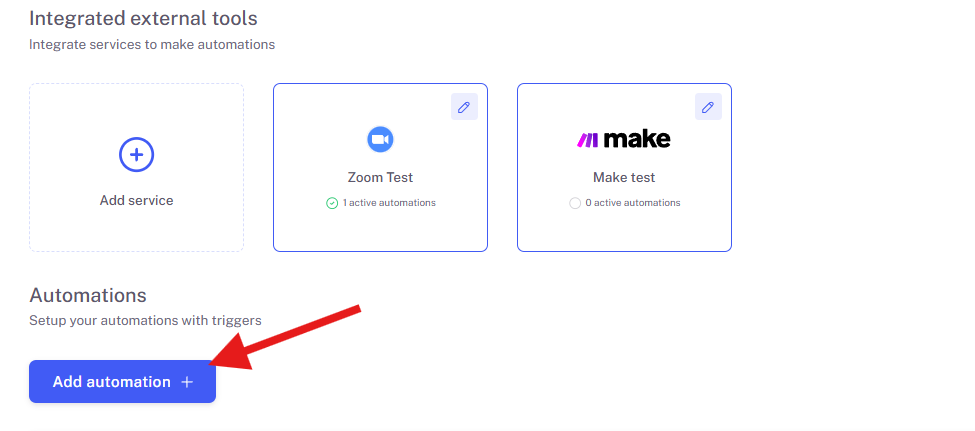
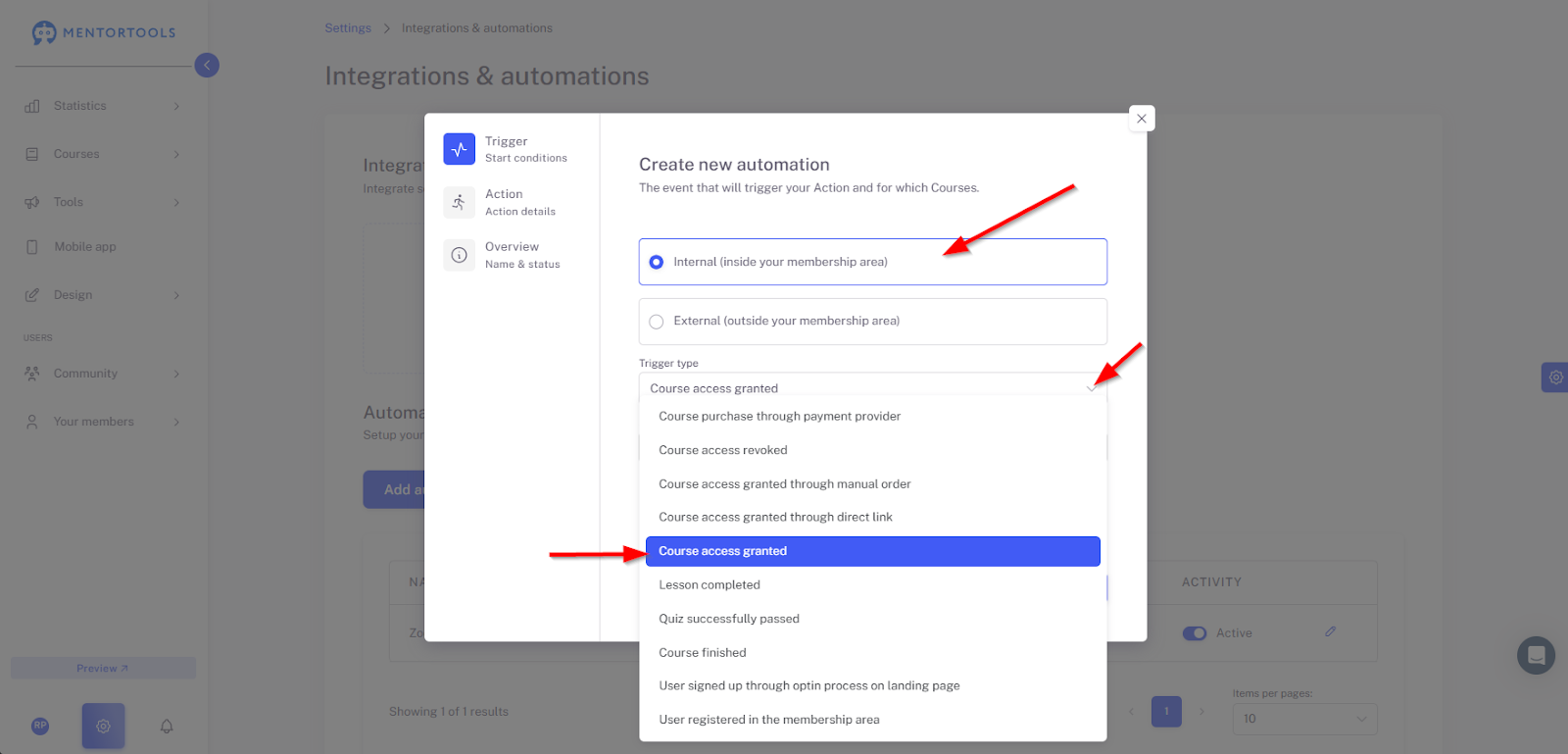
Select "Internal" and then a suitable trigger, such as "Course access granted." This automation will then be executed every time a new member gets access to a course.
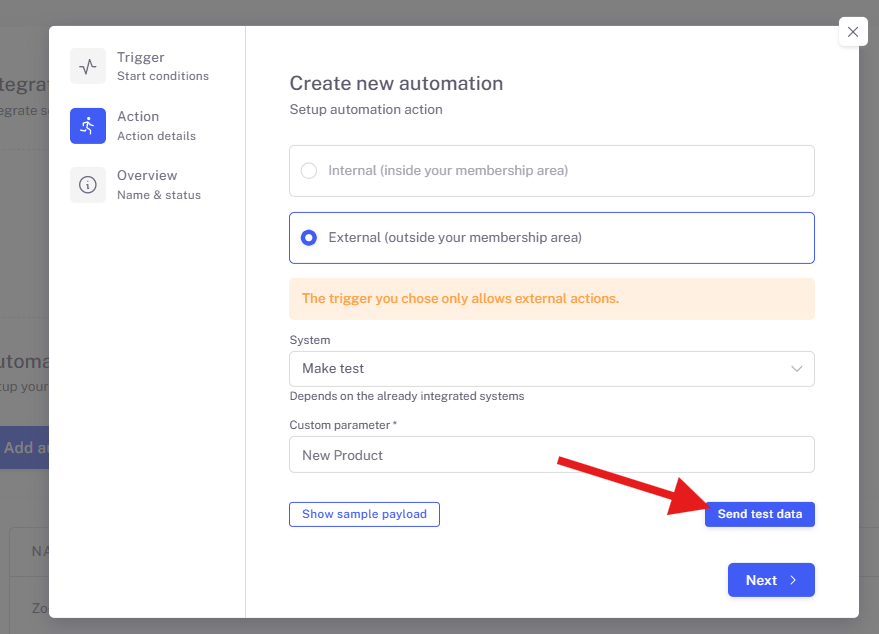
Next, select the Make integration for the action and add a parameter of your choice. This is a required field, but you can enter any text. The purpose is for Make to know which action was set and to help you differentiate between different webhooks.
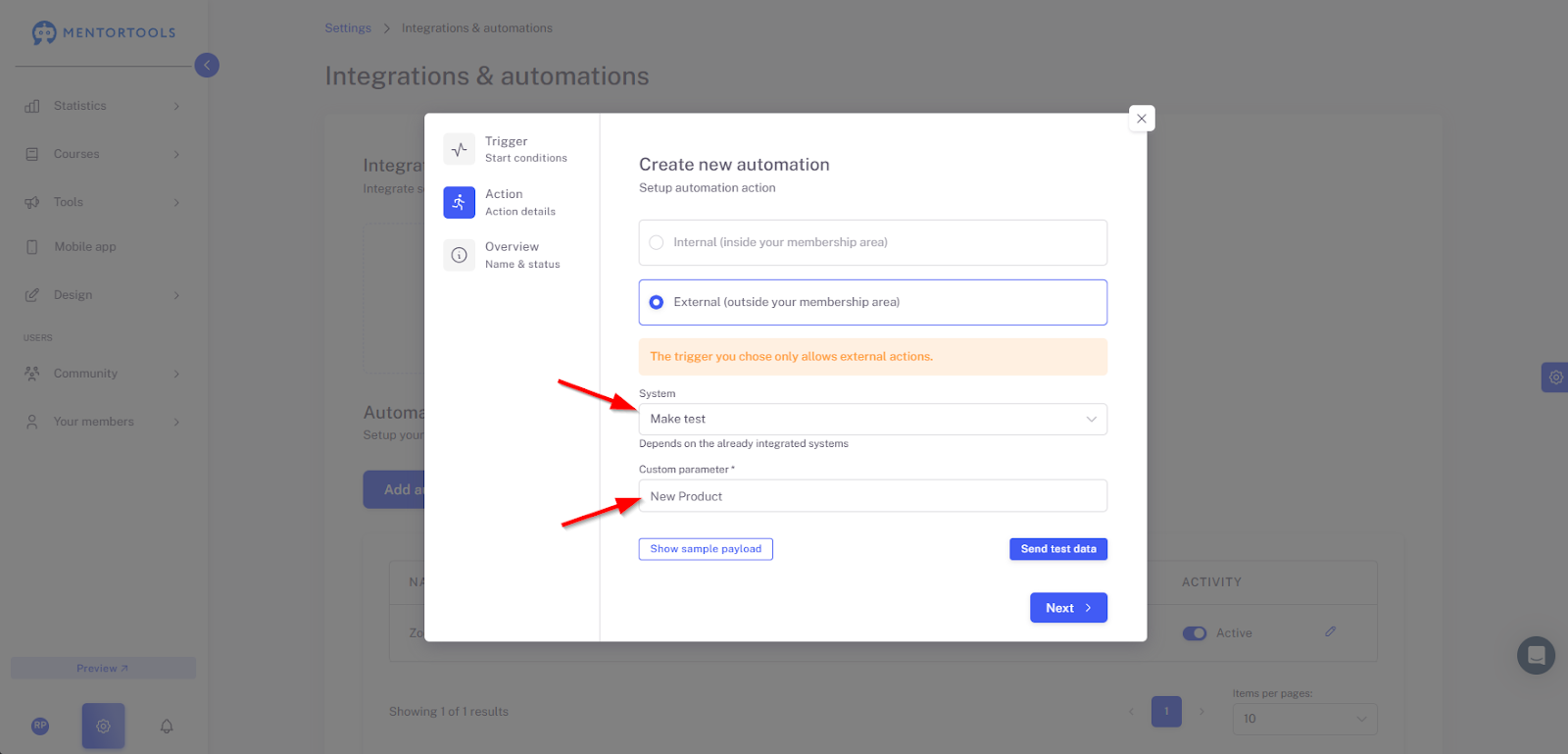
When you save, your automation in Mentortools is complete. You can now continue editing the scenario in Make and add more steps.
Testing the Connection
If you want to test the connection, go to Make and click on "Run once" in your scenario.
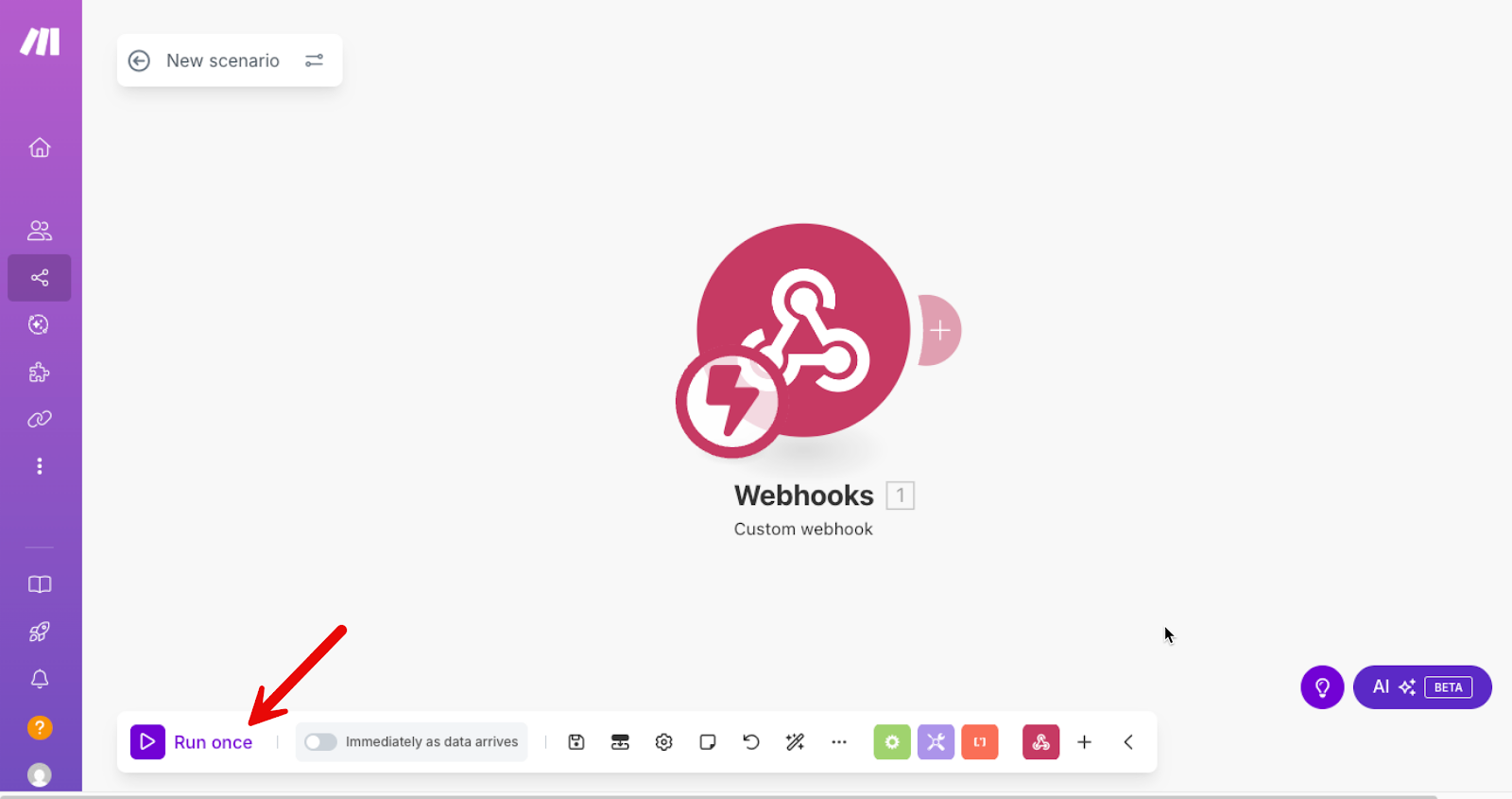
It's very important that the automation is running, or it won't work. Immediately afterward, go to your automation in Mentortools and click "Send test data." You can try this multiple times until you see a success message.
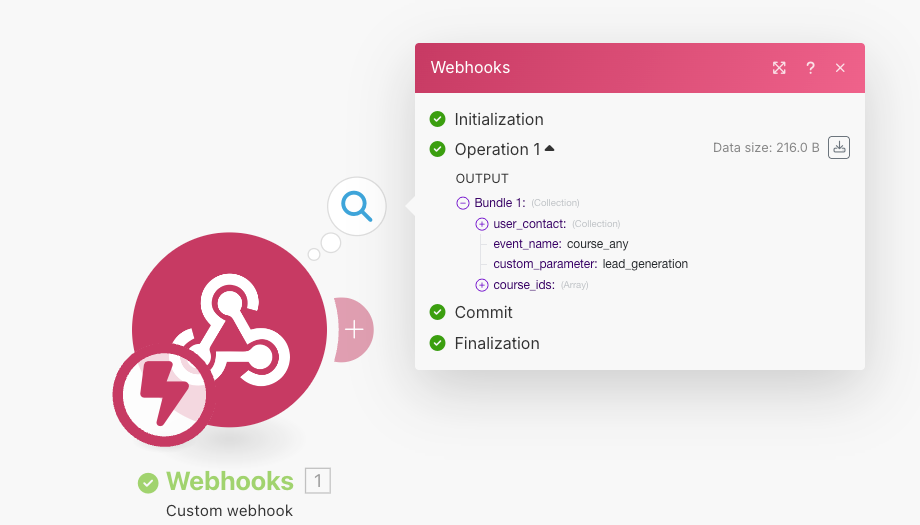
Then, in Make, you can see if the transfer was successful. It will look like this:
We wish you great success with this!
Was this helpful?