Connection Between Make and Mentortools (Inbound)
In this tutorial, you will learn how to establish a connection between Make.com and Mentortools where data is sent from Make to Mentortools. Make is a universal interface that allows you to fulfill many use cases.
Last updated 11 months ago
There are two ways to link Mentortools with Make: Inbound (incoming) and Outbound (outgoing). Inbound means that a trigger happens in Make, which then executes an action in Mentortools. Outbound means that a trigger occurs in Mentortools (e.g., course completed), and then an action is sent from Mentortools to Make. You can find that use case in the other tutorial.
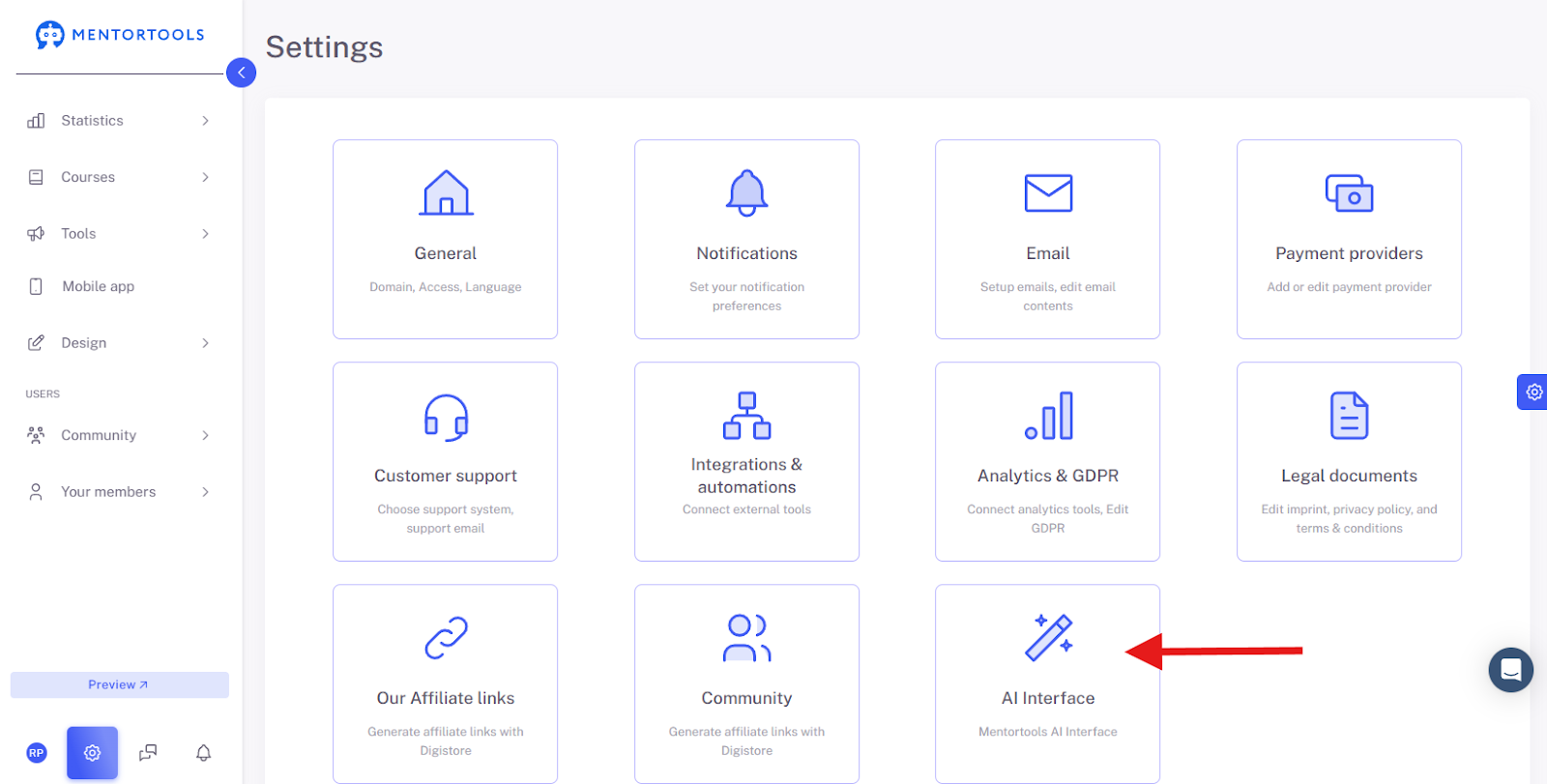
This tutorial focuses on sending information from Make to Mentortools. This works via the settings in the "AI Interface" area.
You need a Make account for this. If you don't have one yet, you can create a free Make account here.
Useful Examples
Here are a few useful practical examples for using AI Agents with Make and Mentortools:
Automated Content Creation You could build a scenario in Make where an AI automatically researches information daily, summarizes it, and uses it to create a new lesson. A financial coach could have the AI analyze daily stock market data and automatically create an "Analysis of the Day" as a lesson in Mentortools. You can also use this in your industry as a "Tip of the Day."
Adding Users via a Form Your users can fill out a form (e.g., a Google Form). A scenario in Make then starts, and an order for a new course is created in Mentortools.
Adding Users from Your Accounting Tool You could link your accounting tool with Make. When you mark an invoice as "paid" for a customer there, you can send this info to Make and from Make to Mentortools. This can trigger an order for a course.
Adding Users from an Online Shop Some course creators sell through online shops like Woocommerce or Shopify. You can link these tools with Make and automatically unlock a course in Mentortools when a product is purchased.
Setting Up the Connection
Go to "Settings" and "AI Interface":
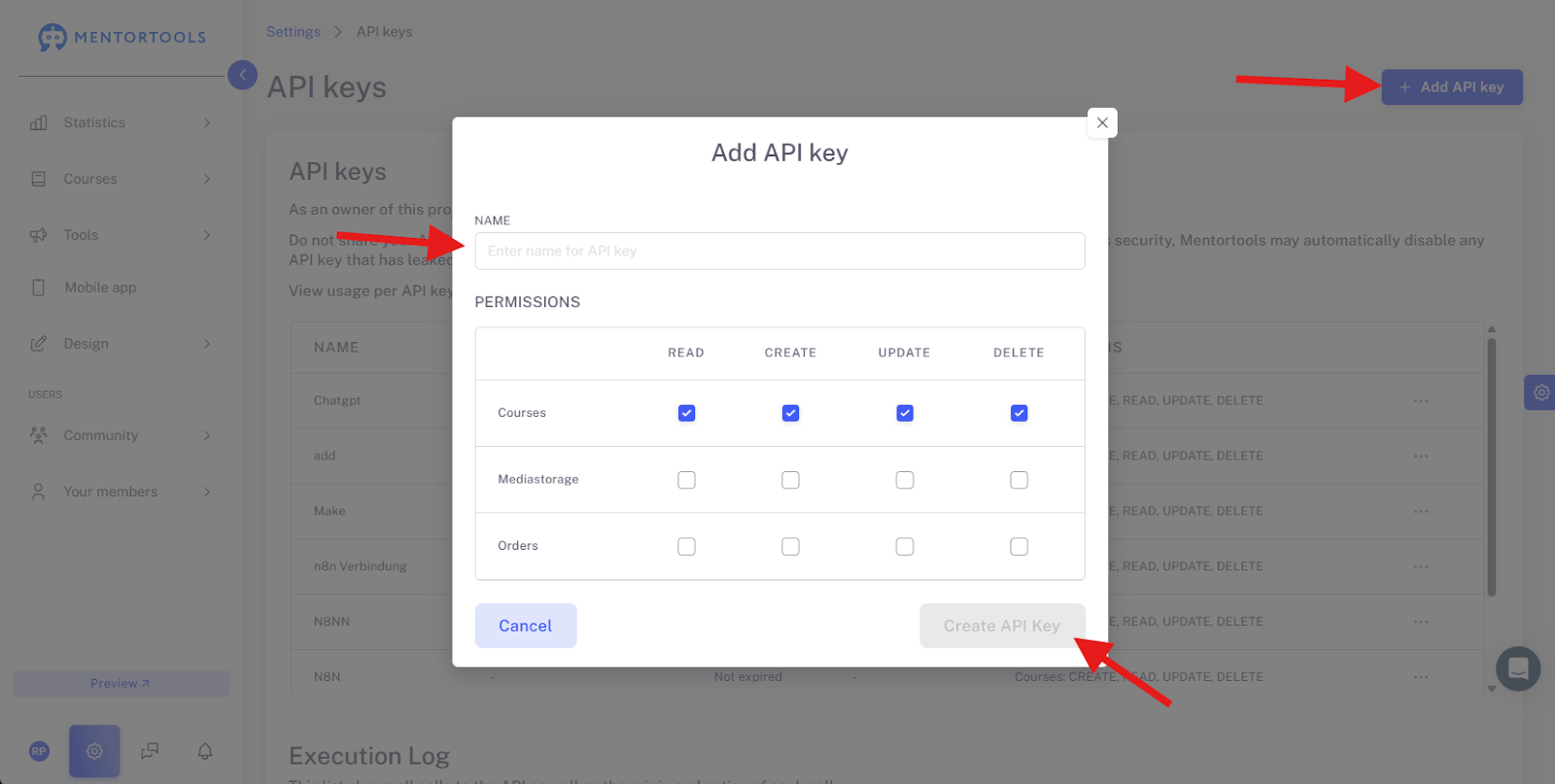
Create API Key
Create an API key by clicking the button in the top right, giving the key a name (e.g., "Make Connection"), and then selecting all the options you need. After that, you can Save the key.
Attention: The key is only visible now. For security reasons, it will no longer be displayed later. However, you can always create a new one if you lose a key.
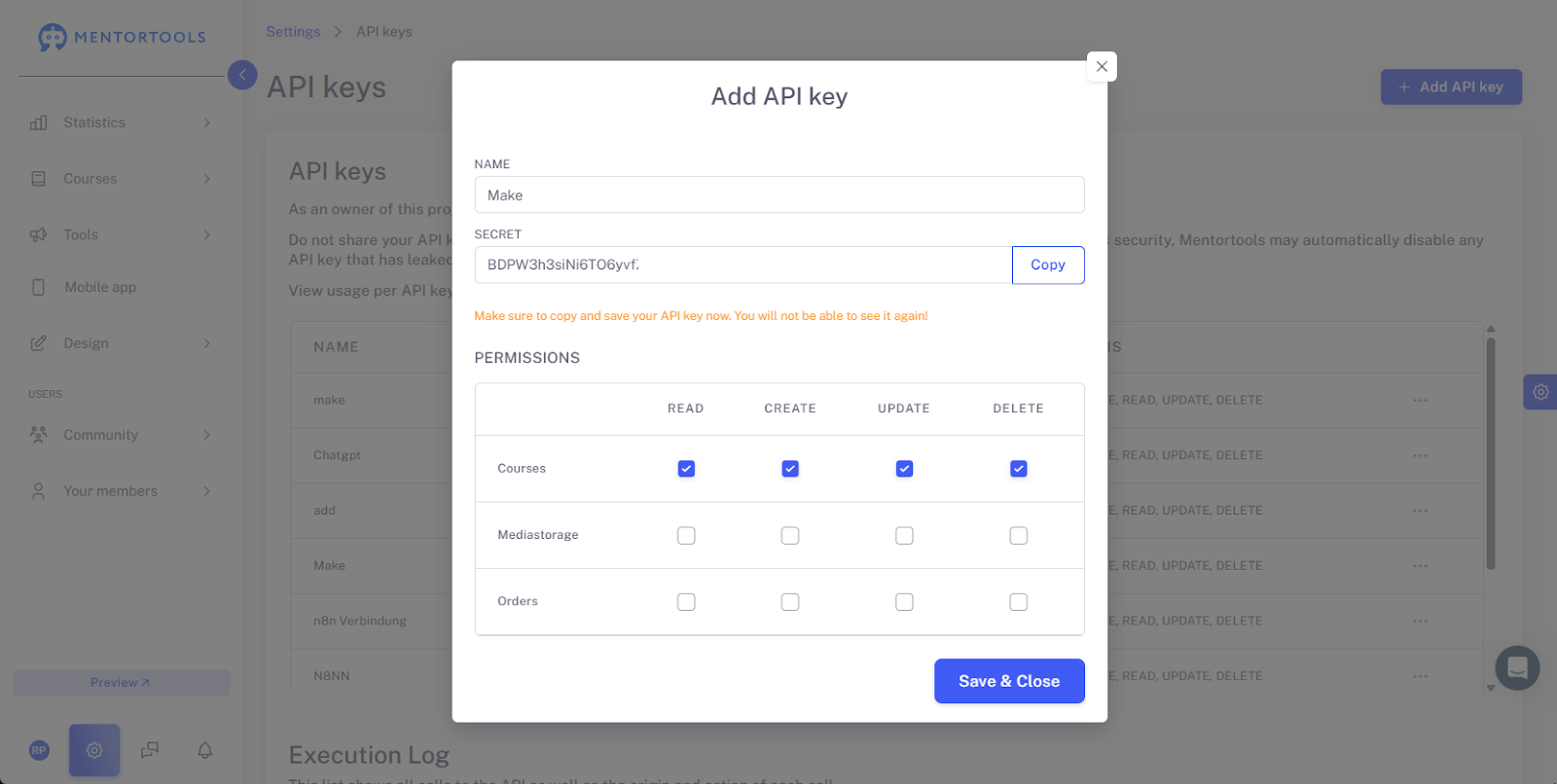
Leave the page with the key open in Mentortools or copy the key into a text document (temporarily). Switch to Make, go to Scenarios, and create a New Scenario:
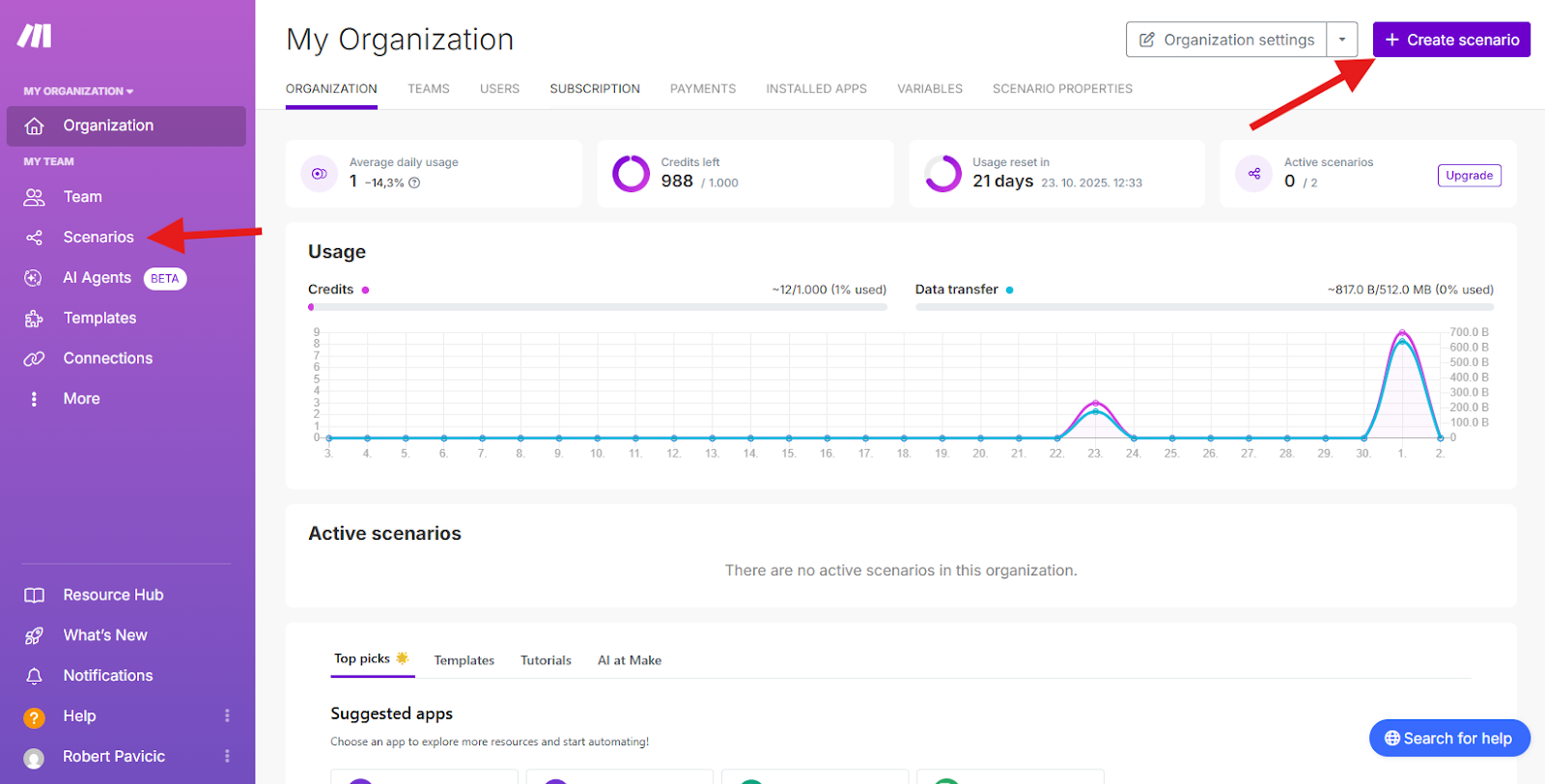
Select the Mentortools integration there:
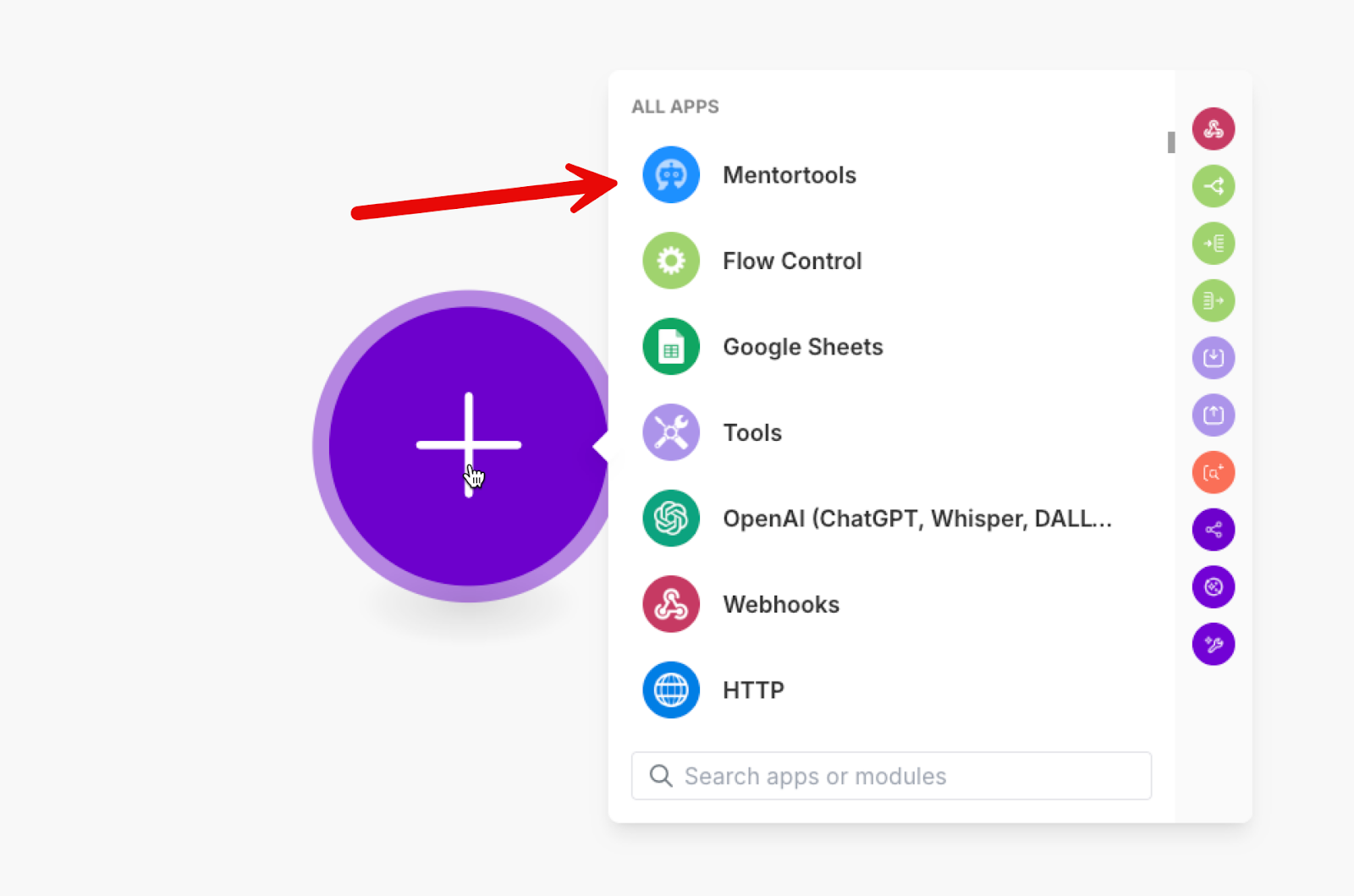
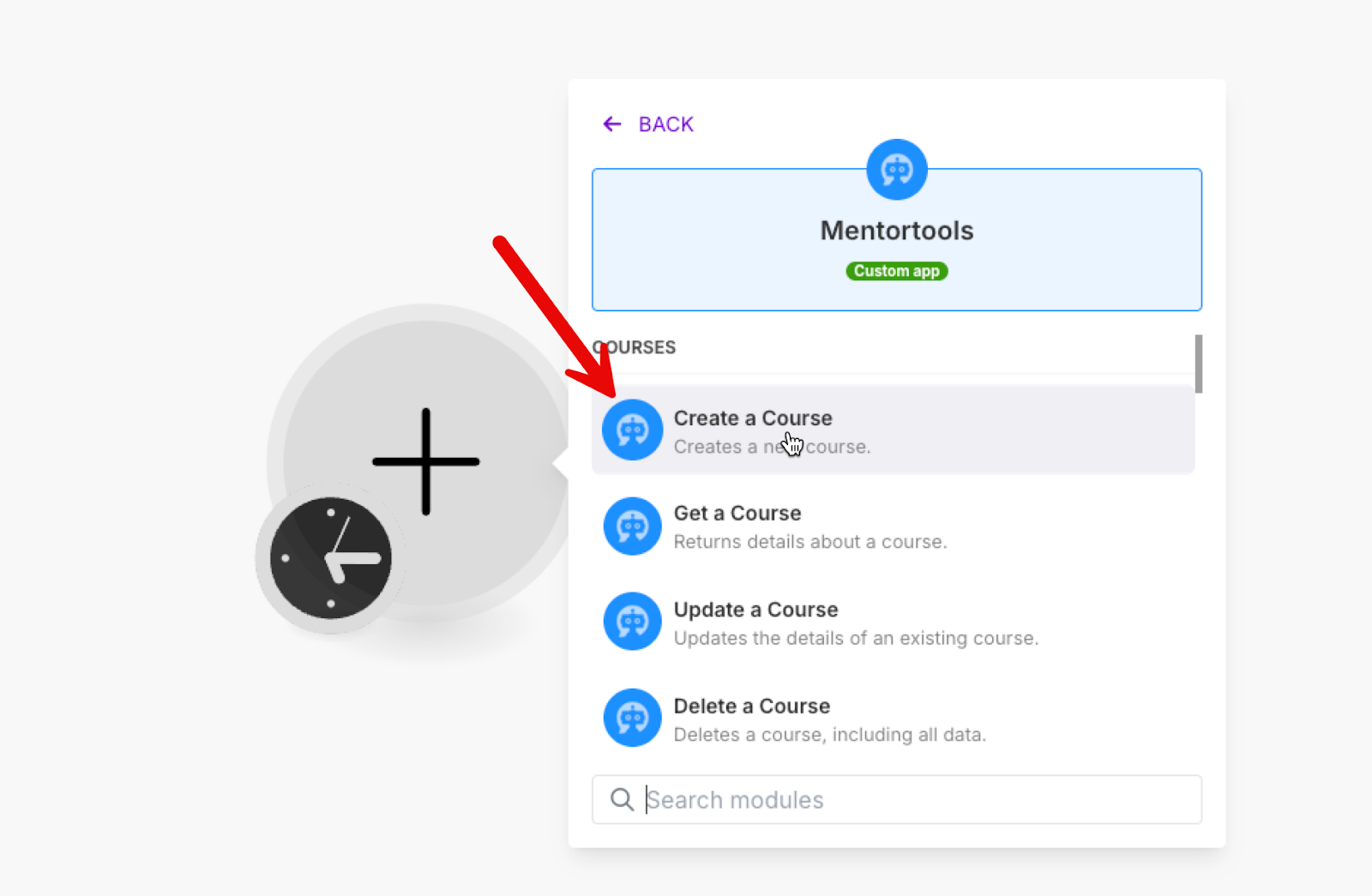
In the next step, you can select which action should be executed in Mentortools, e.g., Create a New Course.
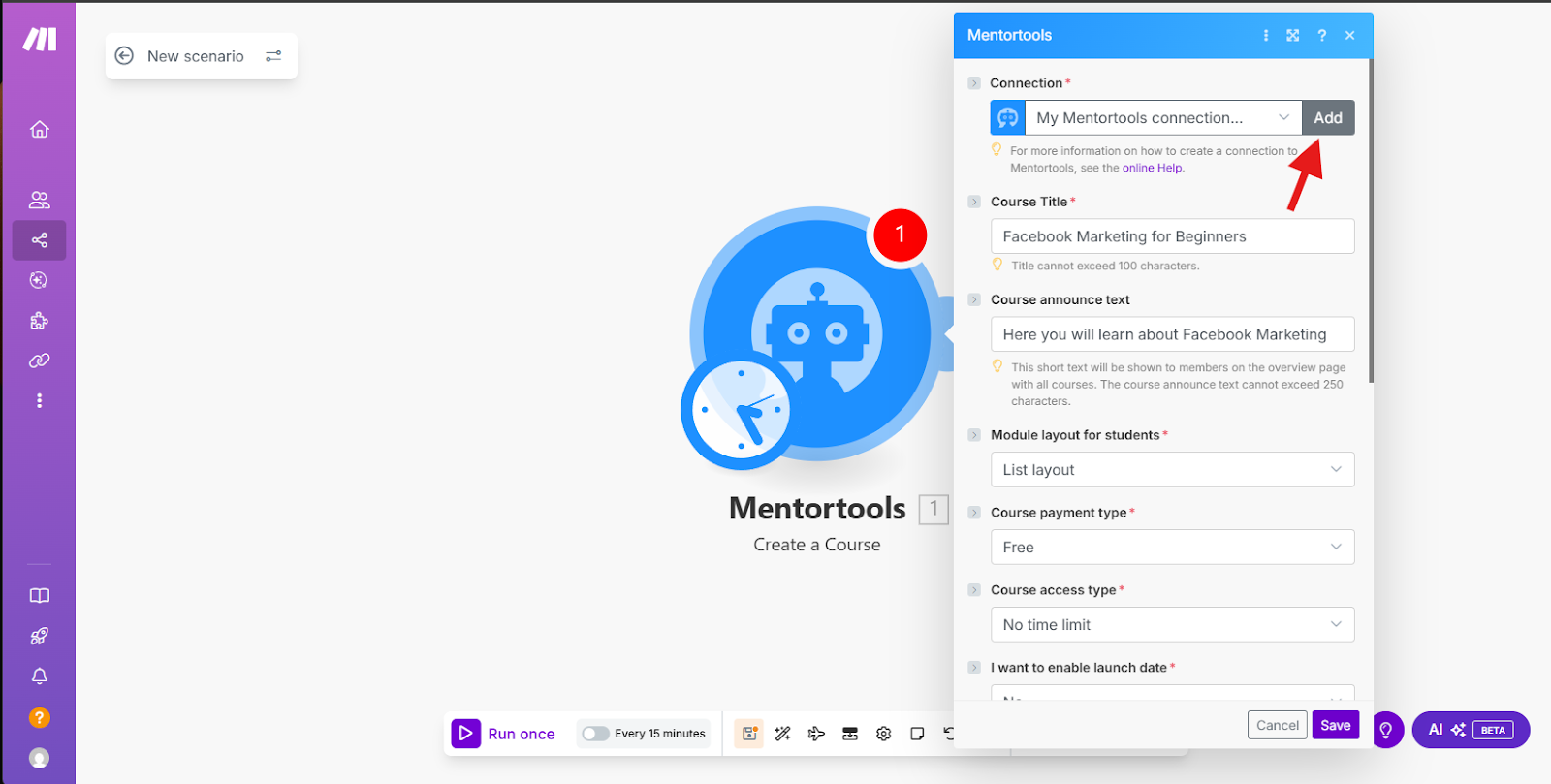
If you do not yet have a connection with Mentortools, create it now as the first step by clicking "Add":
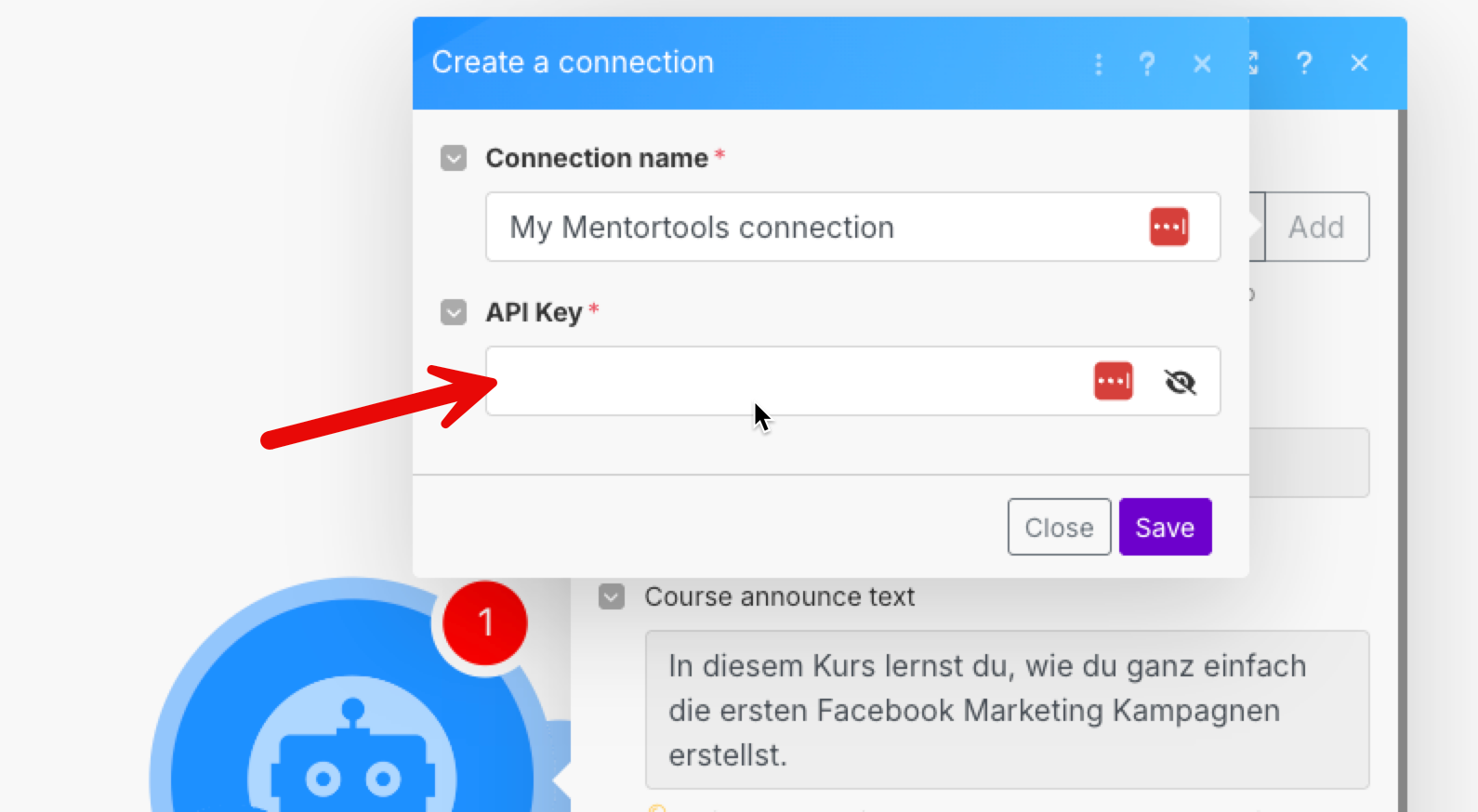
Here you can now paste your API key from Mentortools and Save.
In the next step, you can insert the necessary values into the automation. In our example, we want to Add a New Course. Therefore, we must fill in some data about this new course here.
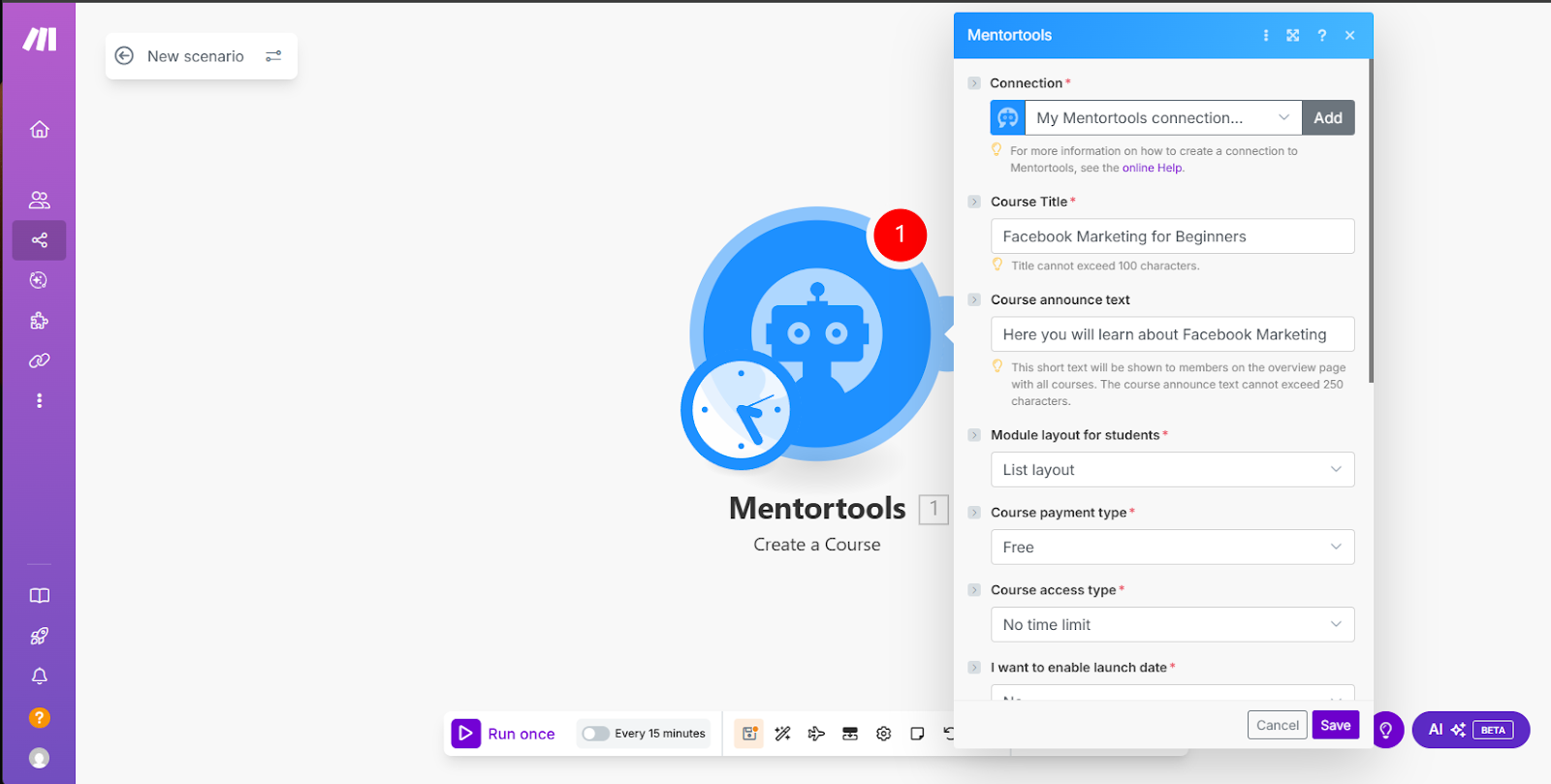
After that, you simply Save, and the connection is complete.
Testing the Connection
You can now simply click "Run once" in Make and let your scenario run through. This executes the action in Mentortools.
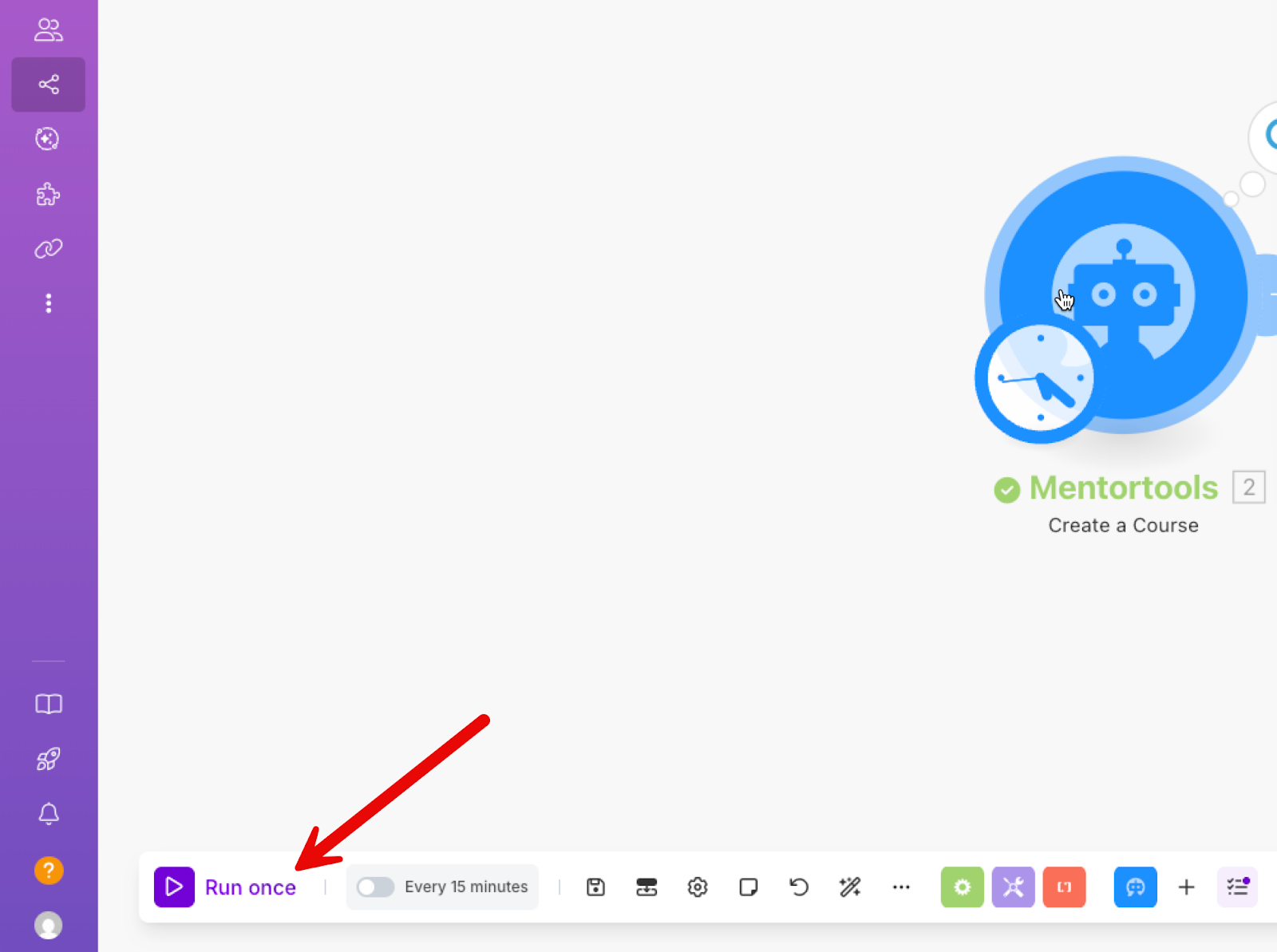
The result shows that the automation worked.
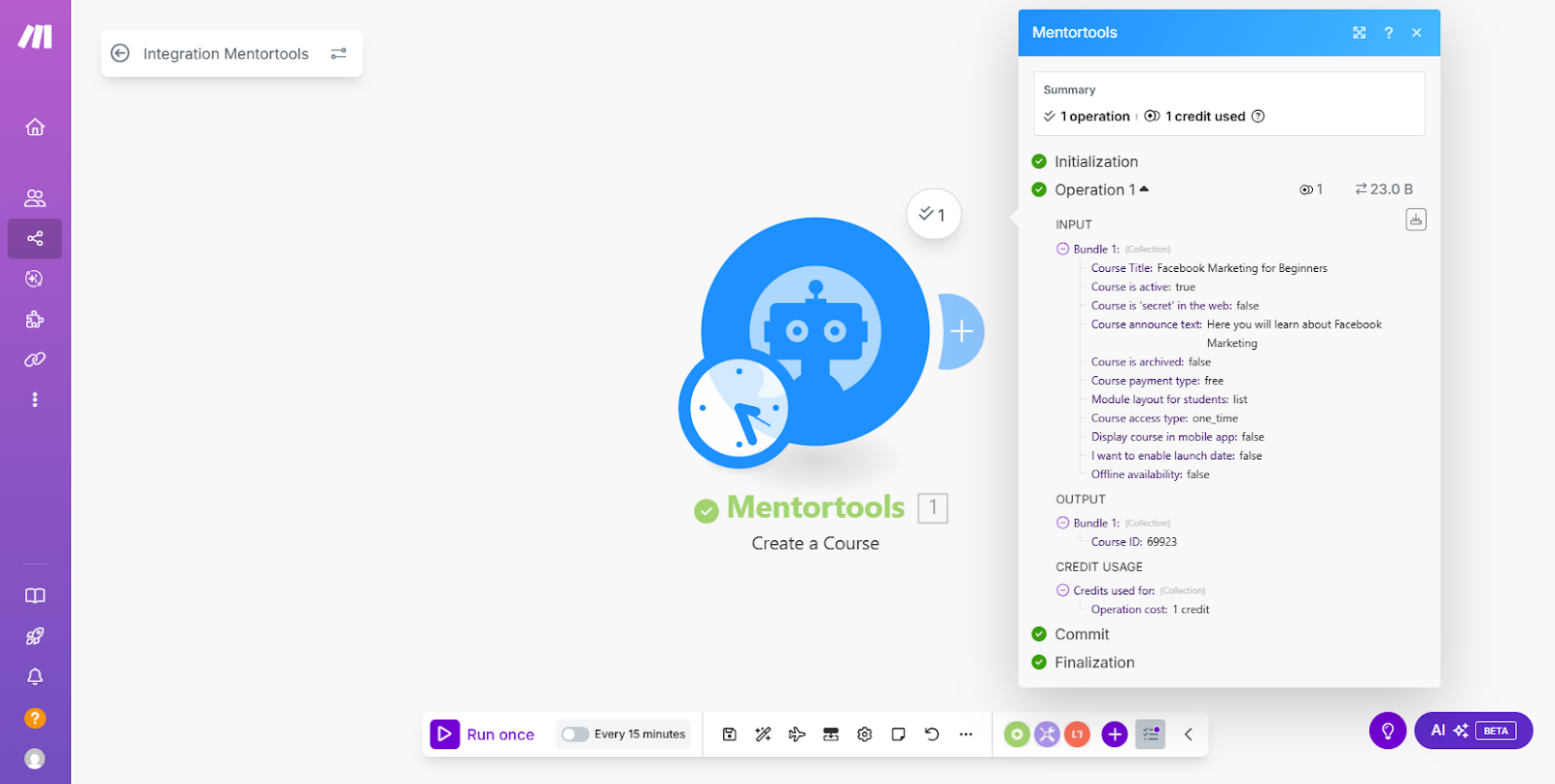
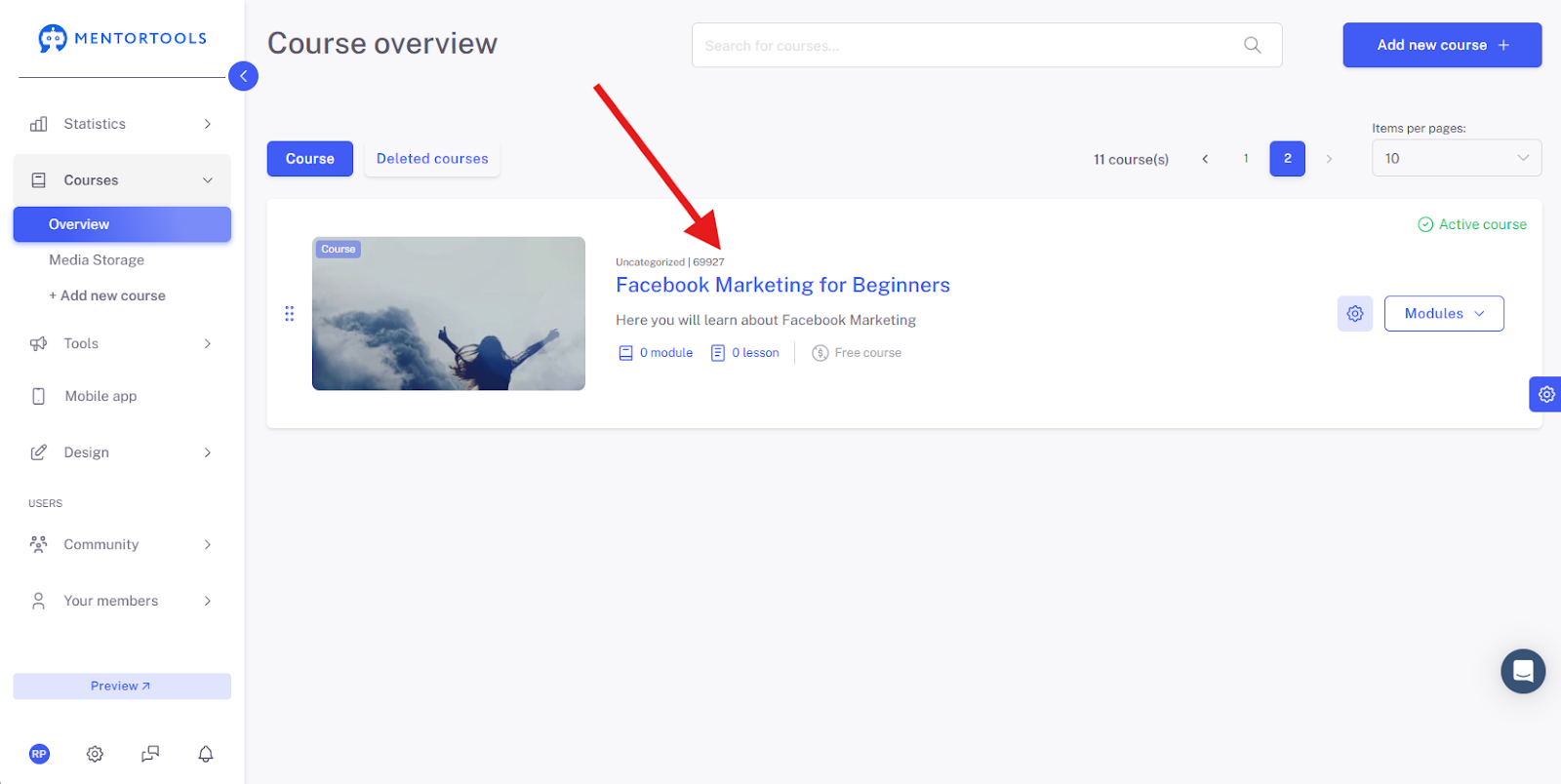
In this example, we have now created a course in our Mentortools account.
Further Steps in Make
Such an automation makes the most sense if you have a few steps preceding it in your Make scenario.
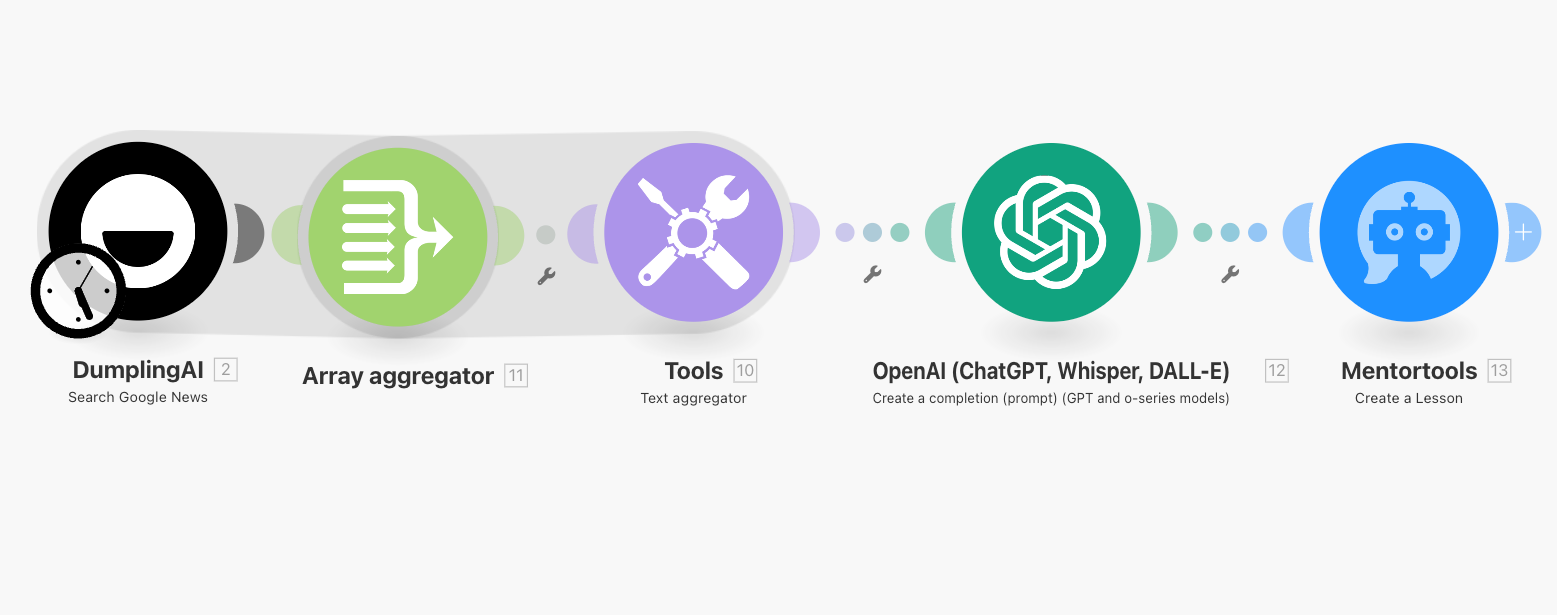
For example, you could create an automation where you automatically have the AI in Make create a summary of current information every day and then create this as a New Lesson in Mentortools via the interface.
You could use this to automatically create a "Tip of the Day" daily, summarize news, or, for example, create lessons that fit a specific day (e.g., Christmas, Easter, etc.).
There are unlimited possibilities here to create business automations in combination with Mentortools and Make. The following automation searches Google News daily, writes a summary, and uses it to create a new lesson in Mentortools.
We wish you much fun and much success!