Create and edit lessons
This guide shows you step-by-step how to create a new lesson or edit existing ones in Mentortools—ideal for employee training, coaching programs, or online courses.
Last updated 11 months ago
1. Access Courses
Log in to your membership area and go to "Courses" in the sidebar.
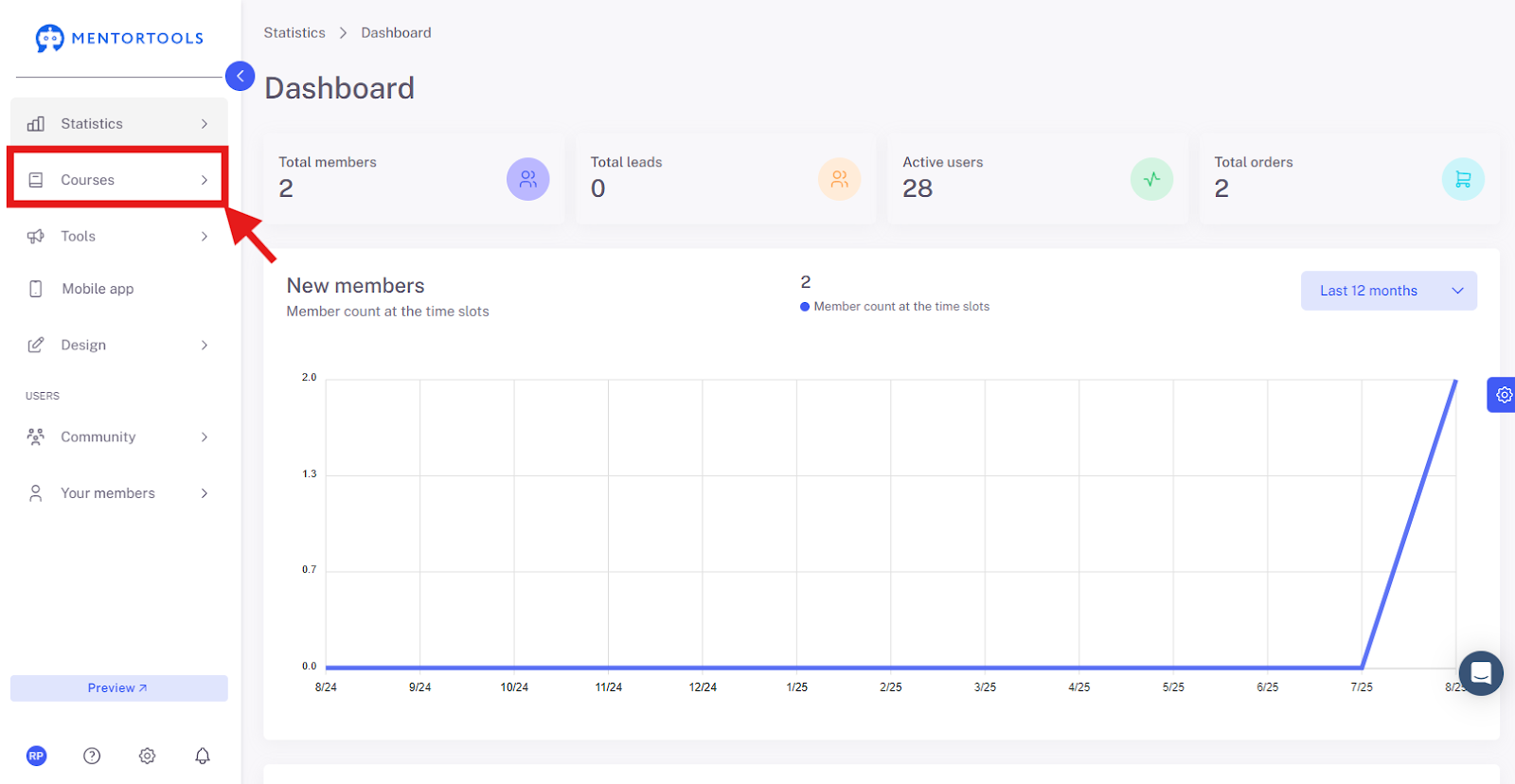
2. Open Course Overview
Then, click on "Overview" so that the list of all your courses is displayed.
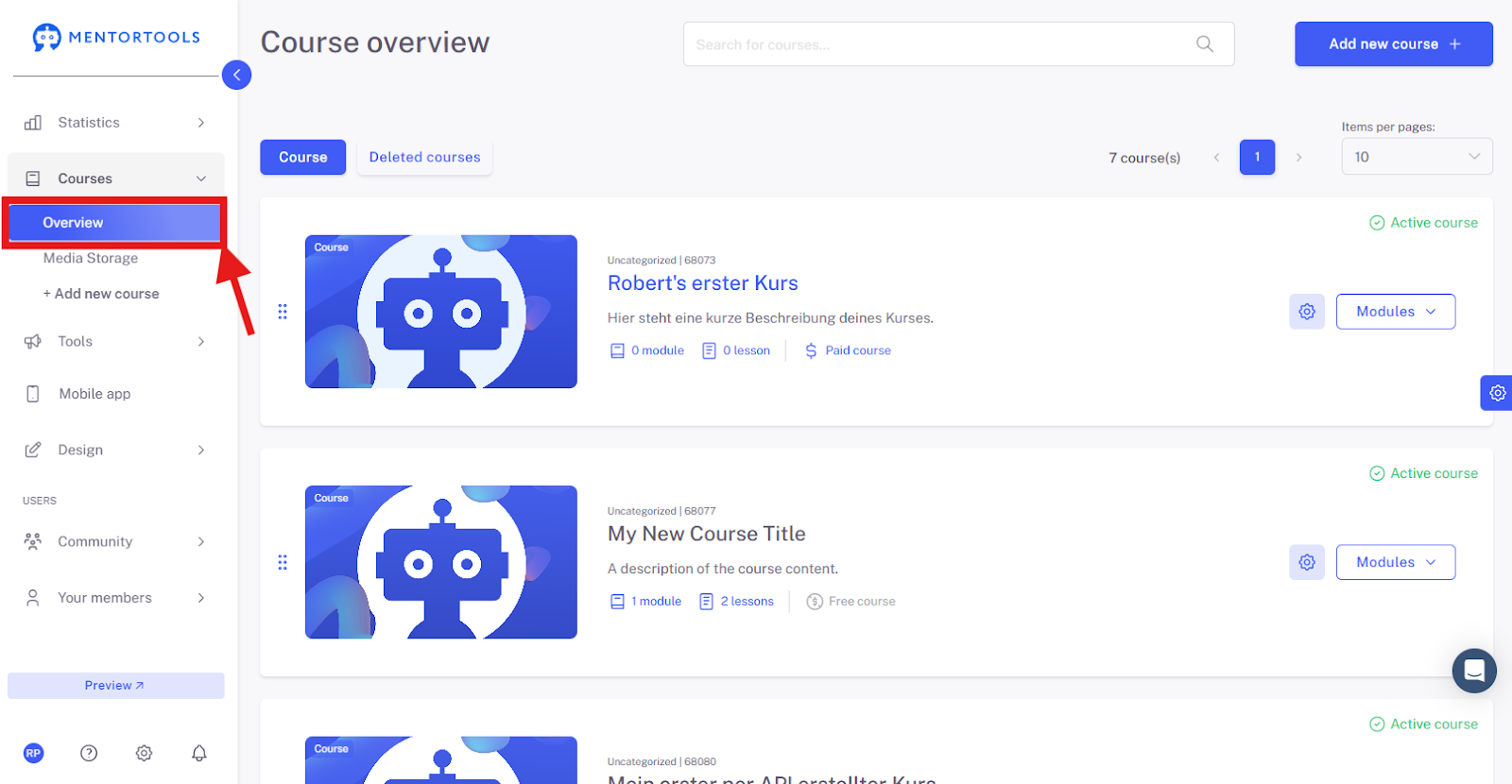
3. Select a Specific Course and Module
Choose a specific course and module where you want to create a new lesson. By clicking on "Modules", all existing modules in that course will be displayed.
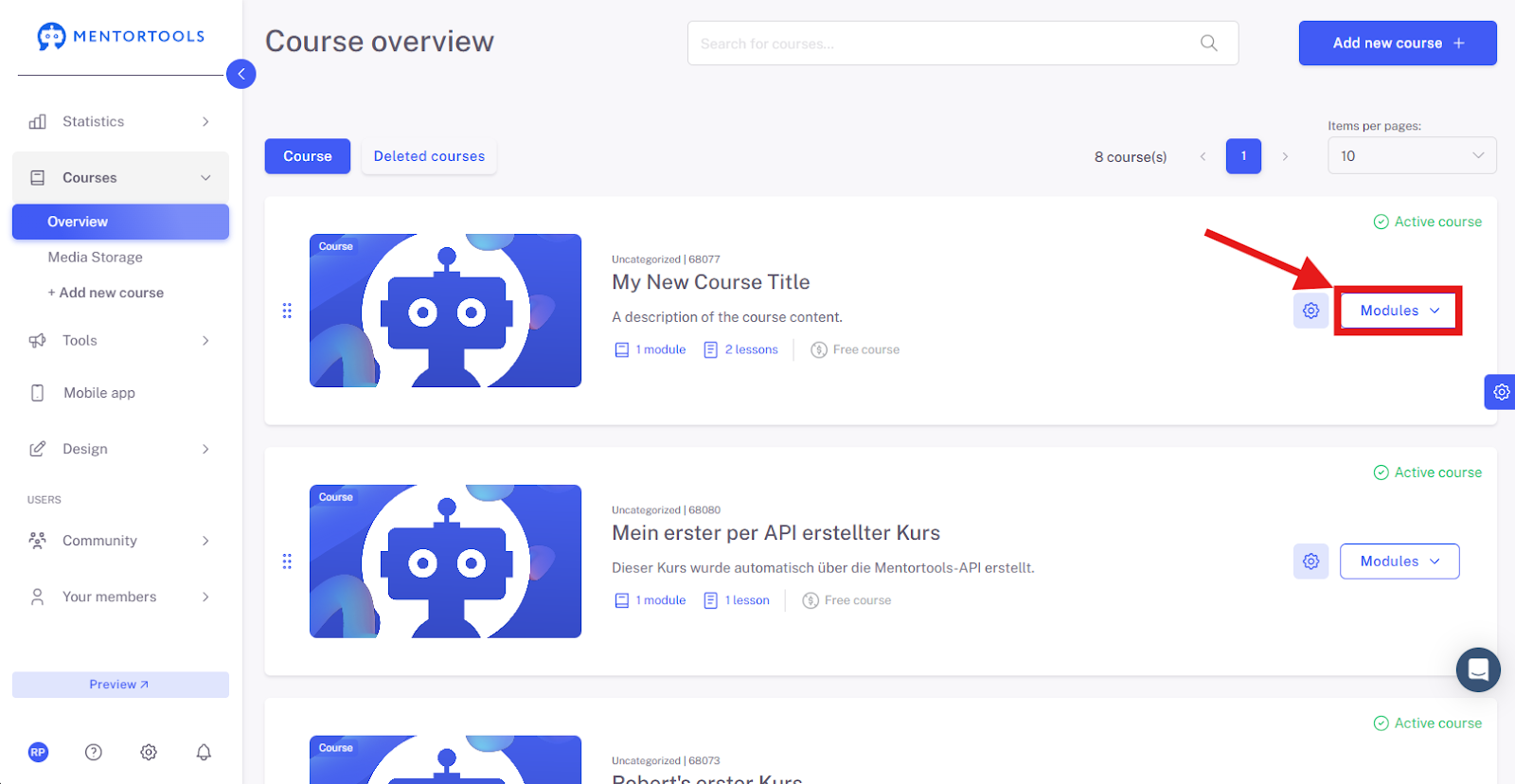
4. Open the Contents of a Module
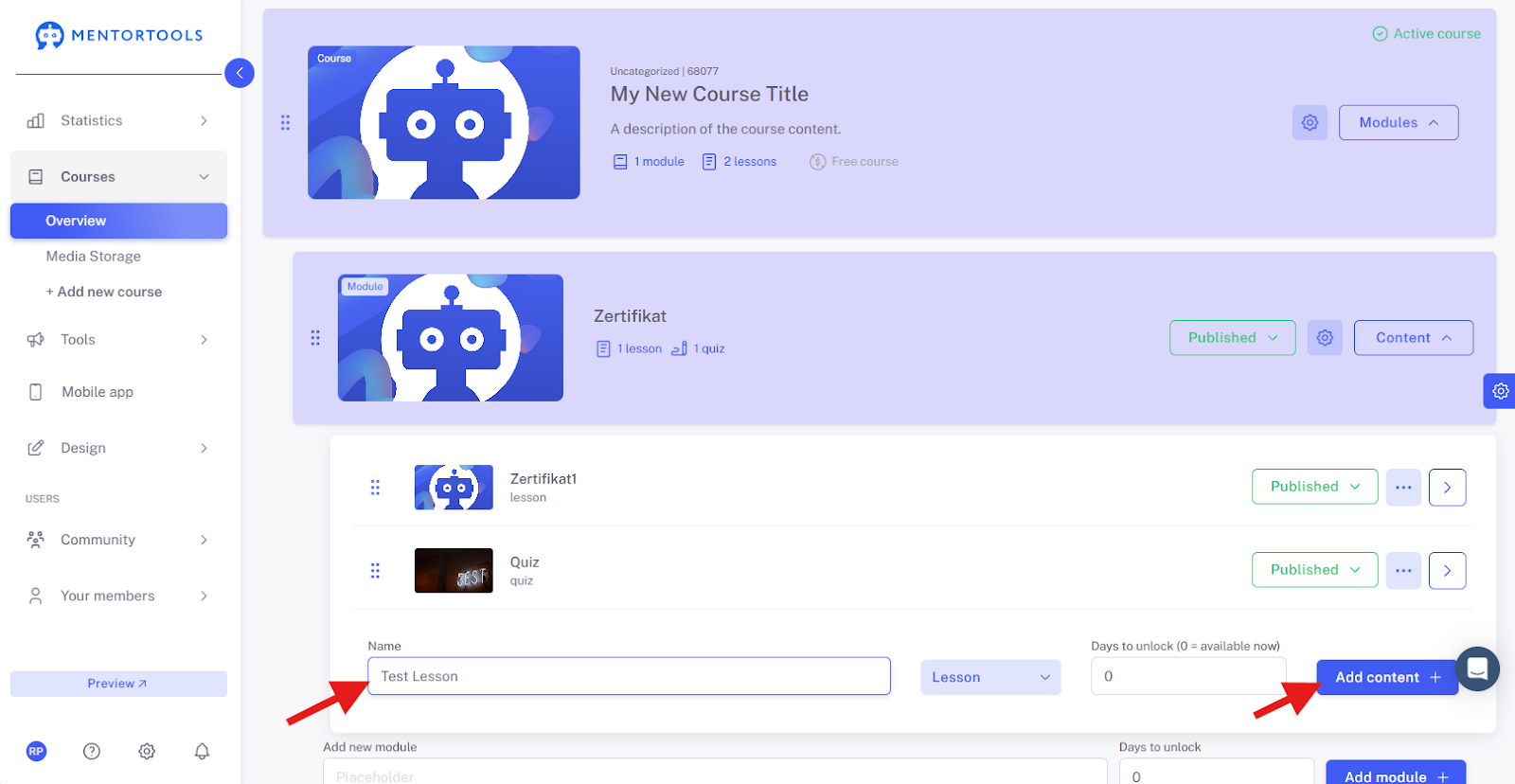
By clicking on "Content", all existing lessons in that module will be displayed.

5. Add a New Lesson
At the end of the lesson list, you'll find the "Add content +" option.

6. Give the Lesson a Title
First, you need to enter the name of your new lesson.
7. Add Lesson
Next to the name, click on the dropdown menu. There you will see the elements you can add to the module: sub-module, quiz, lesson.

To add a lesson, select the "Lesson" option from the dropdown menu.
Then, add the new lesson by clicking the "Add content +" button. The new lesson will be created at the end of the lesson list in that module.

Quick Editing of the Lesson
In the lesson list, find the desired lesson. Click the three-dot icon next to the lesson title. The following options will be displayed:
Copy - If you select this option, you can copy the lesson to another module within the same course or to a completely different course. In this case, a list of all courses and modules will be displayed, from which you can choose which course or module you want to copy the lesson to.
Duplicate - If you select this option, a copy of the lesson is created within the same module.
Delete - To delete the lesson, confirm your selection in the next step. The lesson will then be removed.

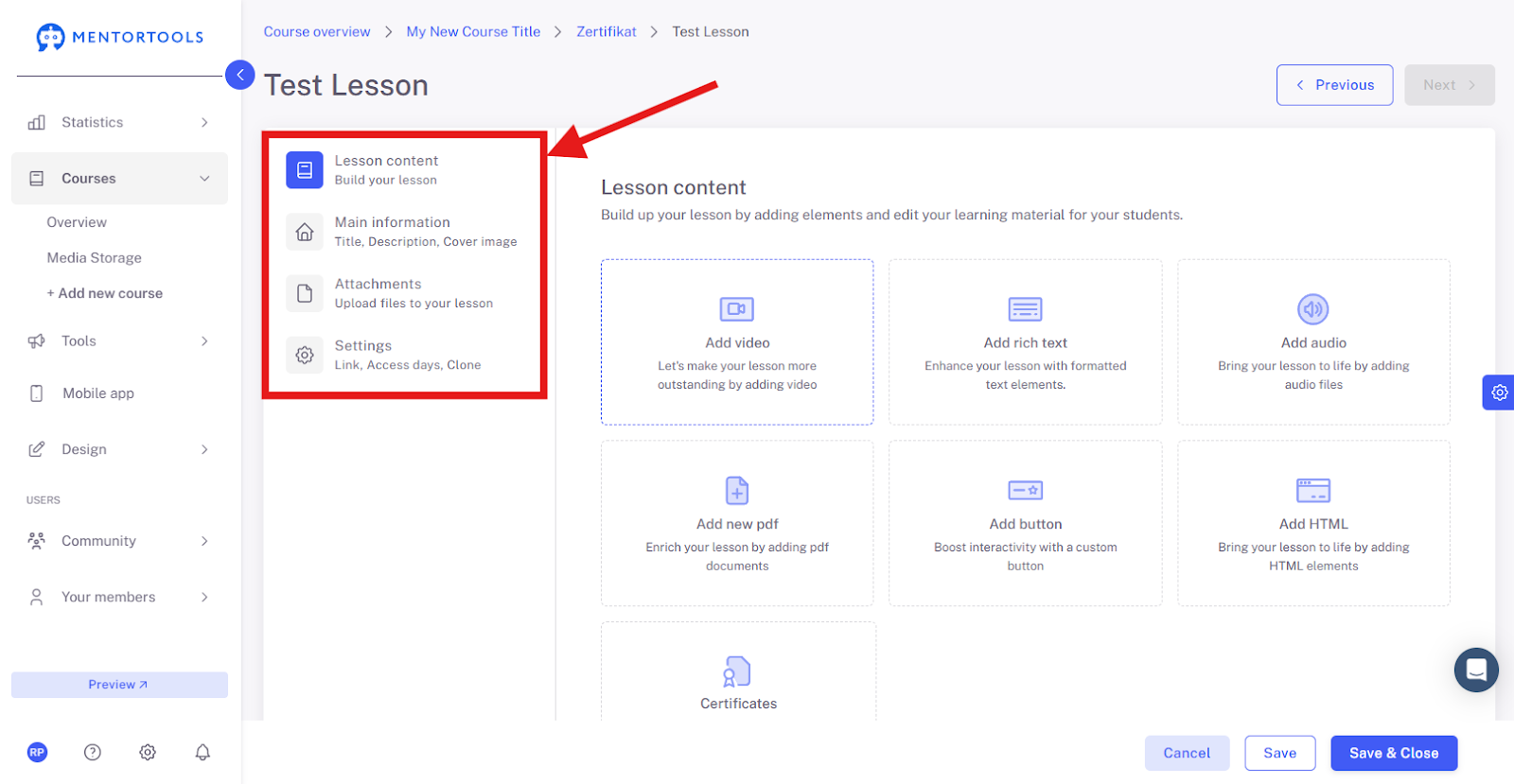
If you want to edit the lesson settings, simply click on the name of the lesson. The individual lesson settings will then be displayed in four categories:
Lesson content
Main Information
Attachments
Settings
You can find detailed information on the individual lesson settings here.
Lesson Visibility Setting
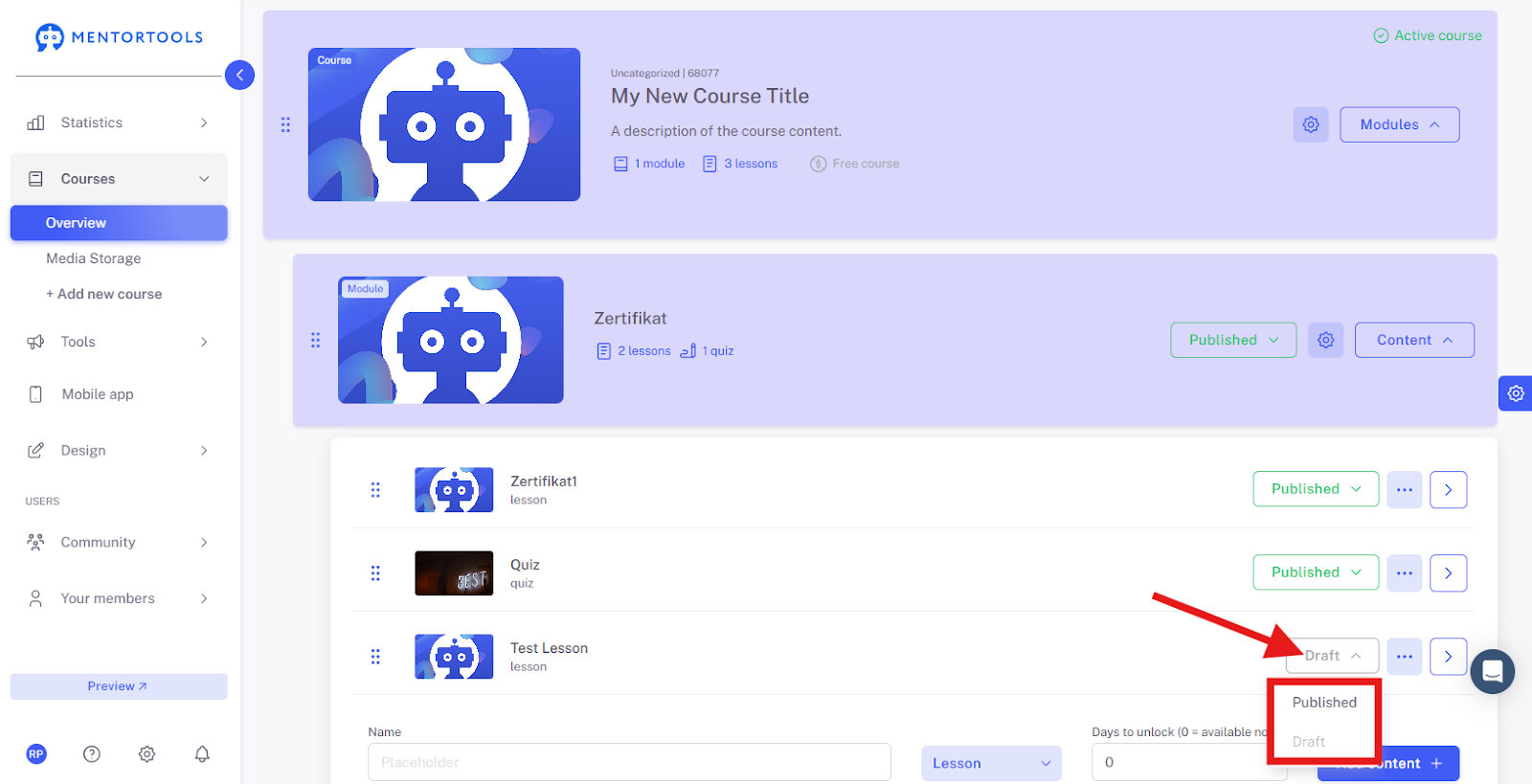
After you have created a new lesson, set its visibility for your customers. If you leave the lesson as "Draft" (the default setting), the lesson will not be displayed in your online course. You can mark a lesson as a draft if, for example, you are still working on it and it should not be visible for now. If you want the lesson to be visible to your customers in the course, set it to "Published." (This setting is located directly next to the name of the lesson in the lesson list.)
Days Until Release
In each lesson, you can set the number of days until it is released to your customers—calculated from the time they gained access to the course. For example, if you set it to be released in 10 days, the lesson will be available to your customer 10 days after the course starts / they purchase the course / register in the membership area. If you enter a zero ("0") here, the lesson is immediately accessible.

Change the Order of Lessons
With the "drag & drop" function, you can change the order of the lessons within a module at any time. If you want to change the order, hold the lesson on the far left by the three dots, drag it to the desired position, and release. This way, you can rearrange the lessons in the module.

Tips for Good Lessons
Short videos (5–15 min) are ideal for high engagement.
Accompanying texts or worksheets deepen understanding.
Quizzes or surveys promote interactivity.
Use drip content to release content gradually.
Example Structure of a Lesson
Done! You have now successfully learned how to create a new lesson in Mentortools and enrich it with content.